When your Wi-Fi performance drops, running a channels scan is the single most effective tool in your arsenal for identifying the cause and fixing it. It’s like getting an x-ray of your wireless environment, showing you exactly how crowded the airwaves are. With that data, you can move your network to a quieter channel for a faster, more stable connection.
It's remarkable how often this simple step resolves unexplained slowdowns and connection drops.
Why a Wi-Fi Channels Scan Is Your Best Defence Against Poor Wi-Fi

Ever paid a premium for super-fast internet, only to get stuck with painfully slow Wi-Fi? More often than not, the bottleneck isn't your provider—it's the chaos in your local wireless environment. Your network is in a constant battle for airtime with dozens of other devices, creating a digital traffic jam that can bring your connection to a halt.
Think of Wi-Fi channels as lanes on a highway. When too many networks try to cram into the same lane, everything slows down. This is the daily reality in most modern venues, from hotels and shops to busy office buildings. A Wi-Fi channels scan is your personal traffic report, giving you a clear view of which lanes are congested and which are wide open.
Understanding Wireless Congestion
The two main culprits behind poor performance are co-channel interference and adjacent-channel interference. Co-channel interference is what happens when multiple access points (APs) are all transmitting on the same channel, forcing them to take turns sending data.
Adjacent-channel interference is arguably worse. This occurs when signals from nearby, overlapping channels bleed into each other, creating a wall of noise that corrupts data packets and forces re-transmissions.
This gets especially messy in the 2.4 GHz band. With only three channels (1, 6, and 11) that don't actually overlap, your scan will likely reveal a cluster of neighbouring networks all fighting over the same fraction of the spectrum.
A proper Wi-Fi scan shifts your entire strategy from reactive troubleshooting to proactive network management. Instead of just guessing why performance is poor, you get hard data to make smart decisions that directly improve connectivity.
The Business Impact of a Clean RF Environment
For any business today, reliable wireless connectivity is non-negotiable. Slow Wi-Fi creates a ripple effect of problems that impact customer satisfaction and operational efficiency.
When guests in a hotel or café struggle with constant disconnections, you can be sure it'll reflect in their reviews. If your staff can't reliably use their point-of-sale systems or internal apps, productivity plummets. We dig deeper into these issues in our guide on why your Wi-Fi keeps disconnecting .
By regularly running a channels scan, you gather the intelligence needed to properly optimise your network. This data-driven approach means you can:
- Boost Guest Satisfaction: Deliver a seamless and fast connection that genuinely improves the visitor experience.
- Improve Staff Productivity: Ensure the critical business applications your team relies on run smoothly, without frustrating interruptions.
- Increase Network Reliability: Minimise downtime and dramatically reduce the number of support tickets related to poor Wi-Fi.
Choosing the Right Tools for Your WiFi Scan
Once you understand why a WiFi channel scan is so vital, the next step is choosing the right tool. The market is packed with options, from free, built-in utilities to powerful, professional-grade analysers. Your final choice will likely depend on your operating system, how technical you want to get, and just how deep you need to dive into the data.
Generally, these tools fall into two categories: basic scanners and advanced analysers. Think of basic scanners as a quick look to see nearby networks. Advanced tools, on the other hand, give you the full architectural blueprint, showing you everything from signal strength and noise levels to historical performance data.
Built-in Utilities vs Dedicated Analysers
Most operating systems come with some kind of native wireless scanning feature. macOS, for example, has a surprisingly good tool called Wireless Diagnostics, although it's slightly hidden away. While these built-in options are handy for a quick spot-check, they usually lack the detailed graphs or in-depth metrics you need for serious troubleshooting.
That’s where dedicated third-party apps prove their worth. Tools like NetSpot , inSSIDer , or WiFi Analyzer Pro are built from the ground up for network analysis. They turn complex data into easy-to-read graphs, making it much simpler to spot channel overlap and pinpoint the strongest, quietest channels available. For anything beyond a quick check on your home network, a dedicated tool is nearly always the best choice.
The right tool doesn't just show you data; it tells you a story about your wireless environment. A good analyser turns abstract numbers into a clear visual map, instantly revealing interference problems that would otherwise remain invisible.
Take a look at the screenshot from NetSpot below. A dedicated tool can visualise the signal strength of all surrounding networks on a single graph, instantly showing you which channels are congested.
This kind of visual makes it immediately obvious that the channels in the lower 2.4 GHz range are completely saturated, giving a network administrator a clear indication to explore less crowded options.
Top Tool Recommendations by Platform
Selecting the best software often comes down to the device you are using. The features and even the permissions granted to these apps can vary significantly between Windows, macOS, and mobile operating systems.
Here’s a quick overview of the preferred tools for the most common platforms:
- For Windows: You can extract some basic information from the command line, but it’s not practical for real analysis. NetSpot and inSSIDer are two of the best graphical tools available, providing crystal-clear visuals of channel usage and signal strength.
- For macOS: The built-in Wireless Diagnostics utility is an excellent starting point. To find it, simply hold the
Optionkey and click the Wi-Fi icon in your menu bar. If you need advanced features, NetSpot also offers a great macOS version. - For Android: The open-source nature of Android allows for some truly excellent Wi-Fi scanning apps. WiFi Analyzer has been a favourite for years, offering real-time graphs of channel congestion that are incredibly useful on the go.
- For iOS: Apple's security restrictions mean that iPhone and iPad apps have very limited access to Wi-Fi data. You can enable Apple's own AirPort Utility app to perform a basic scan, but it’s a far cry from the detail you can get on Android.
When making your choice, consider your objectives. Are you simply trying to find a better channel for your home router, or are you mapping out a complex deployment of the best wireless access points for a large venue? Your goal dictates the level of detail required.
To simplify things, I’ve put together a quick comparison of some of the most popular options.
Comparison of Top WiFi Scanning Tools by Platform
Select the best WiFi scanning tool for your needs based on operating system, technical requirements, and key features.
Ultimately, the best tool is the one that provides actionable information. For most business and enterprise scenarios, investing in a paid or freemium tool like NetSpot is worthwhile. The depth it provides is necessary to make genuinely informed decisions and properly optimise a wireless network.
How to Perform a Wi-Fi Channels Scan on Any Device
Let's dive in. With the right knowledge and a couple of reliable tools, running a Wi-Fi channel scan is quite straightforward. The exact steps vary slightly depending on the device you're using, so we'll walk through the most common platforms without getting caught up in rigid, numbered steps.
Before you begin, the primary decision is simply determining which tool is right for your operating system and what you need to achieve.
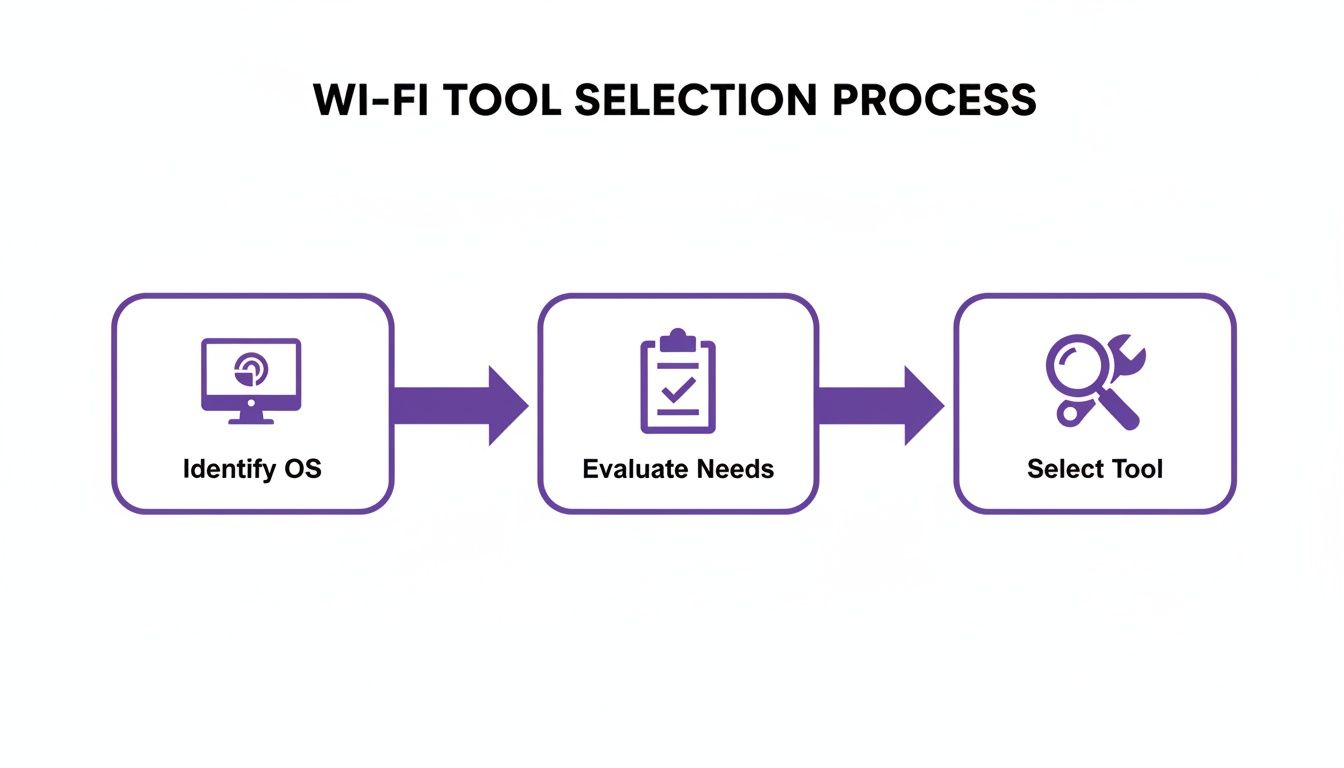
As you can see, it all starts with your platform. That single choice dictates the tools at your disposal before you can even consider what you want to analyse.
Scanning on macOS with Wireless Diagnostics
Apple's macOS features an excellent, albeit slightly hidden, utility that’s perfect for a detailed channel scan. It's called Wireless Diagnostics, and it provides an under-the-hood look that the standard Wi-Fi menu simply cannot match.
Accessing it is easy. Just hold down the Option key and click the Wi-Fi symbol in your top menu bar. You'll immediately notice a much more detailed dropdown. From there, select "Open Wireless Diagnostics". A new window will appear asking to run diagnostics, but you can ignore that for now. Instead, navigate to the "Window" menu at the very top of your screen and choose "Scan".
This opens the Scan window, where the real analysis happens. You'll see a live list of every Wi-Fi network your Mac can detect, packed with crucial information like their RSSI (signal strength), noise level, BSSID (the access point's unique MAC address), and—most importantly—the channel it's broadcasting on.
This is where you start looking for patterns. Notice a dozen networks all crowded onto channel 6 in the 2.4 GHz band? That's a classic sign of co-channel interference. Try sorting the list by channel to quickly identify which frequencies are the least congested.
Using Third-Party Tools on Windows
Unlike macOS, Windows doesn't feature a built-in graphical tool for this level of in-depth scanning. While you can extract some basic information from the command line, it's not a practical way to visualise the RF environment. For any serious troubleshooting on a Windows machine, you’ll need to download a third-party app.
I typically recommend tools like NetSpot or inSSIDer . Once installed, these programmes display the wireless landscape in a highly intuitive, graphical format. You'll generally get two main views: a network list, similar to the macOS tool, and a real-time graph plotting channel usage.
That channel graph is incredibly useful. It visually maps every nearby network, displaying its signal strength and channel width. It makes spotting congestion extremely simple. For instance, you might see several strong networks overlapping on channels 3, 4, and 5, creating a significant amount of adjacent-channel interference. Your task is to find a channel with minimal overlap from other strong signals.
Mobile Scanning with Android Apps
Android's more open ecosystem makes it a fantastic platform for conducting this kind of analysis on the move. An app like WiFi Analyzer puts a powerful scanner right in your pocket. Once installed from the Play Store and granted the necessary location permissions, you'll gain instant access to some highly useful visualisations.
The Channel Graph is typically the most valuable view. It displays all local networks as coloured arcs, with the height of the arc representing signal strength. If you observe multiple high peaks clustered on the same channel number, you've identified a major point of congestion.
This is particularly effective for conducting a proper physical site survey. You can walk around a building with your phone and observe exactly how the wireless environment changes from one room to the next. That mobility is a significant advantage for detecting localised interference that a laptop stationed at a desk might completely miss.
Remember, the primary purpose of a mobile scan is to view the RF environment from a user's perspective. What you detect in the reception area might differ entirely from the experience in a back office or a meeting room.
Conversely, Apple's strict security policies on iOS prevent apps from accessing the low-level Wi-Fi data required for a comprehensive scan. While the AirPort Utility app offers a very basic scan, it lacks the detail necessary for serious analysis. For genuine network troubleshooting, you'll need an Android device, a Mac, or a Windows laptop.
Scanning in Enterprise Environments
For larger organisations, walking around with a laptop or phone is simply not an efficient way to manage a network. Enterprise-grade equipment from vendors like Meraki , Aruba , and Ruckus includes sophisticated built-in RF scanning capabilities, providing a centralised, bird's-eye view of your entire wireless infrastructure.
These systems utilise features often referred to as Radio Resource Management (RRM) or Adaptive Radio Management (ARM). Your access points can either dedicate one of their radios to continuously scan the airwaves or perform quick, periodic off-channel scans without disrupting connected clients.
All that data is fed back into a central dashboard. As a network administrator, you can view heatmaps displaying channel usage across your entire floor plan, receive automatic alerts for high-interference areas, and delve into historical RF performance data.
This approach offers two major advantages:
- Automation: The system can intelligently and automatically adjust channel plans and power levels based on real-time scan data. This optimises performance dynamically without requiring manual intervention.
- Scale: It provides a holistic view of the RF environment across hundreds or even thousands of access points—something that would be impossible to replicate with individual device scans.
By leveraging these built-in tools, you can transition from reactive troubleshooting to a proactive, data-driven strategy for maintaining a healthy and high-performing wireless network.
Decoding Your Scan Results to Defeat Interference
Running a Wi-Fi channel scan is the easy part. The real skill lies in translating that raw data—all those numbers and graphs—into practical changes that genuinely improve your network's performance. Once you have the results on your screen, you can finally begin resolving your Wi-Fi issues.
Your scan results will present a few key metrics, but the two you absolutely must understand are RSSI (Received Signal Strength Indication) and SNR (Signal-to-Noise Ratio). Mastering these is fundamental to making sense of the data.
Interpreting Signal Strength and Noise
RSSI is simply a measure of how well your device can receive a signal from a specific access point. It's measured in negative decibels relative to a milliwatt (dBm), which can be slightly counterintuitive—numbers closer to zero indicate a stronger signal. Think of it this way: -45 dBm is an excellent signal, but once it drops to -85 dBm, the connection becomes practically unusable.
However, a strong signal isn't the entire picture. You must also account for the background interference from other devices. That's where SNR comes into play. It measures your Wi-Fi signal's strength relative to all that ambient noise. The higher the SNR, the cleaner and more reliable your connection will be.
Key Takeaway: For a stable and fast Wi-Fi experience, you should aim for an RSSI of -67 dBm or better and an SNR of 25 dB or higher. Anything below these thresholds is a recipe for slow speeds, dropouts, and frustrated users.
Spotting Wi-Fi Interference Visually
Most of the time, the issues identified in a channel scan are co-channel and adjacent-channel interference. Fortunately, a reliable scanning tool will generate a graph that makes spotting these problems extremely simple.
- Co-channel interference occurs when too many networks attempt to use the exact same channel. On your graph, this appears as several overlapping peaks clustered on a single channel number (e.g., three strong networks all competing for channel 6).
- Adjacent-channel interference happens when networks on nearby, overlapping channels bleed into one another. This is a common issue on the 2.4 GHz band and often manifests as a broad, messy cluster of signals crowding channels 2, 3, and 4, for instance.
When you observe this level of congestion, the solution is to find a quieter channel. Your scan will highlight the gaps—the channels with the fewest competing networks or only very weak, distant signals. For more specific guidance, refer to our detailed article on choosing the best Wi-Fi channels on 5 GHz .
Distinguishing Non-Wi-Fi Interference
Sometimes, the root cause isn't another Wi-Fi network at all. Numerous common devices emit radio frequency (RF) noise that can cause disruptions, particularly on the crowded 2.4 GHz band. This is referred to as non-Wi-Fi interference.
Common sources of this interference include:
- Microwave ovens (a notorious offender)
- Cordless phones
- Bluetooth devices
- Wireless security cameras
- Poorly shielded cables
A standard Wi-Fi scanner won't always detect this type of interference directly, but you can certainly infer its presence. If your scan indicates a clear channel yet users still report poor performance and the SNR is low, non-Wi-Fi interference is a highly likely culprit. While advanced tools known as spectrum analysers can visually map this noise, for most administrators, it involves a process of elimination.
For instance, if a café's Wi-Fi drops out for 90 seconds every time someone in the kitchen microwaves their lunch, you've likely identified the source. As you analyse scan results, it is helpful to understand how different technologies are designed for optimised coverage and reduced interference , as this provides insight into broader RF management strategies.
By learning to interpret the data from your Wi-Fi scan, you can eliminate guesswork, accurately diagnose issues, make informed channel adjustments, and build a significantly more resilient and high-performing wireless network for all users.
Strategic Channel Planning for Optimal Performance

Now that you have completed the groundwork and gathered the raw data from your Wi-Fi channel scan, it is time to translate that information into a smart, robust channel plan that avoids interference and delivers a highly reliable connection for your users.
The key here is understanding the unique characteristics of each Wi-Fi band—the congested 2.4 GHz, the spacious 5 GHz, and the brand-new 6 GHz superhighway. An effective channel plan isn't about finding one perfect channel; it's about directing the right traffic to the appropriate lane based on your specific environment.
Navigating the Crowded 2.4 GHz Band
The 2.4 GHz band is the original workhorse of Wi-Fi, but it is undoubtedly showing its age. This band is heavily congested, and not just with neighbouring Wi-Fi networks. It is a chaotic mix of signals from Bluetooth headsets, cordless phones, and even office microwaves. Your scan results will almost certainly reflect a significant cluster of overlapping signals.
Due to the way its channels are structured, only three of them do not overlap: 1, 6, and 11.
Pro Tip: In any professional network, you should only ever use channels 1, 6, and 11. Using any channels in between, such as 3 or 8, guarantees that you will cause and receive adjacent-channel interference, which degrades performance for everyone nearby.
Your scan data will indicate which of these three channels has the least competition in a given area. For a building with multiple access points, you will need to create a staggered plan, ensuring that adjacent APs are assigned different channels in a repeating pattern (e.g., 1, 6, 11, 1, 6, 11...).
Leveraging the Wider 5 GHz Band
This is where performance significantly improves. The 5 GHz band is a major upgrade, offering considerably more channels and much wider lanes for data transmission. The best part? All standard 5 GHz channels are non-overlapping, providing far more flexibility to navigate around interference. This is where the majority of your high-performance devices should be connected.
Your channel scan will help you identify the quietest frequencies here as well. A crucial strategic decision in the 5 GHz band involves the use of Dynamic Frequency Selection (DFS) channels. These are segments of the spectrum typically reserved for radar systems (such as weather and military radar), but Wi-Fi can utilise them opportunistically provided no radar is detected.
- The advantage of DFS: Utilising these channels can unlock a substantial amount of clean, unoccupied spectrum. This is a major advantage in dense environments like conference centres or stadiums.
- The disadvantage of DFS: If an AP detects a radar signal, it is legally required to immediately vacate the channel. This can result in a brief, but noticeable, service interruption for any connected clients.
For most venues, the benefit of avoiding the congestion on standard channels makes enabling DFS a highly strategic move.
Embracing the 6 GHz Superhighway
The latest addition to the spectrum, the 6 GHz band (the foundation of Wi-Fi 6E and Wi-Fi 7), is a true game-changer. Consider it a brand-new, multi-lane expressway built alongside the congested regular roads of 2.4 and 5 GHz. It provides a massive expanse of pristine spectrum, completely free from decades of legacy interference.
In India, the intense pressure on the older bands has made 6 GHz the critical frontier for future-proofing networks. In fact, a staggering 65% of industry experts now view 6 GHz availability as 'important' or 'critical' to their business operations, largely due to the exponential growth of connected devices. This additional capacity is vital because it supports massive 320 MHz wide channels—ideal for the high-throughput, low-latency applications required by modern enterprises. You can explore the full market analysis to understand its implications for future connectivity.
Because it is so new, your Wi-Fi scan will likely display the 6 GHz band as a clear, unoccupied space. This makes channel planning incredibly straightforward: simply select a wide channel and allow your high-performance devices to operate at maximum efficiency.
Here is a practical workflow for developing your channel plan:
- Prioritise 6 GHz: Direct all compatible, high-performance devices to the 6 GHz band to provide them with the premium experience they were designed for.
- Optimise 5 GHz: Utilise your scan data to assign APs to the quietest non-DFS and DFS channels. This will serve as the primary workhorse for the majority of your network traffic.
- Use 2.4 GHz Sparingly: Restrict this band to legacy clients or simple, low-bandwidth IoT devices. And remember: strictly adhere to channels 1, 6, and 11.
Adopting this tiered approach ensures you are leveraging the strengths of each band, resulting in a network that is not only fast but also resilient and future-ready.
Putting Scan Data to Work in Your Daily Operations
A Wi-Fi channel scan is not merely an emergency tool for when issues arise. It should be viewed less as a quick fix and more as a fundamental component of your network's routine maintenance. Integrating scanning as a repeatable, strategic part of your daily workflow is what distinguishes a reactive network team from a proactive one.
The true value is realised when you integrate this data into your enterprise-grade systems. Modern network hardware from vendors such as Meraki , Aruba , and Mist does more than just broadcast a signal; it actively monitors the environment. These platforms feature powerful capabilities like Radio Resource Management (RRM) or Adaptive Radio Management (ARM).
Essentially, these systems function as an automated network engineer. They utilise real-time scan data from your access points to intelligently adjust channel assignments and power levels dynamically, maintaining your RF environment in optimal condition without requiring manual effort. This level of automation is invaluable in dynamic environments like hotels or retail centres, where interference patterns can fluctuate hourly.
From Clean Airwaves to Business Outcomes
A well-optimised wireless environment has a direct, measurable impact on your business operations. When your network is stable and the airwaves are clear, the benefits extend far beyond simply faster browsing speeds for your guests.
- Sharper Analytics: In a retail environment, clean Wi-Fi enables more precise footfall tracking and location analytics. This provides a much clearer, more reliable understanding of customer behaviour within your venue.
- A Better Guest Experience: For visitors, a seamless connection ensures a hassle-free login and a more positive overall impression. People rarely remember Wi-Fi that simply works, but they always remember when it fails.
- Smoother Operations: For your staff, it ensures that critical tools—point-of-sale systems, inventory scanners, and communication apps—function without frustrating interruptions that hinder productivity.
This is particularly critical as India's broadband infrastructure continues its rapid modernisation. With high-speed fibre deployment now reaching a vast majority of urban areas, expectations for fast, reliable connectivity everywhere have surged. And for administrators implementing advanced security measures like passwordless authentication, this robust backbone makes certificate-grade access significantly more reliable, facilitating the transition away from older, less secure systems. You can explore more expert predictions for Wi-Fi in 2026 here .
Ultimately, a regular Wi-Fi channel scan provides the foundational data required for a smarter, more resilient network. It is the first step in a data-driven approach that delivers a tangible return on investment by ensuring your wireless infrastructure actively supports—rather than hinders—your business objectives.
By moving beyond occasional troubleshooting and embedding scanning into your core operations, you transform your network from a potential liability into a reliable asset that enhances every digital interaction within your premises.
A robust, secure, and seamless Wi-Fi experience is no longer a luxury—it is a core business requirement. Purple provides an identity-based networking platform that replaces insecure passwords with zero-trust, passwordless access for guests and staff alike. Discover how to transform your network into a powerful tool for analytics, security, and engagement today.