আপগ্রেডের পর Windows 11 ইন্টারনেট কানেক্টিভিটি সমস্যার ট্রাবলশুটিং
This guide provides a definitive technical reference for IT leaders on resolving Windows 11 upgrade-related internet connectivity failures caused by the removal of 802.1X wired authentication settings. It delivers a step-by-step troubleshooting and remediation process, covering Group Policy, Microsoft Intune, and manual recovery methods, alongside preventative measures and ROI analysis to ensure stable, compliant network access across enterprise environments.
🎧 Listen to this Guide
View Transcript
এক্সিকিউটিভ সামারি
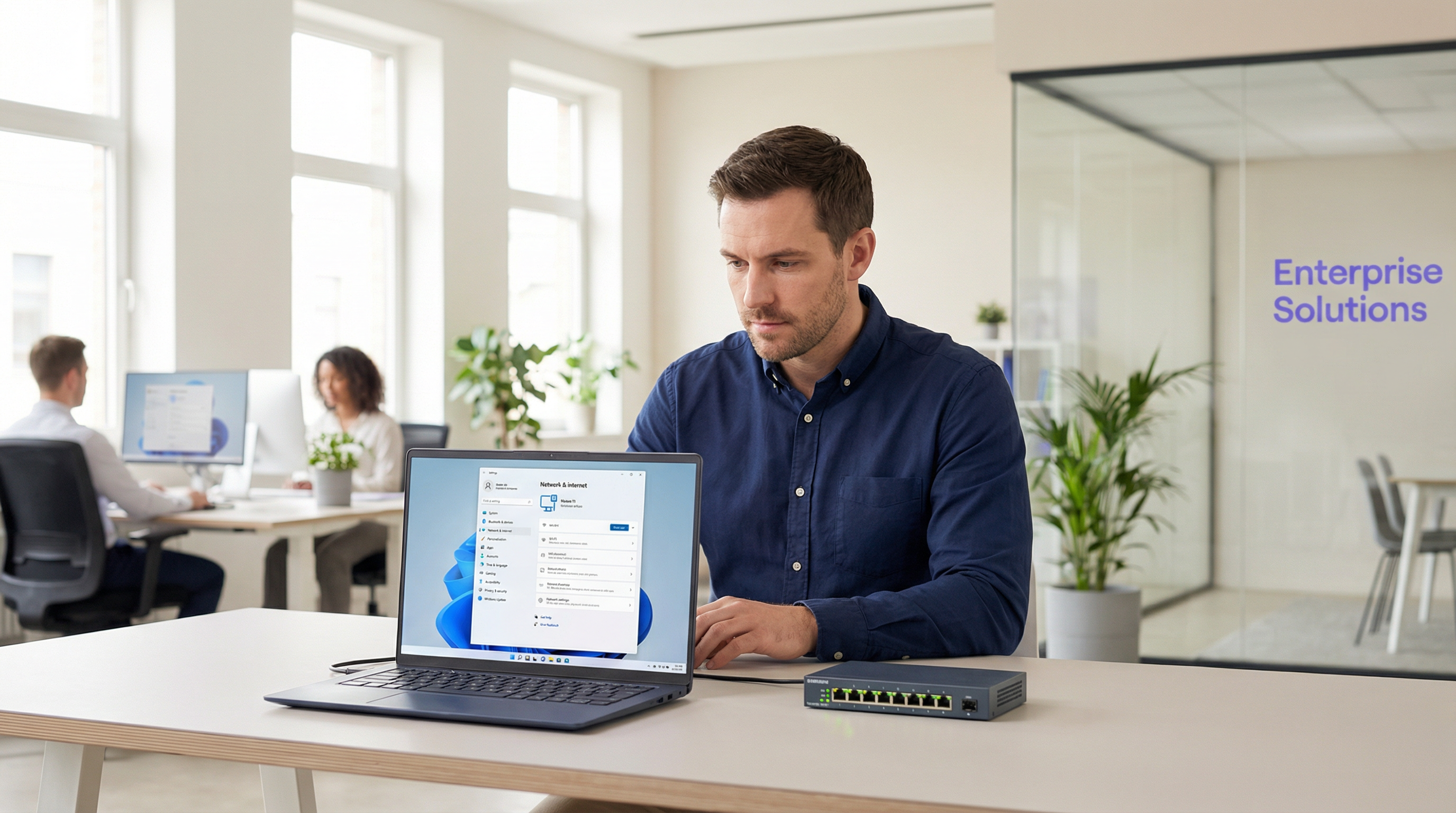
Windows 11-এ ট্রানজিশন উল্লেখযোগ্য সিকিউরিটি এবং প্রোডাক্টিভিটি বৃদ্ধি করলেও, এন্টারপ্রাইজ নেটওয়ার্ক এনভায়রনমেন্টের জন্য এটি একটি গুরুতর অপারেশনাল সমস্যা তৈরি করেছে: ইন-প্লেস আপগ্রেডের সময় 802.1X ওয়্যার্ড অথেন্টিকেশন কনফিগারেশনগুলি নীরবে মুছে যাওয়া। হোটেল, রিটেইল চেইন, স্টেডিয়াম, কনফারেন্স সেন্টার এবং পাবলিক-সেক্টর অর্গানাইজেশনগুলিতে বৃহৎ ডিভাইস এস্টেট পরিচালনাকারী আইটি ম্যানেজার, নেটওয়ার্ক আর্কিটেক্ট এবং CTO-দের জন্য, এর সরাসরি অর্থ হলো প্রোডাক্টিভিটি হ্রাস, সাপোর্ট খরচ বৃদ্ধি এবং সম্ভাব্য কমপ্লায়েন্স ঝুঁকি। এর মূল কারণ হলো Wired AutoConfig সার্ভিসের (dot3svc) জন্য প্রয়োজনীয় XML কনফিগারেশন প্রোফাইলগুলি করাপ্ট বা সম্পূর্ণ মুছে যাওয়া, যার ফলে ডিভাইসগুলি IEEE 802.1X দ্বারা সংজ্ঞায়িত পোর্ট-ভিত্তিক নেটওয়ার্ক অ্যাক্সেস কন্ট্রোল সম্পাদন করতে অক্ষম হয়ে পড়ে। এই গাইডটি এই সমস্যাটি ডায়াগনোজ, রিস্টোর এবং প্রতিরোধ করার জন্য একটি প্রামাণিক, ধাপে ধাপে অনুসরণযোগ্য পদ্ধতি প্রদান করে। আমরা এই ব্যর্থতার প্রযুক্তিগত ভিত্তি, তিনটি প্রাথমিক সমাধানের পথ — Group Policy, Microsoft Intune এবং ম্যানুয়াল XML প্রোফাইল ইম্পোর্টেশন — এবং ভবিষ্যতের OS ডিপ্লয়মেন্ট সাইকেলগুলিতে রেজিলিয়েন্স তৈরির জন্য একটি ফ্রেমওয়ার্ক নিয়ে আলোচনা করেছি। এছাড়াও আমরা PCI DSS, ISO 27001 এবং GDPR কমপ্লায়েন্স বাধ্যবাধকতার রেফারেন্স সহ একটি প্রোঅ্যাক্টিভ 802.1X ম্যানেজমেন্ট স্ট্র্যাটেজির ব্যবসায়িক প্রভাব এবং ROI বিশ্লেষণ করেছি。
টেকনিক্যাল ডিপ-ডাইভ
সমস্যার মূল কারণটি নিহিত রয়েছে Windows 11 ইন-প্লেস আপগ্রেড প্রক্রিয়া কীভাবে নেটওয়ার্ক কনফিগারেশন প্রোফাইলগুলি পরিচালনা করে তার উপর। Wired AutoConfig সার্ভিস (dot3svc) হলো ইথারনেট ইন্টারফেসে IEEE 802.1X অথেন্টিকেশন পরিচালনার জন্য দায়ী Windows সার্ভিস। যখন কোনো মেশিন একটি সুইচ পোর্টের সাথে কানেক্ট হয়, তখন এই সার্ভিসটি EAP-TLS বা PEAP-MSCHAPv2-এর মতো প্রোটোকল ব্যবহার করে অথেন্টিকেশন হ্যান্ডশেক শুরু করতে একটি সংরক্ষিত XML প্রোফাইল থেকে ডেটা রিড করে। আপগ্রেড প্রক্রিয়া — বিশেষ করে 23H2 থেকে 25H2 পর্যন্ত ফিচার আপডেট সাইকেল — এই প্রোফাইলটিকে করাপ্ট করতে পারে বা সার্ভিসের ডিপেন্ডেন্সিগুলি সম্পূর্ণ রিসেট করতে পারে, যা কার্যকরভাবে ডিভাইসটিকে অথেন্টিকেট করার প্রয়োজনীয় কনফিগারেশন ছাড়াই ফেলে রাখে। এর ফলাফল হলো 802.1X এনফোর্স করার জন্য কনফিগার করা সুইচ পোর্ট অ্যাক্সেস ডিনাই করে, যা প্রায়শই ডিভাইসটিকে একটি সীমাবদ্ধ গেস্ট VLAN-এ ডিফল্ট করে দেয় বা ট্রাফিক সম্পূর্ণ ব্লক করে দেয়।
এটি কোনো ড্রাইভার ইস্যু বা হার্ডওয়্যার কম্প্যাটিবিলিটি সমস্যা নয়। এটি হলো নির্দিষ্ট কনফিগারেশন প্রোফাইলের হারিয়ে যাওয়া যা অথেন্টিকেশন পদ্ধতি, সার্ভার ট্রাস্ট এবং ক্লায়েন্ট আইডেন্টিটি নির্ধারণ করে। এই পার্থক্যটি গুরুত্বপূর্ণ কারণ এটি ট্রাবলশুটিং পদ্ধতিকে সম্পূর্ণ পরিবর্তন করে দেয়। একজন অ্যাডমিনিস্ট্রেটর একটি এলিভেটেড কমান্ড প্রম্পট থেকে netsh lan show profiles রান করে সমস্যাটি যাচাই করতে পারেন। যদি প্রত্যাশিত প্রোফাইলটি অনুপস্থিত থাকে, তবে মূল কারণটি নিশ্চিত হওয়া যায়। আরও গভীর বিশ্লেষণের জন্য, Windows Event Viewer Applications and Services Logs > Microsoft > Windows > Wired-AutoConfig > Operational-এর অধীনে স্পষ্ট ডায়াগনস্টিক ডেটা প্রদান করে, যেখানে নির্দিষ্ট এরর কোড এবং বিবরণ সহ অথেন্টিকেশন ব্যর্থতাগুলি লগ করা হয়।
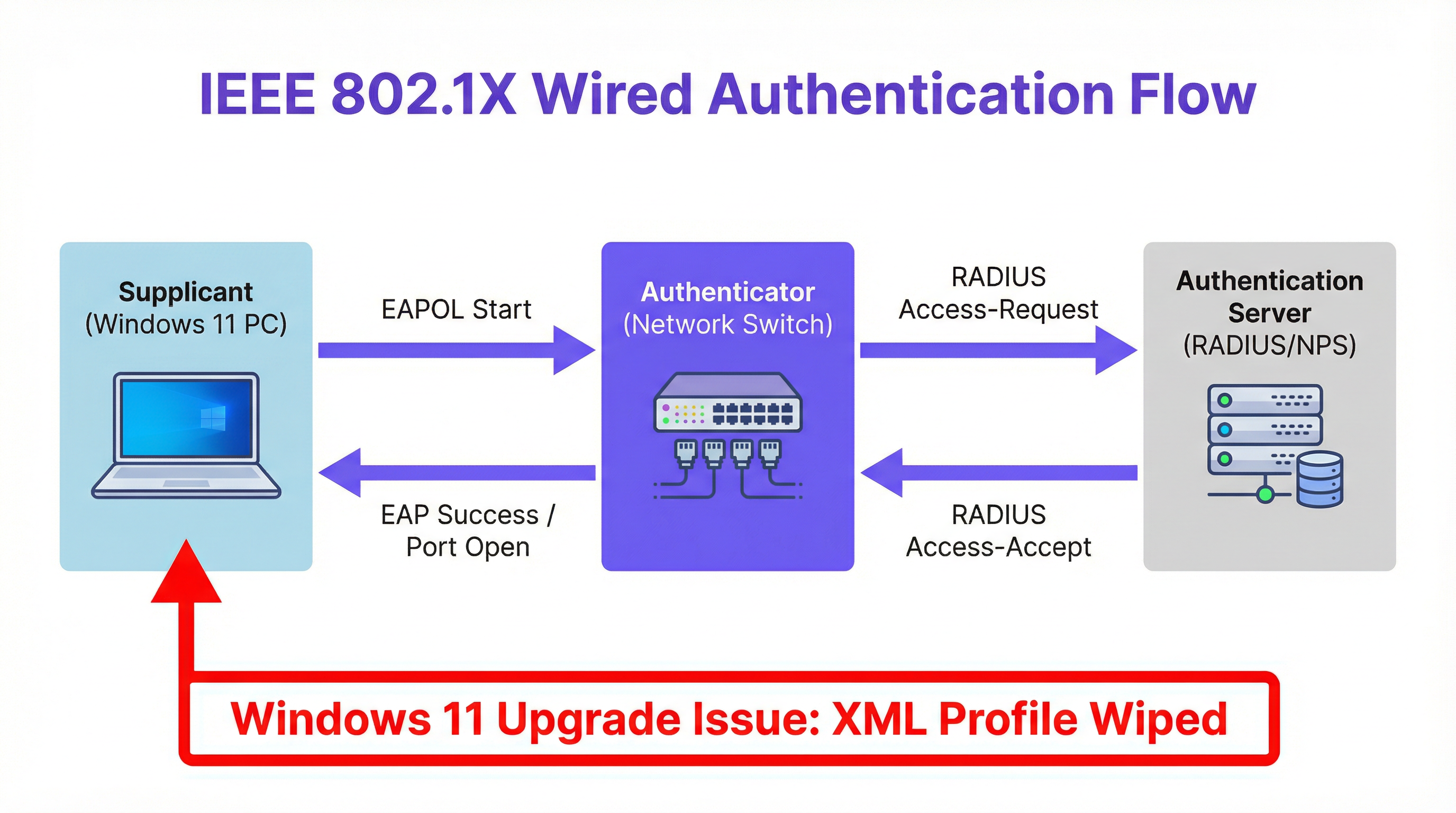
অথেন্টিকেশন ফ্লো নিজেই স্ট্যান্ডার্ড 802.1X মডেল অনুসরণ করে। Windows ডিভাইসটি সাপ্লিক্যান্ট হিসেবে কাজ করে, সুইচে একটি EAPOL (EAP over LAN) স্টার্ট মেসেজ ইনিশিয়েট করে। সুইচটি অথেন্টিকেটর হিসেবে কাজ করে এবং রিকোয়েস্টটি একটি সেন্ট্রাল RADIUS সার্ভারে (যেমন Microsoft NPS বা Cisco ISE) ফরোয়ার্ড করে। RADIUS সার্ভার ক্রেডেনশিয়ালগুলি যাচাই করে — তা সার্টিফিকেট, ইউজারনেম এবং পাসওয়ার্ড, বা মেশিন আইডেন্টিটি যাই হোক না কেন — এবং একটি Access-Accept বা Access-Reject রেসপন্স রিটার্ন করে। এরপর সুইচটি সেই অনুযায়ী পোর্টটি খোলে বা বন্ধ করে। যখন XML প্রোফাইলটি মিসিং থাকে, তখন সাপ্লিক্যান্ট কখনোই এই হ্যান্ডশেক শুরু করে না এবং পোর্টটি আনঅথরাইজড অবস্থায় থেকে যায়।
ইমপ্লিমেন্টেশন গাইড
আপগ্রেড-পরবর্তী 802.1X অথেন্টিকেশন ব্যর্থতার সমাধানে তিনটি প্রাথমিক পদ্ধতি জড়িত, যা অর্গানাইজেশনের ম্যানেজমেন্ট ইনফ্রাস্ট্রাকচারের ওপর ভিত্তি করে নির্বাচন করা হয়।
পদ্ধতি ১: Group Policy (GPO) রেমিডিয়েশন। একটি ট্র্যাডিশনাল Active Directory এনভায়রনমেন্টে ডোমেইন-জয়েন করা ডিভাইসগুলির জন্য, সবচেয়ে স্কেলেবল সমাধান হলো GPO-এর মাধ্যমে 802.1X সেটিংস এনফোর্স করা। Computer Configuration > Policies > Windows Settings > Security Settings > Wired Network (IEEE 802.3) Policies-এ নেভিগেট করুন। EAP টাইপ নির্দিষ্ট করে একটি নতুন পলিসি তৈরি করুন — উদাহরণস্বরূপ, Microsoft: Protected EAP (PEAP) — এবং ট্রাস্টেড রুট সার্টিফিকেশন অথরিটি এবং ইনার অথেন্টিকেশন মেথড (যেমন, EAP-MSCHAP v2) সহ এর প্রপার্টিগুলি কনফিগার করুন। এই পলিসিটি স্বয়ংক্রিয়ভাবে সমস্ত টার্গেটেড মেশিনে তাদের পরবর্তী Group Policy রিফ্রেশ সাইকেলে, সাধারণত ৯০ মিনিটের মধ্যে বা পরবর্তী লগঅনের সময় সঠিক সেটিংস পুনরায় অ্যাপ্লাই করবে। পলিসিটি সঠিকভাবে অ্যাপ্লাই হচ্ছে কিনা তা নিশ্চিত করতে একটি টার্গেট মেশিনে gpresult /r রান করা হলো একটি গুরুত্বপূর্ণ ভেরিফিকেশন ধাপ।
পদ্ধতি ২: Microsoft Intune ডিপ্লয়মেন্ট। আধুনিক, ক্লাউড-ম্যানেজড এন্ডপয়েন্টগুলির জন্য, Wired network টেমপ্লেট নির্বাচন করে Windows 10 এবং তার পরবর্তী ভার্সনের জন্য Intune অ্যাডমিন সেন্টারে একটি কনফিগারেশন প্রোফাইল তৈরি করুন। সবচেয়ে কার্যকর পদ্ধতি হলো প্রথমে netsh lan export profile folder=. interface="Ethernet" ব্যবহার করে একটি সঠিকভাবে কনফিগার করা রেফারেন্স মেশিন থেকে কার্যকরী 802.1X প্রোফাইলটি এক্সপোর্ট করা। এটি একটি XML ফাইল জেনারেট করে যা সরাসরি Intune প্রোফাইলের EAP XML ফিল্ডে ইম্পোর্ট করা যেতে পারে। প্রাসঙ্গিক Azure AD ডিভাইস গ্রুপে প্রোফাইলটি অ্যাসাইন করুন। Intune পরবর্তী ডিভাইস সিঙ্কের সময় কনফিগারেশনটি পুশ করবে, যা এন্ডপয়েন্টে কোনো ম্যানুয়াল হস্তক্ষেপ ছাড়াই অথেন্টিকেশন সেটিংস রিস্টোর করবে।
পদ্ধতি ৩: ম্যানুয়াল XML প্রোফাইল ইম্পোর্ট। স্ট্যান্ডঅ্যালোন ডিভাইস বা জরুরি, ওয়ান-অফ রেমিডিয়েশনের জন্য, কনফিগারেশনটি ম্যানুয়ালি রিস্টোর করা যেতে পারে। একটি সচল মেশিনে, কার্যকরী 802.1X প্রোফাইলটি এক্সপোর্ট করুন: netsh lan export profile folder=C:\temp interface="Ethernet"। প্রাপ্ত XML ফাইলটি আক্রান্ত মেশিনে ট্রান্সফার করুন এবং এটি ইম্পোর্ট করুন: netsh lan add profile filename="C:\temp\YourProfile.xml" interface="Ethernet"। অথেন্টিকেশন প্রক্রিয়া ট্রিগার করতে নেটওয়ার্ক কেবলটি পুনরায় কানেক্ট করুন। এই পদ্ধতিটি তাৎক্ষণিক সমাধান প্রদান করে তবে এটি স্কেলেবল নয় এবং এটিকে শুধুমাত্র একটি কৌশলগত ব্যবস্থা হিসেবে বিবেচনা করা উচিত।
বেস্ট প্র্যাকটিস
802.1X কনফিগারেশন হারানোর ঝুঁকি প্রোঅ্যাক্টিভভাবে পরিচালনা এবং প্রশমিত করতে, আইটি টিমগুলির কনফিগারেশন ম্যানেজমেন্ট বেস্ট প্র্যাকটিসের ওপর ভিত্তি করে একটি মাল্টি-লেয়ার্ড স্ট্র্যাটেজি গ্রহণ করা উচিত।
স্ট্যান্ডার্ড বিল্ডে 802.1X কনফিগারেশন অন্তর্ভুক্ত করুন। MDT, SCCM বা Windows Autopilot যাই ব্যবহার করা হোক না কেন, বেসলাইন ইমেজ বা প্রভিশনিং প্রক্রিয়ায় অবশ্যই ওয়্যার্ড নেটওয়ার্ক প্রোফাইলের ডিপ্লয়মেন্ট অন্তর্ভুক্ত থাকতে হবে। এটি প্রাথমিক প্রভিশনিং থেকে সঠিক স্টেট প্রতিষ্ঠা করে, যা আপগ্রেড-সম্পর্কিত ব্যর্থতার সম্ভাবনা হ্রাস করে।
এনফোর্সমেন্টের জন্য সেন্ট্রালাইজড ম্যানেজমেন্ট ব্যবহার করুন। ম্যানুয়ালি কনফিগার করা এন্ডপয়েন্টগুলির ওপর নির্ভর করবেন না। নেটওয়ার্ক সেটিংসের জন্য সিঙ্গেল সোর্স অফ ট্রুথ হিসেবে GPO বা Intune প্রোফাইল ব্যবহার করুন। এটি নিশ্চিত করে যে কোনো আপগ্রেড লোকাল কনফিগারেশন মুছে ফেললেও, পরবর্তী পলিসি রিফ্রেশ সাইকেলে এটি স্বয়ংক্রিয়ভাবে রিস্টোর হয়ে যায়। এটি ITIL কনফিগারেশন ম্যানেজমেন্ট নীতি এবং ISO 27001 Annex A কন্ট্রোল A.12.1.2 (চেঞ্জ ম্যানেজমেন্ট)-এর সাথে সামঞ্জস্যপূর্ণ।
আপগ্রেড টাস্ক সিকোয়েন্সে প্রি-ফ্লাইট এবং পোস্ট-ফ্লাইট চেক প্রয়োগ করুন। SCCM বা MDT-এর মাধ্যমে একটি বড় OS আপগ্রেড শুরু করার আগে, বর্তমান 802.1X প্রোফাইলটি একটি নেটওয়ার্ক শেয়ারে এক্সপোর্ট এবং ব্যাকআপ করার জন্য একটি স্ক্রিপ্ট স্টেপ অন্তর্ভুক্ত করুন। টাস্ক সিকোয়েন্সের পোস্ট-আপগ্রেড ফেজে একটি ভেরিফিকেশন স্টেপ অন্তর্ভুক্ত করা উচিত যা প্রোফাইলের উপস্থিতি চেক করে এবং অনুপস্থিত থাকলে ব্যাকআপ থেকে এটি রিস্টোর করে। এই বেল্ট-অ্যান্ড-ব্রেসেস পদ্ধতিটি সেন্ট্রাল ম্যানেজমেন্ট পলিসি থেকে স্বাধীন একটি সেফটি নেট প্রদান করে।
একটি ভার্সন-কন্ট্রোলড প্রোফাইল রিপোজিটরি বজায় রাখুন। বিভিন্ন সাইট, সিকিউরিটি টিয়ার এবং নেটওয়ার্ক এনভায়রনমেন্টের জন্য মাস্টার 802.1X XML প্রোফাইলগুলির একটি সেন্ট্রালাইজড, ভার্সন-কন্ট্রোলড রিপোজিটরি রাখুন। এটি দ্রুত ডিজাস্টার রিকভারির জন্য অমূল্য এবং পুরো এস্টেট জুড়ে ধারাবাহিকতা নিশ্চিত করে, যা PCI DSS কমপ্লায়েন্স এবং GDPR ডেটা সিকিউরিটি বাধ্যবাধকতার জন্য একটি মূল প্রয়োজনীয়তা।
ট্রাবলশুটিং এবং রিস্ক মিটিগেশন
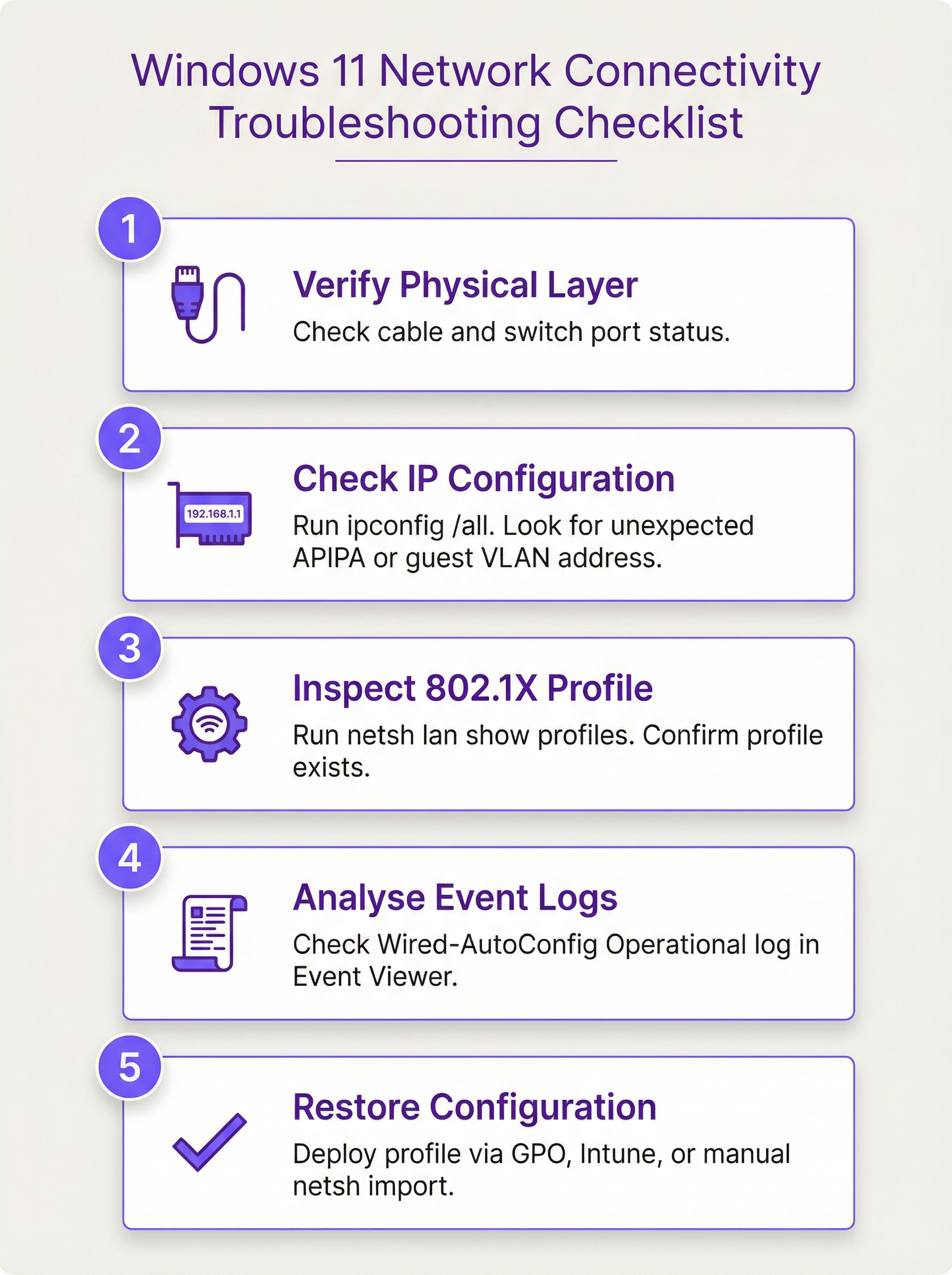
Windows 11 আপগ্রেডের পর যখন কোনো এন্ডপয়েন্ট কানেক্ট হতে ব্যর্থ হয়, তখন ট্রাবলশুটিং প্রক্রিয়াটি নিয়মতান্ত্রিক এবং প্রমাণ-ভিত্তিক হওয়া উচিত।
ধাপ ১ — ফিজিক্যাল লেয়ার যাচাই করুন। ইথারনেট কেবলটি কানেক্টেড আছে এবং সুইচ পোর্টটি অ্যাক্টিভ আছে কিনা তা নিশ্চিত করুন। NIC লিঙ্ক লাইটগুলি চেক করুন।
ধাপ ২ — IP কনফিগারেশন চেক করুন। ipconfig /all রান করুন। ডিভাইসটি প্রত্যাশিত VLAN থেকে একটি IP অ্যাড্রেস পাচ্ছে কিনা তা নির্ধারণ করুন। একটি APIPA অ্যাড্রেস (169.254.x.x) IP পেতে সম্পূর্ণ ব্যর্থতা নির্দেশ করে, যা বোঝায় যে পোর্টটি সম্পূর্ণ ব্লক করা আছে। একটি অপ্রত্যাশিত সাবনেট থেকে পাওয়া IP নির্দেশ করতে পারে যে অথেন্টিকেশন ব্যর্থতার কারণে ডিভাইসটিকে একটি গেস্ট VLAN-এ রাখা হয়েছে।
ধাপ ৩ — 802.1X প্রোফাইল ইন্সপেক্ট করুন। netsh lan show profiles রান করুন। যদি প্রত্যাশিত প্রোফাইলটি অনুপস্থিত থাকে, তবে আপগ্রেডটি এটি মুছে ফেলেছে। যদি এটি উপস্থিত থাকে কিন্তু অথেন্টিকেশন এখনও ব্যর্থ হয়, তবে প্রোফাইলটি করাপ্ট হতে পারে বা সার্টিফিকেট চেইনটি ভেঙে যেতে পারে।
ধাপ ৪ — ইভেন্ট লগ বিশ্লেষণ করুন। Event Viewer খুলুন এবং Applications and Services Logs > Microsoft > Windows > Wired-AutoConfig > Operational-এ নেভিগেট করুন। কানেকশন চেষ্টার সময় এরর ইভেন্টগুলি খুঁজুন। এই লগগুলি স্পষ্ট ব্যর্থতার কারণ প্রদান করে, যেমন "The identity of the authentication server could not be verified" (যা একটি সার্টিফিকেট ট্রাস্ট ইস্যু নির্দেশ করে) বা "The EAP authentication failed" (যা একটি ক্রেডেনশিয়াল বা মেথড মিসম্যাচ নির্দেশ করে)।
ধাপ ৫ — কনফিগারেশন রিস্টোর করুন। ডায়াগনসিসের ওপর ভিত্তি করে, উপযুক্ত রেমিডিয়েশন পদ্ধতি প্রয়োগ করুন: GPO, Intune বা ম্যানুয়াল XML ইম্পোর্ট।
রিস্ক মিটিগেশনের দৃষ্টিকোণ থেকে, মূল চাবিকাঠি হলো অটোমেশন এবং এনফোর্সমেন্ট। একটি ম্যানুয়ালি কনফিগার করা 802.1X প্রোফাইল হলো সিঙ্গেল পয়েন্ট অফ ফেইলিওর। একটি সেন্ট্রালি এনফোর্স করা পলিসি হলো একটি সেলফ-হিলিং কন্ট্রোল। ম্যানুয়াল কনফিগারেশনের ওপর নির্ভর করার অপারেশনাল ঝুঁকি বড় এস্টেটগুলিতে বহুগুণ বেড়ে যায় যেখানে শত শত ডিভাইস একই সাথে আপগ্রেড করা হতে পারে। সঠিকভাবে কনফিগার করা এবং টেস্ট করা একটি একক GPO বা Intune প্রোফাইল বড় পরিসরে এই ঝুঁকি দূর করে।
ROI এবং ব্যবসায়িক প্রভাব
Windows 11 আপগ্রেডের পর ব্যাপক কানেক্টিভিটি হারানোর ব্যবসায়িক প্রভাব গুরুতর হতে পারে, যা স্টাফদের প্রোডাক্টিভিটি হ্রাস থেকে শুরু করে এমন এনভায়রনমেন্টে সরাসরি রেভিনিউ লস পর্যন্ত হতে পারে যেখানে নেটওয়ার্ক অ্যাক্সেস অপারেশনালি অত্যন্ত গুরুত্বপূর্ণ। একটি সেন্ট্রালাইজড 802.1X ম্যানেজমেন্ট স্ট্র্যাটেজি বাস্তবায়নের ROI তিনটি ডাইমেনশনে পরিমাপ করা হয়: সাপোর্ট খরচ হ্রাস, কমপ্লায়েন্স ঝুঁকি প্রশমন এবং উন্নত অপারেশনাল রেজিলিয়েন্স।
সাপোর্ট খরচ হ্রাস। একটি ১,০০০-ডিভাইসের এন্টারপ্রাইজ এস্টেট বিবেচনা করুন যেখানে ওভারনাইট আপগ্রেড সাইকেলের পর ১৫% ডিভাইস কানেক্টিভিটি হারিয়ে ফেলে। প্রতিটি ঘটনা ম্যানুয়ালি সমাধান করতে ৩০ মিনিট আইটি সাপোর্ট সময়ের প্রয়োজন হয়। একজন লেভেল ২ টেকনিশিয়ানের জন্য প্রতি ঘণ্টায় £৬০ লোডেড খরচে, এই একক ইভেন্টটির জন্য অর্গানাইজেশনের রিঅ্যাক্টিভ সাপোর্টে £৪,৫০০ খরচ হয়। এর বিপরীতে, একটি GPO বা Intune প্রোফাইল তৈরি এবং ডিপ্লয় করতে প্রায় ৪ ঘণ্টা আর্কিটেক্ট সময়ের (£২৪০) প্রয়োজন হয়। প্রথম এড়ানো ঘটনার সময়ই সম্পূর্ণ ROI অর্জিত হয় এবং পরবর্তী প্রতিটি আপগ্রেড সাইকেল একই পরিমাণ সাশ্রয় প্রদান করে।
কমপ্লায়েন্স ঝুঁকি প্রশমন। PCI DSS রিকোয়ারমেন্ট 1.2.1 কার্ডহোল্ডার ডেটা এনভায়রনমেন্ট এবং অন্যান্য নেটওয়ার্কের মধ্যে ট্রাফিক সীমাবদ্ধ করা বাধ্যতামূলক করে। এই নেটওয়ার্ক সেগমেন্টেশন এনফোর্স করার জন্য 802.1X হলো একটি প্রাথমিক কন্ট্রোল। যদি ডিভাইসগুলি তাদের অথেন্টিকেশন কনফিগারেশন হারিয়ে ফেলে এবং একটি আনসেগমেন্টেড নেটওয়ার্কে পড়ে, তবে অর্গানাইজেশনটি এই রিকোয়ারমেন্ট লঙ্ঘন করতে পারে, যা জরিমানা, অডিট ফাইন্ডিং এবং সুনামের ক্ষতির সম্মুখীন হতে পারে। একটি সেন্ট্রালাইজড, রেজিলিয়েন্ট 802.1X ম্যানেজমেন্ট স্ট্র্যাটেজি সরাসরি এই ঝুঁকি প্রশমিত করে। একইভাবে, GDPR আর্টিকেল 32 নেটওয়ার্ক সিকিউরিটি নিশ্চিত করার জন্য উপযুক্ত প্রযুক্তিগত ব্যবস্থার দাবি করে; একটি সেলফ-হিলিং অথেন্টিকেশন পলিসি হলো একটি প্রদর্শনযোগ্য কন্ট্রোল।
অপারেশনাল রেজিলিয়েন্স। ভেন্যু অপারেটরদের জন্য — হোটেল, কনফারেন্স সেন্টার, স্টেডিয়াম — নেটওয়ার্ক কানেক্টিভিটি সরাসরি রেভিনিউ-জেনারেটিং অপারেশনের সাথে যুক্ত। একটি হোটেলের প্রপার্টি ম্যানেজমেন্ট সিস্টেম, একটি কনফারেন্স সেন্টারের AV ইনফ্রাস্ট্রাকচার এবং একটি স্টেডিয়ামের টিকেটিং ও পয়েন্ট-অফ-সেল সিস্টেম সবই নির্ভরযোগ্য, অথেন্টিকেটেড নেটওয়ার্ক অ্যাক্সেসের ওপর নির্ভর করে। এই এনভায়রনমেন্টগুলিতে ডাউনটাইমের খরচ একটি শক্তিশালী ম্যানেজমেন্ট স্ট্র্যাটেজি বাস্তবায়নের খরচের চেয়ে অনেক বেশি। এই প্রেক্ষাপটে, প্রোঅ্যাক্টিভ 802.1X ম্যানেজমেন্ট হলো অপারেশনাল কন্টিনিউইটিতে একটি সরাসরি বিনিয়োগ।
Key Terms & Definitions
IEEE 802.1X
An IEEE standard for Port-Based Network Access Control (PNAC). It provides an authentication mechanism to devices wishing to attach to a LAN or WLAN, ensuring that only authorised devices can access network resources.
When IT teams need to prevent unauthorised devices from connecting to wired or wireless networks, they implement 802.1X. It is the primary gatekeeper for corporate network access and is a key control for PCI DSS network segmentation requirements.
Wired AutoConfig (dot3svc)
The Microsoft Windows service responsible for performing IEEE 802.1X authentication on Ethernet interfaces. It reads from a stored XML profile to initiate and manage the authentication handshake with the network switch.
This is the specific service that is disrupted during the Windows 11 upgrade. If this service is not running or its XML profile is missing, wired 802.1X authentication will fail silently. It is the primary focus of troubleshooting for this issue.
EAP (Extensible Authentication Protocol)
An authentication framework that provides a common set of functions and a negotiation mechanism for authentication methods, known as EAP methods. It is used within 802.1X to define how clients and servers exchange credentials.
When configuring 802.1X, IT teams must choose an EAP method. The choice determines the security level and infrastructure requirements: EAP-TLS requires a certificate infrastructure (PKI), while PEAP-MSCHAPv2 uses username and password credentials.
PEAP-MSCHAPv2
Protected Extensible Authentication Protocol with Microsoft Challenge-Handshake Authentication Protocol version 2. A widely deployed EAP method that creates a TLS tunnel to protect the authentication exchange and then authenticates the client using a username and password.
This is one of the most common authentication methods for 802.1X in enterprise environments. It is simpler to deploy than certificate-based EAP-TLS as it does not require client certificates. The Windows 11 upgrade issue affects all EAP types, including PEAP-MSCHAPv2.
RADIUS (Remote Authentication Dial-In User Service)
A networking protocol that provides centralised Authentication, Authorisation, and Accounting (AAA) management for users and devices connecting to a network. In an 802.1X deployment, the network switch forwards authentication requests to the RADIUS server.
The RADIUS server is the central authority that validates credentials and grants or denies access. Common implementations include Microsoft NPS (Network Policy Server) and Cisco ISE. When the 802.1X profile is missing, the RADIUS server is never even contacted.
Group Policy (GPO)
A feature of Microsoft Windows that provides centralised management and configuration of operating systems, applications, and user settings in an Active Directory environment.
For on-premises, domain-joined Windows devices, GPOs are the standard method for deploying and enforcing security settings, including 802.1X configurations. A correctly configured Wired Network GPO will re-apply the 802.1X profile even if an upgrade removes it locally.
Microsoft Intune
A Microsoft cloud-based unified endpoint management (UEM) platform for managing mobile devices, desktop operating systems, and applications.
For modern, cloud-managed, or hybrid Azure AD-joined environments, Intune is the preferred method for deploying 802.1X profiles. It replaces the need for traditional GPOs and is essential for managing distributed, modern device estates.
VLAN (Virtual Local Area Network)
A logical overlay network that groups together a set of devices from different physical LAN segments, creating an isolated broadcast domain independent of physical location.
802.1X is frequently used to dynamically assign devices to specific VLANs based on their authenticated identity. When the 802.1X configuration is wiped, this dynamic assignment fails, and the device may be placed in a restricted guest VLAN or denied access entirely, which is the symptom most commonly reported by end users.
EAPOL (EAP over LAN)
An encapsulation protocol defined in IEEE 802.1X that carries EAP messages over an IEEE 802 network, such as Ethernet or Wi-Fi.
EAPOL is the mechanism by which the supplicant (the Windows device) initiates the 802.1X authentication process with the switch. The first message sent is an EAPOL-Start frame. When the dot3svc XML profile is missing, this initial frame is never sent.
Case Studies
A multi-site retail chain with 500 stores is preparing to upgrade its POS terminals and back-office PCs to Windows 11. Each store uses 802.1X with PEAP-MSCHAPv2 to secure wired access and segment payment processing traffic from general corporate traffic, as required by PCI DSS. How can the IT Director prevent mass connectivity outages during the phased rollout?
The IT Director should leverage Microsoft Intune for centralised management across the distributed estate. Step 1: Create a Master Configuration Profile. On a reference Windows 11 device, manually configure and test the 802.1X settings for a store environment. Export this configuration to an XML file using netsh lan export profile folder=C:\temp interface="Ethernet". Step 2: Build an Intune Profile. In the Intune admin centre, create a new Configuration Profile for Windows 10 and later, using the 'Wired network' template. Import the XML file from Step 1 into the EAP XML field of this profile. Step 3: Define Dynamic Device Groups. Create Azure AD dynamic device groups that automatically populate based on device properties, such as a naming convention specific to POS terminals (e.g., devices with names matching 'POS-*'). This enables targeted, role-based policy application. Step 4: Phased Deployment. Assign the Intune profile to a pilot group of non-critical back-office devices in a single region first. Monitor their upgrade process and connectivity status via Intune's endpoint analytics and device compliance reports. Once validated over a 48-hour observation window, expand the assignment to POS terminals and then to the broader estate in a region-by-region rollout. This ensures that even if the upgrade process removes the local profile, Intune will enforce its re-application on the next sync, guaranteeing seamless connectivity and maintaining PCI DSS network segmentation controls.
A large conference centre hosts multiple concurrent events, each requiring a secure, isolated network for organisers and exhibitors. The on-site IT team uses dynamic VLAN assignment via 802.1X based on user credentials managed in Microsoft NPS. After a Windows 11 feature update deployed overnight, an event organiser's laptop can no longer access the organiser network or the shared file server. The event begins in two hours. How should the on-site technician resolve this?
For an immediate, tactical fix in a time-sensitive business environment, the technician should use the manual XML profile import method. Step 1: Obtain a Working Profile. The technician should use their own correctly configured laptop or a reference device to export the 802.1X profile for the organiser network. Command: netsh lan export profile folder=C:\temp interface="Ethernet". This creates an XML file containing the full authentication configuration. Step 2: Transfer the Profile. The XML file should be transferred to the organiser's laptop via a USB drive, as the organiser's device currently has no access to network shares. Step 3: Import the Profile. On the organiser's laptop, open an administrative Command Prompt and run: netsh lan add profile filename="C:\temp\Wired_Organiser_Profile.xml" interface="Ethernet". Step 4: Verify Connectivity. Disconnect and reconnect the Ethernet cable to trigger the 802.1X authentication process. The device should authenticate successfully and be placed in the correct VLAN, restoring access to the file server. Step 5: Document and Escalate. The technician must document this one-off fix in the IT service management system and raise a change request for the central IT architecture team to deploy a permanent Intune or GPO-based solution, preventing recurrence for other users and future events.
Scenario Analysis
Q1. You are the CTO of a large hotel group with 3,000 staff devices across 45 properties. A scheduled overnight Windows 11 feature update has been deployed to all devices. The following morning, your helpdesk receives 200 tickets reporting that back-office PCs cannot access the property management system or internal file shares. All devices are domain-joined and managed via SCCM. What is your immediate response plan and your long-term remediation strategy?
💡 Hint:Consider both the immediate operational impact — getting the hotel properties functional — and the root cause, which is a systemic configuration management gap. Your response must address both.
Show Recommended Approach
Immediate response: Declare a P1 incident and convene a bridge call with the network architecture and endpoint management teams. The priority is to identify the fastest path to restoring connectivity at scale. Given that devices are domain-joined and managed via SCCM, the fastest scalable fix is to create a Wired Network GPO immediately, deploying the correct 802.1X settings to all affected OUs. Force a Group Policy update on affected machines remotely using Invoke-GPUpdate via SCCM. For properties where this does not resolve the issue quickly enough, dispatch IT staff with USB drives containing the XML profile for manual import on the most critical devices (e.g., front desk and revenue management PCs). Long-term strategy: Conduct a post-incident review to understand why the 802.1X settings were not already enforced via GPO. Build the Wired Network GPO as a permanent, enforced policy. Add a post-upgrade verification step to the SCCM task sequence that checks for the profile's presence and restores it if absent. Document the master XML profiles in a version-controlled repository. Review the change management process to ensure that upgrade deployments include a validation step before full rollout.
Q2. A university campus network uses 802.1X to control access to different network segments for students, faculty, and staff. After the latest Windows 11 feature update, a professor reports they can no longer access the faculty research drive from their office. They can, however, access the public internet. What is the most likely cause, and what single command would you run first on their machine to begin your diagnosis?
💡 Hint:The user has partial connectivity — they can reach the internet but not internal resources. This is a specific pattern that points to a particular type of failure. Think about what controls access to different network segments.
Show Recommended Approach
The most likely cause is that the 802.1X authentication is failing, and the switch port is defaulting the professor's device into a restricted VLAN that has internet access but no access to internal resources such as the faculty research drive. This is a common network design pattern where the 'fail-open' state provides internet access but not internal network access. The Windows 11 update has likely wiped the specific 802.1X profile for the faculty network, so the device is not authenticating and is therefore not being placed in the faculty VLAN. The first command to run on their machine is netsh lan show profiles. If the faculty network profile is absent from the output, the root cause is confirmed. The fix is to restore the profile via the appropriate method — in a university environment, this is likely a GPO or Intune profile, or a manual import as an immediate fix.
Q3. Your organisation is migrating from a traditional on-premises Active Directory environment to a fully cloud-native Azure AD and Intune deployment. Your existing 802.1X settings are currently managed via GPO. A new regional office is being set up with Azure AD-joined devices only. How do you adapt your 802.1X deployment strategy for this new office, and what is the specific step that bridges the gap between your existing GPO configuration and the new Intune-based approach?
💡 Hint:GPOs do not apply to Azure AD-joined devices. You need to replicate the GPO's intent using a different tool. Think about what the GPO contains and how that information can be transferred.
Show Recommended Approach
The existing GPO-based strategy cannot be applied to Azure AD-joined devices, as Group Policy requires a connection to an on-premises domain controller. The correct approach is to replicate the GPO settings in Microsoft Intune. The bridging step is to export the 802.1X XML profile from an existing GPO-managed machine using netsh lan export profile folder=C:\temp interface="Ethernet". This XML file contains the exact same configuration that the GPO was deploying. In Intune, create a new Configuration Profile for Windows 10 and later, select the 'Wired network' template, and import this XML into the EAP XML field. Assign this profile to an Azure AD device group containing the machines in the new regional office. This effectively translates the on-premises GPO logic into a cloud-native Intune policy, ensuring the same level of security and configuration enforcement for the modern-managed devices. This approach also provides a clear migration path: as more sites move to Azure AD-joined devices, the same Intune profile can be extended to them, eventually replacing the GPO entirely.
Key Takeaways
- ✓Windows 11 in-place upgrades — particularly the 23H2 to 25H2 feature update cycle — can silently wipe the XML configuration profiles used by the Wired AutoConfig (dot3svc) service, causing immediate 802.1X authentication failures on wired networks.
- ✓The failure manifests as devices being placed on a restricted guest VLAN or having their switch port blocked entirely, resulting in loss of access to internal resources while potentially retaining internet access.
- ✓Diagnose the issue by running `netsh lan show profiles` (to check for the missing profile) and reviewing the Wired-AutoConfig Operational log in Windows Event Viewer (for explicit error codes).
- ✓Restore connectivity at scale using a Group Policy Wired Network policy (for domain-joined devices) or a Microsoft Intune Configuration Profile (for Azure AD-joined or hybrid devices), both of which enforce the correct settings persistently.
- ✓For urgent, one-off fixes, export the working profile from a functional machine (`netsh lan export`) and import it on the affected device (`netsh lan add profile`).
- ✓Prevent future occurrences by making 802.1X configuration part of the standard device build and enforcing it via a central policy — never rely on manually applied configurations surviving an OS upgrade.
- ✓This issue has direct compliance implications for PCI DSS (network segmentation) and ISO 27001 (configuration management); a centralised, resilient 802.1X strategy is both an operational and a compliance imperative.