Fehlerbehebung von Internetverbindungsproblemen unter Windows 11 nach einem Upgrade
This guide provides a definitive technical reference for IT leaders on resolving Windows 11 upgrade-related internet connectivity failures caused by the removal of 802.1X wired authentication settings. It delivers a step-by-step troubleshooting and remediation process, covering Group Policy, Microsoft Intune, and manual recovery methods, alongside preventative measures and ROI analysis to ensure stable, compliant network access across enterprise environments.
🎧 Listen to this Guide
View Transcript
Executive Summary
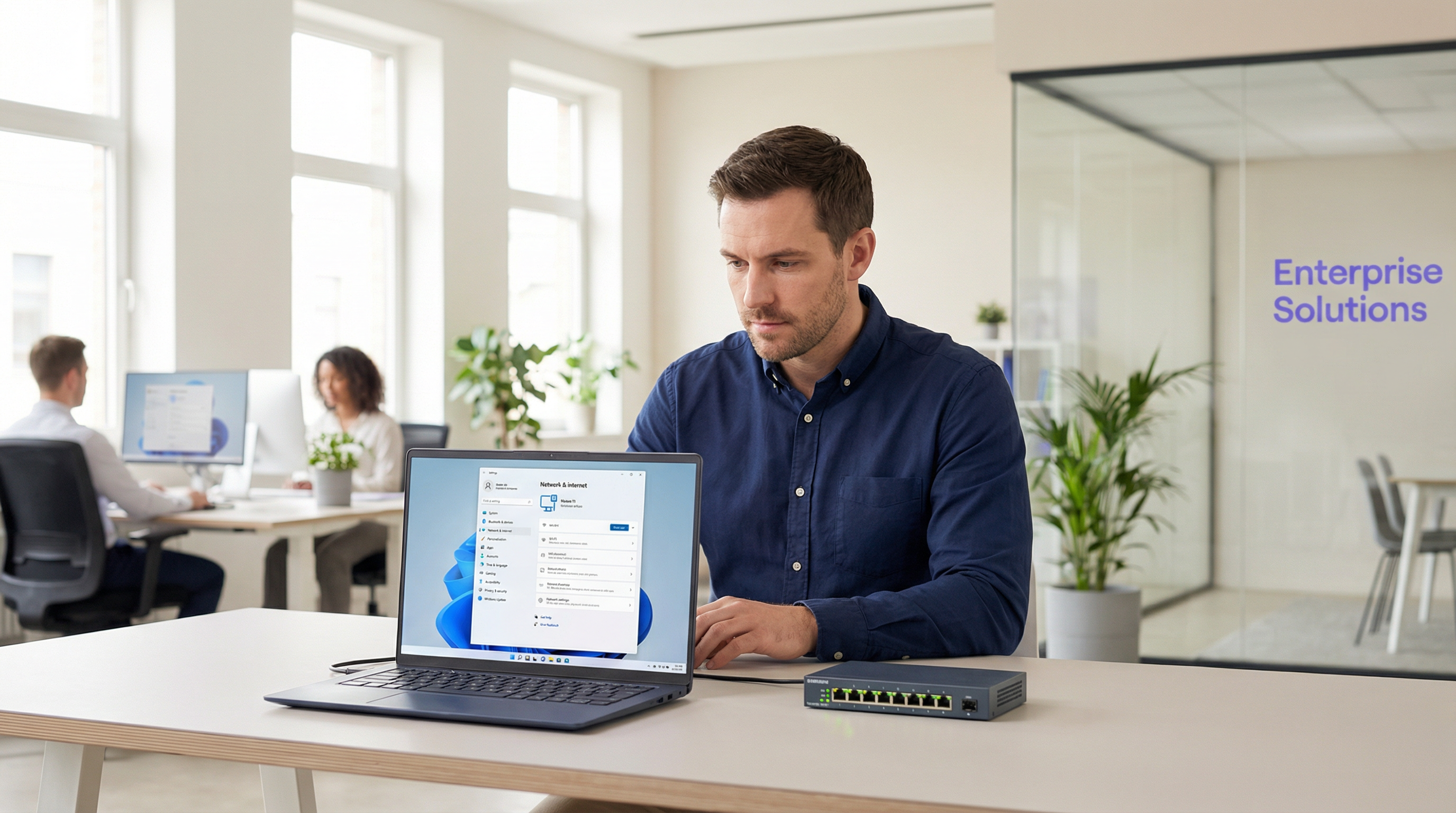
Der Umstieg auf Windows 11 bietet zwar bedeutende Sicherheits- und Produktivitätsverbesserungen, hat jedoch ein kritisches betriebliches Problem für Unternehmensnetzwerke mit sich gebracht: die unbemerkte Löschung von kabelgebundenen 802.1X-Authentifizierungskonfigurationen während In-Place-Upgrades. Für IT-Manager, Netzwerkarchitekten und CTOs, die große Gerätebestände in Hotels, Einzelhandelsketten, Stadien, Konferenzzentren und Organisationen des öffentlichen Sektors verwalten, bedeutet dies unmittelbar Produktivitätsverluste, erhöhte Supportkosten und potenzielle Compliance-Risiken. Die Hauptursache ist die Beschädigung oder vollständige Entfernung essenzieller XML-Konfigurationsprofile für den Wired AutoConfig-Dienst (dot3svc), wodurch Geräte nicht mehr in der Lage sind, eine portbasierte Netzwerkzugriffskontrolle gemäß IEEE 802.1X durchzuführen. Dieser Leitfaden bietet eine maßgebliche Schritt-für-Schritt-Methodik zur Diagnose, Wiederherstellung und Prävention dieses Problems. Wir behandeln die technischen Grundlagen des Fehlers, die drei primären Lösungswege – Gruppenrichtlinien, Microsoft Intune und den manuellen Import von XML-Profilen – sowie ein Framework zum Aufbau von Resilienz in zukünftigen OS-Bereitstellungszyklen. Darüber hinaus analysieren wir die geschäftlichen Auswirkungen und den ROI einer proaktiven 802.1X-Managementstrategie unter Bezugnahme auf die Compliance-Verpflichtungen gemäß PCI DSS, ISO 27001 und GDPR.
Technischer Deep-Dive
Der Kern des Problems liegt in der Art und Weise, wie der In-Place-Upgrade-Prozess von Windows 11 mit Netzwerkkonfigurationsprofilen umgeht. Der Wired AutoConfig-Dienst (dot3svc) ist der Windows-Dienst, der für die Verwaltung der IEEE 802.1X-Authentifizierung auf Ethernet-Schnittstellen verantwortlich ist. Wenn sich ein Rechner mit einem Switch-Port verbindet, liest dieser Dienst aus einem gespeicherten XML-Profil, um den Authentifizierungs-Handshake unter Verwendung von Protokollen wie EAP-TLS oder PEAP-MSCHAPv2 zu initiieren. Der Upgrade-Prozess – insbesondere der Feature-Update-Zyklus von 23H2 auf 25H2 – kann dieses Profil beschädigen oder die Abhängigkeiten des Dienstes vollständig zurücksetzen, sodass das Gerät faktisch ohne die zur Authentifizierung erforderliche Konfiguration verbleibt. Das Ergebnis ist, dass der Switch-Port, der für die Erzwingung von 802.1X konfiguriert ist, den Zugriff verweigert, was das Gerät oft in ein eingeschränktes Gast-VLAN verschiebt oder den Datenverkehr vollständig blockiert.
Dies ist kein Treiberproblem oder ein Problem der Hardwarekompatibilität. Es handelt sich um den Verlust des spezifischen Konfigurationsprofils, das die Authentifizierungsmethode, das Serververtrauen und die Client-Identität vorgibt. Diese Unterscheidung ist wichtig, da sie den Ansatz zur Fehlerbehebung grundlegend ändert. Ein Administrator kann das Problem verifizieren, indem er netsh lan show profiles in einer Eingabeaufforderung mit Administratorrechten ausführt. Fehlt das erwartete Profil, ist die Hauptursache bestätigt. Für eine tiefergehende Analyse bietet die Windows-Ereignisanzeige explizite Diagnosedaten unter Anwendungs- und Dienstprotokolle > Microsoft > Windows > Wired-AutoConfig > Operational, wo Authentifizierungsfehler mit spezifischen Fehlercodes und Beschreibungen protokolliert werden.
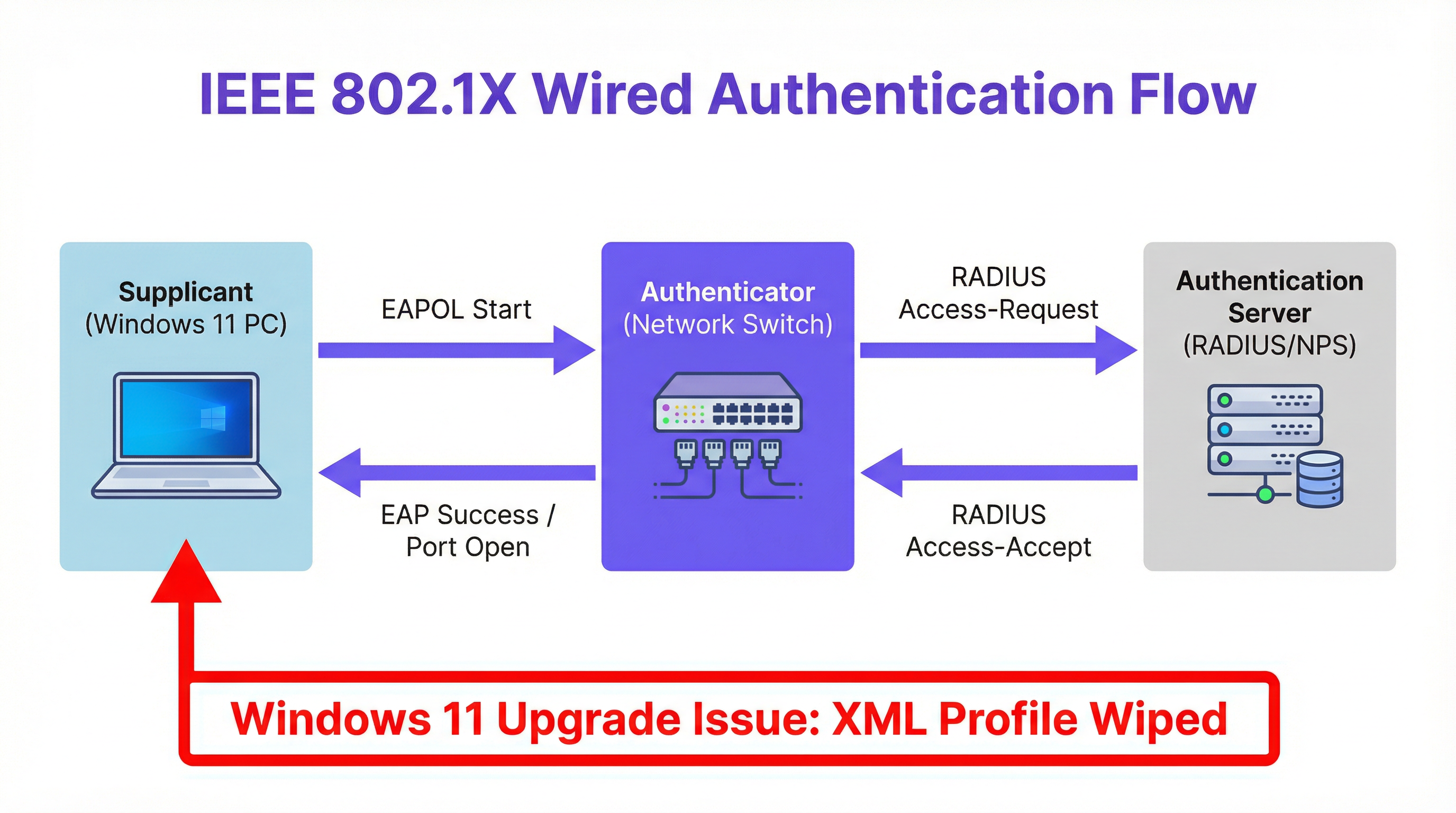
Der Authentifizierungsablauf selbst folgt dem Standard-802.1X-Modell. Das Windows-Gerät fungiert als Supplicant und initiiert eine EAPOL-Startnachricht (EAP over LAN) an den Switch. Der Switch, der als Authenticator fungiert, leitet die Anfrage an einen zentralen RADIUS-Server (wie Microsoft NPS oder Cisco ISE) weiter. Der RADIUS-Server validiert die Anmeldeinformationen – sei es ein Zertifikat, Benutzername und Passwort oder eine Maschinenidentität – und gibt eine Access-Accept- oder Access-Reject-Antwort zurück. Der Switch öffnet oder schließt den Port entsprechend. Wenn das XML-Profil fehlt, initiiert der Supplicant diesen Handshake gar nicht erst, und der Port verbleibt in einem nicht autorisierten Zustand.
Implementierungsleitfaden
Die Behebung des 802.1X-Authentifizierungsfehlers nach dem Upgrade umfasst drei primäre Methoden, die basierend auf der Management-Infrastruktur des Unternehmens ausgewählt werden.
Methode 1: Behebung über Gruppenrichtlinien (GPO). Für in eine Domäne eingebundene Geräte in einer traditionellen Active Directory-Umgebung ist die skalierbarste Lösung die Erzwingung der 802.1X-Einstellungen per GPO. Navigieren Sie zu Computerkonfiguration > Richtlinien > Windows-Einstellungen > Sicherheitseinstellungen > Richtlinien für kabelgebundene Netzwerke (IEEE 802.3). Erstellen Sie eine neue Richtlinie, geben Sie den EAP-Typ an – zum Beispiel Microsoft: Geschütztes EAP (PEAP) – und konfigurieren Sie deren Eigenschaften, einschließlich vertrauenswürdiger Stammzertifizierungsstellen und der inneren Authentifizierungsmethode (z. B. EAP-MSCHAP v2). Diese Richtlinie wendet die korrekten Einstellungen beim nächsten Aktualisierungszyklus der Gruppenrichtlinien automatisch wieder auf alle Zielrechner an, typischerweise innerhalb von 90 Minuten oder bei der nächsten Anmeldung. Der entscheidende Überprüfungsschritt besteht darin, gpresult /r auf einem Zielrechner auszuführen, um zu bestätigen, dass die Richtlinie korrekt angewendet wird.
Methode 2: Bereitstellung über Microsoft Intune. Für moderne, Cloud-verwaltete Endpunkte erstellen Sie im Intune Admin Center ein Konfigurationsprofil für Windows 10 und neuer, indem Sie die Vorlage Kabelgebundenes Netzwerk auswählen. Der effizienteste Ansatz besteht darin, zunächst das funktionierende 802.1X-Profil von einem korrekt konfigurierten Referenzrechner mit netsh lan export profile folder=. interface="Ethernet" zu exportieren. Dies generiert eine XML-Datei, die direkt in das EAP-XML-Feld des Intune-Profils importiert werden kann. Weisen Sie das Profil der entsprechenden Azure AD-Gerätegruppe zu. Intune überträgt die Konfiguration bei der nächsten Gerätesynchronisierung und stellt die Authentifizierungseinstellungen ohne manuellen Eingriff am Endpunkt wieder her.
Methode 3: Manueller Import des XML-Profils. Für Standalone-Geräte oder dringende, einmalige Behebungen kann die Konfiguration manuell wiederhergestellt werden. Exportieren Sie auf einem funktionierenden Rechner das funktionierende 802.1X-Profil: netsh lan export profile folder=C:\temp interface="Ethernet". Übertragen Sie die resultierende XML-Datei auf den betroffenen Rechner und importieren Sie sie: netsh lan add profile filename="C:\temp\YourProfile.xml" interface="Ethernet". Schließen Sie das Netzwerkkabel wieder an, um den Authentifizierungsprozess auszulösen. Diese Methode bietet eine sofortige Lösung, ist jedoch nicht skalierbar und sollte nur als taktische Maßnahme betrachtet werden.
Best Practices
Um das Risiko eines Verlusts der 802.1X-Konfiguration proaktiv zu verwalten und zu mindern, sollten IT-Teams eine mehrschichtige Strategie anwenden, die auf Best Practices im Konfigurationsmanagement basiert.
Integration der 802.1X-Konfiguration in den Standard-Build. Unabhängig davon, ob MDT, SCCM oder Windows Autopilot verwendet wird, muss das Basis-Image oder der Bereitstellungsprozess die Verteilung des kabelgebundenen Netzwerkprofils umfassen. Dies stellt den korrekten Zustand ab der anfänglichen Bereitstellung her und reduziert die Angriffsfläche für upgradebedingte Fehler.
Nutzung von zentralisiertem Management zur Durchsetzung. Verlassen Sie sich nicht auf manuell konfigurierte Endpunkte. Verwenden Sie GPOs oder Intune-Profile als Single Source of Truth für Netzwerkeinstellungen. Dies stellt sicher, dass die lokale Konfiguration, selbst wenn sie durch ein Upgrade entfernt wird, beim nächsten Aktualisierungszyklus der Richtlinien automatisch wiederhergestellt wird. Dies steht im Einklang mit den ITIL-Prinzipien für das Konfigurationsmanagement und der ISO 27001 Annex A-Kontrolle A.12.1.2 (Change Management).
Implementierung von Pre-Flight- und Post-Flight-Prüfungen in Upgrade-Tasksequenzen. Bevor Sie ein größeres OS-Upgrade über SCCM oder MDT initiieren, fügen Sie einen Skriptschritt hinzu, um das aktuelle 802.1X-Profil zu exportieren und auf einer Netzwerkfreigabe zu sichern. Die Post-Upgrade-Phase der Tasksequenz sollte einen Überprüfungsschritt enthalten, der das Vorhandensein des Profils prüft und es, falls es fehlt, aus dem Backup wiederherstellt. Dieser doppelt abgesicherte Ansatz bietet ein Sicherheitsnetz, das unabhängig von der zentralen Managementrichtlinie ist.
Pflege eines versionskontrollierten Profil-Repositorys. Führen Sie ein zentralisiertes, versionskontrolliertes Repository von Master-802.1X-XML-Profilen für verschiedene Standorte, Sicherheitsstufen und Netzwerkumgebungen. Dies ist von unschätzbarem Wert für eine schnelle Notfallwiederherstellung und gewährleistet Konsistenz über den gesamten Bestand hinweg – eine wesentliche Anforderung für die PCI DSS-Compliance und die Datensicherheitsverpflichtungen der GDPR.
Fehlerbehebung & Risikominderung
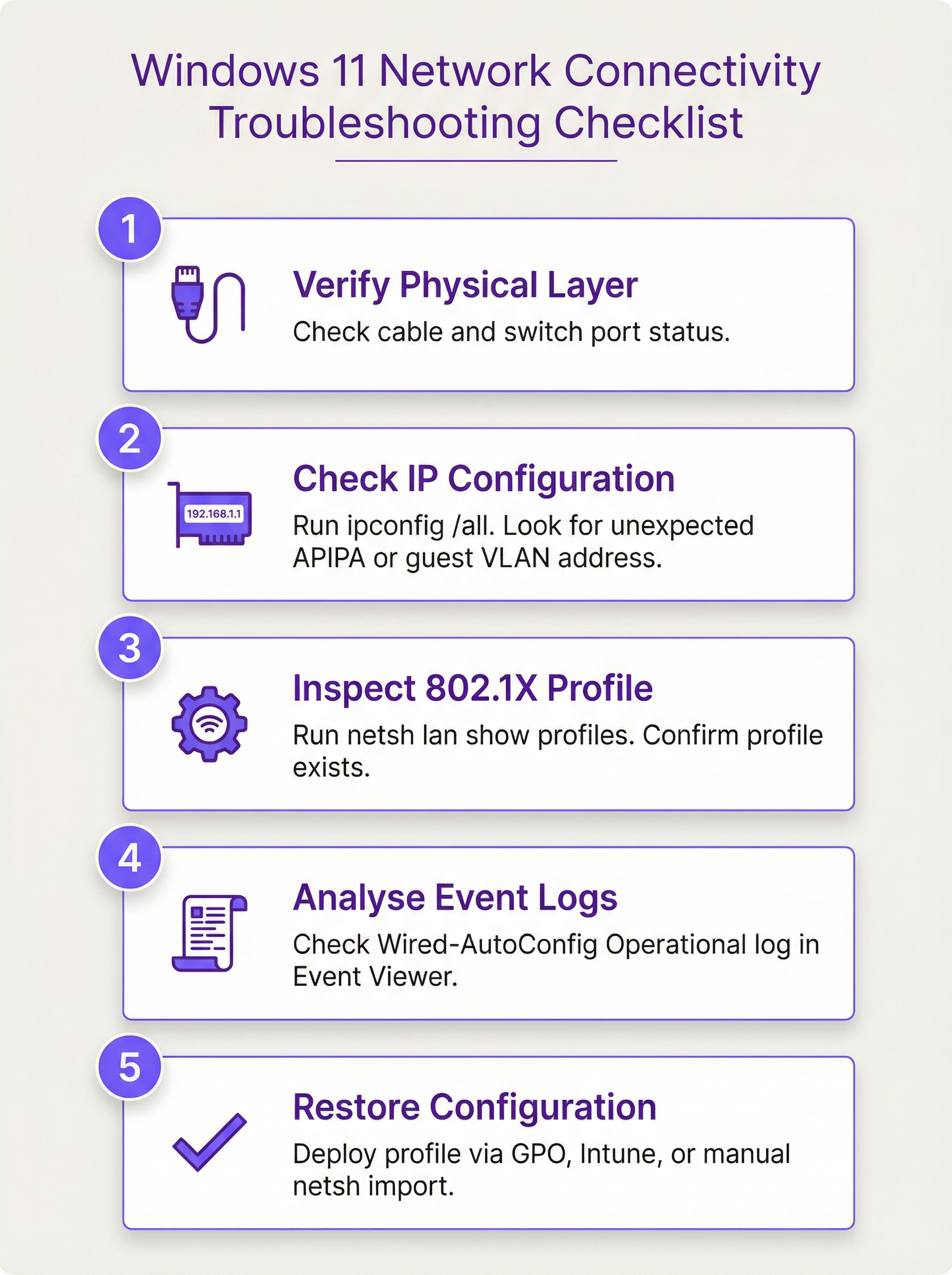
Wenn ein Endpunkt nach einem Windows 11-Upgrade keine Verbindung herstellen kann, sollte der Fehlerbehebungsprozess systematisch und evidenzbasiert erfolgen.
Schritt 1 — Überprüfung der physischen Schicht. Bestätigen Sie, dass das Ethernet-Kabel angeschlossen und der Switch-Port aktiv ist. Überprüfen Sie die Link-LEDs der Netzwerkkarte (NIC).
Schritt 2 — Überprüfung der IP-Konfiguration. Führen Sie ipconfig /all aus. Stellen Sie fest, ob das Gerät eine IP-Adresse aus dem erwarteten VLAN erhält. Eine APIPA-Adresse (169.254.x.x) weist auf ein vollständiges Fehlschlagen des IP-Bezugs hin, was darauf hindeutet, dass der Port vollständig blockiert ist. Eine IP aus einem unerwarteten Subnetz kann darauf hindeuten, dass das Gerät aufgrund eines Authentifizierungsfehlers in ein Gast-VLAN verschoben wurde.
Schritt 3 — Inspektion des 802.1X-Profils. Führen Sie netsh lan show profiles aus. Fehlt das erwartete Profil, wurde es durch das Upgrade entfernt. Ist es vorhanden, aber die Authentifizierung schlägt weiterhin fehl, ist das Profil möglicherweise beschädigt oder die Zertifikatskette unterbrochen.
Schritt 4 — Analyse der Ereignisprotokolle. Öffnen Sie die Ereignisanzeige und navigieren Sie zu Anwendungs- und Dienstprotokolle > Microsoft > Windows > Wired-AutoConfig > Operational. Suchen Sie nach Fehlerereignissen zum Zeitpunkt des Verbindungsversuchs. Diese Protokolle liefern explizite Fehlergründe, wie z. B. "Die Identität des Authentifizierungsservers konnte nicht überprüft werden" (was auf ein Problem mit dem Zertifikatsvertrauen hinweist) oder "Die EAP-Authentifizierung ist fehlgeschlagen" (was auf eine Nichtübereinstimmung von Anmeldeinformationen oder Methoden hinweist).
Schritt 5 — Wiederherstellung der Konfiguration. Wenden Sie basierend auf der Diagnose die entsprechende Behebungsmethode an: GPO, Intune oder manueller XML-Import.
Aus der Perspektive der Risikominderung sind Automatisierung und Durchsetzung der Schlüssel. Ein manuell konfiguriertes 802.1X-Profil ist ein Single Point of Failure. Eine zentral durchgesetzte Richtlinie ist eine selbstheilende Kontrollmaßnahme. Das betriebliche Risiko, sich auf manuelle Konfigurationen zu verlassen, wird in großen Beständen, in denen Hunderte von Geräten gleichzeitig aktualisiert werden, noch verstärkt. Ein einziges GPO- oder Intune-Profil, das korrekt konfiguriert und getestet wurde, eliminiert dieses Risiko in großem Maßstab.
ROI & Geschäftliche Auswirkungen
Die geschäftlichen Auswirkungen eines weitreichenden Verbindungsverlusts nach einem Windows 11-Upgrade können gravierend sein und von Produktivitätsverlusten der Mitarbeiter bis hin zu direkten Umsatzeinbußen in Umgebungen reichen, in denen der Netzwerkzugang betriebskritisch ist. Der ROI der Implementierung einer zentralisierten 802.1X-Managementstrategie wird in drei Dimensionen gemessen: reduzierte Supportkosten, geminderte Compliance-Risiken und verbesserte betriebliche Resilienz.
Reduzierung der Supportkosten. Betrachten Sie einen Unternehmensbestand von 1.000 Geräten, bei dem 15 % der Geräte nach einem nächtlichen Upgrade-Zyklus die Verbindung verlieren. Jeder Vorfall erfordert 30 Minuten IT-Supportzeit zur manuellen Behebung. Bei Vollkosten von 60 £ pro Stunde für einen Level-2-Techniker kostet dieses einzelne Ereignis das Unternehmen 4.500 £ an reaktivem Support. Im Gegensatz dazu erfordert die Erstellung und Bereitstellung eines GPO- oder Intune-Profils etwa 4 Stunden Arbeitszeit eines Architekten (240 £). Der ROI wird bereits beim ersten vermiedenen Vorfall in voller Höhe realisiert, wobei jeder nachfolgende Upgrade-Zyklus dieselbe Einsparung bringt.
Minderung von Compliance-Risiken. Die PCI DSS-Anforderung 1.2.1 schreibt die Einschränkung des Datenverkehrs zwischen der Karteninhaber-Datenumgebung und anderen Netzwerken vor. 802.1X ist eine primäre Kontrollmaßnahme zur Durchsetzung dieser Netzwerksegmentierung. Wenn Geräte ihre Authentifizierungskonfiguration verlieren und in ein unsegmentiertes Netzwerk fallen, verstößt das Unternehmen möglicherweise gegen diese Anforderung, was es Geldstrafen, Audit-Feststellungen und Reputationsschäden aussetzt. Eine zentralisierte, resiliente 802.1X-Managementstrategie mindert dieses Risiko direkt. Ebenso fordert GDPR Artikel 32 geeignete technische Maßnahmen zur Gewährleistung der Netzwerksicherheit; eine selbstheilende Authentifizierungsrichtlinie ist eine nachweisbare Kontrollmaßnahme.
Betriebliche Resilienz. Für Veranstaltungsortbetreiber – Hotels, Konferenzzentren, Stadien – ist die Netzwerkkonnektivität direkt mit umsatzgenerierenden Abläufen verknüpft. Das Property-Management-System eines Hotels, die AV-Infrastruktur eines Konferenzzentrums sowie die Ticketing- und Point-of-Sale-Systeme eines Stadions sind alle auf einen zuverlässigen, authentifizierten Netzwerkzugang angewiesen. Die Kosten von Ausfallzeiten in diesen Umgebungen übersteigen die Kosten für die Implementierung einer robusten Managementstrategie bei Weitem. Proaktives 802.1X-Management ist in diesem Kontext eine direkte Investition in die betriebliche Kontinuität.
Key Terms & Definitions
IEEE 802.1X
An IEEE standard for Port-Based Network Access Control (PNAC). It provides an authentication mechanism to devices wishing to attach to a LAN or WLAN, ensuring that only authorised devices can access network resources.
When IT teams need to prevent unauthorised devices from connecting to wired or wireless networks, they implement 802.1X. It is the primary gatekeeper for corporate network access and is a key control for PCI DSS network segmentation requirements.
Wired AutoConfig (dot3svc)
The Microsoft Windows service responsible for performing IEEE 802.1X authentication on Ethernet interfaces. It reads from a stored XML profile to initiate and manage the authentication handshake with the network switch.
This is the specific service that is disrupted during the Windows 11 upgrade. If this service is not running or its XML profile is missing, wired 802.1X authentication will fail silently. It is the primary focus of troubleshooting for this issue.
EAP (Extensible Authentication Protocol)
An authentication framework that provides a common set of functions and a negotiation mechanism for authentication methods, known as EAP methods. It is used within 802.1X to define how clients and servers exchange credentials.
When configuring 802.1X, IT teams must choose an EAP method. The choice determines the security level and infrastructure requirements: EAP-TLS requires a certificate infrastructure (PKI), while PEAP-MSCHAPv2 uses username and password credentials.
PEAP-MSCHAPv2
Protected Extensible Authentication Protocol with Microsoft Challenge-Handshake Authentication Protocol version 2. A widely deployed EAP method that creates a TLS tunnel to protect the authentication exchange and then authenticates the client using a username and password.
This is one of the most common authentication methods for 802.1X in enterprise environments. It is simpler to deploy than certificate-based EAP-TLS as it does not require client certificates. The Windows 11 upgrade issue affects all EAP types, including PEAP-MSCHAPv2.
RADIUS (Remote Authentication Dial-In User Service)
A networking protocol that provides centralised Authentication, Authorisation, and Accounting (AAA) management for users and devices connecting to a network. In an 802.1X deployment, the network switch forwards authentication requests to the RADIUS server.
The RADIUS server is the central authority that validates credentials and grants or denies access. Common implementations include Microsoft NPS (Network Policy Server) and Cisco ISE. When the 802.1X profile is missing, the RADIUS server is never even contacted.
Group Policy (GPO)
A feature of Microsoft Windows that provides centralised management and configuration of operating systems, applications, and user settings in an Active Directory environment.
For on-premises, domain-joined Windows devices, GPOs are the standard method for deploying and enforcing security settings, including 802.1X configurations. A correctly configured Wired Network GPO will re-apply the 802.1X profile even if an upgrade removes it locally.
Microsoft Intune
A Microsoft cloud-based unified endpoint management (UEM) platform for managing mobile devices, desktop operating systems, and applications.
For modern, cloud-managed, or hybrid Azure AD-joined environments, Intune is the preferred method for deploying 802.1X profiles. It replaces the need for traditional GPOs and is essential for managing distributed, modern device estates.
VLAN (Virtual Local Area Network)
A logical overlay network that groups together a set of devices from different physical LAN segments, creating an isolated broadcast domain independent of physical location.
802.1X is frequently used to dynamically assign devices to specific VLANs based on their authenticated identity. When the 802.1X configuration is wiped, this dynamic assignment fails, and the device may be placed in a restricted guest VLAN or denied access entirely, which is the symptom most commonly reported by end users.
EAPOL (EAP over LAN)
An encapsulation protocol defined in IEEE 802.1X that carries EAP messages over an IEEE 802 network, such as Ethernet or Wi-Fi.
EAPOL is the mechanism by which the supplicant (the Windows device) initiates the 802.1X authentication process with the switch. The first message sent is an EAPOL-Start frame. When the dot3svc XML profile is missing, this initial frame is never sent.
Case Studies
A multi-site retail chain with 500 stores is preparing to upgrade its POS terminals and back-office PCs to Windows 11. Each store uses 802.1X with PEAP-MSCHAPv2 to secure wired access and segment payment processing traffic from general corporate traffic, as required by PCI DSS. How can the IT Director prevent mass connectivity outages during the phased rollout?
The IT Director should leverage Microsoft Intune for centralised management across the distributed estate. Step 1: Create a Master Configuration Profile. On a reference Windows 11 device, manually configure and test the 802.1X settings for a store environment. Export this configuration to an XML file using netsh lan export profile folder=C:\temp interface="Ethernet". Step 2: Build an Intune Profile. In the Intune admin centre, create a new Configuration Profile for Windows 10 and later, using the 'Wired network' template. Import the XML file from Step 1 into the EAP XML field of this profile. Step 3: Define Dynamic Device Groups. Create Azure AD dynamic device groups that automatically populate based on device properties, such as a naming convention specific to POS terminals (e.g., devices with names matching 'POS-*'). This enables targeted, role-based policy application. Step 4: Phased Deployment. Assign the Intune profile to a pilot group of non-critical back-office devices in a single region first. Monitor their upgrade process and connectivity status via Intune's endpoint analytics and device compliance reports. Once validated over a 48-hour observation window, expand the assignment to POS terminals and then to the broader estate in a region-by-region rollout. This ensures that even if the upgrade process removes the local profile, Intune will enforce its re-application on the next sync, guaranteeing seamless connectivity and maintaining PCI DSS network segmentation controls.
A large conference centre hosts multiple concurrent events, each requiring a secure, isolated network for organisers and exhibitors. The on-site IT team uses dynamic VLAN assignment via 802.1X based on user credentials managed in Microsoft NPS. After a Windows 11 feature update deployed overnight, an event organiser's laptop can no longer access the organiser network or the shared file server. The event begins in two hours. How should the on-site technician resolve this?
For an immediate, tactical fix in a time-sensitive business environment, the technician should use the manual XML profile import method. Step 1: Obtain a Working Profile. The technician should use their own correctly configured laptop or a reference device to export the 802.1X profile for the organiser network. Command: netsh lan export profile folder=C:\temp interface="Ethernet". This creates an XML file containing the full authentication configuration. Step 2: Transfer the Profile. The XML file should be transferred to the organiser's laptop via a USB drive, as the organiser's device currently has no access to network shares. Step 3: Import the Profile. On the organiser's laptop, open an administrative Command Prompt and run: netsh lan add profile filename="C:\temp\Wired_Organiser_Profile.xml" interface="Ethernet". Step 4: Verify Connectivity. Disconnect and reconnect the Ethernet cable to trigger the 802.1X authentication process. The device should authenticate successfully and be placed in the correct VLAN, restoring access to the file server. Step 5: Document and Escalate. The technician must document this one-off fix in the IT service management system and raise a change request for the central IT architecture team to deploy a permanent Intune or GPO-based solution, preventing recurrence for other users and future events.
Scenario Analysis
Q1. You are the CTO of a large hotel group with 3,000 staff devices across 45 properties. A scheduled overnight Windows 11 feature update has been deployed to all devices. The following morning, your helpdesk receives 200 tickets reporting that back-office PCs cannot access the property management system or internal file shares. All devices are domain-joined and managed via SCCM. What is your immediate response plan and your long-term remediation strategy?
💡 Hint:Consider both the immediate operational impact — getting the hotel properties functional — and the root cause, which is a systemic configuration management gap. Your response must address both.
Show Recommended Approach
Immediate response: Declare a P1 incident and convene a bridge call with the network architecture and endpoint management teams. The priority is to identify the fastest path to restoring connectivity at scale. Given that devices are domain-joined and managed via SCCM, the fastest scalable fix is to create a Wired Network GPO immediately, deploying the correct 802.1X settings to all affected OUs. Force a Group Policy update on affected machines remotely using Invoke-GPUpdate via SCCM. For properties where this does not resolve the issue quickly enough, dispatch IT staff with USB drives containing the XML profile for manual import on the most critical devices (e.g., front desk and revenue management PCs). Long-term strategy: Conduct a post-incident review to understand why the 802.1X settings were not already enforced via GPO. Build the Wired Network GPO as a permanent, enforced policy. Add a post-upgrade verification step to the SCCM task sequence that checks for the profile's presence and restores it if absent. Document the master XML profiles in a version-controlled repository. Review the change management process to ensure that upgrade deployments include a validation step before full rollout.
Q2. A university campus network uses 802.1X to control access to different network segments for students, faculty, and staff. After the latest Windows 11 feature update, a professor reports they can no longer access the faculty research drive from their office. They can, however, access the public internet. What is the most likely cause, and what single command would you run first on their machine to begin your diagnosis?
💡 Hint:The user has partial connectivity — they can reach the internet but not internal resources. This is a specific pattern that points to a particular type of failure. Think about what controls access to different network segments.
Show Recommended Approach
The most likely cause is that the 802.1X authentication is failing, and the switch port is defaulting the professor's device into a restricted VLAN that has internet access but no access to internal resources such as the faculty research drive. This is a common network design pattern where the 'fail-open' state provides internet access but not internal network access. The Windows 11 update has likely wiped the specific 802.1X profile for the faculty network, so the device is not authenticating and is therefore not being placed in the faculty VLAN. The first command to run on their machine is netsh lan show profiles. If the faculty network profile is absent from the output, the root cause is confirmed. The fix is to restore the profile via the appropriate method — in a university environment, this is likely a GPO or Intune profile, or a manual import as an immediate fix.
Q3. Your organisation is migrating from a traditional on-premises Active Directory environment to a fully cloud-native Azure AD and Intune deployment. Your existing 802.1X settings are currently managed via GPO. A new regional office is being set up with Azure AD-joined devices only. How do you adapt your 802.1X deployment strategy for this new office, and what is the specific step that bridges the gap between your existing GPO configuration and the new Intune-based approach?
💡 Hint:GPOs do not apply to Azure AD-joined devices. You need to replicate the GPO's intent using a different tool. Think about what the GPO contains and how that information can be transferred.
Show Recommended Approach
The existing GPO-based strategy cannot be applied to Azure AD-joined devices, as Group Policy requires a connection to an on-premises domain controller. The correct approach is to replicate the GPO settings in Microsoft Intune. The bridging step is to export the 802.1X XML profile from an existing GPO-managed machine using netsh lan export profile folder=C:\temp interface="Ethernet". This XML file contains the exact same configuration that the GPO was deploying. In Intune, create a new Configuration Profile for Windows 10 and later, select the 'Wired network' template, and import this XML into the EAP XML field. Assign this profile to an Azure AD device group containing the machines in the new regional office. This effectively translates the on-premises GPO logic into a cloud-native Intune policy, ensuring the same level of security and configuration enforcement for the modern-managed devices. This approach also provides a clear migration path: as more sites move to Azure AD-joined devices, the same Intune profile can be extended to them, eventually replacing the GPO entirely.
Key Takeaways
- ✓Windows 11 in-place upgrades — particularly the 23H2 to 25H2 feature update cycle — can silently wipe the XML configuration profiles used by the Wired AutoConfig (dot3svc) service, causing immediate 802.1X authentication failures on wired networks.
- ✓The failure manifests as devices being placed on a restricted guest VLAN or having their switch port blocked entirely, resulting in loss of access to internal resources while potentially retaining internet access.
- ✓Diagnose the issue by running `netsh lan show profiles` (to check for the missing profile) and reviewing the Wired-AutoConfig Operational log in Windows Event Viewer (for explicit error codes).
- ✓Restore connectivity at scale using a Group Policy Wired Network policy (for domain-joined devices) or a Microsoft Intune Configuration Profile (for Azure AD-joined or hybrid devices), both of which enforce the correct settings persistently.
- ✓For urgent, one-off fixes, export the working profile from a functional machine (`netsh lan export`) and import it on the affected device (`netsh lan add profile`).
- ✓Prevent future occurrences by making 802.1X configuration part of the standard device build and enforcing it via a central policy — never rely on manually applied configurations surviving an OS upgrade.
- ✓This issue has direct compliance implications for PCI DSS (network segmentation) and ISO 27001 (configuration management); a centralised, resilient 802.1X strategy is both an operational and a compliance imperative.