Resolución de problemas de conectividad a Internet en Windows 11 tras la actualización
This guide provides a definitive technical reference for IT leaders on resolving Windows 11 upgrade-related internet connectivity failures caused by the removal of 802.1X wired authentication settings. It delivers a step-by-step troubleshooting and remediation process, covering Group Policy, Microsoft Intune, and manual recovery methods, alongside preventative measures and ROI analysis to ensure stable, compliant network access across enterprise environments.
🎧 Listen to this Guide
View Transcript

Resumen ejecutivo
La transición a Windows 11, si bien ofrece mejoras significativas en seguridad y productividad, ha introducido un problema operativo crítico para los entornos de red empresariales: el borrado silencioso de las configuraciones de autenticación por cable 802.1X durante las actualizaciones in situ. Para los directores de TI, arquitectos de red y CTO que supervisan grandes parques de dispositivos en hoteles, cadenas minoristas, estadios, centros de conferencias y organizaciones del sector público, esto se traduce directamente en pérdida de productividad, elevados costes de soporte y posibles riesgos de cumplimiento. La causa principal es la corrupción o eliminación completa de los perfiles de configuración XML esenciales para el servicio de configuración automática de redes cableadas (dot3svc), lo que impide a los dispositivos realizar el control de acceso a la red basado en puertos definido por IEEE 802.1X. Esta guía proporciona una metodología autorizada y paso a paso para diagnosticar, restaurar y prevenir este problema. Cubrimos los fundamentos técnicos del fallo, las tres vías principales de corrección (Directiva de grupo, Microsoft Intune y la importación manual de perfiles XML) y un marco para integrar la resiliencia en futuros ciclos de despliegue del sistema operativo. También analizamos el impacto empresarial y el ROI de una estrategia proactiva de gestión de 802.1X, en referencia a las obligaciones de cumplimiento de PCI DSS, ISO 27001 y GDPR.
Análisis técnico en profundidad
El núcleo del problema reside en cómo el proceso de actualización in situ de Windows 11 gestiona los perfiles de configuración de red. El servicio de configuración automática de redes cableadas (dot3svc) es el servicio de Windows responsable de gestionar la autenticación IEEE 802.1X en las interfaces Ethernet. Cuando un equipo se conecta a un puerto del switch, este servicio lee un perfil XML almacenado para iniciar el protocolo de enlace de autenticación, utilizando protocolos como EAP-TLS o PEAP-MSCHAPv2. El proceso de actualización (en particular, el ciclo de actualización de características de 23H2 a 25H2) puede corromper este perfil o restablecer por completo las dependencias del servicio, dejando al dispositivo sin la configuración necesaria para autenticarse. El resultado es que el puerto del switch, configurado para aplicar 802.1X, deniega el acceso, a menudo relegando el dispositivo a una VLAN de invitados restringida o bloqueando el tráfico por completo.
No se trata de un problema de controladores ni de compatibilidad de hardware. Es la pérdida del perfil de configuración específico que dicta el método de autenticación, la confianza del servidor y la identidad del cliente. La distinción es importante porque cambia por completo el enfoque de resolución de problemas. Un administrador puede verificar el problema ejecutando netsh lan show profiles desde un símbolo del sistema con privilegios elevados. Si el perfil esperado no está presente, se confirma la causa principal. Para un análisis más profundo, el Visor de eventos de Windows proporciona datos de diagnóstico explícitos en Applications and Services Logs > Microsoft > Windows > Wired-AutoConfig > Operational, donde los fallos de autenticación se registran con códigos de error y descripciones específicos.
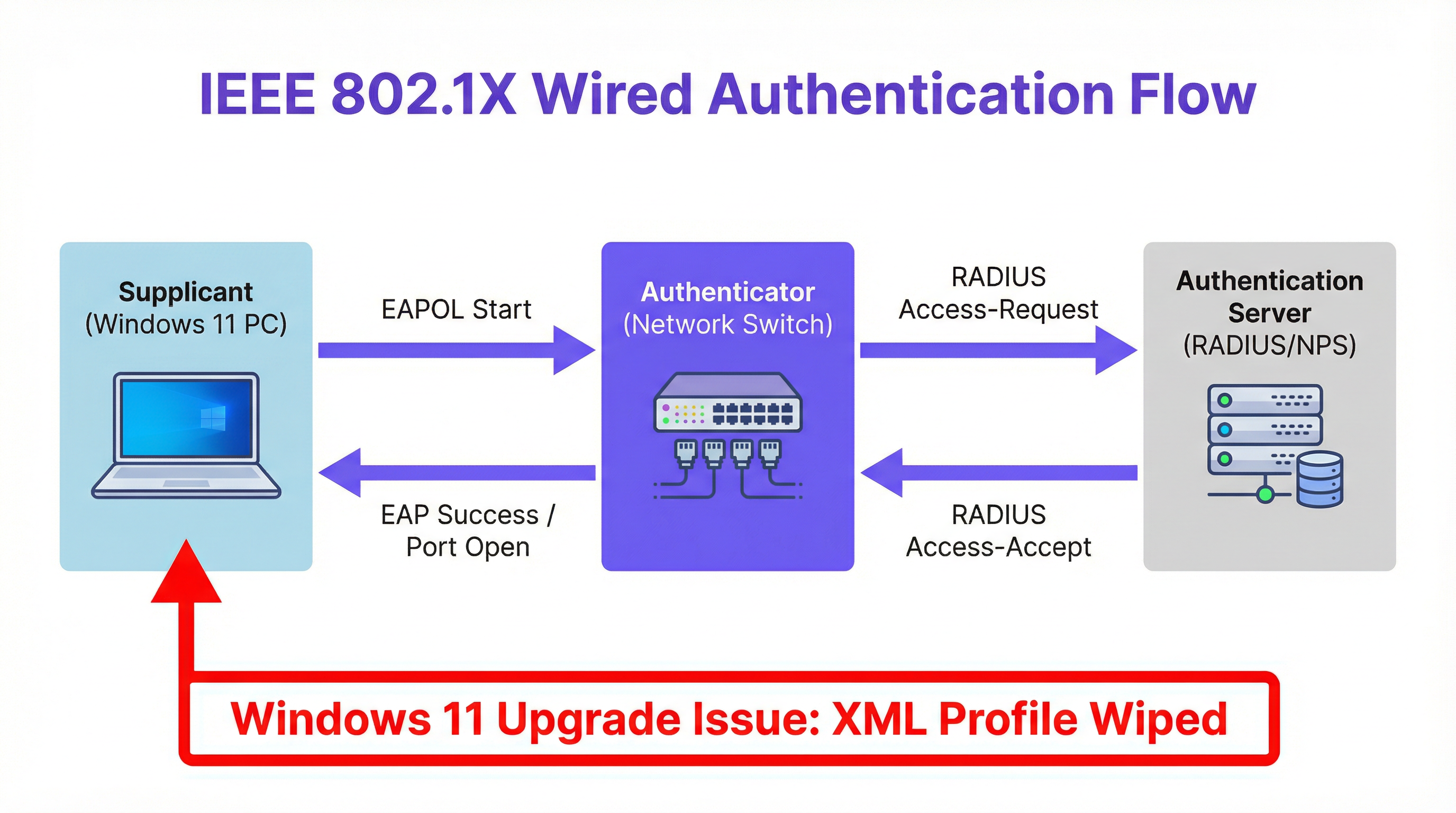
El flujo de autenticación en sí sigue el modelo estándar 802.1X. El dispositivo Windows actúa como suplicante, iniciando un mensaje de inicio EAPOL (EAP sobre LAN) hacia el switch. El switch, actuando como autenticador, reenvía la solicitud a un servidor RADIUS central (como Microsoft NPS o Cisco ISE). El servidor RADIUS valida las credenciales (ya sea un certificado, nombre de usuario y contraseña, o identidad del equipo) y devuelve una respuesta Access-Accept o Access-Reject. A continuación, el switch abre o cierra el puerto en consecuencia. Cuando falta el perfil XML, el suplicante nunca inicia este protocolo de enlace y el puerto permanece en un estado no autorizado.
Guía de implementación
La resolución del fallo de autenticación 802.1X tras la actualización implica tres métodos principales, seleccionados en función de la infraestructura de gestión de la organización.
Método 1: Corrección mediante Directiva de grupo (GPO). Para los dispositivos unidos a un dominio en un entorno tradicional de Active Directory, la solución más escalable es aplicar la configuración 802.1X a través de GPO. Vaya a Configuración del equipo > Directivas > Configuración de Windows > Configuración de seguridad > Directivas de red cableada (IEEE 802.3). Cree una nueva directiva, especificando el tipo de EAP (por ejemplo, Microsoft: EAP protegido [PEAP]) y configure sus propiedades, incluidas las autoridades de certificación raíz de confianza y el método de autenticación interno (por ejemplo, EAP-MSCHAP v2). Esta directiva volverá a aplicar automáticamente la configuración correcta a todos los equipos de destino en su siguiente ciclo de actualización de la Directiva de grupo, normalmente en un plazo de 90 minutos o en el siguiente inicio de sesión. El paso de verificación crítico consiste en ejecutar gpresult /r en un equipo de destino para confirmar que la directiva se está aplicando correctamente.
Método 2: Despliegue con Microsoft Intune. Para los endpoints modernos gestionados en la nube, cree un Perfil de configuración en el centro de administración de Intune para Windows 10 y versiones posteriores, seleccionando la plantilla Red cableada. El enfoque más eficiente es exportar primero el perfil 802.1X operativo desde un equipo de referencia configurado correctamente utilizando netsh lan export profile folder=. interface="Ethernet". Esto genera un archivo XML que se puede importar directamente en el campo XML de EAP del perfil de Intune. Asigne el perfil al grupo de dispositivos de Azure AD correspondiente. Intune aplicará la configuración en la siguiente sincronización del dispositivo, restaurando los ajustes de autenticación sin ninguna intervención manual en el endpoint.
Método 3: Importación manual del perfil XML. Para dispositivos independientes o correcciones urgentes y puntuales, la configuración se puede restaurar manualmente. En un equipo funcional, exporte el perfil 802.1X operativo: netsh lan export profile folder=C:\temp interface="Ethernet". Transfiera el archivo XML resultante al equipo afectado e impórtelo: netsh lan add profile filename="C:\temp\YourProfile.xml" interface="Ethernet". Vuelva a conectar el cable de red para activar el proceso de autenticación. Este método proporciona una solución inmediata, pero no es escalable y debe tratarse únicamente como una medida táctica.
Mejores prácticas
Para gestionar y mitigar de forma proactiva el riesgo de pérdida de configuración 802.1X, los equipos de TI deben adoptar una estrategia multicapa basada en las mejores prácticas de gestión de la configuración.
Incorporar la configuración 802.1X en la compilación estándar. Ya sea utilizando MDT, SCCM o Windows Autopilot, la imagen base o el proceso de aprovisionamiento deben incluir el despliegue del perfil de red cableada. Esto establece el estado correcto desde el aprovisionamiento inicial, reduciendo la superficie de exposición a fallos relacionados con las actualizaciones.
Aprovechar la gestión centralizada para la aplicación de políticas. No dependa de endpoints configurados manualmente. Utilice GPO o perfiles de Intune como única fuente de información para la configuración de red. Esto garantiza que, incluso si una actualización elimina la configuración local, esta se restaure automáticamente en el siguiente ciclo de actualización de la directiva. Esto se alinea con los principios de gestión de la configuración de ITIL y el control A.12.1.2 del Anexo A de la norma ISO 27001 (Gestión de cambios).
Implementar comprobaciones previas y posteriores en las secuencias de tareas de actualización. Antes de iniciar una actualización importante del sistema operativo a través de SCCM o MDT, incluya un paso de script para exportar y realizar una copia de seguridad del perfil 802.1X actual en un recurso compartido de red. La fase posterior a la actualización de la secuencia de tareas debe incluir un paso de verificación que compruebe la presencia del perfil y, si no está, lo restaure desde la copia de seguridad. Este enfoque de doble seguridad proporciona una red de protección independiente de la directiva de gestión central.
Mantener un repositorio de perfiles con control de versiones. Mantenga un repositorio centralizado y con control de versiones de los perfiles XML 802.1X maestros para diferentes sitios, niveles de seguridad y entornos de red. Esto tiene un valor incalculable para la rápida recuperación ante desastres y garantiza la coherencia en todo el parque informático, un requisito clave para el cumplimiento de PCI DSS y las obligaciones de seguridad de datos del GDPR.
Resolución de problemas y mitigación de riesgos
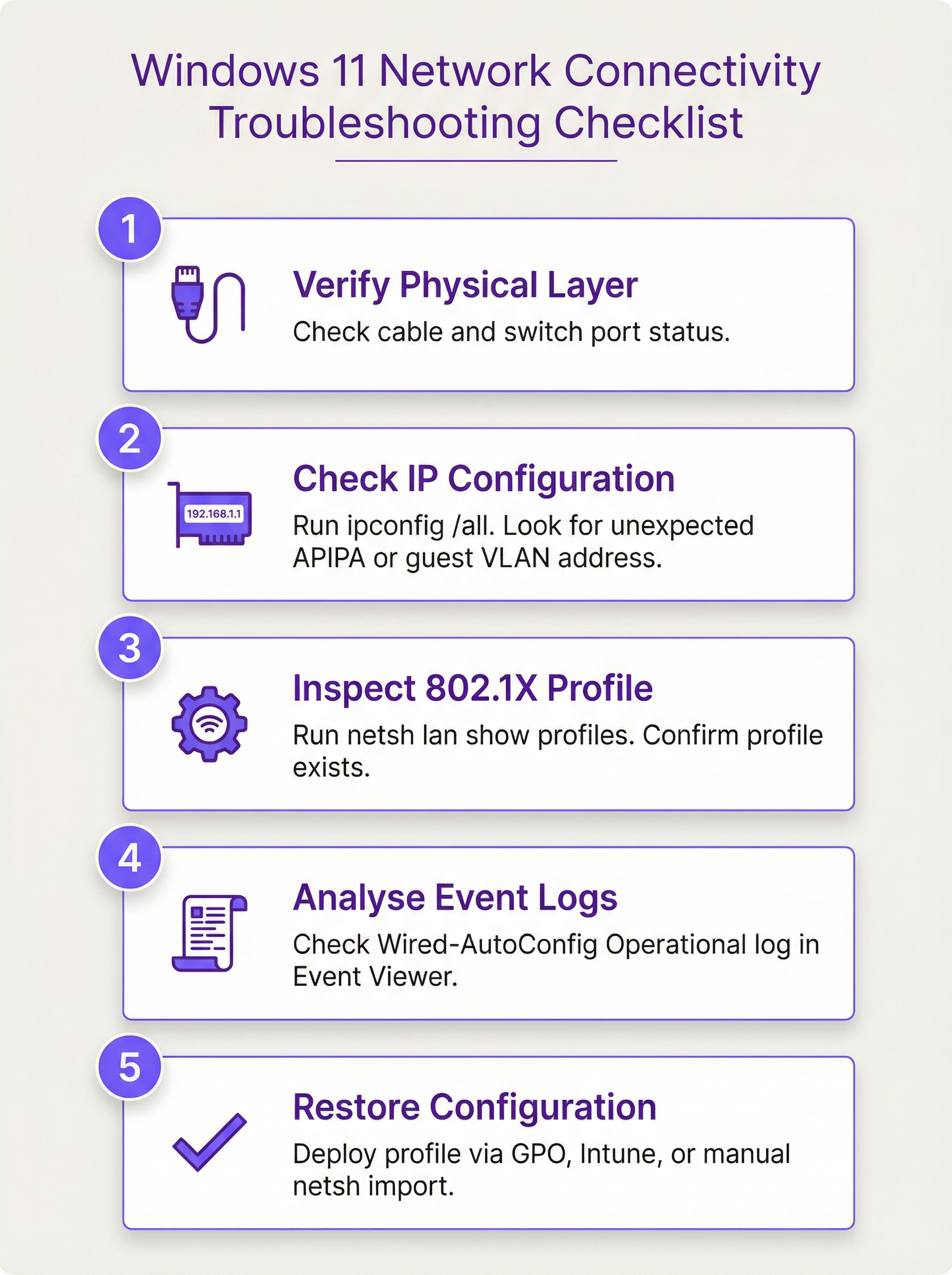
Cuando un endpoint no logra conectarse tras una actualización de Windows 11, el proceso de resolución de problemas debe ser sistemático y basarse en evidencias.
Paso 1: Verificar la capa física. Confirme que el cable Ethernet está conectado y que el puerto del switch está activo. Compruebe las luces de enlace de la tarjeta de red (NIC).
Paso 2: Comprobar la configuración IP. Ejecute ipconfig /all. Determine si el dispositivo está recibiendo una dirección IP de la VLAN esperada. Una dirección APIPA (169.254.x.x) indica un fallo total en la obtención de una IP, lo que sugiere que el puerto está completamente bloqueado. Una IP de una subred inesperada puede indicar que el dispositivo ha sido asignado a una VLAN de invitados debido a un fallo de autenticación.
Paso 3: Inspeccionar el perfil 802.1X. Ejecute netsh lan show profiles. Si el perfil esperado no está presente, la actualización lo ha eliminado. Si está presente pero la autenticación sigue fallando, es posible que el perfil esté dañado o que la cadena de certificados esté rota.
Paso 4: Analizar los registros de eventos. Abra el Visor de eventos y vaya a Applications and Services Logs > Microsoft > Windows > Wired-AutoConfig > Operational. Busque eventos de error en el momento del intento de conexión. Estos registros proporcionan motivos de fallo explícitos, como "No se pudo comprobar la identidad del servidor de autenticación" (lo que indica un problema de confianza del certificado) o "Error en la autenticación EAP" (lo que indica una discrepancia de credenciales o de método).
Paso 5: Restaurar la configuración. En función del diagnóstico, aplique el método de corrección adecuado: GPO, Intune o importación manual del XML.
Desde la perspectiva de la mitigación de riesgos, la clave es la automatización y la aplicación de políticas. Un perfil 802.1X configurado manualmente es un único punto de fallo. Una directiva aplicada de forma centralizada es un control de autorreparación. El riesgo operativo de depender de configuraciones manuales se agrava en grandes parques informáticos donde cientos de dispositivos pueden actualizarse simultáneamente. Un único GPO o perfil de Intune, correctamente configurado y probado, elimina este riesgo a gran escala.
ROI e impacto empresarial
El impacto empresarial de una pérdida generalizada de conectividad tras una actualización de Windows 11 puede ser grave, y abarca desde la pérdida de productividad del personal hasta la pérdida directa de ingresos en entornos donde el acceso a la red es operativamente crítico. El ROI de la implementación de una estrategia centralizada de gestión de 802.1X se mide en tres dimensiones: reducción de los costes de soporte, mitigación de los riesgos de cumplimiento y mejora de la resiliencia operativa.
Reducción de los costes de soporte. Pensemos en un parque empresarial de 1000 dispositivos en el que el 15 % pierde la conectividad tras un ciclo de actualización nocturno. Cada incidente requiere 30 minutos de tiempo de soporte de TI para resolverse manualmente. Con un coste de 60 £ por hora para un técnico de nivel 2, este único evento cuesta a la organización 4500 £ en soporte reactivo. Por el contrario, la creación y el despliegue de un GPO o un perfil de Intune requiere aproximadamente 4 horas de tiempo de un arquitecto (240 £). El ROI se materializa en su totalidad durante el primer incidente evitado, y cada ciclo de actualización posterior ofrece el mismo ahorro.
Mitigación de riesgos de cumplimiento. El requisito 1.2.1 de PCI DSS exige restringir el tráfico entre el entorno de datos del titular de la tarjeta y otras redes. 802.1X es un control principal para aplicar esta segmentación de red. Si los dispositivos pierden su configuración de autenticación y caen en una red no segmentada, la organización puede incumplir este requisito, exponiéndose a multas, hallazgos de auditoría y daños a su reputación. Una estrategia de gestión de 802.1X centralizada y resiliente mitiga directamente este riesgo. Del mismo modo, el artículo 32 del GDPR exige medidas técnicas adecuadas para garantizar la seguridad de la red; una directiva de autenticación de autorreparación es un control demostrable.
Resiliencia operativa. Para los operadores de recintos (hoteles, centros de conferencias, estadios), la conectividad de red está directamente ligada a las operaciones que generan ingresos. El sistema de gestión de propiedades de un hotel, la infraestructura audiovisual de un centro de conferencias y los sistemas de venta de entradas y puntos de venta de un estadio dependen de un acceso a la red fiable y autenticado. El coste del tiempo de inactividad en estos entornos supera con creces el coste de implementar una estrategia de gestión sólida. La gestión proactiva de 802.1X es, en este contexto, una inversión directa en la continuidad operativa.
Key Terms & Definitions
IEEE 802.1X
An IEEE standard for Port-Based Network Access Control (PNAC). It provides an authentication mechanism to devices wishing to attach to a LAN or WLAN, ensuring that only authorised devices can access network resources.
When IT teams need to prevent unauthorised devices from connecting to wired or wireless networks, they implement 802.1X. It is the primary gatekeeper for corporate network access and is a key control for PCI DSS network segmentation requirements.
Wired AutoConfig (dot3svc)
The Microsoft Windows service responsible for performing IEEE 802.1X authentication on Ethernet interfaces. It reads from a stored XML profile to initiate and manage the authentication handshake with the network switch.
This is the specific service that is disrupted during the Windows 11 upgrade. If this service is not running or its XML profile is missing, wired 802.1X authentication will fail silently. It is the primary focus of troubleshooting for this issue.
EAP (Extensible Authentication Protocol)
An authentication framework that provides a common set of functions and a negotiation mechanism for authentication methods, known as EAP methods. It is used within 802.1X to define how clients and servers exchange credentials.
When configuring 802.1X, IT teams must choose an EAP method. The choice determines the security level and infrastructure requirements: EAP-TLS requires a certificate infrastructure (PKI), while PEAP-MSCHAPv2 uses username and password credentials.
PEAP-MSCHAPv2
Protected Extensible Authentication Protocol with Microsoft Challenge-Handshake Authentication Protocol version 2. A widely deployed EAP method that creates a TLS tunnel to protect the authentication exchange and then authenticates the client using a username and password.
This is one of the most common authentication methods for 802.1X in enterprise environments. It is simpler to deploy than certificate-based EAP-TLS as it does not require client certificates. The Windows 11 upgrade issue affects all EAP types, including PEAP-MSCHAPv2.
RADIUS (Remote Authentication Dial-In User Service)
A networking protocol that provides centralised Authentication, Authorisation, and Accounting (AAA) management for users and devices connecting to a network. In an 802.1X deployment, the network switch forwards authentication requests to the RADIUS server.
The RADIUS server is the central authority that validates credentials and grants or denies access. Common implementations include Microsoft NPS (Network Policy Server) and Cisco ISE. When the 802.1X profile is missing, the RADIUS server is never even contacted.
Group Policy (GPO)
A feature of Microsoft Windows that provides centralised management and configuration of operating systems, applications, and user settings in an Active Directory environment.
For on-premises, domain-joined Windows devices, GPOs are the standard method for deploying and enforcing security settings, including 802.1X configurations. A correctly configured Wired Network GPO will re-apply the 802.1X profile even if an upgrade removes it locally.
Microsoft Intune
A Microsoft cloud-based unified endpoint management (UEM) platform for managing mobile devices, desktop operating systems, and applications.
For modern, cloud-managed, or hybrid Azure AD-joined environments, Intune is the preferred method for deploying 802.1X profiles. It replaces the need for traditional GPOs and is essential for managing distributed, modern device estates.
VLAN (Virtual Local Area Network)
A logical overlay network that groups together a set of devices from different physical LAN segments, creating an isolated broadcast domain independent of physical location.
802.1X is frequently used to dynamically assign devices to specific VLANs based on their authenticated identity. When the 802.1X configuration is wiped, this dynamic assignment fails, and the device may be placed in a restricted guest VLAN or denied access entirely, which is the symptom most commonly reported by end users.
EAPOL (EAP over LAN)
An encapsulation protocol defined in IEEE 802.1X that carries EAP messages over an IEEE 802 network, such as Ethernet or Wi-Fi.
EAPOL is the mechanism by which the supplicant (the Windows device) initiates the 802.1X authentication process with the switch. The first message sent is an EAPOL-Start frame. When the dot3svc XML profile is missing, this initial frame is never sent.
Case Studies
A multi-site retail chain with 500 stores is preparing to upgrade its POS terminals and back-office PCs to Windows 11. Each store uses 802.1X with PEAP-MSCHAPv2 to secure wired access and segment payment processing traffic from general corporate traffic, as required by PCI DSS. How can the IT Director prevent mass connectivity outages during the phased rollout?
The IT Director should leverage Microsoft Intune for centralised management across the distributed estate. Step 1: Create a Master Configuration Profile. On a reference Windows 11 device, manually configure and test the 802.1X settings for a store environment. Export this configuration to an XML file using netsh lan export profile folder=C:\temp interface="Ethernet". Step 2: Build an Intune Profile. In the Intune admin centre, create a new Configuration Profile for Windows 10 and later, using the 'Wired network' template. Import the XML file from Step 1 into the EAP XML field of this profile. Step 3: Define Dynamic Device Groups. Create Azure AD dynamic device groups that automatically populate based on device properties, such as a naming convention specific to POS terminals (e.g., devices with names matching 'POS-*'). This enables targeted, role-based policy application. Step 4: Phased Deployment. Assign the Intune profile to a pilot group of non-critical back-office devices in a single region first. Monitor their upgrade process and connectivity status via Intune's endpoint analytics and device compliance reports. Once validated over a 48-hour observation window, expand the assignment to POS terminals and then to the broader estate in a region-by-region rollout. This ensures that even if the upgrade process removes the local profile, Intune will enforce its re-application on the next sync, guaranteeing seamless connectivity and maintaining PCI DSS network segmentation controls.
A large conference centre hosts multiple concurrent events, each requiring a secure, isolated network for organisers and exhibitors. The on-site IT team uses dynamic VLAN assignment via 802.1X based on user credentials managed in Microsoft NPS. After a Windows 11 feature update deployed overnight, an event organiser's laptop can no longer access the organiser network or the shared file server. The event begins in two hours. How should the on-site technician resolve this?
For an immediate, tactical fix in a time-sensitive business environment, the technician should use the manual XML profile import method. Step 1: Obtain a Working Profile. The technician should use their own correctly configured laptop or a reference device to export the 802.1X profile for the organiser network. Command: netsh lan export profile folder=C:\temp interface="Ethernet". This creates an XML file containing the full authentication configuration. Step 2: Transfer the Profile. The XML file should be transferred to the organiser's laptop via a USB drive, as the organiser's device currently has no access to network shares. Step 3: Import the Profile. On the organiser's laptop, open an administrative Command Prompt and run: netsh lan add profile filename="C:\temp\Wired_Organiser_Profile.xml" interface="Ethernet". Step 4: Verify Connectivity. Disconnect and reconnect the Ethernet cable to trigger the 802.1X authentication process. The device should authenticate successfully and be placed in the correct VLAN, restoring access to the file server. Step 5: Document and Escalate. The technician must document this one-off fix in the IT service management system and raise a change request for the central IT architecture team to deploy a permanent Intune or GPO-based solution, preventing recurrence for other users and future events.
Scenario Analysis
Q1. You are the CTO of a large hotel group with 3,000 staff devices across 45 properties. A scheduled overnight Windows 11 feature update has been deployed to all devices. The following morning, your helpdesk receives 200 tickets reporting that back-office PCs cannot access the property management system or internal file shares. All devices are domain-joined and managed via SCCM. What is your immediate response plan and your long-term remediation strategy?
💡 Hint:Consider both the immediate operational impact — getting the hotel properties functional — and the root cause, which is a systemic configuration management gap. Your response must address both.
Show Recommended Approach
Immediate response: Declare a P1 incident and convene a bridge call with the network architecture and endpoint management teams. The priority is to identify the fastest path to restoring connectivity at scale. Given that devices are domain-joined and managed via SCCM, the fastest scalable fix is to create a Wired Network GPO immediately, deploying the correct 802.1X settings to all affected OUs. Force a Group Policy update on affected machines remotely using Invoke-GPUpdate via SCCM. For properties where this does not resolve the issue quickly enough, dispatch IT staff with USB drives containing the XML profile for manual import on the most critical devices (e.g., front desk and revenue management PCs). Long-term strategy: Conduct a post-incident review to understand why the 802.1X settings were not already enforced via GPO. Build the Wired Network GPO as a permanent, enforced policy. Add a post-upgrade verification step to the SCCM task sequence that checks for the profile's presence and restores it if absent. Document the master XML profiles in a version-controlled repository. Review the change management process to ensure that upgrade deployments include a validation step before full rollout.
Q2. A university campus network uses 802.1X to control access to different network segments for students, faculty, and staff. After the latest Windows 11 feature update, a professor reports they can no longer access the faculty research drive from their office. They can, however, access the public internet. What is the most likely cause, and what single command would you run first on their machine to begin your diagnosis?
💡 Hint:The user has partial connectivity — they can reach the internet but not internal resources. This is a specific pattern that points to a particular type of failure. Think about what controls access to different network segments.
Show Recommended Approach
The most likely cause is that the 802.1X authentication is failing, and the switch port is defaulting the professor's device into a restricted VLAN that has internet access but no access to internal resources such as the faculty research drive. This is a common network design pattern where the 'fail-open' state provides internet access but not internal network access. The Windows 11 update has likely wiped the specific 802.1X profile for the faculty network, so the device is not authenticating and is therefore not being placed in the faculty VLAN. The first command to run on their machine is netsh lan show profiles. If the faculty network profile is absent from the output, the root cause is confirmed. The fix is to restore the profile via the appropriate method — in a university environment, this is likely a GPO or Intune profile, or a manual import as an immediate fix.
Q3. Your organisation is migrating from a traditional on-premises Active Directory environment to a fully cloud-native Azure AD and Intune deployment. Your existing 802.1X settings are currently managed via GPO. A new regional office is being set up with Azure AD-joined devices only. How do you adapt your 802.1X deployment strategy for this new office, and what is the specific step that bridges the gap between your existing GPO configuration and the new Intune-based approach?
💡 Hint:GPOs do not apply to Azure AD-joined devices. You need to replicate the GPO's intent using a different tool. Think about what the GPO contains and how that information can be transferred.
Show Recommended Approach
The existing GPO-based strategy cannot be applied to Azure AD-joined devices, as Group Policy requires a connection to an on-premises domain controller. The correct approach is to replicate the GPO settings in Microsoft Intune. The bridging step is to export the 802.1X XML profile from an existing GPO-managed machine using netsh lan export profile folder=C:\temp interface="Ethernet". This XML file contains the exact same configuration that the GPO was deploying. In Intune, create a new Configuration Profile for Windows 10 and later, select the 'Wired network' template, and import this XML into the EAP XML field. Assign this profile to an Azure AD device group containing the machines in the new regional office. This effectively translates the on-premises GPO logic into a cloud-native Intune policy, ensuring the same level of security and configuration enforcement for the modern-managed devices. This approach also provides a clear migration path: as more sites move to Azure AD-joined devices, the same Intune profile can be extended to them, eventually replacing the GPO entirely.
Key Takeaways
- ✓Windows 11 in-place upgrades — particularly the 23H2 to 25H2 feature update cycle — can silently wipe the XML configuration profiles used by the Wired AutoConfig (dot3svc) service, causing immediate 802.1X authentication failures on wired networks.
- ✓The failure manifests as devices being placed on a restricted guest VLAN or having their switch port blocked entirely, resulting in loss of access to internal resources while potentially retaining internet access.
- ✓Diagnose the issue by running `netsh lan show profiles` (to check for the missing profile) and reviewing the Wired-AutoConfig Operational log in Windows Event Viewer (for explicit error codes).
- ✓Restore connectivity at scale using a Group Policy Wired Network policy (for domain-joined devices) or a Microsoft Intune Configuration Profile (for Azure AD-joined or hybrid devices), both of which enforce the correct settings persistently.
- ✓For urgent, one-off fixes, export the working profile from a functional machine (`netsh lan export`) and import it on the affected device (`netsh lan add profile`).
- ✓Prevent future occurrences by making 802.1X configuration part of the standard device build and enforcing it via a central policy — never rely on manually applied configurations surviving an OS upgrade.
- ✓This issue has direct compliance implications for PCI DSS (network segmentation) and ISO 27001 (configuration management); a centralised, resilient 802.1X strategy is both an operational and a compliance imperative.