BYOD WiFi Onboarding: Managing Unmanaged Devices in Hotels and Retail
This technical reference guide provides actionable strategies for onboarding employee-owned (BYOD) devices onto enterprise WiFi networks in hospitality and retail environments without requiring full MDM enrolment. It covers self-service certificate enrolment flows, 802.1X authentication, and policy enforcement to ensure secure access for unmanaged devices.
Executive Summary
For IT managers and network architects in hospitality and retail, managing network access for employee-owned devices (BYOD) presents a significant security and operational challenge. Corporate devices are typically managed via Mobile Device Management (MDM) and authenticate silently via 802.1X. However, forcing staff to enrol their personal smartphones or tablets into a corporate MDM is a privacy concern and often meets strong resistance. Relying on Pre-Shared Keys (PSKs) or MAC Authentication Bypass (MAB) is fundamentally insecure and operationally burdensome. This guide outlines a practical, secure approach to BYOD WiFi onboarding using self-service certificate enrolment. By leveraging a captive portal flow integrated with your identity provider, you can securely onboard unmanaged devices onto an 802.1X network, enforce appropriate access policies, and maintain compliance without the friction of full MDM enrolment. This approach ensures that staff can access essential internal tools, such as point-of-sale systems and scheduling apps, securely and efficiently. For venues already utilising Guest WiFi and WiFi Analytics, extending secure onboarding to staff BYOD devices provides a unified, robust network management strategy.
Technical Deep-Dive
The foundation of secure BYOD onboarding is the transition from legacy authentication methods to EAP-TLS (Extensible Authentication Protocol-Transport Layer Security) [1]. EAP-TLS is the industry standard for secure WiFi authentication, relying on digital certificates rather than passwords. The challenge with BYOD is distributing these certificates to unmanaged devices.
The Self-Service Onboarding Flow
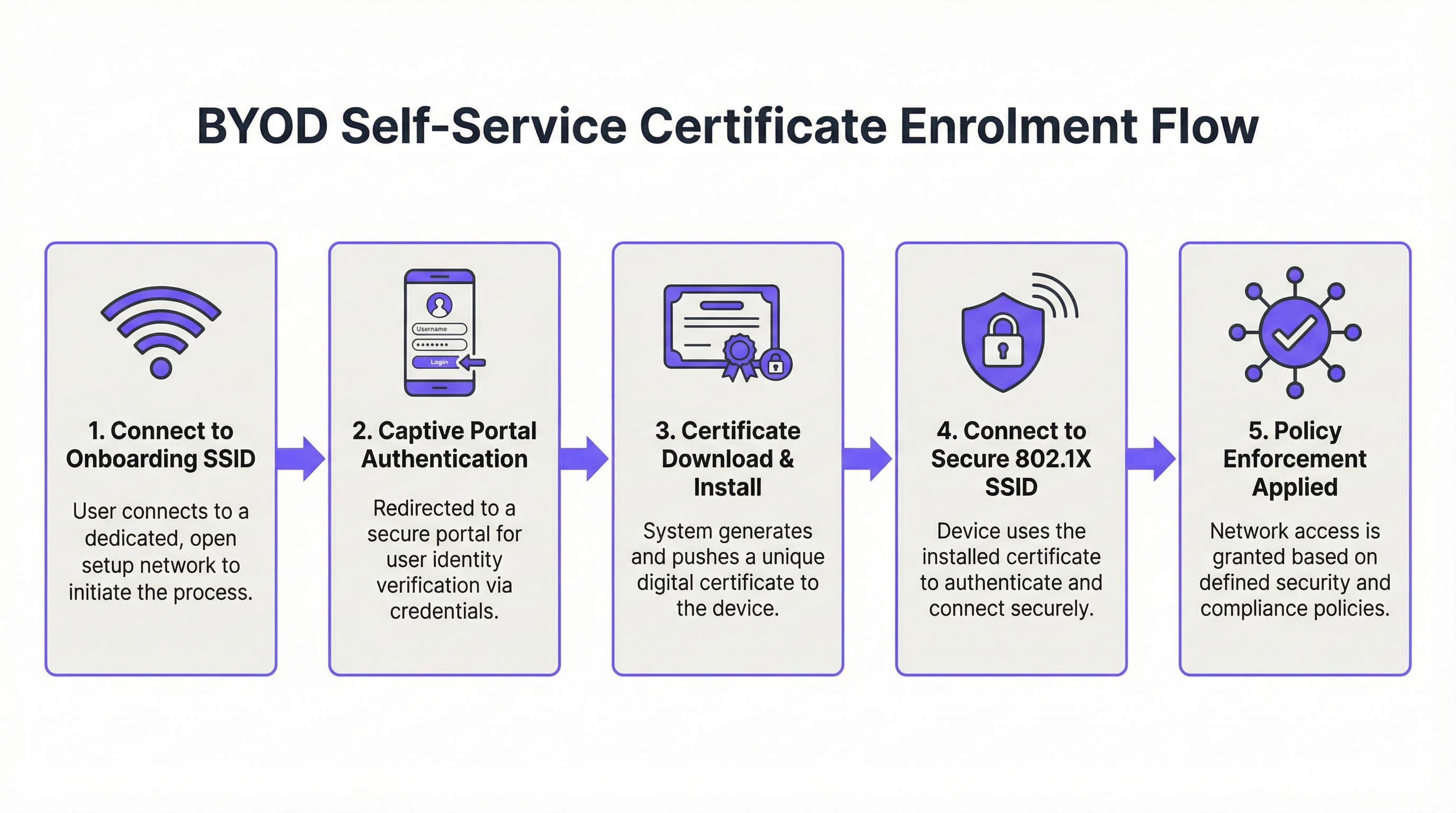
To achieve this, venues implement a self-service onboarding portal. The process typically follows these steps:
- Initial Connection: The user connects their personal device to a dedicated, open provisioning SSID. This network acts as a walled garden, restricting access to everything except the onboarding portal and the identity provider (IdP).
- Authentication: The user is redirected to a captive portal where they authenticate using their corporate credentials. This often involves SAML or OAuth integration with an IdP like Azure AD or Okta. For more on this integration, refer to our guide on Okta and RADIUS: Extending Your Identity Provider to WiFi Authentication.
- Certificate Generation: Upon successful authentication, the system generates a unique, device-specific client certificate.
- Profile Installation: A configuration profile (e.g., an Apple
.mobileconfigfile or an Android Passpoint profile) is pushed to the device. This profile contains the client certificate, the root CA certificate, and the network configuration settings for the secure 802.1X SSID. - Secure Connection: The device automatically disconnects from the provisioning SSID and connects to the secure corporate SSID using the newly installed certificate for EAP-TLS authentication.
Why MAB and PSKs Fail for BYOD
Historically, venues relied on MAC Authentication Bypass (MAB) or Pre-Shared Keys (PSKs) for BYOD access. Both methods are fundamentally flawed in modern environments. MAB relies on the device's MAC address, which can be easily spoofed. Furthermore, modern mobile operating systems (iOS 14+ and Android 10+) use randomised MAC addresses by default to enhance user privacy, breaking MAB entirely [2]. PSKs, once shared, are compromised. They provide no individual accountability and require a network-wide password change if a device is lost or an employee leaves.
Implementation Guide
Deploying a secure BYOD onboarding solution requires careful planning and execution. Follow these steps for a successful rollout in a hotel or retail environment.
Step 1: Define Access Policies
Before configuring the technical infrastructure, clearly define what BYOD devices should be allowed to access. BYOD devices are unmanaged; you do not control their OS updates, antivirus status, or installed applications. Therefore, they must be treated as untrusted devices.
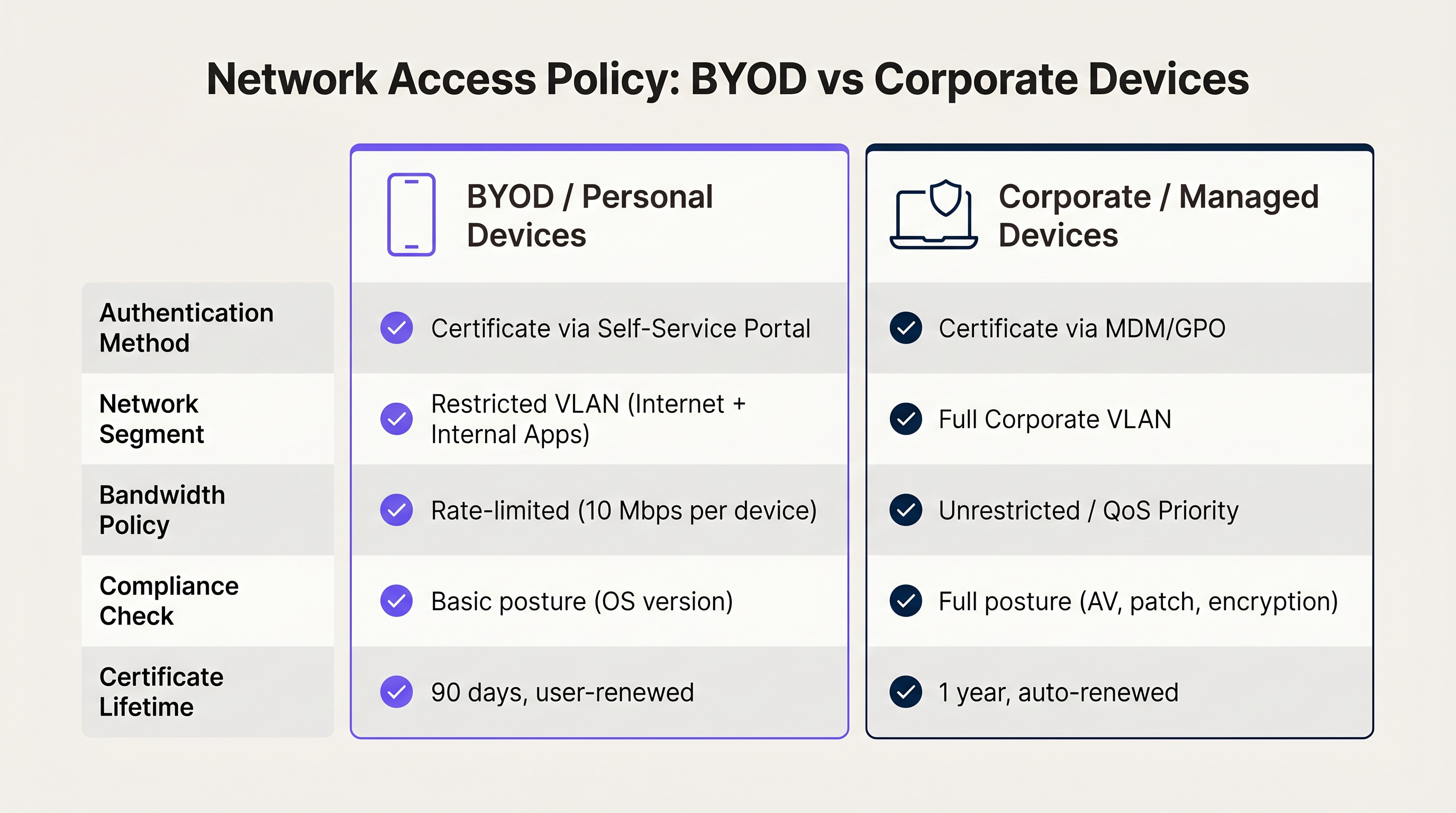
- Network Segmentation: Place BYOD devices on a dedicated VLAN. This VLAN should provide internet access and restricted access only to the specific internal applications required for the employee's role (e.g., the Retail point-of-sale web interface or the Hospitality housekeeping app). Never place BYOD devices on the same VLAN as corporate servers or managed devices.
- Bandwidth Management: Apply rate limiting to the BYOD VLAN to ensure that personal device usage (e.g., streaming video during breaks) does not impact critical corporate applications.
Step 2: Configure the RADIUS Server and IdP Integration
Your RADIUS server is the core of the 802.1X authentication process. It must be configured to support EAP-TLS and integrated with your Identity Provider (IdP).
- IdP Integration: Connect your RADIUS server to your IdP (e.g., Azure AD, Okta, Google Workspace) via SAML or LDAP. This ensures that only active employees can authenticate and receive a certificate.
- Certificate Authority (CA): Establish an internal CA or utilise a cloud-based managed PKI (Public Key Infrastructure) to issue the client certificates. The RADIUS server must trust this CA.
- Policy Rules: Configure the RADIUS server to assign the correct VLAN and access policies based on the user's group membership in the IdP. For example, a user in the 'Retail Associates' group receives a different policy than a user in the 'Store Managers' group.
Step 3: Design the Onboarding Portal
The onboarding portal is the user's first interaction with the system. It must be intuitive and clearly branded.
- Clear Instructions: Provide step-by-step instructions on the portal screen. Users need to know exactly what to click and what to expect.
- Branding: Ensure the portal reflects your corporate branding. A professional appearance increases user trust.
- Support Information: Include clear contact information for the IT helpdesk in case a user encounters issues during the onboarding process.
Best Practices
To ensure a secure and manageable BYOD deployment, adhere to these industry best practices.
Implement Short-Lived Certificates
Because BYOD devices are unmanaged, the risk of a compromised device remaining on the network is higher. Mitigate this risk by issuing short-lived certificates. Instead of a certificate valid for three years, issue certificates valid for 90 days. When the certificate expires, the user must re-authenticate through the onboarding portal. This naturally prunes stale devices from the network and ensures that only active employees maintain access.
Utilise Passpoint (Hotspot 2.0)
For a seamless onboarding experience, especially on Android devices, utilise Passpoint (Hotspot 2.0). Passpoint allows devices to automatically discover and authenticate to the secure network without requiring the user to manually select the SSID or interact with a captive portal after the initial setup. This significantly reduces friction and improves the user experience. This is particularly beneficial in environments utilising Wayfinding or Sensors where continuous connectivity is crucial.
Enforce Device Limits
Limit the number of BYOD devices a single user can onboard. An employee typically only needs to connect their primary smartphone and perhaps a personal tablet. Setting a limit of two or three devices per user prevents abuse and reduces the load on the RADIUS server and DHCP pools.
Troubleshooting & Risk Mitigation
Even with a well-designed system, issues can arise. Understanding common failure modes is critical for rapid resolution.
Android Fragmentation
Apple iOS devices handle .mobileconfig profiles consistently. Android, however, is highly fragmented. Different manufacturers and OS versions handle WiFi profiles and certificate installation differently. To mitigate this, ensure your onboarding solution provides clear, OS-specific instructions. Utilising a dedicated onboarding app (if provided by your vendor) or relying on Passpoint can significantly improve the Android experience.
Certificate Revocation
When an employee leaves the organisation, their access must be immediately revoked. Because the certificate was issued based on their corporate identity, disabling their account in the IdP is the first step. However, the RADIUS server must also verify the certificate's status. Ensure your RADIUS server is configured to check the Certificate Revocation List (CRL) or use the Online Certificate Status Protocol (OCSP) before granting access. If the IdP account is disabled, the certificate should be marked as revoked, and the RADIUS server will deny access.
The 'Walled Garden' Configuration
The provisioning SSID must be strictly controlled. If the walled garden is too open, users may simply stay connected to the provisioning network to access the internet, bypassing the secure onboarding process entirely. Ensure the provisioning SSID only allows access to the onboarding portal, the IdP authentication endpoints, and the necessary certificate download servers. All other traffic must be blocked.
ROI & Business Impact
Implementing a secure BYOD onboarding solution delivers significant return on investment (ROI) through improved security, reduced IT overhead, and enhanced employee productivity.
- Reduced Helpdesk Tickets: By empowering users to self-onboard, IT helpdesks see a dramatic reduction in tickets related to WiFi passwords and connection issues. This frees up IT staff to focus on strategic initiatives.
- Enhanced Security: Moving from PSKs to EAP-TLS significantly reduces the risk of unauthorised network access and data breaches. This is critical for maintaining compliance with standards like PCI DSS and GDPR.
- Improved Productivity: Employees can quickly and securely connect their personal devices to access the tools they need, improving overall efficiency and satisfaction. This is a core component of Modern Hospitality WiFi Solutions Your Guests Deserve, applied to the staff experience.
References
[1] IEEE Standard for Local and Metropolitan Area Networks--Port-Based Network Access Control, IEEE Std 802.1X-2020. [2] Wi-Fi Alliance, "MAC Randomisation Behaviour," 2021.
Key Terms & Definitions
EAP-TLS
Extensible Authentication Protocol-Transport Layer Security. The most secure WiFi authentication method, utilizing digital certificates on both the client and server.
The target state for secure BYOD onboarding, replacing insecure passwords.
Captive Portal
A web page that a user of a public-access network is obliged to view and interact with before access is granted.
Used in the BYOD flow to capture user credentials and initiate the certificate enrollment process.
MDM
Mobile Device Management. Software used by IT departments to monitor, manage, and secure employees' mobile devices.
While ideal for corporate devices, full MDM is often rejected by employees for personal BYOD devices due to privacy concerns.
VLAN Segmentation
The practice of dividing a physical network into multiple logical networks to improve security and performance.
Essential for isolating unmanaged BYOD devices from sensitive corporate servers.
Passpoint (Hotspot 2.0)
A Wi-Fi Alliance standard that streamlines network access, allowing devices to automatically discover and connect to secure networks.
Improves the BYOD user experience by eliminating the need to manually select SSIDs after the initial profile installation.
RADIUS
Remote Authentication Dial-In User Service. A networking protocol that provides centralized Authentication, Authorization, and Accounting (AAA) management.
The core server that validates the client certificate and determines which VLAN the BYOD device should be assigned to.
IdP
Identity Provider. A system entity that creates, maintains, and manages identity information for principals (users, services, or systems).
Integrated with the captive portal to ensure only active employees can onboard their BYOD devices.
Walled Garden
A restricted network environment that controls the user's access to web content and services.
The state of the provisioning SSID, allowing access only to the onboarding portal and necessary authentication services.
Case Studies
A 300-room resort needs to provide WiFi access to housekeeping staff who use a scheduling app on their personal smartphones. The resort currently uses a single PSK for all staff, which is frequently shared. How should the IT manager secure this access?
The IT manager should deploy a self-service BYOD onboarding portal. They will create a new, open provisioning SSID ('Resort-Staff-Setup') and a secure 802.1X SSID ('Resort-Staff-Secure'). Housekeeping staff will connect to the setup SSID, authenticate against the resort's Azure AD via a captive portal, and download a configuration profile containing a unique client certificate. The RADIUS server will be configured to assign devices authenticating with these certificates to a restricted VLAN that only has access to the internet and the scheduling app server.
A retail chain with 50 locations is rolling out a new inventory management app that store associates will access on their personal devices. The IT director is concerned about the security implications of unmanaged devices on the store network.
The IT director must implement network segmentation and short-lived certificates. BYOD devices will be onboarded via a self-service portal and placed on a dedicated 'BYOD-Retail' VLAN. This VLAN is strictly isolated from the Point-of-Sale (POS) VLAN. Furthermore, the client certificates issued during onboarding will have a maximum validity of 90 days. When a certificate expires, the associate must re-authenticate.
Scenario Analysis
Q1. Your organization is implementing a BYOD onboarding solution. The security team insists that all BYOD devices must have active antivirus software installed before connecting to the network. How should you address this requirement?
💡 Hint:Consider the capabilities of a self-service onboarding portal versus a full MDM solution.
Show Recommended Approach
You must explain to the security team that full posture checking (verifying antivirus status) typically requires an MDM agent installed on the device. Since this is a BYOD scenario where users are resisting MDM, full posture checking is not feasible. The alternative is to rely on strict network segmentation. You acknowledge the device is unmanaged and untrusted, and therefore place it on an isolated VLAN that only has access to the internet and the specific web applications required for the user's role.
Q2. A retail store manager reports that several employees are unable to connect their Android devices to the new secure BYOD network after completing the captive portal steps. iOS users are not experiencing this issue. What is the most likely cause and the recommended solution?
💡 Hint:Think about how different operating systems handle configuration profiles.
Show Recommended Approach
The most likely cause is Android fragmentation. Different Android manufacturers handle WiFi profile installation differently. The recommended solution is to ensure the onboarding platform utilizes Passpoint (Hotspot 2.0) if supported by the devices, or provide clear, manufacturer-specific instructions on the portal. Alternatively, utilizing a dedicated onboarding app provided by the WiFi vendor can standardize the experience across different Android devices.
Q3. An employee leaves the company. Their account is disabled in the corporate Azure AD. However, you notice their personal smartphone is still connected to the secure BYOD WiFi network. Why is this happening, and how do you fix it?
💡 Hint:Consider the relationship between the IdP and the RADIUS server during the authentication process.
Show Recommended Approach
This happens because the device is authenticating using a valid client certificate, and the RADIUS server is not checking the certificate's revocation status against the IdP. To fix this, you must configure the RADIUS server to perform a Certificate Revocation List (CRL) check or use the Online Certificate Status Protocol (OCSP). When the account is disabled in Azure AD, the associated certificate should be marked as revoked. The RADIUS server will then see the revoked status and deny access.
Key Takeaways
- ✓BYOD onboarding requires moving away from insecure PSKs and MAB to certificate-based EAP-TLS authentication.
- ✓Self-service portals allow users to authenticate via the corporate IdP and download a device-specific certificate without IT intervention.
- ✓Because BYOD devices are unmanaged, they must be treated as untrusted and placed on a restricted, segmented VLAN.
- ✓Issue short-lived certificates (e.g., 90 days) for BYOD devices to ensure stale devices are automatically pruned from the network.
- ✓Ensure your RADIUS server checks certificate revocation status (CRL/OCSP) to instantly deny access when an employee leaves the company.