Azure AD and Entra ID WiFi Authentication: Integration and Configuration Guide
This technical reference guide provides IT managers, network architects, and venue operations directors with a practical roadmap for integrating Microsoft Entra ID (Azure AD) with enterprise WiFi networks using RADIUS and 802.1X. It covers the architectural decision between on-premise Windows NPS and cloud-native RADIUS, the deployment of certificate-based EAP-TLS authentication via Microsoft Intune, and the operational best practices for securing wireless access across hospitality, retail, and public-sector environments. For organisations already invested in the Microsoft 365 and Entra ID ecosystem, this guide bridges the gap between cloud identity management and physical network security.

Executive Summary
For modern enterprises heavily invested in the Microsoft ecosystem, bridging cloud identity infrastructure with physical wireless networks is a critical security imperative. Historically, WiFi authentication relied on on-premise Active Directory Domain Services (AD DS) and Windows Network Policy Server (NPS). However, as organisations migrate to Microsoft Entra ID (formerly Azure AD) and adopt zero-trust security models, the traditional credential-based authentication approach — PEAP-MSCHAPv2 — is no longer sufficient or secure.
This guide provides IT managers, network architects, and venue operations directors with a practical roadmap for implementing Azure AD WiFi authentication. We explore the architectural differences between maintaining an on-premise NPS footprint and migrating to a cloud-native RADIUS solution. Crucially, we detail how to leverage Microsoft Intune for certificate-based authentication (EAP-TLS), which eliminates password-related vulnerabilities and provides a seamless, frictionless experience for end-users. Whether you are managing a 500-room hotel, a retail chain, or a large public-sector deployment, this guide will help you secure your wireless edge using your existing Microsoft identity investments. For a broader discussion of deployment models, see our Cloud RADIUS vs On-Premise RADIUS: Decision Guide for IT Teams.
Technical Deep-Dive: Architecture and Standards
The foundation of secure enterprise WiFi is the IEEE 802.1X standard, which provides port-based network access control. In a Microsoft-centric environment, integrating 802.1X with Entra ID requires careful architectural planning across three layers: the wireless infrastructure, the authentication server, and the identity directory.
The Role of RADIUS and 802.1X
When a client device (the supplicant) attempts to connect to a WPA2/WPA3-Enterprise network, the Wireless Access Point (the authenticator) blocks all traffic except EAP (Extensible Authentication Protocol) packets. The access point forwards these packets to a RADIUS server. The RADIUS server validates the user's or device's identity against a directory service and returns an Access-Accept or Access-Reject message. This three-party model — supplicant, authenticator, authentication server — is the cornerstone of enterprise wireless security and is described in detail in our Wireless Access Points Definition: Your Ultimate 2026 Guide.
Architectural Approaches for Microsoft Environments
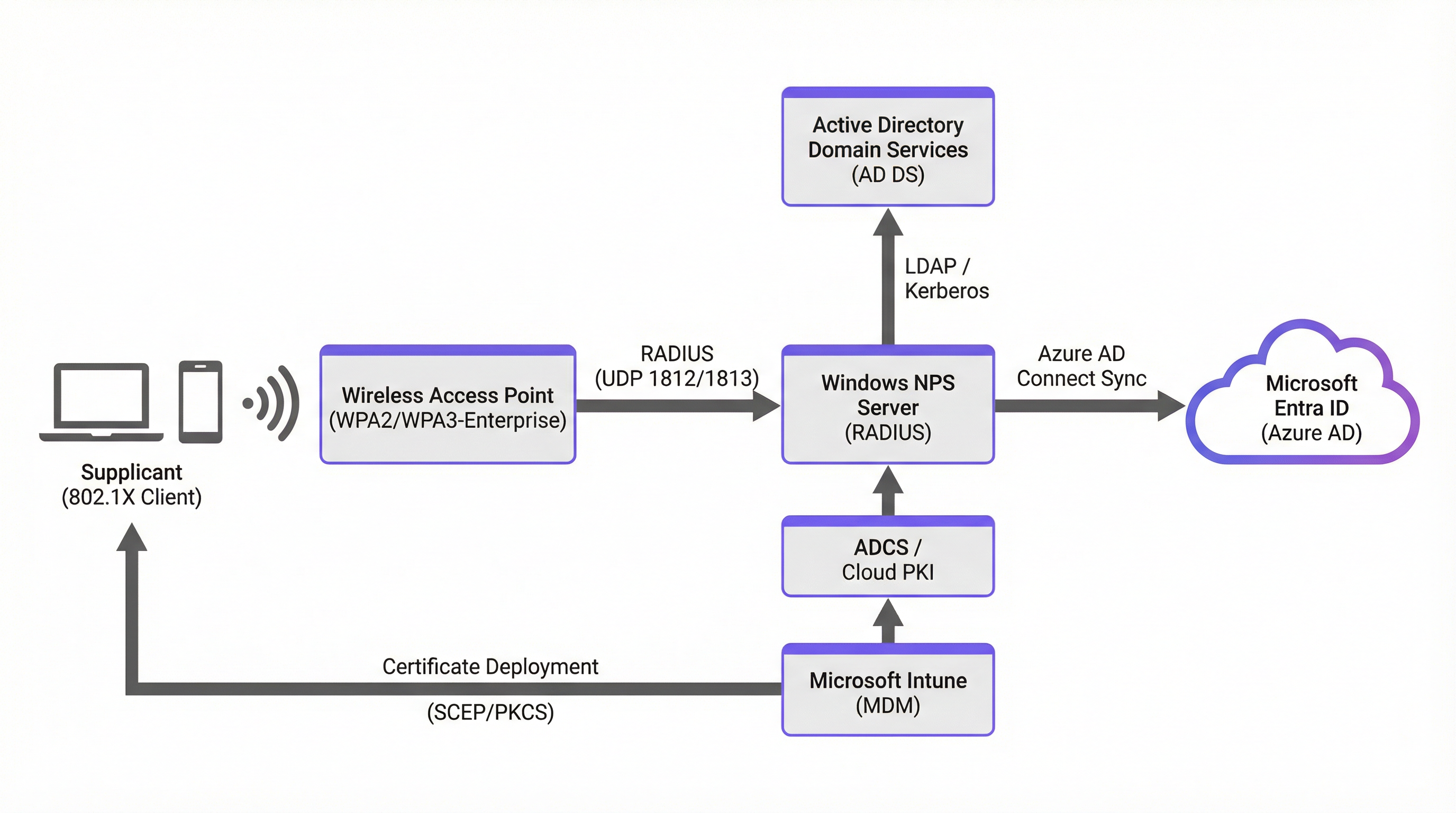
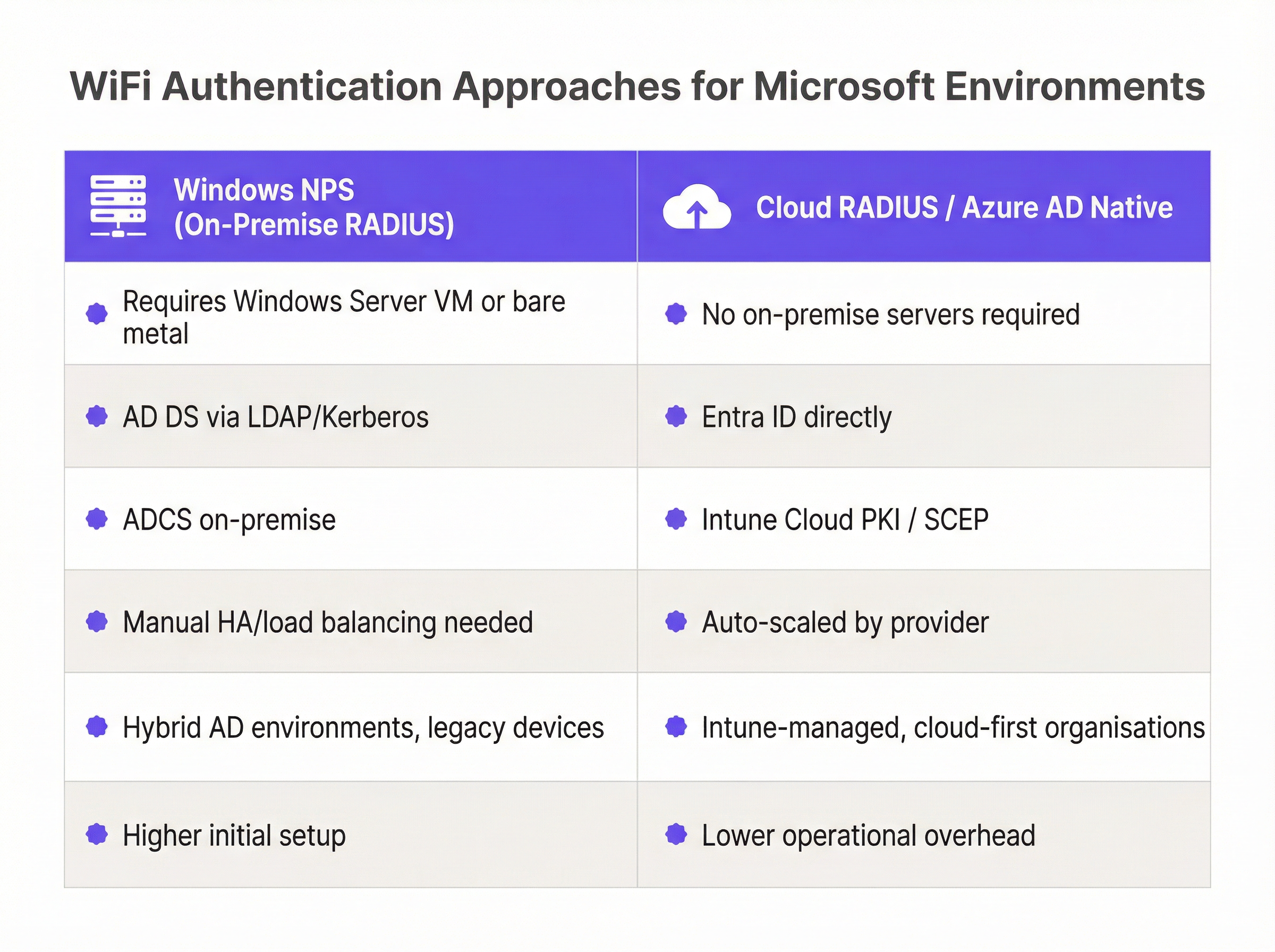
There are two primary architectures for integrating Microsoft identity with WiFi authentication, each with distinct trade-offs:
| Dimension | Hybrid On-Premise (NPS) | Cloud-Native (Cloud RADIUS) |
|---|---|---|
| Infrastructure | Windows Server VM or bare metal required | No on-premise servers |
| Identity Source | AD DS via LDAP/Kerberos | Entra ID directly via API |
| Certificate Authority | ADCS on-premise + Intune Connector | Intune Cloud PKI or vendor PKI |
| Scalability | Manual HA/load balancing | Auto-scaled by provider |
| Best For | Hybrid AD, legacy devices | Cloud-first, Intune-managed orgs |
| Operational Complexity | Higher initial and ongoing | Lower operational overhead |
Hybrid On-Premise (Windows NPS + AD DS + Azure AD Connect): This is the traditional approach. Windows NPS acts as the RADIUS server, authenticating requests against an on-premise Active Directory. To link this to the cloud, Azure AD Connect syncs on-premise identities to Entra ID. While robust, this requires maintaining on-premise server infrastructure, managing high availability, and deploying a complex PKI (ADCS) if implementing EAP-TLS.
Cloud-Native (Cloud RADIUS + Entra ID + Intune): This modern approach eliminates the need for on-premise NPS servers. A third-party Cloud RADIUS provider integrates directly with Entra ID via Microsoft Graph API. Authentication happens entirely in the cloud. This architecture aligns with a cloud-first strategy, significantly reducing operational overhead and aligning with zero-trust network access principles.
EAP-TLS vs. PEAP-MSCHAPv2: The Critical Choice
The choice of EAP method is the single most consequential security decision in this deployment. PEAP-MSCHAPv2 relies on users entering their domain credentials. This is vulnerable to credential theft, man-in-the-middle attacks, and creates a poor user experience when passwords expire. Research has consistently demonstrated that PEAP-MSCHAPv2 can be compromised through rogue access point attacks.
EAP-TLS (Transport Layer Security) is the industry gold standard for secure WiFi. It uses digital certificates installed on the client device for mutual authentication — both the client and the server prove their identity. There are no passwords to type, and the connection is cryptographically strong. In a Microsoft environment, certificates are typically deployed using Microsoft Intune via SCEP (Simple Certificate Enrollment Protocol) or PKCS. This is the recommended path for all new deployments and is essential for compliance with PCI DSS (Requirement 8) and GDPR data protection obligations.
Implementation Guide: Step-by-Step Deployment
Implementing Entra ID WiFi authentication using EAP-TLS and Intune requires coordinating several components across identity, device management, and network infrastructure. The following five-phase approach is recommended for a cloud-native deployment.
Phase 1: Prepare the Identity and Device Management Infrastructure
Begin by verifying that your Entra ID tenant has the appropriate licensing. Microsoft 365 E3/E5 or Enterprise Mobility + Security (EMS) E3/E5 includes the Intune device management and Conditional Access capabilities required for this deployment. Without Intune, automated certificate deployment is not possible.
Next, establish your Public Key Infrastructure (PKI). You have three options: a cloud-native PKI provided by your Cloud RADIUS vendor, Microsoft's own Cloud PKI (available with Intune Suite licensing), or an existing on-premise ADCS deployment connected to Intune via the Microsoft Intune Certificate Connector. For new deployments, a cloud-native PKI is strongly recommended to avoid on-premise dependencies.
Phase 2: Configure Intune for Certificate Deployment
In the Microsoft Intune admin center, create a Trusted Certificate configuration profile. Upload the Root CA certificate of your PKI and deploy it to your target device groups. This step is critical: it ensures that client devices trust the certificate presented by the RADIUS server during the TLS handshake, preventing man-in-the-middle attacks.
Next, create a SCEP Certificate profile (or PKCS if your PKI requires it). Configure the Subject Name format — for user-based authentication, use CN={{UserPrincipalName}}; for device-based authentication, use CN={{DeviceName}} or the device serial number. Set the Subject Alternative Name (SAN) to include the User Principal Name or device ID. Assign both profiles to the appropriate Entra ID device or user groups.
Phase 3: Configure the Cloud RADIUS Integration
Grant your Cloud RADIUS provider the necessary Microsoft Graph API permissions in your Entra ID tenant. At minimum, the provider requires User.Read.All and GroupMember.Read.All to validate group memberships during authentication. Some providers also require Device.Read.All for device-based policies.
Within the Cloud RADIUS management portal, define your authentication policies. A well-structured policy for a corporate environment might read: "Allow access if the certificate is issued by [Trusted CA] AND the user is a member of the [Corporate-WiFi-Users] Entra ID group AND the device is marked Compliant in Intune." This layered policy enforces both identity and device health simultaneously.
Phase 4: Configure the Wireless Infrastructure
In your wireless LAN controller or cloud management dashboard (such as Cisco Meraki, Aruba Central, or Juniper Mist), add the Cloud RADIUS server IP addresses and shared secrets as RADIUS authentication servers. Configure primary and secondary servers for redundancy. Set the RADIUS timeout to a minimum of 5 seconds to accommodate cloud round-trip latency.
Create a new SSID configured for WPA2-Enterprise or WPA3-Enterprise. Assign the RADIUS servers to this SSID. For Hospitality deployments, ensure this corporate SSID is on a separate VLAN from any guest network. For Retail environments, consider deploying the corporate SSID only in back-of-house areas, keeping the sales floor network separate.
Phase 5: Deploy the WiFi Profile via Intune
Create a WiFi configuration profile in Intune. Set the SSID to match exactly what you configured on the wireless infrastructure. Select WPA2-Enterprise or WPA3-Enterprise as the security type. Under EAP settings, select EAP-TLS as the authentication method. Link the SCEP certificate profile as the client certificate and specify the Trusted Root CA profile you deployed in Phase 2.
Assign this WiFi profile to the same device groups that received the certificate profiles. Devices will silently receive the certificate and the WiFi configuration during their next Intune sync, and will connect automatically when in range of the SSID — with no user interaction required.
Best Practices for Enterprise Environments
The following recommendations represent the industry consensus for secure, scalable Microsoft 802.1X deployments across enterprise venues.
Mandate EAP-TLS across all new deployments. Do not deploy new networks using PEAP-MSCHAPv2. The security risks of credential-based WiFi are well-documented and incompatible with a zero-trust security posture. EAP-TLS is essential for compliance with PCI DSS, GDPR, and ISO 27001.
Automate the certificate lifecycle. Ensure that when a user is disabled in Entra ID or a device is retired in Intune, the corresponding certificate is automatically revoked or the RADIUS policy immediately blocks access. This is particularly important in high-turnover environments such as Hospitality and Retail, where staff changes are frequent.
Implement Entra ID Conditional Access. Leverage Conditional Access policies to enforce device compliance as a condition of network access. Requiring devices to be marked 'Compliant' in Intune before they can authenticate to RADIUS ensures that only patched, policy-compliant devices access the corporate network.
Segment corporate and guest networks rigorously. 802.1X is designed for managed corporate devices. For visitors, contractors, and BYOD, implement a dedicated Guest WiFi solution with a captive portal. This can integrate with Entra ID B2B for contractor access, or use social logins and SMS verification for general public access. Never allow unmanaged devices onto the corporate 802.1X SSID.
Plan for legacy and IoT devices. Printers, IoT sensors, and legacy devices that cannot support certificates require a separate strategy. Use MAC Authentication Bypass (MAB) for known devices, or a dedicated WPA2-Personal SSID with a complex, rotated PSK, isolated on a dedicated VLAN. Purple's Sensors platform, for example, can operate on a dedicated IoT VLAN separate from the corporate authentication infrastructure.
Monitor authentication events. Integrate RADIUS logs with your SIEM or use the WiFi Analytics platform to monitor authentication failures, certificate expiry warnings, and unusual access patterns. Proactive monitoring prevents outages before they impact operations.
Troubleshooting & Risk Mitigation
Even well-planned deployments encounter issues. The following are the most common failure modes and their resolutions.
Certificate Deployment Failures. The most common issue in an EAP-TLS deployment is devices failing to receive certificates from Intune. This is typically caused by a misconfigured Intune Certificate Connector (if using on-premise ADCS), incorrect SCEP URL, or devices not syncing with Intune. Always verify the Certificate Connector status in the Intune admin center and check the device sync logs. Ensure the SCEP service account has the necessary permissions on the CA.
RADIUS Timeout Issues. If the access point cannot reach the RADIUS server within the configured timeout, clients will fail to connect. Ensure your firewall rules allow UDP ports 1812 (authentication) and 1813 (accounting) outbound to the Cloud RADIUS provider's IP ranges. If using on-premise NPS, deploy a minimum of two NPS servers and configure your access points to failover between them.
Certificate Trust Failures. If clients receive an "untrusted server certificate" error, the Trusted Root CA profile has not been deployed correctly to the device. Verify the profile assignment in Intune and check the device's certificate store. This is a common issue with newly enrolled devices that have not yet completed their first Intune sync.
NPS Extension for Azure MFA. While it is technically possible to use the NPS Extension to enforce Multi-Factor Authentication for WiFi, it is strongly discouraged for primary access. The user experience of receiving an MFA prompt every time a device roams between access points is severely disruptive. Rely on the strong authentication provided by the device certificate, and enforce MFA at the application layer instead.
Group Policy Conflicts. In hybrid environments, Group Policy Objects (GPOs) that configure the Windows wireless client may conflict with Intune WiFi profiles. Ensure that Intune profiles take precedence by reviewing the MDM enrollment settings and, where necessary, blocking GPO-based wireless configuration for Intune-managed devices.
ROI & Business Impact
Migrating to a cloud-native RADIUS architecture integrated with Entra ID delivers measurable, quantifiable value across several dimensions.
Reduced Helpdesk Tickets. Password-related WiFi issues — lockouts, expired passwords, misconfigured supplicants — are a significant source of IT support tickets in credential-based environments. EAP-TLS eliminates these entirely. Organisations typically report a 30–50% reduction in WiFi-related helpdesk volume following migration to certificate-based authentication.
Infrastructure Cost Savings. Decommissioning on-premise NPS servers reduces compute costs, OS licensing fees, and the operational overhead of patching and maintaining high availability clusters. For a mid-sized organisation running two NPS servers, this can represent savings of £15,000–£30,000 per year in infrastructure and operational costs.
Enhanced Security Posture and Compliance. Moving away from credential-based authentication mitigates the risk of credential theft and lateral movement, protecting sensitive corporate data. For organisations subject to PCI DSS, this directly addresses network access control requirements. For Healthcare organisations handling patient data, it supports DSPT compliance. For Transport operators, it aligns with NIS2 Directive requirements for network security.
Improved User Experience. Seamless, automatic WiFi connection — with no password prompts, no lockouts, and no manual configuration — improves productivity and reduces friction for staff. This is particularly impactful in high-mobility environments such as distribution centres, hospital wards, and retail shop floors.
By treating your WiFi network as an extension of your cloud identity strategy, you ensure secure, frictionless access that scales with your organisation. For further guidance on the SD-WAN integration aspects of modern enterprise networks, see The Core SD-WAN Benefits for Modern Businesses. For hospitality-specific deployment considerations, refer to Modern Hospitality WiFi Solutions Your Guests Deserve.
Key Terms & Definitions
802.1X
An IEEE standard for port-based Network Access Control (PNAC). It provides an authentication mechanism to devices wishing to attach to a LAN or WLAN, preventing unauthorised access before authentication is complete.
The foundational protocol that prevents unauthorised devices from accessing the enterprise network. All WPA2/WPA3-Enterprise deployments rely on 802.1X.
RADIUS (Remote Authentication Dial-In User Service)
A networking protocol that provides centralised Authentication, Authorisation, and Accounting (AAA) management for users who connect and use a network service. Defined in RFC 2865.
The server component that validates credentials or certificates against the directory (Entra ID or AD DS) and instructs the access point to grant or deny access.
Supplicant
The client device (laptop, smartphone, IoT device) attempting to connect to the network. In Windows, the built-in wireless client acts as the supplicant.
In Intune deployments, the supplicant must be configured with the correct WiFi profile and client certificate to communicate successfully with the RADIUS server.
Authenticator
The network device — typically a Wireless Access Point or managed switch — that facilitates the authentication process between the supplicant and the RADIUS server. It enforces access control based on the RADIUS response.
The access point must be configured with the RADIUS server IP address and shared secret. It acts as a relay, forwarding EAP packets between the client and the RADIUS server.
EAP-TLS (Extensible Authentication Protocol - Transport Layer Security)
An EAP method that relies on digital certificates for mutual authentication between the client and the RADIUS server. It is defined in RFC 5216 and is considered one of the most secure EAP standards available.
The recommended authentication method for all new Microsoft 802.1X deployments. It eliminates passwords entirely and is required for compliance with PCI DSS and zero-trust network access frameworks.
NPS (Network Policy Server)
Microsoft's implementation of a RADIUS server and proxy, available as a role in Windows Server. NPS can authenticate users and devices against Active Directory Domain Services.
The traditional on-premise solution for enterprise WiFi authentication in Microsoft environments. Many organisations are now migrating from NPS to Cloud RADIUS solutions as they move to Entra ID.
SCEP (Simple Certificate Enrollment Protocol)
A protocol used for issuing digital certificates to network devices in a scalable, automated manner. Defined in RFC 8894.
The primary method Microsoft Intune uses to silently deploy client certificates to managed devices for EAP-TLS WiFi authentication. Requires a SCEP-compatible Certificate Authority.
Microsoft Entra ID
Microsoft's cloud-based identity and access management service, formerly known as Azure Active Directory. It provides user authentication, group management, Conditional Access, and integration with thousands of applications.
The central identity provider in modern Microsoft environments. Cloud RADIUS solutions integrate with Entra ID via Microsoft Graph API to validate user and device identities during WiFi authentication.
Conditional Access
An Entra ID feature that enforces access policies based on signals such as user identity, device compliance status, location, and risk level. Policies can require devices to be Intune-compliant before granting access.
Used in advanced RADIUS deployments to ensure that only compliant, managed devices can authenticate to the corporate WiFi network, even if they present a valid certificate.
PEAP-MSCHAPv2
Protected EAP with Microsoft Challenge Handshake Authentication Protocol version 2. A credential-based EAP method that uses a username and password for authentication, tunnelled within a TLS session.
The legacy authentication method used in many existing NPS deployments. It is vulnerable to credential theft and man-in-the-middle attacks and should be migrated to EAP-TLS in all new deployments.
Case Studies
A 200-location retail chain needs to secure their back-office WiFi for store manager laptops. They currently use a shared WPA2-Personal password (PSK) across all stores, which is rarely rotated. They use Entra ID and Intune for device management. How should they modernise their wireless security?
The retail chain should migrate to WPA3-Enterprise using EAP-TLS across all 200 locations. The recommended architecture is a Cloud RADIUS solution integrated directly with their Entra ID tenant, eliminating the need for on-premise NPS servers at each site. Using Intune, they deploy a SCEP certificate profile to issue unique device certificates to the store manager laptops. A Trusted Root CA profile is deployed first to ensure devices trust the RADIUS server. A WiFi configuration profile is then deployed via Intune, silently connecting devices to the new SSID using the issued certificate. The old PSK SSID is decommissioned once all devices have migrated. For the store's customer-facing WiFi, a separate captive portal solution handles guest access without impacting the corporate authentication infrastructure.
A large conference centre uses on-premise Windows NPS for staff WiFi authentication. They are experiencing frequent connectivity failures during large events because the NPS server becomes overwhelmed with concurrent authentication requests from 500+ staff devices. They are also migrating their identity infrastructure to Entra ID. What is the recommended architecture going forward?
The conference centre should migrate from the on-premise NPS server to a Cloud RADIUS provider that integrates directly with Entra ID. Staff devices should be transitioned to certificate-based authentication (EAP-TLS) managed via Intune, resolving both the scalability issue and the Entra ID migration requirement simultaneously. For the high volume of event attendees, a separate, segmented network using a captive portal solution handles guest onboarding without impacting the corporate RADIUS infrastructure. The two networks should be on separate VLANs with appropriate firewall rules between them. The on-premise NPS server can be decommissioned once all staff devices have successfully migrated.
Scenario Analysis
Q1. Your organisation is completing a full migration from on-premise Active Directory to Entra ID only — no on-premise domain controllers will remain. You currently use Windows NPS for WiFi authentication using PEAP-MSCHAPv2. What is the most secure and operationally efficient approach for the new cloud-only environment, and what specific steps are required?
💡 Hint:Consider what NPS requires to function and whether those dependencies will exist post-migration. Also consider the security implications of the current EAP method.
Show Recommended Approach
The most secure and efficient approach is to implement a Cloud RADIUS solution integrated directly with Entra ID, and transition to EAP-TLS certificate-based authentication managed via Microsoft Intune. NPS cannot authenticate against Entra ID directly — it requires on-premise AD DS — so it cannot survive the migration without Azure AD Connect maintaining a hybrid identity. The steps are: (1) Select a Cloud RADIUS provider and grant it Microsoft Graph API permissions in Entra ID. (2) Establish a cloud-native PKI or use Microsoft Cloud PKI. (3) Deploy Trusted Root CA and SCEP certificate profiles via Intune. (4) Deploy a WiFi configuration profile via Intune configured for EAP-TLS. (5) Configure the SSID on the wireless infrastructure to use the Cloud RADIUS servers. (6) Decommission NPS once all devices have migrated.
Q2. A hospital IT team wants to implement 802.1X for their medical carts (Windows laptops) using Entra ID. They want to ensure that if a cart is stolen, it cannot connect to the network even if the associated user account is still active. How should the certificate profile and RADIUS policy be configured to achieve this?
💡 Hint:Consider the difference between user-based and device-based certificate profiles in Intune, and how RADIUS policies can be scoped to device identity.
Show Recommended Approach
The IT team should configure Intune to deploy device certificates (not user certificates) to the medical carts. In the SCEP profile, the Subject Name should reference the device identity (e.g., CN={{DeviceName}} or the device serial number) rather than the user UPN. The RADIUS policy should be configured to authenticate the device certificate and validate the device against Entra ID device objects. If a cart is stolen, the IT team can remotely wipe the device via Intune (which removes the certificate from the device's certificate store) or revoke the specific device certificate in the PKI. Either action immediately blocks network access without affecting any user accounts. This approach is superior to user-based certificates for shared devices like medical carts.
Q3. You have successfully deployed EAP-TLS via Intune for all 800 corporate laptops across a university campus. However, the IT department frequently brings in external contractors who need internet access for project work. These contractors use their own personal or company-issued laptops that are not enrolled in your Intune tenant. How should you provide access for these contractors without compromising the security of the corporate 802.1X network?
💡 Hint:Remember the architectural principle separating managed device authentication from unmanaged device access. Consider how Entra ID B2B could be leveraged.
Show Recommended Approach
Do not attempt to provision 802.1X access for unmanaged contractor devices. Instead, deploy a separate Guest SSID backed by a Captive Portal solution. For contractors who have their own corporate Entra ID tenants, configure the captive portal to support Entra ID B2B collaboration, allowing them to authenticate with their own corporate credentials via the portal. For contractors without a compatible identity provider, use a sponsored access workflow where a university staff member approves the access request. The contractor network should be on a separate VLAN with internet-only access and no route to internal university resources. This maintains the integrity of the 802.1X corporate network while providing a secure, auditable access path for external parties.
Q4. During a post-deployment review, your security team flags that several devices on the corporate WiFi are still using PEAP-MSCHAPv2 despite the EAP-TLS rollout. Investigation reveals these are IoT devices — smart displays, environmental sensors, and a fleet of network printers — that do not support certificate-based authentication. How should these devices be handled?
💡 Hint:Consider the options available for devices that cannot support EAP-TLS, and the importance of network segmentation.
Show Recommended Approach
IoT devices and legacy hardware that cannot support EAP-TLS should not be placed on the corporate 802.1X SSID. The recommended approach is to create a dedicated IoT SSID on a separate VLAN with strict firewall rules limiting communication to only the services those devices require (e.g., print servers, management platforms). For authentication, use MAC Authentication Bypass (MAB) for devices with known, fixed MAC addresses, or a WPA2-Personal SSID with a complex, regularly rotated PSK. The IoT VLAN should have no access to corporate file shares, Active Directory, or sensitive internal resources. Purple's Sensors platform, for example, is designed to operate on a dedicated IoT network segment, separate from corporate infrastructure.
Key Takeaways
- ✓Traditional on-premise Windows NPS servers are being replaced by Cloud RADIUS solutions that integrate directly with Entra ID, eliminating on-premise infrastructure dependencies.
- ✓Credential-based authentication (PEAP-MSCHAPv2) is a significant security risk and should be migrated to EAP-TLS certificate-based authentication in all new and existing deployments.
- ✓EAP-TLS is the gold standard for secure, passwordless WiFi — certificates are deployed silently via Microsoft Intune using SCEP or PKCS profiles.
- ✓Microsoft Intune is the cornerstone of a modern Microsoft WiFi authentication stack, managing the full certificate lifecycle from issuance to revocation.
- ✓802.1X is designed exclusively for Intune-managed corporate devices; unmanaged guests and contractors must use a separate Captive Portal solution.
- ✓Entra ID Conditional Access can enforce device compliance as a prerequisite for WiFi authentication, ensuring only patched and policy-compliant devices connect.
- ✓RADIUS ports 1812 (authentication) and 1813 (accounting) must be open outbound from the wireless infrastructure to the RADIUS server — this is the most common cause of deployment failures.