Microsoft Intune WiFi Certificate Deployment via SCEP and PKCS
This guide provides a step-by-step technical reference for deploying WiFi authentication certificates via Microsoft Intune using SCEP and PKCS. It is designed for IT managers and network architects implementing passwordless 802.1X WiFi to ensure seamless, secure connectivity across enterprise environments.

Executive Summary
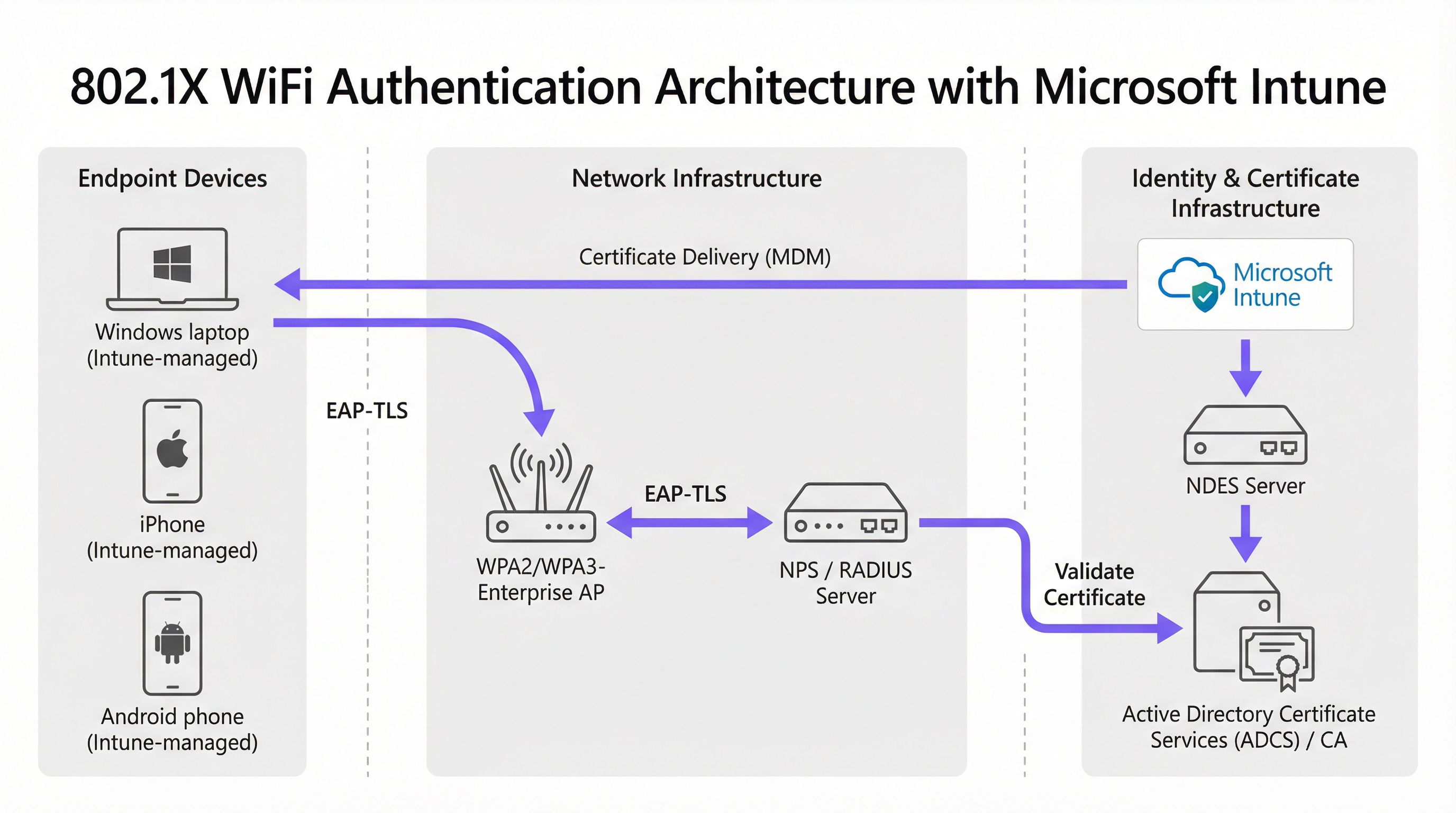
For enterprise venues—whether a bustling Hospitality environment, a multi-site Retail operation, or a modern corporate campus—relying on pre-shared keys or basic captive portals for staff WiFi is a security vulnerability and an operational bottleneck. Modern network architecture demands 802.1X authentication using EAP-TLS, ensuring every device is cryptographically verified before accessing the network.
However, the challenge lies in distribution: how do you deploy unique client certificates to thousands of Windows, iOS, and Android devices without burying your helpdesk in support tickets? Microsoft Intune solves this through automated certificate lifecycle management. By leveraging SCEP (Simple Certificate Enrollment Protocol) or PKCS (Public Key Cryptography Standards) certificate profiles, IT teams can push trusted root and client certificates silently to managed endpoints.
This guide provides a definitive architectural blueprint and step-by-step implementation strategy for Intune WiFi certificate deployment. We will explore the critical differences between SCEP and PKCS, detail the exact deployment sequence required for success, and outline real-world risk mitigation strategies to ensure your Guest WiFi and corporate networks remain secure and performant.
Listen to the companion podcast briefing:
Technical Deep-Dive: SCEP vs. PKCS
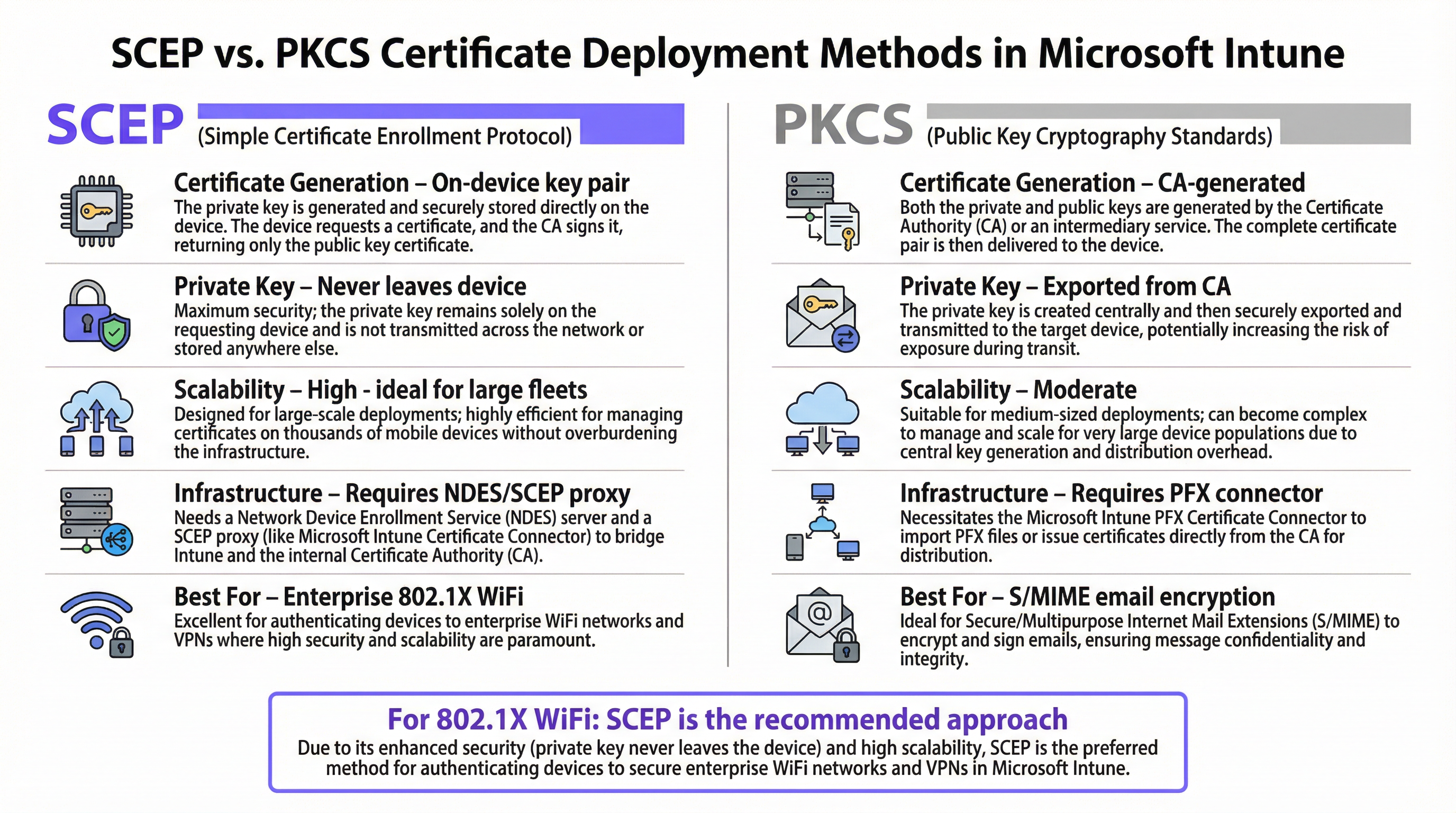
When designing your Intune WiFi certificate deployment strategy, the first architectural decision is selecting the certificate delivery mechanism. Intune supports both SCEP and PKCS, but they operate fundamentally differently.
SCEP (Simple Certificate Enrollment Protocol)
SCEP is the industry standard for enterprise device enrollment. In a SCEP workflow, the Intune service instructs the endpoint to generate its own private/public key pair. The device then creates a Certificate Signing Request (CSR) and sends it via a Network Device Enrollment Service (NDES) server to your Certificate Authority (CA). The CA signs the request and returns the public certificate to the device.
The critical security advantage of SCEP is that the private key never leaves the device. It is generated locally, stored in the device's secure enclave (such as the TPM on Windows or the Secure Enclave on iOS), and is never transmitted across the network. This makes SCEP the strongly recommended approach for 802.1X authentication.
PKCS (Public Key Cryptography Standards)
Conversely, with PKCS, the Certificate Authority generates both the public and private keys centrally. The Microsoft Intune Certificate Connector then securely exports this key pair and pushes it down to the target device.
While PKCS eliminates the need to deploy and maintain an NDES server—simplifying the infrastructure footprint—it introduces a theoretical security risk because the private key is transmitted over the network. PKCS is generally better suited for use cases where key escrow is required, such as S/MIME email encryption, rather than network authentication.
Implementation Guide: The Deployment Sequence
Successfully configuring an Intune WiFi profile for 802.1X requires strict adherence to a specific deployment sequence. Intune profile dependencies dictate that trust must be established before authentication can be configured.
Step 1: Deploy the Trusted Root Certificate Profile
Before any device can request a client certificate or trust your RADIUS server, it must trust the issuing Certificate Authority.
- Export your Root CA certificate (and any Intermediate CA certificates) as
.cerfiles. - In the Microsoft Endpoint Manager admin center, navigate to Devices > Configuration profiles > Create profile.
- Select the target platform (e.g., Windows 10 and later) and choose the Trusted certificate profile type.
- Upload the
.cerfile and deploy this profile to your target device groups.
Rule of Thumb: Always target the same groups (either Users or Devices) across all related profiles to prevent deployment mismatches.
Step 2: Configure the SCEP Certificate Profile
Once trust is established, configure the SCEP profile to instruct devices on how to obtain their client certificate.
- Create a new configuration profile and select SCEP certificate.
- Configure the Subject name format. For user-driven authentication,
CN={{UserPrincipalName}}is standard. For device authentication, useCN={{AAD_Device_ID}}. - Set the Key usage to
Digital signatureandKey encipherment. - Under Extended key usage, specify
Client Authentication(OID: 1.3.6.1.5.5.7.3.2). - Link this profile to the Trusted Root certificate profile created in Step 1.
- Provide the external URL of your NDES server.
Step 3: Deploy the 802.1X WiFi Profile
The final step is pushing the WiFi configuration that ties the certificates to the network SSID.
- Create a Wi-Fi configuration profile.
- Enter the Network name (SSID) exactly as it is broadcast by your Wireless Access Points.
- Select WPA2-Enterprise or WPA3-Enterprise as the security type.
- Set the EAP type to EAP-TLS.
- In the authentication settings, select the SCEP certificate profile created in Step 2 as the client authentication certificate.
- Specify the Trusted Root certificate for server validation to ensure the device only connects to your legitimate RADIUS server.
Best Practices & Industry Standards
When implementing Intune WiFi certificate deployment, adhere to the following vendor-neutral best practices to ensure compliance and reliability.
NDES Server Placement and Security
The NDES server must be accessible from the internet to allow remote devices to provision certificates before arriving on-site. However, exposing an internal server directly to the internet is a significant security risk.
Recommendation: Publish the NDES URL using Azure AD Application Proxy. This provides secure remote access without opening inbound firewall ports and allows you to apply Conditional Access policies to the enrollment flow.
RADIUS and CRL Checking
Certificate deployment is only half the security equation; revocation is equally critical. If an employee is terminated, disabling their Active Directory account may not immediately revoke their WiFi access if their client certificate remains valid and the RADIUS server is not strictly checking the Certificate Revocation List (CRL).
Recommendation: Configure your Network Policy Server (NPS) or RADIUS server to enforce strict CRL checking. Ensure your CRL Distribution Points (CDPs) are highly available; if the RADIUS server cannot reach the CRL, authentication will fail, causing a widespread outage.
For more insights on secure network design, consider reviewing The Core SD WAN Benefits for Modern Businesses.
Troubleshooting & Risk Mitigation
Even with meticulous planning, certificate deployment can encounter issues. Here are common failure modes and mitigation strategies.
Issue: WiFi Profile Fails to Apply
Symptom: The device receives the Trusted Root and SCEP certificates, but the WiFi profile shows as 'Error' or 'Not Applicable' in Intune.
Root Cause: This is almost always caused by a mismatch in group targeting. If the SCEP profile is assigned to a User Group, but the WiFi profile is assigned to a Device Group, Intune cannot resolve the dependency.
Mitigation: Audit your assignments. Ensure the Trusted Root, SCEP, and WiFi profiles are all deployed to the exact same Azure AD group.
Issue: NDES 403 Forbidden Errors
Symptom: Devices fail to retrieve the SCEP certificate, and the NDES IIS logs show HTTP 403 errors.
Root Cause: The Intune Certificate Connector service account lacks the necessary permissions on the certificate template, or the URL filtering on your firewall is blocking the specific query string parameters used by SCEP.
Mitigation: Verify that the connector account has 'Read' and 'Enroll' permissions on the CA template. Check firewall logs to ensure URLs containing ?operation=GetCACaps are not being blocked.
ROI & Business Impact
Transitioning to Microsoft Intune 802.1X certificate deployment delivers measurable returns across security and operations.
- Helpdesk Ticket Reduction: Password-based WiFi generates a significant volume of support tickets (password expirations, lockouts, typos). Certificate-based authentication is invisible to the user, typically reducing WiFi-related helpdesk volume by 70-80%.
- Enhanced Security Posture: EAP-TLS eliminates the risk of credential harvesting and Man-in-the-Middle (MitM) attacks. This is critical for compliance with frameworks like PCI DSS and GDPR, particularly in Healthcare and retail environments.
- Seamless Onboarding: For organisations managing large fleets of Apple devices alongside Windows, integrating Intune with existing MDM workflows (see our guide on Jamf and RADIUS: Certificate-Based WiFi Authentication for Apple Device Fleets) ensures a unified, zero-touch provisioning experience from day one.
Key Terms & Definitions
SCEP (Simple Certificate Enrollment Protocol)
A protocol that allows devices to request digital certificates from a Certificate Authority, where the private key is generated and stored securely on the device itself.
The recommended method for deploying WiFi authentication certificates due to its high security and scalability.
PKCS (Public Key Cryptography Standards)
A set of standards where both the public and private keys are generated by the Certificate Authority and then securely delivered to the endpoint.
Often used for S/MIME email encryption, but less ideal for WiFi due to the network transmission of the private key.
NDES (Network Device Enrollment Service)
A Microsoft Windows Server role that acts as a bridge, allowing devices without domain credentials to obtain certificates via SCEP.
A required infrastructure component when implementing SCEP certificate deployment with Microsoft Intune.
EAP-TLS (Extensible Authentication Protocol - Transport Layer Security)
The most secure 802.1X authentication method, requiring both the server and the client to present valid digital certificates.
The target authentication protocol that the Intune WiFi and certificate profiles are designed to enable.
CRL (Certificate Revocation List)
A list published by the Certificate Authority containing the serial numbers of certificates that have been revoked before their expiration date.
Critical for security; RADIUS servers must check the CRL to ensure terminated employees cannot access the WiFi using an otherwise valid certificate.
Intune Certificate Connector
A software agent installed on an on-premises Windows Server that brokers requests between Microsoft Intune and the internal Certificate Authority.
Required for both SCEP (to validate requests) and PKCS (to export keys) deployments.
Subject Alternative Name (SAN)
An extension to a digital certificate that allows multiple values (like UPN, email, or MAC address) to be associated with the certificate.
Configured in the Intune SCEP profile to ensure the RADIUS server can accurately identify the user or device.
Azure AD Application Proxy
A feature that provides secure remote access to on-premises web applications without requiring a VPN or opening inbound firewall ports.
The best practice method for securely publishing the internal NDES server URL to the internet for remote device enrollment.
Case Studies
A national retail chain with 500 locations is migrating from WPA2-Personal (Pre-Shared Key) to WPA3-Enterprise for their store associate tablets (Android Enterprise Dedicated Devices). They use Intune for MDM. How should they architect the certificate deployment?
- Deploy an NDES server published via Azure AD App Proxy.
- Create a Device-based SCEP certificate profile in Intune, as these are dedicated (kiosk) devices not tied to a specific user. Use
CN={{AAD_Device_ID}}for the Subject Name. - Deploy the Root CA profile to the 'All Store Tablets' Azure AD Device Group.
- Deploy the SCEP profile to the same 'All Store Tablets' group.
- Create a Wi-Fi profile configured for WPA3-Enterprise, EAP-TLS, referencing the SCEP profile, and deploy it to the same group.
- Configure the central RADIUS servers to authenticate the device certificates against the Active Directory computer objects.
A large conference centre uses Purple for their [WiFi Analytics](/products/wifi-analytics) and Guest WiFi, but needs to secure their internal staff network. Staff use a mix of corporate-owned Windows laptops and BYOD iOS devices. How do they handle the Intune deployment for the BYOD devices?
- Require BYOD users to enroll their iOS devices via Intune User Enrollment (creating a secure work partition).
- Create a User-based SCEP certificate profile using
CN={{UserPrincipalName}}. - Deploy the Root CA, SCEP, and Wi-Fi profiles to an Azure AD User Group (e.g., 'All Staff').
- When the user enrolls their personal device, Intune pushes the profiles specifically to the managed work partition.
- The device connects to the staff SSID using the user's identity, allowing the RADIUS server to apply role-based access control (VLAN assignment) based on their AD group membership.
Scenario Analysis
Q1. You have deployed the Root CA, SCEP, and Wi-Fi profiles to your Windows 10 devices. The certificates install successfully, but the Wi-Fi profile fails to apply, showing 'Error' in the Intune console. What is the most likely cause?
💡 Hint:Check how the profiles are assigned to Azure AD groups.
Show Recommended Approach
The most likely cause is a mismatch in group targeting. If the SCEP profile was assigned to a User Group, but the Wi-Fi profile was assigned to a Device Group, Intune cannot resolve the dependency between them. All three profiles (Root, SCEP, Wi-Fi) must be targeted to the exact same group type.
Q2. Your security team mandates that private keys must never be transmitted across the network, even if encrypted. Which certificate deployment method must you use in Intune, and what additional infrastructure server is required?
💡 Hint:Think about where the key pair is generated.
Show Recommended Approach
You must use SCEP (Simple Certificate Enrollment Protocol). Because SCEP instructs the endpoint device to generate the private key locally, it never traverses the network. This deployment requires a Network Device Enrollment Service (NDES) server to act as a bridge to the Certificate Authority.
Q3. A remote employee provisions a new laptop at home via Windows Autopilot. The Intune profiles deploy successfully, but the device fails to obtain the SCEP certificate. What infrastructure configuration is likely missing?
💡 Hint:How does the device reach the internal CA from the internet?
Show Recommended Approach
The NDES server has likely not been published to the internet. For remote devices to request certificates before arriving at the corporate office, the NDES URL must be externally accessible, ideally published securely via Azure AD Application Proxy.
Key Takeaways
- ✓802.1X EAP-TLS is the standard for secure enterprise WiFi, requiring client certificates on all devices.
- ✓Microsoft Intune automates certificate deployment at scale using SCEP or PKCS profiles.
- ✓SCEP is highly recommended for WiFi as the private key is generated locally and never leaves the device.
- ✓Deployment requires a strict sequence: 1) Trusted Root, 2) SCEP Profile, 3) Wi-Fi Profile.
- ✓Group targeting (User vs. Device) must be identical across all three profiles to prevent dependency failures.
- ✓NDES servers should be published via Azure AD App Proxy to allow secure, remote certificate provisioning.
- ✓Strict CRL checking on the RADIUS server is mandatory to ensure revoked certificates cannot access the network.