

Your video call freezes, but the WiFi icon still shows a strong signal. Someone nearby is streaming without trouble, while the printer has disappeared again. Before replacing the router, it helps to understand what that icon measures and what it doesn't.
WiFi networking is about sharing radio space, not owning a powerful box. Reliable, secure access depends on who can join, how devices share the air, and how far their signals must travel.
How WiFi Networking Works
A cafe access point works like a host at a busy table. Cell phones, laptops and printers wait for a chance to speak, listen before speaking, and share the same radio space. The analogy has limits, but it captures the main constraint: everyone shares the air.
WiFi networking is wireless local area networking. It uses radio signals in the 2.4, 5 and 6 GHz bands to connect devices to a local network, which can then provide internet access.
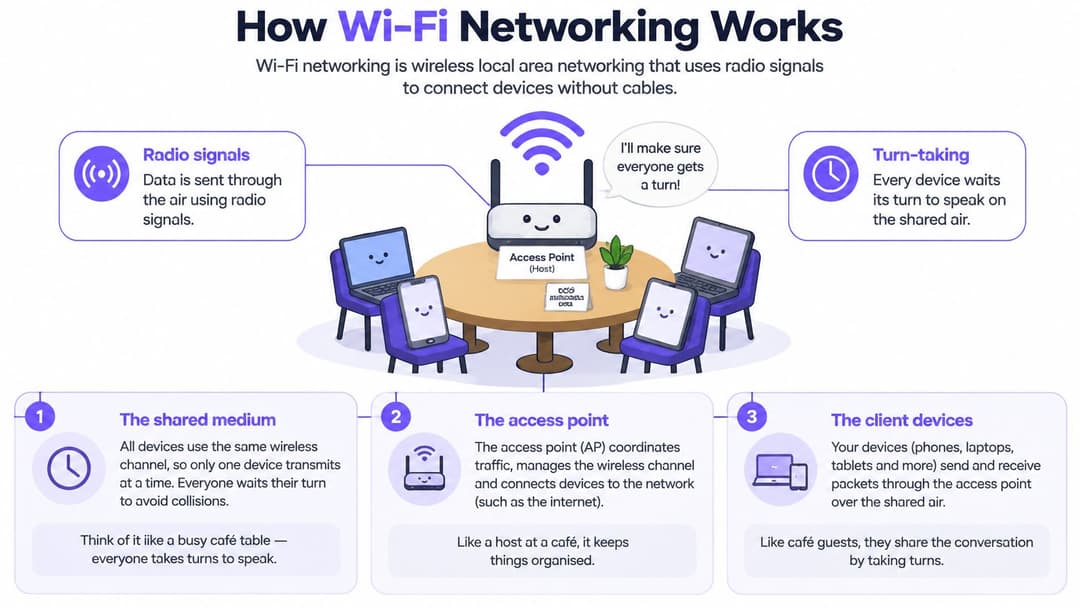
Open a laptop in a cafe and the connection develops in four steps:
- Discovery: The access point broadcasts announcements called beacon frames, usually advertising a network name, the SSID.
- Joining: Your laptop scans for networks, selects one and requests an association on the access point's operating channel.
- Protection: On a secured network, authentication and key-establishment exchanges determine whether the laptop can join and protect its traffic.
- Forwarding: The access point passes your traffic toward the wired network. Internet-bound traffic continues through the router and broadband connection.
The access point coordinates traffic, but it does not give every device a private radio lane. A neighboring business using the same channel can consume airtime too. That is why distance and overlap matter as much as the number of bars on a screen.
Practical rule: Strong signal means your device can hear the access point. It doesn't mean the channel is free.
WiFi is also only the local wireless part of the journey. Your internet connection can't deliver more than the underlying broadband service supports, even when the radio link is excellent.
Public WiFi hotspots in cafes, bars and hotels work on the same shared-radio principles described above. For operators planning that infrastructure, RDE Technologies' wireless network solutions for businesses provide a useful service reference alongside a site-specific assessment. The Office for National Statistics internet-access bulletin is a broader source on household and individual internet access.
Start by picturing your property as an access point and its shared channel, rather than a circle of guaranteed speed.
Core components behind a WiFi network
Your phone, laptop, printer or sensor is a client device. Its radio capabilities matter just as much as the equipment mounted on the ceiling: communication has to work in both directions.
The access point, often shortened to AP, transmits and receives wireless traffic. A home router usually combines this function with several other jobs, while larger sites separate those jobs into dedicated components.
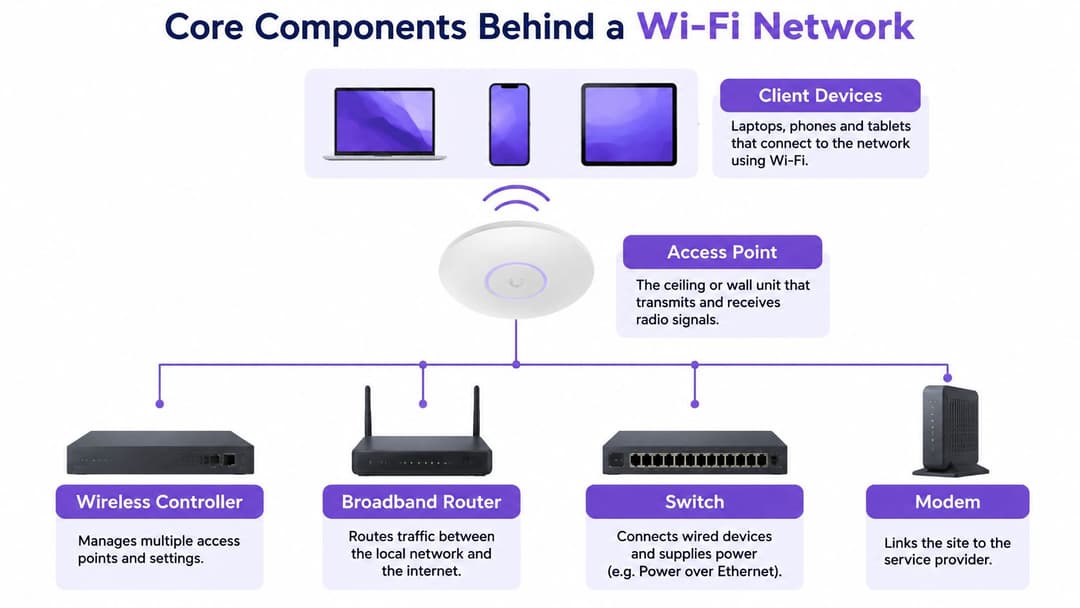
What each supporting component does
- Switch: Carries traffic over Ethernet cables and, with compatible Power over Ethernet, or PoE, supplies power to access points through those cables.
- Router and firewall: Route traffic between networks and enforce access rules. A router commonly also provides DHCP address allocation and NAT address translation.
- Controller or cloud management platform: Applies network settings, radio policies and firmware management across access points.
- RADIUS server: Checks credentials or certificates for enterprise authentication and returns access decisions.
- DNS service: Resolves names into the addresses devices need to reach services.
- Modem or optical termination equipment: Connects the premises to the broadband provider's access technology.
These are roles, not necessarily separate boxes. DHCP and DNS, for example, might run on dedicated servers rather than the router.
How the parts combine
In an apartment, a centrally positioned broadband router with built-in WiFi may cover the usable space. Putting it inside a closet can undermine that otherwise adequate setup.
For a hypothetical hotel, cabled access points can connect to PoE switches, with central management applying consistent settings throughout the building. Cable connections back to the switch also avoid making wireless links between access points compete with clients for the same airtime.
Neighboring coverage areas need suitable edge overlap for roaming, but excessive overlap on the same channel creates more contention. Walls, floors and client radios determine sensible spacing, and the client normally makes the final roaming decision.
Before deployment, confirm the broadband service, the switch's available PoE power budget, and who owns configuration changes. Missing any of these can leave working access points unable to deliver a dependable service.
WiFi bands and standards compared
| Generation | IEEE standard | Bands | Best suited to |
|---|---|---|---|
| WiFi 4 | 802.11n | 2.4 and 5 GHz | Legacy devices and simple sensors |
| WiFi 5 | 802.11ac | 5 GHz | Older laptops and cell phones on 5 GHz |
| WiFi 6 | 802.11ax | 2.4 and 5 GHz | Dense offices and busy venues |
| WiFi 6E | 802.11ax | 2.4, 5 and 6 GHz | Nearby clients with 6 GHz support |
| WiFi 7 | 802.11be | 2.4, 5 and 6 GHz | High-density sites with compatible clients |
Read this as a compatibility and fit guide, not a speed ranking. A device only uses bands and features its own hardware supports, even when the access point offers more.
Choose the band for the journey
2.4 GHz generally reaches farther through building materials, but it has limited channel space and often shares its surroundings with older equipment and non-WiFi devices. It's useful for sensors and coverage-sensitive clients, not the automatic first choice for busy laptops.
5 GHz offers more channel options and often less congestion. Ofcom's router-performance testing generally found better speed and connectivity on 5 GHz than 2.4 GHz, with newer routers also providing a better user experience than legacy models.
6 GHz provides additional spectrum without the same population of older WiFi clients. Its practical coverage through building materials needs careful checking, so don't assume existing access-point positions will provide equivalent service.
In a BBC Research and Development evaluation, the tested 6 GHz WiFi 6E configuration delivered 990 Mbps uplink capacity, compared with 550 Mbps for the tested 5 GHz WiFi 5 configuration. These are configuration-specific test results, not promised speeds for your building.
Balance capacity against coverage
Band steering encourages capable clients toward an appropriate higher-frequency band. Keep lower-frequency service available for clients that need it, and check that steering doesn't leave devices repeatedly failing to connect.
Channel width matters too. A wider channel can carry more data, but it occupies more spectrum, leaving fewer opportunities for neighboring access points to operate independently. Purple's WiFi RF engineering guide explains the radio-planning considerations behind these choices.
Buy for the devices and applications you need to support, not the highest number printed on the box.
Match each connection to the newest mutually supported standard and a suitable band. You don't need to hold the entire site back to the capabilities of its oldest device.
WiFi Security From WEP to WPA3
| Standard | Authentication | Encryption | Status |
|---|---|---|---|
| WEP | Shared-key or open-system authentication | RC4 | Retired and easily broken |
| WPA | Pre-shared key or 802.1X | TKIP | Obsolete, don't use |
| WPA2-Personal | Shared password | AES with CCMP | Acceptable with a strong password and appropriate configuration |
| WPA2-Enterprise | 802.1X with RADIUS | AES with CCMP | Suitable for managed individual access |
| WPA3-Personal | Simultaneous Authentication of Equals | AES with CCMP | Recommended for compatible home devices |
| WPA3-Enterprise | 802.1X with RADIUS | AES with CCMP or GCMP, according to security mode | Suitable for organizational access and higher-security deployments |
Authentication answers who may join. Encryption protects traffic traveling over the radio link. A secure design needs both, plus rules controlling what an authenticated device can reach.
A traditional open network doesn't provide WiFi link encryption, although applications using HTTPS still encrypt their own traffic. An evil twin can copy a legitimate SSID to attract connections, while a shared password can remain on former employees' devices long after they leave.
Apply security in a practical order
- Select the strongest compatible mode. Use WPA3 where supported. WPA2/WPA3 transition mode can help with migration, but retains compatibility trade-offs and isn't appropriate for every band or security policy.
- Remove obsolete encryption. Use AES-based protection and disable TKIP. Replace or isolate equipment that requires outdated settings rather than weakening the main staff network.
- Give people individual identities. Use 802.1X when staff or students need separately managed access. Certificate-based authentication can avoid distributing reusable WiFi passwords.
- Separate access by purpose. Put guests, staff and Internet of Things equipment into suitable networks or VLANs, then enforce firewall rules between them. Different network names alone don't guarantee isolation.
- Revoke access promptly. Remove individual access when someone leaves. Where shared passwords remain, change them and update authorized devices.
Enterprise authentication requires a RADIUS service and an identity or certificate-management arrangement. A directory such as Microsoft Entra ID or Google Workspace may be integrated through a compatible authentication service; it isn't automatically a RADIUS server itself.
Check what the device trusts
For enterprise connections, configure clients to validate the authentication server's certificate and expected identity. Otherwise, users may accept a convincing imitation network and disclose credentials despite selecting an enterprise security mode.
Purple's WPA Enterprise guide provides further context for choosing individual authentication. Keep access-point firmware maintained and management access restricted too, because radio encryption doesn't protect an exposed administration account.
Enterprise WiFi in Real Venues
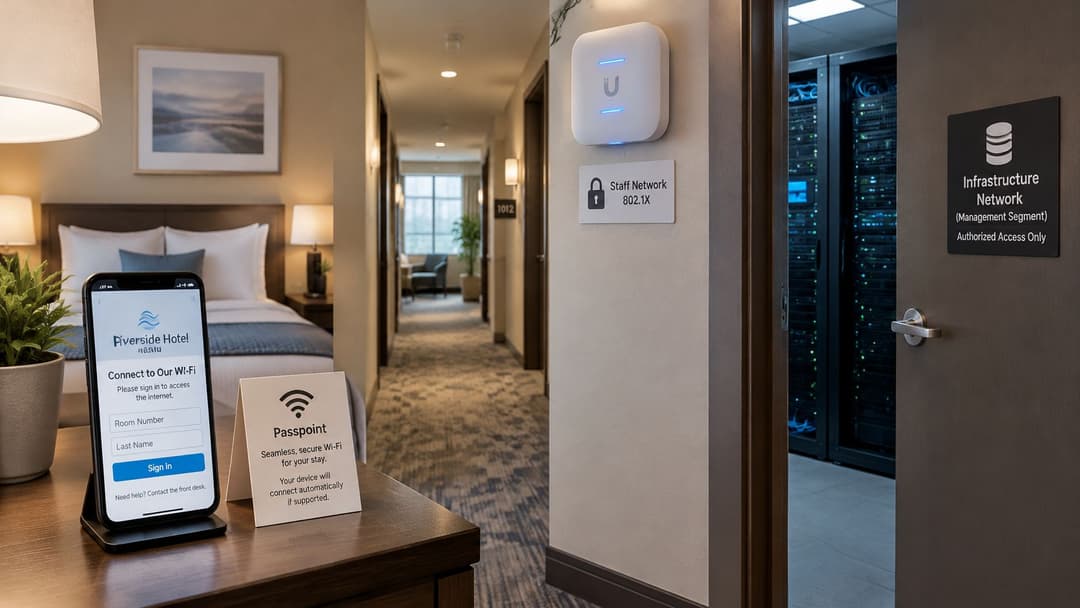
A hotel guest wants to connect after check-in, while front desk staff need dependable access to business systems. Those users may share access-point hardware without sharing permissions.
The guest service might use a captive portal for onboarding or Passpoint for supported automatic, secure connections. Staff can authenticate through enterprise credentials, while back-office systems occupy a restricted segment. A portal page alone isn't proof that the wireless link is encrypted.
Different venues force different decisions
- Hospital: Isolate medical equipment from guest access and test clinical handsets while staff walk between wards. A stationary speed test won't reveal roaming interruptions.
- Shopping center: Design straightforward visitor onboarding and carefully governed analytics. Access-point observations aren't automatically an exact count of people, so define what each measurement means.
- Stadium or transit hub: Plan for concentrated demand using appropriately sized radio cells and channel reuse. Don't expect a single powerful access point to serve an entire crowd effectively.
- Student housing: Give each resident private access while supporting consoles and televisions that can't complete browser-based sign-in. Purple's multi-tenant WiFi guide explores this design problem.
The movement between networks matters. Ofcom's communications-market report found that its mobile research-app panel members connected to an average of 1.9 unique WiFi hotspots per day.
A venue needs an access process that works for a first-time visitor, not just someone who already knows whom to ask.
For each site, write down who connects, how often, and on which devices. Those answers determine authentication, isolation, roaming tests and capacity planning more usefully than the building's floor area alone.
Telling a WiFi fault from a broadband fault
Buying mesh equipment before measuring the connection is an expensive way to guess. Separate the broadband path from the wireless path first, then change the component the evidence points toward.
FCC WiFi guidance warns that WiFi can't outperform the underlying broadband connection and that a slow wireless test doesn't necessarily establish a line fault.
Run a repeatable comparison
- Establish the wired baseline. Connect a capable computer by Ethernet to the router and run a speed test with other heavy traffic paused.
- Test wireless nearby. Disconnect Ethernet and repeat using the same computer, test service and location.
- Compare the results. A large wireless shortfall points toward the local radio path. Matching poor results justify investigating broadband, router or test limitations.
- Change distance and timing. Repeat behind troublesome walls and during the busy evening period.
- Record the connection details. Note the access point, band and channel, not just the speed.
- Inspect the surroundings. Check neighboring channel use and whether problems coincide with equipment such as microwave ovens.
| Observed result | Likely layer | Next action |
|---|---|---|
| Wired and WiFi tests give matching poor results | Broadband line or router WAN | Check the service with the broadband provider before buying hardware |
| Wired fast, WiFi slow nearby | Wireless band, channel or interference | Inspect radio settings and neighboring networks |
| WiFi slow at a distance or behind walls | Coverage and placement | Reposition or add an access point, then validate overlap |
| WiFi slow only at peak evening time | Congestion and contention | Check airtime and channel load, and repeat the wired test |
| Only one device is slow | Client capability or configuration | Compare another device and check band support |
Treat these as diagnostic clues, not verdicts. Matching healthy results don't indicate a fault, and evening slowdowns can originate outside the building.
Device capability, walls, overlapping channels and an aging router all deserve inspection. For a deeper check, compare transfer performance to a wired local server, which removes the broadband service from that particular test.
Choose the right WiFi setup for your site
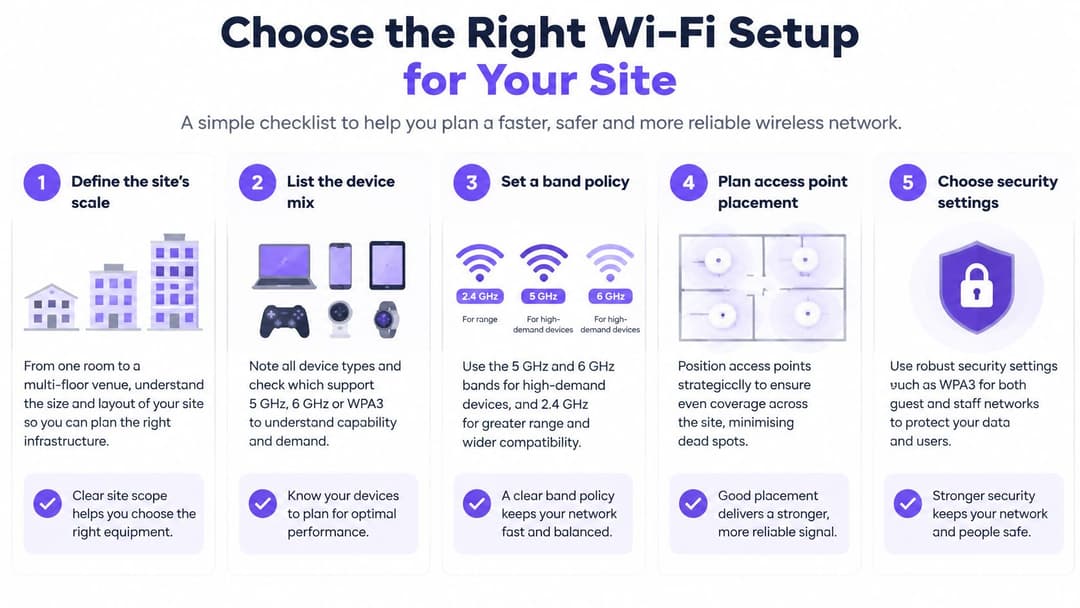
Choose against a requirement, not a generation label. A useful purchase checklist starts with the building and ends with the applications people need to run.
- Define the scale: Map occupied rooms, floors, outdoor areas and busy gathering points.
- Inventory clients: Record band support, security compatibility and browserless equipment.
- Set radio policy: Assign high-demand clients appropriately and preserve necessary legacy access.
- Plan permissions: Decide which identities and devices may reach each service.
- Justify the upgrade: Identify the congested zones where additional spectrum and compatible clients make newer hardware worthwhile.
Upgrade the bottleneck, not everything
Ofcom's Connected Nations spring update reported that 86% of UK homes could access gigabit-capable broadband by January 2025. Availability doesn't establish what any particular venue buys or achieves indoors, but it reinforces why a broadband upgrade alone isn't a complete network plan.
For dense areas, assess channel reuse, cabling, switch power and client compatibility before choosing WiFi 7. Check US regulatory settings and indoor or outdoor operating permissions rather than copying a configuration from another country.
If existing access points remain suitable, compare authentication changes separately from radio replacement. Our Staff WiFi supports passwordless access, RADIUS-as-a-Service and WPA2/3-Enterprise on supported existing hardware.
Arrange a short site survey before purchasing equipment, including measurements in occupied rooms and representative roaming routes.
Purple brings guest WiFi, staff 802.1X security and xPSK Private Area Networks together on a single cloud platform. Visit Purple to explore access options for your existing infrastructure, and use your site-survey findings to decide which users need guest, staff or resident connectivity.