WiFi channel optimiser and selector
Select your network parameters below to identify optimal non-overlapping channels and step-by-step router configuration instructions.
Channels 36, 40, 44, 48 (40/80 MHz width)
Step-by-step setup for Standard router / access point:
- Connect to your network, open browser, and enter 192.168.1.1 or 192.168.0.1.
- Log into administration settings with your admin credentials.
- Locate Wireless / WLAN / Radio Settings menu.
- Select Channel 1, 6, or 11 for 2.4GHz (20MHz width), or Channels 36-48 for 5GHz.
Deploying or managing business WiFi?
Manual channel configuration fails in multi-AP environments. Automate Radio Resource Management, captive portal compliance, and location analytics with Purple.
Short answer: for most business networks, start with the non-DFS channels 36, 40, 44 and 48, which every 5 GHz device supports, then move busy areas onto the DFS channels between 52 and 144, which neighboring home routers rarely use. Use 20 MHz or 40 MHz channel widths wherever several access points share a floor, and keep 80 MHz for low-density areas with clean spectrum. Under FCC rules, channels 36 to 64 are subject to specific indoor and power restrictions.
Selecting the best 5GHz WiFi channels is essential for eliminating wireless congestion, reducing latency, and delivering stable network performance in business and venue environments. While the 2.4 GHz band is restricted to just three non-overlapping channels (1, 6, and 11), the 5GHz frequency spectrum offers significantly higher capacity across 25 non-overlapping 20MHz channels.
Key takeaways: 5GHz WiFi channel selection
- Standard Non-DFS Channels: Channels 36, 40, 44, and 48 (UNII-1) provide universal device compatibility but suffer from high co-channel congestion in multi-tenant and venue spaces.
- DFS Channels for Capacity: UNII-2 and UNII-2 Extended channels (52-64 and 100-144) provide up to 3 to 5 times cleaner RF spectrum by employing Dynamic Frequency Selection (DFS) to share frequencies with radar systems.
- Optimal Channel Width: Use 20MHz or 40MHz channel widths in high-density enterprise deployments to avoid co-channel interference. Reserve 80MHz and 160MHz widths for isolated home or low-density environments.
- Venue Intelligence Synergy: Purple connects to enterprise WiFi access points across Cisco Meraki, HPE Aruba, Ruckus, and Ubiquiti UniFi, complementing physical RF tuning with automated captive portal analytics and location insights.
Finding your best 5GHz WiFi channel
Choosing the right 5GHz channel is similar to selecting a lane on a busy highway. Standard lanes are accessible to all vehicles, leading to frequent traffic congestion during peak hours. Dedicated express lanes offer higher speeds, but require drivers to follow specific access rules. Understanding this layout is the first step toward unlocking a dependable wireless network.
The most common 5GHz channels - 36, 40, 44, and 48 - belong to the UNII-1 frequency band. Because these channels do not require radar detection mechanisms, almost every consumer router and mobile device defaults to them. While universal compatibility is their main advantage, it also causes severe co-channel interference in dense environments like hotels, multi-tenant offices, and shopping centers.
When multiple access points operate on the same channel, devices must wait for clear airtime before transmitting data frames. This contention increases queue latency and reduces total network throughput, even when signal strength (RSSI) appears strong.
Moving beyond default channels
To escape digital channel congestion, network administrators can deploy access points on Dynamic Frequency Selection (DFS) channels. Located in the UNII-2 (channels 52-64) and UNII-2 Extended (channels 100-144) bands, these frequencies remain largely clear because they are shared with radar installations such as weather radar and airport navigation systems.
Access points operating on DFS channels must continuously listen for radar pulses. If radar activity is detected, the access point automatically switches client traffic to a clear channel. In most urban locations, radar events occur rarely, making DFS channels an effective choice for expanding available spectrum in high-density deployments.
How the 5GHz WiFi spectrum actually works
Understanding the 5GHz frequency band requires examining how channels combine to form channel widths. The 5GHz spectrum is divided into 20MHz channels. Access points can combine adjacent 20MHz channels into 40MHz, 80MHz, or 160MHz blocks to increase single-client throughput.
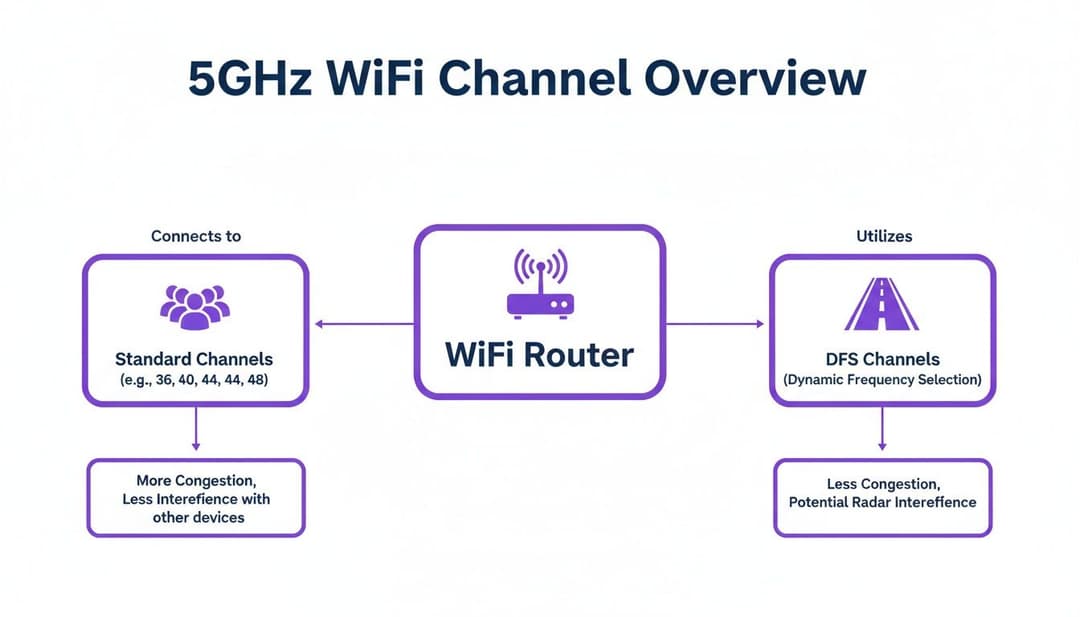
However, wider channels reduce the total number of independent, non-overlapping channels available across a venue. Operating an 80MHz channel consumes four contiguous 20MHz channels simultaneously. In a venue with multiple access points, wide channels force nearby APs onto identical frequencies, creating self-induced co-channel interference.
Spectrum bands and regulatory rules
Telecommunications regulators like Ofcom in the UK and the FCC in the United States set specific rules for 5GHz spectrum usage:
- Band A (UNII-1 & UNII-2A, Channels 36-64): Designated primarily for indoor use with lower Transmit Power Control (TPC) limits to prevent interference with satellite services.
- Band B (UNII-2C Extended, Channels 100-140): Permitted for indoor and outdoor operations with higher power output allowed, subject to mandatory DFS radar detection.
- Band C (Channels 149-165): Used in specific regions for high-power point-to-point wireless bridges and outdoor venue coverage.
Channel width trade-offs
For detailed guidance on access point selection, see our review of the best wireless access points for business.
Surveying your airspace to clear channel conflicts
Selecting 5GHz channels based on default router suggestions often leads to poor performance. Performing a proper wireless site survey provides real-time visibility into local RF contention, signal strength (RSSI), and noise floors.
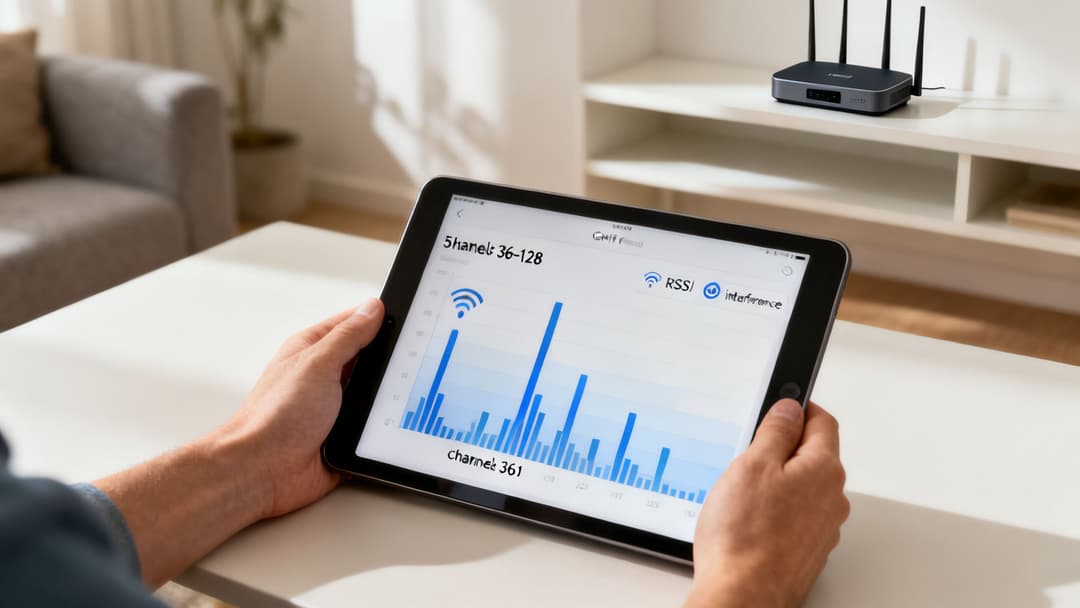
Key metrics to evaluate during an RF survey include:
- Received Signal Strength Indicator (RSSI): Measured in negative decibels (-dBm). A signal of -50 dBm to -65 dBm indicates excellent coverage, while signals weaker than -75 dBm lead to packet loss and retry rates.
- Signal-to-Noise Ratio (SNR): The difference between signal strength and background RF noise. Aim for an SNR of 25 dB or higher for reliable voice and video streaming.
- Co-Channel Interference (CCI): The presence of multiple access points transmitting on the same channel at -85 dBm or stronger.
IT managers can perform rapid spot-checks using specialized diagnostic software. To compare software scanners for macOS, Windows, iOS, and Android, read our guide on WiFi analyzer applications.
Channel selection strategy by venue type
Different physical environments require tailored channel plans to maintain reliable wireless connections.
Hospitality and hotels
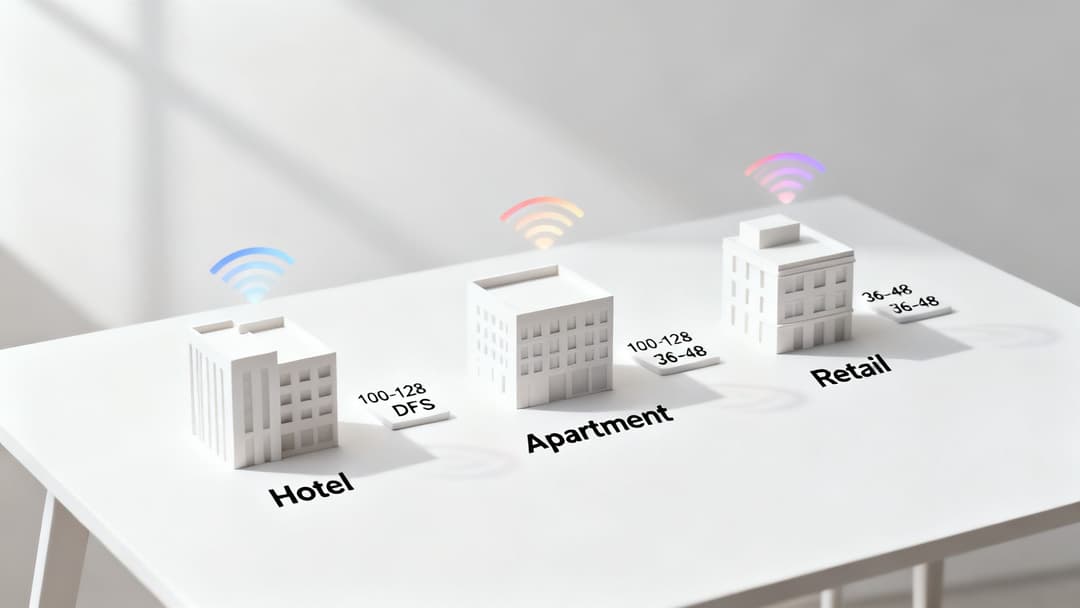
Hotels house hundreds of client devices operating inside concrete and steel structures. Relying exclusively on UNII-1 channels (36-48) causes severe co-channel interference across adjacent rooms. Deploying a DFS channel plan across 40MHz or 20MHz widths provides sufficient non-overlapping channels to cover multiple floors seamlessly. Combining optimized RF design with guest WiFi management ensures fast captive portal authentication and smooth roaming.
Multi-tenant commercial buildings
In multi-tenant office buildings, neighboring businesses frequently broadcast uncoordinated WiFi signals. Establishing a centralized channel plan across UNII-2C DFS frequencies (channels 100-144) isolates your network traffic from surrounding tenant networks. For enhanced security across shared infrastructure, review our Enterprise WiFi Security Guide.
Retail centers and public venues
Shopping malls and public venues experience fluctuating client densities throughout the day. High foot traffic during peak hours creates sudden increases in channel utilization. Implementing 20MHz channel widths across both DFS and non-DFS bands maximizes access point density without channel overlap. Pairing this RF foundation with WiFi analytics software enables venue operators to convert foot traffic data into actionable customer insights.
How to check which 5 GHz channel you are on
- Windows 11: run
netsh wlan show interfacesin Command Prompt. The output shows the band, channel and signal strength of the current connection. - macOS: hold Option and click the WiFi icon in the menu bar. The channel and width appear in the form "149 (5 GHz, 80 MHz)".
- Android: a WiFi analyzer app lists every nearby network by channel, so you can see which ones are crowded.
- A whole venue: your access point dashboard (Cisco Meraki, HPE Aruba, Juniper Mist and others) shows the channel each radio is using and logs every DFS radar event.
5 GHz channel plan checklist for multi-AP venues
- Survey first. Record which channels neighboring networks already use before you change anything.
- Use 20 MHz in dense spaces such as conference halls and 40 MHz elsewhere.
- Give neighboring access points different channels so no two adjacent radios share one.
- Add DFS channels if your hardware supports them, then check the controller log for radar events for a week and drop any channel that keeps forcing a switch.
- Turn transmit power down before adding channels. Too much power is a common cause of co-channel interference.
- Re-check after any change to the building, such as a new tenant network next door.
When to use 6 GHz instead of 5 GHz
If your access points and most client devices support WiFi 6E or WiFi 7, the 6 GHz band adds clean spectrum with no legacy devices and no DFS radar checks. In the UK, Ofcom has opened the lower 6 GHz band (5925-6425 MHz) for license-exempt WiFi, which adds up to 24 extra 20 MHz channels; in the US the FCC opened the full 5925-7125 MHz range. Plenty of cell phones, laptops and IoT devices still have no 6 GHz radio, so plan both bands rather than replacing one with the other. Our WiFi channel width guide covers the width trade-offs in more detail.