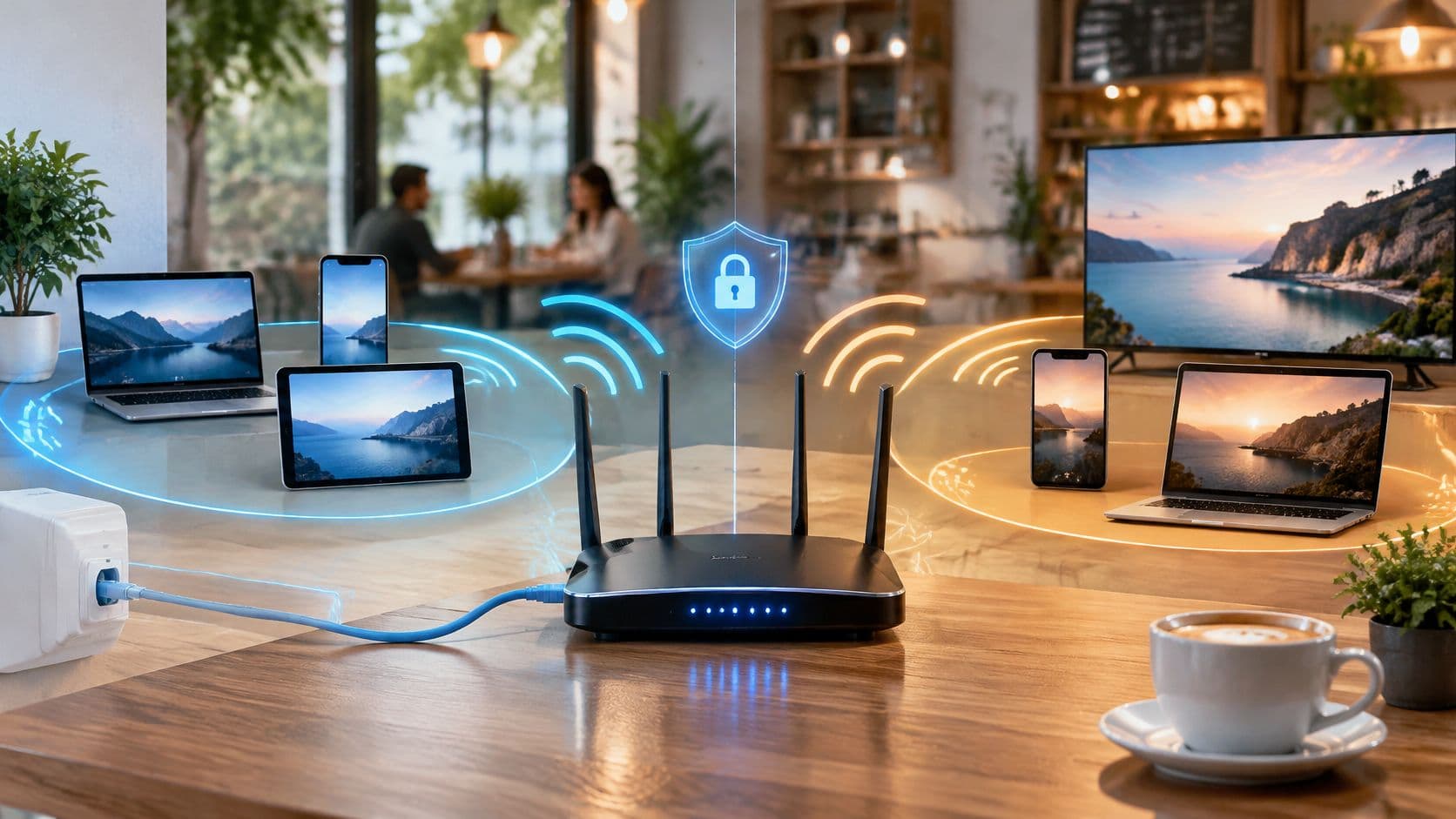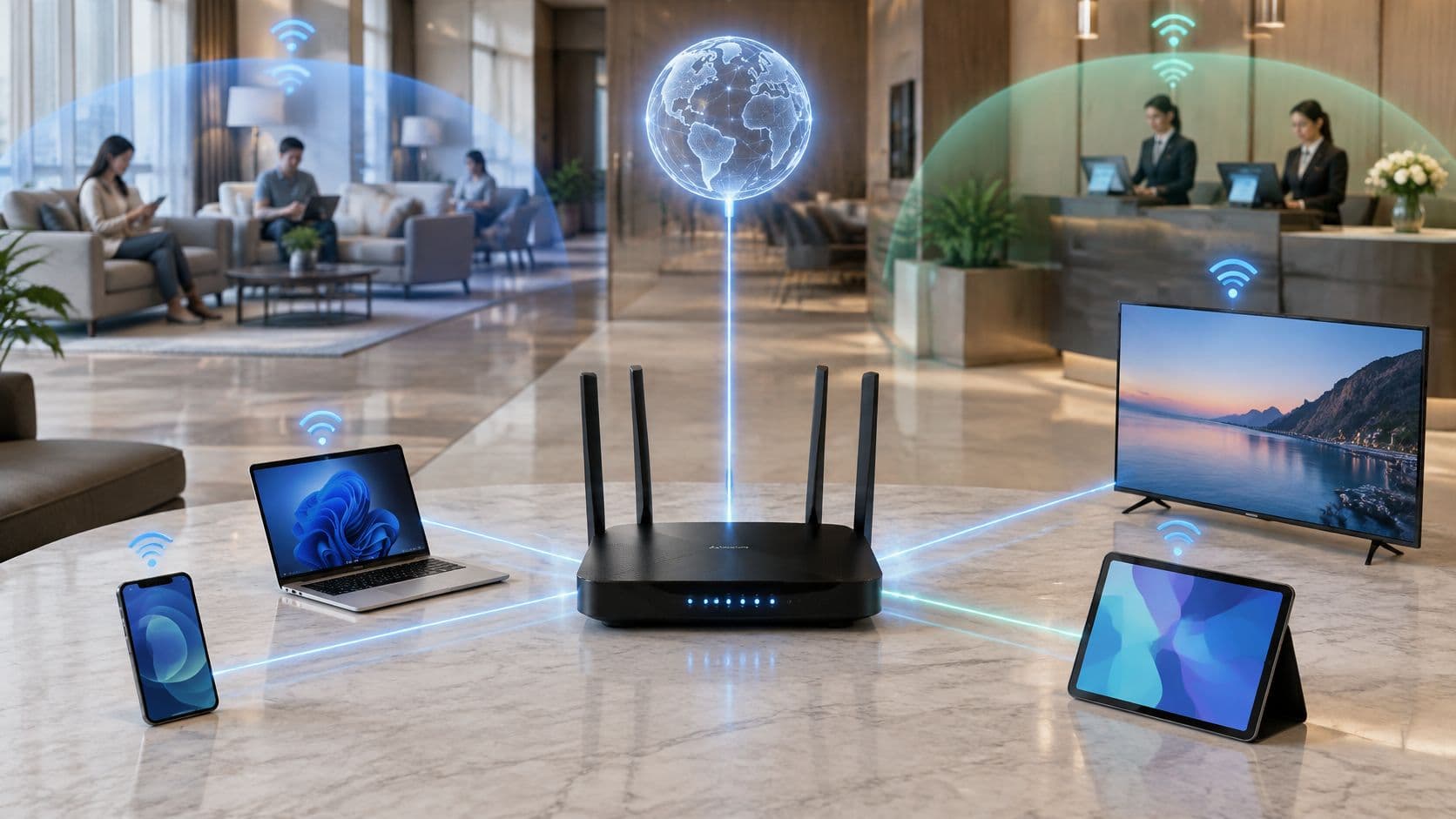
If the broadband line is already fast, why does a bedroom tablet still buffer, and why can a guest laptop sometimes see the register? People talk about "the internet" and "the WiFi" as if they were one thing. They are not. The line brings a connection to the building. The router is the internet-facing control point that shares it, labels every device, and decides which traffic is allowed to move.
The jobs a router does, at a glance
A WiFi router connects your local devices to the internet and manages the traffic moving between them. It does several jobs at once, which is why swapping the box for a faster package does not always change what you feel in the room.
| Job | What it does | Everyday example |
|---|---|---|
| Connects to broadband | Passes traffic between your local network and the internet | Your fiber or cable line reaches the router, not each phone |
| Assigns addresses (DHCP) | Gives each device a private address automatically | A phone is handed its own private address the moment it joins |
| Shares one address (NAT) | Lets many devices use one public address | A laptop and a smart TV both browse through one line |
| Wireless access point | Turns data into radio signals and checks WiFi passwords | A phone joins the 5 GHz band to stream video |
| Firewall | Blocks unsolicited inbound traffic | An outside probe aimed at an unused port is dropped |
| Quality of service (QoS) | Gives time-sensitive traffic priority over bulk traffic | A video call holds steady during a large download |
DHCP is the automatic address book. Without it, you would type an address into every phone, laptop and printer by hand, and two devices could claim the same one.
NAT is the shared front door. Outsiders see one public address. Inside, the router remembers which reply belongs to the laptop and which belongs to the TV.
The wireless job is separate again. The router turns data into radio, checks the WiFi password, and lets devices take turns on the air. The firewall drops traffic that nobody inside asked for. QoS keeps a call ahead of a huge download when both want the same pipe.
The broadband service stops at the premises. The router distributes that connection inside, which is why router basics for remote workers treat the home box as part of the work network, not a spare gadget on a shelf.
How a router connects every device to the internet
Two boxes get mixed up all the time. The modem, or the fiber termination unit on the wall, receives the provider's line and turns it into a signal the building can use. The router builds the local network on top of that signal and acts as the control point for everything inside. Many homes hide both jobs in one combined unit from the provider. The jobs stay separate even when the plastic is shared.
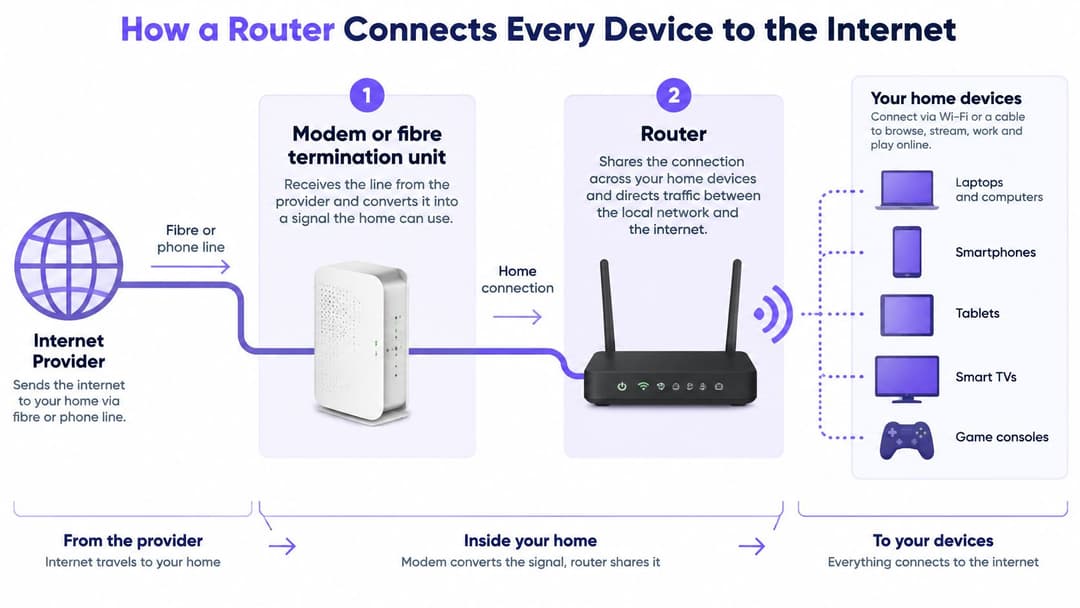
Say a cell phone asks to load a web page. The path is short, and each step has a different owner.
- The cell phone asks for the page.
- The router has already given that cell phone a private address, so it knows who is asking.
- The router rewrites the outgoing request so it looks as if it comes from the single public address.
- The request leaves the building over the broadband line.
- When the reply comes back, the router matches it to that cell phone and hands it over.
Alongside this, the router converts data into radio, agrees encryption with each device, and decides who may transmit at each moment. A single microphone in a busy room works the same way. Only one person should speak at a time, or everyone hears noise.
The line itself stops at the modem. The router is where one incoming connection becomes many private conversations, and where access is decided. The FCC frequently updates spectrum rules for WiFi, which underlines that the air inside a building is a shared resource. A faster broadband line does not change how that air is divided.
On your own admin page, three checks are worth five minutes. Look at the address range the router hands out, confirm the WiFi password is one you chose, and open the connected-device list. Any name you do not recognize is worth questioning before you assume the network is only yours.
Why fast broadband can still mean slow WiFi
The speed test next to the router looks excellent. The tablet in the bedroom still spins. That gap is the most common reason people ask what do WiFi routers do when the package already sounds fast.
The router does not create broadband speed. It shares whatever arrives, then sends it over a radio link that every active device has to share. FCC broadband data shows that gigabit-capable internet reaches millions of US locations. A huge share of homes can receive a fast service. The router still decides how that capacity reaches each room, through spectrum, placement, the wireless standard, and how many devices are talking at once.
Where the speed actually goes
| Stage | What limits it | What to check |
|---|---|---|
| Broadband line | Subscribed speed for the whole premises | Run a wired speed test next to the router |
| Router throughput | Processing and NAT capacity of the router | Test over a cable; a slow result points to the router |
| WiFi link rate | Shared airtime and the radio standard in use | Check which band and standard the device connects on |
| Distance and walls | Signal loss through rooms and masonry | Compare speeds at the router and in the slow room |
| Simultaneous demand | Many devices competing for one channel | Test at peak occupancy rather than early in the morning |
| Client device | An older WiFi standard or a weak adapter | Test a newer device before blaming the router |
The number printed on the box is a headline link rate. Usable speed is lower because protocol overhead, retransmissions, encryption and turn-taking all eat airtime. Two laptops on the same channel do not each get the full figure. They split what is left after that overhead.
Practical rule: Test with a cable first, then test again in the slow room while the building is busy. Those two numbers tell you whether you are looking at the line, the router's placement, or the device in your hand.
Hotels, restaurants, Student Housing complexes, offices and clinics hit the same wall. Excellent backhaul still feels poor when coverage, capacity or the split between networks was designed badly. A faster package will not move a router out of a closet or teach an old adapter a newer radio standard.
Locking down the router itself
A strong WiFi password is often treated as the whole security plan. It is not. The password that lets a cell phone join the wireless network and the password that opens the router's admin page are separate controls. Changing one does not change the other, and neither step turns off management from the internet.
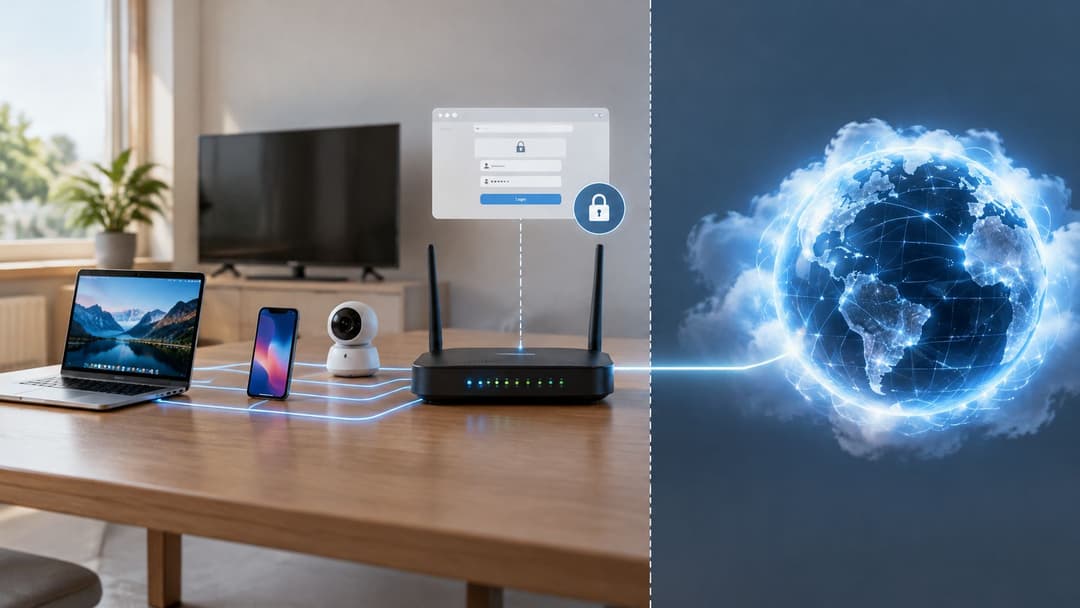
The router sits on the edge. It separates the local network from the public internet, hands out addresses, applies firewall rules, and may expose an admin service. Cybersecurity guidance warns that routers can be remotely altered to change WiFi passwords or create access rules. Default administrator credentials and internet-based management are avoidable risks.
Three settings to change this week
- Administrator password: Replace the default printed on the sticker. That password protects the control page, not the air.
- Remote administration: Turn off access to the admin page from the internet. Manage the router only from inside the building, on a network you trust.
- Firmware updates: Switch on automatic updates. Patches fix faults in the box that every other device depends on.
WPA2 or WPA3 encryption protects the radio link, so a neighbor cannot casually read the traffic in the air. Encryption does not name the person who joined. A single shared password gives no record of who connected, and you cannot remove one person without changing the password for everyone and reconnecting every device.
A hotel or clinic that hands the same password to staff, guests and building devices has one key for many kinds of trust. Losing that key, or leaving a former employee with it, exposes more than a spare laptop.
Small businesses, hospitality sites, healthcare rooms and rented homes all feel this, because guests, staff, building systems and small connected devices often sit on one network. For a fuller set of controls beyond the home sticker password, the enterprise WiFi security guide sets out how venues separate access instead of trusting one shared secret.
How homes, hotels and clinics split their networks
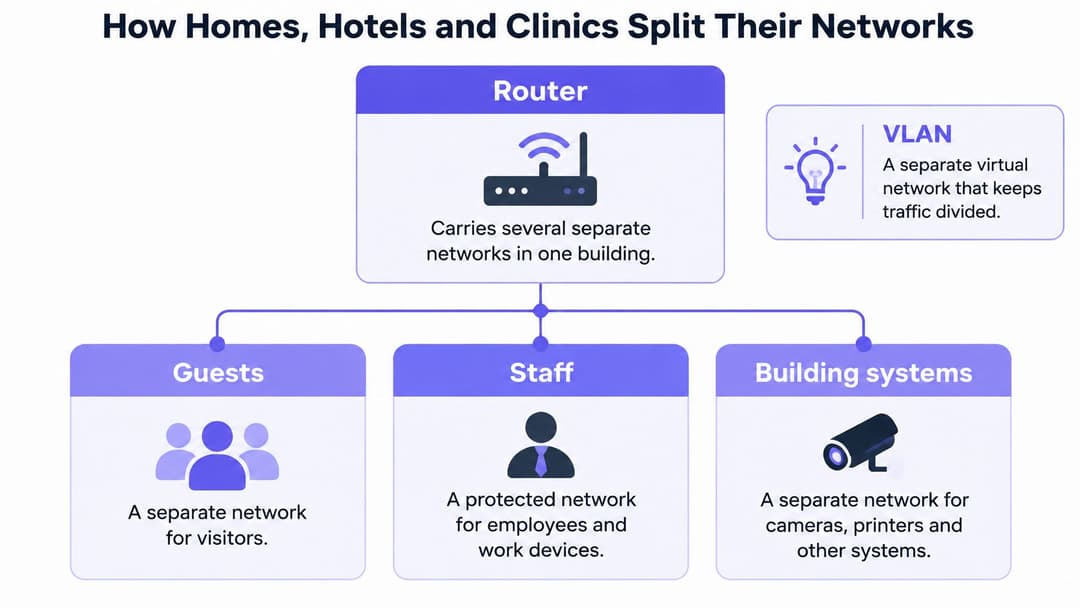
One router can carry several networks that do not trust each other. The usual tool is a VLAN, a separate virtual network on the same hardware, or an equivalent policy rule that blocks traffic from crossing.
Government cybersecurity guidance advises WPA2 or WPA3, never leaving WiFi open, changing default router credentials, and enabling automatic firmware updates. The same guidance points venues toward keeping guest, staff, IoT and building-management traffic apart. A guest can reach the internet while being blocked from cash registers, clinical systems, printers or a neighbor's devices.
| Setting | Typical layout | Main risk if skipped |
|---|---|---|
| Family home | One network, with a separate guest network for visitors | Visitors can reach shared drives and printers |
| Hotel | Separate guest, staff and card-payment networks | Staff devices are exposed to public guests |
| Clinic | Clinical systems on their own isolated network | Patient records are reachable from guest traffic |
| Store | POS and payment network apart from customer WiFi | Card data shares a network with shoppers |
| Shared apartment or Student Housing | One isolated network per resident or unit | One tenant's smart devices expose the others |
The layouts differ. The failure mode does not. Skip the split, and a device with the weakest reason to be online can reach the systems with the most to lose.
Whoever can open the management page can change the routing rules, the credentials and every connection downstream. Keep that page reachable only from a trusted management network, keep the firmware current, and watch for unexpected admin changes. In apartment buildings and student housing, a multi-tenant WiFi guide is the practical version of that rule: each resident gets a private path, rather than one password for the whole building.
Identity-Based Access for venues and enterprises
A shared WiFi password is a weak control once more than one household uses the air. You cannot tell who joined, and you cannot remove one person without a building-wide password change.
Identity-based access issues credentials to a person or a device. A guest might sign in through a captive portal, a text message or email code, or single sign-on tied to an employer's directory. A stay or a contractor visit can expire on its own. Revoking one account removes only that access. Logs can record who connected, which device, when, and from which location, which clinics and offices need when someone asks for an audit.
Passwordless options, such as a one-time code or a registered device, take the password out of the guest's hands while an identity still sits behind the session.
Picture a hotel that writes one password on every key card and gives the same one to night staff. When someone leaves the job, the venue must change the password and reconnect registers, phones and door systems. Per-person access avoids that scramble.
Purple is one provider in this space. The buyer's checklist applies to any platform, and our identity-based networking approach is built around the same questions:
- Person, not a shared key: Does access belong to a named user or device?
- Automatic end date: Does access stop when a stay or contract ends?
- Useful logs: Can you map user, device, time and location?
- Separation: Does guest traffic stay off operational systems?
Check your router before you buy faster broadband
A faster package fixes a slow line. It does not fix a router in a closet, an old cell phone, or an admin page still using the sticker password.
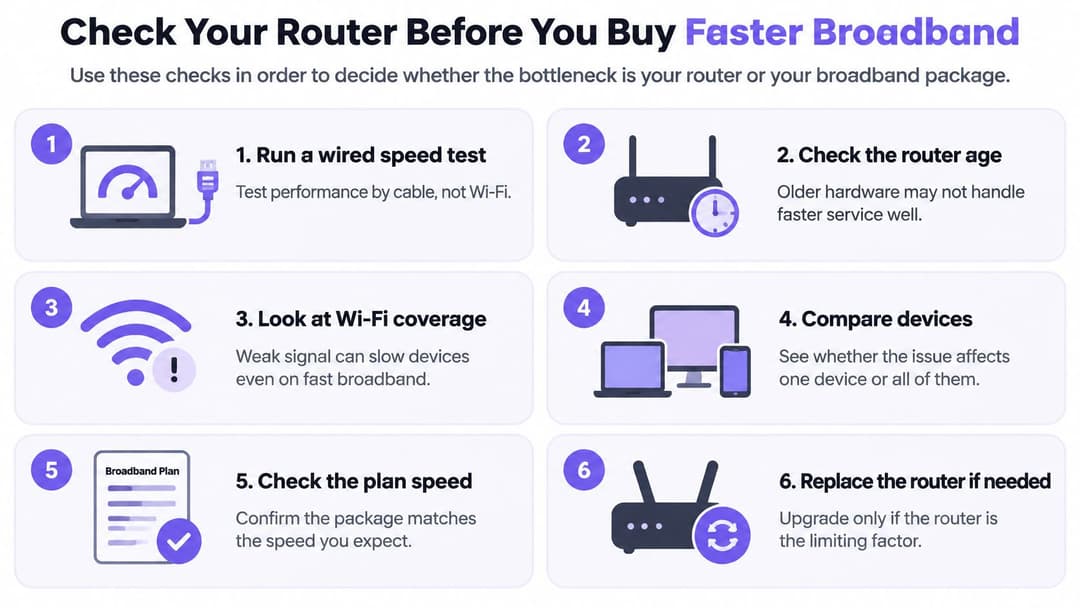
Work through the checks in this order.
- Run a wired speed test beside the router and compare it with the plan you pay for.
- Check which WiFi band and standard the slow device is using.
- Test in the slow room at peak occupancy, not first thing in the morning.
- Confirm the administrator password has been changed and remote administration is off.
- Confirm automatic firmware updates are on.
A wired result short of the plan is a line problem for the provider. A strong wired result with a weak wireless result points to placement, the channel or the device, so move the router, change the band or try a newer device before you buy anything. Add an access point only when both tests look sound and one area still fails. A second radio on an overlapping channel can add crowding rather than capacity.
For staff devices, our Staff WiFi runs on the access points a business already owns, with zero PKI to build. It onboards those devices with managed EAP-TLS certificates, so there is no shared passphrase to rotate, and every staff WiFi authentication is logged with user, device, time and location.
Today, run the wired test and the slow-room test. Write both numbers down before you change the plan, the channel or the hardware.
Purple replaces shared WiFi passwords with identity-based access for guests, staff and multi-tenant buildings, on the access points you already run. If your venue still hands one password to everyone who walks in, that is the control point worth fixing before you buy a faster line. See how Purple handles guest, staff and resident access on one platform.