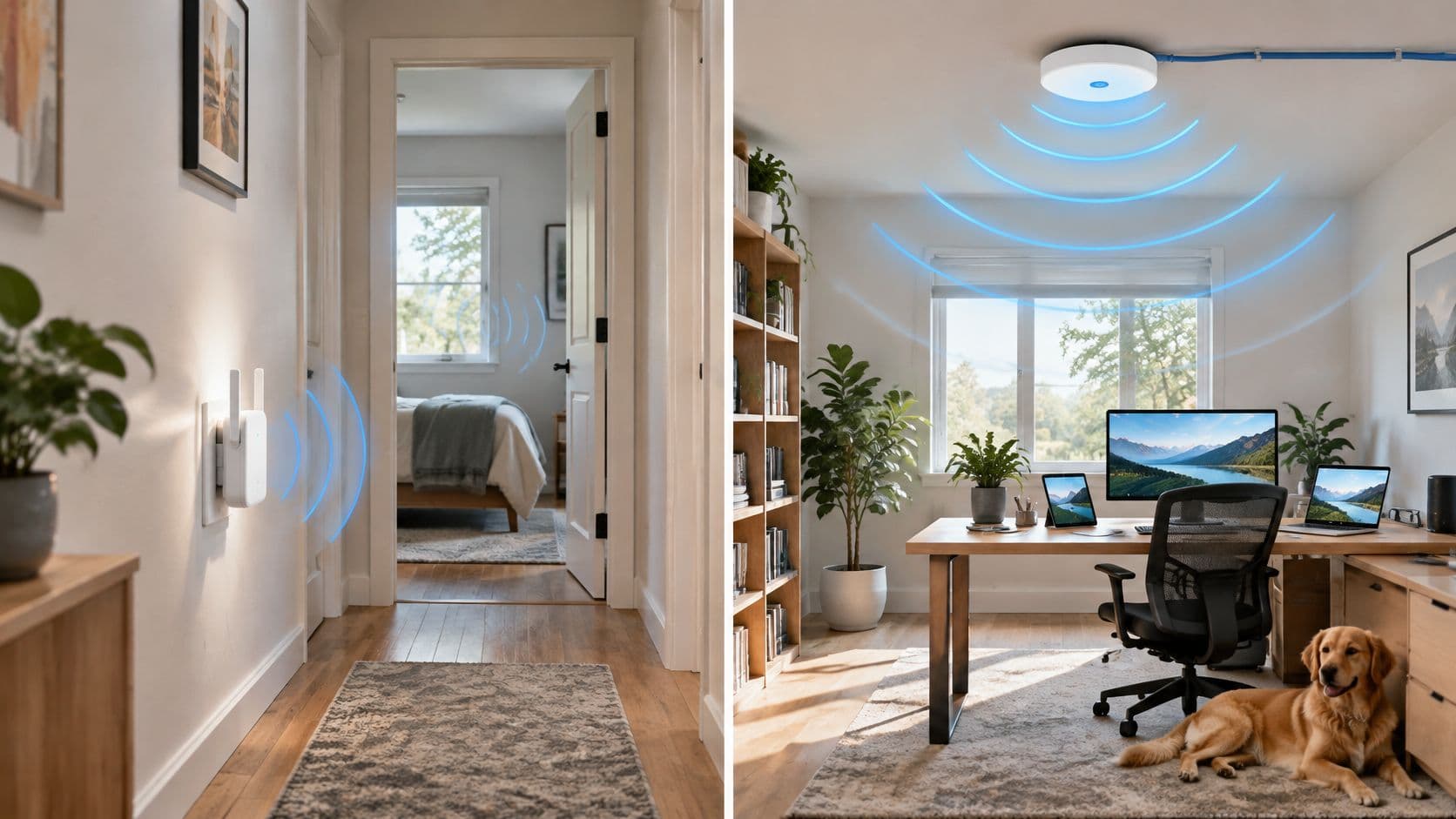
Search for advice on weak WiFi and you'll get the same answer from almost every retailer: buy an extender, plug it in halfway, done. That advice is cheap, quick, and wrong often enough to be worth arguing with. It starts with a product instead of a question.
A senior engineer approaches a slow link the way a doctor approaches a symptom. Measure first. In the UK today the broadband line is rarely the constraint, so the bottleneck is usually radio conditions, backhaul, or the way devices hand over as people move around a building. An extender and an access point fix different parts of that picture. Buying the wrong one moves the problem rather than solving it.
The short version reads like this. If an Ethernet cable can reach the room and more than a handful of devices need full speed at once, an access point wins and it isn't close. If one spare room needs occasional browsing and no cable will ever go there, an extender is a sensible buy. Everything in between is diagnosis, which is why the WiFi extender vs access point decision should start with a speed test rather than a shopping basket.
WiFi extender vs Access point at a glance
If an Ethernet cable can reach the problem area and more than a handful of devices need full speed at once, choose an access point. If you need a cheap, cable-free fix for a single weak room used occasionally, an extender is a rational buy and proper network hardware would be wasted money.
The comparison below covers the things that change how a building feels to use: how each unit gets back to the router, what happens to throughput and latency, how devices behave as people walk around, and what installation really costs.
Extender vs access point on the criteria that matter
| Criterion | WiFi extender | Access point |
|---|---|---|
| Connection to router | Wireless repeater link, sometimes with an optional Ethernet port | Wired Ethernet or fibre backhaul, often with PoE |
| Coverage behaviour | Extends reach into one dead zone from the existing router cell | Creates a new full-strength coverage cell per unit |
| Throughput at client | Roughly halved on single-band units that share one radio for both jobs; dual-band models lose less | Close to line speed, limited mainly by the backhaul |
| Latency | Higher, because traffic is relayed rather than passed straight through | Low and consistent, with no relay hop |
| Roaming between units | Manual switching if the unit broadcasts a separate SSID | Seamless roaming across access points with fast-roaming features |
| Setup effort | Plug into a socket, pair, position halfway | Run cable, mount, adopt into a controller or cloud dashboard |
| Typical UK cost | Hardware only, at the budget end of the market | Higher unit price plus cabling, a PoE injector or switch port, and installation time |
| Best for | One weak room, light and occasional use | Homes, offices, hotels and venues needing capacity |
A dual-band extender that keeps one radio for the backhaul link performs far better than a single-band model, because it isn't asking one radio to hold two conversations at once. It still relays every packet, so the improvement is relative, not absolute.
Two questions settle almost every case. Can a cable reach the dead zone? If yes, the wired option wins on speed, latency and roaming. How many devices need full performance simultaneously? Two phones and a television can live with a relay hop. Forty laptops in a training room, tills on a shop floor or clinical workstations cannot.
Costs follow the same fork. An extender is a hardware purchase and nothing more. An access point is hardware plus an Ethernet run, a PoE injector or a switch port to power it, and the disruption of getting cable to a ceiling, which is usually the largest line in the budget and the reason people avoid the answer they already know is right.
Spend an evening on the diagnosis before either purchase. It decides the question for you.
Find the real cause of your slow spots first
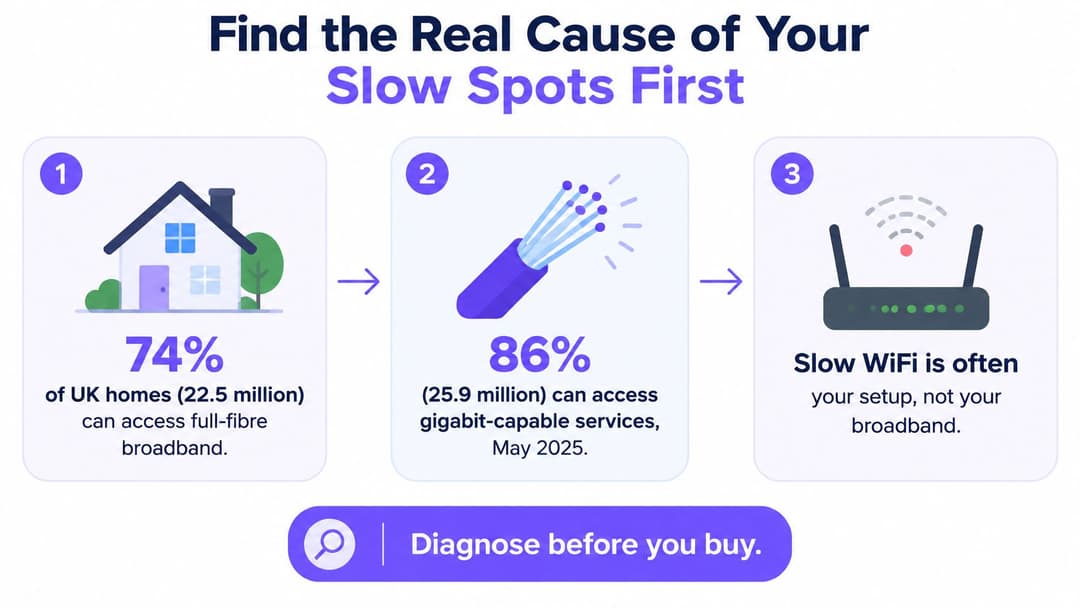
Ofcom's spring 2025 Connected Nations update reported that 74% of UK homes, or 22.5 million premises, could access full-fibre broadband, and 86%, some 25.9 million homes, could access gigabit-capable services (Ofcom Connected Nations update, spring 2025). Hold that beside the complaint you hear, a bedroom that drops video calls or a hotel corridor where the booking app times out, and the uncomfortable conclusion is that the line into the building is rarely the limit now.
That changes what you should buy. These are local radio-design problems: building materials, channel congestion, device roaming, access point placement, or a wireless backhaul that collapses under load. A cheap repeater touches none of them.
Run the diagnosis in one evening
- Set a baseline at the router. Test beside it, wired if the device allows, using an internet speed test. Write down download, upload and latency.
- Repeat it in the problem room. Same tool, same time of day, so the two sets of figures are comparable.
- Record which band the device joined. 5 GHz carries more throughput over shorter distances. 2.4 GHz travels further through walls and congests faster.
- Name the symptom. Slow downloads point at throughput. Calls that freeze while a speed test looks healthy point at latency, or at a drop during handover.
- Count what's connected. Thirty devices sharing one router radio behave nothing like five.
- Walk the path. Solid brick walls, suspended floors, mirrors, metal appliances and foil-backed insulation all cost signal.
- Scan the neighbours. A WiFi analyser app on a phone shows how many networks share your channel. In a block of flats the answer is usually too many.
Then apply the interpretation rule. Fine beside the router and poor everywhere else means coverage, backhaul or roaming, and a wireless or wired extension will help. Poor in both places means the line or the router itself, and no gadget in the far room will rescue it.
How a WiFi extender Extends your Router's signal
An extender does one job. It receives the router's signal and rebroadcasts it. Ofcom groups boosters, extenders and repeaters together as devices that do exactly that, with some creating a separate network (Ofcom's UK home broadband performance report). Nothing in the box upgrades the signal. The unit copies it.
Ofcom's testing, built on the Broadband Forum TR-398 in-premises performance standard, measured throughput at increasing distances from residential routers in what the regulator calls range versus rate testing. Performance declined as devices moved further from the router, and 5 GHz was typically better than 2.4 GHz. The same report warns that extenders placed in weak-signal areas can increase coverage while leaving users with lower connection speeds and higher latency.
The trade an extender makes: it buys reach with speed. A packet crosses a wireless link twice, once from the router to the extender and once from the extender to the laptop, so the air carries double the work for a single download.
Placement decides the outcome
Too close to the router and the unit adds nothing you didn't already have. Too far and it rebroadcasts a signal that was already marginal, amplifying weakness rather than strength. The workable position is roughly halfway, at a socket where the extender's own signal indicator shows a strong link back to the router. Move it two sockets along and recheck the indicator before you touch the app.
Where an extender is the right call
- One modest dead zone. A garden office, a spare bedroom, a garage conversion.
- Listed buildings and rentals. Where drilling and cable runs aren't happening.
- Occasional traffic. Browsing, email, a smart TV in a second room.
- A tight budget with no expectation of growth. The hardware cost is the entire cost.
The hybrid many people overlook
Many extenders ship with an Ethernet port and an access-point mode. If a cable reaches that socket, take the unit out of repeater mode. Clients then use the wired link and skip the second wireless hop, so throughput stays close to the line rate rather than decaying under a relay. What you still don't get is the managed layer: usually no PoE, no VLAN split between staff and guest traffic, no central control of channels and transmit power, and roaming between units stays manual or weak. Access-point mode is a good answer for one cabled room. It is not an estate.
How an Access point delivers wire-speed WiFi
An access point gives WiFi a wired backhaul. It connects to the router or a switch over Ethernet, usually drawing power over the same cable through PoE, and serves clients from its own coverage cell. Traffic arrives on copper or fibre and leaves on radio, so the access point does not spend client airtime carrying the same packet back to the router. That is the wire-speed advantage: the radio only has one job to do.
Modern WiFi 6 and WiFi 7 access points are designed for high-throughput use on licence-exempt spectrum. In a busy room, WiFi 6 efficiency features help devices share airtime through scheduled transmissions rather than constant collisions, and they improve the uplink path from phones and laptops. A cabled access point gives those radios a clean path into the network instead of forcing them to relay traffic first. The uplink still has to match the service: put a fast access point on an old, slow port and the bottleneck moves rather than disappears.
Why device count changes the answer
An extender with a wireless backhaul consumes airtime twice for every packet and adds contention. Those limits bite harder as more devices join the network. A WiFi 6 access point connected by Ethernet or fibre serves clients directly, which makes the gains most obvious in the places extenders struggle: open-plan rooms, shared homes and offices where several devices want the radio at once.
What management buys you
- Multiple SSIDs with VLAN separation. Staff on one network, guests on another, clinical or payment traffic kept apart from both.
- Band steering. Capable clients get pushed to 5 GHz instead of crowding 2.4 GHz.
- Fast roaming. A call survives the walk from reception to the third floor because the handover is negotiated, not improvised.
- Central radio policy. Channels and transmit power are set once for the whole site rather than guessed unit by unit.
- PoE and ceiling mounting. One cable does power and data, and the radio sits where it covers the room instead of behind a sofa.
The trade-offs are real. Access points cost more per unit, need a cable or a planned wireless backhaul, and take longer to install and configure than a plug-in repeater. That effort buys predictability: coverage cells are placed deliberately, radio behaviour is coordinated, and roaming works because the estate is designed for it.
Rule of thumb: three or more weak rooms, ten or more active devices, or any business use carrying guest, payment or clinical traffic tips the decision to access points.
What setup actually involves for each option
The two installs are not variations on a theme. One is a socket, the other is a small cabling project.
Extender, in four steps
- Find the socket. Roughly halfway between router and dead zone, where the source signal is still strong.
- Pair it. WPS button or the manufacturer's app, whichever the unit supports. WPS is faster; the app usually gives clearer feedback.
- Watch the indicator. Most units have a signal LED that changes colour. Nudge the position until the link back to the router reads strong, then leave it alone.
- Test where it matters. Run a speed test in the dead zone, not next to the extender. The number that counts is the one at the client.
Access point, in six steps
- Run cable from the router or a switch to the mounting position. Cat6 if you're buying new cable, and leave a service loop at both ends.
- Power it over that cable with a PoE switch or a single-port injector, which avoids a mains socket at the ceiling.
- Mount at the centre of the area to cover, on the ceiling where possible. Radios radiate outward and slightly down, so a ceiling position beats a corner shelf.
- Adopt it into the controller or cloud dashboard so firmware, SSIDs and passwords are managed in one place.
- Set channels, or let the controller do it. Automatic selection is fine for one unit; on a multi-unit site, plan the 2.4 GHz channels manually because there are only three non-overlapping ones.
- Walk the site with a phone and confirm clients move between units without dropping a call or a video stream.
What each setup involves
| Step | WiFi extender | Access point |
|---|---|---|
| Positioning | Halfway between router and dead zone, in a socket with a strong source signal | At the centre of the area to serve, cabled back to router or switch |
| Cabling | None for wireless models | Ethernet or PoE run to each unit |
| Pairing | WPS button or app-guided pairing | Adopted into a controller, cloud dashboard or mesh system |
| Network name | Same SSID if supported, otherwise a separate -EXT network | One SSID with seamless roaming across APs |
| Typical time | 10 to 30 minutes | One to four hours per floor including cabling |
| Ongoing management | Per-unit app settings | Central control of firmware, channels and transmit power |
Which option fits your building
Most buildings sort into a handful of patterns, and the same call comes up each time.
Recommended option by environment
| Environment | Recommended option | Why |
|---|---|---|
| Small flat or studio | Extender or a better router position | Light traffic, cabling rarely practical, one weak spot at most |
| Large or multi-storey house | Two or three wired access points | Backhaul holds full speed on every floor with roaming between units |
| Office or clinic | Managed access points | Device density, VLAN separation, fast roaming and central control |
| Hotel, B&B or restaurant | Managed access points per floor | Consistent guest experience, branded onboarding and analytics |
| Student housing or apartment blocks | One access point per unit with a planned channel map | Co-channel contention makes extra repeaters counterproductive |
| Warehouse or retail floor | Ceiling-mounted access points | Predictable coverage over racks, tills and stockrooms |
In a studio or a one-bedroom flat, an extender or moving the router off the floor and out of the kitchen cabinet often settles it. A large house is a different problem: two or three wired units, one per floor, keep full speed everywhere and let devices hand over as people climb the stairs.
Multi-tenant buildings are where the tempting fix is the worst one. A UK university study of WiFi performance in apartment blocks found that when neighbouring access points ran on the same channel with roughly 0 dB attenuation between flats, apartments operated at about 5 to 10% of maximum capacity, approximately 21 Mb/s in the study's stated scenario (study of WiFi performance in apartment blocks).
The counter-intuitive part: adding repeaters to a congested block doesn't add capacity, it adds competition. Wired access points with a coordinated channel plan restore headroom. More radios shouting on the same channel take it away.
The 6 GHz band helps here. Ofcom has made the lower 6 GHz band, 5925 to 6425 MHz, available for indoor RLAN use at up to 250 mW EIRP, which gives newer access points room for wider channels and lower contention, subject to client support and how much the building's walls attenuate the signal. Channel planning is a discipline in its own right, and an RF engineering guide to channel planning is worth reading before you fix a channel map in place.
For managed venues, the deciding features sit above the radio. Segmented SSIDs, VLANs, identity-based onboarding and centrally controlled radio policies are what separate a managed estate from a pile of extenders. Extenders stay sensible for small premises where cabling is impractical and demand is modest.
Warehouses and retail floors want ceiling-mounted units positioned over racks, tills and stockrooms, so coverage follows the people and the scanners rather than the floor plan. Hotels want one unit per floor and a guest network that doesn't ask for the same password twice.
What to Check Before You Pay
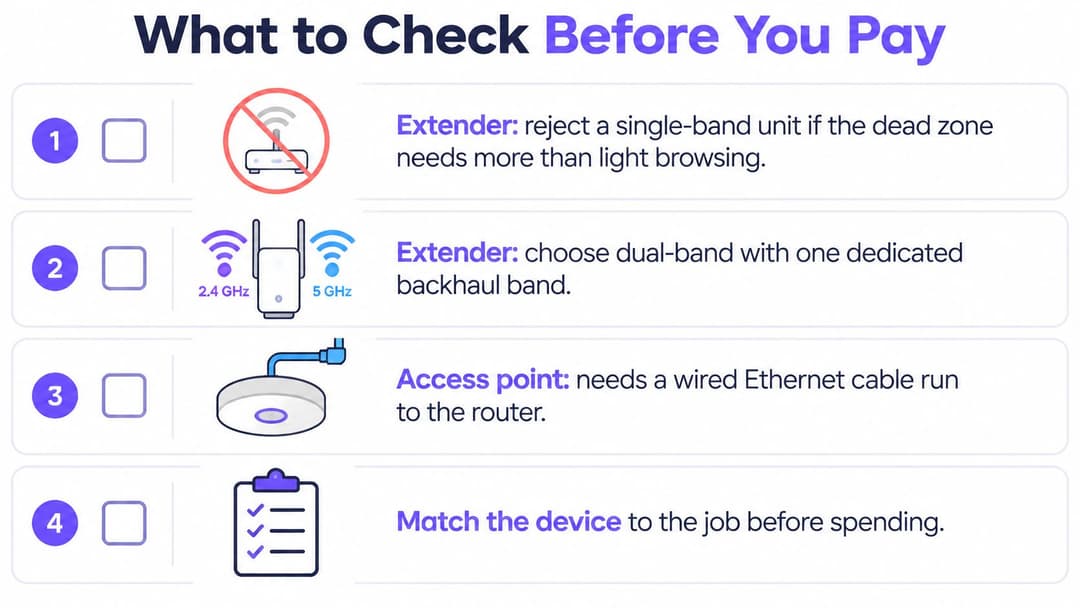
- Reject single-band if the room does real work. Browsing survives a shared radio; video calls and file sync don't.
- Confirm the extender can reuse your existing SSID. A forced name such as Home_EXT means manually switching networks as you walk.
- Look for an Ethernet port and a stated access-point mode. Even if no cable exists today, it turns the unit into something useful later.
- Buy one unit for one occasional room. Chaining extenders multiplies the relay penalty at every hop.
- For an access point, insist on wired backhaul, WiFi 6 and fast roaming. Those three decide whether calls survive movement between rooms.
- In offices, clinics, hotels and rented blocks, add multiple SSIDs with VLAN separation and a controller that sets channels and power centrally.
- Prefer hardware that can use the UK indoor 6 GHz band where client devices support it, rather than another 2.4 GHz repeater.
- Stop if the baseline test beside the router was already slow. That is the line or the router, and no coverage device fixes it.
Size the job before committing to cable: an access point calculator turns floor area and device counts into a unit count. The management layer can sit above whichever hardware you standardise on. Purple runs as a cloud overlay on the access points a venue already owns, so no rip and replace is needed, and delivers guest WiFi, staff 802.1X security and xPSK Private Area Networks on a single cloud platform. Supported hardware includes Cisco Meraki, HPE Aruba, Ruckus, Juniper Mist, Ubiquiti UniFi, Cambium, Extreme and Fortinet.
Once the access points are in and the dead zones are gone, the next question is who gets onto each network and how you prove it was worth the cabling. Purple handles that layer on the hardware you already own, with guest WiFi for visitors, certificate-based staff access tied to Entra ID, Google Workspace or Okta, and private per-unit networks for residential and student buildings. See how it fits your estate at Purple.