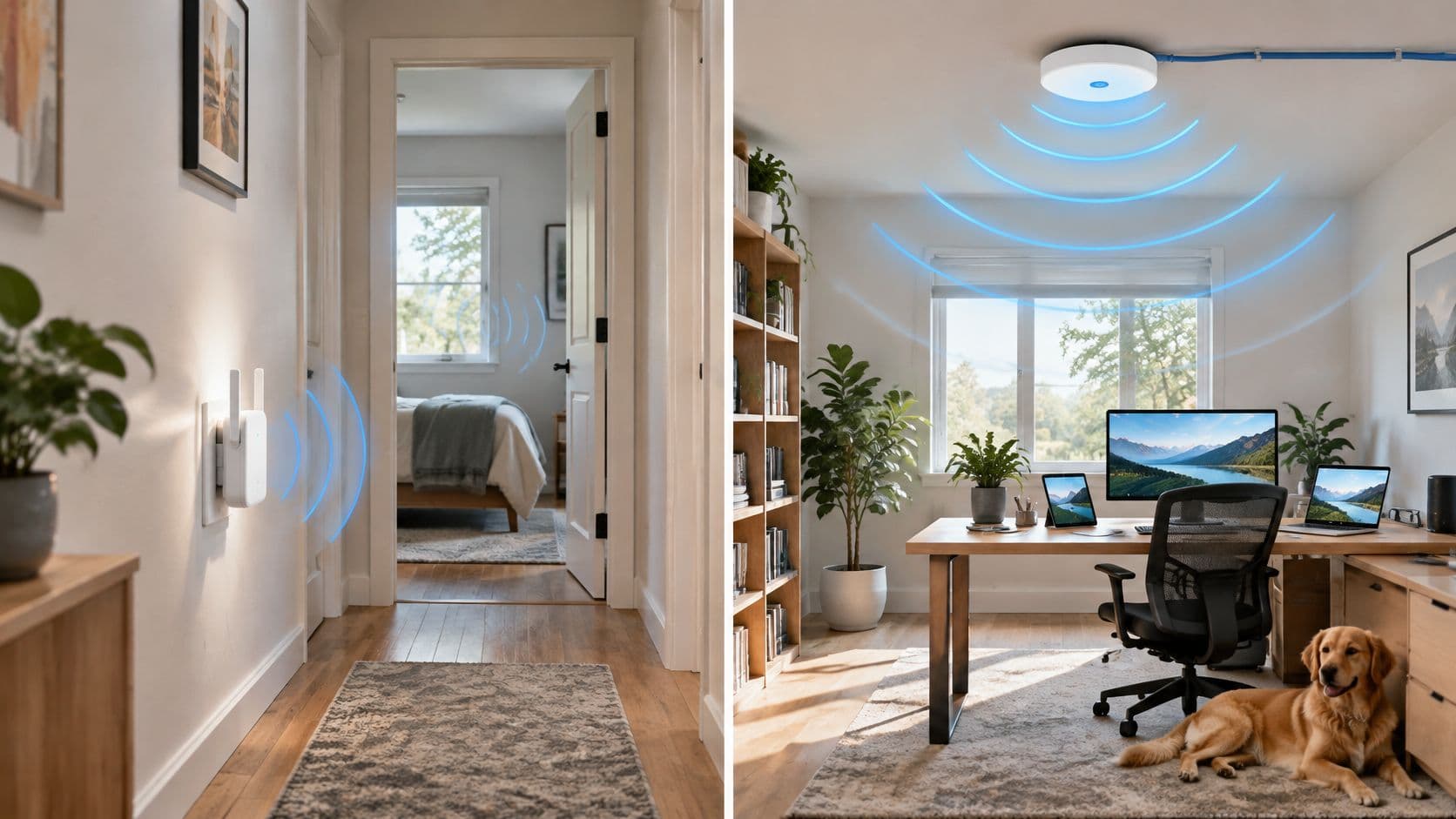
Public WiFi is not safe by default. Reading news or watching video over HTTPS is usually low risk. Banking, paying by card or signing in to work systems on a network you cannot verify carries more risk unless you add protection.
A WiFi name is only a label chosen by whoever set up the access point. A padlock in your browser means the connection to that particular website is encrypted, not that the WiFi network is trustworthy. And a password taped to a café counter may control access to the network, but it does not prove who else can use it or how the network is managed.
Research by Neighbourhood Watch found that six in ten Britons regularly use public WiFi, and 28% connect to unprotected networks even when they feel exposed. Treat the network and the online service as separate things: check what the padlock protects, and decide whether the activity is suitable for a connection you cannot verify.
The short answer on public WiFi safety
Public WiFi is not safe by default. It's fine for reading, searching and streaming, and it's the wrong place to log in to anything that holds money, identity or work access unless you add protection of your own.
The reason is structural rather than dramatic. Anybody can run a wireless access point: the café's router, a phone in someone's bag, a laptop in a van outside. The name in your WiFi list is a label the operator typed in, so a friendly, familiar name proves nothing about who is on the other end of it.
| Activity | Risk on unverified public WiFi | Sensible action |
|---|---|---|
| Reading news or general websites | Low when the site uses HTTPS | Acceptable |
| Searching and streaming video | Low to moderate | Acceptable without logging in |
| Social media login | Moderate | Use the official app with two-factor authentication, or mobile data |
| Personal email | Moderate to high | Use mobile data or a VPN |
| Online banking | High | Use mobile data |
| Card payments and online shopping checkout | High | Use mobile data or a trusted network |
| Work systems and admin access | Very high | Do not use unless a managed VPN is always on |
Is public WiFi safe? For the top two rows, broadly yes. For the bottom three, no, and no amount of caution while typing changes that.
Behaviour hasn't caught up with that split. Research involving 16,000 UK households, reported in 2021 by Neighbourhood Watch, found that six in ten Britons regularly used public WiFi. Among respondents, 28% connected to unprotected networks even though they felt insecure or exposed, and another 23% knowingly ignored perceived risks for convenience. The same research found 67% believed all establishments should provide password-protected WiFi, which shows how strongly people read a password as a trust signal rather than a technical setting.
That signal is weaker than it looks, which is why the rest of this guide keeps the network and the service apart. A shared password controls admission. It does not prove the hotspot is genuine, and it does not encrypt your traffic end to end.
The rule to carry out the door: public WiFi is fine for reading and not fine for logging in to anything that matters without a VPN or mobile data.
How public WiFi attacks work
A traveller lands at a UK airport, opens the WiFi list and taps the network that looks like the airport's own. A page appears, then a box asking for an email address and a password to "activate" the session. Two minutes later the connection works. The traveller reads email, checks a balance, and nothing feels wrong.
The diagram below shows where the interception happens on a network nobody has verified.
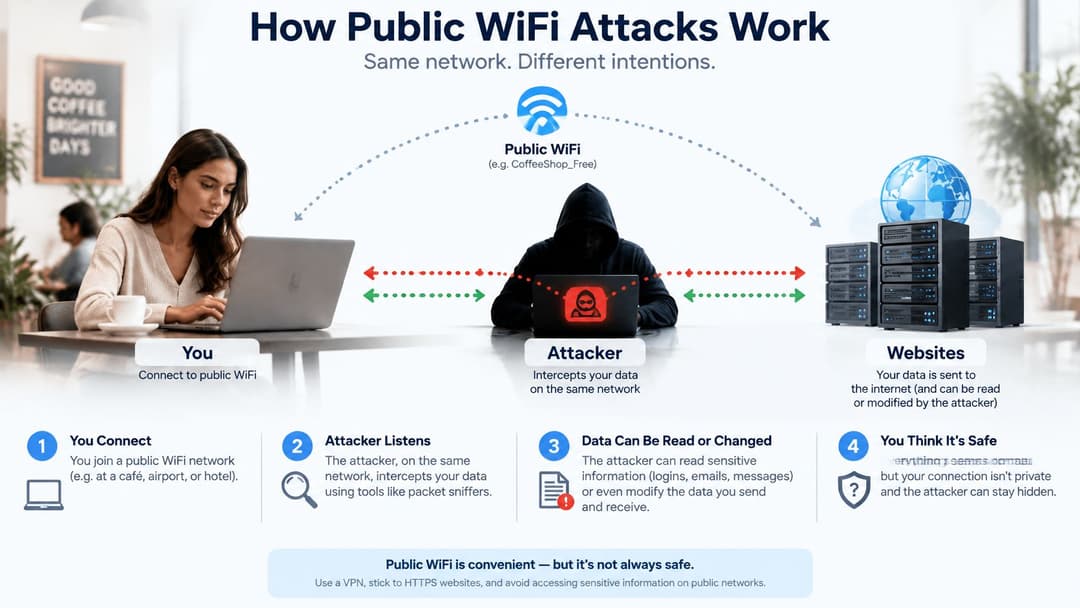
Four mechanisms sit behind that ordinary-looking experience, and the traveller sees none of them.
The rogue hotspot. An attacker runs an access point with a convincing venue name. Devices with auto-join enabled walk straight into it, and the operator of that hotspot now sits on the path your traffic takes. The National Cyber Security Centre's guidance on reducing attack surface is direct about this: an access point can be operated by anyone, so public WiFi is not safe.
The captive portal window. Public networks commonly use a login page, and the device talks directly to a local service before any VPN is running. That leaves an exposure window in which the network, or another user on it, can target the device.
The harvest page. Some portals ask for more than they need. An email address is one thing; a password, a card number or an account login on a page that looks slightly off is phishing with a captive portal painted over it.
The redirect. Manipulated DNS responses can send a request for a bank's address to a lookalike site. HTTPS protects correctly configured applications, as the same NCSC guidance sets out, but it does not stop a fake portal, a manipulated lookup, exploitation of unpatched software, or an observer noting which sites you visit.
Encryption and Authentication Explained
Two different ideas get filed under "WiFi security", and blurring them is where most confusion starts. Encryption is a sealed envelope: nobody in the corridor can read the letter inside. Authentication is the courier's ID: it tells you who is handling the delivery, and whether they are who they claim to be.
A padlock gives you the first without the second. That's why a venue can run a perfectly encrypted network and still leave you guessing who owns it.
| Connection type | What it protects | What it does not protect | Verdict |
|---|---|---|---|
| Open network, no password | Nothing on the network link | Everything sent across the link | Avoid for anything sensitive |
| WEP-protected network | Weak legacy encryption that can be broken | Practically everything | Avoid |
| WPA2-Personal with shared password | Encrypts traffic from outsiders | Other people who know the passphrase; proof of who runs the hotspot | Low-risk browsing only |
| WPA2 or WPA3 Enterprise, or Passpoint | Per-user authentication and encryption | Depends on the operator's setup and your certificate checks | Better; check the network identity |
| HTTPS on a website or app | Encrypts data between you and that service | Fake portals, DNS tricks, device compromise, visible site names | Essential, but not sufficient alone |
| VPN to a trusted endpoint | Encrypts the whole tunnel past the local network | Device compromise; trust placed in the VPN provider | Strong for sensitive use |
What the padlock actually proves
The padlock answers exactly one question: is this conversation private between my browser and the server named in its certificate? That's a big deal, and it's why most everyday browsing on a strange network is fine. It says nothing about the network underneath, and nothing about whether the site you reached is the one you meant to reach.
The NCSC's small business guide makes the authentication gap plain: users cannot easily determine who controls a hotspot or prove that it belongs to the expected hotel, café or venue. An evil twin network is therefore a different problem from weak encryption, because the attacker owns the path rather than just the eavesdropping.
A padlock proves the conversation with one service is private. It says nothing about the network carrying it.
Where WPA2, WPA3 and Passpoint differ
WPA3 is stronger than WPA2 where the devices support it, and per-user credentials from WPA-Enterprise or Passpoint change the picture further, because a single account can be revoked and the network identity can be checked. For the mechanics of how those per-user logins work on real hardware, our guide to WPA Enterprise authentication covers the setup.
The catch for visitors is visibility. You usually can't see which mode a venue runs, which is why the verdict column above matters more than the protocol name. A venue that issues individual credentials instead of one shared passphrase moves this further than any warning poster on the wall.
Where public WiFi risks show up in practice
Say a commuter stops for a coffee before the 08:10, sees a network named after the chain, and connects without thinking. The same thing happens in hotel lobbies, pub gardens, airport gates and hospital waiting rooms. The venue name feels like a guarantee, and almost nobody behind the counter can tell you what protects the connection.
That habit shows up clearly in the numbers. A 2012 YouGov poll of UK adults who used public WiFi found that 56% did not, or rarely did, check whether a network was encrypted before connecting. Risky activity was routine: 45% logged into email, 37% accessed Facebook, 14% used online banking, and 15% entered credit or debit card details on a public network.
| Source | Measure | Result |
|---|---|---|
| YouGov, 2012 | Did not or rarely checked encryption before connecting | 56% |
| YouGov, 2012 | Logged into email on public WiFi | 45% |
| YouGov, 2012 | Accessed Facebook on public WiFi | 37% |
| YouGov, 2012 | Used online banking on public WiFi | 14% |
| YouGov, 2012 | Entered card details on public WiFi | 15% |
| Norton, 2024 | Logged into personal email on public WiFi | 64% |
Read the 2012 poll as a pattern rather than a current rate, because it's over a decade old. The pattern held. In 2024, 64% of UK users surveyed reported logging into personal email accounts over public WiFi, according to Norton research reported by Focus on Travel News. The behaviour barely moved while the venues multiplied.
Part of the reason is that nobody explains the setup at the point of use. For most guests, the captive portal is the only security message a venue ever shows them, and it usually asks for an email address without saying a word about encryption or identity.
The riskiest moments are the ones that feel routine: checking a balance during a coffee break, approving a sign-in prompt on a work account, buying a train ticket with a saved card. Decide in advance which activities you'll do on someone else's network, and the routine stops being a judgement call.
Decide and protect yourself on public WiFi
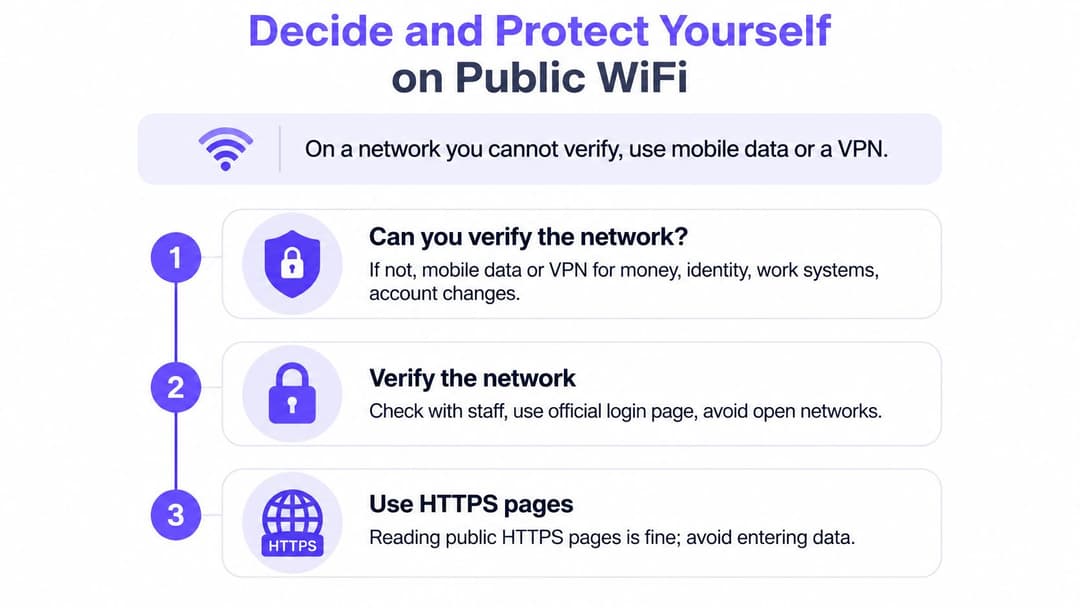
Start with the decision rule, and everything else follows. On a network you can't verify, use mobile data or a VPN for anything involving money, identity, work systems or account changes. Reading public HTTPS pages is fine. Logging in is where people get caught.
The infographic below reduces that to three moves.
The seven steps, with the reason for each
- Confirm the exact network name with staff. Rogue hotspots copy venue names, so ask at the counter and skip duplicates or names one character off the official one.
- Turn off auto-join and file sharing, then forget the network afterwards. A device that remembers a network will happily rejoin a lookalike on your next visit.
- Move money over mobile data. Banking, card payments and admin consoles are where an attacker on the path gains most, and a phone tether costs less than a compromised account.
- Check for HTTPS before typing anything, and never click through a certificate warning. The warning exists because the certificate doesn't match the site you asked for, which is exactly the moment to stop.
- Stop at any portal asking for a password, card number or account login. A captive portal needs an email address at most. Anything beyond that is data collection or phishing.
- Switch on a reputable VPN before you log in, and leave it always-on where the device allows, so the tunnel exists before the first credential leaves.
- Update the operating system, browser and apps, and turn on two-factor authentication for email and banking. Unpatched software is the most reliable way onto a device on a shared network.
If the simplest answer is to skip venue WiFi altogether, it helps to know what that costs when you travel. This comparison of pocket WiFi and eSIM options sets out the trade-offs between a separate device and a data plan on your own phone.
The check before you close the lid
Log out of anything you opened, clear saved sessions in the browser, and confirm in your WiFi settings that the network no longer auto-joins. If you used a portal that asked for personal details, note which ones you gave. That habit turns a one-off decision into a setting your device keeps applying for you.
Protecting venues and workplaces from public WiFi risk
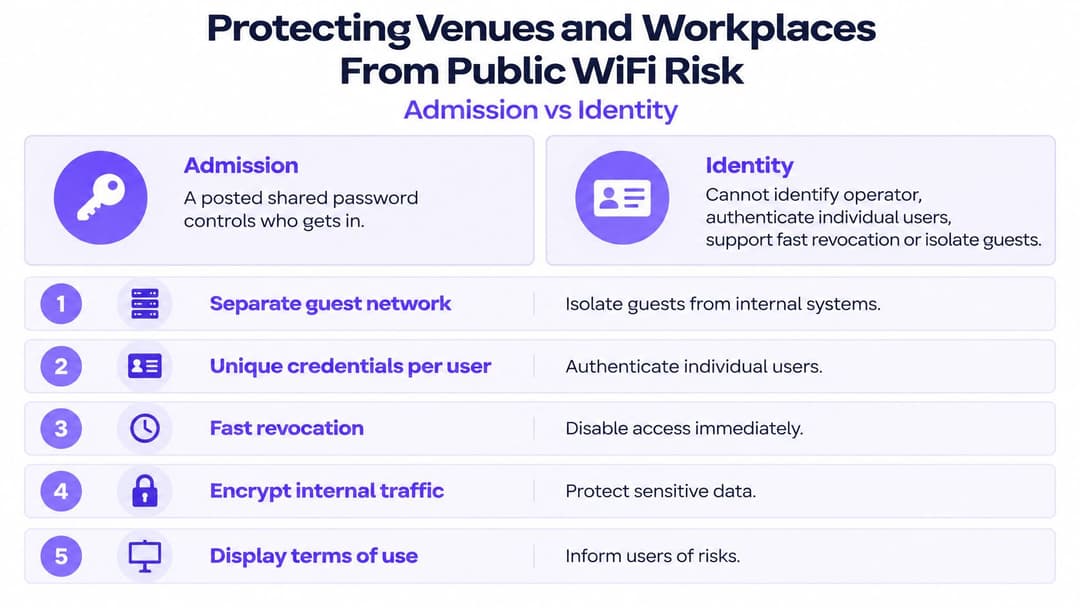
A posted WiFi password is an admission ticket, not an identity document. It decides who gets through the door and then stops doing any work. The UK government's guidance on sharing workplace wireless networks is precise about why: WPA2-Personal with a common pre-shared key provides no additional security between clients once the passphrase is known, because users can derive the individual client encryption keys.
In a hotel, a clinic, a shared office or a student block, that means one guest can reach another. A café with eight customers is a mild version of the problem. A residential building with 300 residents on one SSID is the same problem at scale.
What to change in the venue network
- Separate guest, staff and tenant networks. Isolation limits what a compromised laptop can touch, which is the whole point of running more than one SSID.
- Enable client isolation and deny lateral access. Firewall rules and least-privilege VLAN or policy segmentation stop guest-to-guest traffic without relying on anyone's good behaviour.
- Use AES-based WPA2 or WPA3 with long, randomly generated keys, and keep each SSID at a single security level so devices negotiate consistently.
- Publish the exact SSID and how to verify it, and monitor for unauthorised access points impersonating the venue.
- Replace the shared passphrase with identity-based access, so each person or device authenticates individually and access can be revoked the day they leave.
That last point is where identity-based WiFi earns its keep. Our staff WiFi onboards employee devices with managed EAP-TLS certificates, so there's no shared passphrase to rotate, and every authentication is logged with user, device, time and location. It runs on the access points a venue already owns, and supported hardware includes Cisco Meraki, HPE Aruba, Ruckus, Juniper Mist, Ubiquiti UniFi, Cambium, Extreme and Fortinet. For the wider control set around segmentation and monitoring, our enterprise WiFi security guide walks through the architecture.
Three actions for this week
- Review your own connection habits against the risk table, and note which logins you did on someone else's network in the last month.
- Check that guest and staff networks are isolated, not two names on the same flat subnet sharing one passphrase.
- Ask your network provider which authentication method runs on staff devices, and whether individual access can be revoked within minutes rather than at the next password change.
Purple replaces shared passphrases with identity-based WiFi: guests authenticate once by email and get encrypted connectivity from the first packet, including on return visits, while staff devices connect with certificates tied to Entra ID, Google Workspace or Okta. If you run a hotel, a clinic, a shopping centre or a residential building and you're still printing one password on a wall for everyone, that's the control worth changing next. Visit Purple to see how guest, staff and multi-tenant networks are set up on the access points you already own.