Before you even think about unboxing a single Ruckus wireless access point, you need a plan. A rock-solid plan. This isn't just about picking spots on a map; it's about designing a network from the ground up that can handle real-world demands, sidestep interference, and give every user a flawless experience.
Honestly, getting this foundational stage right is the single most important thing you can do to get the most out of your investment.
Planning Your Ruckus Wireless Deployment

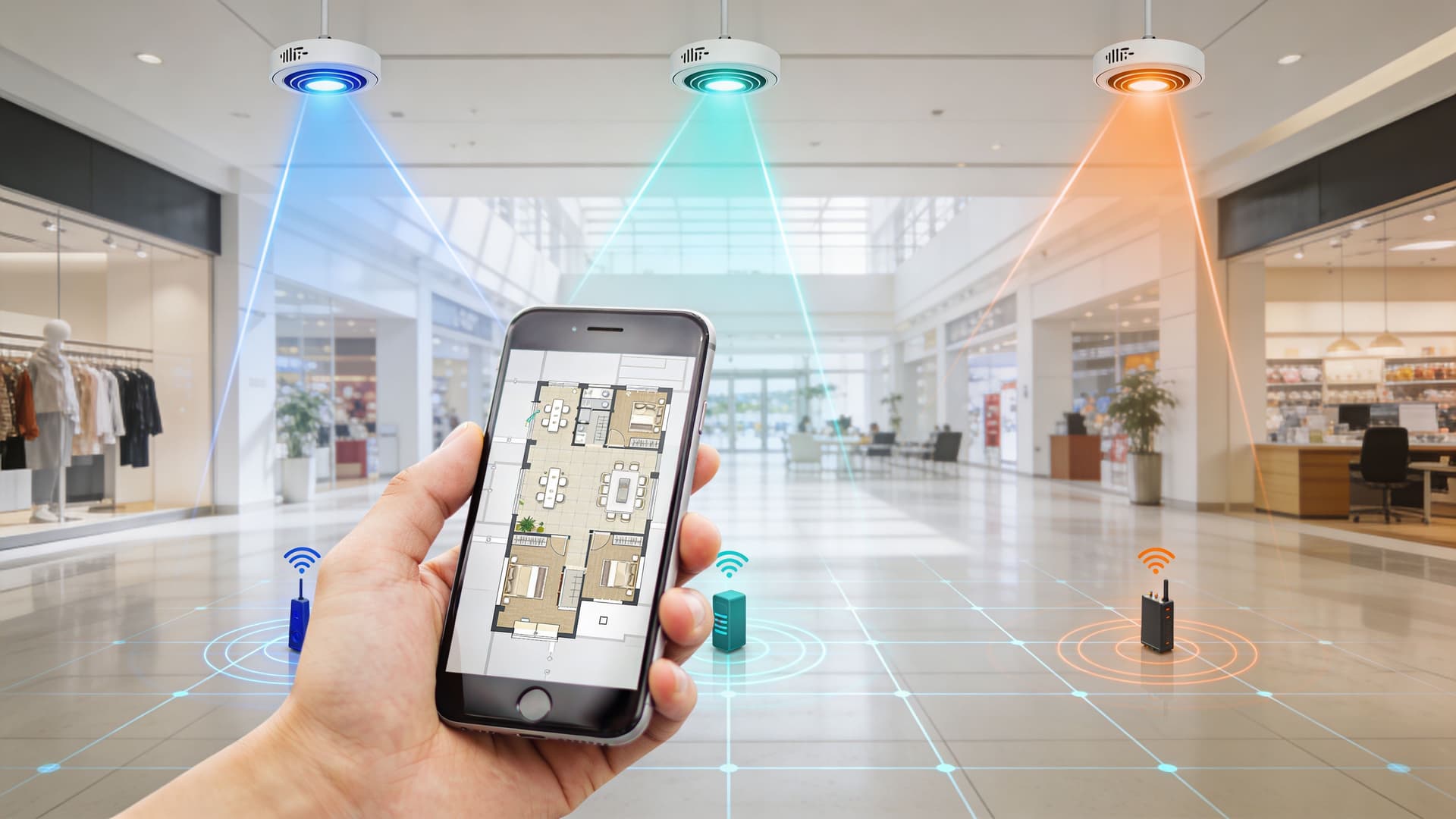
A great Ruckus deployment starts long before any hardware gets mounted to a ceiling. The first, and most critical, part of this is the predictive site survey. This is where you use specialised software to simulate Wi-Fi coverage right on top of your building's floor plans. It lets you map out the best spots for your APs, get a good idea of signal strength, and spot potential trouble zones like lift shafts or thick concrete walls before they become a headache.
Before getting too deep into the Ruckus specifics, it’s always a good idea to step back and make sure you're clear on understanding the nuances of Wi-Fi versus hard-wired networks . This really helps clarify where wireless is the best tool for the job and where a traditional cable might still be the smarter choice.
Estimating Capacity and Dodging Interference
With a rough layout in hand, your focus should shift to two things: user capacity and channel interference. Think about the different zones in your venue. A quiet office area has completely different requirements from a packed auditorium, so you have to plan for both coverage and capacity.
One of the most common mistakes I see is people trying to fix a coverage gap by just throwing more access points at it. This usually backfires and creates a much bigger problem: channel interference. Too many APs shouting over each other on the same limited radio spectrum will grind your network to a halt.
Proper channel planning is all about staggering your APs across non-overlapping channels (like the classic 1, 6, and 11 on the 2.4 GHz band) to keep this "co-channel interference" to a minimum. Ruckus APs are fantastic at managing this automatically, but giving the system a well-thought-out plan from the start makes a world of difference. You can also use our handy access point calculator to get a quick estimate of how many APs your space might need.
Matching the Right Ruckus AP to the Job
Not all access points are built the same, and Ruckus offers a few distinct families of APs designed for very specific jobs. Picking the right tool is key.
- R-series (Indoor): Think of these as the workhorses for most indoor spaces, from small offices to massive enterprise floors. The models vary in capacity and features, so you can perfectly match the AP to the user density of each area.
- T-series (Outdoor): Built tough to handle the elements, these are your go-to for covering outdoor areas like courtyards, stadium seating, or transport hubs. They have weather-resistant casings and seriously powerful antennas.
- H-series (Hospitality): These are designed specifically for in-room deployments in hotels or student accommodation. They're compact and often include extra wired ports to connect things like smart TVs or VoIP phones right in the room.
To put it in perspective, Ruckus has been a game-changer in the UK hospitality sector for delivering top-tier guest Wi-Fi. As far back as 2015, some UK hotel chains were reporting a 40% jump in guest satisfaction that they directly linked to their Ruckus rollouts. The adaptive antenna technology gave them much better signal coverage across multiple floors, cutting down dead zones by as much as 65%.
Getting Your Ruckus Controller and Purple Talking

With a solid plan in your hands, it’s time to get down to the brass tacks of configuring your Ruckus controller. This is the crucial step where you establish the link to the Purple platform, turning your powerful wireless access point Ruckus hardware into a network that understands who is connecting, and why. The choices you make at this stage really define how you’ll manage your network and what the user experience will look like.
Your first major decision point is picking the right Ruckus management platform. This choice almost always comes down to the scale and complexity of your wireless network.
Choosing Your Controller: Unleashed vs. SmartZone
For smaller, single-site deployments, Ruckus Unleashed is often the perfect choice. It's a controller-less solution where one of your access points takes on the role of 'master', managing up to 128 other APs on the same local network. It’s a beautifully simple and cost-effective approach, making it a go-to for independent shops, small hotels, or branch offices.
If you’re dealing with a larger, multi-site, or more demanding environment, then Ruckus SmartZone is the enterprise-grade workhorse you need. It provides a single pane of glass for managing thousands of APs across different locations, complete with deep analytics, highly granular policy control, and built-in high availability. If you’re managing a university campus, a stadium, or a national chain of retail stores, SmartZone is built for the job.
A critical piece of advice I give for any Ruckus deployment is to manage your firmware meticulously. Before you even start, check the compatibility matrix to confirm your chosen firmware version is fully supported by Purple. Trust me, running an unsupported version can lead to bizarre authentication issues and features that just don't work as expected.
Once you’ve locked in your controller platform and double-checked firmware compatibility, the next job is to build the digital bridge between Ruckus and Purple. This means telling your network to send its authentication requests over to Purple's cloud.
Setting Up RADIUS and Captive Portal Integration
The heart of the entire integration lies in how you configure the RADIUS (Remote Authentication Dial-In User Service) settings on your Ruckus controller. You’ll be pointing your guest or corporate SSID directly to Purple's RADIUS servers. This means whenever a user tries to connect, the Ruckus controller simply forwards that request to Purple to handle the validation.
Inside your Ruckus WLAN settings, you’ll need to input a few key details provided by Purple:
- RADIUS Server: The specific server addresses for Purple's authentication cloud.
- Shared Secret: A unique password that ensures all communication between your controller and Purple is secure.
- Captive Portal URL: You'll also direct the captive portal—the login page users see—to a specific URL from Purple. This is what ensures users are met with your branded login journey.
Getting this configuration right is what unlocks all of Purple’s powerful capabilities. Instead of a basic password box, users can now be greeted with rich login options like social media accounts, simple data-capture forms, or even completely seamless Passpoint connections. You can see how Purple works with a huge range of hardware by checking out our list of guest Wi-Fi integrations .
Think of a hotel using Ruckus Unleashed. They can configure their "Guest-WiFi" SSID with Purple’s RADIUS details. When a guest connects, they’re automatically redirected to a portal branded with the hotel’s logo, where they can log in with their email address. This simple action authenticates them securely and, in the background, captures valuable marketing data for the hotel—all orchestrated seamlessly between the on-site Ruckus hardware and the Purple cloud. Getting this RADIUS and captive portal handshake correct is the absolute foundation of a successful deployment.
Designing SSIDs and VLANs for Secure Network Segmentation
Once your Ruckus controller is up and running, the next big win for security is proper network segmentation. It’s an idea I always come back to. Think of your network like a ship with watertight compartments—if one area floods, the breach is contained and doesn't sink the entire vessel. This is precisely what Service Set Identifiers (SSIDs) and Virtual Local Area Networks (VLANs) do for your digital space.
The goal is simple: create separate wireless networks for different user and device types, then map each of those to its own isolated lane on your physical network. This isn't just theory; it's a fundamental step for securing any modern wireless setup, especially one powered by a high-performance wireless access point from Ruckus.
Building Your Digital Walls
First things first, you need to map out the distinct groups of people and devices that will use your Wi-Fi. My advice? Keep it simple. For most organisations, a few well-defined SSIDs are all it takes to make a massive security improvement.
A solid, effective setup usually boils down to three core SSIDs:
- Corporate-Secure: This is strictly for company-owned or trusted employee devices that need access to internal resources like file servers and printers. It demands robust authentication, ideally certificate-based access managed through Purple.
- Guest-WiFi: Your public-facing network for visitors. Its only job is to provide internet access while being completely sealed off from your internal corporate network.
- IoT-Devices: This network is home to all your 'headless' smart devices—think security cameras, smart thermostats, printers, or digital signage. These gadgets often have weaker security and should be kept in their own sandboxed environment.
The real magic happens when you map each SSID to a unique VLAN ID in your Ruckus controller. This is what creates the digital separation. Traffic from the "Guest-WiFi" SSID, assigned to its own VLAN, is physically unable to reach the "Corporate-Secure" VLAN without an explicit firewall rule permitting it.
A Real-World Example in a Co-working Space
Let's put this into practice. Picture a bustling co-working space. They have to serve up reliable internet for dozens of different tenant companies, their own staff, and a fleet of shared devices like printers and smart TVs. Just broadcasting one SSID with a shared password would be a security and performance disaster.
Instead, they build a segmented network:
- Tenant-Private: Using Purple's multi-tenancy features, each tenant company gets its own private SSID and VLAN. This means Tenant A's traffic is totally invisible to Tenant B, delivering true enterprise-grade privacy.
- Staff-Admin: This SSID is mapped to a management VLAN, giving staff secure access to both the internet and internal admin tools.
- Guest-Lobby: A public SSID for daily visitors and walk-ins, which redirects to a Purple captive portal for access and is strictly limited to internet browsing.
- Building-IoT: A hidden SSID on a separate VLAN connects all the building's smart lighting, HVAC systems, and security cameras, keeping them secure and off the main networks.
This structure, easily managed through a Ruckus SmartZone controller, prevents any cross-contamination. A guest logging into the lobby Wi-Fi has zero visibility of the sensitive client data being accessed on a tenant's private network just a few metres away.
Applying Traffic Shaping and Security Policies
With your SSIDs and VLANs in place, you can start fine-tuning. This is where you can apply traffic shaping rules directly within the Ruckus controller. For instance, you could guarantee the "Corporate-Secure" SSID always gets priority bandwidth for critical apps like video calls, while capping the total bandwidth available on the "Guest-WiFi" network.
This simple step ensures that a flood of guests streaming video won't grind your team's important conference call to a halt. It's a crucial part of maintaining a high quality of service for everyone.
From there, you can apply specific firewall policies or Access Control Lists (ACLs) to each SSID, adding another layer of control over what users can do and where their traffic can go. This level of granular control is the hallmark of a professionally designed Ruckus network.
Implementing Secure Authentication With Purple
Once your network segments are in place, it's time to finally ditch those insecure, shared passwords. This is where the real power of combining your wireless access point ruckus hardware with Purple comes into play, letting you roll out modern, secure, and user-friendly authentication for every single person and device. The aim is to make connecting both effortless and rock-solid, depending on who's trying to get online.
For guests, the name of the game is a smooth, frictionless experience. Instead of wrestling with long, complicated passwords, visitors can hop on using their social media accounts or a simple, branded form to pop in their email. Not only does this get them online in seconds, but it also gives you a great source of consent-based data for your marketing.
The diagram below shows exactly how a connection request flows through the segmented network you've built.

You can see how a single SSID gets logically channelled into a specific VLAN with its own set of rules. This is the very foundation of providing secure, tailored access for different user groups.
Frictionless Guest Access With OpenRoaming
A massive step up from traditional login portals is bringing OpenRoaming and Passpoint into the mix. By flipping this switch in your Purple setup, your Ruckus access points begin broadcasting their ability to offer seamless, automatic connections.
A visitor who already has an OpenRoaming profile on their phone—maybe from visiting an airport or another enabled venue—will connect to your Wi-Fi automatically and securely the instant they're in range. They won't even see a login page. Authentication happens silently in the background using a secure certificate handshake, encrypting their connection from the very first packet.
Choosing the right authentication method really depends on who is connecting and what level of access they need. Here's a quick breakdown of the options available when you integrate Ruckus and Purple.
Authentication Methods For Different User Groups
| User Group | Recommended Method | Security Level | Key Benefit |
|---|---|---|---|
| Guests & Visitors | OpenRoaming / Social Login | High (Encrypted) | Completely frictionless automatic connection on return visits. |
| Corporate Staff | Certificate-based (Entra ID/Okta) | Very High (Zero-Trust) | Passwordless access based on corporate credentials and device posture. |
| Legacy/IoT Devices | Ruckus iPSK via Purple | High (Micro-segmentation) | A unique password for each device, preventing lateral movement. |
| Contractors/Temp | Time-Limited Vouchers | Medium | Access automatically expires after a set period, reducing risk. |
As you can see, there’s a tailored, secure solution for every type of user, moving far beyond the old one-size-fits-all shared password.
Zero-Trust Access For Staff
For employees, security has to be far more stringent. This is where connecting Purple to your organisation's identity provider (IdP) is an absolute game-changer. By integrating with platforms like Microsoft Entra ID, Google Workspace, or Okta, you deliver true zero-trust, certificate-based network access.
Instead of passwords, staff connect using the same corporate login they use for everything else. When a team member connects to the “Corporate-Secure” SSID, Purple checks with your IdP to verify their identity and device health. If it all checks out, a unique certificate is issued, and they're securely on the network.
This approach completely eliminates Wi-Fi password headaches. When an employee leaves the company and their account is deactivated in your identity provider, their Wi-Fi access is revoked instantly and automatically. No manual de-provisioning is needed.
This model is especially potent in sensitive environments. In UK healthcare, for instance, Ruckus wireless access points provide mission-critical connectivity. Paired with Purple's certificate-grade access, hospitals can achieve passwordless entry for staff via Okta, cutting login times by 80% and reinforcing zero-trust security. What’s more, data shows that instant revocation on directory changes helps achieve 95% compliance with GDPR. You can discover more about how Ruckus is pioneering next-gen connectivity on their official Wi-Fi 7 page. To further bolster security, it’s always wise to incorporate practices like multi-factor authentication .
This whole process hinges on a solid RADIUS configuration, which acts as the intermediary between your Ruckus controller and the Purple cloud. If you want to get into the nitty-gritty of how this core component works, you might find our guide on what a RADIUS server is useful. This secure, identity-driven model is, without a doubt, the future of enterprise Wi-Fi.
Right, your network is live. Users are connecting, data is flowing, and things are looking good. But the job of a network pro is never really done. We just move from the deployment phase into the real work: optimisation and management. This is where we get to play with the more advanced features of your Ruckus setup and get comfortable with the day-to-day art of troubleshooting.
You’ve got robust authentication sorted for your guests and staff. But what about all the other things that need to get online? I’m talking about the smart TVs, printers, building sensors, and all those other IoT gadgets that simply don't play nicely with modern, certificate-based logins. This is a common blind spot, and it needs a specific fix.
Securing Legacy and IoT Devices with iPSK
The old-school approach of using a single WPA2 password for all your IoT devices is a huge security risk. Think about it: if that one password ever gets out, your entire fleet of connected devices is wide open. This is exactly the problem that Individual Pre-Shared Key (iPSK), managed through Purple, was designed to solve.
Instead of one password to rule them all, iPSK lets you generate a unique, individual password for every single device that needs to connect.
- A smart TV in a hotel room gets its own unique key.
- A shared office printer gets another.
- A temperature sensor tucked away in a server room gets its own separate key.
This creates powerful micro-segmentation right at the connection point. Each device is effectively in its own little bubble, isolated with its own credential.
The beauty of this is its sheer simplicity and security. If a single device is ever compromised or just needs to be taken off the network, you just revoke its specific key in the Purple dashboard. The rest of your IoT devices are completely unaffected. No more logistical nightmares of changing a shared password on hundreds of gadgets.
Managed centrally through Purple and enforced by your Ruckus hardware, this feature gives you a clear audit trail and makes it dead simple to see which device is which on your network. It's an essential tool for bringing those legacy and "headless" devices into a modern, secure network.
Using Analytics for Actionable Insights
With your network humming along, both your Ruckus controller and the Purple platform are turning into gold mines of data. These aren't just vanity metrics; they are genuine insights that can help you proactively improve network health and really understand user behaviour.
In the Ruckus dashboard (whether it's Unleashed or SmartZone), you can keep an eye on real-time client health, channel utilisation, and AP performance. Look for clients with low signal strength (RSSI) or high retransmission rates. These are often the canaries in the coal mine, flagging a potential coverage gap or an interference problem that needs looking into.
At the same time, the Purple analytics dashboard offers a different, but equally valuable, perspective. It focuses on the people and devices using the network.
Key Metrics to Monitor in Purple:
- New vs. Returning Visitors: Get a real feel for footfall patterns and customer loyalty.
- Dwell Time and Visit Frequency: See how long people are staying and how often they come back.
- Login Method Breakdown: Analyse which authentication methods are the most popular with your users.
When you combine these two data sources, you get the full picture. For instance, if you spot a drop-off in returning visitors in Purple that happens to coincide with reports of poor client health for a specific AP in your Ruckus dashboard, you've probably found a performance issue that's directly hurting the customer experience.
Common Troubleshooting Scenarios
Even the most perfectly planned networks have their moments. When a user comes to you with the classic "the Wi-Fi isn't working," having a structured approach can save you hours of frustration.
Scenario 1: The Client Fails to Connect A user is standing right under a wireless access point Ruckus AP, but their device just won't connect. The first place to look is the authentication logs in Purple. Can you see their device even trying to connect? If there's no trace of it, the problem is likely on the client-side (maybe a forgotten password or an old, saved network profile causing a conflict).
If you do see a failed authentication attempt, the logs will usually tell you exactly why. It might be an expired certificate, an account that's been deactivated in your identity provider, or an incorrect iPSK. I've also seen this when a DHCP server runs out of addresses, causing devices to self-assign a non-functional IP and fail to get online.
Scenario 2: Poor Performance and Lagging Speeds The user is connected, but everything is painfully slow. Your first port of call should be the client's connection details in the Ruckus controller.
- What band are they on? Devices can be stubborn, sometimes clinging to the crowded 2.4 GHz band when a clearer, faster connection is available.
- What is their signal strength (RSSI)? A weak signal is the number one cause of slow speeds.
- Is the channel overutilised? Have a look for co-channel interference from neighbouring APs, your own or someone else's.
Often, just getting the user to move a bit closer to an AP or encouraging their device to switch over to the 5 GHz band can solve the problem instantly. For more persistent issues, you might need to tweak the transmit power on your APs or run a new channel scan to find a cleaner bit of radio spectrum.
By getting comfortable with these advanced features and troubleshooting steps, you can move from just keeping the lights on to running a network that is truly smooth, secure, and reliable day in and day out.
Your Ruckus & Purple Questions, Answered
When you're bringing together top-tier hardware like Ruckus with a powerful platform like Purple, it's natural to have a few questions. We get it. Drawing from countless deployments, we’ve put together answers to some of the most common queries we hear from network admins on the ground.
Can I Mix Different Ruckus AP Models in the Same Network?
Yes, and you absolutely should. Mixing and matching Ruckus AP models isn't just possible; it's smart network design. It allows you to put the right hardware precisely where it’s needed, optimising both performance and your budget.
A common strategy we see is deploying high-capacity R700 series APs in a dense conference hall, using more economical R500 or R600 series APs throughout general office spaces, and installing ruggedised T-series models for any outdoor zones. As long as they are all adopted by the same Ruckus controller (like SmartZone or Unleashed) and run compatible firmware, they’ll operate as one seamless network. This means users can roam freely between different areas without ever dropping their connection.
How Does Purple's OpenRoaming Work with Ruckus APs?
Think of OpenRoaming as the ultimate VIP lane for your guest Wi-Fi. It ditches the whole captive portal song and dance for a completely automatic, secure connection.
Once you enable OpenRoaming within your Purple setup, your Ruckus SSIDs simply start broadcasting this capability. A visitor whose phone has an OpenRoaming profile—maybe from their mobile provider or from a previous visit to an airport—will connect to your network the moment they walk in. No password prompts, no login pages. It just works.
Behind the scenes, authentication is handled silently through a secure, certificate-based exchange managed entirely by Purple. It provides a fully encrypted and trusted connection from the get-go.
What Is the Benefit of Using iPSK for IoT Devices?
Relying on a single, shared WPA2 password for all your IoT devices is a huge security headache. If that one password leaks, every single device on that network—from your smart TVs to the security cameras—is left wide open. Ruckus’s Individual Pre-Shared Key (iPSK), managed right through Purple, is the definitive answer to this problem.
Instead of one key for every lock, iPSK gives a unique, individual password to every single device. This means each printer, thermostat, and digital display gets its own private key to access the network, giving you powerful micro-segmentation right at the point of entry.
The real-world benefits here are massive:
- Containment: If one device's key is ever compromised, you just revoke that single key. The rest of your devices aren't affected and stay online without interruption.
- Isolation: This approach stops IoT devices from talking to each other on the network unless you explicitly allow it, preventing lateral movement in an attack.
- Auditing: You can finally see exactly which device is which on your network, getting rid of the anonymity that comes with a shared password.
It's a game-changer for securing all those "headless" devices that can't handle modern certificate-based authentication.
At Purple, we make deploying these advanced, secure authentication methods simple. Our platform integrates seamlessly with your Ruckus hardware to replace outdated passwords with secure, identity-driven access for everyone and everything on your network. Discover how you can modernise your Wi-Fi .