Wireless Display & Screen Mirroring Technology Evaluator
Compare WiFi Display (Miracast), AirPlay, Google Cast, and Enterprise WiFi Isolation for corporate boardrooms and venue displays.
Protocol architecture and performance: WiFi Display / Miracast
Instant cross-platform presentation (Windows, Mac, iOS, Android) with strict corporate network isolation.
Need enterprise WiFi security and staff network micro-segmentation?
Secure your corporate displays, staff networks, and guest WiFi with Purple’s cloud RADIUS, 802.1X authentication, and location services.
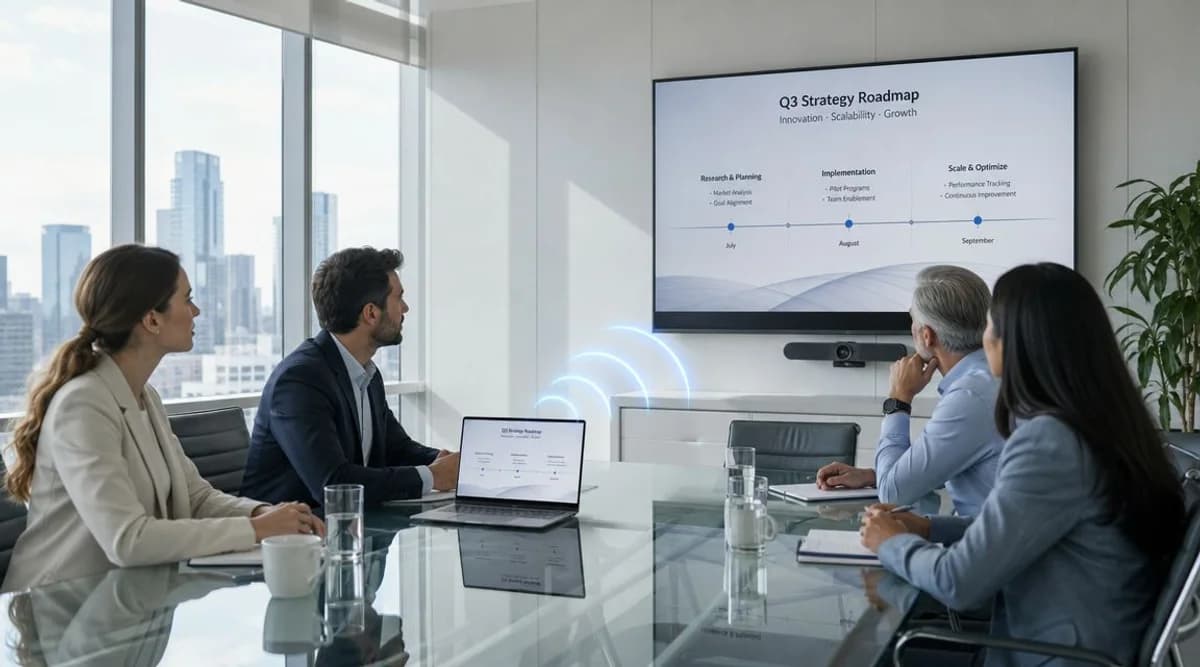
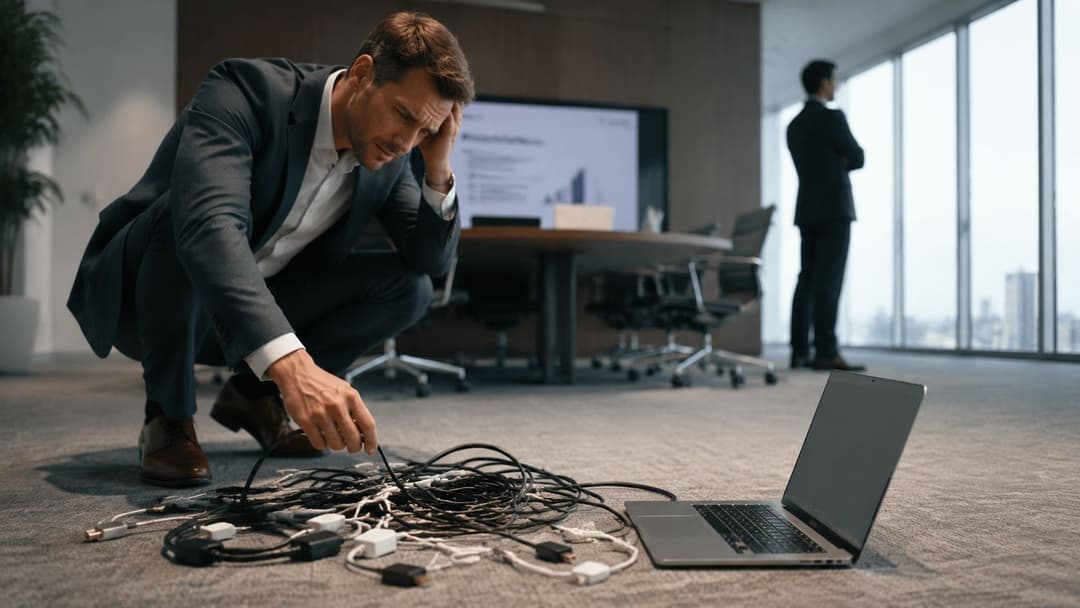
আপনি ক্লায়েন্ট কলের পাঁচ মিনিট আগে একটি মিটিং রুমে আছেন। ডিসপ্লে চালু আছে। ল্যাপটপ সক্রিয় আছে। কেউ একজন একটি USB-C অ্যাডাপ্টার এনেছেন, কিন্তু সেটি পুরনো প্রজেক্টর ক্যাবলের সাথে মিলছে না। অন্য একজন HDMI চেষ্টা করছেন। তৃতীয় একজন জিজ্ঞেস করছেন যে রুমের স্ক্রিনটি কি "AirPlay নেয়"। মিটিং এখনও শুরু হয়নি, কিন্তু ঝামেলা ইতিমধ্যেই শুরু হয়ে গেছে।
এই বিশৃঙ্খলার কারণেই অনেক টিম একটি সহজ প্রশ্ন জিজ্ঞাসা করে: আসলে ওয়ারলেস ডিসপ্লে কী? এটিকে প্রায়শই কেবল "তার ছাড়া স্ক্রিন মিররিং" বলে মনে করা হয়। এটি সত্য, তবে এটি সম্পূর্ণ নয়। ব্যবসায়িক পরিবেশে, ওয়ারলেস ডিসপ্লে ডিভাইসের সামঞ্জস্যতা, WiFi ডিজাইন, অ্যাক্সেস নিয়ন্ত্রণ এবং ব্যবহারকারীর অভিজ্ঞতার সংযোগস্থলে অবস্থান করে।
আপনি যদি অফিস, হোটেল, ক্লাসরুম, রিটেল সাইট বা শেয়ার করা মিটিং স্পেস পরিচালনা করেন, তবে এই পার্থক্যটি গুরুত্বপূর্ণ। একটি কেবল সমস্যা দৃশ্যমান হয়। একটি ওয়্যারলেস ডিসপ্লে সমস্যা প্রায়শই নেটওয়ার্ক, ডিভাইস বহর, বা অতিথি এবং কর্মীদের যেভাবে যাচাই করা হয় তার মধ্যে লুকিয়ে থাকে।
ডঙ্গলের সমাপ্তি - ওয়্যারলেস ডিসপ্লের একটি পরিচিতি
ওয়্যারলেস ডিসপ্লে ফিজিক্যাল ভিডিও কেবলটিকে ব্যবহারকারীর ডিভাইস এবং একটি স্ক্রিনের মধ্যে একটি ওয়্যারলেস সংযোগ দিয়ে প্রতিস্থাপন করে। সহজ কথায়, এটি প্যানেলে সেই ডিভাইসটি প্লাগ ইন না করেই কাউকে একটি ল্যাপটপ, ফোন বা ট্যাবলেট একটি বড় ডিসপ্লেতে দেখানোর সুবিধা দেয়।
এটি একটি সুবিধাজনক ফিচার মনে হতে পারে। তবে এটি কেবল তা-ই নয়। এটি বোর্ডরুম, ক্লাসরুম, হোটেল রুম এবং শেয়ার্ড ওয়ার্কস্পেসে ব্যবহৃত একটি মূলধারার অবকাঠামো ক্যাটাগরিতে পরিণত হয়েছে। Global Market Insights-এর ওয়্যারলেস ডিসপ্লে মার্কেট বিশ্লেষণ অনুযায়ী, বিশ্বব্যাপী ওয়্যারলেস ডিসপ্লে বাজারের মূল্য ২০২৪ সালে ছিল ৬.০৩ বিলিয়ন মার্কিন ডলার এবং ২০৩৪ সালের মধ্যে তা ১৯.৮৬ বিলিয়ন মার্কিন ডলারে পৌঁছাবে বলে পূর্বাভাস দেওয়া হয়েছে, যা ১২.৭% CAGR-এ বৃদ্ধি পাচ্ছে।
ব্যবসাগুলো কেন গুরুত্ব দেয়
একজন বিজনেস ম্যানেজারের কাছে এর আকর্ষণ স্পষ্ট।
- মিটিং-রুমে কম ঝামেলা মানে প্রেজেন্টেশন শুরুর সময় কম বিলম্ব হওয়া।
- অধিক নমনীয় স্পেস মানে ডেস্ক, রুম এবং হাডল এরিয়ার জন্য প্রতিটি ডিভাইসের ধরনের জন্য নির্দিষ্ট ক্যাবল সেটআপের প্রয়োজন নেই।
- আরও ভালো অতিথি অভিজ্ঞতা হোটেল, ভেন্যু এবং শেয়ার্ড প্রোপার্টিগুলোতে গুরুত্বপূর্ণ যেখানে দর্শনার্থীরা আশা করেন তাদের নিজস্ব ডিভাইসগুলো যেন "স্বাভাবিকভাবে" কাজ করে।
একটি IT টিমের কাছে এর মূল্য ভিন্ন। ওয়ারলেস ডিসপ্লে লোকেরা কীভাবে কন্টেন্ট শেয়ার করে তা মানসম্মত করে, তবে এটি সমর্থন করার জন্য একটি নতুন পরিষেবাও তৈরি করে। সেই পরিষেবাটি প্রোটোকল সমর্থন, WiFi কোয়ালিটি এবং কে কোন স্ক্রিনে কাস্ট করার অনুমতি পাবে সে সম্পর্কে পলিসি সিদ্ধান্তের ওপর নির্ভর করে।
ওয়্যারলেস ডিসপ্লে কেনা সহজ এবং আশ্চর্যজনকভাবে ভুল বোঝা আরও সহজ।
সেখানেই অনেক গাইড থেমে যায়। তারা মিররিংকে এমনভাবে ব্যাখ্যা করে যেন এটি কেবল বসার ঘরের একটি ফিচার। এন্টারপ্রাইজ সেটিংসে, প্রাথমিক প্রশ্নটি কেবল ওয়্যারলেস ডিসপ্লে কী তা নয়। বরং এটি আপনার কাছে মিশ্র ডিভাইস, বিভক্ত নেটওয়ার্ক, অতিথি ব্যবহারকারী এবং নিরাপত্তা প্রয়োজনীয়তা থাকলে কীভাবে আচরণ করে তা নিয়ে।
ওয়্যারলেস ডিসপ্লে প্রযুক্তি যেভাবে কাজ করে
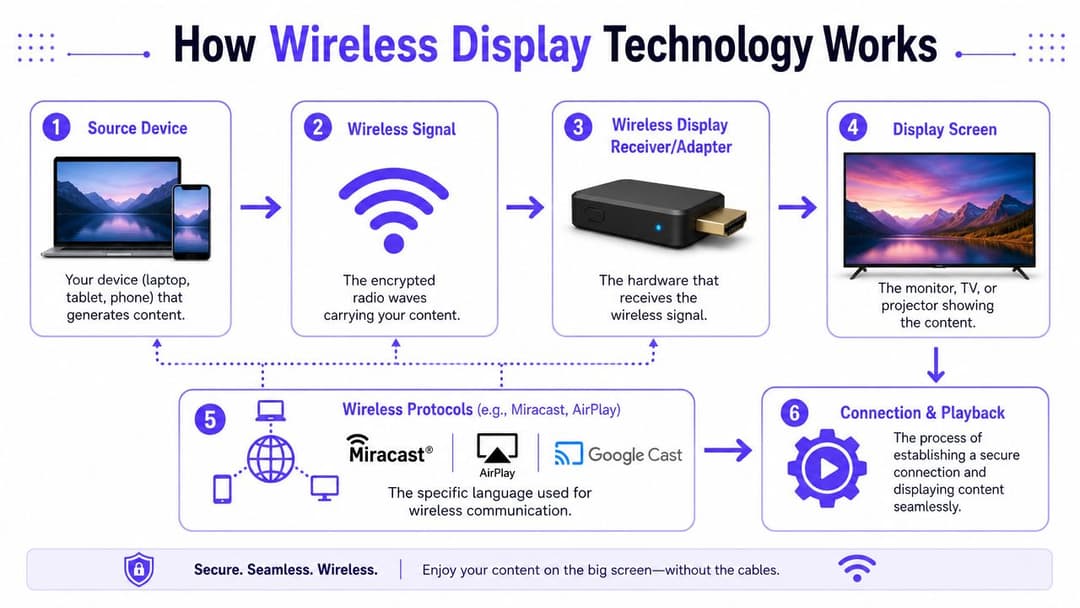
প্রযুক্তিগত স্তরে, ওয়ারলেস ডিসপ্লে হলো একটি পরিবহন সংক্রান্ত সমস্যা। একটি ডিভাইস ভিজ্যুয়াল কন্টেন্ট তৈরি করে। অন্য একটি ডিভাইস এটি গ্রহণ করে এবং স্ক্রিনে প্রদর্শন করে। এই দুটি বিন্দুর মধ্যে, ব্যবহারকারীর প্রায় অলক্ষ্যে ছবিটিকে ক্যাপচার, এনকোড, ট্রান্সমিট, রিসিভ, ডিকোড এবং প্রদর্শন করতে হয়।
একটি ভালো মানসিক মডেল হলো একটি প্রাইভেট রেডিও ব্রডকাস্ট। আপনার ল্যাপটপ বা ফোনটি একটি অস্থায়ী স্টেশন হয়ে ওঠে। এটি স্ক্রিনে যা আছে তা একটি ভিডিও স্ট্রিম হিসেবে প্যাকেজ করে এবং একটি ওয়ারলেস লিঙ্কের মাধ্যমে পাঠায়। একটি রিসিভার সেই স্ট্রিমটি শোনে, এটিকে পুনর্গঠন করে এবং টিভি, মনিটর বা প্রজেক্টরে আউটপুট দেয়।
মৌলিক চেইন
বেশিরভাগ ওয়্যারলেস ডিসপ্লে সেটআপে চারটি অংশ থাকে:
- উৎস ডিভাইস। একটি Windows ল্যাপটপ, Android ফোন, iPhone, iPad, বা Mac।
- ওয়ারলেস ট্রান্সপোর্ট। সাধারণত WiFi বা একটি WiFi-ভিত্তিক পদ্ধতি যেমন Wi-Fi Direct।
- রিসিভার। একটি ডঙ্গল, রুম সিস্টেম, বা ইন্টিগ্রেটেড ডিসপ্লে রিসিভার।
- ডিসপ্লে প্যানেল। টিভি, প্রজেক্টর, বা মনিটর যা দর্শকরা দেখতে পান।
ওয়্যারলেস ডিসপ্লে নিয়ে Sony-র ব্যাখ্যাটি এখানে বেশ দরকারী। ডিসপ্লে প্যানেল নিজে নেটওয়ার্কিং-এর কাজ করার পরিবর্তে প্রেরক ডিভাইস স্ক্রিনটিকে এনকোড করে এবং ওয়্যারলেস লিঙ্কের মাধ্যমে একটি রিসিভার ডঙ্গল বা ইন্টিগ্রেটেড ডিসপ্লেতে পাঠায়। এই কারণেই ট্রাবলশুটিং সাধারণত স্ক্রিনকে দোষারোপ করার বদলে প্রেরক, লিঙ্কের গুণমান এবং রিসিভারের পাথ দিয়ে শুরু হয়।
দুটি সাধারণ কানেকশন মডেল
সরাসরি ডিভাইস-টু-ডিসপ্লে লিঙ্ক
কিছু সিস্টেম প্রেরক এবং গ্রাহকের মধ্যে সরাসরি ওয়্যারলেস সংযোগ তৈরি করে। Miracast হলো এর পরিচিত উদাহরণ। এই পদ্ধতিটি কিছুটা অদৃশ্য ক্যাবলের মতো কাজ করে।
প্রধান সুবিধা হলো স্বাধীনতা। নেটওয়ার্ক-ভিত্তিক কাস্টিংয়ের মতো এটি সাইটের বৃহত্তর নেটওয়ার্কের ওপর নির্ভর না করেই কাজ করতে পারে। এর বিপরীতে ইন্টারঅপারেবিলিটি আরও সীমিত হতে পারে, বিশেষ করে যখন আপনার এস্টেটে বিভিন্ন অপারেটিং সিস্টেম এবং রুম ডিভাইস অন্তর্ভুক্ত থাকে।
নেটওয়ার্ক-ভিত্তিক কাস্টিং
অন্যান্য সিস্টেমগুলো বিদ্যমান ওয়্যারলেস LAN জুড়ে কাজ করে। প্রেরক এবং গ্রাহক উভয়ই একই নেটওয়ার্কে সংযুক্ত থাকে এবং ডিসকভারি ও স্ট্রিমিং সেই শেয়ার করা পরিকাঠামো জুড়ে ঘটে।
এন্টারপ্রাইজ ডিজাইন তখন গুরুত্বপূর্ণ হয়ে ওঠে যখন বাড়িতে নিখুঁতভাবে কাজ করা একটি কাস্ট একটি কর্পোরেট বিল্ডিংয়ে ব্যর্থ হতে পারে কারণ ডিভাইস এবং রিসিভার ভিন্ন VLANs এ থাকে, ডিসকভারি ট্রাফিক ব্লক করা থাকে, অথবা গেস্ট নেটওয়ার্ক রুমের হার্ডওয়্যার থেকে আলাদা থাকে।
ব্যবহারিক নিয়ম: ব্যবহারকারীরা যদি বলেন "ডিসপ্লেটি দেখা যাচ্ছে না", তবে হার্ডওয়্যার পরিবর্তন করার আগে ডিসকভারি এবং নেটওয়ার্ক সেগমেন্টেশন পরীক্ষা করে শুরু করুন।
কেন WiFi এত বেশি গুরুত্বপূর্ণ
WiFi কেবলমাত্র অনেকগুলোর মধ্যে একটি বিকল্প নয়। এটি প্রধান ট্রান্সপোর্ট মাধ্যম। ওয়ারলেস ডিসপ্লে মার্কেট সম্পর্কে Strategic Market Research-এর প্রতিবেদন অনুযায়ী, ২০২৪ সালে বিশ্বব্যাপী মার্কেট শেয়ারের প্রায় ৬৫% হলো WiFi-ভিত্তিক ওয়ারলেস ডিসপ্লে।
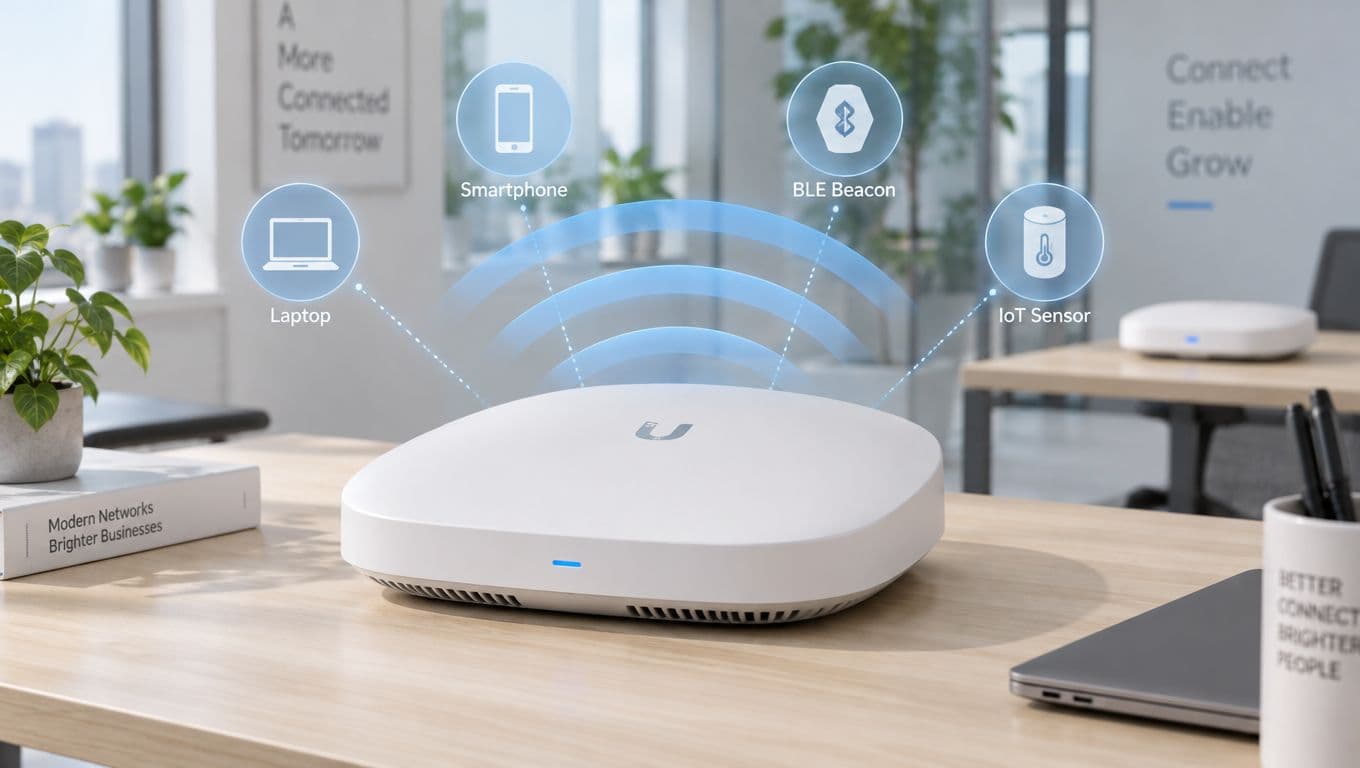
এই কারণেই চকচকে রুম হার্ডওয়্যারের চেয়ে একটি শক্তিশালী ওয়্যারলেস ভিত্তি বেশি গুরুত্বপূর্ণ। নিচের অবকাঠামো সম্পর্কে আপনার যদি রিফ্রেশারের প্রয়োজন হয়, তবে ওয়্যারলেস অ্যাক্সেস পয়েন্ট এবং তারা কী করে সম্পর্কিত এই গাইডটি একটি দরকারি সূচনা পয়েন্ট হতে পারে।
পাঠকরা সাধারণত যেখানে বিভ্রান্ত হন
লোকেরা প্রায়শই মনে করেন যে একটি "স্মার্ট টিভি" হলো ওয়্যারলেস ডিসপ্লে সিস্টেম। অনেক ব্যবসায়িক প্রয়োগে, এটি ভাবার সঠিক উপায় নয়। স্ক্রিনটি চূড়ান্ত আউটপুট ডিভাইস হতে পারে। আসল বুদ্ধিমত্তা প্রায়শই প্রেরক, প্রোটোকল এবং গ্রাহকের (রিসিভার) মধ্যে থাকে।
তারা এটিও ধরে নেন যে ইন্টারনেট অ্যাক্সেস এবং ওয়্যারলেস ডিসপ্লে কানেক্টিভিটি একই জিনিস। এটি তা নয়। ওয়্যারলেস ডিসপ্লে প্রোটোকল যদি রিসিভারটি খুঁজে না পায় বা ডিভাইস দ্বারা সমর্থিত না হয় তবে একজন ব্যবহারকারীর ইন্টারনেট থাকতে পারে তবুও কাস্ট করতে ব্যর্থ হতে পারে।
Miracast AirPlay এবং Google Cast এর তুলনা
যখন কেউ বলেন যে কোনো রুমে “ওয়্যারলেস ডিসপ্লে রয়েছে”, তখন পরবর্তী প্রশ্নটি হওয়া উচিত: কোন প্রোটোকল? এমন কোনো একক সার্বজনীন স্ট্যান্ডার্ড নেই যা প্রতিটি ডিভাইসে একই রকম আচরণ করে। বাস্তবে, বেশিরভাগ ব্যবসায়িক পরিবেশ তিনটি প্রযুক্তির মুখোমুখি হয়: Miracast, AirPlay এবং Google Cast।
বেশিরভাগ ক্রয়ের নির্দেশিকায় যা স্বীকার করা হয় তার চেয়ে এই পার্থক্যগুলো সাপোর্ট লোড, সিকিউরিটি ডিজাইন এবং গেস্টদের ব্যবহারের সুবিধাকে অনেক বেশি প্রভাবিত করে।
উইন্ডোজ-প্রধান পরিবেশে Miracast
Miracast সাধারণত Windows ডিভাইস এবং সরাসরি স্ক্রিন শেয়ারিংয়ের সাথে ঘনিষ্ঠভাবে যুক্ত। ঐতিহাসিকভাবে, এটি ওয়্যারলেস ডিসপ্লেকে একটি বিশেষ অ্যাড-অন থেকে অনেক ভোক্তা এবং এন্টারপ্রাইজ ডিভাইসে একটি আদর্শ প্রত্যাশায় পরিণত করতে সাহায্য করেছে। এটি সাধারণত সরাসরি ডিভাইস-টু-ডিসপ্লে পাথ হিসেবে পরিচিত, যা সাধারণ LAN-এর উপর সম্পূর্ণ নির্ভর না করে প্রায়শই Wi-Fi Direct ব্যবহার করে।
এটি মিটিং স্পেসে Miracast-কে আকর্ষণীয় করে তোলে যেখানে ব্যবহারকারীরা দ্রুত অ্যাড-হক প্রজেকশন চান। কিন্তু একটি সমস্যা রয়েছে। Microsoft উল্লেখ করেছে যে Windows 11 একটি Miracast-সক্ষম TV, প্রজেক্টর বা PC-তে প্রজেক্ট করতে পারে এবং ওয়্যারলেস ডিসপ্লে অ্যাপটি শুধুমাত্র Windows 11 ভার্সন 22H2 এবং তার পরবর্তী সংস্করণে উপলব্ধ রয়েছে, যেমনটি স্ক্রিন মিররিং এবং প্রজেকশন সংক্রান্ত Microsoft-এর ডকুমেন্টেশনে ব্যাখ্যা করা হয়েছে।
এটি একটি ছোট বাক্য যার অপারেশনাল প্রভাব অনেক বড়। সাপোর্ট নির্ভর করে ডিসপ্লে স্ট্যান্ডার্ড, রিসিভার এবং সেন্ডারের OS সংস্করণের উপর।
Apple-চালিত ফ্লিটে AirPlay
AirPlay স্বাভাবিকভাবেই এমন পরিবেশে মানানসই যেখানে iPhone, iPad এবং Mac-এর আধিপত্য বেশি। ক্রিয়েটিভ টিম, এক্সিকিউটিভ ফ্লোর এবং প্রিমিয়াম হসপিটালিটি সেটিংস প্রায়ই এই অভিজ্ঞতা আশা করে কারণ এটি Apple ইকোসিস্টেমের মধ্যে নেটিভ মনে হয়।
আইটি দৃষ্টিকোণ থেকে, AirPlay সাধারণত দুটি প্রশ্ন উত্থাপন করে। প্রথমত, ব্যবহারকারীরা কীভাবে বিভক্ত নেটওয়ার্ক জুড়ে রুমের ডিভাইসগুলো খুঁজে পাবেন? দ্বিতীয়ত, কোনো সাধারণ বা শেয়ার্ড জায়গায় ভুল ব্যক্তিকে ভুল স্ক্রিনে কন্টেন্ট পাঠানো থেকে আপনি কীভাবে আটকাবেন? প্রোটোকলটি ব্যবহারকারীর কাছে মসৃণ মনে হতে পারে, তবে ব্যাক-এন্ড ডিজাইনটি এখনও গুরুত্বপূর্ণ।
মিশ্র অ্যাপ-চালিত ব্যবহারে Google Cast
Google Cast প্রায়শই সম্পূর্ণ ডেস্কটপ মিররিংয়ের চেয়ে অ্যাপ বা Chrome-ভিত্তিক ওয়ার্কফ্লো থেকে কন্টেন্ট পাঠানোর বিষয়ে বেশি কাজ করে। পাবলিক লাউঞ্জ, সাইনেজ এবং সাধারণ সহযোগিতার জায়গাগুলোতে এটি বেশ দরকারি হতে পারে, কারণ ব্যবহারকারীরা সবকিছু মিরর করার পরিবর্তে কেবল মিডিয়া বা ব্রাউজার ট্যাব কাস্ট করতে চাইতে পারেন।
সাপোর্টের ক্ষেত্রে চ্যালেঞ্জ হলো অনুমানযোগ্যতা। ব্যবহারকারীরা প্রায়শই মনে করেন যে "কাস্টিং" এবং "মিররিং" অভিন্ন। তারা সবসময় এক হয় না। এই পার্থক্যটি তখন গুরুত্বপূর্ণ হয়ে ওঠে যখন কেউ আশা করেন যে একটি স্লাইডশো, একটি ব্রাউজার ট্যাব এবং সুরক্ষিত ভিডিও সামগ্রী একইভাবে আচরণ করবে।
Wireless Display Protocol Comparison
| প্রোটোকল | প্রধান ইকোসিস্টেম | সংযোগের ধরন | যার জন্য সেরা |
|---|---|---|---|
| Miracast | Windows এবং সামঞ্জস্যপূর্ণ Android পরিবেশ | সাধারণত সরাসরি ডিভাইস-টু-রিসিভার সংযোগ | যেসব মিটিং রুমের দ্রুত স্ক্রিন মিররিং প্রয়োজন |
| AirPlay | Apple ইকোসিস্টেম | Apple-সামঞ্জস্যপূর্ণ পরিবেশের মধ্যে নেটওয়ার্ক-ভিত্তিক কাস্টিং | ম্যানেজড অফিস বা হসপিটালিটি স্পেসে Macs, iPads, এবং iPhones |
| Google Cast | Google এবং Chrome-কেন্দ্রিক ওয়ার্কফ্লো | নেটওয়ার্ক-ভিত্তিক কাস্টিং | অ্যাপ কাস্টিং, ব্রাউজার কাস্টিং, এবং ক্যাজুয়াল শেয়ার্ড স্ক্রিন |
ইন্টারঅপারেবিলিটি বা আন্তঃকার্যকারিতার প্রকৃত অর্থ কী
মিশ্র ফ্লিট বা বিভিন্ন ধরণের ডিভাইসের ব্যবহার সবচেয়ে কঠিন সাপোর্ট টিকিটের সৃষ্টি করে। একটি Windows ল্যাপটপ হয়তো Miracast সমর্থন করতে পারে। একটি iPhone হয়তো AirPlay প্রত্যাশা করতে পারে। একজন অতিথি হয়তো এমন একটি Android হ্যান্ডসেট নিয়ে আসতে পারেন যা কোম্পানির দেওয়া Android ট্যাবলেটের চেয়ে আলাদা আচরণ করে। রুমের ডিসপ্লেটি হয়তো নেটিভভাবে একটি প্রোটোকল সমর্থন করতে পারে এবং অন্যটি কেবল একটি সংযুক্ত রিসিভারের মাধ্যমে সমর্থন করে।
এই কারণেই এন্টারপ্রাইজ ওয়্যারলেস ডিসপ্লে প্রায়শই "এটি কি কাস্ট করে?" সে সম্পর্কে নয় বরং কোন সমন্বয়গুলি আনুষ্ঠানিকভাবে সমর্থিত সে সম্পর্কে হয়।
- অপারেটিং সিস্টেমের সংস্করণ গুরুত্বপূর্ণ। হার্ডওয়্যার সক্ষম হলেও, সফটওয়্যার পাথটি নাও হতে পারে।
- রিসিভারের সামঞ্জস্যতা গুরুত্বপূর্ণ। দুটি রুম সিস্টেম দেখতে একই রকম হলেও ভিন্ন ভিন্ন প্রোটোকল প্রকাশ করতে পারে।
- ব্যবহারকারীর নির্দেশিকা গুরুত্বপূর্ণ। রুমে যদি "ওয়্যারলেস ডিসপ্লে" লেখা থাকে কিন্তু কীভাবে ব্যবহার করতে হবে তা না বলা থাকে, তবে ব্যবহারকারীরা অনুমান করতে বাধ্য হন।
মিশ্র-ডিভাইসের ব্যবসায়, ওয়ারলেস ডিসপ্লে একটি ইন্টারঅপারেবিলিটি পরিষেবা, কোনো একক ফিচার নয়।
ব্যবহারিক সমাধান সহজ। একটি সাপোর্ট ম্যাট্রিক্স প্রকাশ করুন। কোন ডিভাইসগুলো কোন রুমের সাথে কাজ করে তা উল্লেখ করুন, এবং ভিজিটরদের জন্য একটি ফলব্যাক বিকল্প নির্ধারণ করুন। সেই ডকুমেন্টটি ডিসপ্লে আপগ্রেডের আরেকটি রাউন্ডের চেয়েও বেশি হতাশা বাঁচাবে।
এন্টারপ্রাইজ ডিপ্লয়মেন্ট এবং নেটওয়ার্ক বিবেচনাসমূহ
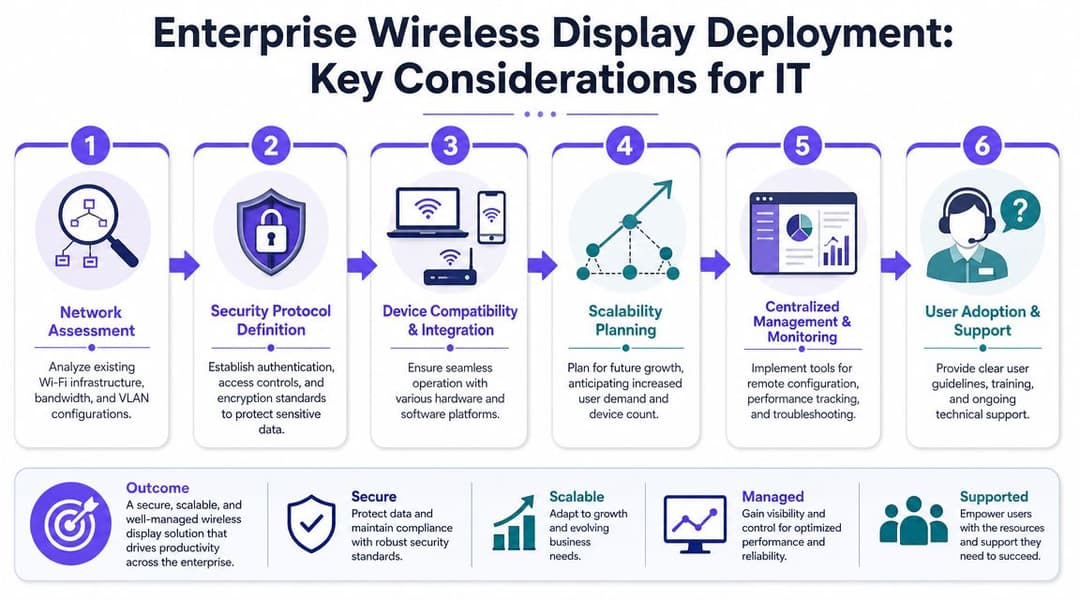
একটি টেস্ট রুমে একটি একক ওয়্যারলেস ডিসপ্লে সহজ। একাধিক ফ্লোর, গেস্ট জোন এবং শেয়ার্ড স্পেস জুড়ে পঞ্চাশটি ওয়্যারলেস ডিসপ্লে স্থাপন একটি নেটওয়ার্ক ডিজাইন অনুশীলন।
সবচেয়ে সাধারণ ভুলটি হলো ওয়ারলেস ডিসপ্লেকে একটি AV ক্রয় হিসাবে বিবেচনা করা, অথচ এটি এমন একটি পরিষেবা যা WiFi, সুইচিং, ডিসকভারি, পলিসি এবং সহায়তা প্রক্রিয়ার ওপর নির্ভর করে চলে। ডিসপ্লেটি দৃশ্যমান হতে পারে, কিন্তু নেটওয়ার্ক নির্ধারণ করে যে অভিজ্ঞতাটি তাত্ক্ষণিক নাকি অব্যবহারযোগ্য হবে।
স্ক্রিন নয়, ট্রাফিক ফ্লো দিয়ে শুরু করুন
আপনি কোনো রুম প্ল্যাটফর্মে স্ট্যান্ডার্ডাইজ করার আগে, প্রেরক এবং গ্রাহকের মধ্যকার পথটি ম্যাপ করুন।
জিজ্ঞাসা করুন:
- কর্মীদের ডিভাইস কোথায় কানেক্ট হবে। করপোরেট SSID, BYOD নেটওয়ার্ক, নাকি উভয়ই?
- রুম রিসিভারগুলো কোথায় থাকবে। ইউজার VLAN, IoT সেগমেন্ট, নাকি বিচ্ছিন্ন AV নেটওয়ার্ক?
- সাবনেটজুড়ে ডিসকভারি কীভাবে কাজ করে। এটি কাজ না করলে, ব্যবহারকারীরা হয়তো কখনোই ডিসপ্লে দেখতে পাবেন না।
- অতিথিদের ক্ষেত্রে কী ঘটে। তারা কি নেটওয়ার্কে ব্যাপক অ্যাক্সেস না পেয়ে নিরাপদে কাস্ট করতে পারেন?
এটি এমন একটি ক্ষেত্র যেখানে আরও ব্যাপক enterprise WiFi solution design সরাসরি প্রাসঙ্গিক হয়ে ওঠে। ওয়ারলেস ডিসপ্লের গুণমান মূল WLAN-এর গুণমান অনুসরণ করে, বিশেষ করে ঘনবসতিপূর্ণ অফিস এবং ভেন্যু পরিবেশের ক্ষেত্রে।
আবিষ্কার, বিভাজন এবং নীতি
অনেক প্রতিষ্ঠান সঠিকভাবে অভ্যন্তরীণ সিস্টেম থেকে গেস্ট ট্রাফিক আলাদা করে। এটি নিরাপত্তা উন্নত করে, তবে এটি ওয়্যারলেস ডিসপ্লের জন্য বাধা তৈরি করে। গেস্ট নেটওয়ার্কের একটি ডিভাইস প্রায়ই কর্পোরেট বা AV VLAN-এ থাকা রিসিভার সনাক্ত করতে পারে না।
বাস্তবে, এটি একটি পরিচিত অভিযোগের দিকে নিয়ে যায়: "রুমের ডিসপ্লে স্টাফদের জন্য কাজ করে কিন্তু ভিজিটরদের জন্য করে না।"
এর কোনো একটি সার্বজনীন সমাধান নেই। উত্তরটি প্রোটোকল এবং আর্কিটেকচারের ওপর নির্ভর করে। কিছু পরিবেশ অনুমোদিত ডিসকভারি ট্রাফিককে সেগমেন্টেশন সীমানা অতিক্রম করার অনুমতি দিতে গেটওয়ে বা সার্ভিস ডিসকভারি রিলে ব্যবহার করে। অন্যগুলো রিসিভারগুলোকে সাবধানে নিয়ন্ত্রিত জোনে রাখে যা উদ্দিষ্ট ব্যবহারকারী গ্রুপকে সমর্থন করে। আসল বিষয়টি হলো বোর্ড মিটিংয়ের সময় এই সীমাবদ্ধতা আবিষ্কার করার চেয়ে সচেতনভাবে এই নীতিটি নির্ধারণ করা।
IT-এর জন্য ট্রাবলশুটিংয়ের অগ্রাধিকারসমূহ
Sony-র সাপোর্ট গাইডলাইন একটি দরকারী অপারেশনাল নিয়মের দিকে ইঙ্গিত করে। পারফরম্যান্স মূলত প্রেরকের হার্ডওয়্যার এবং ওয়্যারলেস লিঙ্কের গুণমানের উপর নির্ভর করে, ডিসপ্লে প্যানেলের বুদ্ধিমত্তার উপর নয়, যা ওয়্যারলেস ডিসপ্লে কীভাবে কাজ করে সে সম্পর্কে Sony-র ব্যাখ্যায় তুলে ধরা হয়েছে।
তাই ব্যবহারকারীরা যখন দুর্বল পারফরম্যান্সের রিপোর্ট করেন, তখন প্রথমে এগুলো পরীক্ষা করুন:
- এন্ডপয়েন্ট ক্ষমতা। পুরোনো ল্যাপটপ এবং অতিরিক্ত লোড থাকা ডিভাইসগুলি স্ট্রিমটিকে মসৃণভাবে এনকোড এবং পাঠাতে সমস্যার সম্মুখীন হতে পারে।
- RF পরিস্থিতি। ভিড়, দুর্বল সিগন্যাল এবং হস্তক্ষেপের কারণে ল্যাগ, স্টাটার এবং সংযোগ বিচ্ছিন্ন হতে পারে।
- রিসিভার সামঞ্জস্যতা। একটি রুম ডিভাইস তাত্ত্বিকভাবে প্রোটোকলটিকে সমর্থন করতে পারে তবে প্রেরক যেভাবে প্রত্যাশা করে ঠিক সেভাবে নাও করতে পারে।
- পলিসি দ্বন্দ্ব। আইসোলেশন নিয়ম, ব্লকড ডিসকভারি বা সীমাবদ্ধ ফায়ারওয়ালিং সেশন সেটআপকে বাধাগ্রস্ত করতে পারে।
যদি তিনটি ভিন্ন ব্যবহারকারী একই রুমে ব্যর্থ হন, তবে নেটওয়ার্ক পাথকে সন্দেহ করুন। যদি একটি ডিভাইস অনেক রুমে ব্যর্থ হয়, তবে এন্ডপয়েন্টকে সন্দেহ করুন।
এই মানসিকতা সময় বাঁচায়। এটি ওয়্যারলেস ডিজাইন বা ক্লায়েন্টের ক্ষমতায় প্রকৃত সমস্যা থাকা সত্ত্বেও টিমগুলোকে চমৎকার অবস্থায় থাকা স্ক্রিনগুলো পরিবর্তন করা থেকে বিরত রাখে।
ব্যবসায়িক পরিবেশে ওয়্যারলেস ডিসপ্লে সুরক্ষিত করা
ওয়্যারলেস ডিসপ্লে একটি আপাতদৃষ্টিতে সাধারণ ঝুঁকি তৈরি করে। যদি কোনো ব্যবহারকারী একটি শেয়ার করা ডিসপ্লেতে স্ক্রিন পাঠাতে পারেন, তবে প্রতিষ্ঠানটিকে সিদ্ধান্ত নিতে হবে কাকে এটি করার অনুমতি দেওয়া হয়েছে, কোন নেটওয়ার্ক থেকে, এবং কী ধরণের ট্রাস্ট লেভেল সহ।
সেই নিয়ন্ত্রণ ছাড়া, একটি মিটিং-রুমের স্ক্রিন একটি অরক্ষিত কনফারেন্স রুমের দরজার ডিজিটাল সংস্করণে পরিণত হতে পারে। কেউ ভুলবশত অন্য ডিসপ্লেতে কাস্ট করে ফেলতে পারেন। কোনো অতিথি কর্মীদের জন্য নির্ধারিত স্ক্রিনে অ্যাক্সেস পেয়ে যেতে পারেন। আরও সংবেদনশীল পরিবেশে, একজন আক্রমণকারী দুর্বল নেটওয়ার্ক অ্যাক্সেসের সুযোগ নিয়ে সেশনগুলো পর্যবেক্ষণ বা ব্যাহত করার চেষ্টা করতে পারে।
প্রধান ঝুঁকিগুলি
ঝুঁকিটি খুব কমই কেবল "ওয়্যারলেস ডিসপ্লে" এর মধ্যে সীমাবদ্ধ থাকে। এটি সাধারণত দুর্বল অ্যাক্সেস কন্ট্রোলের উপরে থাকা ওয়্যারলেস ডিসপ্লের কারণে ঘটে।
সাধারণ সমস্যাগুলোর মধ্যে রয়েছে:
- শেয়ার্ড অফিস, আতিথেয়তা ভেন্যু এবং অপেক্ষার জায়গায় অননুমোদিত কাস্টিং
- ব্যবহারকারীরা ভুল স্ক্রিন বেছে নিলে অনাকাঙ্ক্ষিত কন্টেন্ট ফাঁস
- কর্মী এবং রুম ডিভাইসের জন্য শেয়ার করা পাসওয়ার্ডের মতো সাপোর্ট শর্টকাট ব্যবহার করা
- ফ্ল্যাট নেটওয়ার্ক অ্যাক্সেস যেখানে ডিভাইসগুলো আলাদা থাকার কথা থাকলেও একে অপরকে ডিসকভার করতে পারে
একটি নিরাপদ ডিজাইন স্ট্যাকের আরও নিচের স্তর থেকে শুরু হয়। যদি নেটওয়ার্ক অ্যাক্সেস দুর্বল হয়, তবে স্ক্রিন-শেয়ারিং সুরক্ষাও দুর্বল হবে।
Merry-go-round।_..._.___সুবিধার চেয়ে পরিচয় বেশি গুরুত্বপূর্ণ
সবচেয়ে শক্তিশালী এন্টারপ্রাইজ প্যাটার্ন হলো নেটওয়ার্ক অ্যাক্সেসকে পরিচয় এবং পলিসির সাথে সংযুক্ত করা, কোনো ব্যাপকভাবে শেয়ার করা ক্রেডেনশিয়ালের উপর নির্ভর না করে। এর অর্থ হলো স্টাফ, গেস্ট, ঠিকাদার এবং রুমের হার্ডওয়্যার সবাই একই ট্রাস্ট লেভেলে পড়ে না।
আরও বিস্তৃত নেটওয়ার্ক সাইডের ব্যবহারিক নির্দেশনার জন্য, সুরক্ষিত ওয়্যারলেস নেটওয়ার্কিং সম্পর্কিত এই রিসোর্সটি পর্যালোচনা করার মতো। এটি ওয়্যারলেস ডিসপ্লেকে একটি একক গ্যাজেট সমস্যার পরিবর্তে একটি সুরক্ষিত WLAN-এ চলমান একটি অ্যাপ্লিকেশন হিসেবে বিবেচনা করতে সাহায্য করে।
একই নীতি আঞ্চলিক সাইবার নিরাপত্তা সংক্রান্ত পরামর্শেও দেখা যায়। যেসব সংস্থাগুলি ইস্ট মিডল্যান্ডসের ব্যবসাগুলিকে সাইবার হুমকি থেকে রক্ষা করার বিষয়টি দেখছেন তারা এই প্যাটার্নটি চিনতে পারবেন। অ্যাক্সেস যখন নিয়ন্ত্রিত, খণ্ডিত এবং নিরীক্ষণযোগ্য হয়, তখন নিরাপত্তা উন্নত হয়।
সবচেয়ে নিরাপদ ওয়্যারলেস ডিসপ্লে ডেপ্লয়মেন্ট সেটি নয় যাতে সবচেয়ে বেশি ফিচার রয়েছে। বরং সেটিই, যেটিতে সবচেয়ে স্পষ্ট ট্রাস্ট বাউন্ডারি বা নিরাপত্তার সীমানা রয়েছে।
একটি বাস্তবসম্মত নিরাপত্তা মডেল
একটি বিচক্ষণ ব্যবসায়িক ডিপ্লয়মেন্টে সাধারণত অন্তর্ভুক্ত থাকে:
- কর্মী এবং অতিথিদের জন্য আলাদা অ্যাক্সেস পাথ
- নির্দিষ্ট রুমের অনুমতি যাতে প্রতিটি ব্যবহারকারী প্রতিটি ডিসপ্লে লক্ষ্য করতে না পারেন
- ডিসপ্লের স্পষ্ট নামকরণ যাতে ভুলবশত কাস্টিং করার ঘটনা হ্রাস পায়
- সেশন নিয়ন্ত্রণ যেমন প্রযোজ্য ক্ষেত্রে অনুমোদনের প্রম্পট বা রুম কোড
- ডিসপ্লে রিসিভারের জন্য সেগমেন্টেশন যাতে সেগুলিকে সাধারণ ক্লায়েন্ট ডিভাইসের মতো বিবেচনা করা না হয়
এই পদ্ধতিটি ওয়ারলেস ডিসপ্লেকে জিরো-ট্রাস্ট ভাবনার সাথে সামঞ্জস্যপূর্ণ করে। ব্যবহারকারীরা তারা কে এবং তাদের কী ব্যবহার করার অনুমতি দেওয়া হয়েছে তার ওপর ভিত্তি করে অ্যাক্সেস পান, কেবল তারা কোনোভাবে WiFi-এ সংযুক্ত হতে পেরেছেন বলেই নয়।
হসপিটালিটি এবং রিটেল অপারেটরদের জন্য সেরা অনুশীলনসমূহ
একজন হোটেল গেস্ট প্রোটোকল নিয়ে ভাবেন না। তারা ভাবেন, "আমি রুমের টিভিতে আমার কনটেন্ট দেখতে চাই।" যদি প্রক্রিয়াটি জটিল হয়, তবে তারা কাস্টিং স্ট্যান্ডার্ডকে নয়, হোটেলকে দোষারোপ করেন।
এই কারণেই আতিথেয়তা শিল্পে ওয়্যারলেস ডিসপ্লে ব্যবহার করা ঘরের মতো সহজ মনে হওয়া উচিত তবে এটি এন্টারপ্রাইজ পরিকাঠামোর মতো পরিচালিত হওয়া উচিত। অতিথিদের জন্য তাদের ব্যক্তিগত ডিভাইস সংযোগ করার একটি সহজ পথ প্রয়োজন যা তাদের সামগ্রীকে পাশের ঘর বা বৃহত্তর প্রপার্টি নেটওয়ার্কের কাছে প্রকাশ করবে না।
হোটেল এবং সার্ভিসড অ্যাকোমোডেশনে
সেরা গেস্ট অভিজ্ঞতায় সাধারণত তিনটি বৈশিষ্ট্য থাকে।
- এটি খুঁজে পাওয়া সহজ। ইন-রুম ডিসপ্লে কাস্টিং অপশনটিকে স্পষ্ট করে তোলে।
- এটি ব্যক্তিগত মনে হয়। অতিথিরা কোনো ঝুঁকিপূর্ণ শেয়ার্ড এনভায়রনমেন্টে যুক্ত না হয়েই তাদের নিজস্ব ডিভাইস সংযুক্ত করতে পারেন।
- এটি পরিষ্কারভাবে রিসেট হয়। অতিথি যখন চেক আউট করেন, তখন সেশনের বিবরণ মুছে যায়।
ব্যবহারিক অর্থে, এর অর্থ হলো স্ক্রিনে অস্পষ্ট লেবেল এড়িয়ে চলা এবং সাধারণ ব্যবহারের জন্য ফ্রন্ট-ডেস্কের হস্তক্ষেপের প্রয়োজন হয় এমন রুম সেটআপ এড়িয়ে চলা।
খুচরা ব্যবসা এবং ভেন্যু স্পেসে
রিটেল টিমগুলো প্রায়শই ওয়্যারলেস ডিসপ্লে ভিন্নভাবে ব্যবহার করে। এর লক্ষ্য হতে পারে ডায়নামিক সাইনেজ, দ্রুত কনটেন্ট পরিবর্তন, স্টাফ ব্রিফিং, বা পপ-আপ এলাকায় সাময়িক ক্যাম্পেইন স্ক্রিন।
এখানে, অ্যাড-হক গেস্ট কাস্টিংয়ের চেয়ে নির্ভরযোগ্যতা এবং কেন্দ্রীয় নিয়ন্ত্রণ বেশি গুরুত্বপূর্ণ। একজন রিটেল ম্যানেজার ক্যাবল নিয়ে ফ্লোরে না হেঁটে বা লক করা ডিসপ্লে কেবিনেট না খুলে স্ক্রিনে কী প্রদর্শিত হচ্ছে তা পরিবর্তন করতে চান।
সাধারণ সূত্র
হসপিটালিটি এবং রিটেইল সেক্টর দেখতে ভিন্ন হলেও, উভয়ই একটি সুপরিচালিত ওয়্যারলেস পরিবেশের উপর নির্ভর করে।
- অতিথিদের কার্যক্রমের জন্য আইসোলেশন প্রয়োজন
- কর্মীদের কাজের জন্য অনুমানযোগ্য অ্যাক্সেস প্রয়োজন
- শেয়ার করা স্ক্রিনের জন্য স্পষ্ট মালিকানা প্রয়োজন
- সাপোর্ট টিমের জন্য দূরবর্তী ভিজিবিলিটি প্রয়োজন
যদি এই ভিত্তিগুলো ঠিক থাকে, তবে ওয়্যারলেস ডিসপ্লে অভিযোগের উৎস হওয়ার পরিবর্তে অভিজ্ঞতার একটি অংশ হয়ে ওঠে।
সাধারণ ওয়্যারলেস ডিসপ্লে সমস্যার সমাধান করা
বেশিরভাগ ত্রুটি সামঞ্জস্যতা, সনাক্তকরণ বা ওয়্যারলেস অবস্থার কারণে ঘটে। পরীক্ষাগুলো সহজ রাখুন।
ডিসপ্লেটি প্রদর্শিত হচ্ছে না
সম্ভাব্য কারণ হলো সেন্ডার রিসিভারটিকে সনাক্ত করতে পারছে না, অথবা ডিভাইসটি প্রয়োজনীয় প্রোটোকল সাপোর্ট করে না।
- প্রথমে সামঞ্জস্যতা পরীক্ষা করুন। রুমটি ব্যবহারকারীর ডিভাইসের চেয়ে ভিন্ন একটি প্রোটোকল সমর্থন করতে পারে।
- নেটওয়ার্ক পাথ নিশ্চিত করুন। নেটওয়ার্ক-ভিত্তিক সিস্টেমে, প্রেরক এবং প্রাপক একে অপরকে দেখতে পাওয়ার প্রয়োজন হতে পারে।
- উভয় প্রান্ত রিস্টার্ট করুন। এটি শুনতে খুব সাধারণ লাগলেও অনেক সময় পুরনো সেশনগুলো পরিষ্কার করতে এটি কাজ করে।
ভিডিও ল্যাগ বা আটকে যায়
এটি সাধারণত ওয়্যারলেস কোয়ালিটি বা সেন্ডারের পারফরম্যান্সের দিকে ইঙ্গিত করে।
- সিগন্যালের মান দুর্বল হলে আরও শক্তিশালী কভারেজের কাছাকাছি যান।
- যে ল্যাপটপ বা ফোনটি এনকোডিং করছে সেটির ব্যাকগ্রাউন্ড লোড হ্রাস করুন।
- অন্য একটি ডিভাইস পরীক্ষা করুন। যদি একজন প্রেরক সমস্যা অনুভব করে এবং অন্যটি ঠিকঠাক কাজ করে, তবে সমস্যাটি সম্ভবত ক্লায়েন্ট-সাইডের।
সংযোগ বারবার বিচ্ছিন্ন হয়ে যায়
অস্থির আরএফ (RF) পরিস্থিতি, রোমিং ইভেন্ট বা অসঙ্গতিপূর্ণ সামঞ্জস্যতার কারণে প্রায়শই মাঝে মাঝে সংযোগ বিচ্ছিন্ন হওয়ার মতো ত্রুটিগুলো ঘটে থাকে।
যখন একটি কানেকশন বারবার ড্রপ হতে থাকে, তখন স্ক্রিন দিয়ে শুরু করবেন না। সেন্ডার এবং ওয়্যারলেস পরিবেশ দিয়ে শুরু করুন।
যদি সমস্যাটি বারবার একটি রুমকে প্রভাবিত করে, তবে IT টিমকে স্থানীয় ওয়্যারলেস ডিজাইন এবং রিসিভার সেটআপ পর্যালোচনা করতে বলুন। যদি এটি একজন ব্যবহারকারীকে অনুসরণ করে, তবে ডিভাইসটি নিজেই পরীক্ষা করুন।
সচরাচর জিজ্ঞাসিত প্রশ্নাবলী
ওয়্যারলেস ডিসপ্লে কি সম্পূর্ণভাবে HDMI প্রতিস্থাপন করতে পারে?
প্রতিটি পরিস্থিতিতে নয়। প্রতিদিনের উপস্থাপনা, সহযোগিতা এবং গেস্ট কাস্টিংয়ের জন্য এটি প্রায়শই করতে পারে। অত্যন্ত সংবেদনশীল ব্যবহারের ক্ষেত্রে যেখানে আপনার সবচেয়ে কম সম্ভাব্য পরিবর্তনশীলতার সাথে সবচেয়ে অনুমানযোগ্য সংযোগ প্রয়োজন, সেখানে একটি কেবলের এখনও সুবিধা রয়েছে।
ওয়্যারলেস ডিসপ্লের জন্য কি ইন্টারনেট অ্যাক্সেস প্রয়োজন?
সবসময় নয়। কিছু পদ্ধতি প্রেরক এবং রিসিভারের মধ্যে সরাসরি ওয়্যারলেস লিঙ্ক ব্যবহার করে। অন্যগুলি স্থানীয় নেটওয়ার্কের ওপর নির্ভর করে। ইন্টারনেট অ্যাক্সেস এবং স্থানীয় কাস্টিং সম্পর্কিত হলেও এক নয়।
ব্যবহারকারীরা সাধারণত এটি কীভাবে সক্ষম করেন?
Windows ডিভাইসে, ব্যবহারকারীরা সাধারণত প্রজেক্ট বা কাস্ট অপশন খোঁজেন। Apple ডিভাইসে, তারা সাধারণত স্ক্রিন মিররিং বা AirPlay নিয়ন্ত্রণগুলি খোলেন। Android এ, ফিচারটির নাম প্রস্তুতকারক ভেদে ভিন্ন হতে পারে, তবে কাস্ট বা স্ক্রিন শেয়ার সাধারণ শব্দাবলী।
একটি ব্যবসার প্রথমে কী স্ট্যান্ডার্ডাইজ করা উচিত?
প্রোটোকল কৌশল দিয়ে শুরু করুন। আপনি কোন ধরণের ডিভাইস আনুষ্ঠানিকভাবে সমর্থন করেন তা নির্ধারণ করুন, তারপর সেই পছন্দের সাথে রুমের হার্ডওয়্যার, নেটওয়ার্ক নীতি এবং ব্যবহারকারীর নির্দেশাবলী সারিবদ্ধ করুন। এটি সবচেয়ে নতুন ডিসপ্লে প্যানেল কেনার চেয়ে অনেক বেশি কার্যকরভাবে সাপোর্ট কল হ্রাস করে।
আপনার ব্যবসা যদি কর্মী, অতিথি এবং শেয়ার করা স্পেসের জন্য নির্ভরযোগ্যভাবে ওয়ারলেস ডিসপ্লে কাজ করাতে চায়, তবে এর মূল ভিত্তি হলো নিরাপদ, পরিচয়-সচেতন WiFi। Purple সংস্থাগুলোকে অফিস, আতিথেয়তা, খুচরা বিক্রেতা, স্বাস্থ্যসেবা এবং মাল্টি-টেন্যান্ট পরিবেশ জুড়ে পাসওয়ার্ডহীন, নিয়ন্ত্রিত নেটওয়ার্ক অ্যাক্সেস প্রদান করতে সহায়তা করে, যাতে ওয়ারলেস ডিসপ্লের মতো পরিষেবাগুলো পরিচালনা করা সহজ এবং ব্যবহার করা নিরাপদ হয়।