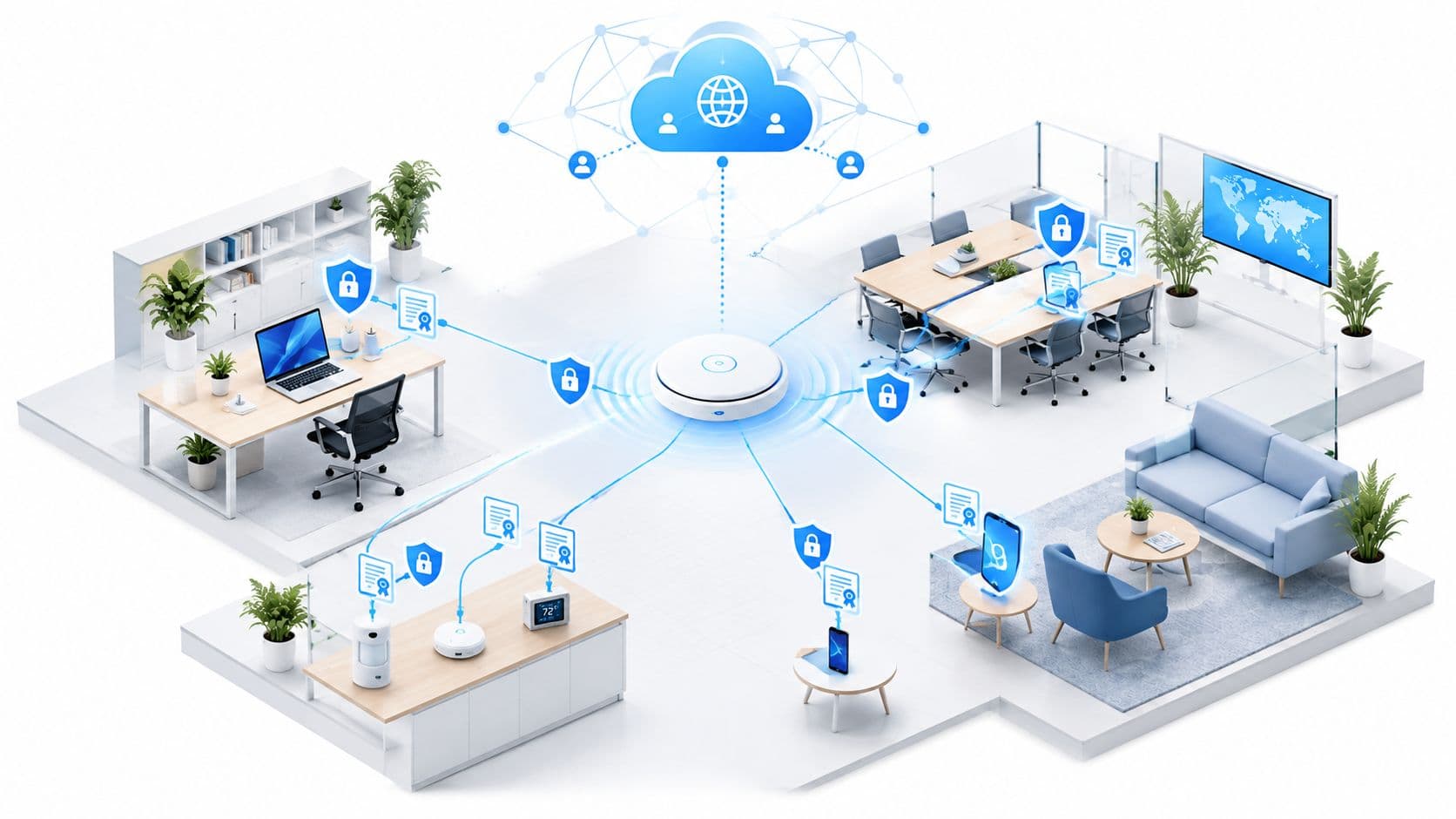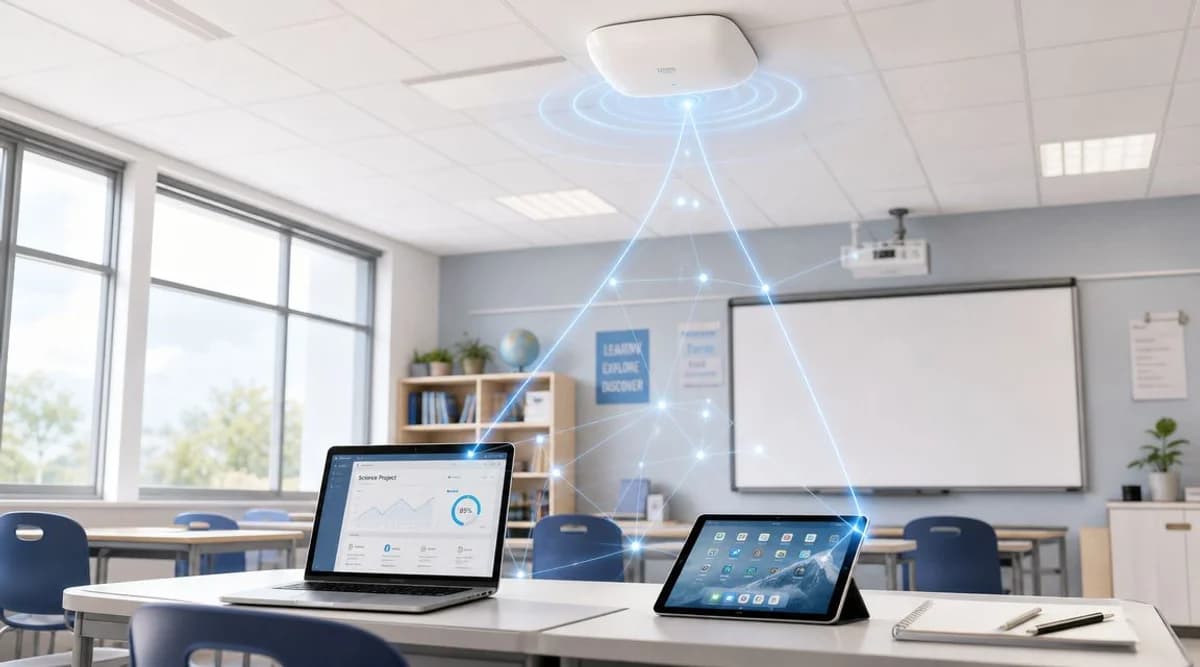
La queja habitual sobre el WiFi escolar no es "necesitamos internet". Es "los de segundo de secundaria no pueden cargar el cuestionario, la señal del auditorio se cae durante la asamblea, los visitantes hacen fila en la recepción porque el inicio de sesión de invitados no funciona y la mesa de ayuda sigue restableciendo las contraseñas compartidas del trimestre pasado".
Ese es el estado del WiFi en las escuelas. El problema rara vez es un punto de acceso dañado. Es la brecha entre el propósito para el que se construyó la red y lo que la escuela espera ahora de ella.
La mayoría de las escuelas ya no dan servicio a un ordenado laboratorio de computadoras de escritorio. Dan soporte a laptops del personal, dispositivos administrados de los alumnos, teléfonos personales, pantallas de aulas, impresoras, cámaras, sistemas de protección y un flujo constante de invitados. Si el acceso todavía depende de una clave compartida pegada dentro de la puerta de un armario, la red no solo está obsoleta, sino que genera un retraso operativo todos los días.
Por qué el WiFi escolar es ahora una infraestructura de misión crítica
Una escuela puede tolerar una fotocopiadora lenta. No puede tolerar un WiFi inestable en los espacios de enseñanza. Una vez que las clases, los registros, los flujos de trabajo de protección, la gestión de dispositivos y los servicios de cara a los padres dependen de la conectividad, la red inalámbrica deja de ser una comodidad y se convierte en infraestructura principal.
Ese cambio ocurrió rápido. Los datos de la OCDE publicados a través de Our World in Data muestran que la proporción de escuelas primarias del Reino Unido con internet para la enseñanza pasó de un 0% a finales de la década de 1990 a una cobertura casi universal en la década de 2010. El titular no es solo que las escuelas se conectaron. Es que las expectativas cambiaron de un acceso ocasional en una sala de computación a un acceso constante en cualquier lugar donde ocurra el aprendizaje.
De un modelo de laboratorio de cómputo a un modelo de campus
Las redes escolares más antiguas se diseñaron en torno a la escasez. Unas pocas computadoras de escritorio. Unos pocos espacios de enseñanza fijos. Una salida a internet. El WiFi, si existía, a menudo cubría primero las áreas del personal y en segundo lugar las aulas.
Ese modelo se rompe con el uso moderno. Una sola clase puede introducir docenas de dispositivos activos a la red a la vez. A eso hay que sumar los dispositivos portátiles del personal, las pantallas de las aulas, las aplicaciones en la nube, el tráfico de voz y las actualizaciones de dispositivos en segundo plano.
Si necesita una verificación de la realidad sobre la escala, ayuda pensar en términos de cuántos dispositivos se conectan a internet en los entornos modernos, no solo cuántos alumnos están inscritos.
Regla práctica: Planifique para la actividad simultánea, no para los totales de inventario. Un armario lleno de tablets importa menos que lo que sucede cuando tres aulas adyacentes comienzan a transmitir, sincronizar y autenticarse al mismo tiempo.
Cómo se ve una falla en la práctica
Los líderes escolares suelen subestimar cuántas fallas se le atribuyen al "internet" cuando el verdadero problema es el diseño inalámbrico local o un control de acceso deficiente.
Los síntomas comunes incluyen:
- Interrupción de las clases: Los estudiantes se conectan lentamente, tienen un mal roaming entre salones o pierden sesiones durante las actividades en vivo.
- Fricción en la protección de menores: El filtrado funciona en una red pero no en otra porque el tráfico de invitados, personal y estudiantes no está separado limpiamente.
- Sobrecarga de soporte: Las contraseñas compartidas expiran, se filtran o se difunden mucho más allá del grupo previsto.
- Mala experiencia del visitante: El personal suplente, los padres, los miembros del consejo de administración y los contratistas se topan con un Captive Portal que nunca se diseñó para una alta rotación.
Por qué la identidad importa más que la velocidad pura
Muchos proyectos de WiFi escolar todavía comienzan con el hardware. Más puntos de acceso. Nuevos switches. Mejores barras de señal. Eso importa, pero no es suficiente.
El problema más difícil es decidir quién está en la red, a qué debe acceder y cómo se autentica sin generar filas para el departamento de TI. En las escuelas, los diseños más limpios se están alejando del acceso amplio y compartido para adoptar políticas basadas en la identidad para el personal, los estudiantes y los invitados. Ahí es donde la confiabilidad, la seguridad y la usabilidad finalmente dejan de competir entre sí.
Planificación de su red desde el aula hacia afuera
La forma más rápida de desperdiciar el presupuesto es comenzar con la cotización de un proveedor. En su lugar, comience con los espacios de enseñanza. Un buen WiFi en las escuelas se diseña desde el extremo hacia el interior - desde el aula, el salón de usos múltiples, la biblioteca y el área de recepción de regreso al núcleo.
Comience con el comportamiento de enseñanza, no con los planos de planta
Un salón de clases utilizado para revisiones de tareas basadas en navegador tiene un perfil diferente al de un salón de diseño, un espacio de estudio de bachillerato o un auditorio lleno de padres de familia en una noche de puertas abiertas. Si se tratan todos los espacios como idénticos, el resultado suele ser una infraestructura sobredimensionada en algunos lugares y débil en los que más duele.
Haga preguntas prácticas a los directores de departamento y a los profesores:
- ¿Qué aplicaciones fallan primero cuando el WiFi tiene problemas? Los videos, los documentos en la nube, las plataformas de evaluación, las herramientas de voz y la sincronización de dispositivos estresan la red de manera diferente.
- ¿Cuándo ocurre el problema? Las tormentas de inicio de sesión en la primera hora, las aglomeraciones en los descansos, las asambleas y los periodos de exámenes suelen exponer las fallas.
- ¿Qué aulas son críticamente operativas? La recepción, las oficinas de protección estudiantil, las salas de trabajo del personal y los espacios de necesidades educativas especiales a menudo importan más que la cobertura genérica de los pasillos.
Mapee los lugares, luego mapee la densidad
Un estudio de sitio no se trata solo de la intensidad de la señal. Se trata de la densidad de usuarios, los materiales de las paredes, los edificios complejos y la diferencia entre "se conecta" y "funciona correctamente".
Los edificios históricos, los pabellones deportivos, las aulas temporales y las paredes internas gruesas pueden distorsionar un diseño limpio sobre el papel. Antes de tomar las decisiones finales de ubicación, cree o revise un mapa de calor de WiFi adecuado para el sitio y compárelo con los patrones de clases reales.
Use una cuadrícula de planificación sencilla:
| Área | Usuarios principales | Combinación típica de dispositivos | Riesgo si falla el WiFi |
|---|---|---|---|
| Salones de clases | Estudiantes y profesores | Laptops administradas, tablets, teléfonos del personal | Interrupción de las clases |
| Recepción | Visitantes y personal de oficina | Teléfonos de invitados, dispositivos administrativos | Proceso de incorporación deficiente, lentitud administrativa |
| Salón de usos múltiples y biblioteca | Grupos mixtos grandes | Dispositivos móviles de alta densidad | Congestión y problemas de roaming |
| Salas de profesores y oficinas | Personal | Laptops, teléfonos, impresoras | Retraso operativo |
Cuente tipos de experiencia, no solo dispositivos finales
Los equipos de TI suelen preguntar: "¿Cuántos dispositivos tenemos?" La mejor pregunta es: "¿Cuántas experiencias de dispositivos necesitamos soportar?"
Una escuela suele tener varios a la vez:
- Dispositivos administrados de estudiantes: Por lo general, son los más fáciles de controlar si se registran a través de MDM.
- Dispositivos del personal: Necesitan un acceso más sólido, roaming estable y una incorporación sencilla.
- BYOD: Suele ser la categoría más compleja. Sistemas operativos mixtos, postura de seguridad inconsistente y límites de soporte difusos.
- Invitados: Alta rotación, acceso de corta duración y una fuerte necesidad de aislamiento.
Si su diseño trata a los cuatro grupos por igual, la mesa de ayuda terminará cargando con la complejidad más adelante.
Escriba una definición breve del servicio antes de comprar nada
Antes de hablar de marcas o cantidad de puntos de acceso, defina el servicio en un lenguaje claro. Una página es suficiente si es específica.
Incluya puntos como estos:
- Expectativa de cobertura: Qué espacios interiores y exteriores deben tener acceso inalámbrico confiable.
- Modelo de autenticación: Si los usuarios inician sesión con la identidad de la escuela, un flujo de trabajo para invitados o certificados de dispositivo.
- Prioridad de la aplicación: Qué tráfico debe permanecer utilizable durante los periodos de mayor actividad.
- Modelo de soporte: Cómo debe ser el proceso de incorporación para nuevos alumnos, nuevo personal y visitantes.
Ese documento evita que el proyecto se desvíe hacia el objetivo impreciso de lograr un "mejor WiFi". Las escuelas no necesitan imprecisiones. Necesitan una red que responda a sus actividades diarias.
Diseño de una arquitectura de red preparada para el futuro
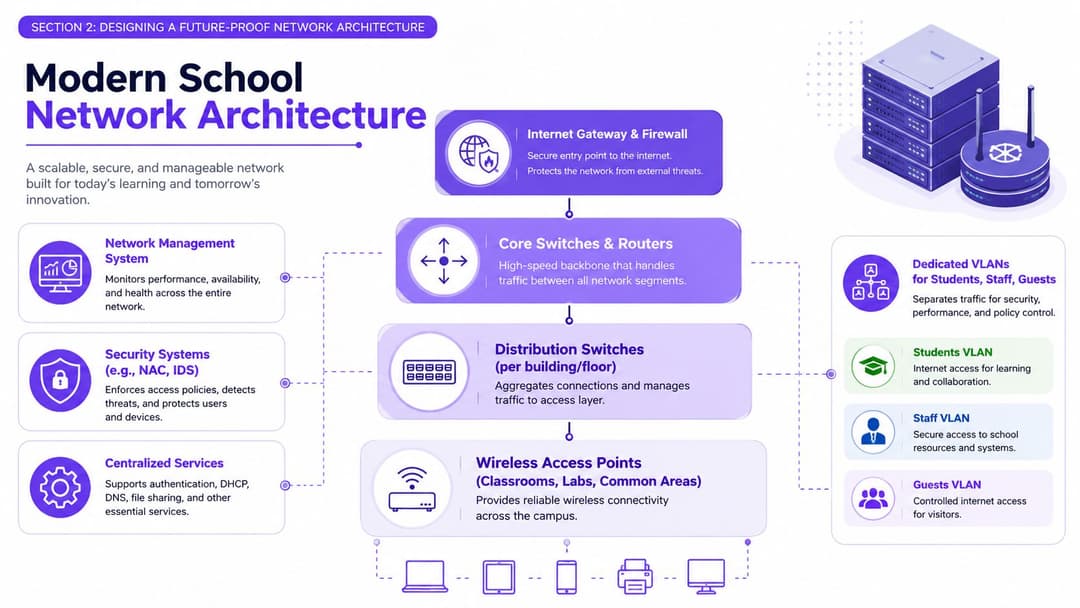
La red de una escuela es un sistema de construcción, no una pila de cajas. La puerta de enlace a internet es la entrada principal y la recepción de seguridad. El switch central es la sala de máquinas. Los switches de distribución son las canalizaciones y el cableado de los pisos. Los puntos de acceso son los enchufes que usan los alumnos y el personal. Si la estructura es incorrecta, agregar puntos finales más llamativos no la solucionará.
Construya primero en torno a la separación
La elección arquitectónica más importante en el WiFi escolar no es la marca del punto de acceso. Es si la red separa de forma limpia los diferentes grupos de usuarios y tipos de dispositivos.
El Departamento de Educación de Inglaterra señala que cuando una escuela o colegio necesita una actualización inalámbrica, la solución debe utilizar Wi-Fi 7 (802.11be) como mínimo, con enlaces ascendentes de AP de un tamaño típico de 1 Gbps, 2.5 Gbps, 5 Gbps o 10 Gbps, y requiere segregación de red, QoS y autenticación individual en el diseño inalámbrico, tal como se establece en el estándar central de red inalámbrica del DfE.
Esa guía es importante porque aleja a las escuelas de las redes planas. En la práctica, se buscan espacios lógicos separados para:
- Estudiantes
- Personal
- Invitados
- IoT y dispositivos operativos como impresoras, pantallas, señalización y sistemas de construcción
El teléfono de un invitado nunca debería estar en el mismo nivel de confianza que la laptop de un profesor. Una pantalla de salón de clases no debería heredar la misma política que una estación de trabajo de protección de menores.
Entienda qué cambia con Wi-Fi 7 y qué no
Wi-Fi 7 es útil, pero no elimina la necesidad de un diseño sólido. Esto se puede comparar con ampliar una carretera. Si las intersecciones están mal gestionadas, el tráfico se seguirá congestionando.
Lo que mejora con un estándar moderno es el margen de maniobra. Lo que aún requiere disciplina de diseño es:
- Capacidad de red de transporte (backhaul): Las radios rápidas se desperdician si los enlaces ascendentes de los puntos de acceso se saturan.
- Planificación de canales: Los despliegues densos aún necesitan coordinación.
- Comportamiento del cliente: Los dispositivos antiguos no se comportan de repente como si fueran nuevos.
- Flujo de autenticación: Un método de inicio de sesión deficiente puede hacer que una red rápida se sienta lenta.
Coloque la calidad de servicio donde realmente rinda frutos
La calidad de servicio suena abstracta hasta que ha visto cómo una clase en vivo compite con el tráfico de sincronización en segundo plano. En las escuelas, QoS es un triaje de tráfico. El tráfico sensible al tiempo pasa limpiamente. Las tareas de menor valor esperan su turno.
Una política escolar sensata a menudo prioriza:
| Tipo de tráfico | Prioridad típica |
|---|---|
| Voz e interacción en el aula en vivo | Alta |
| Plataformas de enseñanza y evaluación | Alta |
| Navegación web general | Media |
| Actualizaciones masivas y sincronización en segundo plano | Más baja |
Una red escolar no necesita que todos los paquetes reciban el mismo trato. Necesita que los paquetes correctos estén protegidos cuando el edificio se llena de actividad.
Diseñe para edificios difíciles y actualizaciones por etapas
Muchas escuelas no tienen el lujo de empezar desde cero. Tienen cableado antiguo en un bloque, conmutación decente en otro y planes de expansión que llegaron después de que se aprobara el presupuesto original de la red.
Eso es normal. La respuesta correcta es una arquitectura por fases, no un compromiso arquitectónico.
Una secuencia práctica suele verse así:
- Estabilizar el núcleo y la ruta de conmutación. Si los AP están listos para un mayor rendimiento pero la capa de conmutación no lo está, la experiencia del usuario seguirá viéndose afectada.
- Segmentar identidades y tráfico de manera temprana. Incluso antes de reemplazar cada AP, mejore el aislamiento y las políticas.
- Actualizar la cobertura del extremo por prioridad de enseñanza. Corrija primero las aulas donde el mal WiFi interrumpa la instrucción.
- Retirar los SSID con contraseña compartida. Es fácil mantenerlos activos por demasiado tiempo.
Mantenga la gestión lo suficientemente simple como para sobrevivir al periodo escolar
Las escuelas no necesitan una sofisticación que solo funcione cuando un consultor está presente. Necesitan una arquitectura que el equipo de TI pueda operar un martes por la mañana en noviembre.
Eso significa elegir controles que respondan rápidamente a las preguntas comunes de soporte:
- ¿Qué AP está sobrecargado?
- ¿Qué grupo de usuarios no logra autenticarse?
- ¿Qué dispositivos corresponden a la red de invitados?
- ¿En qué aulas se observa un roaming deficiente?
- ¿Qué política está bloqueando el elemento incorrecto?
Prepararse para el futuro no se trata de comprar el equipo más nuevo posible. Se trata de diseñar una red que pueda absorber nuevos dispositivos, controles de identidad más sólidos y una mayor demanda en las aulas sin obligar a un rediseño en cada ciclo presupuestario.
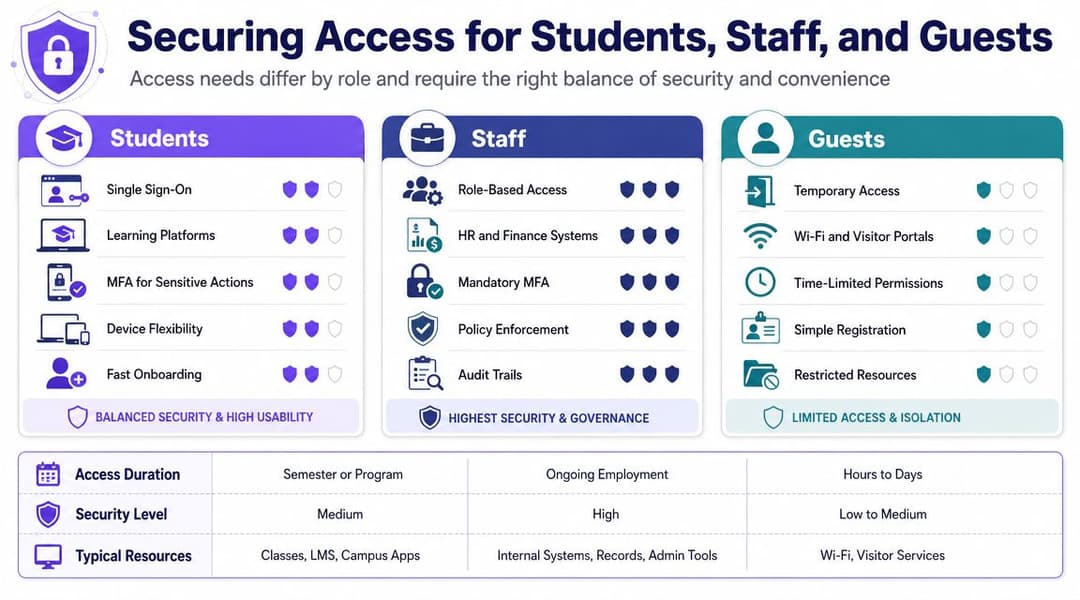
Protección del acceso para estudiantes, personal y visitas
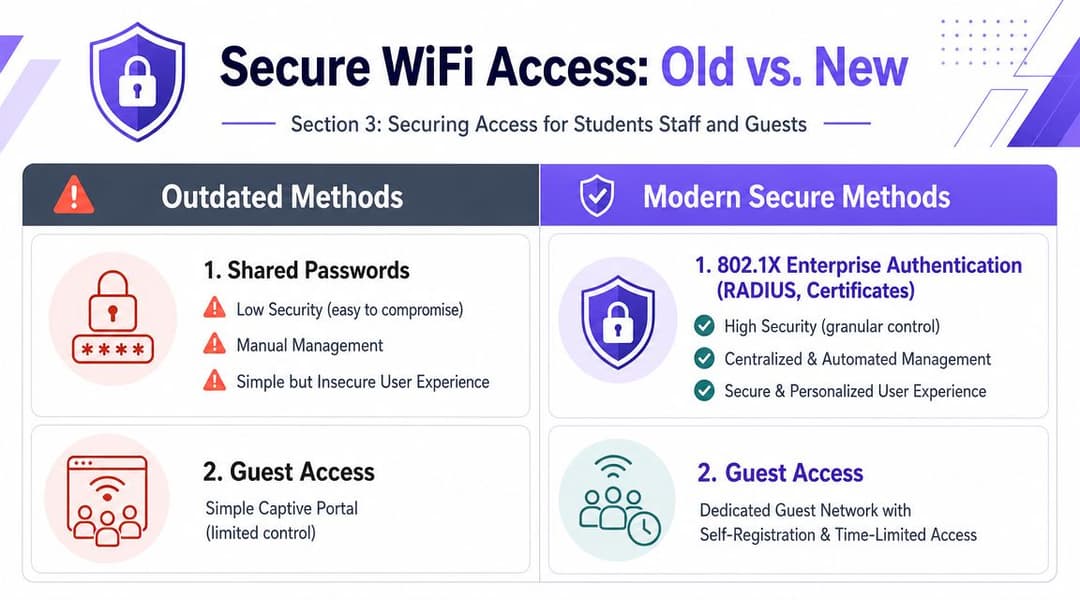
La mayoría de los problemas de seguridad del WiFi escolar comienzan con un atajo que parecía inofensivo en su momento. Una contraseña compartida para el personal. Otra para los estudiantes. Un Captive Portal para los visitantes. Tal vez un SSID para el bachillerato que nadie quiere tocar porque nadie recuerda muy bien cómo se configuró.
Ese acuerdo funciona hasta que deja de hacerlo. Las contraseñas se difunden. El personal se va. Los visitantes regresan con credenciales antiguas. Los estudiantes comparten el acceso fuera del grupo previsto. TI dedica más tiempo a gestionar excepciones que a operar la red.
Por qué las contraseñas compartidas fallan en las escuelas
Una clave precompartida parece sencilla porque la configuración es rápida. Operativamente, es costosa.
Cuando una persona ya no debería tener acceso, no se puede revocar solo a ella. Hay que cambiar la contraseña e interrumpir el servicio para todos los demás. En las escuelas, eso suele significar tener que configurar de nuevo los dispositivos del personal, los de enseñanza y los casos particulares que solo salen a la luz una vez que comienza la clase.
Un Captive Portal tiene un problema diferente. A menudo es aceptable para visitantes ocasionales, pero resulta incómodo para los usuarios diarios. También tiende a crear una zona muerta entre "conectado al WiFi" y "totalmente en línea", que es exactamente el tipo de fricción que los alumnos y el personal interpretan como una red caída.
Cómo se ve el acceso basado en la identidad
El modelo más limpio es la red basada en la identidad. Los usuarios no se unen porque conocen una contraseña. Se unen porque la red reconoce quiénes son o reconoce un dispositivo de confianza que se les ha asignado.
Eso normalmente implica alguna combinación de:
- Autenticación empresarial 802.1X
- Integración de directorio con Microsoft Entra ID, Google Workspace u Okta
- Incorporación basada en certificados para dispositivos gestionados
- Flujos de trabajo independientes para invitados con duración controlada y aislamiento
La ventaja práctica es enorme. El acceso se vuelve específico, revocable y automatizable.
| Método | Experiencia de usuario | Control de seguridad | Carga de trabajo de TI |
|---|---|---|---|
| Contraseña compartida | Fácil al principio, desordenada después | Débil | Alta con el tiempo |
| Captive Portal | Familiar para los invitados, deficiente para los usuarios diarios | Limitado | Moderada |
| 802.1X con identidad | Sin interrupciones después de la configuración | Fuerte | Menor una vez estandarizado |
| Acceso guiado por certificados | Muy fluido en dispositivos administrados | El más fuerte para la confianza del dispositivo | Configuración inicial intensiva |
Dónde ayuda el SSO
El inicio de sesión único no resolverá los problemas de radio, pero puede eliminar mucha fricción de incorporación. Si el personal ya utiliza Google Workspace o Entra ID para su cuenta escolar, el uso de ese mismo marco de identidad para el WiFi reduce la duplicación y acorta el camino desde "nuevo ingreso" hasta "dispositivo operativo".
Eso importa en las escuelas porque los inicios de curso son caóticos. Llega personal nuevo. Los alumnos cambian de grupo. Los contratistas necesitan acceso temporal. Cuanto más dependa su WiFi de la gestión manual de cuentas, más probable es que su mesa de ayuda se convierta en un cuello de botella.
Clave de diseño: Si Recursos Humanos o el MIS cambian el estado de un usuario, el acceso a la red debería actualizarse automáticamente. La baja manual es donde perduran los permisos antiguos.
Passpoint y OpenRoaming sin tecnicismos
La mejor manera de entender Passpoint es como una credencial de personal confiable para WiFi. Una vez que un dispositivo se aprovisiona correctamente, reconoce la red aprobada y se conecta automáticamente con cifrado desde el primer paquete. El usuario no tiene que volver a escribir sus credenciales y la red no necesita depender de una clave compartida general.
Es por eso que Passpoint se siente diferente del antiguo modelo de "elegir el SSID e iniciar sesión de nuevo". Se comporta más como el roaming móvil. El dispositivo sabe cómo es un servicio de confianza y se une a él automáticamente.
Para las escuelas, esto tiene dos aplicaciones fundamentales:
- El personal y los dispositivos gestionados pueden conectarse de forma segura con mucha menos fricción diaria.
- Los invitados o usuarios recurrentes pueden tener una experiencia más predecible donde se admita, en lugar de tener que repetir los pasos de la Captive Portal.
Si necesita una explicación en lenguaje sencillo para las partes interesadas no técnicas, compárelo con un carril de acceso rápido de un aeropuerto. El WiFi para invitados tradicional hace que todos hagan fila y muestren documentos en cada visita. Passpoint verifica previamente al viajero para que la barrera se abra automáticamente, al mismo tiempo que registra quién pasó.
Para las plataformas, las escuelas suelen evaluar las opciones nativas de proveedores de Aruba, Cisco Meraki, Juniper Mist, Ruckus y UniFi, además de plataformas de identidad superpuestas. En propiedades mixtas, el modelo de incorporación y acceso de WiFi de Purple es un ejemplo de una plataforma que admite el acceso basado en la identidad, los flujos de trabajo de invitados y las experiencias de estilo Passpoint en múltiples proveedores de red.
Ofrezca una experiencia diferente a cada tipo de usuario
El mayor error es intentar que un solo método de acceso sirva para todos.
Una mejor segmentación se ve así:
- Personal: Acceso respaldado por SSO o certificados con un fuerte control de políticas
- Estudiantes: Incorporación gestionada siempre que sea posible, con restricciones claras basadas en roles
- Invitados: Registro de autoservicio, aprobación de patrocinador si es necesario, credenciales de corta duración y aislamiento estricto
- Dispositivos heredados: Métodos de respaldo controlados, como credenciales específicas del dispositivo o grupos de políticas aislados
La red se siente más sencilla para los usuarios cuando el backend es más preciso. Ese es el dilema que muchas escuelas pasan por alto. Un mejor diseño de identidad generalmente se traduce en menos llamadas de soporte, no en una mayor complejidad.
Gestión de dispositivos y filtrado de contenido para la protección de menores
Conectar a los usuarios a la red es solo la mitad del trabajo. Una vez conectados, los dispositivos necesitan la política correcta, los límites de acceso adecuados y los controles de seguridad precisos. Muchos proyectos de WiFi escolar se desvían posteriormente hacia problemas porque el despliegue inalámbrico tiene éxito, pero el modelo operativo diario sigue siendo improvisado.
Clasifique los dispositivos en categorías operativas
No gestione "todos los dispositivos" como una sola categoría. En las escuelas, eso genera conflictos de políticas casi de inmediato.
Utilice categorías prácticas en su lugar:
- Dispositivos de alumnos administrados por la escuela: Por lo general, bloqueados mediante MDM y adaptados a la política de red de los estudiantes.
- Dispositivos finales del personal: Necesitan un acceso más amplio, mayor confianza y mejor capacidad de auditoría.
- Dispositivos personales: A menudo se toleran de alguna forma, pero necesitan una segmentación más estricta.
- Invitados y visitantes: Solo acceso a corto plazo, sin ruta de acceso a los sistemas internos.
- Dispositivos compartidos y sin pantalla: Impresoras, pantallas, sensores, señalización y equipos especializados que no pueden autenticarse como una laptop.
Cada clase debe tener su propia ruta de incorporación, conjunto de políticas y ruta de resolución de problemas. Si un técnico necesita adivinar qué regla se aplica, el modelo es demasiado impreciso.
Asocie la política de WiFi con la administración de dispositivos
Un diseño inalámbrico sólido se vuelve mucho más fácil cuando funciona con MDM en lugar de evadirlo. Los dispositivos gestionados pueden recibir certificados, configuraciones de confianza, SSID conocidos y políticas de cumplimiento normativo antes de que el usuario abra la pantalla por primera vez.
Eso cambia el soporte de un "dime en qué parte de tu pantalla debes tocar" a "el dispositivo ya debería saber dónde y cómo conectarse".
Un flujo de trabajo práctico se ve así:
- Emitir o registrar el dispositivo
- Enviar la configuración inalámbrica a través de MDM
- Aplicar la identidad y el certificado correctos
- Ubicar el dispositivo en el segmento de red correcto
- Monitorear fallas por usuario, tipo de dispositivo y sitio
Si el proceso de incorporación depende de una hoja de instrucciones impresa, no es una incorporación real. Es un incidente de soporte recurrente.
Haga que el filtrado y el monitoreo coincidan con la realidad de la protección de menores
Las escuelas necesitan filtrado y monitoreo que apoyen la protección de menores sin ralentizar la red. El truco consiste en aplicar la política en el lugar adecuado.
Los errores comunes incluyen filtrar todo a través de una sola ruta directa, aplicar restricciones idénticas al personal y a los estudiantes, o crear tantas excepciones que nadie pueda explicar el conjunto de reglas final.
Un modelo más sólido suele incluir:
| Grupo | Postura típica de filtrado | Necesidad de monitoreo |
|---|---|---|
| Estudiantes | Controles de categoría más estrictos | Alta |
| Personal | Acceso más amplio con permisos de uso profesional | Moderada a alta |
| Invitados | Navegación segura básica y aislamiento estricto | Baja a moderada |
| Dispositivos operativos | Acceso mínimo a internet siempre que sea posible | Enfoque en detección de anomalías |
El equipo de red, el responsable de protección de datos y la dirección escolar deben acordar cómo funcionan las políticas en la práctica. ¿Quién aprueba las excepciones? ¿Cómo se escalan los incidentes? ¿Qué registros son los que importan? Esas decisiones no deben ser tomadas de forma improvisada por el técnico que reciba el ticket.
Mantenga el acceso de invitados simple pero controlado
El WiFi para invitados en las escuelas necesita un mejor estándar que "darles la clave del personal por un día". Los visitantes son una parte normal de la vida escolar. Los profesores suplentes, los directivos, los terapeutas, los contratistas, los padres de familia y los asistentes a eventos necesitan diferentes niveles de comodidad y seguridad.
Un modelo de invitados útil suele incluir:
- Autoregistro o registro patrocinado
- Acceso por tiempo limitado
- Política de solo internet
- Sin visibilidad lateral hacia los recursos internos
- Registro claro vinculado a la identidad del invitado o al flujo de trabajo del patrocinador
Eso le brinda a recepción y al área de TI un proceso repetible. También protege a la escuela de la desorganización que ocurre cuando el acceso de invitados se gestiona como una excepción cada vez.
Cree políticas con las que el personal realmente pueda vivir
Los controles de protección fallan cuando son tan disruptivos que el personal busca formas de evadirlos. Los profesores compartirán internet desde sus teléfonos. Los departamentos solicitarán redes secundarias. Las excepciones temporales se convertirán en un desorden permanente.
El equilibrio adecuado suele ser aburrido, lo cual es bueno. Los profesores se conectan con la menor fricción posible. Los estudiantes entran automáticamente en la política con filtro que les corresponde. Los invitados obtienen internet sin tocar los sistemas internos. TI puede ver quién se conectó, dónde y bajo qué identidad. Los sistemas silenciosos suelen ser sistemas bien diseñados.
Presupuesto, financiamiento y ejemplos escolares del mundo real
La mayoría de los proyectos de WiFi escolar se ganan o se pierden antes de que se cierre la adquisición. No porque la tecnología no esté clara, sino porque el presupuesto solo cubre una parte de lo que requiere el diseño. Las escuelas a menudo cotizan los puntos de acceso y olvidan el switching, el cableado, la autenticación, los estudios de sitio, los flujos de trabajo de acceso de invitados y el tiempo de soporte.
Presupueste para todo el servicio, no solo para el hardware visible
Un punto de acceso más barato puede convertirse en la opción más cara si obliga a un registro manual, un manejo de invitados incómodo o una segmentación débil. El costo en la factura es menor. El costo operativo es mayor.
Al revisar las propuestas, separe el gasto en estas categorías:
- Borde inalámbrico: Puntos de acceso, montaje, licencias si corresponde
- Ruta cableada: Conmutación, capacidad de PoE, enlaces ascendentes, parches, corrección de cableado
- Identidad y acceso: 802.1X, integración de directorio, flujos de trabajo de invitados, servicios de certificados
- Operaciones: Evaluaciones del sitio, configuración, migración, capacitación, soporte
Eso hace que los balances sean más claros. De este modo, las escuelas pueden decidir si están posponiendo una mejora opcional o eliminando una dependencia crítica.
Los programas de financiamiento pueden definir las opciones de diseño
Para las escuelas de EE. UU., el programa E-rate de la FCC proporciona miles de millones en financiamiento anual, puede cubrir hasta el 90% de los costos para servicios elegibles como puntos de acceso WiFi y switches de red, y contó con más de $4 mil millones de dólares disponibles en el año de financiamiento 2025. Si está diseñando para un entorno respaldado por E-rate, ese modelo de financiamiento a menudo afecta los tiempos, los ciclos de actualización y lo que se prioriza primero.
Para las escuelas fuera de ese sistema, la lección sigue aplicando. Las reglas de financiamiento a menudo cubren la infraestructura elegible, pero dejan que las escuelas absorban los costos indirectos, como el esfuerzo de migración y el rediseño de la identidad. No permita que el hardware financiado dicte un modelo operativo deficiente.
Ejemplo uno, una escuela primaria con WiFi de clave compartida inestable
Una pequeña escuela primaria tenía tablets en las aulas, laptops para el personal y una red de invitados que solo funcionaba de manera confiable cerca de la recepción. El enfoque heredado parecía sencillo. Una contraseña para el personal, una para los estudiantes y excepciones ad hoc para los visitantes.
Lo que funcionó no fue un rediseño drástico. La escuela reemplazó ese modelo con SSIDs segmentados, una ruta adecuada para invitados y un proceso de incorporación gestionado para los dispositivos propiedad de la escuela. La ganancia práctica no fue una velocidad récord. Fue la consistencia. Los profesores dejaron de perder tiempo al inicio de las clases y el soporte técnico dejó de girar en torno al restablecimiento constante de contraseñas.
Ejemplo dos, un sitio de secundaria más grande con demasiados flujos de inicio de sesión
Una escuela secundaria más grande tenía el problema opuesto. La cobertura era aceptable en general, pero el proceso del usuario era caótico. El personal se conectaba de una forma, los estudiantes de otra y los visitantes de una tercera. A nadie le gustaba el proceso de invitados, y cada inicio de curso comenzaba con un sinfín de solicitudes de autenticación.
La solución fue avanzar hacia un acceso basado en la identidad. Los dispositivos del personal utilizaron un proceso de incorporación respaldado por el directorio, los dispositivos de los estudiantes siguieron una ruta de registro controlada y los invitados fueron aislados con un flujo de trabajo independiente. El acceso de tipo Passpoint es especialmente útil en este tipo de entornos porque los usuarios recurrentes no necesitan pasar repetidamente por la misma lógica del portal.
Invierta donde se elimine el trabajo repetitivo. En el departamento de TI de las escuelas, un diseño que ahorra minutos cada mañana a menudo supera a uno que solo se ve mejor en una hoja de especificaciones.
Medición del éxito y preparación para lo que viene
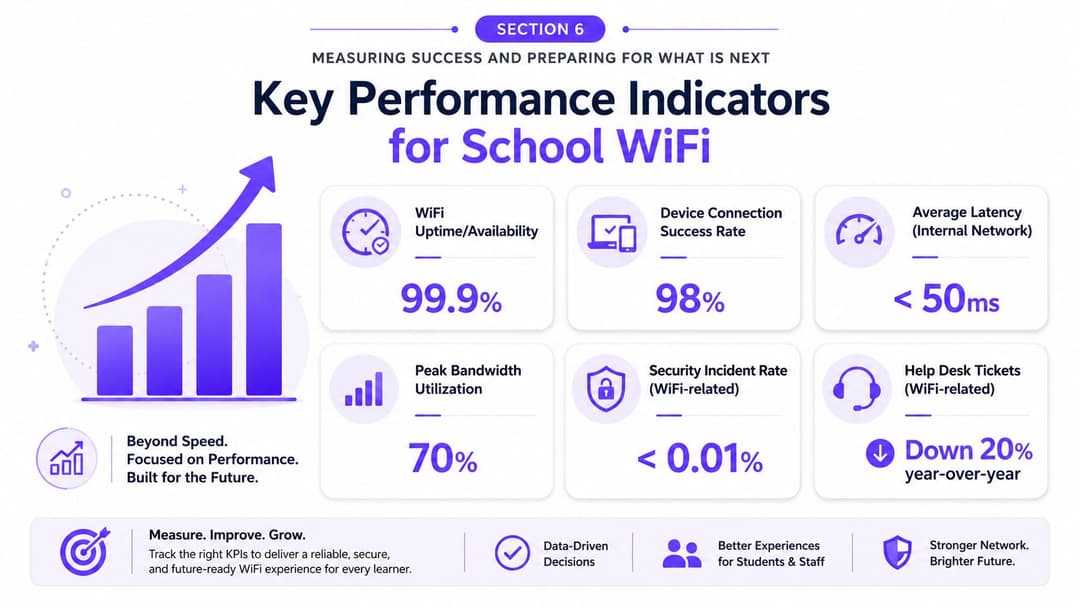
Un proyecto de WiFi escolar no termina cuando las luces de los AP se encienden en verde. Termina cuando los profesores dejan de notar la red, los estudiantes se conectan sin dramas, los invitados pueden acceder a internet sin la intervención del personal y el departamento de TI puede comprobar lo que está pasando sin tener que recorrer las instalaciones.
Mida lo que los usuarios realmente experimentan
Las escuelas suelen centrarse demasiado en el rendimiento teórico. La velocidad importa, pero es una mala métrica por sí sola para medir la experiencia en el aula.
Los mejores indicadores incluyen:
- Tasa de éxito de conexión: ¿Los usuarios y dispositivos se conectan correctamente a la primera?
- Patrones de falla de autenticación: ¿Un grupo o edificio específico tiene problemas?
- Calidad de roaming: ¿Las llamadas, clases en vivo o sesiones de aplicaciones sobreviven al movimiento?
- Capacidad de respuesta de las aplicaciones: ¿Qué plataformas se ralentizan cuando el sitio se satura?
- Tendencias de la mesa de ayuda: ¿Qué problemas de WiFi se repiten por periodo escolar, aula o tipo de usuario?
Un equipo de redes saludable analiza estas métricas en su contexto. Un aumento repentino de fallas en el momento del registro significa algo muy diferente a un incremento durante un evento nocturno con gran afluencia de invitados.
Use la analítica para reducir el tiempo de aislamiento de fallas
Sin analíticas, el soporte de WiFi en las escuelas se convierte en mitos de pasillo. "El edificio de ciencias siempre va mal". "La biblioteca se desconecta después del almuerzo". "El WiFi de invitados no quiere a los iPhones". Algo de eso puede ser cierto. La mayor parte necesita evidencia.
Una buena visibilidad permite al equipo responder preguntas prácticas rápidamente:
| Pregunta | Lo que el equipo debería poder ver |
|---|---|
| ¿Las fallas son locales o en todo el sitio? | Patrones de AP, edificio o SSID |
| ¿Se trata de un problema de cobertura o de identidad? | Datos de señal frente a registros de autenticación |
| ¿Los invitados están afectando el tráfico de enseñanza? | Uso segmentado y vista de políticas |
| ¿Una clase de dispositivo está causando ruido? | Comportamiento por tipo de cliente y tasas de reintento |
Así es como también se demuestra el valor ante el equipo directivo. No con afirmaciones abstractas, sino con una historia más clara de menos interrupciones, un control de acceso más limpio y menos soporte manual.
Los mejores reportes de red escolares no se limitan a decir que el WiFi funciona. Demuestran si las personas correctas obtuvieron el acceso correcto en los lugares correctos.
El próximo desafío no está solo en el campus
Una de las realidades más importantes para los líderes escolares se encuentra fuera del edificio. Las investigaciones analizadas por New America, que citan datos de Ofcom de 2024, revelaron que el 6% de los hogares del Reino Unido con niños carecían de banda ancha en el hogar. Eso importa porque una escuela puede construir una excelente red inalámbrica en el lugar y aun así dejar a algunos alumnos enfrentando una brecha de tareas en casa.
Esto cambia la pregunta estratégica. Un mejor WiFi en el campus sigue siendo importante, pero no es la respuesta completa a la equidad. Las escuelas también deben pensar en opciones prácticas de conectividad fuera del sitio, acceso comunitario, dispositivos de préstamo y si los modelos de identidad confiables podrían extender el acceso seguro más allá del campus de manera controlada.
Prepárese para más identidades, no solo más dispositivos
La siguiente fase del WiFi en las escuelas traerá más dispositivos administrados, más automatización y más decisiones de políticas vinculadas a quién es el usuario y qué rol desempeña el dispositivo. Es por eso que el direccionamiento basado en la identidad es tan importante. Escala el control administrativo mucho mejor de lo que las claves compartidas lo harán jamás.
Si tuviera que aconsejar a un director de TI escolar sobre dónde enfocarse a continuación, sería en esta breve lista:
- Reducir las vías de acceso anónimas
- Vincular la política de red a la identidad del directorio siempre que sea posible
- Tratar el acceso de invitados como un servicio administrado, no como una solución temporal
- Medir la fricción de la incorporación y el esfuerzo de soporte, no solo la intensidad de la señal
- Vigilar las necesidades de acceso fuera de las instalaciones, porque el trayecto del usuario no termina en la puerta de entrada
Una red escolar se gana la confianza cuando se vuelve predecible. Segura donde debe serlo. Simple donde corresponde. Medible en todas partes.
Si está evaluando cómo modernizar el acceso WiFi escolar, Purple es una opción a considerar para redes basadas en la identidad, acceso de invitados e incorporación sin contraseñas junto con su pila de proveedores inalámbricos existente. Vale la pena considerarlo cuando su problema principal no es solo la cobertura, sino la carga operativa de las contraseñas compartidas, los Captive Portal y las experiencias de acceso fragmentadas para el personal, los estudiantes y los visitantes.