
Captive Portal for Cisco Meraki
Una guía de referencia técnica autorizada de nivel intermedio para integrar los puntos de acceso Cisco Meraki MR con el Captive Portal en la nube de Purple. Cubre las configuraciones paso a paso del Meraki Dashboard, la configuración del servidor RADIUS (puertos 1812/1813), las excepciones de dominio comodín de walled garden y los parámetros de tiempo de espera de sesión para implementaciones de WiFi de invitados de alto rendimiento.
Escucha esta guía
Ver transcripción del podcast
📚 Part of our core series: WiFi multi-tenant →
Resumen ejecutivo
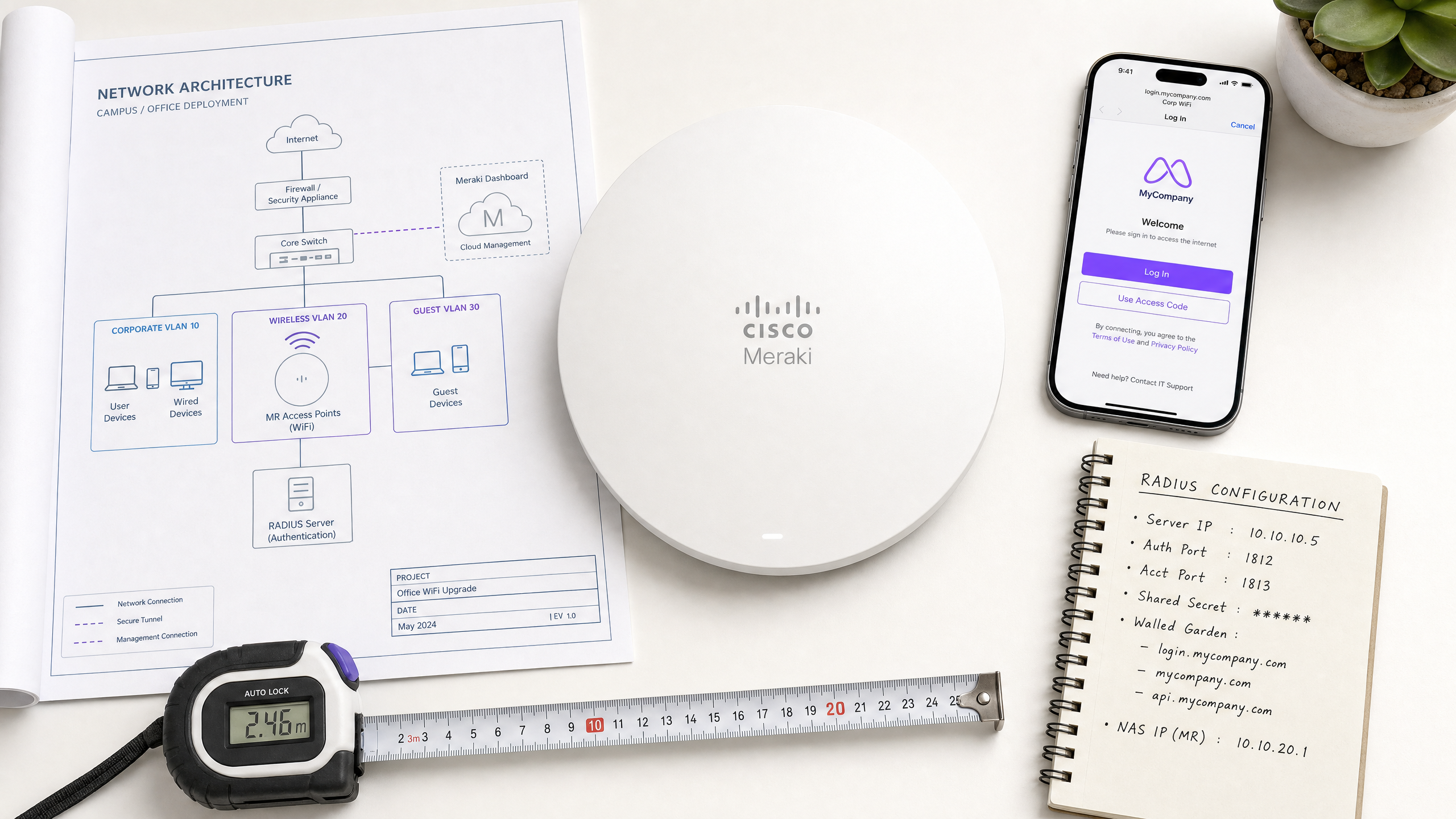
Esta guía de referencia autorizada proporciona un marco de configuración completo y paso a paso para integrar redes inalámbricas Cisco Meraki con el Captive Portal basado en la nube de Purple. Diseñado para gerentes de TI, arquitectos de red y proveedores de servicios gestionados (MSP), este documento detalla las configuraciones exactas requeridas dentro del Meraki Dashboard para implementar una solución de WiFi para invitados segura y de alto rendimiento [1].
Al desacoplar la capa de inteligencia de invitados del hardware, los establecimientos empresariales pueden aprovechar las plataformas certificadas de Guest WiFi y WiFi Analytics de Purple para capturar datos de primera mano valiosos y en cumplimiento con el GDPR, al tiempo que garantizan la integridad de la red y el cumplimiento normativo [2]. Esta guía aborda parámetros de integración críticos, incluyendo la autenticación RADIUS (puertos 1812/1813), excepciones de dominio de walled garden, resolución de comodines de CDN y la mecánica de redirección de invitados en diversos espacios físicos como centros de Retail , Salud , Hospitalidad y Transporte .
Análisis técnico profundo
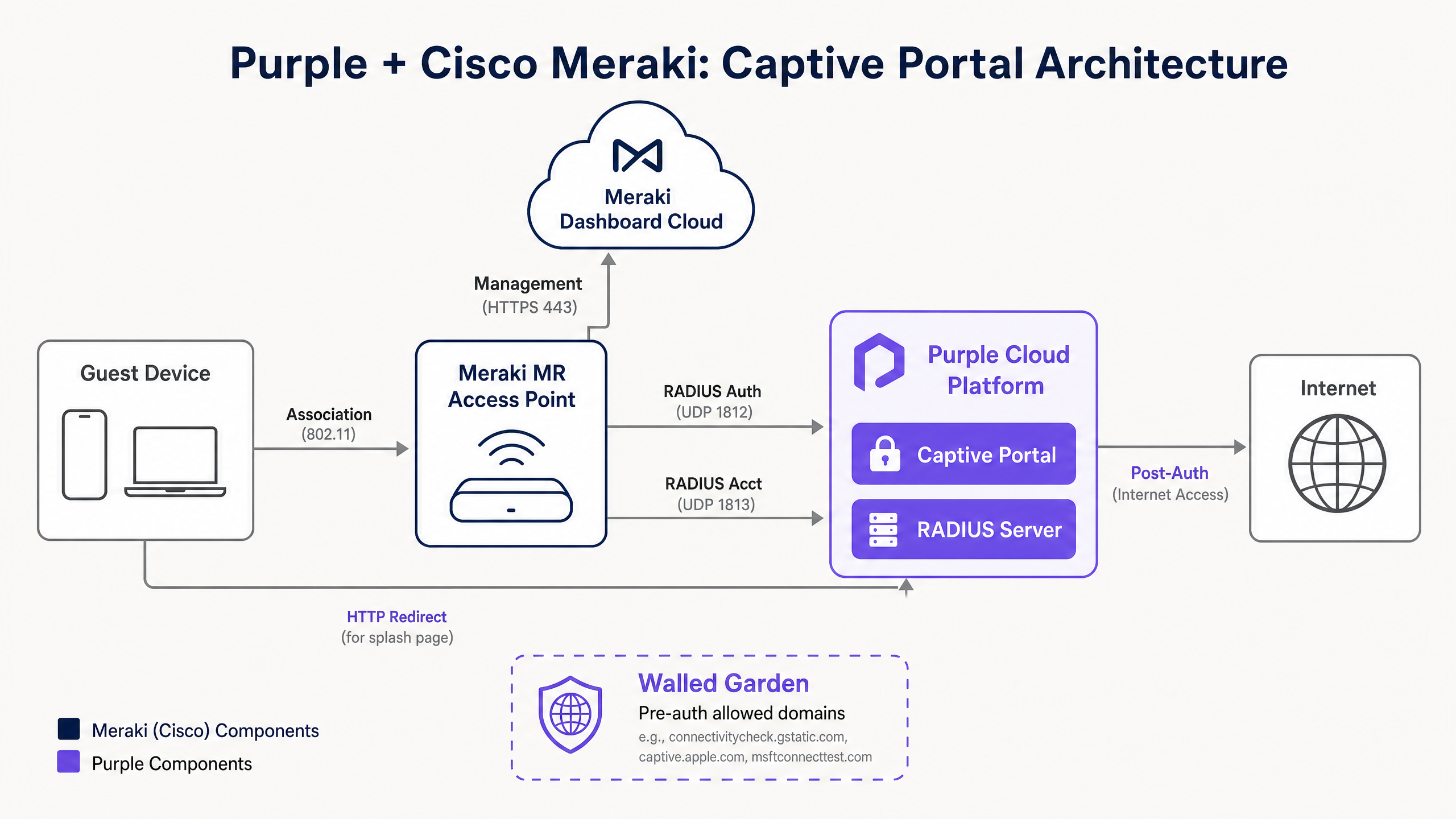
Para integrar con éxito los puntos de acceso (AP) Cisco Meraki MR con un Captive Portal externo como el de Purple, los ingenieros de redes deben comprender la arquitectura subyacente de los planos de control y de datos. A diferencia de los controladores inalámbricos locales (on-premise) tradicionales, donde las solicitudes de autenticación RADIUS se originan en el controlador físico o en los AP individuales, Cisco Meraki emplea una arquitectura gestionada en la nube [1].
Separación del plano de control y del plano de datos
Cuando un cliente invitado se asocia a un SSID abierto configurado para un Captive Portal externo, el AP Meraki MR coloca al cliente en un estado de preautenticación. En este estado, se bloquea todo el tráfico excepto las consultas DNS, DHCP y el tráfico destinado a direcciones IP o nombres de host definidos explitamente en el Walled Garden [3].
Los mensajes reales de RADIUS Access-Request no son generados por el AP Meraki MR local. En su lugar, se originan en la infraestructura en la nube del Cisco Meraki Dashboard [1]. Esta es una distinción arquitectónica crucial:
> "Los mensajes de solicitud de acceso RADIUS para una página de bienvenida (splash page) se originarán en el dashboard, no en los dispositivos Meraki locales. Por lo tanto, no se puede especificar aquí la dirección IP de LAN privada del servidor RADIUS." [1]
Por lo tanto, los firewalls ascendentes (upstream) que protegen sus servidores RADIUS deben permitir el tráfico entrante desde todo el bloque de rangos de IP salientes del Meraki Dashboard, los cuales son dinámicos y específicos de cada región [1]. Estos rangos se pueden recuperar dinámicamente a través del Meraki Dashboard en Help > Firewall info [1].
Protocolo de autenticación RADIUS (PAP)
Para la autenticación de la página de bienvenida (splash page) de inicio de sesión, Meraki utiliza el Protocolo de autenticación de contraseña (PAP) [1]. Aunque históricamente PAP no está cifrado, la integración de Meraki y Purple mitiga los riesgos de seguridad mediante un cifrado de múltiples capas:
- Cifrado de cliente a la nube: El cliente invitado establece una sesión HTTPS (SSL/TLS) segura directamente con el Captive Portal alojado de Purple. Las credenciales (por ejemplo, tokens de inicio de sesión de redes sociales, formularios de correo electrónico) se cifran en tránsito desde el navegador del cliente hacia los servidores de Purple [1].
- Cifrado de secreto compartido de RADIUS: Cuando la nube de Meraki envía el RADIUS Access-Request al servidor Cloud RADIUS de Purple, cifra la contraseña del usuario utilizando el RADIUS Shared Secret configurado y una función XOR estándar de acuerdo con RFC 2865 [1]. Esto garantiza que las credenciales en texto plano nunca se transmitan a través de la internet pública.
Atributos RADIUS admitidos
La nube de Meraki y el Cloud RADIUS de Purple intercambian varios atributos clave durante el saludo de autenticación (handshake) para aplicar políticas y parámetros de sesión:
| Atributo RADIUS | Tipo | Dirección | Descripción y contexto práctico |
|---|---|---|---|
| User-Name | String | Request | El identificador del usuario invitado (por ejemplo, dirección de correo electrónico, dirección MAC) [1]. |
| User-Password | String | Request | La contraseña de usuario cifrada o el token de sesión [1]. |
| Called-Station-ID | String | Request | Formateado como AP_MAC:SSID_NAME (por ejemplo, AA-BB-CC-DD-EE-FF:GuestWiFi). Crucial para el enrutamiento de políticas basado en la ubicación [1]. |
| Calling-Station-ID | String | Request | La dirección MAC física del cliente (por ejemplo, 11-22-33-44-55-66). Se utiliza para el seguimiento de dispositivos y la reanudación de sesiones [1]. |
| Session-Timeout | Integer | Accept | La duración máxima de la sesión en segundos. Después de la expiración, el cliente es redirigido de vuelta al Captive Portal [1]. |
| Idle-Timeout | Integer | Accept | El tiempo de inactividad máximo en segundos. Si no se transfieren datos, la sesión se termina. Requiere RADIUS Accounting [1]. |
| Filter-Id | String | Accept | Transmite un nombre de política de grupo de Meraki específico para aplicar al cliente (por ejemplo, limitar el ancho de banda o bloquear categorías específicas) [1]. |
Guía de implementación
Esta guía de configuración paso a paso describe cómo integrar los puntos de acceso Cisco Meraki MR con el Captive Portal externo de Purple.
Paso 1: Configurar el control de acceso del SSID
Vaya a Wireless > Configure > Access control en el Meraki Dashboard [1]. Seleccione su SSID de invitados de destino y configure los siguientes parámetros:
- Association Requirements: Establézcalo en Open (no encryption) [1]. Esto garantiza una experiencia de incorporación sin fricciones. Si necesita un tránsito de invitados cifrado, considere implementación de Passpoint / Hotspot 2.0 con Cloud RADIUS [4].
- Splash Page: Selecciona Sign-on with y elige my RADIUS server en el menú desplegable [1].
- Servidores RADIUS: Haz clic en Add server e ingresa los endpoints primario y secundario de Cloud RADIUS de Purple [1]:
- Host IP:
116.203.120.121(Primario) y195.201.123.149(Secundario) - Port:
1812(Autenticación) [1] - Secret: [Su secreto compartido de Purple]
- Host IP:
- RADIUS Accounting: Establécelo en RADIUS accounting is enabled y agrega los servidores de contabilidad:
- Host IP:
116.203.120.121(Primario) y195.201.123.149(Secundario) - Port:
1813(Contabilidad) - Secret: [Su secreto compartido de Purple]
- Host IP:
- Fuerza del Captive Portal: Selecciona Block all access until sign-on is complete [1]. Esto obliga estrictamente a que los clientes no puedan acceder a internet sin pasar por la splash page.
Paso 2: Configurar la URL personalizada de la Splash Page
Ve a Wireless > Configure > Splash page [1]. Selecciona tu SSID de invitados y configura:
- Custom Splash URL: Selecciona Or point to a custom URL e ingresa la URL de redirección de Purple:
https://login.venuewifi.com/ip/v2/meraki
- Splash Page Redirect: Establécelo en The URL they were trying to fetch o redirígelos a una página de destino específica (por ejemplo, la página de inicio de tu establecimiento) [3].
Paso 3: Configurar las excepciones de nombres de dominio del Walled Garden
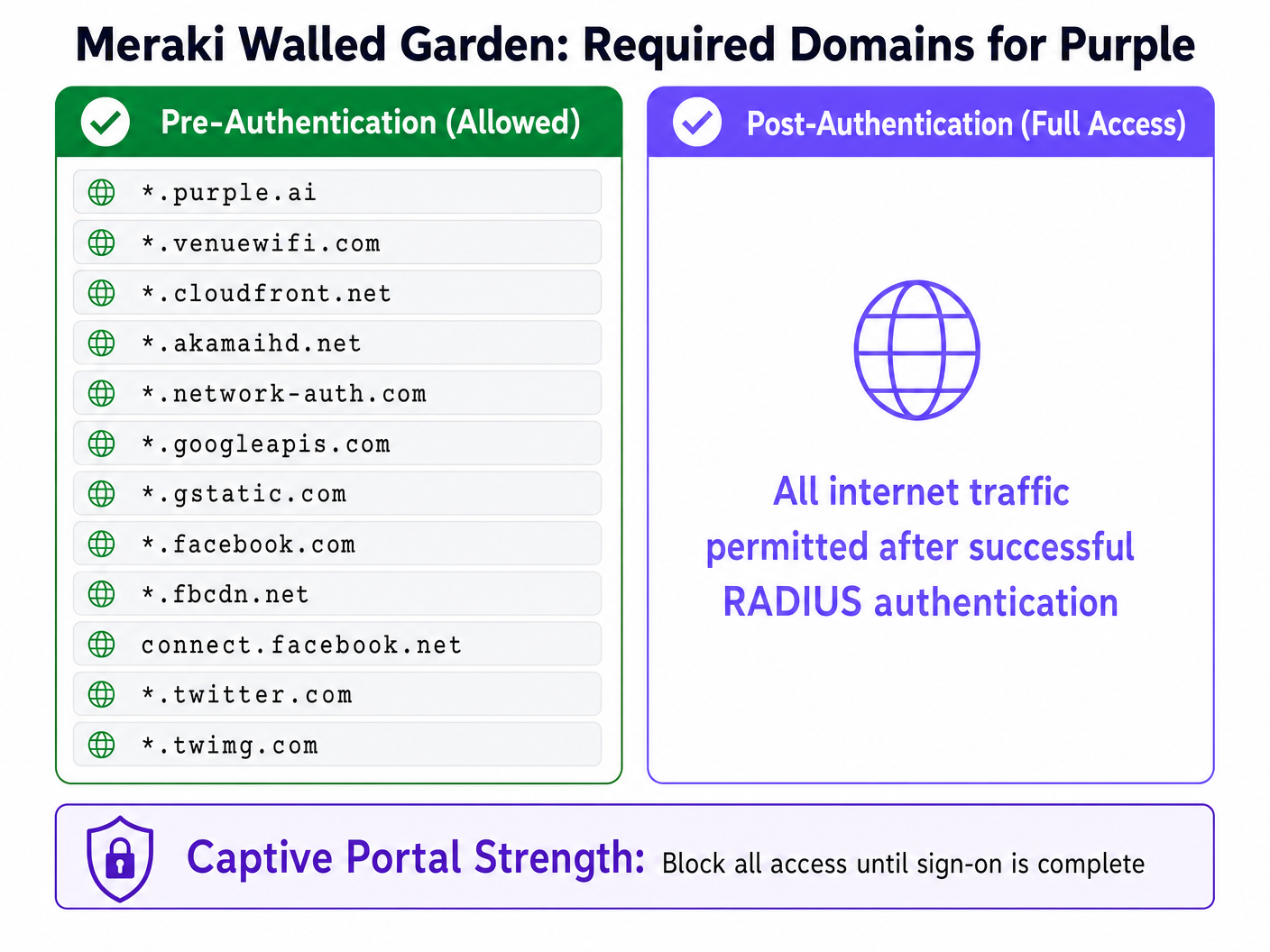
Para garantizar que los clientes invitados puedan cargar el Captive Portal, descargar recursos de redes de distribución de contenido (CDNs) y completar la autenticación social (por ejemplo, Google o Facebook OAuth), debes habilitar y configurar el Walled Garden [3].
Regresa a Wireless > Configure > Access control y localiza la sección Walled Garden [1].
- Establece Walled Garden en Walled garden is enabled [1].
- En el campo Walled garden ranges, ingresa los FQDN y dominios comodín (wildcard) requeridos [1].
Cómo maneja Meraki los comodines y el tráfico de CDN
Los puntos de acceso Cisco Meraki MR admiten dominios comodín en el walled garden utilizando el prefijo de asterisco (por ejemplo, *.purple.ai) [1]. Sin embargo, es fundamental comprender el funcionamiento interno:
- Lista blanca basada en DNS: El AP de Meraki intercepta las solicitudes DNS del cliente. Cuando el cliente solicita un dominio que coincide con una entrada en el walled garden, el AP resuelve el dominio a su dirección IP actual y permite temporalmente que el cliente se comunique con esa IP [3].
- IPs dinámicas de CDN: Las CDN como Amazon CloudFront (
*.cloudfront.net) y Akamai (*.akamaihd.net) se resuelven en direcciones IP altamente dinámicas y distribuidas geográficamente que cambian con frecuencia. La lista blanca basada en DNS de Meraki maneja esto sin problemas al resolver los dominios en tiempo real. Nunca utilices direcciones IP estáticas para recursos de CDN en tu walled garden, ya que esto provocará fallas intermitentes en la carga de los recursos del portal.
Mejores prácticas
Para garantizar una alta disponibilidad, seguridad y una experiencia de usuario óptima, sigue estas mejores prácticas de implementación estándar de la industria:
1. Segmentación de red e aislamiento de VLAN
Nunca conectes en puente (bridge) el tráfico de invitados directamente a tu LAN corporativa. Configura tus AP Meraki MR para etiquetar el tráfico de invitados con una VLAN de invitados dedicada (por ejemplo, VLAN 30) [4]. Asegúrate de que esta VLAN termine en una DMZ o en una instancia de enrutamiento y reenvío virtual (VRF) independiente en tu firewall ascendente. Esto mitiga los riesgos de movimiento lateral y garantiza el cumplimiento de estándares de seguridad como PCI DSS y GDPR [2] [4].
2. Configurar la tolerancia a fallas y la resiliencia de la sesión
Los enlaces de red pueden fallar. Para evitar que los invitados se queden sin acceso a internet durante una interrupción del servidor de autenticación, configura la RADIUS Failover Policy en el Dashboard de Meraki:
- Failover Policy: Establécela en Deny access para obtener la máxima seguridad, o en Allow access si se prioriza mantener la conectividad de los invitados sobre la captura de datos durante una interrupción.
- Servidores secundarios: Configura siempre tanto el servidor RADIUS primario como el secundario para distribuir la carga y proporcionar una tolerancia a fallas automática [1].
3. Implementar tiempos de espera de sesión e inactividad
Administra tu espectro inalámbrico y las concesiones del pool de DHCP configurando los parámetros de tiempo de espera adecuados [1]:
- Session Timeout: Establécelo en 1440 minutos (24 horas) para entornos de hotelería, lo que permite a los invitados permanecer conectados durante toda su estancia sin necesidad de volver a autenticarse constantemente [1]. Para comercios minoristas (retail) o transporte público, redúcelo a 120 minutos (2 horas) para fomentar una nueva interacción y liberar concesiones de DHCP.
- Idle Timeout: Establécelo en 15 minutos. Si el dispositivo de un cliente entra en modo de suspensión o abandona el establecimiento, el AP finaliza la sesión, liberando los recursos de red [1].
Solución de problemas y mitigación de riesgos
Al implementar Captive Portals externos en Cisco Meraki, los ingenieros suelen encontrarse con tres modos de falla principales. Utiliza esta matriz de diagnóstico para aislar y resolver problemas rápidamente:
| Síntoma | Causa raíz | Paso de diagnóstico | Solución |
|---|---|---|---|
| La splash page no se carga; el navegador muestra 'Connection Timed Out'. | El firewall ascendente está bloqueando el tráfico DNS o HTTP/HTTPS saliente hacia la CDN de Purple [1]. | Intenta resolver login.venuewifi.com desde un dispositivo cableado en la misma VLAN. |
Asegúrate de que la VLAN de invitados tenga acceso saliente a DNS público (UDP 53) y HTTP/HTTPS (TCP 80/443). |
| La splash page se carga, pero las credenciales de usuario no se autentican. | El firewall ascendente está bloqueando el tráfico RADIUS proveniente de Meraki Cloud [1]. | Utiliza la herramienta RADIUS Test en el Dashboard de Meraki bajo Access Control [1]. | Agrega los rangos de IP salientes del Dashboard de Meraki (que se encuentran en Help > Firewall info) a la lista de permitidos salientes de tu firewall para los puertos UDP 1812 y 1813 [1]. |
| El inicio de sesión social (por ejemplo, Google OAuth) falla con un error de redirección. | Falta el dominio auxiliar de OAuth requeridons en el Walled Garden de Meraki [1]. | Revise la consola del navegador en el dispositivo cliente para identificar cargas de recursos bloqueadas. | Agregue los dominios OAuth obligatorios (por ejemplo, *.googleapis.com, *.gstatic.com) a la lista del Walled Garden [1]. |
ROI e impacto empresarial
La integración de Cisco Meraki con Purple transforma el WiFi de invitados de un centro de costos en un activo empresarial estratégico. Al aprovechar hardware de nivel empresarial junto con analíticas avanzadas, las organizaciones logran retornos medibles en múltiples dimensiones:
- Monetización de datos y alcance de marketing: Al capturar direcciones de correo electrónico verificadas y perfiles de redes sociales, los establecimientos construyen una base de datos limpia y conforme de datos de clientes de primera mano (first-party) [2]. Esto alimenta directamente los sistemas de gestión de relaciones con el cliente (CRM) y de automatización de marketing, lo que permite campañas de marketing altamente segmentadas e hiperlocales.
- Eficiencia operativa: El onboarding automatizado a través de Purple reduce la carga de trabajo del personal de recepción y de soporte de TI. En entornos de hospitalidad, esto se traduce en menos quejas de los huéspedes sobre la conectividad WiFi y menores costos operativos indirectos.
- Analíticas avanzadas de afluencia: Al combinar las APIs de ubicación de Meraki con el motor de analíticas de Purple, los operadores de los establecimientos obtienen información detallada sobre el comportamiento de los visitantes, incluyendo la afluencia, los tiempos de permanencia, las tasas de retorno y las horas pico de actividad [2]. Estos datos impulsan decisiones informadas sobre la asignación de personal, la distribución de las tiendas y la valoración de los bienes raíces.
Referencias
- [1] Cisco Meraki: Configuración de la autenticación RADIUS con una página de inicio de sesión (Splash Page)
- [2] Purple.ai: La guía definitiva de nuestra plataforma de analíticas de WiFi y gestión de WiFi para invitados
- [3] Cisco Meraki: Descripción general y configuración de Walled Garden
- [4] Puntos de acceso inalámbricos de Cisco: Guía 2026 de productos e implementación
- [5] Las 10 mejores soluciones de control de acceso a la red (NAC) para 2026
- [6] WiFi en las escuelas: La guía 2026 para administradores y TI
- [7] Cómo implementar la autenticación 802.1X con Cloud RADIUS
Definiciones clave
Captive Portal
A web page that is displayed to newly connected users of a Wi-Fi network before they are granted broader access to network resources.
Used by venues to enforce terms of service, collect user data, and authenticate guests via RADIUS before allowing internet access.
RADIUS (Remote Authentication Dial-In User Service)
A networking protocol that provides centralized Authentication, Authorization, and Accounting (AAA) management for users who connect and use a network service.
Meraki APs query Purple's Cloud RADIUS servers to verify guest credentials and authorize network access.
Walled Garden
A restricted set of IP addresses or domain names that unauthenticated guest clients are permitted to access before completing the captive portal sign-on process.
Crucial for allowing clients to reach the hosted splash page, download CSS/JS assets from CDNs, and communicate with social login OAuth endpoints.
Session-Timeout
An RFC 2865 RADIUS attribute that specifies the maximum number of seconds a user session can remain active before requiring re-authentication.
Returned by Purple RADIUS in the Access-Accept packet to control how long a guest remains logged in (e.g., 24 hours for hotel guests).
Idle-Timeout
A RADIUS attribute that defines the maximum period of inactivity (no data transferred) allowed before the user's session is terminated.
Used to disconnect stale devices and reclaim IP addresses in high-density environments like stadiums or retail stores.
PAP (Password Authentication Protocol)
A simple, unencrypted authentication protocol used by RADIUS to validate user credentials.
Required by Cisco Meraki for external splash page RADIUS authentication. Security is maintained by encrypting the client-to-portal transit via HTTPS and encrypting the RADIUS packet password field using the shared secret.
Passpoint (Hotspot 2.0)
An industry standard developed by the Wi-Fi Alliance that enables cellular-like automatic roaming and secure connection to Wi-Fi networks.
Supported by Meraki MR access points and Purple to enable seamless, certificate-based guest onboarding without captive portals.
CMX (Cisco Meraki Location APIs)
An API framework that allows Meraki access points to export real-time location and presence data (probe requests) to third-party analytics platforms.
Integrated with Purple to provide detailed footfall, dwell time, and return rate analytics for physical venues.
Ejemplos resueltos
A luxury 350-room hotel running Cisco Meraki MR46 access points needs to deploy a secure guest WiFi network. They want to capture guest emails, restrict bandwidth to 5 Mbps per guest, and ensure that guests only need to log in once every 7 days. How should the network architect configure the Meraki Dashboard and RADIUS settings?
- SSID Setup: Configure an open SSID named 'Hotel_Guest' with the splash page set to 'Sign-on with' and 'my RADIUS server'.\n2. RADIUS Configuration: Enter Purple's primary (
116.203.120.121) and secondary (195.201.123.149) RADIUS IPs. Set the authentication port to1812and the accounting port to1813. Configure the shared secret.\n3. Timeout Parameters: In the RADIUS server profile or Purple dashboard, set the Session-Timeout attribute to604800seconds (7 days) and Idle-Timeout to1800seconds (30 minutes) to reclaim inactive DHCP leases.\n4. Traffic Shaping: In the Meraki Dashboard under Wireless > Configure > Firewall & traffic shaping, select the SSID, enable traffic shaping, and set a per-client limit to 5 Mbps downstream and 2 Mbps upstream.\n5. Walled Garden: Enable the walled garden and add*.purple.ai,*.venuewifi.com, and necessary CDN wildcards like*.cloudfront.netto allow the splash page to render pre-authentication.
A national retail chain with 45 stores wants to deploy guest WiFi across all locations using Meraki MR33 APs. They need to ensure consistent configuration, block corporate network access, and collect footfall analytics. How should this be implemented at scale?
- Configuration Templates: Create a single Network Configuration Template in the Meraki Dashboard. Configure the guest SSID with Purple's RADIUS settings, walled garden domains, and the custom splash URL:
https://login.venuewifi.com/ip/v2/meraki. Bind all 45 store networks to this template.\n2. VLAN Segmentation: On each store's local switch and firewall, configure a dedicated Guest VLAN (e.g., VLAN 50). In the Meraki SSID settings, set Client IP Assignment to 'External DHCP server' and specify VLAN 50. Ensure the firewall blocks all routing from VLAN 50 to corporate subnets.\n3. Location Analytics: Enable Meraki Scanning API (CMX) in the Meraki Dashboard under Network-wide > Configure > General. Enter the Purple Post URL and secret validator. This allows Meraki APs to stream real-time probe request data to Purple's analytics engine for footfall and dwell time reporting.
Preguntas de práctica
Q1. A network engineer deploys a new Meraki guest SSID with a Purple captive portal. Unauthenticated clients are successfully redirected to the login page, but when they attempt to use 'Log in with Google', the page spins and eventually fails with a DNS or timeout error. Other login methods (like email form) work perfectly. What is the most likely cause of this issue, and how should it be resolved?
Sugerencia: Consider what external domains the client's browser must reach to complete the Google OAuth handshake before the RADIUS authentication is completed.
Ver respuesta modelo
The most likely cause is that the Google OAuth helper domains are missing from the Meraki SSID's Walled Garden configuration. While the core Purple domains and CDN domains are allowed (which is why the splash page loads), the Google authentication servers are being blocked by the AP's pre-authentication firewall rules. To resolve this, navigate to Wireless > Configure > Access control, select the guest SSID, and append the following Google OAuth domains to the Walled Garden list: accounts.google.com, *.googleapis.com, *.gstatic.com, and *.googleusercontent.com. Once saved, the AP will permit the client to complete the Google authentication handshake and redirect back to Purple to complete the RADIUS login.
Q2. During a post-deployment audit of a high-density stadium WiFi network, the IT team notices that the DHCP pool for the guest VLAN (a /21 subnet with 2048 IPs) is completely exhausted within the first 2 hours of an event, even though active concurrent connections never exceed 800. RADIUS accounting is enabled. How can the network architect adjust the Meraki and RADIUS settings to mitigate this issue?
Sugerencia: Analyze the relationship between client session timeouts, idle timeouts, and DHCP lease times in high-density transient environments.
Ver respuesta modelo
The DHCP pool exhaustion is caused by transient clients (users walking past or entering the stadium briefly) connecting, obtaining an IP address, and then leaving the venue. Because the default Meraki Session-Timeout or DHCP lease time is too long, those IP addresses remain reserved even though the physical devices are no longer present. To resolve this, the architect should implement three coordinated changes: 1) Reduce DHCP Lease Time: On the DHCP server (or Meraki security appliance handling DHCP), reduce the lease time to 10 or 15 minutes. 2) Configure Idle Timeout: Ensure RADIUS accounting is enabled on port 1813 and configure an Idle-Timeout of 10 minutes (600 seconds) in the RADIUS Access-Accept profile. This tells the Meraki AP to terminate the session of any client inactive for 10 minutes. 3) Shorten Session Timeout: Reduce the global Session-Timeout for the stadium profile to 120 minutes (7200 seconds) to force periodic re-evaluation of active devices.
Q3. An MSP is configuring a Meraki guest SSID with a Purple captive portal. They have entered the correct Purple RADIUS server IPs and ports (1812/1813) in the Meraki Dashboard, but when testing with the built-in RADIUS 'Test' tool, all access points fail to reach the server. The MSP verifies that the RADIUS shared secret is correct and that the Purple cloud is online. What routing or firewall configuration did the MSP likely overlook?
Sugerencia: Recall where RADIUS authentication requests are sourced from in a Cisco Meraki cloud-managed architecture.
Ver respuesta modelo
The MSP likely configured their local network firewalls to allow outbound RADIUS traffic from the local AP subnets, but forgot that in a Meraki splash page deployment, RADIUS Access-Requests are sourced directly from the Cisco Meraki Dashboard Cloud Infrastructure, not from the local APs. To resolve this, the MSP must obtain the outbound IP ranges of the Meraki Dashboard (found in the Meraki Dashboard under Help > Firewall info) and configure their upstream corporate firewall to allow inbound and outbound UDP traffic on ports 1812 (Authentication) and 1813 (Accounting) between those Meraki Dashboard IP ranges and Purple's Cloud RADIUS servers. Additionally, they must ensure that the Meraki Dashboard IPs are added as valid RADIUS clients in the Purple portal configuration.
Continúe leyendo esta serie
Integración de CommScope Ruckus con Purple WiFi: Guía de instalación y configuración
Esta guía de referencia técnica proporciona un manual de configuración definitivo para integrar arquitecturas de CommScope Ruckus con Purple WiFi. Detalla implementaciones paso a paso para Captive Portals de Guest WiFi, WiFi seguro para el personal a través de 802.1X y aislamiento de red multi-inquilino mediante Dynamic PSK de Ruckus.
Allied Telesis Access Points Integration with Purple WiFi
Esta guía proporciona un manual de configuración completo para integrar los puntos de acceso de la serie TQ de Allied Telesis con Purple WiFi. Cubre la redirección externa de Captive Portal, la autenticación RADIUS 802.1X y el direccionamiento dinámico de VLAN mediante claves precompartidas privadas (PPSK) para implementaciones multiinquilino seguras.
Grandstream GWN Access Points Integration with Purple WiFi
Esta guía de referencia técnica autorizada detalla cómo integrar los puntos de acceso Grandstream GWN con la plataforma de análisis y Guest WiFi de Purple. Cubre la configuración del Captive Portal de Grandstream, los ajustes de RADIUS AAA, la configuración de walled garden, la autenticación segura 802.1X para el personal con direccionamiento dinámico de VLAN y la segmentación PPSK multi-tenant, proporcionando orientación práctica paso a paso para MSP y equipos de TI que implementan WiFi para invitados y personal a escala.