आपने यह डिप्लॉयमेंट पहले भी देखा होगा। APs माउंटेड हैं, कंट्रोलर कहता है कि सब कुछ ठीक है, और हीटमैप साफ दिखता है। फिर टिकट आने शुरू होते हैं। मेहमान SSID देख सकते हैं लेकिन ऑनलाइन नहीं हो पाते। स्टाफ मंजिलों के बीच ठीक से रोम नहीं कर पाता। एक पेमेंट टर्मिनल गलत AP से जुड़ा रहता है। कोई कहता है, "लेकिन मेरे पास फुल सिग्नल बार हैं"।
तभी आपको पता चलता है कि आपने WiFi नेटवर्क का परीक्षण किया था या सिर्फ उसकी तारीफ की थी।
सिग्नल बार से परे: व्यापक WiFi परीक्षण क्यों महत्वपूर्ण है
पांच बार आपको केवल एक ही बात बताते हैं। वे बताते हैं कि क्लाइंट कुछ सुन सकता है। वे आपको यह नहीं बताते कि उपयोगकर्ता आसानी से प्रमाणित (authenticate) हो सकता है, सही समय पर रोम कर सकता है, कॉल चालू रख सकता है, या बिना किसी बाधा के लॉगिन प्रक्रिया पूरी कर सकता है या नहीं।
यह अंतर महत्वपूर्ण है क्योंकि उपयोगकर्ताओं की उम्मीदें बहुत अधिक होती हैं। UK में, MetricFire द्वारा उद्धृत Ofcom-संबंधित डेटा के अनुसार, 28% घरों ने कम से कम साप्ताहिक रूप से WiFi कनेक्टिविटी समस्याओं का अनुभव किया। घर में, यह कष्टप्रद है। एक होटल, क्लिनिक, दुकान या छात्र आवास (student accommodation) ब्लॉक में, यह तेजी से एक परिचालन (operational) समस्या बन जाता है।
रिटेल इसका एक अच्छा उदाहरण है। उसी स्रोत का कहना है कि रिटेल में -30 से -50 dBm की इष्टतम सिग्नल शक्ति 25% अधिक ड्वेल टाइम (ठहराव समय) से संबंधित है। यह याद दिलाता है कि WiFi प्रदर्शन केवल एक IT मीट्रिक नहीं है। यह तय कर सकता है कि ग्राहक कितनी देर रुकते हैं, क्या वे अपनी विज़िट पूरी करते हैं, और क्या स्टाफ उन उपकरणों का उपयोग कर सकता है जिन पर वे निर्भर हैं।
बुनियादी परीक्षण में क्या छूट जाता है
जल्दबाजी में किए जाने वाले अधिकांश पोस्ट-इंस्टॉल चेक तीन प्रश्नों पर ध्यान केंद्रित करते हैं:
- क्या मैं SSID देख सकता हूँ: उपयोगी है, लेकिन अधूरा है।
- क्या मैं एक बार कनेक्ट हो सकता हूँ: एक बार की सफलता निरंतरता साबित नहीं करती।
- क्या स्पीड टेस्ट ठीक दिखता है: यह रोमिंग, कंटेंशन या पहचान (identity) वर्कफ़्लो के बारे में बहुत कम बताता है।
एक उचित एक्सेस पॉइंट टेस्टर वर्कफ़्लो को पूरी श्रृंखला को सत्यापित करना होता है। रेडियो कवरेज केवल एक परत है। अन्य परतें क्षमता, रोमिंग व्यवहार, चैनल स्वास्थ्य, लेटेंसी स्थिरता और प्रमाणीकरण (authentication) पथ हैं जिन्हें उपयोगकर्ता छूता है।
व्यावहारिक नियम: यदि उपयोगकर्ता की यात्रा पहचान (identity) पर निर्भर करती है, तो पहचान का परीक्षण करें। केवल RF पर न रुकें।
इसका मतलब केवल AP से अधिक की जांच करना है। आपको नेटवर्क डिज़ाइन, क्लाइंट अनुभव और ऑनबोर्डिंग फ़्लो को सत्यापित करने की आवश्यकता है। आधुनिक वातावरण में, इसमें Passpoint, SSO, सर्टिफिकेट-आधारित एक्सेस और लीगेसी (पुराने) उपकरणों के लिए पृथक (isolated) ऑनबोर्डिंग शामिल हो सकते हैं। यदि आप केवल सिग्नल बार का परीक्षण करते हैं, तो आप उन विफलताओं को याद कर देंगे जिनके बारे में उपयोगकर्ता सबसे अधिक शिकायत करते हैं।
विश्वसनीय WiFi एक व्यावसायिक प्रणाली है
हॉस्पिटैलिटी में, खराब WiFi खराब समीक्षाओं का कारण बनता है। स्वास्थ्य सेवा (healthcare) में, यह स्टाफ की गतिशीलता और रोगी की पहुंच को बाधित करता है। मल्टी-टेनेंट संपत्तियों में, कमजोर अलगाव (isolation) सपोर्ट ओवरहेड और सुरक्षा चिंताओं को जन्म देता है। नेटवर्क अब कोई बैकग्राउंड यूटिलिटी नहीं रह गया है। यह सेवा का हिस्सा है।
यही कारण है कि व्यापक डिज़ाइन में AP किस चीज़ के लिए ज़िम्मेदार है, इसके बारे में स्पष्ट रूप से सोचना मददगार होता है। वायरलेस एक्सेस पॉइंट्स की भूमिका का एक संक्षिप्त विवरण उन जूनियर एडमिन के लिए उपयोगी है जिन्हें विरासत में डिप्लॉयमेंट मिला है और जिन्हें कंट्रोलर, स्विचिंग, पहचान (identity) और इंटरनेट एज से AP के काम को अलग करने की आवश्यकता है।
एक ठोस सत्यापन प्रक्रिया आपको प्रतिक्रियाशील समस्या निवारण (reactive firefighting) से साक्ष्य-आधारित ट्यूनिंग की ओर ले जाती है। आप यह अनुमान लगाना बंद कर देते हैं कि उपयोगकर्ता कम सिग्नल, भीड़भाड़ वाले चैनलों, स्टिकी रोमिंग या वास्तविक परिस्थितियों में टूटने वाले पहचान (identity) फ़्लो के कारण नाखुश हैं या नहीं। आप जानबूझकर प्रत्येक का परीक्षण करते हैं।
अपना एक्सेस पॉइंट टेस्टिंग टूलकिट तैयार करना
एक एक्सेस पॉइंट टेस्टर सेटअप का असाधारण होना ज़रूरी नहीं है, लेकिन इसमें रेंज होनी चाहिए। आप विभिन्न प्रश्नों के उत्तर देने का प्रयास कर रहे हैं, और एक उपकरण यह सब नहीं कर पाएगा। एक स्कैनर जो SSIDs को खोजता है, वह आपको यह नहीं बताएगा कि स्टाफ SSO फ़्लो कैसा व्यवहार करता है। केवल एक स्पीड टेस्ट चैनल ओवरलैप या रोमिंग दोषों को नहीं दिखाएगा।
सॉफ़्टवेयर जो अपनी जगह बनाता है
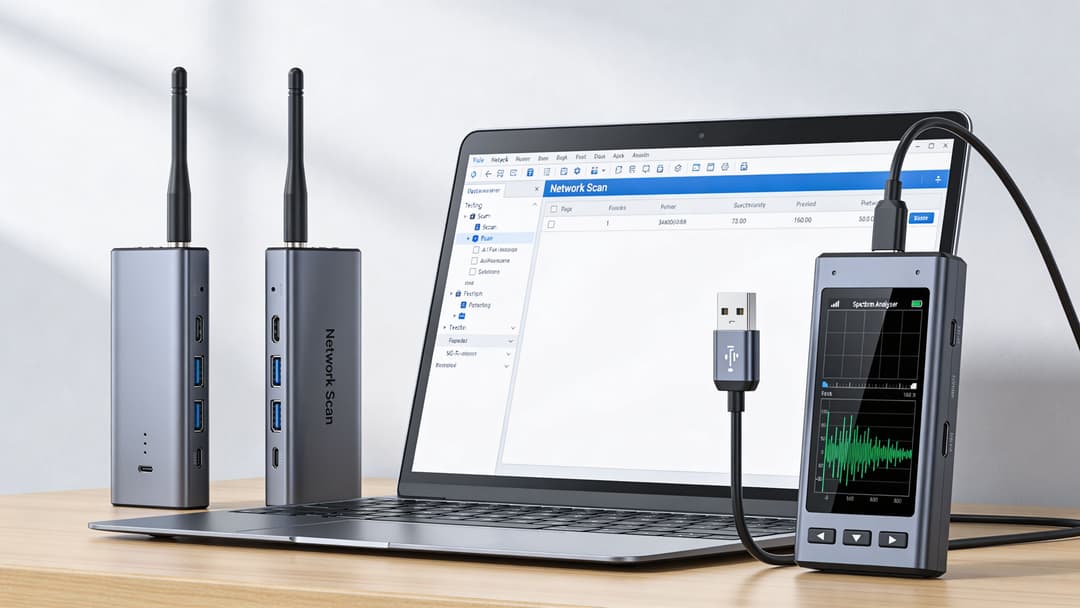
रोजमर्रा के सर्वे कार्य के लिए, लैपटॉप-आधारित एनालाइज़र सबसे व्यावहारिक शुरुआती बिंदु हैं।
- NetSpot: कवरेज की कल्पना करने, आस-पास के APs को खोजने और सामान्य बैंडों में चैनल के उपयोग की जांच करने के लिए अच्छा है।
- Acrylic WiFi: तब उपयोगी होता है जब आप पड़ोसी नेटवर्क, सुरक्षा सेटिंग्स और चैनल अधिभोग (channel occupation) का स्पष्ट दृश्य चाहते हैं।
- inSSIDer या इसी तरह के लाइटवेट एनालाइज़र: त्वरित जांच के लिए आसान जब आपको सिग्नल और भीड़भाड़ (congestion) पर तेजी से रीडिंग की आवश्यकता होती है।
- iperf3: नियंत्रित थ्रूपुट परीक्षण के लिए सही विकल्प। यह आपको इंटरनेट की गति की परिवर्तनशीलता पर भरोसा करने के बजाय आपके द्वारा परिभाषित परिस्थितियों में WLAN का परीक्षण करने देता है।
एनालाइज़र टूल का मूल्य सैद्धांतिक नहीं है। NetSpot के UK बेंचमार्किंग निष्कर्षों के सारांश के अनुसार, 2025 के एक UK WiFi बेंचमार्किंग अध्ययन में पाया गया कि 22% एक्सेस पॉइंट भीड़भाड़ वाले चैनलों पर काम करते थे, जिससे थ्रूपुट में 30 से 50% की गिरावट आई। NetSpot या Acrylic WiFi जैसे टूल के साथ चैनल चयन में सुधार करने से गति में औसतन 45% की वृद्धि हुई।
यही कारण है कि प्रत्येक जूनियर एडमिन को केवल एक सर्वे शुरू करने और एक तस्वीर निर्यात करने के बजाय स्कैन आउटपुट को पढ़ने में सहज होना चाहिए। चैनल की भीड़भाड़, सुरक्षा बेमेल (security mismatches), और ओवरलैपिंग सेल अक्सर उपयोगकर्ताओं द्वारा समस्या को स्पष्ट रूप से बताने से पहले ही वहां दिखाई दे जाते हैं।
यदि आपको इस बारे में त्वरित जानकारी चाहिए कि एक व्यावहारिक स्कैन में क्या प्रकट होना चाहिए, तो WiFi स्कैन के लिए यह गाइड एक उपयोगी प्राइमर है।
हार्डवेयर जो साइट पर समय बचाता है
सॉफ़्टवेयर आपको बहुत आगे ले जाता है, लेकिन लाइटवेट हार्डवेयर अभी भी मायने रखता है।
एक समझदार फील्ड किट में आमतौर पर शामिल होते हैं:
- एक स्थिर WiFi चिपसेट वाला लैपटॉप: अधिमानतः वह जिस पर आप भरोसा करते हैं और अच्छी तरह जानते हैं। नवीनता से अधिक निरंतरता मायने रखती है।
- एक गुणवत्तापूर्ण बाहरी USB WiFi एडेप्टर: तब उपयोगी होता है जब आपको बेहतर कैप्चर क्षमता या मॉनिटर मोड सपोर्ट की आवश्यकता होती है।
- एक दूसरा क्लाइंट डिवाइस: एक फोन या टैबलेट दूसरे प्लेटफॉर्म पर रोमिंग और कैप्टिव या पहचान (identity) फ़्लो को सत्यापित करने में मदद करता है।
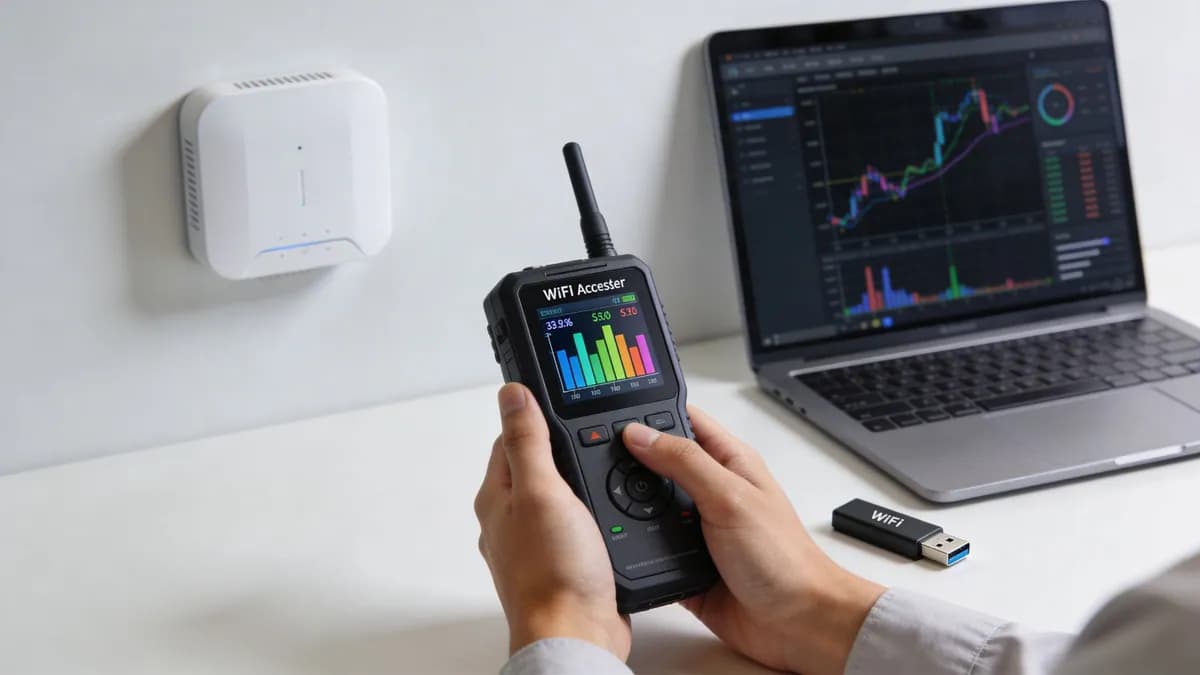
- Fluke LinkIQ क्लास का एक हैंडहेल्ड टेस्टर: तब मददगार होता है जब आपको एक पोर्टेबल टूल की आवश्यकता होती है जो पूरी इमारत में एक पूर्ण सर्वे रिग को खींचे बिना भौतिक और वायरलेस दोनों स्थितियों की जांच कर सके।
हैंडहेल्ड टेस्टर अभी भी क्यों महत्वपूर्ण हैं
एक कारण है कि गंभीर इंजीनियर अभी भी उद्देश्य-निर्मित हैंडहेल्ड इकाइयाँ ले जाते हैं। वे घर्षण (friction) को कम करते हैं। यदि आप एक होटल की मंजिल, एक रिटेल फिट-आउट, या छात्र आवास (student accommodation) में किसी समस्या क्षेत्र को सत्यापित कर रहे हैं, तो एक हैंडहेल्ड टेस्टर आपको लैपटॉप-भारी वर्कफ़्लो की तुलना में तेज़ी से काम करने की अनुमति देता है।
इस श्रेणी का उपकरण विशेष रूप से निम्नलिखित की जांच के लिए उपयोगी है:
- स्थान के अनुसार सिग्नल की शक्ति
- लेटेंसी और बुनियादी प्रतिक्रियाशीलता
- दृश्यमान BSSIDs और सुरक्षा स्थिति
- AP रेडियो पर बैंड-विशिष्ट स्थितियां
- क्या समस्या वायरलेस है, वायर्ड है, या दोनों है
हर साइट पर अपनी पूरी लैब न लाएं। समस्या को जल्दी से साबित या खारिज करने के लिए पर्याप्त किट लाएं।
एक टूलकिट, अलग-अलग काम
एक आम गलती यह उम्मीद करना है कि हर उपकरण हर काम में समान रूप से अच्छा होगा। वे नहीं होते।
| उपकरण का प्रकार | इसके लिए सर्वोत्तम उपयोग | इसमें कमजोर |
|---|---|---|
| WiFi एनालाइज़र ऐप | खोज (discovery), चैनल जांच, पड़ोसी दृश्यता | नियंत्रित प्रदर्शन सत्यापन |
| हीटमैप सर्वे सॉफ़्टवेयर | कवरेज और ओवरलैप विज़ुअलाइज़ेशन | पहचान (identity) वर्कफ़्लो परीक्षण |
| iperf3 | दोहराए जाने योग्य थ्रूपुट माप | RF खोज |
| हैंडहेल्ड टेस्टर | त्वरित फ़ील्ड सत्यापन और स्पॉट चेक | गहन बहु-परिदृश्य रिपोर्टिंग |
| द्वितीयक क्लाइंट डिवाइस | वास्तविक उपयोगकर्ता यात्रा की जांच | विस्तृत RF डायग्नोस्टिक्स |
यदि बजट कम है, तो एनालाइज़र सॉफ़्टवेयर, iperf3 और दो अलग-अलग क्लाइंट डिवाइस के साथ शुरुआत करें। जब आपको तेज़ ऑन-साइट ट्राइएज की आवश्यकता हो या जब आप कई संपत्तियों का समर्थन करते हैं और हर बार परीक्षण सेटअप का पुनर्निर्माण किए बिना दोहराए जाने योग्य स्पॉट-चेक चाहते हैं, तो एक हैंडहेल्ड टेस्टर जोड़ें।
अपने WiFi परीक्षण मेट्रिक्स और बेसलाइन को परिभाषित करना
किसी साइट पर जाने से पहले, परिभाषित करें कि "अच्छा" क्या है। यदि आप ऐसा नहीं करते हैं, तो आप बेसलाइन के विरुद्ध नेटवर्क को सत्यापित करने के बजाय अलग-थलग स्क्रीनशॉट और उपयोगकर्ता के किस्सों के पीछे भागते रहेंगे।
सिग्नल की शक्ति मायने रखती है, लेकिन यह तस्वीर का केवल एक हिस्सा है। एक उचित एक्सेस पॉइंट टेस्टर वर्कफ़्लो को कवरेज, शोर (noise), प्रतिक्रियाशीलता, निरंतरता और रोमिंग व्यवहार को देखना चाहिए।
वे मेट्रिक्स जो वास्तव में मायने रखते हैं
इन मुख्य उपायों से शुरुआत करें:
- RSSI या सिग्नल शक्ति: आपको बताता है कि क्लाइंट AP को कितनी मजबूती से सुनता है। उपयोगी है, लेकिन इसका अधिक मूल्यांकन करना आसान है।
- SNR: सिग्नल-टू-नॉइज़ अनुपात। यह अक्सर अकेले सिग्नल की तुलना में अधिक जानकारीपूर्ण होता है क्योंकि शोर वाले वातावरण में एक मजबूत सिग्नल भी खराब प्रदर्शन करता है।
- थ्रूपुट: परीक्षण स्थितियों के तहत क्लाइंट लिंक पर क्या स्थानांतरित कर सकता है।
- लेटेंसी: पैकेट कितनी जल्दी राउंड ट्रिप पूरा करते हैं।
- जिटर: समय के साथ वह लेटेंसी कितनी स्थिर है।
- रोमिंग व्यवहार: क्या क्लाइंट आवश्यकता पड़ने पर APs के बीच आसानी से स्थानांतरित होते हैं।
- प्रमाणीकरण (authentication) सफलता: क्या उपयोगकर्ता लगातार इच्छित लॉगिन पथ को पूरा कर सकता है।
खराब SNR के साथ एक उच्च RSSI अभी भी पुनः प्रयासों (retries), खराब वॉयस क्वालिटी और सुस्त ऐप व्यवहार का कारण बन सकता है। एक अच्छा स्पीड टेस्ट अभी भी एक खराब हैंडऑफ़ को छिपा सकता है जब उपयोगकर्ता गलियारे से कमरे में जाता है। इसलिए बेसलाइन को संदर्भ की आवश्यकता होती है।
स्टिकी क्लाइंट (sticky client) की समस्या
सबसे आम रोमिंग समस्याओं में से एक स्टिकी क्लाइंट समस्या है। यह अक्सर तब होता है जब AP ट्रांसमिट पावर बहुत अधिक सेट की जाती है, जिससे क्लाइंट डिवाइस दूर के AP को भी इतनी अच्छी तरह सुनते रहते हैं कि वे करीब वाले AP पर जाने के बजाय उसी से जुड़े रहते हैं। WiFi नेटवर्क प्रदर्शन को मापने के लिए Purple की गाइड में उल्लेख किया गया है कि पेशेवर RF सर्वे उचित रोमिंग को प्रोत्साहित करने के लिए छोटे, अच्छी तरह से परिभाषित सेल बनाने के लिए ट्रांसमिट पावर को कम करने की सलाह देते हैं।
यह सलाह सरल है, लेकिन यह बहुत सारे खराब डिप्लॉयमेंट को ठीक करती है। कई एडमिन शिकायतों पर पावर बढ़ाकर प्रतिक्रिया देते हैं। घने वातावरण में, यह रोमिंग को बेहतर बनाने के बजाय बदतर बना सकता है।
यदि क्लाइंट रोम नहीं करेंगे, तो केवल हैंडसेट को दोष न दें। जांचें कि क्या आपकी सेल सीमाएं बहुत बड़ी और बहुत अस्पष्ट हैं।
बेसलाइन स्थल (venue) से मेल खानी चाहिए
एक शांत कार्यालय की मंजिल और एक व्यस्त लॉबी को एक ही प्रोफ़ाइल की आवश्यकता नहीं होती है। महत्वपूर्ण यह है कि क्या नेटवर्क उस स्थान पर उपयोगकर्ता के कार्य का समर्थन करता है।
यहाँ एक व्यावहारिक त्वरित-संदर्भ तालिका दी गई है।
| मीट्रिक | यह क्या मापता है | अच्छा | स्वीकार्य | खराब |
|---|---|---|---|---|
| सिग्नल शक्ति | क्लाइंट AP को कितनी मजबूती से सुनता है | उपयोगकर्ता क्षेत्र में मजबूत और स्थिर | किनारों के पास उपयोगी लेकिन असंगत | कार्य क्षेत्रों में बार-बार ड्रॉप या कमजोर कवरेज |
| SNR | पृष्ठभूमि के शोर (background noise) के विरुद्ध सिग्नल की गुणवत्ता | विश्वसनीय ऐप उपयोग और वॉयस के लिए पर्याप्त साफ | सामान्य ब्राउज़िंग और ईमेल के लिए उपयोगी | पुनः प्रयासों (retries) और अस्थिरता का कारण बनने के लिए पर्याप्त शोर |
| थ्रूपुट | परीक्षण के तहत वास्तविक स्थानांतरण प्रदर्शन | स्थान के लिए डिज़ाइन अपेक्षाओं के अनुरूप | कुछ मंदी के साथ सामान्य कार्यों के लिए काम करता है | सामान्य उपयोग के तहत तेजी से गिरता है |
| लेटेंसी | पैकेट राउंड-ट्रिप विलंब | इंटरैक्टिव ऐप्स के लिए स्थिर और पर्याप्त कम | ध्यान देने योग्य लेकिन प्रबंधनीय | विलंबित प्रतिक्रिया और खराब ऐप अनुभव |
| जिटर | समय के साथ विलंब में भिन्नता | वॉयस और रीयल-टाइम उपयोग के लिए पर्याप्त सुचारू | मामूली असंगति | बर्स्टिनेस, हकलाहट (stutter) और अस्थिर सत्र |
| रोमिंग | APs के बीच क्लाइंट की आवाजाही | हैंडऑफ़ समय पर और विनीत (unobtrusive) होते हैं | छोटे ठहराव जिन्हें उपयोगकर्ता सहन कर लेते हैं | क्लाइंट चिपके रहते हैं, डिस्कनेक्ट हो जाते हैं, या खराब तरीके से पुनः प्रमाणित होते हैं |
ऑप्टिमाइज़ेशन से पहले बेसलाइन परीक्षणों को परिभाषित करें
जब तक आपने एक साफ बेसलाइन कैप्चर नहीं कर ली है, तब तक कुछ भी ट्यून न करें। अन्यथा, आपको पता नहीं चलेगा कि आपके परिवर्तनों ने मदद की या केवल लक्षण को बदल दिया।
एक उपयोगी बेसलाइन में आमतौर पर शामिल होते हैं:
- उसी नेटवर्क पथ से वायर्ड संदर्भ थ्रूपुट (wired reference throughput), ताकि आप जान सकें कि अपस्ट्रीम अड़चन (bottleneck) के लिए WLAN को दोषी नहीं ठहराया जा रहा है।
- रिसेप्शन, डेस्क, चेकआउट पॉइंट, कमरे के प्रवेश द्वार, लिफ्ट लॉबी और सांप्रदायिक स्थानों जैसे प्रमुख स्थानों पर स्थिर परीक्षण (static tests)।
- अपेक्षित रोमिंग सीमाओं को पार करने वाले वॉकिंग टेस्ट (walking tests)।
- दायरे में प्रत्येक SSID या एक्सेस विधि के लिए प्रमाणीकरण परीक्षण (authentication tests)।
- मल्टी-डिवाइस स्पॉट चेक क्योंकि एक फोन, लैपटॉप और विशेषज्ञ एंडपॉइंट एक जैसा व्यवहार नहीं करेंगे।
हर चीज़ के लिए एक ही क्लाइंट प्रोफ़ाइल का उपयोग न करें
एक अकेला आधुनिक लैपटॉप एक कमजोर डिज़ाइन को भी स्वस्थ दिखा सकता है। इसमें आपके द्वारा समर्थित एस्टेट की तुलना में बेहतर एंटीना, नए ड्राइवर और साफ रोमिंग व्यवहार हो सकता है। परीक्षण उसी के साथ करें जो उपयोगकर्ता वास्तव में ले जाते हैं। यदि साइट पुराने हैंडहेल्ड, टैबलेट या एम्बेडेड उपकरणों पर निर्भर करती है, तो उन्हें शामिल करें।
यह विशेष रूप से तब महत्वपूर्ण होता है जब नेटवर्क सामान्य उपयोगकर्ता पहुंच और पहचान-संचालित (identity-driven) वर्कफ़्लो दोनों का समर्थन करता है। आप केवल RF नहीं माप रहे हैं। आप यह माप रहे हैं कि क्या पूरा वातावरण उन क्लाइंट्स के तहत लगातार व्यवहार करता है जो मायने रखते हैं।
अपनी व्यापक WiFi परीक्षण योजना बनाना
सबसे अच्छा WiFi परीक्षण आपके साइट पर कदम रखने से पहले ही व्यवस्थित हो जाता है। तात्कालिक (improvised) परीक्षण आमतौर पर सबसे तेज़ शिकायत का अनुसरण करता है। नियोजित परीक्षण उपयोगकर्ता की यात्रा का अनुसरण करता है।
एक फ्लोर प्लान लें और प्रत्येक AP, प्रत्येक संभावित हस्तक्षेप स्रोत और प्रत्येक व्यवसाय-महत्वपूर्ण क्षेत्र को चिह्नित करें। केवल डेड ज़ोन को चिह्नित न करें। उन जगहों को चिह्नित करें जहाँ विफलता महंगी साबित होती है। रिसेप्शन डेस्क, POS पॉइंट, नर्स स्टेशन, रूम डेस्क, लॉबी सीटिंग, लिफ्ट कोर, स्टॉक रूम, स्टाफ ऑफिस और सर्विस कॉरिडोर सभी अलग-अलग व्यवहार करते हैं।
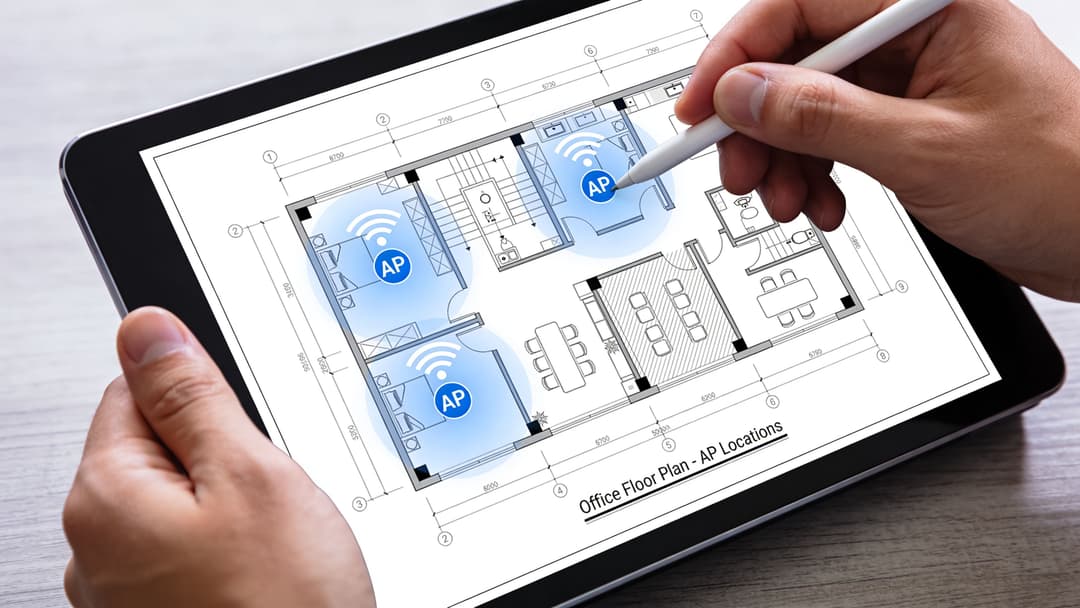
एक विज़ुअल प्लानिंग पास मदद करता है। इच्छित ओवरलैप और संभावित कमजोर स्थानों को देखने के लिए WiFi हीट मैप उपयोगी है, लेकिन यह केवल शुरुआत है। हीटमैप एक डिज़ाइन सहायता है, न कि इस बात का प्रमाण कि उपयोगकर्ता अनुभव काम करता है।
व्यावसायिक महत्व के आधार पर स्थान चुनें
एक जूनियर एडमिन अक्सर वहां से शुरू करता है जहां सिग्नल सबसे कमजोर दिखता है। यह हमेशा गलत नहीं होता, लेकिन यह पर्याप्त नहीं है。
इन श्रेणियों के आधार पर अपने परीक्षण बिंदु बनाएं:
- महत्वपूर्ण सेवा स्थान: चेक-इन डेस्क, टिल (tills), नर्स स्टेशन, कंसीयज डेस्क।
- उच्च घनत्व वाले क्षेत्र: लॉबी, मीटिंग रूम, बार, फूड कोर्ट, व्याख्यान स्थान (lecture spaces)।
- संक्रमण क्षेत्र (transition zones): गलियारे, सीढ़ियाँ, लिफ्ट निकास, दरवाजों के समूह जहाँ रोमिंग की समस्याएँ दिखाई देती हैं।
- किनारे और असुविधाजनक क्षेत्र: बेसमेंट, कोने, प्लांट के आस-पास के स्थान, मोटी दीवारों वाले कमरे।
- बैक-ऑफ-हाउस स्थान: केवल स्टाफ वाले क्षेत्र वे होते हैं जहाँ परिचालन संबंधी परेशानी अक्सर सबसे पहले दिखाई देती है।
यह दृष्टिकोण निष्कर्षों की गुणवत्ता को बदल देता है। एक नेटवर्क औसत स्थानों में ठीक लग सकता है और फिर भी वहां विफल हो सकता है जहां यह सबसे अधिक मायने रखता है।
परीक्षण मामले (test cases) लिखें, अस्पष्ट इरादे नहीं
"गैस्ट WiFi की जांच करें" कोई टेस्ट केस नहीं है। एक उपयोगी टेस्ट केस क्लाइंट, स्थान, SSID, प्रमाणीकरण विधि, गतिविधि या लोड पैटर्न और अपेक्षित परिणाम का नाम बताता है।
| टेस्ट केस | क्लाइंट | स्थान | अपेक्षित परिणाम |
|---|---|---|---|
| गेस्ट ऑनबोर्डिंग | स्मार्टफोन | लॉबी सीटिंग | आसानी से कनेक्ट होता है और बार-बार संकेतों के बिना इंटरनेट तक पहुंचता है |
| स्टाफ SSO एक्सेस | प्रबंधित लैपटॉप | पहली मंजिल का कार्यालय | उपयोगकर्ता बिना किसी देरी या एक्सेस त्रुटि के कॉर्पोरेट संसाधनों तक पहुंचता है |
| लीगेसी डिवाइस जॉइन | IoT या विशेषज्ञ एंडपॉइंट | सेवा क्षेत्र | डिवाइस असाइन किए गए सेगमेंट में शामिल होता है और उचित रूप से अलग रहता है |
| रोमिंग वॉक | सक्रिय सत्र पर स्मार्टफोन | गलियारे से मीटिंग रूम | सत्र बिना किसी स्पष्ट व्यवधान के हैंडऑफ़ से बच जाता है |
मल्टी-क्लाइंट परीक्षण जानबूझकर किया जाना चाहिए
सिंगल-क्लाइंट परीक्षण एक आकर्षक परिणाम देता है। यह आपको बताता है कि एक सक्षम क्लाइंट हल्की परिस्थितियों में क्या कर सकता है। यह आपको यह नहीं बताता कि जब कोई स्थल व्यस्त हो जाता है तो मेहमान क्या देखते हैं।
Alethea Communications की कार्यप्रणाली इस बिंदु पर स्पष्ट है। Alethea की एक्सेस पॉइंट परीक्षण पद्धति में स्पष्ट किए गए अनुसार, एकल क्लाइंट के साथ परीक्षण एक भ्रामक बेसलाइन प्रदान करता है। महत्वपूर्ण मीट्रिक क्लाइंट की संख्या बढ़ने पर थ्रूपुट में गिरावट है, और एक गुणवत्ता वाले AP को 5वें या 10वें क्लाइंट के कनेक्ट होने पर प्रदर्शन में भारी गिरावट नहीं दिखानी चाहिए।
आपकी योजना के लिए इसके दो परिणाम हैं:
- क्लाइंट लोड चरणों को पहले से परिभाषित करें। बेतरतीब ढंग से क्लाइंट न जोड़ें।
- डाउनलिंक और अपलिंक दोनों व्यवहारों को मापें। व्यस्त स्थल अक्सर पहले एक दिशा को उजागर करते हैं।
एक नेटवर्क जो अकेले खड़े एक इंजीनियर को तेज़ लगता है, वह एक साथ आने वाले दस मेहमानों को खराब लग सकता है।
एक व्यावहारिक परीक्षण अनुक्रम
प्रत्येक साइट पर तुलनीय रिपोर्ट प्राप्त करने के लिए एक दोहराए जाने योग्य अनुक्रम का उपयोग करें।
वायर्ड बेसलाइन सत्यापित करें
वायरलेस प्रदर्शन का परीक्षण करने से पहले पुष्टि करें कि अपस्ट्रीम पथ ठीक है।एक पैसिव RF स्कैन चलाएं
पड़ोसी APs, चैनल उपयोग और संदिग्ध ओवरलैप पर ध्यान दें।स्थिर स्थान परीक्षण (static location tests) करें
प्रत्येक चिह्नित क्षेत्र में सिग्नल की गुणवत्ता, लेटेंसी व्यवहार और एप्लिकेशन प्रतिक्रियाशीलता रिकॉर्ड करें।वॉकिंग और रोमिंग टेस्ट चलाएं
एक लाइव सत्र बनाए रखते हुए संक्रमणों (transitions) के माध्यम से आगे बढ़ें।मल्टी-क्लाइंट लोड टेस्ट निष्पादित करें
नियोजित चरणों में क्लाइंट की संख्या बढ़ाएं और गिरावट के पैटर्न पर नज़र रखें।प्रत्येक प्रमाणीकरण (authentication) पथ को सत्यापित करें
गेस्ट, स्टाफ और डिवाइस-विशिष्ट एक्सेस का अलग-अलग परीक्षण करें।परिवर्तनों के बाद दोहराएं
यदि आप पावर, चैनल या नीतियों को ट्यून करते हैं, तो प्रभावित मामलों को फिर से चलाएं। याददाश्त पर भरोसा न करें।
ऐसी रिपोर्टिंग जिसका उपयोग कोई टीम कर सके
एक अच्छी रिपोर्ट लोगों को स्क्रीनशॉट में नहीं डुबोती है। यह लक्षण, साक्ष्य, संभावित मूल कारण और अगली कार्रवाई को बताती है। सबसे उपयोगी रिपोर्ट डिज़ाइन समस्याओं को कॉन्फ़िगरेशन समस्याओं से भी अलग करती हैं।
उदाहरण के लिए, "पूर्वी गलियारे में खराब रोमिंग" कमजोर है। "एक मजबूत आस-पास के सेल में चलते समय क्लाइंट पिछले AP से जुड़ा रहता है, जो बड़े आकार के सेल और पावर असंतुलन का सुझाव देता है" कार्रवाई योग्य है। दूसरा कथन अगले इंजीनियर को बताता है कि पहले कहाँ देखना है और क्या परीक्षण करना है।
पहचान-आधारित (Identity-Based) और मल्टी-टेनेंट परिदृश्यों का परीक्षण
एक WiFi रोलआउट सर्वे में उत्कृष्ट दिख सकता है और फिर भी पहले दिन विफल हो सकता है। स्टाफ पूरे सिग्नल के साथ कार्यालय में खड़ा रहता है और SSO से नहीं गुजर पाता। मेहमान Passpoint प्रोफाइल के साथ आते हैं और फिर भी भ्रमित करने वाले संकेतों का सामना करते हैं। मल्टी-टेनेंट बिल्डिंग में रहने वाले लोग कनेक्ट होते हैं, फिर उन्हें गलत नीति, गलत सेगमेंट या कोई अलगाव (isolation) नहीं मिलता है।
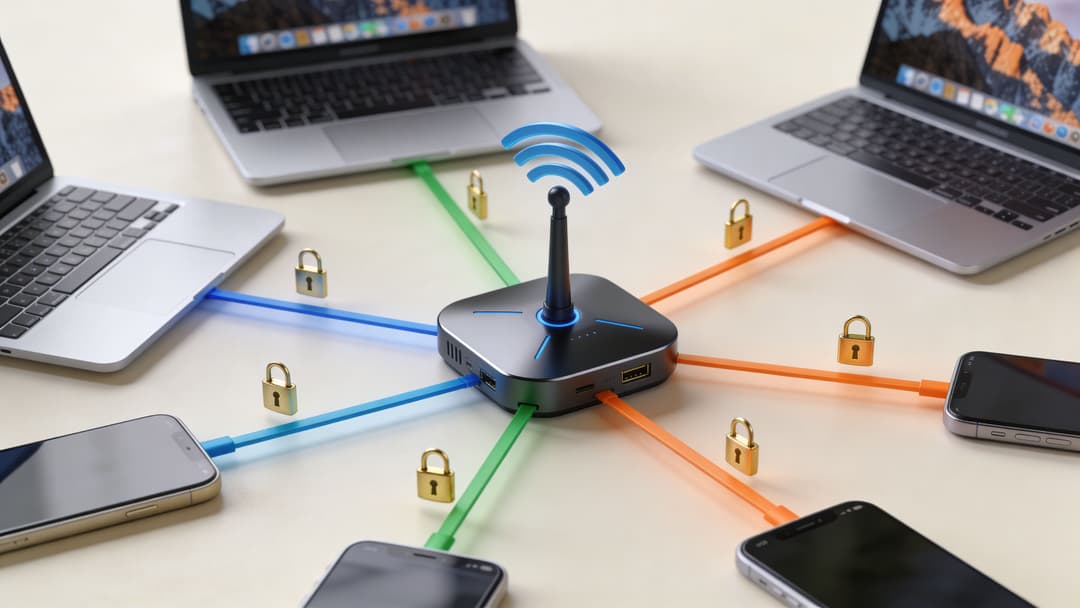
Passpoint और कम-बाधा वाला गेस्ट एक्सेस
Passpoint परीक्षण के उद्देश्य को बदल देता है। सवाल यह है कि क्या एक योग्य डिवाइस सही नेटवर्क ढूंढता है, स्वचालित रूप से शामिल होता है, ट्रस्ट जांच को आसानी से पूरा करता है, और अतिरिक्त उपयोगकर्ता प्रयास के बिना उपयोगी पहुंच प्राप्त करता है।
- खोज और पात्रता (Discovery and eligibility): पुष्टि करें कि हैंडसेट इच्छित स्थल में सही SSID या प्रोफ़ाइल को पहचानता है।
- स्वचालित रूप से शामिल होना (Automatic join): सत्यापित करें कि स्वीकृत डिवाइस मैन्युअल नेटवर्क चयन के बिना जुड़ते हैं।
- ट्रस्ट और सर्टिफिकेट हैंडलिंग: सर्टिफिकेट चेतावनियों, कैप्टिव पोर्टल व्यवधानों, या ऑपरेटिंग सिस्टम के बीच असंगत संकेतों की जांच करें।
- पहला उपयोगी ट्रैफ़िक: पुष्टि करें कि क्लाइंट प्रमाणीकरण के तुरंत बाद अपेक्षित इंटरनेट या एप्लिकेशन गंतव्य तक पहुँच सकता है।
- वापसी विज़िट व्यवहार: कवरेज छोड़ें, प्रतीक्षा करें, वापस आएं और सत्यापित करें कि डिवाइस अपेक्षा के अनुरूप फिर से कनेक्ट होता है।
- क्रॉस-साइट निरंतरता: यदि एक ही प्रोफ़ाइल को कई इमारतों या क्षेत्रों में काम करना चाहिए, तो प्रत्येक का परीक्षण करें।
एक आम गलती एक फोन पर केवल पहले सफल नामांकन को साबित करना है। उपयोगकर्ता सामान्य परिस्थितियों में, स्क्रीन लॉक होने, पुराने प्रोफाइल कैश्ड होने और डिवाइस पर पहले से ही रोमिंग इतिहास होने पर दूसरी और तीसरी विज़िट पर सेवा का न्याय करते हैं।
SSO और निर्देशिका-संचालित (directory-driven) स्टाफ एक्सेस
SSO से जुड़े स्टाफ WiFi को पहचान (identity) प्लेटफॉर्म या VPN रोलआउट पर लागू होने वाले समान अनुशासन की आवश्यकता होती है। एक एकल सफल लॉगिन बहुत कम साबित करता है। महत्वपूर्ण यह है कि क्या पात्रता, स्थिति (posture), और नीति असाइनमेंट खाता जीवनचक्र में सही ढंग से व्यवहार करते हैं।
वास्तविक संचालन को दर्शाने वाले परीक्षण खातों का उपयोग करें:
नया स्टार्टर
बिना किसी के साझा पासवर्ड दिए, पात्रता प्रदान किए जाने के बाद उपयोगकर्ता को एक्सेस प्राप्त होता है।स्थापित उपयोगकर्ता (Established user)
एक नियमित रीकनेक्ट आसानी से काम करता है और किसी कमजोर विधि या पुरानी कैश्ड नीति पर वापस नहीं जाता है।भूमिका परिवर्तन (Role change)
उपयोगकर्ता को समूहों के बीच स्थानांतरित करने से VLAN, ACL, या भूमिका असाइनमेंट उसी तरह बदल जाता है जैसा कि डिज़ाइन का इरादा है।रद्द की गई पहुंच (Revoked access)
पात्रता को हटाने से अपेक्षित समय सीमा के भीतर पहुंच समाप्त हो जाती है।डिवाइस मिक्स
प्रबंधित Windows और macOS एंडपॉइंट्स का परीक्षण करें, फिर टैबलेट, BYOD फोन और हल्के ढंग से प्रबंधित उपकरणों का परीक्षण करें। विफलताएं अक्सर केवल किनारे के मामलों (edge cases) पर दिखाई देती हैं।समाप्त या बदले गए सर्टिफिकेट पुष्टि करें कि उपयोगकर्ता क्या देखते हैं जब कोई सर्टिफिकेट समाप्त हो गया है या मशीन को रीइमेज किया गया है। इससे अक्सर सपोर्ट कतारें बढ़ जाती हैं।
व्यावहारिक लक्ष्य सरल है। सही डिवाइस पर सही उपयोगकर्ता को आसानी से पहुंच मिलती है। गलत उपयोगकर्ता, गलत डिवाइस या रद्द की गई पहचान को पहुंच नहीं मिलती है।
मल्टी-टेनेंट संपत्तियों में iPSK
मल्टी-टेनेंट WiFi डिज़ाइन शॉर्टकट को बहुत तेज़ी से उजागर करता है। छात्र आवास (student accommodation), बिल्ड-टू-रेंट (BTR) साइटों और मिश्रित-उपयोग वाली संपत्तियों में आमतौर पर सघन RF, अप्रबंधित उपभोक्ता उपकरण और सपोर्ट टीमें होती हैं जो फोन से लेकर प्रिंटर और स्मार्ट टीवी तक सब कुछ संभालती हैं। सिग्नल ठीक हो सकता है जबकि टेनेंसी मॉडल नीचे विफल हो रहा हो।
कमजोर मीट्रिक को हटा दें और नीति सीमा का ही परीक्षण करें। iPSK डिप्लॉयमेंट के लिए, साबित करें कि प्रत्येक निवासी या इकाई को सही पहुंच का दायरा मिलता है, कि कुंजियाँ (keys) अनुमानित रूप से मैप होती हैं, और एक किरायेदार दूसरे किरायेदार के उपकरणों को देख या उनके साथ हस्तक्षेप नहीं कर सकता है।
उन परिणामों पर ध्यान केंद्रित करें जो संचालन में मायने रखते हैं:
- सामान्य उपयोग के तहत निवासी अलगाव (resident isolation) बना रहता है
- प्रत्येक असाइन की गई कुंजी (key) डिवाइस को सही किरायेदार नीति में लाती है
- लीगेसी IoT ऑनबोर्डिंग पूरी संपत्ति में कमजोर सुरक्षा को मजबूर नहीं करती है
- सपोर्ट स्टाफ पड़ोसी किरायेदारों को उजागर किए बिना ऑनबोर्डिंग विफलताओं की पहचान कर सकता है
- साझा स्थान जैसे लाउंज, जिम और रिसेप्शन आवासीय इकाइयों से अलग नीति का पालन करते हैं
यह समझौता वास्तविक है। iPSK अक्सर अप्रबंधित उपकरणों के लिए ऑनबोर्डिंग को आसान बनाता है, लेकिन खराब कुंजी हैंडलिंग या कमजोर नीति मैपिंग एक साफ-सुथरे डिज़ाइन को सपोर्ट और सुरक्षा समस्या में बदल सकती है।
व्यावहारिक iPSK टेस्ट केस
| परिदृश्य (Scenario) | क्या सत्यापित करना है | ध्यान देने योग्य विफलता पैटर्न |
|---|---|---|
| निवासी फोन ऑनबोर्डिंग | डिवाइस असाइन किए गए नेटवर्क में शामिल होता है और अपेक्षित पहुंच प्राप्त करता है | जॉइन लूप, गलत सेगमेंट, बार-बार संकेत |
| लीगेसी स्मार्ट डिवाइस ऑनबोर्डिंग | डिवाइस इच्छित लीगेसी-अनुकूल विधि का उपयोग करके कनेक्ट हो सकता है | डिवाइस केवल कमजोर सुरक्षा सेटिंग्स के साथ काम करता है |
| पड़ोसी अलगाव (Neighbour isolation) | एक किरायेदार दूसरे किरायेदार के संसाधनों को खोज या हस्तक्षेप नहीं कर सकता | क्रॉस-दृश्यता या आकस्मिक पार्श्व पहुंच (lateral access) |
| साझा सुविधा पहुंच (Shared amenity access) | लाउंज या सांप्रदायिक क्षेत्रों में डिवाइस नीति के अनुसार व्यवहार करते हैं | आवासीय और सांप्रदायिक नीतियां एक दूसरे में लीक होती हैं |
एक और जांच जोड़ें जिसे टीमें अक्सर छोड़ देती हैं। एक पुरानी कुंजी, एक रद्द की गई कुंजी, या किसी भिन्न इकाई को सौंपी गई कुंजी का पुन: उपयोग करें, और पुष्टि करें कि सिस्टम पहुंच को ठीक उसी तरह से अस्वीकार या सीमित करता है जैसा कि डिज़ाइन किया गया है।
ज़ीरो-ट्रस्ट परीक्षण का अर्थ है निर्णय पथ का अनुसरण करना
एसोसिएशन की सफलता केवल एक कदम है। पहचान-आधारित WiFi को हर बार चार सवालों के जवाब देने होते हैं। उपयोगकर्ता कौन है। डिवाइस क्या है। कौन सी नीति लागू होती है। उस पहचान या डिवाइस की स्थिति बदलने पर क्या बदलता है।
इसे ठीक से सत्यापित करने के लिए, कई स्थानों से साक्ष्य एकत्र करें:
- क्लाइंट-साइड व्यवहार
- एसोसिएशन और रोमिंग लॉग
- RADIUS या प्रमाणीकरण लॉग
- निर्देशिका (directory) या नीति स्थिति
- कनेक्शन के बाद इच्छित संसाधनों तक देखी गई पहुंच
क्लाइंट UI में "कनेक्टेड" पर न रुकें। मैंने साफ RF, अच्छा DHCP और स्वस्थ थ्रूपुट को एक टूटी हुई समूह मैपिंग को छिपाते हुए देखा है जिसने वित्त (finance) उपयोगकर्ताओं को गेस्ट नीति में भेज दिया और उनके लिए आवश्यक अनुप्रयोगों को अवरुद्ध कर दिया। उपयोगकर्ता के दृष्टिकोण से, यह एक WiFi विफलता है। आपकी परीक्षण प्रक्रिया को उनके पकड़ने से पहले इसे पकड़ना चाहिए।
परिणामों की व्याख्या करना और सामान्य समस्याओं का निवारण करना
कच्चा WiFi डेटा कुछ भी ठीक नहीं करता है। व्याख्या करती है। कई टीमें जो गलती करती हैं वह यह है कि वे पहले मीट्रिक पर भरोसा करती हैं जो खराब दिखता है, आमतौर पर सिग्नल की शक्ति, फिर वास्तविक खराबी की पहचान करने से पहले पावर या चैनल बदल देती हैं।
खराब परिणामों को लक्षणों के रूप में मानें। फिर प्रत्येक लक्षण को एक संभावित कारण और एक नियंत्रित सुधार से मैप करें।
लक्षण एक: मजबूत सिग्नल लेकिन खराब अनुभव
यदि क्लाइंट स्वस्थ सिग्नल की रिपोर्ट करता है लेकिन एप्लिकेशन धीमे लगते हैं, तो यह न मानें कि सर्वे गलत है। भीड़भाड़ (congestion), पुनः प्रयासों (retries), या खराब एयरटाइम उपयोग की तलाश करें। यह भी जांचें कि क्या समस्या केवल तब दिखाई देती है जब अधिक क्लाइंट सक्रिय होते हैं।
संभावित कारणों में शामिल हैं:
- चैनल विवाद (Channel contention)
- शोरगुल वाला RF वातावरण
- क्लाइंट क्षमता बेमेल (Client capability mismatch)
- बैकहॉल या स्विचिंग अड़चनें (bottlenecks)
- प्रमाणीकरण (authentication) विलंब को खराब WiFi समझने की भूल
व्यवहार में, जूनियर एडमिनिस्ट्रेटर अक्सर अत्यधिक समय बर्बाद करते हैं। वे APs को रीपोजीशन करते रहते हैं जब अंतर्निहित समस्या एक कमजोर चैनल योजना या एक्सेस कंट्रोल की प्रतीक्षा कर रहा उपयोगकर्ता होती है।
लक्षण दो: अन्यथा अच्छे कवरेज में रोमिंग की विफलताएं
यदि उपयोगकर्ता के चलने पर कॉल ड्रॉप हो जाती हैं या सत्र रुक जाते हैं, तो कवरेज से पहले रोमिंग के बारे में सोचें। समीक्षा करें कि क्या क्लाइंट बहुत लंबे समय तक दूर के AP से चिपका रहता है, क्या आस-बाहर के सेल समझदारी से ओवरलैप होते हैं, और क्या पावर सेटिंग्स क्लाइंट को गलत निर्णयों की ओर धकेल रही हैं।
एक चेकलिस्ट का उपयोग करें:
- क्या क्लाइंट अपेक्षा से अधिक समय तक जुड़ा रहता है
- क्या आस-पास के APs की सीमाएं अस्पष्ट हैं
- क्या बैंड और रोमिंग सेटिंग्स सुसंगत हैं
- क्या विफलताएं एक क्लाइंट प्रकार को दूसरों की तुलना में अधिक प्रभावित करती हैं
अच्छी रोमिंग आमतौर पर सामान्य लगती है। यदि उपयोगकर्ता हैंडऑफ़ पर ध्यान देते हैं, तो शायद कुछ गड़बड़ है।
लक्षण तीन: ऑनबोर्डिंग एक बार सफल होती है फिर अविश्वसनीय हो जाती है
यह आमतौर पर पहचान (identity) या नीति की स्थिति की ओर इशारा करता है, न कि शुद्ध RF की ओर। पहला लॉगिन काम कर सकता है क्योंकि परीक्षण सही रास्ते पर था। वापसी विज़िट, बदली हुई पात्रता, पुराने सर्टिफिकेट, या असंगत नीति प्रसार अंतर्निहित कमजोरी को उजागर कर सकते हैं।
जांचें:
- अस्वीकार या पुनः प्रयास पैटर्न के लिए प्रमाणीकरण लॉग
- निर्देशिका समूह या नीति असाइनमेंट
- क्या डिवाइस किसी अन्य सहेजे गए नेटवर्क पर वापस जा रहा है
- क्या समस्या उपयोगकर्ता, डिवाइस या स्थान का अनुसरण करती है
एक व्यावहारिक निदान मैट्रिक्स
| लक्षण | संभावित निदान | पहली सुधारात्मक कार्रवाई |
|---|---|---|
| अच्छा सिग्नल, खराब ऐप प्रदर्शन | भीड़भाड़, शोर, या अपस्ट्रीम अड़चन (bottleneck) | वायर्ड बेसलाइन और क्लाइंट लोड व्यवहार के साथ RF निष्कर्षों की तुलना करें |
| चलते समय ड्रॉप होना | स्टिकी क्लाइंट या खराब सेल डिज़ाइन | ट्रांसमिट पावर और रोमिंग सीमाओं की समीक्षा करें |
| एक प्रकार का डिवाइस संघर्ष करता है | क्लाइंट-विशिष्ट क्षमता या प्रोफ़ाइल समस्या | समान उपकरणों के साथ परीक्षण करें और प्रमाणीकरण विधि की तुलना करें |
| गेस्ट एक्सेस असंगत लगता है | प्रमाणीकरण पथ या नीति बेमेल | लॉगिन यात्रा का पता लगाएं और पहुंच निर्णयों की समीक्षा करें |
| लीगेसी डिवाइस खराब तरीके से जुड़ता है | एंडपॉइंट के लिए गलत ऑनबोर्डिंग विधि | मानक वर्कफ़्लो को मजबूर करने के बजाय डिवाइस-विशिष्ट एक्सेस डिज़ाइन को सत्यापित करें |
एक साथ पांच चीजें न बदलें
भ्रमित होने का सबसे तेज़ तरीका एक ही परिवर्तन विंडो में पावर, चैनल, न्यूनतम दरें, प्रमाणीकरण नीति और VLAN व्यवहार को बदलना है। यदि परिणाम में सुधार होता है, तो आपको पता नहीं चलेगा कि क्यों। यदि यह बदतर हो जाता है, तो आपको पता नहीं चलेगा कि क्या वापस रोल करना है।
एक समय में एक ही प्रकार के वेरिएबल को बदलें। फिर उस टेस्ट केस को फिर से चलाएं जिसने समस्या को उजागर किया था। यही अनुशासन एक एक्सेस पॉइंट टेस्टर को एक गैजेट से इंजीनियरिंग प्रक्रिया में बदल देता है।
एक अंतिम बिंदु यहाँ महत्वपूर्ण है। हर शिकायत WiFi की समस्या नहीं होती है। कुछ एप्लिकेशन्स में देरी, इंटरनेट पथ की समस्याएं, या पहचान की गलत कॉन्फ़िगरेशन हैं जो सबसे पहले WiFi पर सामने आती हैं। परीक्षण डेटा को आपको यह साबित करने में मदद करनी चाहिए कि खराबी कहाँ है, न कि केवल यह कि शिकायत कहाँ सुनी गई थी।
Validate AP deployments and switch ports with NetForge
Testing access points requires more than verifying wireless signal strength. Once an AP is mounted, network technicians must verify Layer 2 switch port connections, confirm VLAN subnets, and ensure low-latency pathing back to the core gateway.
NetForge by Purple is a free, offline multi-tool that complements hardware AP testers. With native Layer 2 switch discovery, continuous path latency tracking, and IP subnet calculators, NetForge lets network engineers validate wired port health and hop-by-hop latency directly from their laptop. It operates 100% offline, requires no subscription or account creation, and stores all diagnostic data on your local device.
Explore the free NetForge network diagnostic app for desktop.
निष्कर्ष: परीक्षण डेटा से विश्वसनीय नेटवर्क तक
एक WiFi डिप्लॉयमेंट तब पूरा नहीं होता जब APs ऑनलाइन आते हैं। यह तब पूरा होता है जब उपयोगकर्ता उन स्थानों पर बिना किसी बाधा के कनेक्ट हो सकते हैं, घूम सकते हैं, प्रमाणित हो सकते हैं और काम कर सकते हैं जो सबसे अधिक मायने रखते हैं।
इसके लिए इस बात के व्यापक दृष्टिकोण की आवश्यकता है कि एक्सेस पॉइंट टेस्टर किस लिए है। यह केवल सिग्नल दिखाने के लिए नहीं है। यह रेडियो गुणवत्ता, क्लाइंट व्यवहार, चैनल स्वास्थ्य, लोड हैंडलिंग, रोमिंग और पूरी पहचान (identity) यात्रा को सत्यापित करने के लिए है। आधुनिक वातावरण में, वह अंतिम भाग RF जितना ही मायने रखता है।
जो टीमें विश्वसनीय परिणाम प्राप्त करती हैं वे एक ही काम को अच्छी तरह से करती हैं। वे ट्यूनिंग से पहले बेसलाइन को परिभाषित करती हैं। वे यथार्थवादी क्लाइंट प्रकारों के साथ परीक्षण करती हैं। वे एकल लैपटॉप परिणाम पर भरोसा करने के बजाय वास्तविक उपयोगकर्ता लोड का अनुकरण (simulate) करती हैं। और वे ऑनबोर्डिंग और एक्सेस कंट्रोल को नेटवर्क सत्यापन के हिस्से के रूप में मानती हैं, न कि बाद के विचार के रूप में।
यदि आप उस तरह से काम करते हैं, तो आपकी रिपोर्ट अधिक स्पष्ट हो जाती है, आपके सुधार तेज़ हो जाते हैं, और आपका WiFi सपोर्ट का शोर पैदा करने के बजाय संगठन का समर्थन करना शुरू कर देता है।
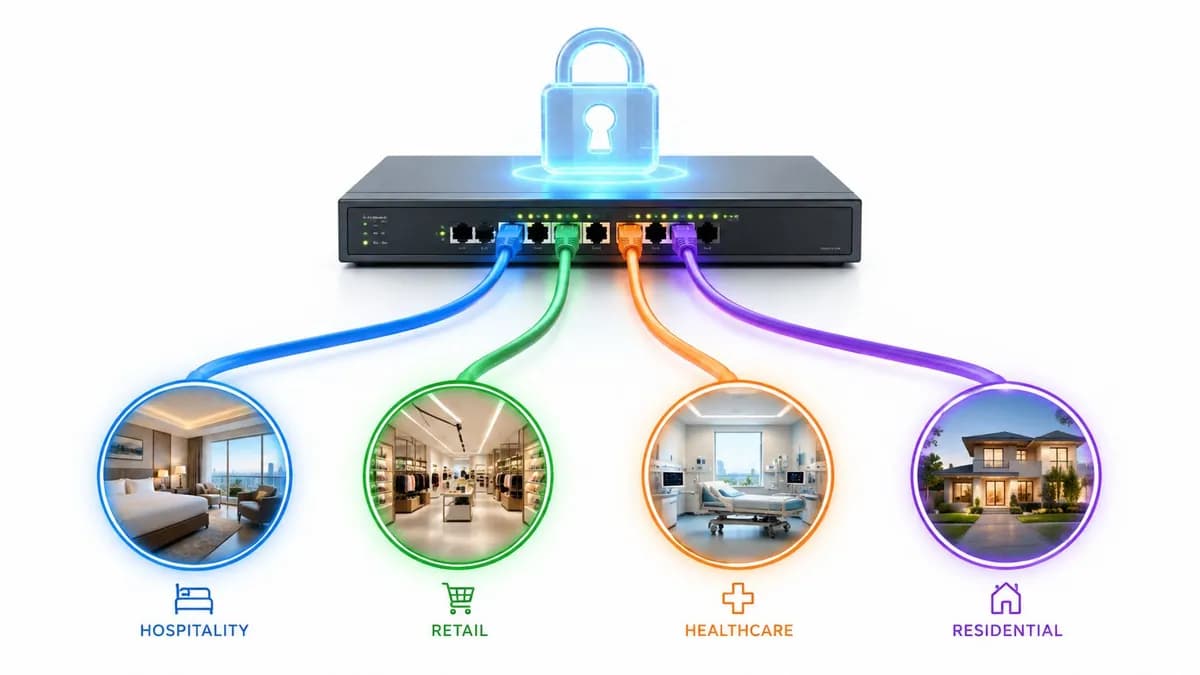
यदि आप गेस्ट, स्टाफ या मल्टी-टेनेंट WiFi का निर्माण कर रहे हैं जिसे पासवर्ड रहित एक्सेस, SSO, Passpoint और सुरक्षित लीगेसी डिवाइस ऑनबोर्डिंग के साथ आसानी से काम करने की आवश्यकता है, तो Purple देखने लायक है। इसे हॉस्पिटैलिटी, रिटेल, हेल्थकेयर, ट्रांसपोर्ट और आवासीय वातावरण में पहचान-आधारित (identity-based) नेटवर्किंग के लिए डिज़ाइन किया गया है, जिसमें ऐसे इंटीग्रेशन हैं जो टीमों को साझा पासवर्ड और जटिल कैप्टिव पोर्टल को अधिक विश्वसनीय उपयोगकर्ता यात्रा के साथ बदलने में मदद करते हैं।