
Integración de Alcatel-Lucent Enterprise (ALE) OmniAccess con Purple WiFi
Esta guía detalla la integración técnica entre los puntos de acceso Alcatel-Lucent Enterprise (ALE) OmniAccess Stellar y Purple WiFi. Cubre la redirección de Captive Portal, la autenticación RADIUS, la configuración de Walled Garden, WiFi seguro para el personal mediante 802.1X y la segmentación de WiFi multiinquilino mediante claves precompartidas privadas (PPSK) con direccionamiento dinámico de VLAN, lo que brinda a los administradores de TI y arquitectos de redes una referencia completa y práctica para implementar redes basadas en identidad en hardware de ALE.
Escucha esta guía
Ver transcripción del podcast
Resumen ejecutivo
Los puntos de acceso Alcatel-Lucent Enterprise (ALE) OmniAccess Stellar se integran con Purple mediante protocolos RADIUS estándar y redirección externa de Captive Portal. No se requiere middleware propietario. Purple funciona como una superposición en la nube, ubicándose sobre su infraestructura ALE existente y gestionando la autenticación, la captura de datos y las políticas de sesión sin necesidad de realizar cambios de hardware.
Esta guía cubre tres escenarios de implementación. Primero, WiFi para invitados con redirección externa de Captive Portal y configuración de Walled Garden. Segundo, WiFi seguro para el personal mediante 802.1X con PEAP o EAP-TLS. Tercero, WiFi multiinquilino mediante claves precompartidas privadas (PPSK) y direccionamiento dinámico de VLAN a través de los atributos RADIUS 64, 65 y 81.
Purple brinda servicio a más de 80,000 establecimientos activos y procesó más de 440 millones de inicios de sesión en 2024 (datos internos de Purple, 2024). Cuenta con las certificaciones ISO 27001, GDPR, CCPA y Cyber Essentials. La plataforma opera con un tiempo de actividad del 99.999%, lo que la convierte en un backend de autenticación confiable para implementaciones empresariales.
Si usted es un administrador de TI o arquitecto de redes que implementa hardware ALE OmniAccess en entornos de hotelería, comercio minorista, eventos o el sector público, esta guía le brinda los pasos de configuración exactos para pasar del hardware a una red basada en identidad completamente operativa.
Arquitectura técnica y flujo de integración
La integración de Purple con ALE OmniAccess Stellar se basa en dos protocolos estándar: RADIUS para autenticación y contabilidad (accounting), y redirección HTTP/HTTPS para la entrega del Captive Portal. El AP de ALE actúa como el servidor de acceso a la red (NAS), reenviando las solicitudes de autenticación al servidor RADIUS en la nube de Purple y aplicando las políticas devueltas en la respuesta Access-Accept.
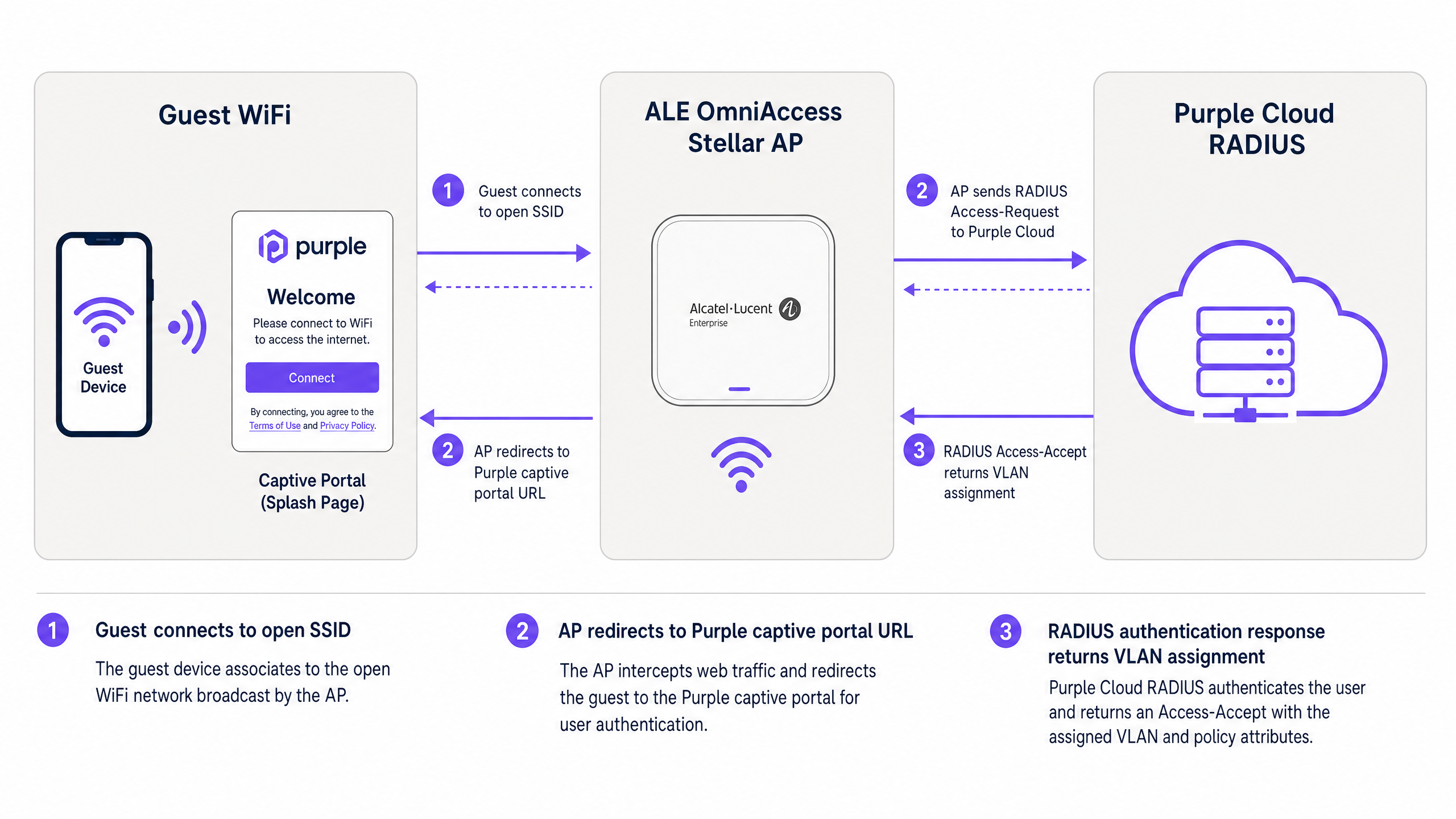
Figura 1: Flujo de autenticación entre el dispositivo del invitado, el AP ALE OmniAccess Stellar y el RADIUS en la nube de Purple.
El flujo funciona de la siguiente manera. Un visitante se conecta al SSID abierto de WiFi para invitados. El AP de ALE asigna una dirección IP temporal desde el pool de DHCP de preautenticación e intercepta la primera solicitud HTTP o HTTPS del visitante. El AP redirecciona el navegador a la URL del Captive Portal de Purple, pasando la dirección MAC del cliente y el identificador NAS del AP como parámetros de URL. El visitante se autentica a través de la página de inicio (splash page) de Purple, utilizando correo electrónico, inicio de sesión de redes sociales o verificación por SMS. El servidor RADIUS de Purple valida la sesión y devuelve un mensaje Access-Accept al AP de ALE. El AP otorga acceso a Internet y comienza a enviar actualizaciones de RADIUS Accounting a Purple en el intervalo configurado.
Para implementaciones avanzadas que utilizan PPSK y direccionamiento dinámico de VLAN, el mensaje Access-Accept de RADIUS también incluye atributos de asignación de VLAN. El AP de ALE utiliza estos atributos para dirigir el tráfico del cliente directamente al segmento de VLAN correcto, aislándolo de otros usuarios en la misma infraestructura física.
Guía de implementación
Parte 1: WiFi para invitados con Captive Portal externo
Esta sección cubre la configuración del Captive Portal de Alcatel-Lucent para la redirección externa a Purple. Estos pasos se aplican a los AP ALE OmniAccess Stellar administrados a través de OmniVista Cirrus, OmniVista 2500 o la interfaz web de Stellar Express.
Paso 1: Recuperar las credenciales RADIUS de Purple
Inicie sesión en su portal de Purple. Vaya a Management > Venues, seleccione su establecimiento y abra la sección Hardware. Agregue una nueva entrada de hardware y seleccione Alcatel-Lucent OmniAccess Stellar como tipo de hardware. Purple genera un secreto compartido de RADIUS único, la IP del servidor de autenticación y la URL del Captive Portal para su establecimiento. Anote estos valores antes de continuar.
Paso 2: Configurar el servidor RADIUS en el AP de ALE
En su interfaz de administración de ALE, vaya a la configuración de autenticación y agregue un nuevo perfil de servidor RADIUS.
| Parámetro | Valor |
|---|---|
| IP del servidor / Hostname | Según lo proporcionado en el portal de Purple |
| Puerto de autenticación | 1812 |
| Puerto de contabilidad (Accounting) | 1813 |
| Secreto compartido | Según lo proporcionado en el portal de Purple |
| RADIUS Accounting | Habilitado |
| Intervalo de contabilidad | 300 segundos |
Habilite un servidor RADIUS secundario utilizando la IP de respaldo del portal de Purple. Esto garantiza la tolerancia a fallos si el servidor principal no está disponible temporalmente.
Paso 3: Configurar el Walled Garden
El Walled Garden define los dominios a los que un dispositivo puede acceder antes de que se complete la autenticación. Configure las siguientes entradas en la lista de acceso de preautenticación:
Dominios principales de Purple (obligatorios):
| Dominio | Propósito |
|---|---|
| region1.purpleportal.net | Captive Portal de Purple |
| venuewifi.com | Gestión de sesiones de Purple |
| cloudfront.net | CDN para recursos del portal |
| openweathermap.org | Widget del clima (opcional) |
| stripe.com | Pagos de WiFi de pago (si aplica) |
Dominios de inicio de sesión de redes sociales (agregar según sea necesario):
| Proveedor | Dominios |
|---|---|
| facebook.com, fbcdn.net, connect.facebook.net | |
| linkedin.com, licdn.net | |
| accounts.google.com, googleapis.com |
Omitir cualquier dominio requerido hará que el método de inicio de sesión correspondiente falle silenciosamente. Pruebe cada método de inicio de sesión después de la configuración.
Paso 4: Configurar el SSID de WiFi para invitados
Cree un nuevo perfil de WLAN con la siguiente configuración:
| Parámetro | Valor |
|---|---|
| Nivel de seguridad | Abierto |
| Captive Portal | Habilitado |
| Tipo de Captive Portal | Externo |
| URL de redirección | Según lo proporcionado en el portal de Purple |
| Redirección HTTPS | Deshabilitado (a menos que se instale un certificado SSL) |
| Tiempo de espera por inactividad | 1800 segundos (30 minutos) |
| Perfil de servidor RADIUS | Perfil RADIUS de Purple (creado en el Paso 2) |
Si requiere la redirección HTTPS, instale un certificado SSL válido en el AP de ALE en System > General > Certificate Management. Tenga en cuenta que los certificados comodín no están soporsoportados por el Stellar AP para este propósito.
Paso 5: Asignar el SSID a un grupo de AP
Aplique el perfil WLAN al grupo de AP correspondiente en OmniVista. Verifique que los AP estén transmitiendo el SSID y que los clientes puedan asociarse antes de probar el flujo del Captive Portal.
Parte 2: Proteger el WiFi del personal mediante 802.1X
Para el WiFi del personal, use WPA2-Enterprise o WPA3-Enterprise con autenticación 802.1X. Esto elimina las contraseñas compartidas y vincula el acceso a las identidades de usuario individuales administradas en Microsoft Entra ID, Okta o Google Workspace.
Paso 1: Configurar el SSID 802.1X
Cree un perfil WLAN independiente para el personal. Establezca el tipo de seguridad en WPA2-Enterprise o WPA3-Enterprise y asigne el servidor RADIUS de Purple como backend de autenticación. El servidor RADIUS de Purple actúa como proxy para las solicitudes de autenticación hacia su proveedor de identidad a través de LDAP o SAML.
Paso 2: Seleccionar el método EAP
Para la mayoría de las implementaciones, use PEAP con MSCHAPv2. Esto requiere únicamente un certificado del lado del servidor y funciona con suplicantes estándar de Windows, macOS, iOS y Android. Para entornos de mayor seguridad, use EAP-TLS con certificados de cliente emitidos a través de su PKI.
Paso 3: Asignar al personal a una VLAN dedicada
Configure el servidor RADIUS de Purple para que devuelva Tunnel-Private-Group-ID = el ID de VLAN de su personal en la respuesta Access-Accept. Esto garantiza que los dispositivos del personal se ubiquen en el segmento de red corporativa, separados del tráfico de invitados en la Capa 2.
Parte 3: WiFi multi-inquilino mediante PPSK y direccionamiento dinámico de VLAN
PPSK (Clave precompartida privada), también conocida como iPSK (PSK de identidad) en la documentación de algunos proveedores, permite que un solo SSID sirva a múltiples grupos de usuarios aislados. Cada grupo recibe una frase de contraseña única. El servidor RADIUS asocia cada frase de contraseña a una VLAN específica, lo que proporciona aislamiento de red por inquilino sin la sobrecarga de RF de múltiples SSIDs.
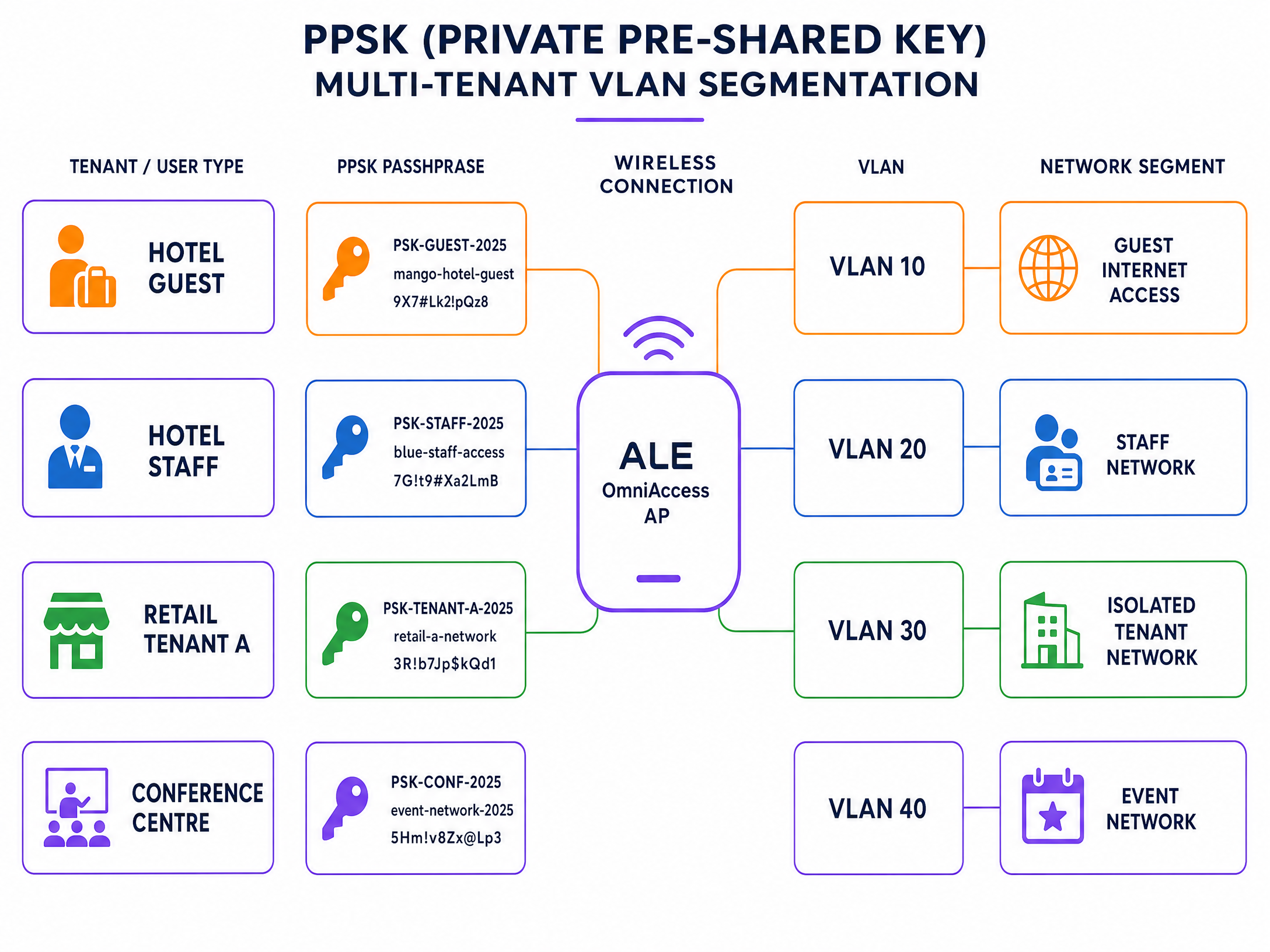
Figura 2: Segmentación de VLAN multi-inquilino PPSK en un solo SSID de ALE OmniAccess.
Paso 1: Crear el SSID PPSK
Cree un nuevo perfil WLAN y establezca el tipo de autenticación en WPA2-PSK con validación PSK respaldada por RADIUS. En el firmware Stellar 4.0.8.16 y versiones posteriores (para modelos AP1301 y superiores), la asignación dinámica de VLAN a través de RADIUS es compatible en Express Mode. Para modelos más antiguos o firmware anterior, use el modo administrado por OmniVista.
Paso 2: Definir las frases de contraseña de los inquilinos en Purple
En el portal de Purple, cree un grupo PPSK para cada inquilino. Asigne una frase de contraseña única por inquilino y asocie cada frase de contraseña al ID de VLAN correspondiente. Purple almacena estas asociaciones en su base de datos RADIUS.
Paso 3: Configurar los atributos RADIUS para el direccionamiento de VLAN
Asegúrese de que el servidor RADIUS de Purple devuelva los siguientes atributos estándar de IETF en cada respuesta Access-Accept:
| Número de atributo | Nombre del atributo | Valor |
|---|---|---|
| 64 | Tunnel-Type | 13 (VLAN) |
| 65 | Tunnel-Medium-Type | 6 (IEEE 802 / Ethernet) |
| 81 | Tunnel-Private-Group-ID | ID de VLAN (por ejemplo, "30") |
Los tres atributos deben estar presentes. Si falta alguno de ellos, el AP de ALE ignorará la asignación de VLAN y ubicará al cliente en la VLAN predeterminada.
Paso 4: Verificar el enlace troncal (trunking) de VLAN en el enlace ascendente (uplink)
Asegúrese de que todas las VLAN de los inquilinos estén etiquetadas en el puerto de enlace ascendente (uplink) entre el AP de ALE y el switch de distribución. Un AP no puede direccionar el tráfico a una VLAN que no esté permitida en su enlace troncal de subida.
Mejores prácticas
Las siguientes recomendaciones reflejan las prácticas estándar para implementaciones inalámbricas empresariales y se alinean con los requisitos de IEEE 802.1X, PCI DSS 4.0 y GDPR.
Separe el WiFi de invitados del WiFi del personal en la Capa 2. Nunca coloque el tráfico de invitados y del personal en la misma VLAN. Utilice la asignación de VLAN basada en RADIUS para aplicar esta separación de forma automática, independientemente del AP al que se conecte el usuario.
Utilice HTTPS para todas las redirecciones del Captive Portal. Instale un certificado SSL válido en el AP de ALE para habilitar la redirección HTTPS. Esto evita que los navegadores muestren advertencias de seguridad en la página de inicio (splash page), lo que reduce las tasas de abandono y se alinea con los requisitos de GDPR para el manejo seguro de datos.
Establezca el intervalo de RADIUS Accounting en 300 segundos. Esto proporciona a Purple actualizaciones periódicas de las sesiones para garantizar la precisión de los análisis. Un intervalo superior a 600 segundos corre el riesgo de perder datos de la sesión si un cliente se desconecta sin una desautenticación limpia.
Pruebe el Walled Garden antes de la puesta en marcha. Conecte un dispositivo de prueba al SSID de WiFi de invitados e intente acceder a cada proveedor de inicio de sesión social. Si un inicio de sesión falla, significa que el dominio correspondiente falta en el Walled Garden.
Segmente los dispositivos IoT mediante PPSK. En entornos de retail y hotelería, los dispositivos IoT, como la señalización digital, las terminales de pago y los sensores ambientales, deben recibir cada uno un PPSK único asociado a una VLAN aislada. Esto evita que un dispositivo IoT comprometido acceda a la red general.
Para obtener más información sobre los estándares y la arquitectura de seguridad de WiFi empresarial, consulte nuestra guía de seguridad de WiFi empresarial .
Resolución de problemas y mitigación de riesgos
La siguiente tabla cubre los modos de falla más comunes en las integraciones de ALE OmniAccess y Purple.
| Síntoma | Causa más probable | Resolución |
|---|---|---|
| El Captive Portal no aparece | Configuración incorrecta de Walled Garden o falta de DNS | Verifique que los dominios de Purple estén en la lista de permitidos; compruebe que el alcance de DHCP incluya un servidor DNS válido |
| Falla la autenticación RADIUS | Discrepancia en el secreto compartido o el firewall bloquea UDP 1812/1813 | Vuelva a ingresar el secreto compartido desde el portal de Purple; confirme que las reglas del firewall permitan UDP 1812 y 1813 de salida |
| Los usuarios se ubican en la VLAN incorrecta | Faltan atributos de túnel RADIUS o limitación del firmware del AP | Confirme que se devuelvan los tres atributos RADIUS (64, 65, 81); verifique que la versión de firmware de ALE admita VLAN dinámica |
| El botón de inicio de sesión social falla | Falta el dominio del proveedor social en el Walled Garden | Agregue los dominios del proveedor social requeridos ao a la lista de acceso previa a la autenticación |
| El captive portal HTTPS muestra una advertencia de certificado | Se utiliza un certificado comodín o no hay ningún certificado instalado | Instale un certificado SSL específico del dominio a través de Sistema > General > Administración de certificados |
| Faltan datos de sesión en los análisis de Purple | RADIUS Accounting deshabilitado o intervalo demasiado largo | Habilite RADIUS Accounting; establezca el intervalo en 300 segundos |
Para problemas persistentes de RADIUS, habilite el registro de depuración en el AP de ALE y capture el intercambio de RADIUS. Busque mensajes Access-Reject y verifique el código de motivo de rechazo. Los códigos comunes incluyen el 16 (fallo de autenticación) y el 18 (atributo faltante).
ROI e impacto empresarial
Implementar Purple en el hardware ALE OmniAccess convierte una red pasiva en un activo de datos activo. Cada sesión autenticada genera un perfil de visitante: dirección de correo electrónico, frecuencia de visitas, tiempo de permanencia y tipo de dispositivo. Estos datos de primera mano (first-party data) se envían directamente a su CRM a través de la biblioteca de Purple de más de 400 conectores.
Harrods logró un ROI de marketing de 57x con su implementación de Guest WiFi al utilizar la captura de datos de Purple para impulsar los registros en su programa de lealtad (caso de estudio de Purple, 2023). AGS Airports generó un ROI del 842% al implementar WiFi de pago con ancho de banda escalonado en todas sus instalaciones (caso de estudio de Purple, 2022).
Para los operadores de hospitalidad , el captive portal es el principal punto de contacto para la captura de datos de los huéspedes. Para los entornos de comercio minorista , permite el análisis del comportamiento de los compradores y promociones dirigidas. Para los centros de transporte , proporciona datos sobre el flujo de pasajeros y un registro de sesiones listo para auditorías de cumplimiento.
La plataforma Guest WiFi de Purple y las herramientas de WiFi Analytics le brindan la infraestructura de informes para medir estos resultados. Realice un seguimiento de las tasas de autenticación, la duración de las sesiones, las tasas de visitantes recurrentes y la conversión de suscripciones (opt-in) desde un único panel de control.
Para obtener orientación sobre integraciones relacionadas, consulte la guía de integración de WatchGuard Firebox , que cubre una arquitectura similar basada en RADIUS en una plataforma de hardware diferente.
Definiciones clave
PPSK (Private Pre-Shared Key)
A security method where individual users or devices are issued unique passphrases for a single SSID, rather than sharing one global password. The RADIUS server maps each passphrase to a specific policy or VLAN.
Used in Multi-Tenant WiFi to isolate traffic between tenants, residents, or event groups without deploying multiple SSIDs.
RADIUS (Remote Authentication Dial-In User Service)
A networking protocol defined in RFC 2865 that provides centralised Authentication, Authorization, and Accounting (AAA) management for users connecting to a network service.
The core protocol Purple uses to communicate with ALE hardware. The ALE AP sends Access-Request messages; Purple responds with Access-Accept or Access-Reject.
Dynamic VLAN steering
The process of assigning a connected device to a specific VLAN based on RADIUS attributes returned during authentication, rather than a static VLAN configured on the SSID.
Essential for multi-tenant deployments where different user groups must be isolated on the same physical AP infrastructure.
Walled Garden
A controlled environment that restricts a device's internet access to a predefined set of domains before authentication is complete.
Required to allow devices to reach the Purple captive portal and external identity providers before the user has logged in.
Captive portal
A web page that intercepts a user's browser session and requires them to authenticate or accept terms before gaining full network access.
The primary interface where visitors provide consent and first-party data. Purple hosts this page in the cloud; the ALE AP performs the redirect.
Identity-Based Network
A network architecture where access policies, VLAN assignments, and bandwidth controls are determined by who the user is, rather than where or how they connect.
The architectural outcome of integrating ALE hardware with Purple's authentication overlay.
802.1X
An IEEE standard for port-based network access control that provides an authentication mechanism for devices connecting to a LAN or WLAN. It requires a supplicant on the client device, an authenticator (the AP), and an authentication server (RADIUS).
The standard used for secure Staff WiFi deployments. Eliminates shared passwords and ties access to individual user identities.
EAP-TLS (Extensible Authentication Protocol - Transport Layer Security)
A certificate-based EAP method where both the client and the RADIUS server present digital certificates for mutual authentication.
The most secure 802.1X method. Requires a PKI infrastructure to issue client certificates, but eliminates password-based credential theft entirely.
PEAP (Protected Extensible Authentication Protocol)
An EAP method that tunnels the inner authentication exchange inside a TLS session, protecting credentials in transit. Commonly used with MSCHAPv2 as the inner method.
The most common 802.1X method in enterprise deployments. Requires only a server-side certificate and works with standard OS supplicants.
NAS (Network Access Server)
In RADIUS terminology, the device that enforces access control - in this case, the ALE OmniAccess Stellar AP. The NAS forwards authentication requests to the RADIUS server and enforces the policies returned.
The ALE AP acts as the NAS in the Purple integration. Its IP address and shared secret must be registered in the Purple portal as a trusted NAS client.
Ejemplos resueltos
A 200-room hotel in central London uses ALE OmniAccess Stellar APs throughout the property. They need to serve hotel guests, back-of-house staff, and a ground-floor restaurant as three completely separate network segments. They want to avoid broadcasting multiple SSIDs to preserve RF performance.
Deploy a single secure SSID using PPSK. Configure the ALE OmniAccess APs to authenticate against the Purple RADIUS server. In the Purple portal, create three PPSK groups: Hotel Guests (VLAN 10), Staff (VLAN 20), and Restaurant (VLAN 30). The RADIUS server returns Tunnel-Private-Group-ID = 10, 20, or 30 depending on which passphrase the device uses. The ALE AP dynamically steers each device to the correct VLAN. Hotel guests receive internet access only. Staff receive access to the property management system. The restaurant receives an isolated segment for their EPOS terminals.
A conference centre hosts 15 corporate events simultaneously. Each event organiser needs their own isolated WiFi network for attendees, but the venue only has a single ALE OmniAccess infrastructure. The venue IT team needs to provision and de-provision networks quickly between events.
Use Purple's PPSK management to create per-event passphrases mapped to dedicated event VLANs. The venue pre-configures 15 VLAN segments on the ALE infrastructure. For each event, the IT team creates a new PPSK entry in the Purple portal, assigns it to the correct VLAN, and provides the passphrase to the event organiser. At the end of the event, they revoke the passphrase in Purple. The ALE AP immediately stops accepting that passphrase, isolating the de-provisioned VLAN. No AP reconfiguration is required.
Preguntas de práctica
Q1. You have configured the Alcatel-Lucent captive portal on an ALE OmniAccess Stellar AP. Guests connect to the SSID and receive an IP address, but their devices show 'No Internet Connection' and the splash page does not appear. What are the two most likely causes, and how do you resolve each?
Sugerencia: Consider what must happen at the DNS and HTTP layer before the captive portal redirect can occur.
Ver respuesta modelo
Cause 1: The DHCP scope does not include a valid DNS server. Without DNS, the client cannot resolve the captive portal URL and the OS captive portal detection mechanism fails. Resolution: Add a valid DNS server (e.g., 8.8.8.8) to the DHCP scope on the guest VLAN. Cause 2: The Walled Garden does not include the Purple portal domains. Without these, the AP blocks the redirect request before it reaches the client. Resolution: Add region1.purpleportal.net, venuewifi.com, and cloudfront.net to the pre-authentication access list.
Q2. Your Multi-Tenant WiFi deployment uses PPSK on a single ALE OmniAccess SSID. Users authenticate successfully - the Purple portal shows successful logins - but all users receive IP addresses from VLAN 1 instead of their assigned tenant VLANs. What is the most likely cause?
Sugerencia: Check the communication between the RADIUS server and the AP, and the AP's uplink configuration.
Ver respuesta modelo
There are two likely causes. First, the Purple RADIUS server may not be returning all three required RADIUS tunnel attributes (64, 65, 81) in the Access-Accept message. Verify the enforcement policy includes Tunnel-Type = 13, Tunnel-Medium-Type = 6, and Tunnel-Private-Group-ID = the correct VLAN ID. Second, the tenant VLANs may not be tagged on the uplink trunk between the ALE AP and the distribution switch. If the VLAN does not exist on the trunk, the AP cannot steer traffic to it, even if the RADIUS attributes are correct.
Q3. A venue requires that guest sessions are automatically terminated after 60 minutes, and that guests who return within 24 hours are recognised and bypass the registration form. How should this be configured in the Purple and ALE architecture?
Sugerencia: Consider which system controls session lifetime and which system controls returning visitor recognition.
Ver respuesta modelo
Session termination is controlled via the RADIUS Session-Timeout attribute. Configure the Purple RADIUS server to include Session-Timeout = 3600 (seconds) in the Access-Accept message. The ALE AP will disconnect the client after 3600 seconds. Returning visitor recognition is controlled in the Purple portal. Enable the 'remember device' or MAC-based re-authentication setting for your venue. When a returning visitor connects within the configured window, Purple's RADIUS server recognises their MAC address and returns an Access-Accept without requiring the splash page interaction, providing a seamless reconnection experience.
Q4. You are deploying Staff WiFi using 802.1X on ALE OmniAccess Stellar APs. Your organisation uses Microsoft Entra ID as the identity provider. Staff devices are Windows 11 laptops managed via Intune. Which EAP method should you use, and what certificate requirements apply?
Sugerencia: Consider the balance between security, deployment complexity, and the capabilities of the existing infrastructure.
Ver respuesta modelo
Use PEAP with MSCHAPv2 as the EAP method. This requires only a server-side certificate on the Purple RADIUS server (already provisioned by Purple) and leverages the user's Entra ID credentials for authentication. No client certificates are required, which simplifies deployment on Intune-managed devices. Configure the Windows 11 supplicant via an Intune Wi-Fi profile, specifying the SSID, WPA2-Enterprise security, PEAP method, and the Purple RADIUS server certificate thumbprint for server validation. If your security policy requires certificate-based mutual authentication, upgrade to EAP-TLS and deploy client certificates via Intune SCEP profiles, but this adds significant PKI management overhead.
Continúe leyendo esta serie
Integración de Zyxel Nebula Cloud y USG con Purple WiFi
Esta guía de referencia técnica cubre la integración de extremo a extremo de Zyxel Nebula Cloud y los firewalls USG Flex con la plataforma Purple WiFi. Proporciona instrucciones de configuración paso a paso para la redirección del Captive Portal de invitados, autenticación RADIUS, configuración de Walled Garden, WiFi seguro para el personal mediante 802.1X y segmentación de red multiinquilino utilizando claves precompartidas privadas (PPSK) de Zyxel con asignación dinámica de VLAN. Los gerentes de TI, MSP y arquitectos de red que implementan WiFi en entornos de hospitalidad, retail y complejos multiinquilino encontrarán orientación práctica basada en estándares de la industria, incluidos PCI DSS, IEEE 802.1X y GDPR.
Integración de NETGEAR Insight y puntos de acceso empresariales con Purple WiFi
Esta guía proporciona a los gerentes de TI una hoja de ruta técnica definitiva para integrar NETGEAR Insight y los puntos de acceso empresariales WAX con Purple WiFi. Cubre configuraciones esenciales, incluidos Captive Portals para invitados, redes de personal 802.1X y segmentación multiinquilino mediante PPSK y asignación dinámica de VLAN.
Captive Portal para Aruba
Una guía de referencia técnica autorizada para configurar los puntos de acceso administrados por Aruba Instant (IAP) y Aruba Central para redirigir a los usuarios invitados al Captive Portal externo, seguro y de alta conversión de Purple. Esta guía cubre la configuración paso a paso del SSID de invitados, la redirección al Captive Portal externo, los parámetros de autenticación y contabilidad del servidor RADIUS, las listas de excepciones de walled garden y el soporte de WISPr.