
Grandstream GWN Access Points Integration with Purple WiFi
This authoritative technical reference guide details how to integrate Grandstream GWN access points with Purple's Guest WiFi and analytics platform. It covers Grandstream captive portal configuration, RADIUS AAA settings, walled garden setup, secure staff 802.1X authentication with dynamic VLAN steering, and multi-tenant PPSK segmentation - providing actionable, step-by-step guidance for MSPs and IT teams deploying guest and staff WiFi at scale.
Listen to this guide
View podcast transcript
執行摘要
在企業級場域部署高效能無線網路,需要在無縫的使用者體驗與強大的技術安全之間取得平衡。對於使用 Grandstream GWN 架構的組織(涵蓋飯店、零售業到多租戶物業)而言,Grandstream Captive Portal 是使用者互動與存取控制的主要閘道。本指南提供逐步操作手冊,協助您將 Grandstream GWN 存取點與 Purple 的 Guest WiFi 和 WiFi Analytics 平台進行整合。
透過從基本的預共用金鑰升級為基於 RADIUS 的驗證與身分識別網路(Identity-Based Networks),您可以為訪客、員工和租戶提供安全且區隔的存取權限。本指南涵蓋關鍵的設定元件:RADIUS AAA 設定、HTTP 302 重新導向、圍牆花園(walled garden)例外規則、動態 VLAN 導向,以及 Private Pre-Shared Key (PPSK) 多租戶隔離。Purple 在全球超過 80,000 個實體場域運作,並在 2024 年處理了 4.4 億次登入(Purple 內部數據),證實該平台具備成熟的大規模運作能力。
技術深度解析
整合架構
Grandstream GWN 硬體與 Purple 之間的整合仰賴業界標準的 RADIUS 和 HTTP 重新導向協定。當使用者連線至訪客 SSID 時,GWN 存取點會攔截其初始 HTTP 請求,並向 Purple 託管的 Captive Portal URL 發送 HTTP 302 重新導向。使用者透過電子郵件、社群媒體登入、簡訊或自訂表單完成驗證後,Purple 會驗證該工作階段,並透過 UDP 連接埠 1812 將 RADIUS Access-Accept 封包傳回存取點,進而授予網路存取權限。RADIUS Accounting 則在 UDP 連接埠 1813 上執行,為 GDPR 和 PCI DSS 合規性提供完整的工作階段稽核軌跡。
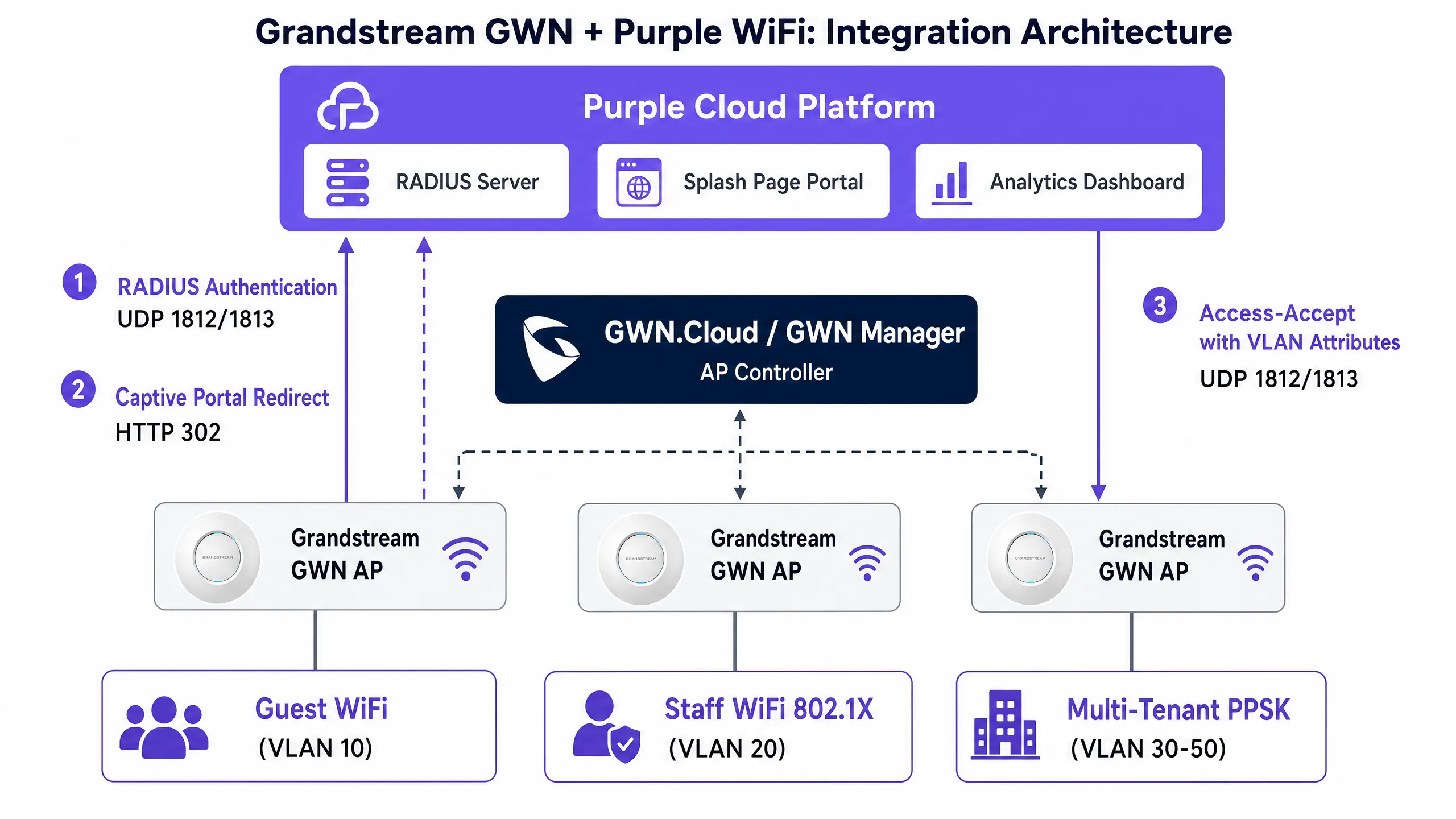
Grandstream GWN 存取點可透過兩種平台之一進行管理。GWN Manager 是安裝在 Linux 或 Windows 伺服器上的地端控制器,適用於單一場域部署以及有數據主權需求的組織。GDMS Networking(前身為 GWN.Cloud)是 Grandstream 的雲端託管管理平台,深受需要從單一介面管理多個場域的 MSP 喜愛。這兩個平台提供完全相同的 Captive Portal 和 SSID 設定選項。
針對員工和租戶網路,架構則轉向 IEEE 802.1X 和 PPSK。在 802.1X 部署中,存取點充當驗證器,在連線裝置與 Purple 的 RADIUS 伺服器之間代理可延伸驗證協定(EAP)訊息。Purple 會比對其目錄驗證憑證,並可傳回廠商特定屬性(VSA)以動態將裝置導向至特定的 VLAN。這就是實務中的身分識別網路:單一 SSID、多個網路區段,完全由使用者身分決定。
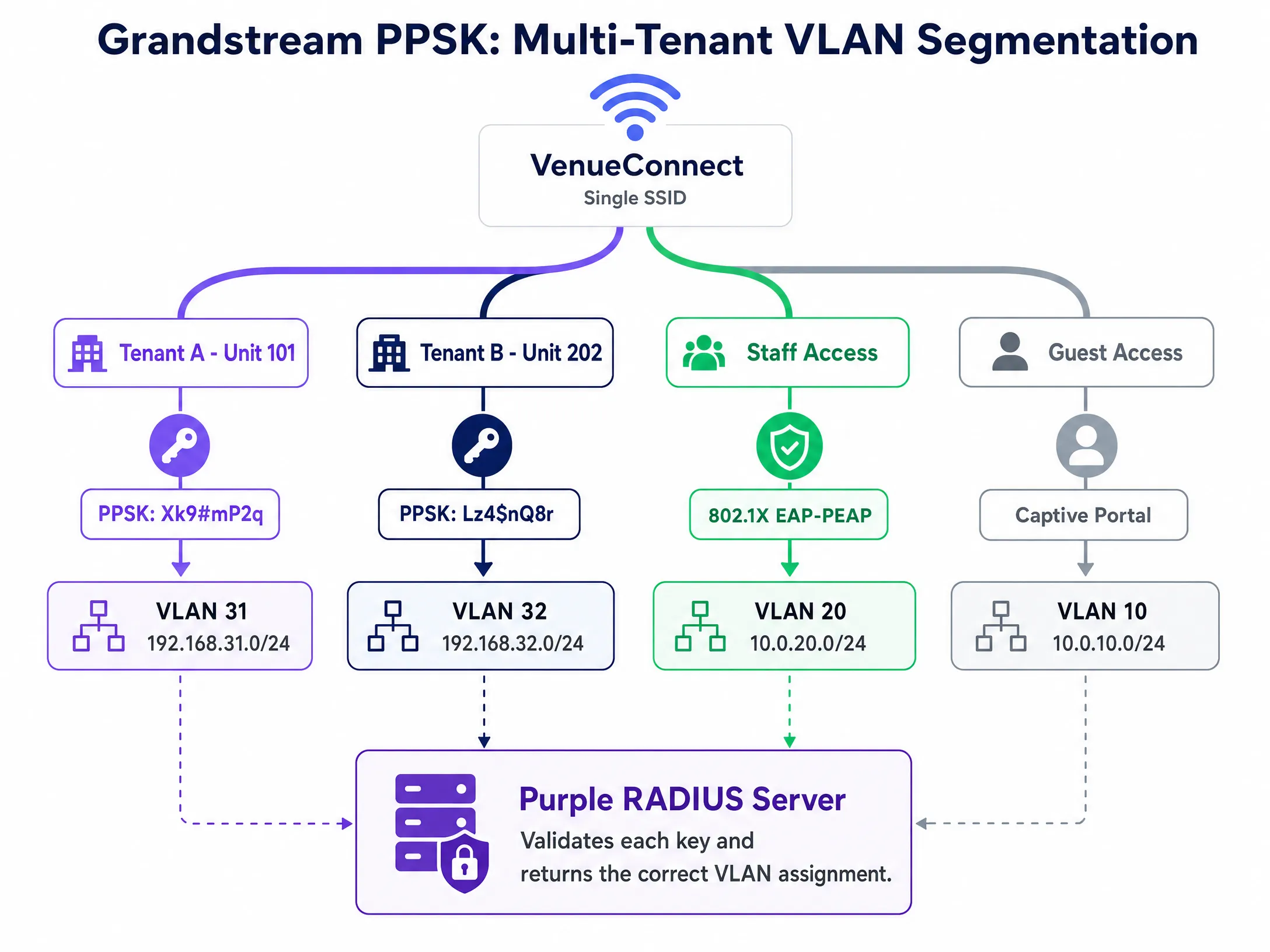
針對多租戶環境,Grandstream 的 PPSK 功能允許單一 SSID 支援多個不重複的密碼。與 RADIUS 後端整合時,存取點會將輸入的 PSK 傳送至 Purple 進行驗證,從而實現集中式憑證管理和動態網路區隔,而無需廣播數十個 SSID。搭配 RADIUS 後端的 PPSK 功能需要在 GWN76xx 系列上使用 GWN 韌體版本 1.0.19 或更高版本。
用於動態 VLAN 導向的 RADIUS 屬性
動態 VLAN 指派是由 Access-Accept 封包中傳回的三個標準 IETF RADIUS 屬性所控制。這些屬性必須在 Purple 的 RADIUS 使用者設定檔中針對每個角色或租戶進行設定:
| 屬性 | 值 | 說明 |
|---|---|---|
| Tunnel-Type (64) | 13 (VLAN) | 將通道類型指定為 VLAN |
| Tunnel-Medium-Type (65) | 6 (IEEE-802) | 將介質指定為 IEEE 802 |
| Tunnel-Private-Group-ID (81) | 例如 "20" | 目標 VLAN ID(字串格式) |
Access-Accept 回應中必須同時存在這三個屬性。若缺少任何一個,GWN 存取點將忽略 VLAN 導向指令,並將裝置置於預設 VLAN 中。
實作指南
步驟 1:設定 Captive Portal 策略
無論您使用 GWN Manager 還是 GDMS Networking,請導覽至 Captive Portal > Policy List 並建立新策略。下表彙整了 Purple 整合所需的設定:
| 欄位 | 值 | 備註 |
|---|---|---|
| Policy Name | Purple-Guest-Portal | 使用具描述性的名稱 |
| Authentication Type | RADIUS Server | 啟用 RADIUS 驗證流程 |
| RADIUS Server Address | [來自 Purple 管理主控台] | 主要 RADIUS IP |
| RADIUS Server Port | 1812 | 標準 RADIUS 驗證連接埠 |
| RADIUS Server Secret | [來自 Purple 管理主控台] | 完整複製並貼上 |
| RADIUS Auth Method | PAP | Purple Captive Portal 所需 |
| Landing Page | Redirect to External Page | 啟用外部入口網站重新導向 |
| Redirect URL | [來自 Purple 管理主控台] | 您專屬的入口網站 URL |
| Expiration | 24h(飯店)/ 4h(零售) | 配合您的工作階段策略 |
| Failsafe Mode | Enabled | 若無法連線至 RADIUS 則授予存取權限 |
啟用 Failsafe Mode。如果 GWN 存取點無法連線至 Purple 的 RADIUS 伺服器,容錯安全模式將授予網際網路存取權限,而非阻擋所有訪客。對於飯店和零售業部署,短暫的 RADIUS 中斷應不應導致所有訪客失去連線。
步驟 2:設定 Walled Garden
Walled Garden 定義了裝置在進行驗證前可以存取的網域。未設定完整的 Walled Garden 是導致 Portal 頁面載入失敗最常見的原因。在 GWN Manager 中,Walled Garden 是在 Captive Portal 策略下的 Pre-Authentication Rules 中進行設定。
您至少必須包含:Purple Portal 網域 (portal.purple.ai)、CDN 資源網域 (*.cloudfront.net) 以及 Google 的連線檢查端點 (connectivitycheck.gstatic.com)。若要使用社群媒體登入,請新增相關社群平台的網域。
針對 captive.apple.com 的處理是刻意設計的。排除它可以讓裝置連線時自動觸發 iOS Captive Network Assistant (CNA) 迷你瀏覽器。如果您希望訪客手動開啟瀏覽器,則將其納入。對於大多數 旅宿業 部署,將其排除能提供更好的訪客體驗。
請使用位於 support.purple.ai 的 Purple 動態 Walled Garden 產生器。從硬體清單中選擇 Grandstream,選擇您的驗證方式,該工具就會產生您所需的確切網域清單。請勿手動建立此清單。
步驟 3:將 Captive Portal 與訪客 SSID 關聯
導覽至 SSID 設定並編輯您的訪客網路。啟用 Captive Portal 功能並選擇您建立的策略。將 SSID 指派給您指定的訪客 VLAN(通常慣用 VLAN 10)。啟用 Client Isolation(用戶端隔離)以防止訪客裝置互相通訊 — 這是任何處理刷卡交易的場所的基本安全要求,也是 PCI DSS 的考量因素。
步驟 4:使用 802.1X 設定安全的員工 WiFi
為員工建立一個獨立的 SSID。將安全模式設定為 WPA2-Enterprise 以啟用 IEEE 802.1X。將 RADIUS 伺服器設定指向 Port 1812 上的 Purple,並在 Port 1813 上啟用 RADIUS Accounting。此記帳數據提供了 GDPR 合規性和安全性事件回應所需的稽核軌跡。
針對 EAP 方法,請根據您的裝置管理能力進行選擇。EAP-TLS 使用雙向憑證驗證 — 這是最安全的選項,能完全消除憑證被盜的風險,但需要行動裝置管理平台(Microsoft Intune 或 Jamf)將憑證推送到裝置。PEAP 在加密的 TLS 通道內使用使用者名稱和密碼,對於 BYOD 環境較易部署,但需要對員工進行憑證警告相關的培訓。
在 SSID 設定中啟用 Dynamic VLAN。Purple 的 RADIUS 伺服器將回傳三個通道屬性,以將每個通過驗證的裝置引導至其指定的 VLAN。IT 員工進入 VLAN 20,管理階層進入 VLAN 21,POS 終端機進入 VLAN 40 — 全部來自同一個 SSID,完全由身分驅動。
如需有關員工網路策略的進一步指引,請參閱 員工 WiFi 條款與細則:法律與合規要點 。
步驟 5:設定多租戶 PPSK
針對多租戶環境,建立一個使用 WPA2-Personal 安全性的 SSID 並啟用 PPSK。若要使用 Purple 作為 PPSK 驗證的 RADIUS 後端,請在 SSID 的 PPSK 區段中設定 RADIUS 伺服器設定。Purple 會管理 PSK 資料庫、驗證每個金鑰並回傳適當的 VLAN 指派。
每個租戶都會收到一個專屬密碼。當他們連線時,AP 會將 PSK 傳送給 Purple,Purple 則回傳正確的 VLAN ID。租戶 A 進入 VLAN 31,租戶 B 進入 VLAN 32。他們共用相同的 SSID,但在網路層完全隔離。當租戶搬離時,直接在 Purple 的管理主控台中撤銷其憑證。存取權限會立即終止,無需重新設定 AP。
如需深入瞭解企業級 WiFi 安全架構,請參閱 企業級 WiFi 安全性:2026 年完整指南 。
最佳實踐
務必設定 RADIUS Accounting。 在訪客和員工 SSID 的 Port 1813 上啟用記帳。記帳數據能為 Purple 的分析儀表板提供工作階段持續時間和造訪頻率,並提供 GDPR 要求的稽核軌跡。若沒有記帳,您只有驗證記錄,而沒有工作階段記錄。
複製並貼上共用金鑰。 RADIUS 共用金鑰不相符會導致無線基地台靜默丟棄封包。AP 會判定為逾時,而非驗證失敗。這是新部署中最常見的設定錯誤。請直接從 Purple 管理主控台複製金鑰。
使用 Purple 的 Walled Garden 產生器。 現代 Portal 頁面會從多個 CDN 網域、社群媒體登入 SDK 和分析指令碼載入資源。手動建立 Walled Garden 並不可靠。support.purple.ai 上的產生器會根據您的驗證方式納入所有必要的網域。
在無線基地台端隔離訪客流量。 用戶端隔離(Client Isolation)是任何訪客 SSID 不可妥協的基本要求。它能防止訪客裝置之間的橫向移動,且對於在相同網路基礎架構上處理刷卡交易的場所而言,是 PCI DSS 的合規要求。
在部署結合 RADIUS 的 PPSK 之前驗證韌體。 結合 RADIUS 後端的 PPSK 需要 GWN 韌體 1.0.19 或更高版本。執行過時的韌體是 PPSK 部署中出現非預期行為最常見的原因。請在部署前檢查韌體版本,而非部署後。
對於 零售業 部署,請確保您的訪客 SSID VLAN 與任何付款網路區段設有防火牆隔離。對於 醫療保健 環境,請確保患者或訪客 WiFi 與臨床系統隔離。對於 交通運輸 樞紐,請考慮與平均停留時間相符的工作階段過期策略。
疑難排解與風險緩釋
症狀:Splash Page 無法載入,回傳「無法連線至網站」錯誤。 Walled Garden 封鎖了 Portal 頁面的資源。請連線測試裝置,開啟瀏覽器開發者工具,檢查網路(Network)分頁,並找出被封鎖的要求。新增將失敗的網域新增至 Captive Portal 策略中的預先驗證規則(Pre-Authentication Rules)。
症狀:訪客已通過驗證,但存取點(AP)逾時並拒絕網際網路存取。 可能是防火牆阻擋了從 AP 的管理 VLAN 到 Purple 的 RADIUS IP 範圍的外網 UDP 1812 流量,或者是共享金鑰(shared secret)不相符。請先檢查防火牆規則。接著確認雙方的共享金鑰完全一致。
症狀:員工裝置進入了預設 VLAN,而非其獲分配的 VLAN。 SSID 設定中的「啟用動態 VLAN(Enable Dynamic VLAN)」核取方塊未勾選。這是一個很容易被忽略的單一核取方塊。第二個原因則是共享金鑰不相符,導致 AP 默默忽略了 RADIUS 回應。
症狀:iOS 裝置未顯示 Captive Portal 迷你瀏覽器。
captive.apple.com 網域被包含在圍牆花園(walled garden)中。iOS 裝置在連線時會探測此網域。如果收到 200 回應,它會判定網際網路已可存取,因而不會觸發 CNA。請將其從圍牆花園中移除,以恢復自動 CNA 行為。
症狀:PPSK 租戶進入了錯誤的 VLAN。
請確認 GWN 韌體版本為 1.0.19 或更高版本。確認 PPSK RADIUS 後端已啟用且共享金鑰相符。檢查 Purple 的 PSK RADIUS 使用者設定檔是否傳回正確的 Tunnel-Private-Group-ID 屬性。
投資報酬率(ROI)與業務影響
將 Grandstream GWN 硬體與 Purple 整合,能將 WiFi 從沉沒成本轉化為可衡量的企業資產。透過將一般開放式網路替換為經身分驗證的 Captive Portal,場域得以收集第一方數據並推動會員計畫成長。Purple 已在其網路中收集了 290 億個數據點(Purple 內部數據),為營運商提供了衡量自身表現的基準。
在 旅宿業 環境中,Purple 的分析功能可讓訪客造訪頻率、停留時間和同意訂閱率(opt-in rates)一目了然。使用 Purple Engage 方案的飯店營運商可以針對回訪訪客進行細分,以開展精準行銷活動,進而提高直接訂房率並減少對 OTA(線上旅行社)的依賴。在 零售業 環境中,來自 WiFi 數據的人流量分析能讓店長將客流模式與銷售業績進行關聯分析。
802.1X 和 PPSK 的實施透過自動化網路存取控制,降低了 IT 服務台的維運開銷。免除共享密碼消除了定期更換密碼的營運成本,也降低了憑證共享的安全風險。對於多租戶營運商而言,PPSK 搭配 Purple 的集中式管理,意味著啟用新租戶只需幾分鐘,而非數小時。
Purple 的 99.999% 可用性(Purple 內部數據)以及 ISO 27001、GDPR、CCPA 和 Cyber Essentials 認證,意味著該平台符合最嚴苛的企業與公共部門營運商的合規要求。如需完整了解訪客 WiFi 分析功能,請參閱 WiFi Analytics 。
Key Definitions
Captive portal
A web page that intercepts unauthenticated HTTP traffic from a connected device, forcing the user to interact or authenticate before granting internet access. The Grandstream captive portal uses HTTP 302 redirection to send users to an external portal URL.
The primary mechanism for guest data capture, terms of service acceptance, and access control in public venues.
RADIUS
Remote Authentication Dial-In User Service; a networking protocol operating over UDP that provides centralised Authentication, Authorisation, and Accounting (AAA) management. Authentication runs on port 1812, accounting on port 1813.
The backend engine that validates credentials for both captive portals and 802.1X enterprise networks. Purple operates RADIUS servers that GWN access points communicate with directly.
Walled garden
A predefined list of IP addresses and domains that a device can access before completing the captive portal authentication process. Configured as Pre-Authentication Rules in GWN Manager.
Essential for allowing devices to load the portal page assets, CDN resources, social login endpoints, and OS captive portal detection probes.
IEEE 802.1X
An IEEE standard for port-based network access control that provides an authentication mechanism for devices connecting to a LAN or WLAN. Uses EAP to exchange credentials between the device (supplicant) and the RADIUS server (authentication server) via the access point (authenticator).
Replaces shared passwords with per-user credentials for secure staff and corporate WiFi access. Required for GDPR and PCI DSS compliant staff networks.
PPSK
Private Pre-Shared Key; a feature that allows a single SSID to support multiple unique passwords, each tied to specific network policies or VLANs. Grandstream GWN supports PPSK with local storage or RADIUS backend validation.
Used in multi-tenant environments like apartments, coworking spaces, and serviced offices to isolate users without broadcasting multiple SSIDs.
Dynamic VLAN assignment
The process where a RADIUS server returns three specific attributes in the Access-Accept packet (Tunnel-Type, Tunnel-Medium-Type, Tunnel-Private-Group-ID) to steer an authenticated device to a designated VLAN. Must be explicitly enabled in GWN SSID settings.
Allows IT teams to consolidate SSIDs while maintaining strict network segmentation for different user groups, departments, or tenants.
Client isolation
A wireless security feature that prevents devices connected to the same access point from communicating directly with each other at Layer 2.
A mandatory configuration for guest networks to protect users from peer-to-peer attacks and meet PCI DSS requirements for venues processing card payments.
EAP-PEAP
Protected Extensible Authentication Protocol; an 802.1X EAP method that encapsulates the authentication exchange within an encrypted TLS tunnel using a username and password. The outer TLS tunnel protects the inner credentials from interception.
Commonly used for BYOD staff networks where deploying client certificates (EAP-TLS) is not operationally feasible. Requires staff training on certificate validation to prevent rogue AP attacks.
Failsafe mode
A GWN captive portal setting that grants internet access to connecting devices if the access point cannot reach the configured RADIUS server. Prevents a RADIUS outage from blocking all guest access.
Recommended for hospitality and retail deployments where guest connectivity is business-critical and a brief RADIUS interruption should not result in a complete service outage.
GWN Manager
Grandstream's on-premise, enterprise-grade management platform for GWN series access points. Installed on a local Linux or Windows server, it provides full captive portal, SSID, RADIUS, and PPSK configuration.
Preferred for single-site deployments and organisations with data sovereignty requirements. GDMS Networking is the cloud-hosted equivalent for multi-site MSP deployments.
Worked Examples
A 120-room hotel needs to deploy a branded guest portal for guests, a secure staff network with department-level VLAN segmentation for housekeeping and front desk, and a separate management VLAN for the property management system. The hotel runs Grandstream GWN7660 access points managed through GDMS Networking.
Configure three SSIDs in GDMS Networking. First, create 'Guest WiFi' assigned to VLAN 10. Create a captive portal policy with Authentication Type set to RADIUS Server, pointing to Purple's RADIUS IP on port 1812 with the shared secret from the Purple admin console. Set the Landing Page to Redirect to External Page with the Purple portal URL. Enable Failsafe Mode and Client Isolation. Second, create 'Staff WiFi' with WPA2-Enterprise (802.1X) security. Configure RADIUS on port 1812 and Accounting on port 1813. Enable Dynamic VLAN. In Purple's directory, configure housekeeping accounts to return Tunnel-Private-Group-ID = 21 and front desk accounts to return VLAN 20. Third, create a hidden 'Management' SSID on VLAN 30 with WPA2-Personal for PMS terminals. Build the walled garden using Purple's generator tool, excluding captive.apple.com to trigger the iOS CNA.
A 40-unit build-to-rent apartment block requires isolated network access for each tenant, with the ability to instantly revoke access when a tenant moves out. The operator runs GWN7630 access points with GWN Manager on-premises and wants to minimise the number of visible SSIDs in the building.
Deploy a single SSID named 'BuildingConnect' with WPA2-Personal security and enable PPSK with RADIUS backend. Ensure GWN firmware is at version 1.0.19 or higher. Configure the RADIUS server settings in the PPSK section to point to Purple. In Purple's admin console, create 40 unique PSK credentials, each mapped to a VLAN (e.g., VLAN 101 for Unit 101, VLAN 102 for Unit 102). When a resident connects using their unit's password, the GWN AP sends the PSK to Purple, which validates it and returns Tunnel-Private-Group-ID = 101. The resident lands on their isolated VLAN. When a resident moves out, revoke the credential in Purple's admin console. Access terminates immediately without any AP reconfiguration.
Practice Questions
Q1. You have configured the captive portal policy in GWN Manager with the correct Purple RADIUS IP and shared secret, but guests are reporting a 'site cannot be reached' error when their browser opens after connecting to the SSID. What is the most likely cause and how do you diagnose it?
Hint: Consider what controls which domains a device can access before it has authenticated through the portal.
View model answer
The walled garden (Pre-Authentication Rules) is incomplete or misconfigured. The access point is blocking the device from reaching the Purple portal domain or the CDN assets the portal page loads. To diagnose: connect a test device to the guest SSID, open browser developer tools, navigate to the network tab, and attempt to load the portal URL. Identify which requests return connection errors. Add those domains to the Pre-Authentication Rules. Use Purple's walled garden generator at support.purple.ai to generate the complete domain list for Grandstream hardware.
Q2. Your hotel wants iOS guests to automatically see the captive portal mini-browser as soon as they connect to the guest WiFi, without needing to open a browser manually. How do you configure the walled garden to achieve this?
Hint: Consider how iOS determines whether a network has internet access when it first connects.
View model answer
You must exclude captive.apple.com from the walled garden. When an iOS device connects to a network, it probes captive.apple.com. If the probe receives a 200 OK response (meaning the domain is accessible), iOS assumes the network has internet access and does not trigger the Captive Network Assistant mini-browser. If the probe is blocked or redirected, iOS recognises the network as captive and automatically opens the CNA. By keeping captive.apple.com out of the walled garden, the probe is intercepted and redirected, triggering the CNA automatically.
Q3. A staff member connects to the 802.1X SSID using their credentials. Purple's authentication logs show a successful Access-Accept response with the correct VLAN 20 attributes. However, the staff member is placed on VLAN 1 (the default). What GWN Manager setting needs to be checked?
Hint: The RADIUS server is correctly authorising the user and returning the VLAN attributes. The issue is on the access point side.
View model answer
The 'Enable Dynamic VLAN' checkbox in the SSID settings within GWN Manager is not ticked. Even when Purple returns the correct Tunnel-Type, Tunnel-Medium-Type, and Tunnel-Private-Group-ID attributes in the Access-Accept packet, the GWN access point will ignore them unless Dynamic VLAN is explicitly enabled. Navigate to the SSID configuration, locate the Dynamic VLAN setting, enable it, and save. The staff member should then be placed on the correct VLAN on their next connection.
Q4. A build-to-rent operator wants to deploy PPSK with Purple as the RADIUS backend on their Grandstream GWN7630 access points running firmware 1.0.17. A tenant reports they can connect to the SSID but are placed on the wrong VLAN. What should you check first?
Hint: There are two potential causes here: one is a firmware version issue, the other is a configuration issue.
View model answer
The first thing to check is the firmware version. PPSK with RADIUS backend requires GWN firmware 1.0.19 or higher on the GWN76xx series. Firmware 1.0.17 may not correctly support the RADIUS-backed PPSK VLAN assignment. Upgrade the firmware to 1.0.19 or higher before further troubleshooting. If the firmware is correct, verify that the PPSK RADIUS backend is enabled in the SSID settings, the shared secret matches Purple's configuration, and that Purple's RADIUS user profile for the specific PSK is returning the correct Tunnel-Private-Group-ID attribute.
Continue reading in this series
Cisco WLC and Catalyst Integration with Purple WiFi: Step-by-Step Guest Access Guide
This authoritative guide details the step-by-step integration of Cisco Catalyst 9800 WLCs with Purple WiFi. It covers External Web Authentication for guest captive portals, 802.1X EAP-TLS for secure staff access, and Cisco iPSK for multi-tenant dynamic VLAN segmentation.
Cisco WLC and Catalyst Integration with Purple WiFi: Step-by-Step Guest Access Guide
This authoritative guide details the step-by-step integration of Cisco Catalyst 9800 WLCs with Purple WiFi. It covers External Web Authentication for guest captive portals, 802.1X EAP-TLS for secure staff access, and Cisco iPSK for multi-tenant dynamic VLAN segmentation.
CommScope Ruckus Integration with Purple WiFi: Setup and Configuration Guide
This technical reference guide provides an authoritative configuration playbook for integrating CommScope Ruckus architectures with Purple WiFi. It details step-by-step deployments for Guest WiFi captive portals, Secure Staff WiFi via 802.1X, and Multi-Tenant network isolation using Ruckus Dynamic PSK.