
Grandstream GWN Access Points Integration with Purple WiFi
This authoritative technical reference guide details how to integrate Grandstream GWN access points with Purple's Guest WiFi and analytics platform. It covers Grandstream captive portal configuration, RADIUS AAA settings, walled garden setup, secure staff 802.1X authentication with dynamic VLAN steering, and multi-tenant PPSK segmentation - providing actionable, step-by-step guidance for MSPs and IT teams deploying guest and staff WiFi at scale.
Listen to this guide
View podcast transcript
Executive summary
Deploying a high-performance wireless network in enterprise venues requires a balance between seamless user experience and robust technical security. For organisations utilising Grandstream GWN architectures - ranging from hospitality and retail to multi-tenant properties - the Grandstream captive portal serves as the primary gateway for user engagement and access control. This guide delivers a step-by-step playbook for integrating Grandstream GWN access points with Purple's Guest WiFi and WiFi Analytics platform.
By moving beyond basic Pre-Shared Keys to RADIUS-backed authentication and Identity-Based Networks, you can deliver secure, segmented access for guests, staff, and tenants. This guide covers the critical configuration components: RADIUS AAA settings, HTTP 302 redirection, walled garden exceptions, dynamic VLAN steering, and Private Pre-Shared Key (PPSK) multi-tenant isolation. Purple operates across 80,000+ live venues and processed 440 million logins in 2024 (Purple internal data), making the platform well-proven at scale.
Technical deep-dive
The integration architecture
The integration between Grandstream GWN hardware and Purple relies on industry-standard RADIUS and HTTP redirection protocols. When a user connects to the guest SSID, the GWN access point intercepts their initial HTTP request and issues an HTTP 302 redirect to the Purple-hosted captive portal URL. After the user authenticates - via email, social login, SMS, or a custom form - Purple validates the session and sends a RADIUS Access-Accept packet back to the access point on UDP port 1812, granting network access. RADIUS Accounting runs on UDP port 1813, providing a full session audit trail for GDPR and PCI DSS compliance.
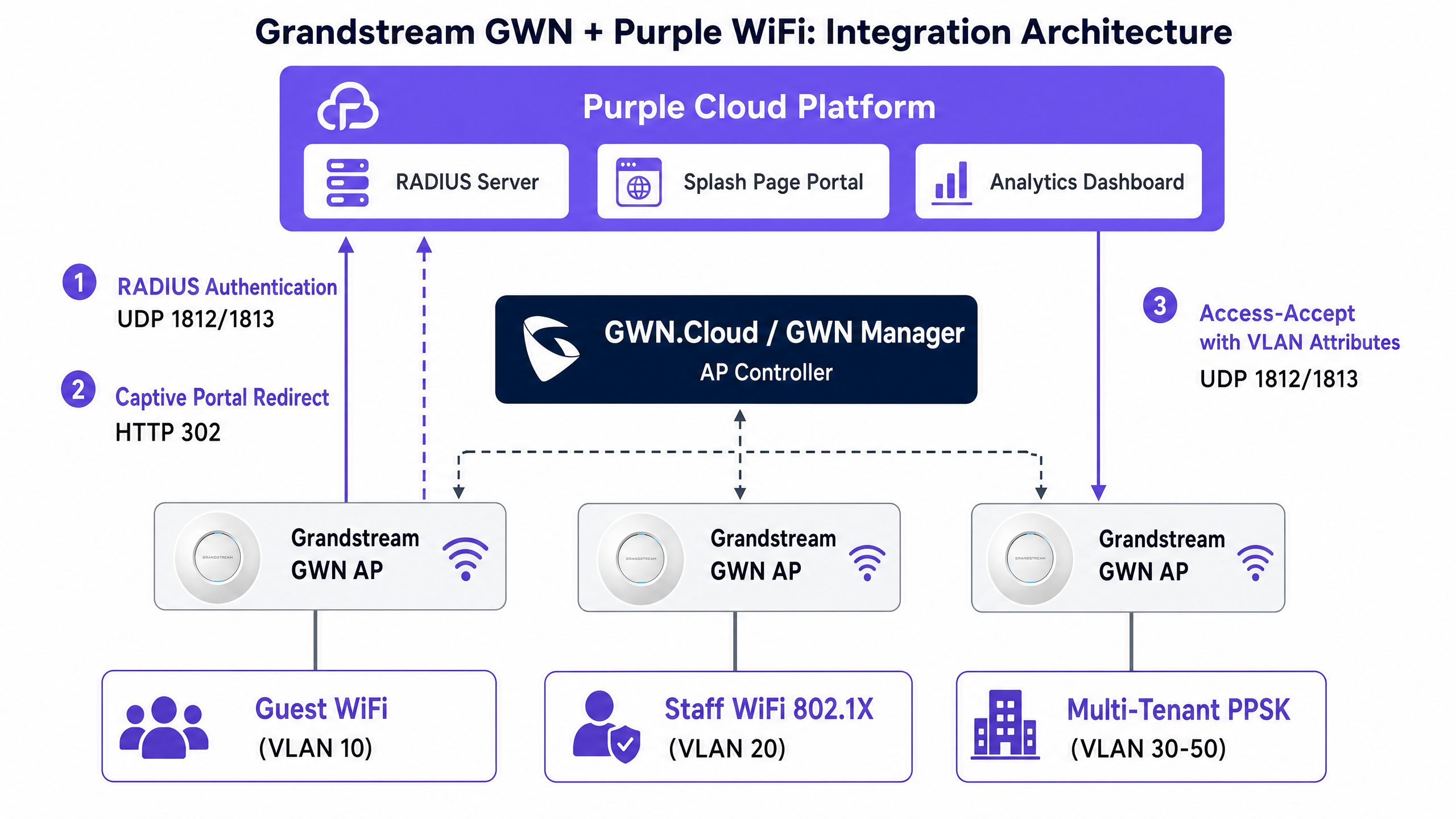
Grandstream GWN access points are managed through one of two platforms. GWN Manager is an on-premise controller installed on a Linux or Windows server, suited to single-site deployments and organisations with data sovereignty requirements. GDMS Networking (formerly GWN.Cloud) is Grandstream's cloud-hosted management platform, preferred by MSPs managing multiple sites from a single pane of glass. Both platforms expose identical captive portal and SSID configuration options.
For staff and tenant networks, the architecture shifts to IEEE 802.1X and PPSK. In an 802.1X deployment, the access point acts as the authenticator, proxying Extensible Authentication Protocol (EAP) messages between the connecting device and Purple's RADIUS server. Purple validates the credentials against its directory and can return Vendor-Specific Attributes (VSAs) to dynamically steer the device to a specific VLAN. This is Identity-Based Networking in practice: one SSID, multiple network segments, all driven by who the user is.
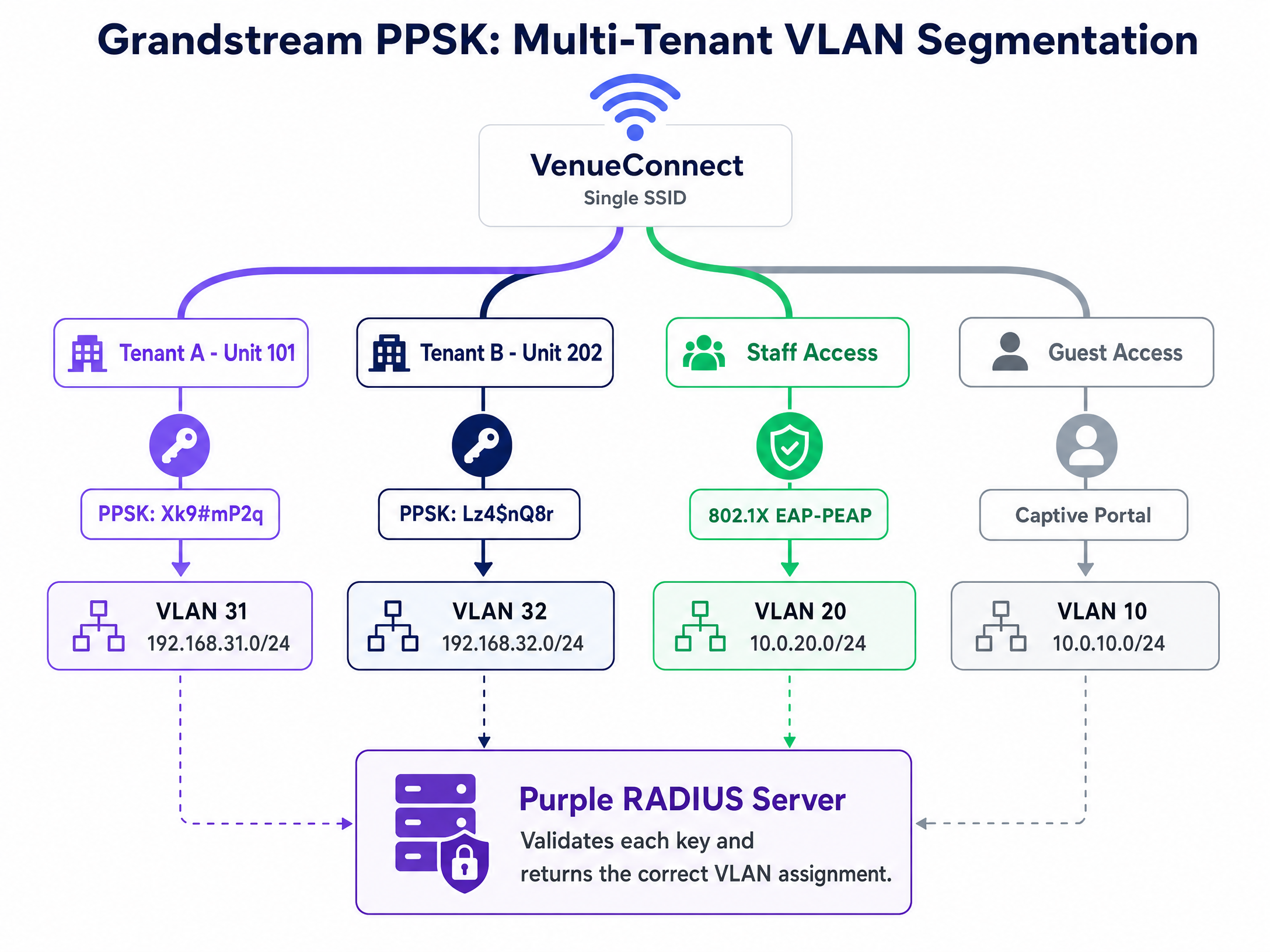
For multi-tenant environments, Grandstream's PPSK feature allows a single SSID to support multiple unique passwords. When integrated with a RADIUS backend, the access point sends the entered PSK to Purple for validation, enabling centralised credential management and dynamic network segmentation without broadcasting dozens of SSIDs. PPSK with RADIUS backend requires GWN firmware version 1.0.19 or higher on the GWN76xx series.
RADIUS attributes for dynamic VLAN steering
Dynamic VLAN assignment is controlled by three standard IETF RADIUS attributes returned in the Access-Accept packet. These must be configured in Purple's RADIUS user profiles for each role or tenant:
| Attribute | Value | Description |
|---|---|---|
| Tunnel-Type (64) | 13 (VLAN) | Specifies the tunnel type as VLAN |
| Tunnel-Medium-Type (65) | 6 (IEEE-802) | Specifies the medium as IEEE 802 |
| Tunnel-Private-Group-ID (81) | e.g., "20" | The target VLAN ID as a string |
All three attributes must be present in the Access-Accept response. If any one is missing, the GWN access point will ignore the VLAN steering instruction and place the device on the default VLAN.
Implementation guide
Step 1: Configure the captive portal policy
Whether you use GWN Manager or GDMS Networking, navigate to Captive Portal > Policy List and create a new policy. The following table summarises the required settings for a Purple integration:
| Field | Value | Notes |
|---|---|---|
| Policy Name | Purple-Guest-Portal | Use a descriptive name |
| Authentication Type | RADIUS Server | Enables RADIUS auth flow |
| RADIUS Server Address | [From Purple admin console] | Primary RADIUS IP |
| RADIUS Server Port | 1812 | Standard RADIUS auth port |
| RADIUS Server Secret | [From Purple admin console] | Copy and paste exactly |
| RADIUS Auth Method | PAP | Required for Purple captive portal |
| Landing Page | Redirect to External Page | Enables external portal redirect |
| Redirect URL | [From Purple admin console] | Your unique portal URL |
| Expiration | 24h (hospitality) / 4h (retail) | Match your session policy |
| Failsafe Mode | Enabled | Grants access if RADIUS unreachable |
Enable Failsafe Mode. If the GWN access point cannot reach Purple's RADIUS server, failsafe mode grants internet access rather than blocking all guests. For hospitality and retail deployments, a brief RADIUS interruption should not result in all guests losing connectivity.
Step 2: Configure the walled garden
The walled garden defines which domains a device can access before authenticating. An incomplete walled garden is the most common cause of portal loading failures. In GWN Manager, the walled garden is configured under the captive portal policy as Pre-Authentication Rules.
At minimum, you must include: the Purple portal domain (portal.purple.ai), CDN asset domains (*.cloudfront.net), and Google's connectivity check endpoint (connectivitycheck.gstatic.com). For social login, add the relevant social platform domains.
The decision on captive.apple.com is deliberate. Exclude it to trigger the iOS Captive Network Assistant (CNA) mini-browser automatically when a device connects. Include it if you prefer guests to open a browser manually. For most hospitality deployments, excluding it provides a better guest experience.
Use Purple's dynamic walled garden generator at support.purple.ai. Select Grandstream from the hardware list, choose your authentication methods, and the tool generates the exact domain list you need. Do not build the list manually.
Step 3: Associate the captive portal with the guest SSID
Navigate to the SSID settings and edit your guest network. Enable the Captive Portal feature and select the policy you created. Assign the SSID to your designated guest VLAN (VLAN 10 is the common convention). Enable Client Isolation to prevent guest devices from communicating with each other - this is a baseline security requirement and a PCI DSS consideration for any venue processing card payments.
Step 4: Configure secure Staff WiFi with 802.1X
Create a separate SSID for staff. Set the Security Mode to WPA2-Enterprise to enable IEEE 802.1X. Configure the RADIUS server to point to Purple on port 1812, and enable RADIUS Accounting on port 1813. This accounting data provides the audit trail required for GDPR compliance and security incident response.
For the EAP method, choose based on your device management capability. EAP-TLS uses mutual certificate authentication - the most secure option, eliminating credential theft entirely, but requiring a Mobile Device Management platform (Microsoft Intune or Jamf) to push certificates to devices. PEAP uses a username and password inside an encrypted TLS tunnel, easier to deploy for BYOD environments but requiring staff training on certificate warnings.
Enable Dynamic VLAN in the SSID settings. Purple's RADIUS server will return the three tunnel attributes to steer each authenticated device to its designated VLAN. IT staff land on VLAN 20, management on VLAN 21, point-of-sale terminals on VLAN 40 - all from one SSID, all driven by identity.
For further guidance on staff network policies, see Staff WiFi Terms and Conditions: Legal and Compliance Essentials .
Step 5: Configure multi-tenant PPSK
For multi-tenant environments, create an SSID with WPA2-Personal security and enable PPSK. To use Purple as the RADIUS backend for PPSK validation, configure the RADIUS server settings in the PPSK section of the SSID. Purple manages the PSK database, validates each key, and returns the appropriate VLAN assignment.
Each tenant receives a unique password. When they connect, the AP sends the PSK to Purple, which returns the correct VLAN ID. Tenant A lands on VLAN 31, Tenant B on VLAN 32. They share the same SSID but are completely isolated at the network layer. When a tenant moves out, revoke their credential in Purple's admin console. Access terminates immediately. No AP reconfiguration required.
For a deeper understanding of enterprise WiFi security architecture, see Enterprise WiFi Security: A Complete Guide for 2026 .
Best practices
Always configure RADIUS Accounting. Enable accounting on port 1813 for both guest and staff SSIDs. Accounting data feeds Purple's analytics dashboard with session durations and visit frequency, and provides the audit trail required under GDPR. Without accounting, you have authentication records but no session records.
Copy and paste the shared secret. A mismatched RADIUS shared secret causes the access point to silently discard packets. The AP sees a timeout rather than an authentication failure. This is the most common misconfiguration in new deployments. Copy the secret directly from the Purple admin console.
Use Purple's walled garden generator. Modern portal pages load assets from multiple CDN domains, social login SDKs, and analytics scripts. Manually building the walled garden is unreliable. The generator at support.purple.ai accounts for all required domains based on your authentication methods.
Isolate guest traffic at the access point. Client Isolation is a non-negotiable baseline for any guest SSID. It prevents lateral movement between guest devices and is a requirement under PCI DSS for venues that process card payments on the same network infrastructure.
Validate firmware before deploying PPSK with RADIUS. PPSK with RADIUS backend requires GWN firmware 1.0.19 or higher. Running outdated firmware is the most common cause of unexpected behaviour in PPSK deployments. Check the firmware version before deployment, not after.
For retail deployments, ensure your guest SSID VLAN is firewalled from any payment network segment. For healthcare environments, ensure patient or visitor WiFi is isolated from clinical systems. For transport hubs, consider session expiry policies aligned with average dwell times.
Troubleshooting & risk mitigation
Symptom: The splash page fails to load, returning a 'site cannot be reached' error. The walled garden is blocking the portal page assets. Connect a test device, open browser developer tools, inspect the network tab, and identify blocked requests. Add the failing domains to the Pre-Authentication Rules in the captive portal policy.
Symptom: Guests authenticate but the access point times out and denies internet access. Either a firewall is blocking UDP 1812 outbound from the AP's management VLAN to Purple's RADIUS IP range, or the shared secret is mismatched. Check firewall rules first. Then verify the shared secret matches exactly on both sides.
Symptom: Staff devices land on the default VLAN instead of their assigned VLAN. The Enable Dynamic VLAN checkbox is not ticked in the SSID settings. It is a single checkbox and easy to miss. The second cause is a shared secret mismatch causing the AP to silently ignore the RADIUS response.
Symptom: iOS devices do not show the captive portal mini-browser.
The captive.apple.com domain is in the walled garden. iOS probes this domain on connection. If it receives a 200 response, it assumes internet access is available and does not trigger the CNA. Remove it from the walled garden to restore automatic CNA behaviour.
Symptom: PPSK tenants land on the wrong VLAN.
Verify the GWN firmware is at version 1.0.19 or higher. Confirm the PPSK RADIUS backend is enabled and the shared secret matches. Check that Purple's RADIUS user profile for the PSK is returning the correct Tunnel-Private-Group-ID attribute.
ROI & business impact
Integrating Grandstream GWN hardware with Purple transforms WiFi from a sunk cost into a measurable business asset. By replacing generic open networks with authenticated captive portals, venues capture first-party data and drive loyalty program growth. Purple has collected 29 billion data points across its network (Purple internal data), giving operators the benchmarks to measure their own performance.
In hospitality environments, Purple's analytics provide visibility into guest visit frequency, dwell times, and opt-in rates. A hotel operator using Purple's Engage plan can segment returning guests for targeted campaigns, driving direct bookings and reducing OTA dependency. In retail environments, footfall analytics from WiFi data enable store managers to correlate traffic patterns with sales performance.
The implementation of 802.1X and PPSK reduces IT helpdesk overhead by automating network access control. Eliminating shared passwords removes the operational cost of password rotation and the security risk of credential sharing. For multi-tenant operators, PPSK with Purple's centralised management means onboarding a new tenant takes minutes, not hours.
Purple's 99.999% uptime (Purple internal data) and ISO 27001, GDPR, CCPA, and Cyber Essentials certifications mean the platform meets the compliance requirements of the most demanding enterprise and public-sector operators. For a complete view of guest WiFi analytics capabilities, see WiFi Analytics .
Key Definitions
Captive portal
A web page that intercepts unauthenticated HTTP traffic from a connected device, forcing the user to interact or authenticate before granting internet access. The Grandstream captive portal uses HTTP 302 redirection to send users to an external portal URL.
The primary mechanism for guest data capture, terms of service acceptance, and access control in public venues.
RADIUS
Remote Authentication Dial-In User Service; a networking protocol operating over UDP that provides centralised Authentication, Authorization, and Accounting (AAA) management. Authentication runs on port 1812, accounting on port 1813.
The backend engine that validates credentials for both captive portals and 802.1X enterprise networks. Purple operates RADIUS servers that GWN access points communicate with directly.
Walled garden
A predefined list of IP addresses and domains that a device can access before completing the captive portal authentication process. Configured as Pre-Authentication Rules in GWN Manager.
Essential for allowing devices to load the portal page assets, CDN resources, social login endpoints, and OS captive portal detection probes.
IEEE 802.1X
An IEEE standard for port-based network access control that provides an authentication mechanism for devices connecting to a LAN or WLAN. Uses EAP to exchange credentials between the device (supplicant) and the RADIUS server (authentication server) via the access point (authenticator).
Replaces shared passwords with per-user credentials for secure staff and corporate WiFi access. Required for GDPR and PCI DSS compliant staff networks.
PPSK
Private Pre-Shared Key; a feature that allows a single SSID to support multiple unique passwords, each tied to specific network policies or VLANs. Grandstream GWN supports PPSK with local storage or RADIUS backend validation.
Used in multi-tenant environments like apartments, coworking spaces, and serviced offices to isolate users without broadcasting multiple SSIDs.
Dynamic VLAN assignment
The process where a RADIUS server returns three specific attributes in the Access-Accept packet (Tunnel-Type, Tunnel-Medium-Type, Tunnel-Private-Group-ID) to steer an authenticated device to a designated VLAN. Must be explicitly enabled in GWN SSID settings.
Allows IT teams to consolidate SSIDs while maintaining strict network segmentation for different user groups, departments, or tenants.
Client isolation
A wireless security feature that prevents devices connected to the same access point from communicating directly with each other at Layer 2.
A mandatory configuration for guest networks to protect users from peer-to-peer attacks and meet PCI DSS requirements for venues processing card payments.
EAP-PEAP
Protected Extensible Authentication Protocol; an 802.1X EAP method that encapsulates the authentication exchange within an encrypted TLS tunnel using a username and password. The outer TLS tunnel protects the inner credentials from interception.
Commonly used for BYOD staff networks where deploying client certificates (EAP-TLS) is not operationally feasible. Requires staff training on certificate validation to prevent rogue AP attacks.
Failsafe mode
A GWN captive portal setting that grants internet access to connecting devices if the access point cannot reach the configured RADIUS server. Prevents a RADIUS outage from blocking all guest access.
Recommended for hospitality and retail deployments where guest connectivity is business-critical and a brief RADIUS interruption should not result in a complete service outage.
GWN Manager
Grandstream's on-premise, enterprise-grade management platform for GWN series access points. Installed on a local Linux or Windows server, it provides full captive portal, SSID, RADIUS, and PPSK configuration.
Preferred for single-site deployments and organisations with data sovereignty requirements. GDMS Networking is the cloud-hosted equivalent for multi-site MSP deployments.
Worked Examples
A 120-room hotel needs to deploy a branded guest portal for guests, a secure staff network with department-level VLAN segmentation for housekeeping and front desk, and a separate management VLAN for the property management system. The hotel runs Grandstream GWN7660 access points managed through GDMS Networking.
Configure three SSIDs in GDMS Networking. First, create 'Guest WiFi' assigned to VLAN 10. Create a captive portal policy with Authentication Type set to RADIUS Server, pointing to Purple's RADIUS IP on port 1812 with the shared secret from the Purple admin console. Set the Landing Page to Redirect to External Page with the Purple portal URL. Enable Failsafe Mode and Client Isolation. Second, create 'Staff WiFi' with WPA2-Enterprise (802.1X) security. Configure RADIUS on port 1812 and Accounting on port 1813. Enable Dynamic VLAN. In Purple's directory, configure housekeeping accounts to return Tunnel-Private-Group-ID = 21 and front desk accounts to return VLAN 20. Third, create a hidden 'Management' SSID on VLAN 30 with WPA2-Personal for PMS terminals. Build the walled garden using Purple's generator tool, excluding captive.apple.com to trigger the iOS CNA.
A 40-unit build-to-rent apartment block requires isolated network access for each tenant, with the ability to instantly revoke access when a tenant moves out. The operator runs GWN7630 access points with GWN Manager on-premise and wants to minimise the number of visible SSIDs in the building.
Deploy a single SSID named 'BuildingConnect' with WPA2-Personal security and enable PPSK with RADIUS backend. Ensure GWN firmware is at version 1.0.19 or higher. Configure the RADIUS server settings in the PPSK section to point to Purple. In Purple's admin console, create 40 unique PSK credentials, each mapped to a VLAN (e.g., VLAN 101 for Unit 101, VLAN 102 for Unit 102). When a resident connects using their unit's password, the GWN AP sends the PSK to Purple, which validates it and returns Tunnel-Private-Group-ID = 101. The resident lands on their isolated VLAN. When a resident moves out, revoke the credential in Purple's admin console. Access terminates immediately without any AP reconfiguration.
Practice Questions
Q1. You have configured the captive portal policy in GWN Manager with the correct Purple RADIUS IP and shared secret, but guests are reporting a 'site cannot be reached' error when their browser opens after connecting to the SSID. What is the most likely cause and how do you diagnose it?
Hint: Consider what controls which domains a device can access before it has authenticated through the portal.
View model answer
The walled garden (Pre-Authentication Rules) is incomplete or misconfigured. The access point is blocking the device from reaching the Purple portal domain or the CDN assets the portal page loads. To diagnose: connect a test device to the guest SSID, open browser developer tools, navigate to the network tab, and attempt to load the portal URL. Identify which requests return connection errors. Add those domains to the Pre-Authentication Rules. Use Purple's walled garden generator at support.purple.ai to generate the complete domain list for Grandstream hardware.
Q2. Your hotel wants iOS guests to automatically see the captive portal mini-browser as soon as they connect to the guest WiFi, without needing to open a browser manually. How do you configure the walled garden to achieve this?
Hint: Consider how iOS determines whether a network has internet access when it first connects.
View model answer
You must exclude captive.apple.com from the walled garden. When an iOS device connects to a network, it probes captive.apple.com. If the probe receives a 200 OK response (meaning the domain is accessible), iOS assumes the network has internet access and does not trigger the Captive Network Assistant mini-browser. If the probe is blocked or redirected, iOS recognises the network as captive and automatically opens the CNA. By keeping captive.apple.com out of the walled garden, the probe is intercepted and redirected, triggering the CNA automatically.
Q3. A staff member connects to the 802.1X SSID using their credentials. Purple's authentication logs show a successful Access-Accept response with the correct VLAN 20 attributes. However, the staff member is placed on VLAN 1 (the default). What GWN Manager setting needs to be checked?
Hint: The RADIUS server is correctly authorising the user and returning the VLAN attributes. The issue is on the access point side.
View model answer
The 'Enable Dynamic VLAN' checkbox in the SSID settings within GWN Manager is not ticked. Even when Purple returns the correct Tunnel-Type, Tunnel-Medium-Type, and Tunnel-Private-Group-ID attributes in the Access-Accept packet, the GWN access point will ignore them unless Dynamic VLAN is explicitly enabled. Navigate to the SSID configuration, locate the Dynamic VLAN setting, enable it, and save. The staff member should then be placed on the correct VLAN on their next connection.
Q4. A build-to-rent operator wants to deploy PPSK with Purple as the RADIUS backend on their Grandstream GWN7630 access points running firmware 1.0.17. A tenant reports they can connect to the SSID but are placed on the wrong VLAN. What should you check first?
Hint: There are two potential causes here: one is a firmware version issue, the other is a configuration issue.
View model answer
The first thing to check is the firmware version. PPSK with RADIUS backend requires GWN firmware 1.0.19 or higher on the GWN76xx series. Firmware 1.0.17 may not correctly support the RADIUS-backed PPSK VLAN assignment. Upgrade the firmware to 1.0.19 or higher before further troubleshooting. If the firmware is correct, verify that the PPSK RADIUS backend is enabled in the SSID settings, the shared secret matches Purple's configuration, and that Purple's RADIUS user profile for the specific PSK is returning the correct Tunnel-Private-Group-ID attribute.
Continue reading in this series
Cisco WLC and Catalyst Integration with Purple WiFi: Step-by-Step Guest Access Guide
This guide details the step-by-step integration of Cisco WLC and Catalyst 9800 Wireless with Purple, covering Guest WiFi captive portal redirection via Central Web Authentication, Secure Staff WiFi using 802.1X EAP-TLS, and Multi-Tenant segmentation using Cisco Identity Pre-Shared Keys (iPSK) with dynamic VLAN assignment. It is written for enterprise network architects and IT security directors deploying Cisco infrastructure in hospitality, retail, and large public venues.
OpenWrt Custom Firmware Integration with Purple WiFi
This guide provides the complete integration playbook for deploying OpenWrt custom firmware with Purple WiFi. It covers CoovaChilli captive portal configuration, iptables walled garden management, 802.1X secure staff WiFi with hostapd, and multi-tenant PPSK segmentation with dynamic VLAN assignment - giving IT teams the exact configuration steps needed to build an Identity-Based Network on any OpenWrt-capable hardware.
OpenWrt Custom Firmware Integration with Purple WiFi
This guide provides the complete integration playbook for deploying OpenWrt custom firmware with Purple WiFi. It covers CoovaChilli captive portal configuration, iptables walled garden management, 802.1X secure staff WiFi with hostapd, and multi-tenant PPSK segmentation with dynamic VLAN assignment - giving IT teams the exact configuration steps needed to build an Identity-Based Network on any OpenWrt-capable hardware.