
Grandstream GWN Access Points Integration with Purple WiFi
Esta guía de referencia técnica autorizada detalla cómo integrar los puntos de acceso Grandstream GWN con la plataforma de análisis y Guest WiFi de Purple. Cubre la configuración del Captive Portal de Grandstream, los ajustes de RADIUS AAA, la configuración de walled garden, la autenticación segura 802.1X para el personal con direccionamiento dinámico de VLAN y la segmentación PPSK multiinquilino, proporcionando una guía práctica paso a paso para MSP y equipos de TI que implementan WiFi para invitados y personal a gran escala.
Escuchar esta guía
Ver transcripción del podcast
Resumen ejecutivo
La implementación de una red inalámbrica de alto rendimiento en entornos empresariales requiere un equilibrio entre una experiencia de usuario fluida y una seguridad técnica sólida. Para las organizaciones que utilizan arquitecturas Grandstream GWN (desde el sector de la hostelería y el comercio minorista hasta propiedades multiinquilino), el Captive Portal de Grandstream sirve como puerta de enlace principal para la interacción del usuario y el control de acceso. Esta guía ofrece un manual paso a paso para integrar los puntos de acceso Grandstream GWN con la plataforma de Guest WiFi y WiFi Analytics de Purple.
Al ir más allá de las claves precompartidas (PSK) básicas hacia una autenticación respaldada por RADIUS y redes basadas en la identidad, puede ofrecer un acceso seguro y segmentado para invitados, personal e inquilinos. Esta guía cubre los componentes de configuración críticos: ajustes de RADIUS AAA, redirección HTTP 302, excepciones de walled garden, direccionamiento dinámico de VLAN y aislamiento multiinquilino mediante clave privada precompartida (PPSK). Purple opera en más de 80 000 centros activos y procesó 440 millones de inicios de sesión en 2024 (datos internos de Purple), lo que demuestra la solvencia de la plataforma a gran escala.
Análisis técnico detallado
La arquitectura de integración
La integración entre el hardware Grandstream GWN y Purple se basa en los protocolos de redirección HTTP y RADIUS estándar del sector. Cuando un usuario se conecta al SSID de invitados, el punto de acceso GWN intercepta su solicitud HTTP inicial y emite una redirección HTTP 302 a la URL del Captive Portal alojado en Purple. Una vez que el usuario se autentica (a través de correo electrónico, inicio de sesión social, SMS o un formulario personalizado), Purple valida la sesión y envía un paquete RADIUS Access-Accept de vuelta al punto de acceso en el puerto UDP 1812, concediendo acceso a la red. RADIUS Accounting se ejecuta en el puerto UDP 1813, lo que proporciona un registro de auditoría de sesión completo para el cumplimiento de GDPR y PCI DSS.
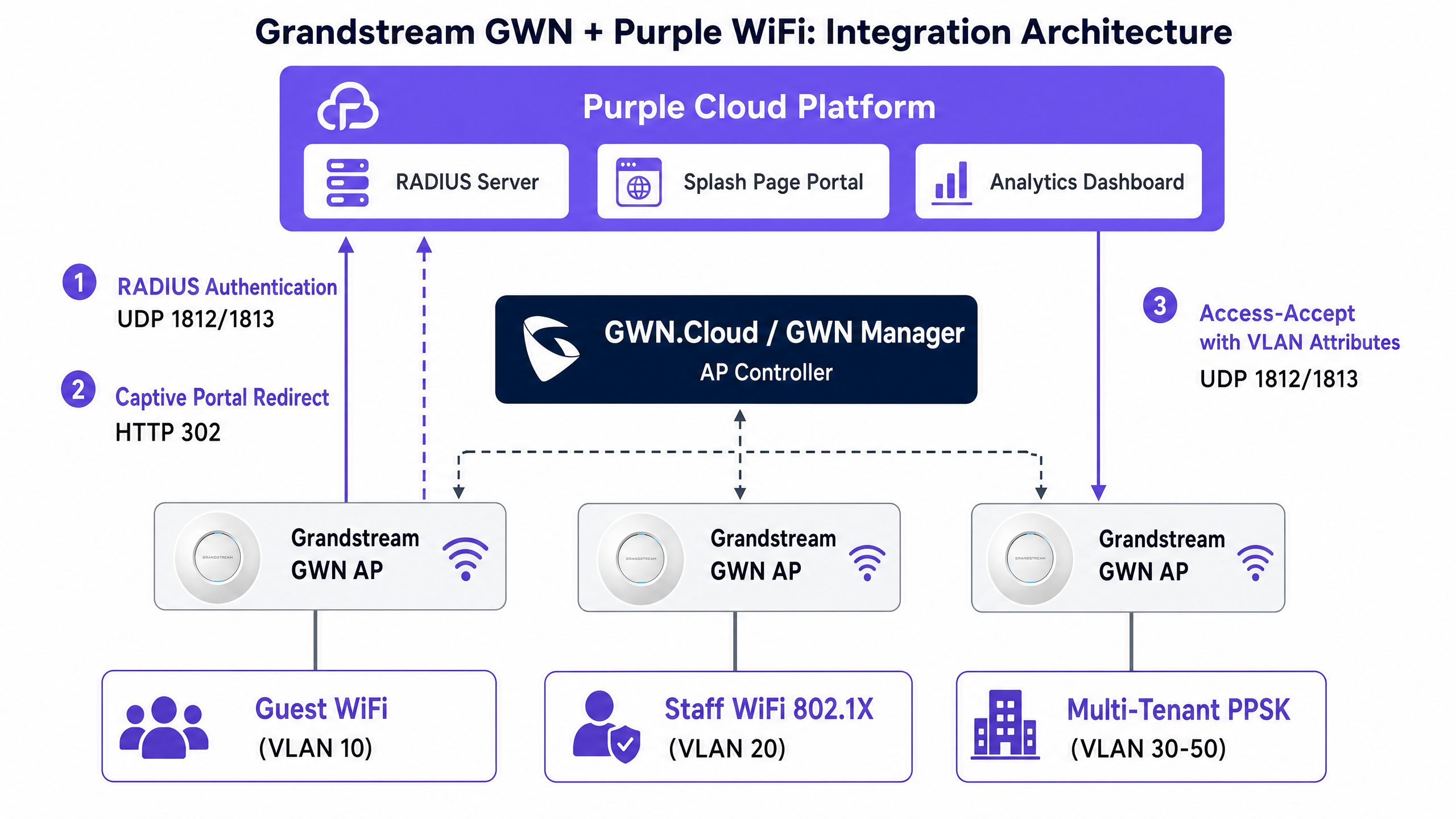
Los puntos de acceso Grandstream GWN se gestionan a través de una de estas dos plataformas. GWN Manager es un controlador local (on-premise) instalado en un servidor Linux o Windows, adecuado para implementaciones en un solo sitio y organizaciones con requisitos de soberanía de datos. GDMS Networking (anteriormente GWN.Cloud) es la plataforma de gestión alojada en la nube de Grandstream, la opción preferida por los MSP que gestionan múltiples sitios desde un único panel de control. Ambas plataformas ofrecen opciones idénticas de configuración de SSID y Captive Portal.
Para las redes de personal e inquilinos, la arquitectura cambia a IEEE 802.1X y PPSK. En una implementación 802.1X, el punto de acceso actúa como autenticador, actuando como proxy para los mensajes del Protocolo de autenticación extensible (EAP) entre el dispositivo de conexión y el servidor RADIUS de Purple. Purple valida las credenciales con su directorio y puede devolver atributos específicos del proveedor (VSA) para direccionar dinámicamente el dispositivo a una VLAN específica. Esto es la red basada en la identidad en la práctica: un único SSID, múltiples segmentos de red, todo determinado por la identidad del usuario.
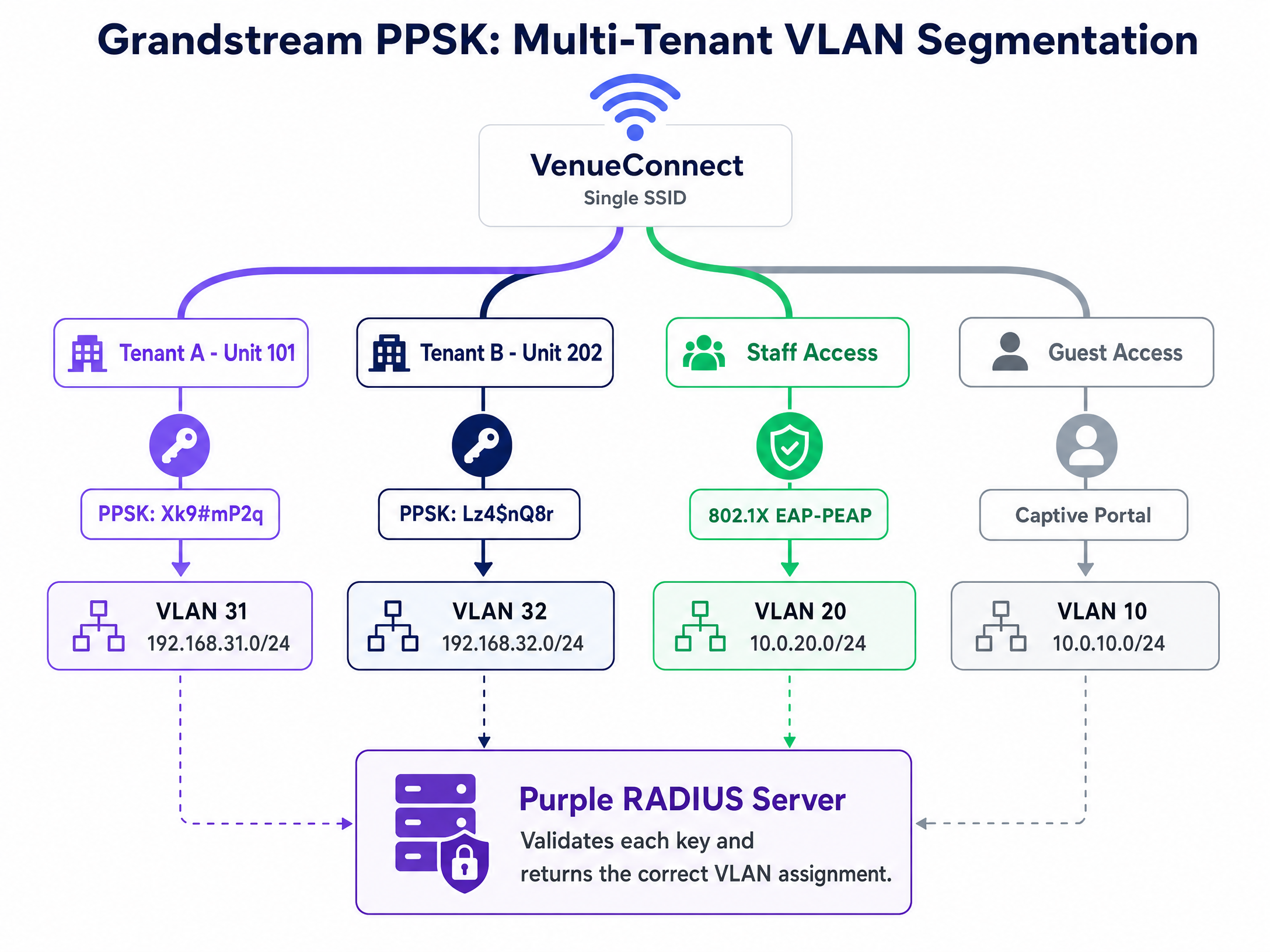
Para entornos multiinquilino, la función PPSK de Grandstream permite que un único SSID admita múltiples contraseñas únicas. Cuando se integra con un backend de RADIUS, el punto de acceso envía la PSK introducida a Purple para su validación, lo que permite una gestión centralizada de credenciales y una segmentación dinámica de la red sin necesidad de transmitir docenas de SSID. PPSK con backend de RADIUS requiere la versión de firmware GWN 1.0.19 o superior en la serie GWN76xx.
Atributos RADIUS para el direccionamiento dinámico de VLAN
La asignación dinámica de VLAN se controla mediante tres atributos RADIUS estándar del IETF que se devuelven en el paquete Access-Accept. Estos deben configurarse en los perfiles de usuario RADIUS de Purple para cada rol o inquilino:
| Atributo | Valor | Descripción |
|---|---|---|
| Tunnel-Type (64) | 13 (VLAN) | Especifica el tipo de túnel como VLAN |
| Tunnel-Medium-Type (65) | 6 (IEEE-802) | Especifica el medio como IEEE 802 |
| Tunnel-Private-Group-ID (81) | p. ej., "20" | El ID de la VLAN de destino como una cadena de texto |
Los tres atributos deben estar presentes en la respuesta Access-Accept. Si falta alguno de ellos, el punto de acceso GWN ignorará la instrucción de direccionamiento de VLAN y ubicará el dispositivo en la VLAN predeterminada.
Guía de implementación
Paso 1: Configurar la política del Captive Portal
Tanto si utiliza GWN Manager como GDMS Networking, navegue a Captive Portal > Policy List y cree una nueva política. La siguiente tabla resume los ajustes necesarios para la integración con Purple:
| Campo | Valor | Notas |
|---|---|---|
| Policy Name | Purple-Guest-Portal | Utilice un nombre descriptivo |
| Authentication Type | RADIUS Server | Habilita el flujo de autenticación RADIUS |
| RADIUS Server Address | [Desde la consola de administración de Purple] | IP de RADIUS primaria |
| RADIUS Server Port | 1812 | Puerto de autenticación RADIUS estándar |
| RADIUS Server Secret | [Desde la consola de administración de Purple] | Copiar y pegar exactamente |
| RADIUS Auth Method | PAP | Requerido para el Captive Portal de Purple |
| Landing Page | Redirect to External Page | Habilita la redirección a un portal externo |
| Redirect URL | [Desde la consola de administración de Purple] | Su URL de portal única |
| Expiration | 24h (hostelería) / 4h (comercio minorista) | Debe coincidir con su política de sesión |
| Failsafe Mode | Enabled | Concede acceso si RADIUS no está disponible |
Active el Failsafe Mode. Si el punto de acceso GWN no puede comunicarse con el servidor RADIUS de Purple, el modo Failsafe concede acceso a Internet en lugar de bloquear a todos los invitados. Para implementaciones en hostelería y comercio minorista, una breve interrupción de RADIUS deno debería provocar que todos los invitados pierdan la conectividad.
Paso 2: Configurar el walled garden
El walled garden define a qué dominios puede acceder un dispositivo antes de autenticarse. Un walled garden incompleto es la causa más común de fallos en la carga del portal. En GWN Manager, el walled garden se configura dentro de la política de Captive Portal como Pre-Authentication Rules.
Como mínimo, debe incluir: el dominio del portal de Purple (portal.purple.ai), los dominios de recursos de CDN (*.cloudfront.net) y el endpoint de comprobación de conectividad de Google (connectivitycheck.gstatic.com). Para el inicio de sesión con redes sociales, añada los dominios de las plataformas sociales correspondientes.
La decisión sobre captive.apple.com es deliberada. Exclúyalo para activar automáticamente el mini-navegador Captive Network Assistant (CNA) de iOS cuando se conecte un dispositivo. Inclúyalo si prefiere que los invitados abran un navegador manualmente. Para la mayoría de las implementaciones en el sector de la hostelería , excluirlo ofrece una mejor experiencia de usuario.
Utilice el generador dinámico de walled garden de Purple en support.purple.ai. Seleccione Grandstream en la lista de hardware, elija sus métodos de autenticación y la herramienta generará la lista exacta de dominios que necesita. No cree la lista manualmente.
Paso 3: Asociar el Captive Portal con el SSID de invitados
Vaya a la configuración de SSID y edite su red de invitados. Active la función Captive Portal y seleccione la política que ha creado. Asigne el SSID a su VLAN de invitados designada (la convención habitual es la VLAN 10). Active Client Isolation para evitar que los dispositivos de los invitados se comuniquen entre sí; este es un requisito de seguridad básico y una consideración de PCI DSS para cualquier establecimiento que procese pagos con tarjeta.
Paso 4: Configurar un WiFi seguro para el personal con 802.1X
Cree un SSID independiente para el personal. Establezca el modo de seguridad en WPA2-Enterprise para habilitar IEEE 802.1X. Configure el servidor RADIUS para que apunte a Purple en el puerto 1812 y active RADIUS Accounting en el puerto 1813. Estos datos de contabilidad proporcionan el registro de auditoría necesario para el cumplimiento de la GDPR y la respuesta ante incidentes de seguridad.
Para el método EAP, elija en función de su capacidad de gestión de dispositivos. EAP-TLS utiliza autenticación mutua mediante certificados: es la opción más segura, ya que elimina por completo el robo de credenciales, pero requiere una plataforma de gestión de dispositivos móviles (Microsoft Intune o Jamf) para distribuir los certificados a los dispositivos. PEAP utiliza un nombre de usuario y una contraseña dentro de un túnel TLS cifrado; es más fácil de implementar en entornos BYOD, pero requiere formar al personal sobre las advertencias de certificados.
Active Dynamic VLAN en la configuración del SSID. El servidor RADIUS de Purple devolverá los tres atributos de túnel para dirigir cada dispositivo autenticado a su VLAN designada. El personal de TI accederá a la VLAN 20, la dirección a la VLAN 21 y los terminales de punto de venta a la VLAN 40; todo desde un único SSID y basado en la identidad.
Para obtener más información sobre las políticas de red para el personal, consulte Términos y condiciones de WiFi para el personal: aspectos legales y de cumplimiento esenciales .
Paso 5: Configurar PPSK multiinquilino
Para entornos multiinquilino, cree un SSID con seguridad WPA2-Personal y active PPSK. Para utilizar Purple como backend de RADIUS para la validación de PPSK, configure los ajustes del servidor RADIUS en la sección PPSK del SSID. Purple gestiona la base de datos de PSK, valida cada clave y devuelve la asignación de VLAN correspondiente.
Cada inquilino recibe una contraseña única. Cuando se conectan, el AP envía la PSK a Purple, que devuelve el ID de VLAN correcto. El inquilino A accede a la VLAN 31 y el inquilino B a la VLAN 32. Comparten el mismo SSID pero están completamente aislados en la capa de red. Cuando un inquilino se mude, revoque sus credenciales en la consola de administración de Purple. El acceso se interrumpirá de inmediato, sin necesidad de reconfigurar el AP.
Para comprender mejor la arquitectura de seguridad WiFi empresarial, consulte Seguridad WiFi empresarial: guía completa para 2026 .
Buenas prácticas
Configure siempre RADIUS Accounting. Active la contabilidad en el puerto 1813 tanto para el SSID de invitados como para el del personal. Los datos de contabilidad alimentan el panel de analíticas de Purple con la duración de las sesiones y la frecuencia de las visitas, y proporcionan el registro de auditoría exigido por la GDPR. Sin contabilidad, dispondrá de registros de autenticación pero no de registros de sesión.
Copie y pegue el secreto compartido. Si el secreto compartido de RADIUS no coincide, el punto de acceso descartará los paquetes de forma silenciosa. El AP detectará un tiempo de espera agotado en lugar de un fallo de autenticación. Esta es la configuración incorrecta más común en las nuevas implementaciones. Copie el secreto directamente desde la consola de administración de Purple.
Utilice el generador de walled garden de Purple. Las páginas de portal modernas cargan recursos de múltiples dominios de CDN, SDK de inicio de sesión social y scripts de analítica. Crear el walled garden manualmente no es fiable. El generador de support.purple.ai tiene en cuenta todos los dominios necesarios en función de sus métodos de autenticación.
Aísle el tráfico de invitados en el punto de acceso. Client Isolation es un requisito básico no negociable para cualquier SSID de invitados. Evita el movimiento lateral entre los dispositivos de los invitados y es un requisito de PCI DSS para los establecimientos que procesan pagos con tarjeta en la misma infraestructura de red.
Valide el firmware antes de implementar PPSK con RADIUS. PPSK con backend de RADIUS requiere la versión de firmware GWN 1.0.19 o superior. Ejecutar un firmware desactualizado es la causa más común de comportamientos inesperados en las implementaciones de PPSK. Compruebe la versión del firmware antes de la implementación, no después.
Para implementaciones en el sector del comercio minorista , asegúrese de que la VLAN del SSID de invitados esté protegida por un cortafuegos de cualquier segmento de red de pago. Para entornos de sanidad , asegúrese de que el WiFi de pacientes o visitantes esté aislado de los sistemas clínicos. Para centros de transporte , considere políticas de caducidad de sesión adaptadas a los tiempos medios de permanencia.
Resolución de problemas y mitigación de riesgos
Síntoma: La página de bienvenida no se carga y devuelve un error de 'no se puede acceder al sitio'. El walled garden está bloqueando los recursos de la página del portal. Conecte un dispositivo de prueba, abra las herramientas de desarrollo del navegador, inspeccione la pestaña de red e identifique las solicitudes bloqueadas. Añada los dominios que fallan a las reglas de preautenticación en la política del Captive Portal.
Síntoma: Los invitados se autentican, pero el punto de acceso agota el tiempo de espera y deniega el acceso a internet. O bien un cortafuegos está bloqueando la salida UDP 1812 desde la VLAN de gestión del AP hacia el rango de IP de RADIUS de Purple, o bien el secreto compartido no coincide. Compruebe primero las reglas del cortafuegos. A continuación, verifique que el secreto compartido coincida exactamente en ambos lados.
Síntoma: Los dispositivos del personal acaban en la VLAN predeterminada en lugar de en su VLAN asignada. La casilla de verificación Enable Dynamic VLAN no está marcada en la configuración del SSID. Es una sola casilla y es fácil pasarla por alto. La segunda causa es una discrepancia en el secreto compartido, lo que hace que el AP ignore silenciosamente la respuesta de RADIUS.
Síntoma: Los dispositivos iOS no muestran el mini-navegador del Captive Portal.
El dominio captive.apple.com está en el walled garden. iOS sondea este dominio al conectarse. Si recibe una respuesta 200, asume que el acceso a internet está disponible y no activa el CNA. Elimínelo del walled garden para restaurar el comportamiento automático del CNA.
Síntoma: Los inquilinos de PPSK acaban en la VLAN incorrecta.
Verifique que el firmware de GWN esté en la versión 1.0.19 o superior. Confirme que el backend de RADIUS de PPSK esté habilitado y que el secreto compartido coincida. Compruebe que el perfil de usuario de RADIUS de Purple para la PSK devuelva el atributo Tunnel-Private-Group-ID correcto.
ROI e impacto empresarial
La integración del hardware Grandstream GWN con Purple transforma el WiFi de un coste irrecuperable en un activo empresarial medible. Al sustituir las redes abiertas genéricas por Captive Portals autenticados, los establecimientos capturan datos de primera mano e impulsan el crecimiento de los programas de fidelización. Purple ha recopilado 29 000 millones de puntos de datos en toda su red (datos internos de Purple), lo que ofrece a los operadores las referencias para medir su propio rendimiento.
En entornos de hostelería , las analíticas de Purple proporcionan visibilidad sobre la frecuencia de las visitas de los huéspedes, los tiempos de permanencia y las tasas de aceptación (opt-in). Un operador hotelero que utilice el plan Engage de Purple puede segmentar a los huéspedes que regresan para realizar campañas dirigidas, lo que impulsa las reservas directas y reduce la dependencia de las OTA. En entornos de comercio minorista , las analíticas de afluencia a partir de los datos de WiFi permiten a los gerentes de las tiendas correlacionar los patrones de tráfico con el rendimiento de las ventas.
La implementación de 802.1X y PPSK reduce la carga de trabajo del soporte técnico de TI al automatizar el control de acceso a la red. La eliminación de las contraseñas compartidas suprime el coste operativo de la rotación de contraseñas y el riesgo de seguridad que supone compartir credenciales. Para los operadores multiinquilino, PPSK con la gestión centralizada de Purple significa que la incorporación de un nuevo inquilino lleva minutos, no horas.
El tiempo de actividad del 99,999 % de Purple (datos internos de Purple) y las certificaciones ISO 27001, GDPR, CCPA y Cyber Essentials significan que la plataforma cumple con los requisitos de conformidad de los operadores más exigentes del sector público y empresarial. Para obtener una visión completa de las capacidades de analítica de WiFi para invitados, consulte WiFi Analytics .
Definiciones clave
Captive portal
A web page that intercepts unauthenticated HTTP traffic from a connected device, forcing the user to interact or authenticate before granting internet access. The Grandstream captive portal uses HTTP 302 redirection to send users to an external portal URL.
The primary mechanism for guest data capture, terms of service acceptance, and access control in public venues.
RADIUS
Remote Authentication Dial-In User Service; a networking protocol operating over UDP that provides centralised Authentication, Authorization, and Accounting (AAA) management. Authentication runs on port 1812, accounting on port 1813.
The backend engine that validates credentials for both captive portals and 802.1X enterprise networks. Purple operates RADIUS servers that GWN access points communicate with directly.
Walled garden
A predefined list of IP addresses and domains that a device can access before completing the captive portal authentication process. Configured as Pre-Authentication Rules in GWN Manager.
Essential for allowing devices to load the portal page assets, CDN resources, social login endpoints, and OS captive portal detection probes.
IEEE 802.1X
An IEEE standard for port-based network access control that provides an authentication mechanism for devices connecting to a LAN or WLAN. Uses EAP to exchange credentials between the device (supplicant) and the RADIUS server (authentication server) via the access point (authenticator).
Replaces shared passwords with per-user credentials for secure staff and corporate WiFi access. Required for GDPR and PCI DSS compliant staff networks.
PPSK
Private Pre-Shared Key; a feature that allows a single SSID to support multiple unique passwords, each tied to specific network policies or VLANs. Grandstream GWN supports PPSK with local storage or RADIUS backend validation.
Used in multi-tenant environments like apartments, coworking spaces, and serviced offices to isolate users without broadcasting multiple SSIDs.
Dynamic VLAN assignment
The process where a RADIUS server returns three specific attributes in the Access-Accept packet (Tunnel-Type, Tunnel-Medium-Type, Tunnel-Private-Group-ID) to steer an authenticated device to a designated VLAN. Must be explicitly enabled in GWN SSID settings.
Allows IT teams to consolidate SSIDs while maintaining strict network segmentation for different user groups, departments, or tenants.
Client isolation
A wireless security feature that prevents devices connected to the same access point from communicating directly with each other at Layer 2.
A mandatory configuration for guest networks to protect users from peer-to-peer attacks and meet PCI DSS requirements for venues processing card payments.
EAP-PEAP
Protected Extensible Authentication Protocol; an 802.1X EAP method that encapsulates the authentication exchange within an encrypted TLS tunnel using a username and password. The outer TLS tunnel protects the inner credentials from interception.
Commonly used for BYOD staff networks where deploying client certificates (EAP-TLS) is not operationally feasible. Requires staff training on certificate validation to prevent rogue AP attacks.
Failsafe mode
A GWN captive portal setting that grants internet access to connecting devices if the access point cannot reach the configured RADIUS server. Prevents a RADIUS outage from blocking all guest access.
Recommended for hospitality and retail deployments where guest connectivity is business-critical and a brief RADIUS interruption should not result in a complete service outage.
GWN Manager
Grandstream's on-premise, enterprise-grade management platform for GWN series access points. Installed on a local Linux or Windows server, it provides full captive portal, SSID, RADIUS, and PPSK configuration.
Preferred for single-site deployments and organisations with data sovereignty requirements. GDMS Networking is the cloud-hosted equivalent for multi-site MSP deployments.
Ejemplos prácticos
A 120-room hotel needs to deploy a branded guest portal for guests, a secure staff network with department-level VLAN segmentation for housekeeping and front desk, and a separate management VLAN for the property management system. The hotel runs Grandstream GWN7660 access points managed through GDMS Networking.
Configure three SSIDs in GDMS Networking. First, create 'Guest WiFi' assigned to VLAN 10. Create a captive portal policy with Authentication Type set to RADIUS Server, pointing to Purple's RADIUS IP on port 1812 with the shared secret from the Purple admin console. Set the Landing Page to Redirect to External Page with the Purple portal URL. Enable Failsafe Mode and Client Isolation. Second, create 'Staff WiFi' with WPA2-Enterprise (802.1X) security. Configure RADIUS on port 1812 and Accounting on port 1813. Enable Dynamic VLAN. In Purple's directory, configure housekeeping accounts to return Tunnel-Private-Group-ID = 21 and front desk accounts to return VLAN 20. Third, create a hidden 'Management' SSID on VLAN 30 with WPA2-Personal for PMS terminals. Build the walled garden using Purple's generator tool, excluding captive.apple.com to trigger the iOS CNA.
A 40-unit build-to-rent apartment block requires isolated network access for each tenant, with the ability to instantly revoke access when a tenant moves out. The operator runs GWN7630 access points with GWN Manager on-premise and wants to minimise the number of visible SSIDs in the building.
Deploy a single SSID named 'BuildingConnect' with WPA2-Personal security and enable PPSK with RADIUS backend. Ensure GWN firmware is at version 1.0.19 or higher. Configure the RADIUS server settings in the PPSK section to point to Purple. In Purple's admin console, create 40 unique PSK credentials, each mapped to a VLAN (e.g., VLAN 101 for Unit 101, VLAN 102 for Unit 102). When a resident connects using their unit's password, the GWN AP sends the PSK to Purple, which validates it and returns Tunnel-Private-Group-ID = 101. The resident lands on their isolated VLAN. When a resident moves out, revoke the credential in Purple's admin console. Access terminates immediately without any AP reconfiguration.
Preguntas de práctica
Q1. You have configured the captive portal policy in GWN Manager with the correct Purple RADIUS IP and shared secret, but guests are reporting a 'site cannot be reached' error when their browser opens after connecting to the SSID. What is the most likely cause and how do you diagnose it?
Sugerencia: Consider what controls which domains a device can access before it has authenticated through the portal.
Ver respuesta modelo
The walled garden (Pre-Authentication Rules) is incomplete or misconfigured. The access point is blocking the device from reaching the Purple portal domain or the CDN assets the portal page loads. To diagnose: connect a test device to the guest SSID, open browser developer tools, navigate to the network tab, and attempt to load the portal URL. Identify which requests return connection errors. Add those domains to the Pre-Authentication Rules. Use Purple's walled garden generator at support.purple.ai to generate the complete domain list for Grandstream hardware.
Q2. Your hotel wants iOS guests to automatically see the captive portal mini-browser as soon as they connect to the guest WiFi, without needing to open a browser manually. How do you configure the walled garden to achieve this?
Sugerencia: Consider how iOS determines whether a network has internet access when it first connects.
Ver respuesta modelo
You must exclude captive.apple.com from the walled garden. When an iOS device connects to a network, it probes captive.apple.com. If the probe receives a 200 OK response (meaning the domain is accessible), iOS assumes the network has internet access and does not trigger the Captive Network Assistant mini-browser. If the probe is blocked or redirected, iOS recognises the network as captive and automatically opens the CNA. By keeping captive.apple.com out of the walled garden, the probe is intercepted and redirected, triggering the CNA automatically.
Q3. A staff member connects to the 802.1X SSID using their credentials. Purple's authentication logs show a successful Access-Accept response with the correct VLAN 20 attributes. However, the staff member is placed on VLAN 1 (the default). What GWN Manager setting needs to be checked?
Sugerencia: The RADIUS server is correctly authorising the user and returning the VLAN attributes. The issue is on the access point side.
Ver respuesta modelo
The 'Enable Dynamic VLAN' checkbox in the SSID settings within GWN Manager is not ticked. Even when Purple returns the correct Tunnel-Type, Tunnel-Medium-Type, and Tunnel-Private-Group-ID attributes in the Access-Accept packet, the GWN access point will ignore them unless Dynamic VLAN is explicitly enabled. Navigate to the SSID configuration, locate the Dynamic VLAN setting, enable it, and save. The staff member should then be placed on the correct VLAN on their next connection.
Q4. A build-to-rent operator wants to deploy PPSK with Purple as the RADIUS backend on their Grandstream GWN7630 access points running firmware 1.0.17. A tenant reports they can connect to the SSID but are placed on the wrong VLAN. What should you check first?
Sugerencia: There are two potential causes here: one is a firmware version issue, the other is a configuration issue.
Ver respuesta modelo
The first thing to check is the firmware version. PPSK with RADIUS backend requires GWN firmware 1.0.19 or higher on the GWN76xx series. Firmware 1.0.17 may not correctly support the RADIUS-backed PPSK VLAN assignment. Upgrade the firmware to 1.0.19 or higher before further troubleshooting. If the firmware is correct, verify that the PPSK RADIUS backend is enabled in the SSID settings, the shared secret matches Purple's configuration, and that Purple's RADIUS user profile for the specific PSK is returning the correct Tunnel-Private-Group-ID attribute.
Continúe leyendo esta serie
Integración de CommScope Ruckus con Purple WiFi: Guía de instalación y configuración
Esta guía de referencia técnica proporciona un manual de configuración definitivo para integrar arquitecturas de CommScope Ruckus con Purple WiFi. Detalla implementaciones paso a paso para captive portals de Guest WiFi, WiFi seguro para el personal a través de 802.1X y aislamiento de red multiinquilino mediante Ruckus Dynamic PSK.
Integración de puntos de acceso Allied Telesis con Purple WiFi
Esta guía proporciona un manual de configuración completo para integrar los puntos de acceso de la serie TQ de Allied Telesis con Purple WiFi. Cubre la redirección externa de Captive Portal, la autenticación RADIUS 802.1X y el direccionamiento dinámico de VLAN mediante claves precompartidas privadas (PPSK) para despliegues multiinquilino seguros.
Integración de Cisco WLC y Catalyst con Purple WiFi: Guía paso a paso de acceso para invitados
Esta guía detalla paso a paso la integración de Cisco WLC y Catalyst 9800 Wireless con Purple, abarcando la redirección al Captive Portal de Guest WiFi mediante Central Web Authentication, WiFi seguro para empleados mediante 802.1X EAP-TLS y segmentación Multi-Tenant mediante Cisco Identity Pre-Shared Keys (iPSK) con asignación dinámica de VLAN. Está dirigida a arquitectos de redes empresariales y directores de seguridad de TI que despliegan infraestructura de Cisco en el sector hotelero, retail y grandes recintos públicos.