
WatchGuard Firebox Integration with Purple WiFi: Setup and Configuration Guide
Esta guía es un manual de integración paso a paso para responsables de TI y arquitectos de red que despliegan WatchGuard Firebox y puntos de acceso con Purple. Cubre la redirección de Captive Portal externa para Guest WiFi, la autenticación segura 802.1X para Staff WiFi y la segmentación multiinquilino mediante claves privadas precompartidas (PPSK) de WatchGuard con direccionamiento dinámico de VLAN, lo que le proporciona una arquitectura única y unificada en todos los niveles de acceso.
Escuchar esta guía
Ver transcripción del podcast
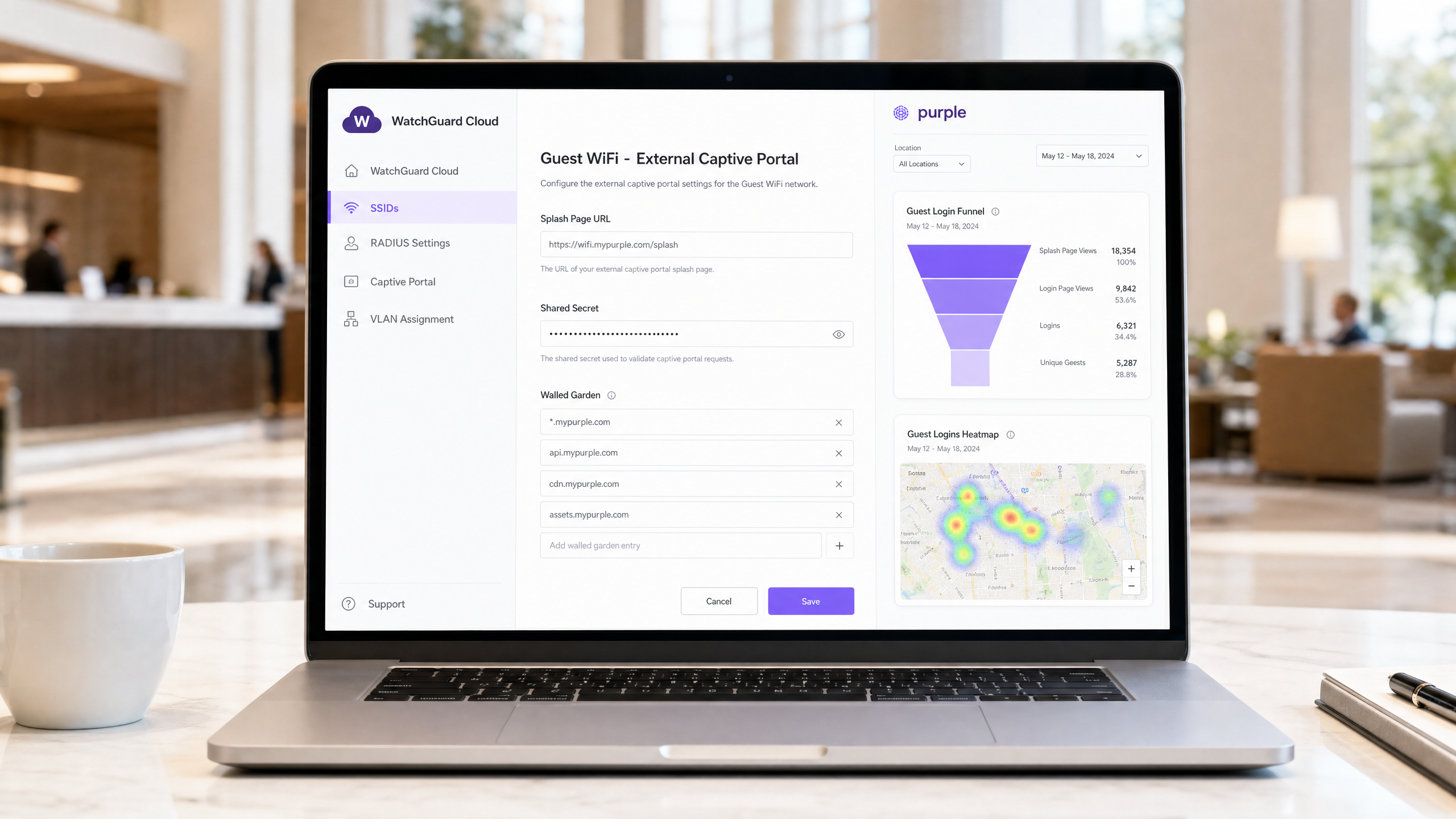
Resumen ejecutivo
El despliegue de una infraestructura inalámbrica segura y escalable en entornos complejos requiere una integración precisa entre su pasarela de seguridad y su proveedor de identidad. Esta guía detalla la integración de WatchGuard Firebox y los puntos de acceso de WatchGuard con Purple, cubriendo tres niveles de acceso diferenciados: redirección de Guest WiFi a Captive Portal, Staff WiFi seguro mediante IEEE 802.1X y segmentación de WiFi multiinquilino a través de claves privadas precompartidas (PPSK) de WatchGuard.
Al combinar la plataforma de seguridad unificada de WatchGuard con la capa en la nube de Purple, automatiza el control de acceso basado en la identidad, aplica políticas de seguridad granulares y recopila datos de origen a escala. Purple opera en más de 80.000 centros activos y procesó 440 millones de inicios de sesión en 2024 (datos internos de Purple). La integración es independiente del hardware por diseño: WatchGuard figura junto a Cisco Meraki, HPE Aruba, Ruckus, Juniper Mist, Ubiquiti UniFi, Cambium, Extreme y Fortinet en la lista de hardware compatible de Purple. Para obtener una visión más amplia de los estándares de seguridad WiFi para empresas, consulte nuestra Seguridad WiFi empresarial: Guía completa para 2026 .
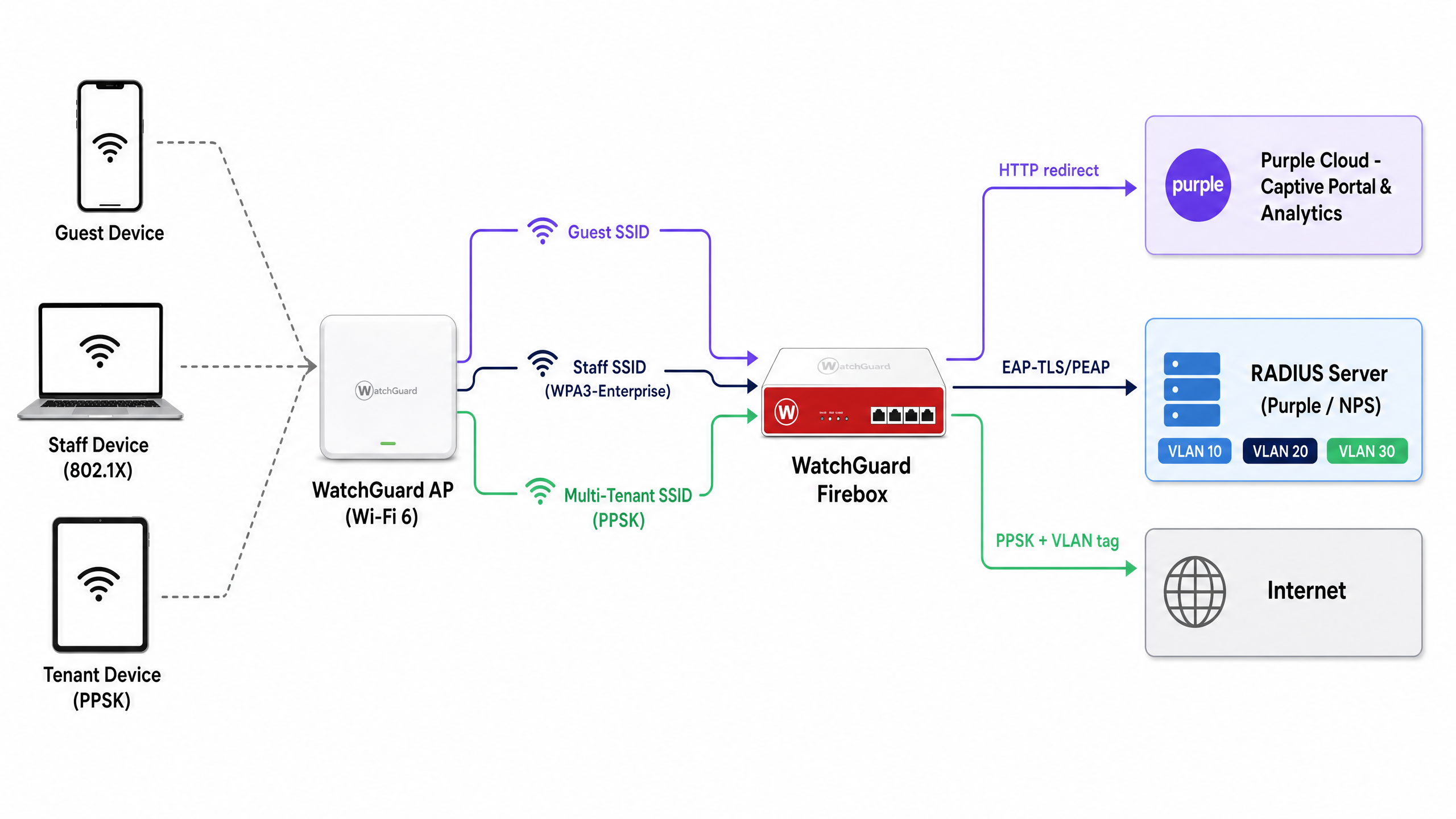
Arquitectura técnica
La integración conecta el hardware de WatchGuard con los servicios en la nube de Purple mediante dos mecanismos estándar: RADIUS (Remote Authentication Dial-In User Service) para la autenticación y la contabilidad, y redirección HTTP para la entrega del Captive Portal. La arquitectura admite tres niveles de acceso sobre una única infraestructura física.
| Nivel de acceso | Tipo de SSID | Método de autenticación | Rol de Purple |
|---|---|---|---|
| Guest WiFi | Abierto | Captive Portal externo + contabilidad RADIUS | Página de inicio, captura de datos, analíticas |
| Staff WiFi | WPA3-Enterprise | 802.1X (EAP-TLS o PEAP) | Servidor RADIUS, proxy de proveedor de identidad |
| WiFi multiinquilino | WPA2/WPA3 Personal + PPSK | PPSK validado mediante RADIUS | Gestión de claves, asignación dinámica de VLAN |
Los tres niveles pueden ejecutarse simultáneamente en la misma flota de puntos de acceso de WatchGuard. Los modelos Wi-Fi 6 de WatchGuard (AP130, AP230W, AP330, AP332CR, AP430CR y AP432) admiten PPSK a partir de la versión de firmware v2.6.
Configuración de la redirección de Guest WiFi a Captive Portal
La integración del Captive Portal de WatchGuard redirige las solicitudes HTTP no autenticadas a la página de inicio alojada de Purple. Este es el mecanismo principal para recopilar datos de origen y aplicar las condiciones de servicio.
Paso 1: Configuración del servidor RADIUS
En WatchGuard Cloud o Firebox Policy Manager, defina Purple como el servidor de autenticación y contabilidad RADIUS.
- Servidor RADIUS primario: Establézcalo en la dirección IP de RADIUS de Purple para su región (disponible en el portal de Purple en Configuración > Integración de hardware).
- Puerto de autenticación: 1812
- Puerto de contabilidad: 1813
- Secreto compartido: Introduzca el secreto único proporcionado en el portal de Purple.
- NAS ID: Establézcalo con la dirección MAC del Firebox o punto de acceso utilizando el especificador de formato
%m. Esto identifica el centro ante Purple y dirige las analíticas a la cuenta correcta. - Intervalo de contabilidad: Establézcalo en 10 minutos para garantizar que los datos de la sesión fluyan al panel de analíticas de Purple a intervalos regulares.
Paso 2: Configuración de SSID y Captive Portal
En WatchGuard Cloud, navegue a Configurar > Dispositivos > [Su AP] > Configuración del dispositivo > SSIDs. Cree o edite el SSID de invitados (Guest SSID).
- Seguridad: Abierta (sin contraseña de preautenticación).
- Tipo de Captive Portal: Seleccione Captive Portal alojado por terceros con autenticación RADIUS.
- URL de la página de inicio: Introduzca la URL de la página de inicio de Purple (por ejemplo,
https://wifi.mypurple.com/splash). Obténgala en Purple > Analizar > Portales. - Secreto compartido: Introduzca el secreto compartido del portal desde la misma página de Portales de análisis de Purple. Este secreto genera el resumen HMAC-SHA1 que WatchGuard utiliza para validar la respuesta de autenticación correcta de Purple.
Paso 3: Configuración de Walled Garden
El Walled Garden define a qué dominios puede acceder un dispositivo antes de que se complete la autenticación. Sin esto, el dispositivo no puede cargar la página de inicio de Purple. Añada las siguientes entradas a Sitios web a los que los usuarios pueden acceder antes de iniciar sesión:
*.mypurple.comapi.mypurple.comcdn.mypurple.comassets.mypurple.com
Si habilita inicios de sesión sociales o federados a través de Microsoft Entra ID, Okta o Google Workspace, añada los dominios del proveedor de identidad correspondientes (por ejemplo, login.microsoftonline.com, accounts.google.com). Para obtener contexto legal y de cumplimiento sobre la infraestructura WiFi compartida, consulte nuestra guía sobre Requisitos legales y de cumplimiento para infraestructuras WiFi compartidas .
Cómo funciona el flujo de autenticación HMAC
Comprender este flujo le ayudará a diagnosticar fallos rápidamente.
- El dispositivo invitado se conecta al SSID abierto y realiza una solicitud HTTP.
- El punto de acceso de WatchGuard intercepta la solicitud y redirige el navegador a la URL de la página de inicio de Purple, añadiendo un parámetro
challenge(una cadena hexadecimal aleatoria) y la dirección MAC del dispositivo. - Purple muestra la página de inicio. El invitado completa el formulario de inicio de sesión.
- Purple genera un resumen HMAC-SHA1 utilizando el secreto compartido del portal y el valor del desafío (challenge).
- Purple redirige el navegador de vuelta a la URL de inicio de sesión del punto de acceso de WatchGuard, añadiendo el desafío y el resumen.
- El punto de acceso de WatchGuard valida el resumen utilizando el mismo secreto compartido. Si coincide, el punto de acceso concede acceso a Internet y envía un paquete RADIUS Accounting Start a Purple.
Staff WiFi seguro con 802.1X
Para Staff WiFi, se sustituye el Captive Portal por IEEE 802.1X, el estándar empresarial para el control de acceso a la red basado en puertos. Cada miembro del personal se autentica con credenciales únicas o un certificado, elimeliminando el riesgo de contraseñas compartidas.
En WatchGuard Cloud, configure el SSID de personal con seguridad WPA3 Enterprise y apunte el Authentication Domain (dominio de autenticación) al servidor RADIUS de Purple. Purple actúa como servidor RADIUS y puede realizar un proxy de las solicitudes de autenticación a Microsoft Entra ID, Okta o Google Workspace a través de SAML o LDAP.
Para la autenticación basada en certificados (EAP-TLS), implemente certificados de cliente a través de su MDM en los dispositivos gestionados. Para la autenticación basada en credenciales (PEAP-MSCHAPv2), los usuarios se autentican con sus credenciales de directorio. Purple valida la solicitud frente al proveedor de identidad configurado y devuelve un Access-Accept o Access-Reject de RADIUS al AP de WatchGuard.
Para obtener una guía detallada paso a paso sobre la configuración de 802.1X en diferentes tipos de dispositivos, consulte nuestra guía sobre autenticación 802.1X: protección del acceso a la red en dispositivos modernos .
Nota importante sobre la aleatorización de direcciones MAC: Los dispositivos iOS y Android modernos aleatorizan sus direcciones MAC de forma predeterminada. Para la WiFi de personal con 802.1X, indique al personal que desactive la aleatorización de MAC para el SSID de personal. Las direcciones MAC aleatorizadas provocan registros de autenticación inconsistentes e impiden la aplicación de políticas basadas en MAC.
WiFi multiinquilino con WatchGuard PPSK
Transmitir un SSID independiente por cada inquilino en un centro comercial, espacio de coworking o promoción de viviendas de alquiler (BTR) provoca interferencias de canal compartido y satura el entorno de radiofrecuencia (RF). WatchGuard PPSK (clave precompartida privada), introducida en la versión v2.6 del firmware del AP, soluciona este problema asignando una contraseña única a cada usuario o inquilino en un único SSID.
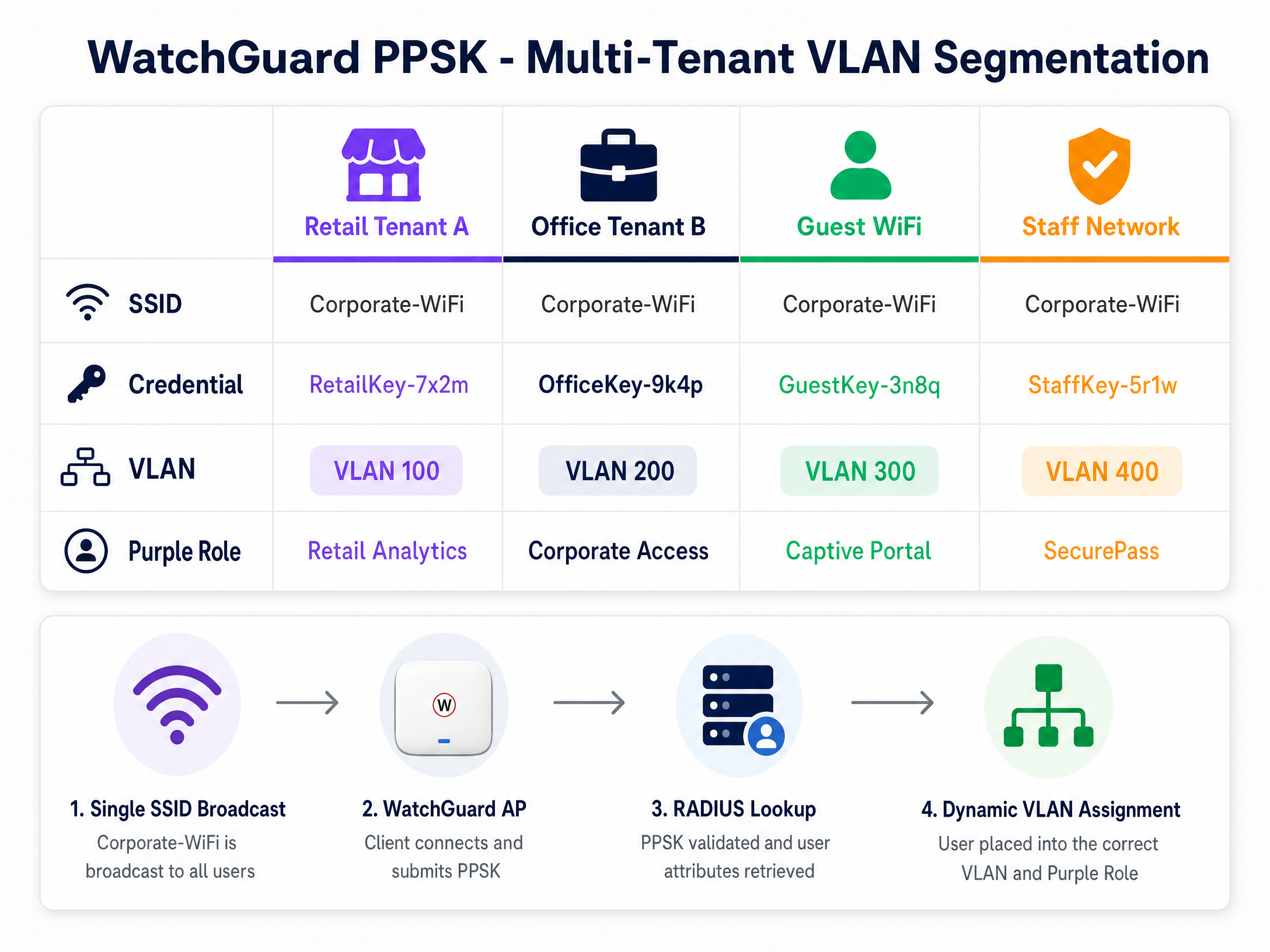
Paso 1: Habilitar PPSK en el SSID
En WatchGuard Cloud, edite el SSID de destino (por ejemplo, Venue-WiFi).
- Seguridad: WPA2 Personal o WPA3 Personal.
- Autenticación: Habilite Private Pre-Shared Key (PPSK).
- Servidor RADIUS: Apunte al servidor RADIUS de Purple. Purple gestiona el almacén de credenciales PPSK y devuelve los atributos de VLAN tras la autenticación.
Paso 2: Configurar la asignación dinámica de VLAN
Para aislar el tráfico de los inquilinos, el AP de WatchGuard asigna una VLAN específica en función de la PPSK utilizada.
- Configuración de VLAN: Seleccione Dynamic VLAN assigned by RADIUS.
- Alternativa para clientes no asignados: Seleccione una VLAN de cuarentena aislada (por ejemplo, VLAN 999) para garantizar que los dispositivos que no superen la validación de RADIUS no puedan acceder a la red corporativa.
Requisitos para VLAN dinámicas en puntos de acceso de WatchGuard:
- Firmware del AP v2.2 o superior.
- NAT debe estar desactivado en el SSID.
- Las VLAN dinámicas y el Captive Portal no pueden ejecutarse en el mismo SSID simultáneamente.
- El puerto del switch conectado al AP debe estar configurado como un puerto troncal (trunk) que transporte todas las VLAN relevantes.
Paso 3: Atributos de RADIUS para el direccionamiento de VLAN
Cuando un usuario se conecta mediante una PPSK, el AP de WatchGuard envía un Access-Request de RADIUS a Purple. Purple valida la clave y devuelve un paquete Access-Accept que contiene tres atributos RADIUS de la IETF:
| Atributo RADIUS | Número de atributo | Valor |
|---|---|---|
| Tunnel-Type | 64 | 13 (VLAN) |
| Tunnel-Medium-Type | 65 | 6 (802) |
| Tunnel-Private-Group-ID | 81 | VLAN ID (p. ej., "100") |
El AP de WatchGuard lee el atributo 81 y coloca al cliente en la VLAN correspondiente. En Purple, usted asocia cada credencial PPSK a un ID de VLAN y rol específicos. Este es el mecanismo que sustenta las redes basadas en la identidad (Identity-Based Networks): la credencial determina el segmento de red, no el SSID.
Prácticas recomendadas de implementación
Estas recomendaciones se aplican a implementaciones en los sectores de hostelería , comercio minorista , sanidad y transporte .
Tiempos de espera de sesión: Configure los tiempos de espera de sesión tanto en Purple como en WatchGuard para forzar la reautenticación a intervalos regulares. Esto mantiene la precisión de los análisis y evita que las sesiones inactivas consuman ancho de banda. Establezca RADIUS Interim-Update (Acct-Interim-Interval) en 600 segundos (10 minutos).
Gestión de firmware: Asegúrese de que los puntos de acceso de WatchGuard ejecuten la versión de firmware v2.6 o superior para admitir PPSK. Utilice WatchGuard Cloud para programar las actualizaciones de firmware durante las horas de menor actividad para evitar interrupciones en la cobertura.
Cumplimiento de PCI DSS: Para entornos comerciales que procesan pagos con tarjeta, aísle los dispositivos TPV (POS) en una VLAN dedicada (por ejemplo, VLAN 200) mediante PPSK. Asegúrese de que la VLAN de la WiFi de invitados no tenga ruta hacia la VLAN de los TPV. Esto respalda los requisitos de segmentación de red de PCI DSS.
GDPR y recopilación de datos: El Captive Portal de Purple utiliza opciones de consentimiento explícito (opt-in), lo que garantiza que la recopilación de datos cumpla con los requisitos del GDPR. Purple cuenta con las certificaciones ISO 27001, GDPR, CCPA y Cyber Essentials. Asegúrese de que su página de inicio (splash page) incluya un aviso de privacidad claro y un enlace a las condiciones del servicio antes de que comience la captura de datos.
Resolución de problemas y mitigación de riesgos
Error al cargar el Captive Portal: El Walled Garden es el primer lugar que debe comprobar. Si el dispositivo no puede resolver el DNS o comunicarse con los servidores de Purple antes de la autenticación, el navegador mostrará un error de tiempo de espera en lugar de la página de inicio. Verifique que todos los dominios de Purple estén en la lista del Walled Garden y que la configuración de DNS de WatchGuard permita la resolución previa a la autenticación.
Errores de validación de firma HMAC: Si los registros de WatchGuard muestran fallos de autenticación con errores de HMAC, el secreto compartido del Captive Portal no coincide entre WatchGuard y Purple. Debe ser idéntico en ambos sistemas. Vuelva a generar el secreto en Purple e introdúzcalo de nuevo en WatchGuard Cloud.
Fallo en el direccionamiento de VLAN: Si un usuario de PPSK recibe una IP de la VLAN incorrecta, compruebe los registros de RADIUS en el portal de Purple. Verifique que Purple devuelva los tres atributos RADIUS de la IETF. Asegúrese de que el valor de Tunnel-Private-Group-ID tenga formato de cadena de texto y coincida con un ID de VLAN configurado en el puerto troncal (trunk) del switch.
Conflicto entre PPSK y Captive Portal: WatchGuard no admite VLAN dinámicas y Captive Portal en el mismo SSID. Si necesita ambos, utilice dos SSID: uno para el Captive Portal de invitados y otroe para el acceso multi-inquilino de PPSK.
Fallos de autenticación 802.1X: Utilice la herramienta de captura de paquetes disponible en el firmware de AP de WatchGuard v2.5 y superior para capturar el tráfico entre el AP y el servidor RADIUS. Busque paquetes RADIUS Access-Reject y el código de motivo en el atributo del mensaje de respuesta.
ROI e impacto empresarial
La integración de WatchGuard y Purple consolida la seguridad y la analítica en una única arquitectura. Un hotel de 200 habitaciones que utiliza esta integración elimina la necesidad de pasarelas independientes para huéspedes y personal, lo que reduce el gasto en hardware en aproximadamente un 30 % en comparación con un despliegue multipasarela (datos internos de Purple). El Captive Portal de WiFi para invitados captura datos de primera mano (direcciones de correo electrónico, información demográfica y frecuencia de visitas) que impulsan los ingresos por marketing directo a través del plan Engage de Purple.
Para espacios multi-inquilino, PPSK elimina la sobrecarga operativa de gestionar múltiples SSID. Un centro comercial que gestiona 15 locales comerciales con un único SSID reduce la utilización de la radio del AP y simplifica las auditorías de red. WiFi Analytics de Purple proporciona a los operadores de los establecimientos datos sobre el tiempo de permanencia, la afluencia de visitantes y las visitas recurrentes: métricas que justifican la inversión en infraestructura ante los equipos financieros.
Purple mantiene un tiempo de actividad del 99,999 % (datos internos de Purple), lo que garantiza que el Captive Portal de WiFi para invitados permanezca disponible incluso durante los periodos de máxima actividad en recintos de alta densidad, como estadios y centros de conferencias.
Definiciones clave
PPSK (Private Pre-Shared Key)
A security feature that assigns a unique password to each user or device on a WPA2/WPA3 Personal SSID. Introduced in WatchGuard AP firmware v2.6.
Used in multi-tenant environments - retail centres, coworking spaces, BTR developments - to segment users without requiring 802.1X supplicant configuration on client devices.
Dynamic VLAN steering
The process of assigning a network device to a specific Virtual LAN based on RADIUS attributes (Tunnel-Type, Tunnel-Medium-Type, Tunnel-Private-Group-ID) returned during authentication.
The mechanism that isolates tenant, staff, and guest traffic on the same physical access point. Requires AP firmware v2.2 or higher on WatchGuard hardware.
Walled Garden
A list of IP addresses or domains that an unauthenticated user is permitted to access before completing captive portal authentication.
Required to allow guest devices to load the Purple splash page and complete federated logins (Microsoft Entra ID, Google Workspace) before full internet access is granted.
HMAC digest
A cryptographic hash (HMAC-SHA1) used to verify the integrity and authenticity of the authentication success message from the captive portal.
WatchGuard validates the HMAC digest using the Captive Portal Shared Secret. A mismatch between the secret in WatchGuard and Purple causes authentication failures.
RADIUS accounting
The component of the RADIUS protocol that tracks network usage, including session start, session duration, and data transfer volume.
Purple relies on RADIUS Accounting packets from the WatchGuard Firebox to populate the analytics dashboard and enforce session time limits. Operates on port 1813.
Captive portal
A web page that a device is redirected to before being granted access to a public network. WatchGuard intercepts HTTP requests and redirects to the configured external portal URL.
The primary mechanism for capturing first-party data and enforcing terms of service on Guest WiFi networks. Purple hosts the splash page and manages the data.
802.1X
An IEEE standard for port-based network access control. Requires each device to authenticate with unique credentials or a certificate before network access is granted.
The enterprise standard for securing Staff WiFi. Eliminates the shared-password risk of WPA2 Personal. Requires a RADIUS server (Purple) and a supplicant on the client device.
EAP-TLS (Extensible Authentication Protocol - Transport Layer Security)
A highly secure 802.1X authentication method requiring both a client certificate and a server certificate for mutual authentication.
Used in high-security environments where devices are managed by an MDM. Ensures only corporate-owned devices with valid certificates can connect to the Staff WiFi SSID.
NAS ID (Network Access Server Identifier)
A string sent in RADIUS packets that identifies the network device (AP or Firebox) making the authentication request.
Purple uses the NAS ID to identify which venue a RADIUS request originates from. Typically set to the AP MAC address using the %m format specifier in WatchGuard.
Identity-Based Networking
A network architecture where access policies, VLAN assignments, and security controls are determined by the user's identity rather than their physical port or SSID.
The combination of WatchGuard PPSK, Purple RADIUS, and dynamic VLAN steering delivers Identity-Based Networking - the credential determines the network segment automatically.
Ejemplos prácticos
A 200-room Premier Inn property needs to provide Guest WiFi for guests, secure Staff WiFi for front-of-house and back-office teams, and a separate network for IoT devices (smart TVs, door locks). They have WatchGuard AP330 access points managed via WatchGuard Cloud and a Firebox T85 gateway. How should they architect the three networks?
Deploy three SSIDs on the WatchGuard AP330 fleet. SSID 1: 'Premier-Guest' - open SSID with external captive portal redirection to Purple. Configure the Firebox T85 as the RADIUS client pointing to Purple's servers (port 1812/1813). Add Purple's Walled Garden domains. Guests authenticate via the Purple splash page using email, social login, or a room code. SSID 2: 'Premier-Staff' - WPA3-Enterprise SSID with 802.1X authentication. Point the authentication domain to Purple's RADIUS server, which proxies credentials to the property's Microsoft Entra ID tenant. Staff authenticate with their corporate credentials. SSID 3: 'Premier-IoT' - WPA2 Personal SSID with a static PSK, placed on a dedicated VLAN (e.g., VLAN 50) with firewall rules blocking access to the staff and guest VLANs. The Firebox T85 enforces inter-VLAN routing policies. All three SSIDs broadcast on the same AP hardware, reducing infrastructure cost.
A retail centre managing 12 shop units wants to provide each tenant with isolated WiFi access using a single SSID. The centre also needs to ensure that a compromised tenant credential does not expose other tenants' traffic. They are running WatchGuard AP230W access points on firmware v2.6.
Configure one SSID: 'Centre-Retail' with WPA2 Personal and PPSK enabled. In Purple, create 12 unique PPSK credentials, one per tenant. Map each credential to a dedicated VLAN (e.g., VLAN 101 for Tenant 1, VLAN 102 for Tenant 2, and so on). In WatchGuard Cloud, set the SSID VLAN to 'Dynamic VLAN assigned by RADIUS' with a fallback to a quarantine VLAN (VLAN 999). Configure the switch ports connected to the AP230W as trunk ports carrying VLANs 101-112 and 999. When a tenant device connects using their PPSK, the AP queries Purple RADIUS, receives the Tunnel-Private-Group-ID attribute, and places the device on the correct VLAN. A compromised credential for Tenant 3 only exposes VLAN 103 - all other tenants remain isolated.
Preguntas de práctica
Q1. A hotel IT manager reports that guests connect to the WiFi but the Purple splash page never appears. The browser shows a connection timeout error. The WatchGuard Cloud configuration shows the correct Purple splash page URL and shared secret. What is the most likely cause and how do you resolve it?
Sugerencia: Consider what must happen before the device is authenticated. What domains does the device need to reach to load the splash page?
Ver respuesta modelo
The Walled Garden is missing or incomplete. The WatchGuard Firebox is blocking the device's initial HTTP request to Purple's servers before authentication completes. Add the required Purple domains to the 'Websites that users can access before login' list: *.mypurple.com, api.mypurple.com, and cdn.mypurple.com. If guests are using social logins, also add the relevant identity provider domains (e.g., login.microsoftonline.com for Entra ID).
Q2. You are configuring PPSK-based VLAN steering for a coworking space with 8 members. RADIUS authentication succeeds (the WatchGuard logs show Access-Accept), but every member device receives an IP address from VLAN 1 (the default management VLAN) instead of their assigned tenant VLAN. How do you diagnose and resolve this?
Sugerencia: Authentication succeeded, so the credential is valid. The issue is in the VLAN assignment step. What does WatchGuard need from the RADIUS server to assign a VLAN?
Ver respuesta modelo
The RADIUS Access-Accept packet from Purple is missing or incorrectly formatting the VLAN attributes. Capture the RADIUS traffic on the AP using the WatchGuard packet capture tool and inspect the Access-Accept packet. Verify that Purple is returning all three IETF attributes: Tunnel-Type (attribute 64, value 13), Tunnel-Medium-Type (attribute 65, value 6), and Tunnel-Private-Group-ID (attribute 81, set to the VLAN ID as a string, e.g. '101'). Also confirm that the switch port connected to the AP is configured as a trunk port carrying the relevant VLANs, and that the SSID VLAN setting in WatchGuard Cloud is set to 'Dynamic VLAN assigned by RADIUS' rather than a static VLAN ID.
Q3. A venue operator wants to run a Guest WiFi captive portal (Purple splash page) and a multi-tenant PPSK network for 6 retail units on the same WatchGuard AP330 access point. They plan to configure both features on a single SSID to simplify the RF environment. Is this possible? If not, what is the correct architecture?
Sugerencia: Review the WatchGuard Dynamic VLAN requirements. Are there any feature conflicts?
Ver respuesta modelo
This is not possible on a single SSID. WatchGuard does not support Dynamic VLANs (required for PPSK) and Captive Portal on the same SSID simultaneously. The correct architecture uses two SSIDs: SSID 1 ('Venue-Guest') configured as an open SSID with external captive portal redirection to Purple for public guests. SSID 2 ('Venue-Retail') configured with WPA2 Personal, PPSK enabled, and Dynamic VLAN assignment for the 6 retail tenants. Both SSIDs broadcast from the same AP330 hardware, so the RF impact is limited to one additional SSID beacon. The switch port connected to the AP must be a trunk port carrying all relevant VLANs for both SSIDs.
Continúe leyendo esta serie
Integración de CommScope Ruckus con Purple WiFi: Guía de instalación y configuración
Esta guía de referencia técnica proporciona un manual de configuración definitivo para integrar arquitecturas de CommScope Ruckus con Purple WiFi. Detalla implementaciones paso a paso para captive portals de Guest WiFi, WiFi seguro para el personal a través de 802.1X y aislamiento de red multiinquilino mediante Ruckus Dynamic PSK.
Integración de puntos de acceso Allied Telesis con Purple WiFi
Esta guía proporciona un manual de configuración completo para integrar los puntos de acceso de la serie TQ de Allied Telesis con Purple WiFi. Cubre la redirección externa de Captive Portal, la autenticación RADIUS 802.1X y el direccionamiento dinámico de VLAN mediante claves precompartidas privadas (PPSK) para despliegues multiinquilino seguros.
Grandstream GWN Access Points Integration with Purple WiFi
Esta guía de referencia técnica autorizada detalla cómo integrar los puntos de acceso Grandstream GWN con la plataforma de análisis y Guest WiFi de Purple. Cubre la configuración del Captive Portal de Grandstream, los ajustes de RADIUS AAA, la configuración de walled garden, la autenticación segura 802.1X para el personal con direccionamiento dinámico de VLAN y la segmentación PPSK multiinquilino, proporcionando una guía práctica paso a paso para MSP y equipos de TI que implementan WiFi para invitados y personal a gran escala.