
Integración de routers y puntos de acceso DrayTek Vigor con Purple WiFi
Esta guía proporciona instrucciones técnicas paso a paso para integrar los routers DrayTek Vigor y los puntos de acceso VigorAP con la plataforma en la nube de Purple. Cubre la configuración del Captive Portal de DrayTek para Guest WiFi, la autenticación 802.1X para Staff WiFi seguro, la configuración de Walled Garden y la configuración de Multiple PSK (PPSK) de DrayTek para la segmentación de redes multiinquilino con asignación dinámica de VLAN. Diseñado para instaladores de TI y administradores de redes de pymes que implementan Purple en entornos de hostelería, comercio minorista y espacios multiinquilino.
Escuchar esta guía
Ver transcripción del podcast
Resumen ejecutivo
Los routers DrayTek Vigor y los puntos de acceso VigorAP están desplegados en decenas de miles de pymes, comercios minoristas y establecimientos de hostelería en todo el Reino Unido y Europa. Al integrarse con la capa en la nube de Purple, este hardware se convierte en la base de una red basada en la identidad (Identity-Based Network), lo que permite capturar datos de origen (first-party data), proteger los recursos internos y segmentar el tráfico multiinquilino, todo desde una única plataforma.
Esta guía cubre cuatro escenarios de implementación: Guest WiFi con una página de bienvenida personalizada y autenticación RADIUS, Staff WiFi seguro mediante IEEE 802.1X Enterprise, configuración de Walled Garden para permitir el tráfico previo a la autenticación y WiFi multiinquilino mediante la función WPA2-PPSK de DrayTek con asignación dinámica de VLAN. Purple opera en más de 80 000 establecimientos activos con un tiempo de actividad del 99,999 % y cuenta con las certificaciones ISO 27001, GDPR y Cyber Essentials, por lo que los requisitos de seguridad y cumplimiento a los que se enfrenta su establecimiento ya están integrados en la plataforma.
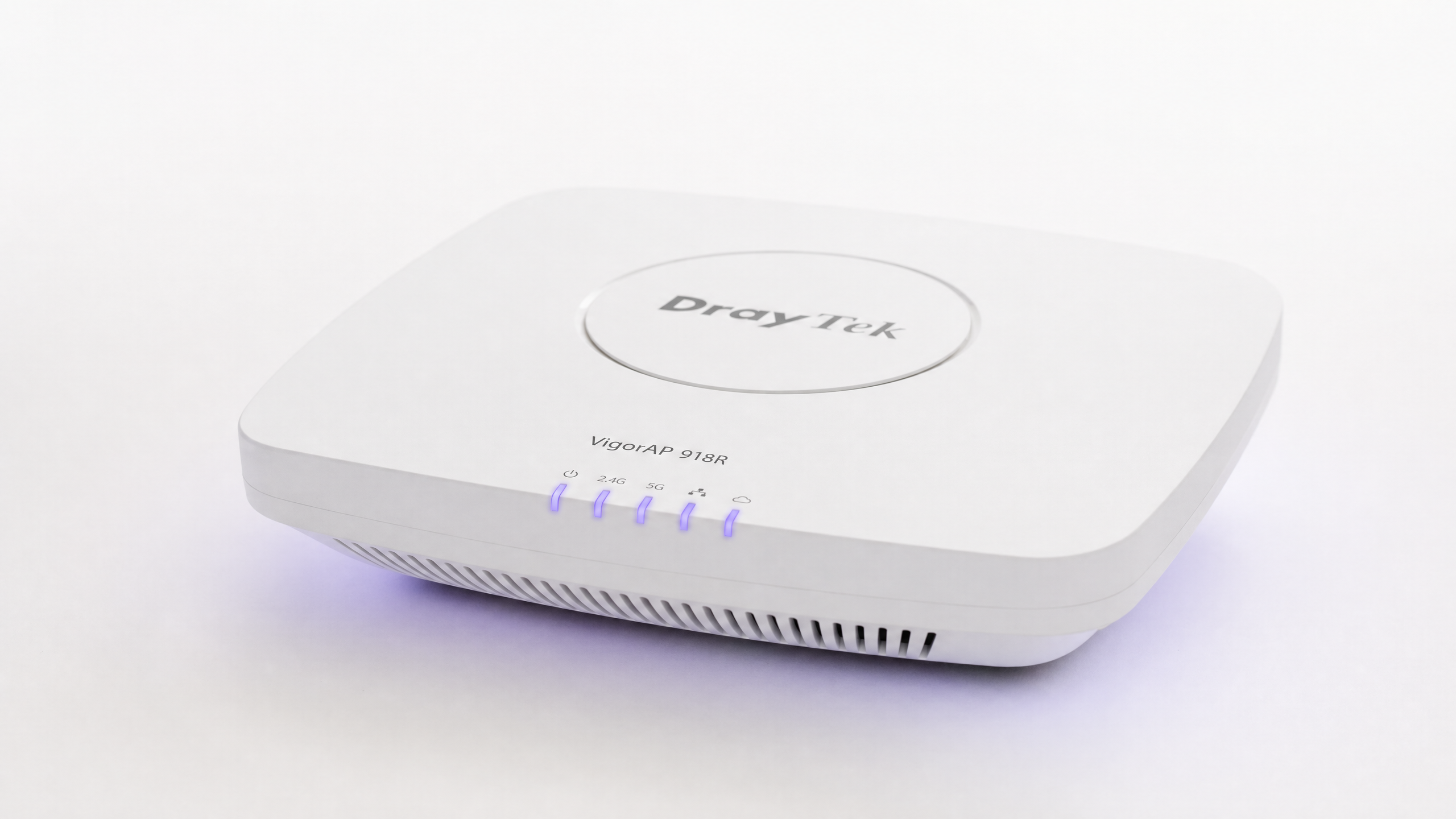
Los modelos de DrayTek compatibles incluyen las series Vigor 2862, 2865, 2866, 2926, 2927, 2952, 2962, 3220 y 3910. Todos los puntos de acceso VigorAP gestionados a través de la gestión centralizada de puntos de acceso (APM) son compatibles con esta integración.
Análisis técnico detallado
Cómo funciona la integración
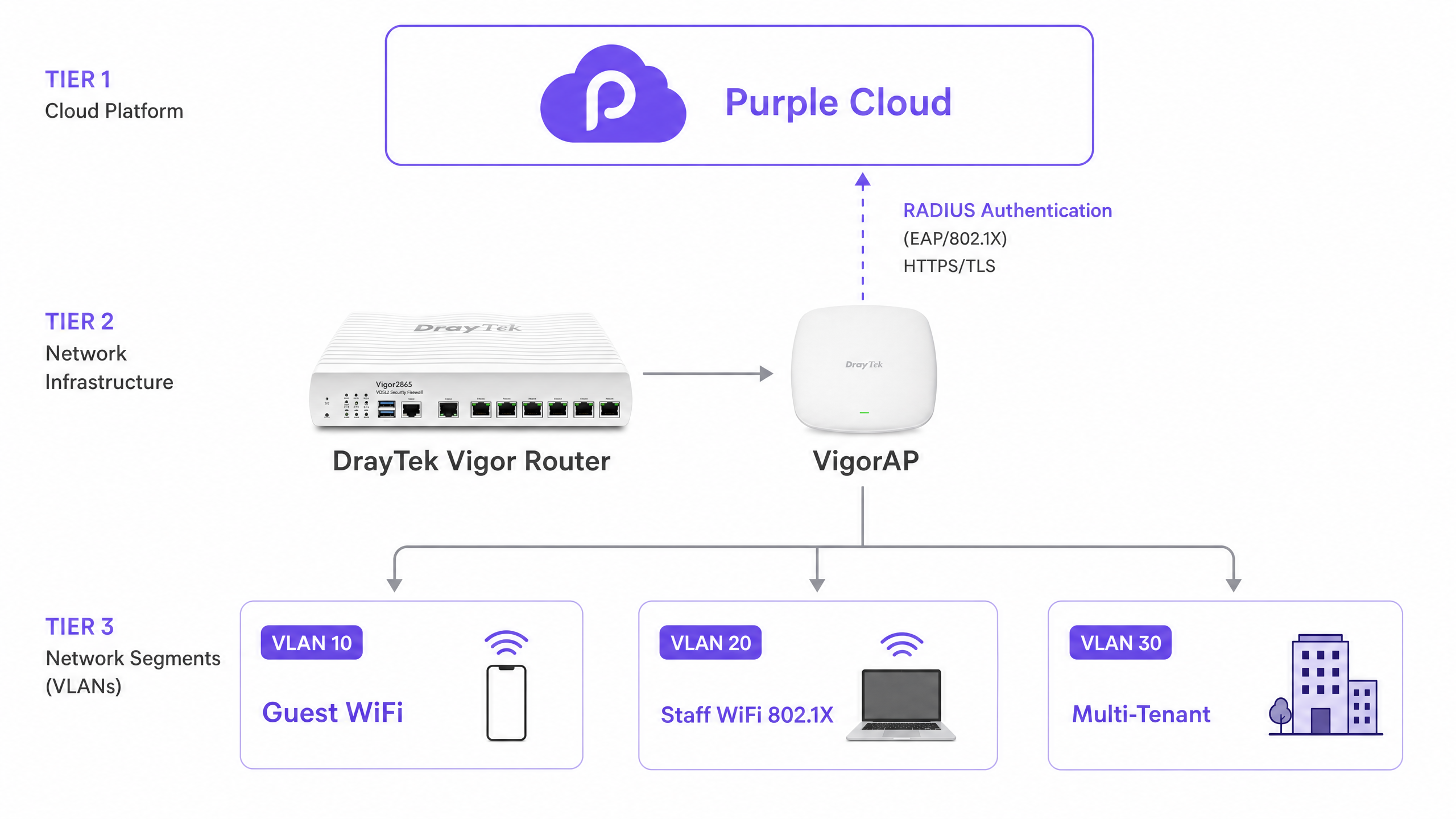
La integración de DrayTek y Purple se basa en dos mecanismos que funcionan en tándem: la redirección externa del Captive Portal y la autenticación RADIUS (Remote Authentication Dial-In User Service). Purple actúa como el proveedor de identidad centralizado y el motor de políticas. El router DrayTek Vigor actúa como el servidor de acceso a la red (NAS), aplicando las decisiones de acceso devueltas por los servidores RADIUS de Purple.
Cuando un invitado se conecta al SSID de WiFi, el router DrayTek coloca el dispositivo en un estado de preautenticación. Intercepta el tráfico HTTP del dispositivo y lo redirige a la página de bienvenida alojada en la nube de Purple a través de la función Hotspot Web Portal en DrayOS. El usuario completa el flujo de inicio de sesión en la plataforma de Purple, utilizando el inicio de sesión social, correo electrónico, SMS o un proveedor de identidad gestionado como Microsoft Entra ID, Okta o Google Workspace. El servidor RADIUS de Purple devuelve un mensaje Access-Accept al router DrayTek, que concede acceso a internet e inicia el registro de conexiones (RADIUS accounting) en el puerto 1813.
Guest WiFi y el Captive Portal de DrayTek
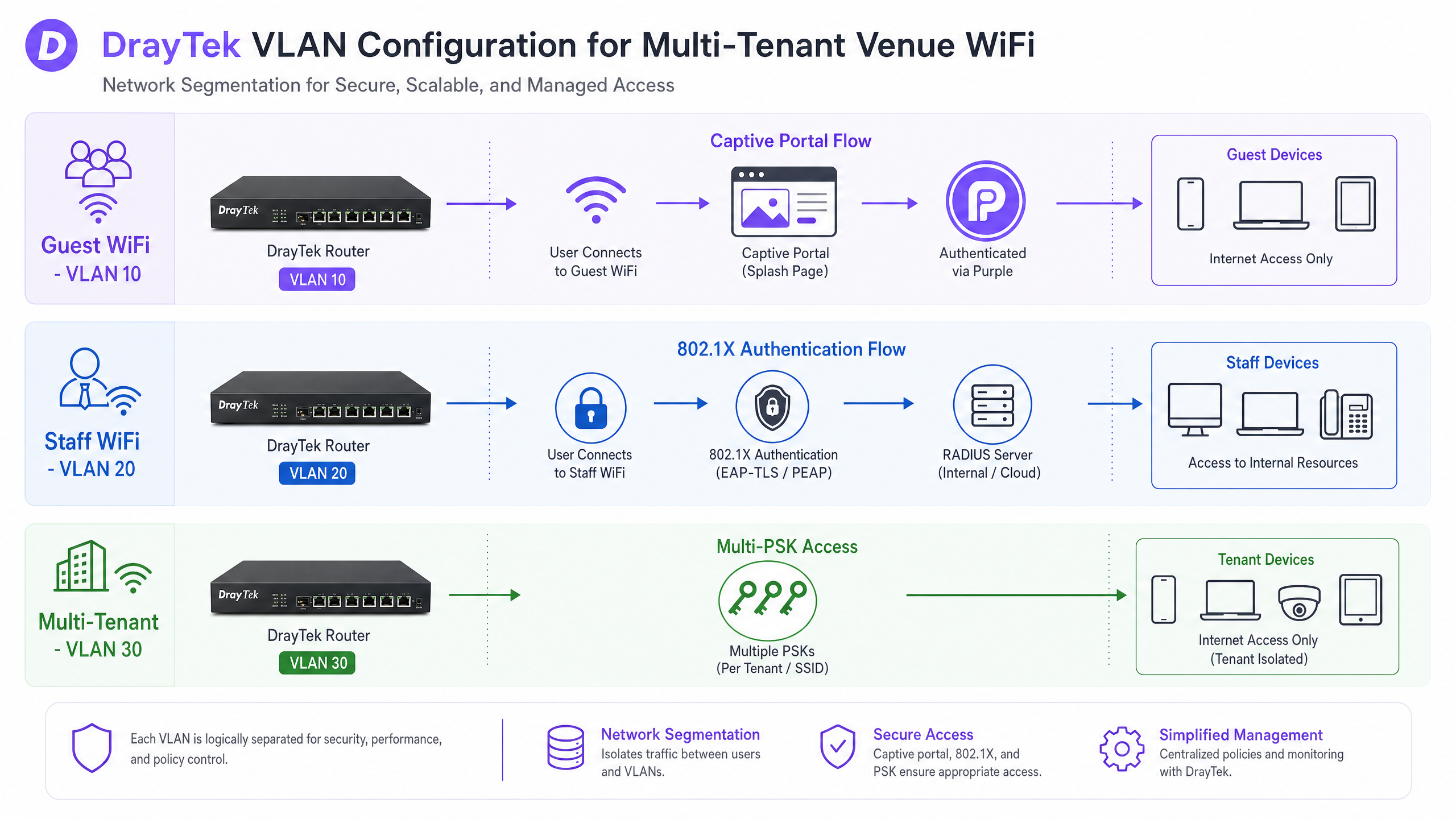
El Hotspot Web Portal de DrayTek es el mecanismo principal para la autenticación de invitados. En DrayOS, se configura un perfil de punto de acceso (Hotspot Profile) que define el método de portal, el servidor de autenticación, los límites de sesión y la página de destino. Al establecer el método de portal (Portal Method) en External Server, se indica a DrayOS que redirija a los clientes no autenticados a una URL externa (en este caso, su URL de acceso de Purple) en lugar de mostrar una página alojada localmente.
La configuración de RADIUS dentro del Hotspot Profile apunta a la IP del servidor RADIUS de Purple en el puerto 1812 para la autenticación y en el puerto 1813 para el registro de conexiones. El secreto compartido (shared secret) debe coincidir exactamente con el que se muestra en el panel de control de su establecimiento en Purple. Una discrepancia aquí es la causa más común de fallos de autenticación.
La gestión de sesiones se controla mediante el ajuste Expired Time After Activation. Para la mayoría de las implementaciones en hostelería y comercio minorista, un valor predeterminado de seis horas resulta práctico. Puede alinear este valor con el tiempo de espera de sesión de Purple para garantizar un comportamiento coherente en ambos sistemas.
Configuración de Walled Garden
Antes de que un invitado se autentique, su dispositivo no tiene acceso a internet. Sin embargo, el dispositivo debe poder comunicarse con los servidores de Purple para cargar la página de bienvenida. El Walled Garden, configurado a través de la pestaña Dest Domain en el Hotspot Profile de DrayTek, define qué dominios son accesibles antes de la autenticación.
Debe añadir los dominios de autenticación de Purple a esta lista, uno por índice. Si utiliza proveedores de inicio de sesión social (como Google o Facebook) o un proveedor de identidad gestionado como Microsoft Entra ID, sus dominios también deben incluirse. No configurar correctamente el Walled Garden es el motivo más común por el que un Captive Portal de DrayTek no muestra la página de bienvenida. La documentación de soporte de Purple proporciona la lista actualizada de los dominios requeridos para cada método de inicio de sesión.
Staff WiFi seguro mediante 802.1X
Para el personal interno, un Captive Portal no es la herramienta adecuada. Las contraseñas WPA2 compartidas son un riesgo de seguridad: cuando un empleado se marcha, es necesario actualizar la contraseña en cada dispositivo. La autenticación IEEE 802.1X Enterprise elimina este problema por completo.
En DrayOS, navegue a Wireless LAN > Security y seleccione WPA2/802.1X para su SSID de personal. Haga clic en el enlace RADIUS Server e introduzca la IP del servidor de Purple, el puerto y el secreto compartido. Los dispositivos del personal se autentican mediante PEAP (Protected Extensible Authentication Protocol) con MS-CHAPv2 como método interno. Esta es la configuración requerida para dispositivos Windows, macOS, iOS y Android que se conectan a una red inalámbrica empresarial.
Purple revoca el acceso a nivel de identidad. Cuando un empleado se marcha, usted deshabilita su cuenta en su proveedor de identidad (Microsoft Entra ID, Okta o Google Workspace). El servidor RADIUS de Purple deja de aceptar inmediatamente las solicitudes de autenticación de esa cuenta. No es necesario cambiar la contraseña en todo el establecimiento.
Para obtener más información sobre la arquitectura de seguridad inalámbrica empresarial, consulte nuestra guía Enterprise WiFi Security: A Complete Guide for 2026 .
Segmentación de redes multiinquilino con Multiple PSK de DrayTek
Los entornos multiinquilino (hoteles con restaurantes o locales comerciales alquilados, espacios de coworking, residencias de estudiantes y promociones de alquiler residencial o build-to-rent) requieren un aislamiento estricto de la red entre los inquilinos. Un cliente en una tienda concesionaria no debe poder acceder a la red interna del hotel, y dos inquilinos comerciales no deben poder ver el tráfico del otro.
DrayTek abordaborda esto con dos funciones complementarias: etiquetado VLAN y WPA2-PPSK (Private Pre-Shared Key).
La configuración de VLAN en el router Vigor asigna cada inquilino a una red lógica independiente. Vaya a LAN > VLAN, habilite VLAN Configuration y asigne un ID de VLAN único a cada segmento de inquilino. Todos los puertos LAN que se conecten a los VigorAP deben ser miembros de todas las VLAN relevantes, funcionando eficazmente como puertos troncales (trunk) 802.1Q. La Inter-LAN Routing Table en LAN > General Setup controla si el tráfico puede cruzar entre VLAN; para el aislamiento de inquilinos, esta opción debe estar deshabilitada.
WPA2-PPSK en el VigorAP asigna una contraseña única a cada inquilino. El punto de acceso vincula esta contraseña a la dirección MAC del dispositivo. Cuando un dispositivo se conecta, el AP identifica la contraseña utilizada y etiqueta el tráfico con el ID de VLAN correspondiente. Esto permite que un único SSID preste servicio a múltiples redes de inquilinos aisladas simultáneamente, lo que reduce la sobrecarga inalámbrica y simplifica la experiencia del usuario final.
Asignación dinámica de VLAN a través de RADIUS
Para implementaciones en las que la asignación de VLAN deba basarse en la identidad del usuario en lugar de en una contraseña estática, el servidor RADIUS de Purple admite el direccionamiento dinámico de VLAN. Cuando un usuario se autentica, Purple devuelve tres atributos RADIUS en el mensaje Access-Accept:
| Atributo RADIUS | Valor |
|---|---|
| Tunnel-Type | VLAN (13) |
| Tunnel-Medium-Type | IEEE-802 (6) |
| Tunnel-Private-Group-ID | ID de VLAN (p. ej., "20") |
El router DrayTek lee estos atributos y asigna el cliente autenticado a la VLAN especificada, independientemente del SSID al que se haya conectado. Esto es Identity-Based Networking (redes basadas en la identidad): el segmento de red se determina por quién es el usuario, no por la contraseña que haya introducido.
Guía de implementación
Lista de comprobación previa a la implementación
Antes de comenzar, confirme lo siguiente:
| Elemento | Requisito |
|---|---|
| Firmware de DrayTek | Última versión estable de DrayOS |
| Sede de Purple | Creada y activa en el panel de control de Purple |
| Credenciales RADIUS | URL de acceso, IP del servidor RADIUS, secreto compartido e identificador NAS obtenidos de Purple |
| Plan de VLAN | ID de VLAN documentados para invitados (Guest), personal (Staff) y cada inquilino |
| Red de retorno (backhaul) de VigorAP | Ethernet por cable confirmada para todos los puntos de acceso |
Paso 1: Configurar RADIUS en el router DrayTek
Vaya a Applications > RADIUS/TACACS+ en la interfaz web de DrayOS. En la pestaña External RADIUS, habilite el perfil e introduzca la dirección IP del servidor RADIUS de Purple, el puerto (1812) y el secreto compartido. Haga clic en OK para guardar. El router requiere un reinicio para aplicar este cambio; no omita este paso.
Paso 2: Crear el perfil de Hotspot Web Portal
Vaya a Hotspot Web Portal > Profile Setup y seleccione un índice disponible. Configure el perfil de la siguiente manera:
| Ajuste | Valor |
|---|---|
| Habilitar este perfil | Sí |
| Método de portal | Servidor externo |
| URL del Captive Portal | Su URL de acceso de Purple |
| URL de redirección | http://portal.draytek.com |
| Método de autenticación | Servidor RADIUS externo |
| Dirección IP del servidor | IP del servidor RADIUS de Purple |
| Puerto de destino | 1812 |
| Secreto compartido | Su secreto compartido de Purple |
| Habilitar contabilidad | Sí |
| Puerto de contabilidad | 1813 |
| Formato de dirección MAC | AA-BB-CC-DD-EE-FF |
Haga clic en OK para guardar.
Paso 3: Configurar el Walled Garden
Haga clic en Save and Next para pasar a la pestaña Dest Domain. Añada cada dominio de Purple requerido, uno por índice. Consulte la lista blanca de dominios del Walled Garden de Purple en la documentación de soporte para ver la lista actual. Haga clic en Save and Next para continuar.
Paso 4: Configurar los ajustes de sesión y de la página de destino
En la pantalla de configuración final, establezca:
| Ajuste | Valor |
|---|---|
| Tiempo de expiración tras la activación | 0 días, 6 horas, 0 min (o la duración que prefiera) |
| Redirección HTTPS | No |
| Detección de Captive Portal | Sí |
| Página de destino tras la autenticación | Su URL de redirección de Purple |
| Interfaces aplicadas | Seleccione los SSID de WiFi para invitados (Guest) |
Haga clic en Finish para guardar. Reinicie el router antes de realizar las pruebas.
Paso 5: Configurar las VLAN para la segmentación de red
Vaya a LAN > VLAN y habilite VLAN Configuration. Cree una entrada de VLAN para cada segmento de red. Asigne todos los puertos LAN que se conectan a los VigorAP como miembros de todas las VLAN relevantes (configuración de trunk). Vaya a LAN > General Setup y utilice la Inter-LAN Routing Table para bloquear el acceso entre VLAN donde sea necesario.
Paso 6: Configurar 802.1X para la WiFi del personal (Staff)
Vaya a Wireless LAN > Security y seleccione el SSID de Staff. Establezca el modo de seguridad en WPA2/802.1X. Haga clic en el enlace RADIUS Server e introduzca la IP del servidor de Purple, el puerto 1812 y el secreto compartido. Guarde la configuración.
Paso 7: Configurar PPSK para el aislamiento de múltiples inquilinos
En cada VigorAP, vaya a Wireless LAN > Security Settings y seleccione WPA2PPSK. Haga clic en el botón PPSK para añadir entradas. Para cada inquilino, cree una entrada PPSK con la dirección MAC del dispositivo del inquilino y una contraseña única. Asegúrese de que la contraseña esté asociada a la VLAN correcta en la configuración de su router. Tenga en cuenta que los perfiles PPSK para 2,4 GHz y 5 GHz se gestionan por separado en los VigorAP.
Buenas prácticas
Las siguientes recomendaciones reflejan la experiencia de implementación de Purple en más de 80 000 sedes, incluidos entornos de hostelería , comercio minorista , sanidad y transporte .
Utilice una red de retorno (backhaul) por cable para todos los VigorAP. Los sistemas de distribución inalámbrica (WDS) y los modos de repetidor universal no pueden transmitir etiquetas VLAN 802.1Q. Si necesita segmentación de red (y la necesita en cualquier sede multiinquilino o de uso mixto), cada punto de acceso debe conectarse al router o a un switch gestionado a través de Ethernet.
Habilite la movilidad asistida por AP (AP-Assisted Mobility). Los VigorAP de DrayTek admiten la preautenticación (Pre-Authentication) y el almacenamiento en caché de PMK (PMK Caching) para acelerar la reautenticación 802.1X cuando un cliente realiza roaming entreentre puntos de acceso. Habilite AP-Assisted Mobility para desasociar activamente a los clientes con una intensidad de señal débil, obligándolos a conectarse al AP más cercano. Esto es especialmente importante en entornos de retail donde los compradores se mueven continuamente por el espacio.
Planifique su esquema de VLAN antes del despliegue. Cambiar los ID de VLAN después del despliegue requiere reconfigurar el router, todos los puntos de acceso y cualquier switch gestionado en la ruta. Documente su esquema (VLAN 10 para invitados, VLAN 20 para personal, VLAN 30+ para inquilinos) antes de tocar el hardware.
Alinee los tiempos de espera de sesión entre DrayTek y Purple. Si el perfil de Hotspot de DrayTek expira una sesión después de seis horas pero la sesión de Purple está configurada en 24 horas, los usuarios serán redirigidos a la página de inicio (splash page) a mitad de la sesión. Configure ambos con el mismo valor.
Desactive la aleatorización de MAC para despliegues PPSK. Los dispositivos iOS y macOS utilizan Direcciones de WiFi Privadas (MAC aleatorias) de forma predeterminada. Dado que DrayTek PPSK vincula una frase de contraseña a una dirección MAC específica, la aleatorización provocará fallos de autenticación. Indique a los usuarios que desactiven esta configuración para su red o documente el proceso claramente en su flujo de incorporación.
Utilice Band Steering en los VigorAPs. Habilite Band Steering para guiar a los dispositivos compatibles con doble banda a la banda de 5 GHz. Esto reduce la congestión en la banda de 2,4 GHz y mejora el rendimiento de todos los dispositivos conectados.
Para obtener una visión más amplia de la arquitectura de seguridad inalámbrica empresarial, consulte nuestra guía sobre Enterprise WiFi Security: A Complete Guide for 2026 . Si está realizando un despliegue en múltiples ubicaciones con diferentes proveedores de hardware, nuestra guía SonicWall TZ and SonicWave Integration with Purple WiFi cubre un patrón de integración comparable.
Resolución de problemas y mitigación de riesgos
La página de inicio (splash page) no se carga. La causa más común es un Walled Garden incompleto. Verifique que todos los dominios de Purple requeridos estén listos en la pestaña Dest Domain. Confirme también que el pool de DHCP de invitados esté activo y que la resolución DNS funcione para los clientes preautenticados. Realice una prueba conectando un dispositivo e intentando navegar a una URL HTTP conocida.
Fallo de autenticación RADIUS. Compruebe si hay errores tipográficos en el secreto compartido (distingue entre mayúsculas y minúsculas). Confirme que el router DrayTek tiene una ruta a Internet y no está bloqueando el tráfico UDP saliente en los puertos 1812 y 1813. Verifique que ha reiniciado el router después de aplicar la configuración de RADIUS. Revise el panel de control de Purple para ver los registros de autenticación e identificar si la solicitud está llegando a los servidores de Purple.
Clientes asignados a la VLAN incorrecta. Verifique la configuración del puerto troncal (trunk) entre el router DrayTek y los VigorAPs. Los puertos del switch deben permitir las etiquetas VLAN específicas. Si utiliza un switch no gestionado, confirme que transmite tramas etiquetadas 802.1Q sin eliminar las etiquetas. Compruebe el perfil PPSK para confirmar la asignación correcta de frase de contraseña a VLAN.
Clientes adherentes (sticky clients) que no realizan roaming. Si los dispositivos no realizan roaming entre los VigorAPs como se esperaba, verifique que AP-Assisted Mobility esté habilitado y que el umbral RSSI esté configurado adecuadamente para su espacio. Confirme también que todos los VigorAPs ejecutan la misma versión de firmware, ya que las inconsistencias pueden afectar al comportamiento de roaming.
Dispositivos iOS que fallan en la autenticación PPSK. Confirme que el usuario ha desactivado la Dirección de WiFi Privada para su red específica en Ajustes > WiFi > [Nombre de la red] > Dirección de WiFi Privada. El perfil PPSK debe contener la dirección MAC de hardware real del dispositivo.
ROI e impacto empresarial
El despliegue de hardware DrayTek con Purple ofrece retornos medibles en tres áreas: eficiencia operativa, captura de datos y cumplimiento normativo.
Eficiencia operativa. La autenticación 802.1X elimina la sobrecarga de gestionar contraseñas de WiFi compartidas. Cuando un miembro del personal se marcha, usted desactiva su cuenta en Microsoft Entra ID, Okta o Google Workspace. El servidor RADIUS de Purple deja de aceptar sus credenciales de inmediato. No se requiere rotación de contraseñas en todo el establecimiento. Para una cadena de retail de 50 ubicaciones, esto por sí solo elimina cientos de horas de sobrecarga de TI al año.
Captura de datos y ROI de marketing. Cada invitado que se conecta a través del Captive Portal de Purple proporciona una identidad verificada: dirección de correo electrónico, número de teléfono o perfil social. Estos datos de primera mano (first-party data) se alimentan directamente en la plataforma WiFi Analytics de Purple, donde puede realizar un seguimiento del tiempo de permanencia, las tasas de visitas repetidas y la participación en las campañas. Purple ha recopilado 29.000 millones de puntos de datos en toda su red. Los establecimientos que utilizan el plan Engage de Purple informan de aumentos medibles en las tasas de visitas repetidas a través de comunicaciones dirigidas posteriores a la visita.
Cumplimiento normativo. Purple cuenta con la certificación ISO 27001, cumple con el GDPR y la CCPA, y tiene la certificación Cyber Essentials. El Captive Portal impone opciones de consentimiento explícito (opt-in), garantizando que la recopilación de datos cumpla con los requisitos del GDPR. La segmentación de VLAN aísla los entornos de tarjetas de pago del tráfico de invitados, lo que respalda el cumplimiento de PCI DSS. Para los centros sanitarios, el aislamiento de la red de pacientes y visitantes cumple con las directrices de la NHS y la ICO sobre el manejo de datos.
Para obtener una visión detallada de cómo Purple impulsa la toma de decisiones basada en análisis en entornos de establecimientos, consulte nuestra descripción general de la plataforma WiFi Analytics .
Definiciones clave
Captive portal
A web page that intercepts a user's HTTP traffic and requires interaction - login, terms acceptance, or data submission - before granting network access.
The mechanism Purple uses to capture first-party guest data on the DrayTek Hotspot Web Portal. Configured via the External Server portal method in DrayOS.
RADIUS
Remote Authentication Dial-In User Service. A networking protocol that provides centralised authentication, authorisation, and accounting (AAA) for network access.
The DrayTek router sends authentication requests to Purple's RADIUS server on UDP port 1812 and accounting data on port 1813. The shared secret must match on both sides.
802.1X
An IEEE standard for port-based network access control. Requires devices to authenticate with a RADIUS server before being granted network access.
Used for Staff WiFi on DrayTek hardware. Eliminates shared passwords and enables per-user access revocation via the identity provider.
VLAN
Virtual Local Area Network. A logical network segment that isolates traffic at Layer 2, even when devices share the same physical infrastructure.
Used on DrayTek Vigor routers to separate Guest, Staff, and Tenant traffic. Requires 802.1Q trunk ports between the router and VigorAPs.
Walled Garden
A set of domains or IP ranges that unauthenticated users can access before completing the captive portal flow.
Configured in the Dest Domain tab of the DrayTek Hotspot Profile. Must include Purple's authentication servers and any identity provider domains used for login.
PPSK
Private Pre-Shared Key. A security method where each user or device is assigned a unique passphrase, rather than sharing a single network password.
Used on DrayTek VigorAPs to assign multi-tenant devices to specific VLANs. The passphrase is bound to the device's MAC address.
AP-Assisted Mobility
A DrayTek VigorAP feature that monitors client signal strength and actively disassociates clients below a defined RSSI threshold, prompting them to roam to a closer access point.
Critical for retail and hospitality deployments where users move through the venue. Prevents sticky client behaviour that causes captive portal session drops.
PEAP
Protected Extensible Authentication Protocol. An 802.1X EAP method that encapsulates the authentication exchange in a TLS tunnel, protecting credentials in transit.
The EAP method used for Staff WiFi on DrayTek hardware. Combined with MS-CHAPv2 as the inner authentication method for Windows, macOS, iOS, and Android devices.
Dynamic VLAN assignment
A mechanism where the RADIUS server returns VLAN attributes in the Access-Accept message, and the network device assigns the authenticated client to the specified VLAN automatically.
Purple's RADIUS server returns Tunnel-Type, Tunnel-Medium-Type, and Tunnel-Private-Group-ID attributes. The DrayTek router applies the VLAN assignment based on user identity.
Ejemplos prácticos
A 150-room boutique hotel is deploying a DrayTek Vigor 2865 router with six VigorAP 903 access points. They need to provide branded Guest WiFi with data capture, secure Staff WiFi for 40 employees, and an isolated network for a leased ground-floor restaurant. The hotel's IT manager has never configured 802.1X before.
The IT manager creates three VLANs on the Vigor 2865: VLAN 10 for guests (192.168.10.0/24), VLAN 20 for staff (192.168.20.0/24), and VLAN 30 for the restaurant (192.168.30.0/24). Inter-LAN routing is disabled between all three segments. All six VigorAP 903 units are connected via Ethernet and managed through Central AP Management on the router. Three SSIDs are broadcast: 'Hotel Guest' (VLAN 10, Hotspot Web Portal pointing to Purple), 'Hotel Staff' (VLAN 20, WPA2/802.1X pointing to Purple RADIUS), and 'Restaurant' (VLAN 30, WPA2-PPSK with a passphrase specific to the restaurant's POS devices). The restaurant's PPSK entry binds the POS MAC addresses to VLAN 30. The IT manager registers the hotel's Microsoft Entra ID tenant with Purple, enabling staff to authenticate with their existing company credentials. The Walled Garden is configured with all required Purple domains. After rebooting the router, the IT manager tests each SSID and confirms correct VLAN assignment via the router's DHCP lease table.
A retail chain with 80 stores is experiencing poor captive portal completion rates. Analytics show that 40% of shoppers who connect to the Guest WiFi SSID never reach the splash page. The chain uses DrayTek Vigor 2865 routers and VigorAP 912C access points. Store layouts are large, with access points at both ends of the floor.
The network administrator investigates two root causes. First, they audit the Walled Garden configuration across all 80 sites using VigorACS 3, DrayTek's central management platform. They find that 23 sites are missing two of the required Purple authentication domains, causing the splash page to time out for shoppers on those networks. They update the Hotspot profiles centrally via VigorACS 3. Second, they enable AP-Assisted Mobility on all VigorAPs with an RSSI threshold of -75 dBm. This forces shoppers' devices to roam to the nearest AP as they move through the store, preventing the sticky client issue that was causing captive portal sessions to drop mid-authentication. After both changes, the portal completion rate rises from 60% to 89% across the estate.
Preguntas de práctica
Q1. You have configured the DrayTek Hotspot Web Portal and pointed it to the Purple access URL. The RADIUS settings are correct. However, when clients connect to the Guest WiFi SSID, their browsers report a connection timeout and the splash page never loads. What is the most likely cause, and what is the first step to diagnose it?
Sugerencia: Clients in a pre-authentication state have heavily restricted network access. Consider what traffic the router permits before authentication completes.
Ver respuesta modelo
The most likely cause is an incomplete or missing Walled Garden configuration. The DrayTek router blocks all traffic from unauthenticated clients except to domains explicitly listed in the Dest Domain tab. If Purple's authentication domains are not listed, the client's browser cannot reach the splash page server. The first diagnostic step is to navigate to the Hotspot Profile, click through to the Dest Domain tab, and verify that all required Purple domains are present. Cross-reference against Purple's Walled Garden Domain Whitelist in the support documentation. A secondary check is to confirm that DNS is resolving correctly for pre-authenticated clients.
Q2. A coworking venue has 12 member companies sharing a single DrayTek Vigor 2865 and four VigorAP 912C access points. Each company needs to be isolated from the others, but the venue manager wants to broadcast only one SSID to avoid cluttering the WiFi list on members' devices. How do you architect this?
Sugerencia: Consider how DrayTek handles unique passphrases on a single SSID, and what additional configuration is needed to enforce isolation between companies.
Ver respuesta modelo
Configure WPA2-PPSK on the VigorAPs with a single SSID. Create 12 VLANs on the Vigor 2865, one per company. For each company, create a PPSK entry that binds a unique passphrase to that company's device MAC addresses and assigns them to their dedicated VLAN. Disable inter-VLAN routing in the Inter-LAN Routing Table to prevent cross-company traffic. Each company's devices connect to the same SSID using their unique passphrase, and the VigorAP automatically drops them into their isolated VLAN. For companies with multiple devices, each device needs its own PPSK entry with its specific MAC address and the shared company passphrase.
Q3. After a routine firmware update on a DrayTek Vigor 2865, staff members report that their laptops can no longer connect to the Staff WiFi SSID. The SSID is visible, but authentication fails. Guest WiFi continues to work normally. What are the three most likely causes, and in what order should you investigate them?
Sugerencia: The Guest WiFi uses a different authentication mechanism to the Staff WiFi. Isolate which layer of the 802.1X stack has broken.
Ver respuesta modelo
The three most likely causes are: (1) The firmware update reset the RADIUS server configuration for the WPA2/802.1X SSID - navigate to Wireless LAN > Security, confirm the RADIUS server IP and shared secret are still correct, and reboot if you make any changes. (2) The firmware update changed the EAP method or RADIUS port settings - verify that port 1812 is still configured and that the router can reach Purple's RADIUS server on that port. (3) The firmware update introduced a certificate change that is causing EAP-TLS validation to fail on client devices - check the Purple dashboard for authentication log entries to see whether requests are reaching the server. Investigate in this order: RADIUS configuration first (most common after a firmware update), then network connectivity to the RADIUS server, then certificate or EAP method issues.
Continúe leyendo esta serie
Integración de firmware personalizado OpenWrt con Purple WiFi
Esta guía proporciona el manual de integración completo para desplegar firmware personalizado OpenWrt con Purple WiFi. Cubre la configuración del Captive Portal de CoovaChilli, la gestión del walled garden de iptables, la seguridad de la WiFi para el personal mediante 802.1X con hostapd y la segmentación PPSK multiinquilino con asignación dinámica de VLAN, lo que ofrece a los equipos de TI los pasos de configuración exactos necesarios para crear una red basada en la identidad en cualquier hardware compatible con OpenWrt.
Integración de Huawei AirEngine y CloudCampus con Purple WiFi
Esta guía proporciona instrucciones paso a paso para integrar los puntos de acceso Huawei AirEngine e iMaster NCE-Campus con Purple WiFi. Cubre la configuración de Captive Portal, la autenticación de personal mediante 802.1X y el direccionamiento dinámico de VLAN mediante PPSK para redes empresariales.
Guía de integración de MikroTik RouterOS Captive Portal y Purple WiFi
Esta guía técnica proporciona instrucciones paso a paso para integrar MikroTik RouterOS con la plataforma Purple WiFi. Cubre la configuración del Captive Portal para Guest WiFi, la autenticación 802.1X para Staff WiFi y WiFi multiinquilino mediante PSK privadas para la segmentación dinámica de VLAN.