
NETGEAR Insight and Enterprise Access Points Integration with Purple WiFi
Esta guía proporciona a los responsables de TI una hoja de ruta técnica definitiva para integrar NETGEAR Insight y los puntos de acceso empresariales de la serie WAX con Purple WiFi. Cubre configuraciones esenciales, incluidos Captive Portals para invitados, redes de personal 802.1X y segmentación multiinquilino mediante PPSK y asignación dinámica de VLAN.
Escuchar esta guía
Ver transcripción del podcast
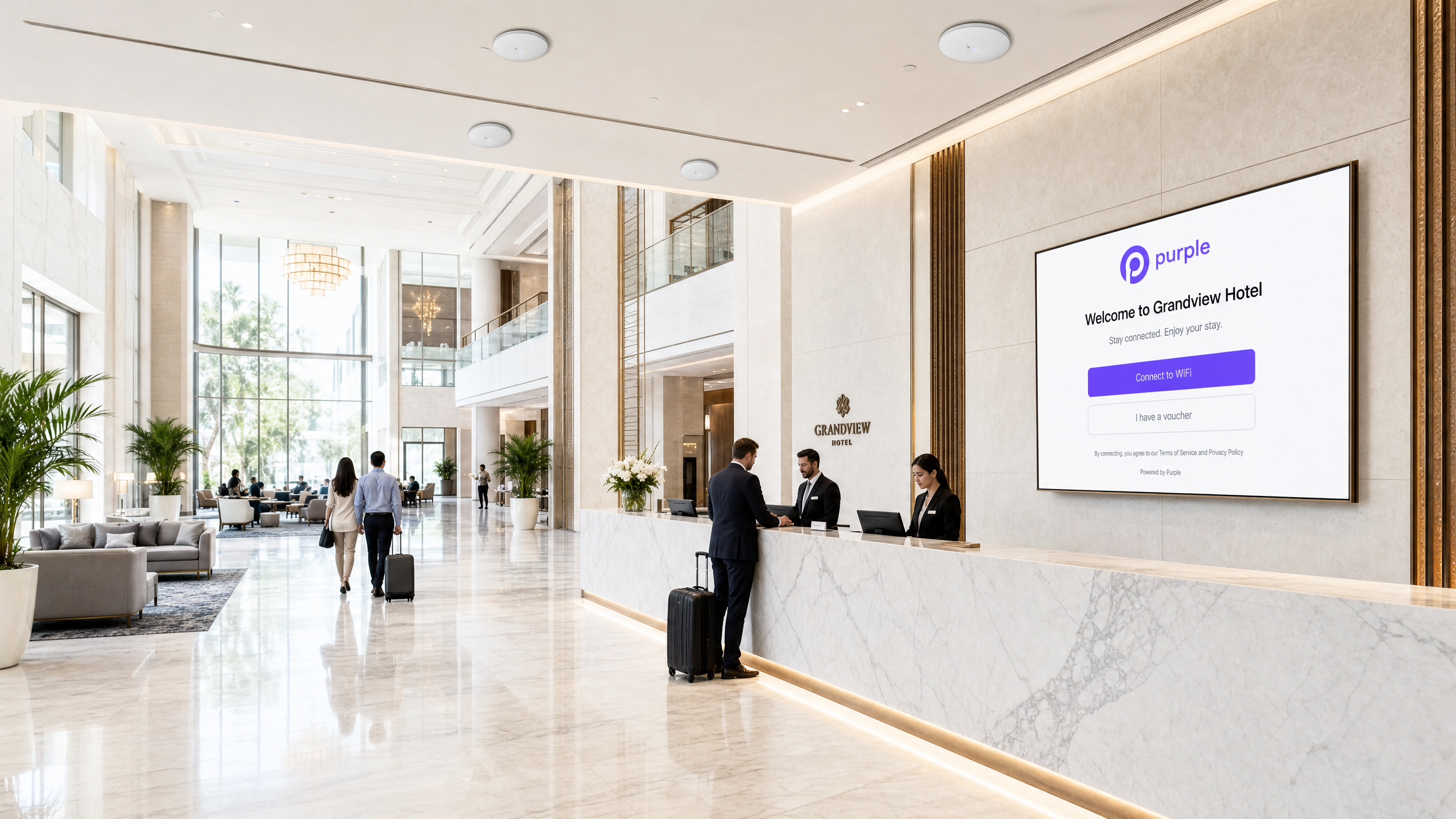
Resumen ejecutivo
Depender de claves precompartidas para el acceso WiFi empresarial representa un riesgo de seguridad importante. Una sola credencial comprometida expone toda la red, y revocar el acceso requiere cambiar la contraseña en cada dispositivo. Esta guía proporciona a los responsables de TI y arquitectos de red una hoja de ruta definitiva para integrar NETGEAR Insight y los puntos de acceso empresariales de la serie WAX con Purple.
Detallamos cuatro arquitecturas de implementación principales: WiFi de invitados con un Captive Portal, WiFi de personal seguro mediante 802.1X, segmentación multiinquilino a través de claves precompartidas privadas (PPSK) de NETGEAR y redes basadas en la identidad mediante asignación dinámica de VLAN. Tanto si gestiona espacios de Hostelería , locales de Retail o entornos del sector público, estas configuraciones eliminan las contraseñas compartidas, imponen una segmentación de red estricta y recopilan datos útiles de WiFi Analytics .
Escuche nuestro pódcast de sesión informativa técnica a continuación para obtener una descripción detallada de la arquitectura y los errores de implementación más comunes.
Análisis técnico detallado
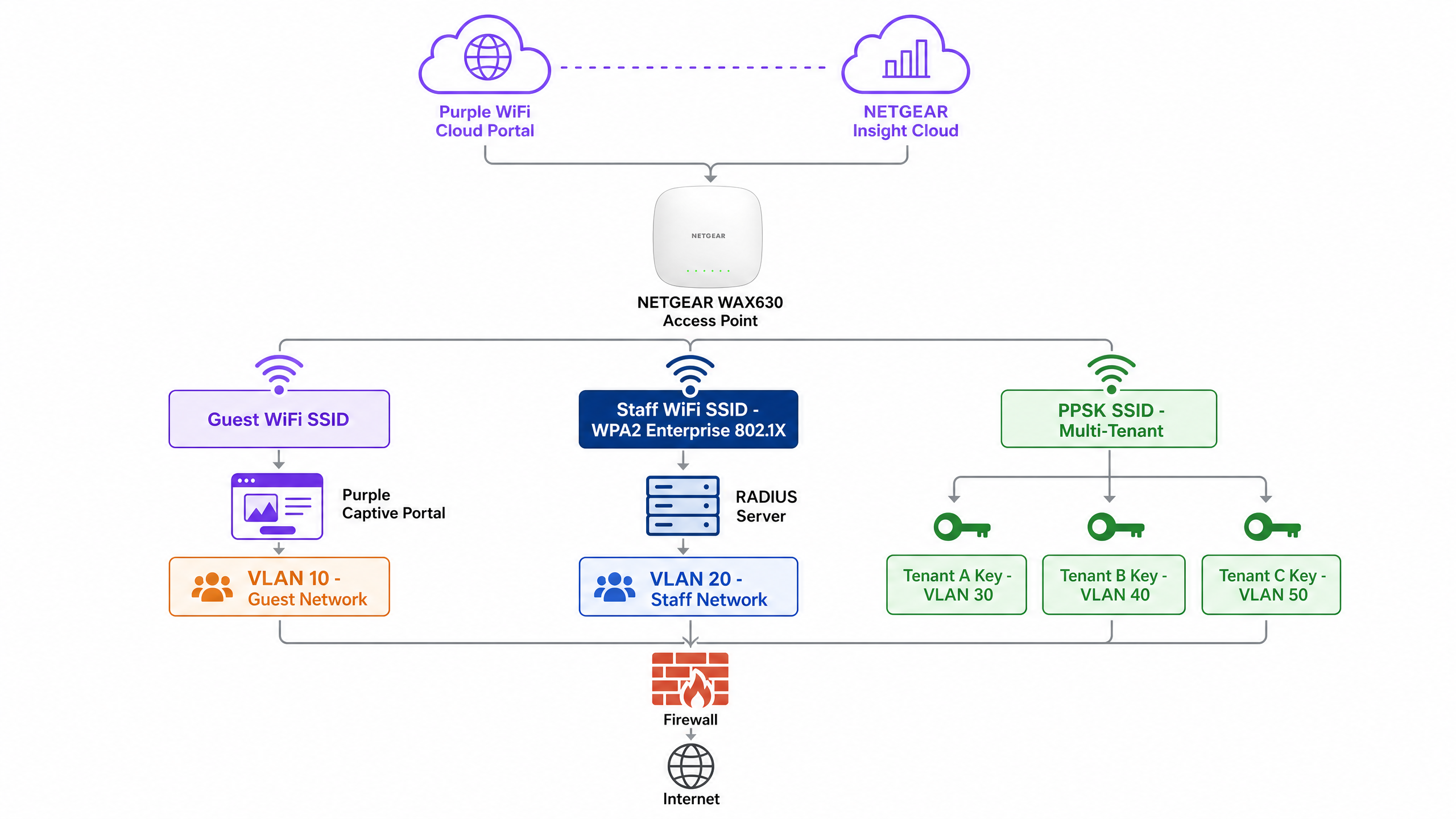
Los puntos de acceso de la serie NETGEAR WAX (WAX610, WAX620, WAX630) son dispositivos WiFi 6 gestionados en la nube y diseñados para entornos de alta densidad. Gestionados a través del portal NETGEAR Insight, admiten hasta ocho SSID independientes por radio, cifrado WPA3 y rendimiento multigigabit. Purple actúa como una capa de nube independiente del hardware, integrándose con NETGEAR Insight para ofrecer un control de acceso y una captura de datos de nivel empresarial.
1. WiFi de invitados con Captive Portal
Para entornos de cara al público, debe implementar un Captive Portal externo. Esta configuración intercepta las solicitudes HTTP de los invitados y las redirige a una página de inicio (splash page) alojada en Purple.
Arquitectura:
- Punto de acceso: El punto de acceso NETGEAR WAX emite un SSID de invitado abierto o WPA2 Personal.
- Walled Garden: NETGEAR Insight permite el tráfico de preautenticación hacia los servidores de Purple y los proveedores de inicio de sesión social.
- Autenticación: Purple gestiona la sesión del usuario a través de autenticación web HTTP o RADIUS.
Cuando un invitado se conecta, se le presenta un portal personalizado. Al aceptar los términos y proporcionar sus datos, el servidor RADIUS de Purple devuelve un mensaje Access-Accept, que concede acceso a Internet. Este enfoque garantiza el cumplimiento de las normativas de privacidad de datos como el GDPR, al tiempo que recopila valiosos datos de primera mano.
2. WiFi de personal seguro (802.1X)
Las claves precompartidas no son admisibles para las redes de personal. Debe implementar la autenticación IEEE 802.1X. En este modelo, cada usuario tiene una credencial individual. Cuando un empleado se marcha, se desactiva su cuenta de directorio y su acceso se revoca de inmediato.
En NETGEAR Insight, se configura un SSID de personal con seguridad WPA2 Enterprise o WPA3 Enterprise. El punto de acceso actúa como autenticador, transmitiendo los mensajes del Protocolo de autenticación extensible (EAP) al servidor RADIUS. El servidor RADIUS valida las credenciales con su directorio (por ejemplo, Microsoft Entra ID u Okta) y devuelve la decisión de autorización.
3. Segmentación multiinquilino (PPSK)
Los desarrollos de uso mixto y los parques comerciales se enfrentan a un reto específico: varios inquilinos que comparten la infraestructura física de WiFi. Implementar SSIDs independientes para cada inquilino genera congestión de radiofrecuencia. Proporcionar una única contraseña compartida compromete la seguridad.
La clave precompartida privada (PPSK) de NETGEAR soluciona esto. Se emite un único SSID. En NETGEAR Insight, se generan contraseñas únicas para cada inquilino. Fundamentalmente, cada contraseña se asocia a una VLAN específica.
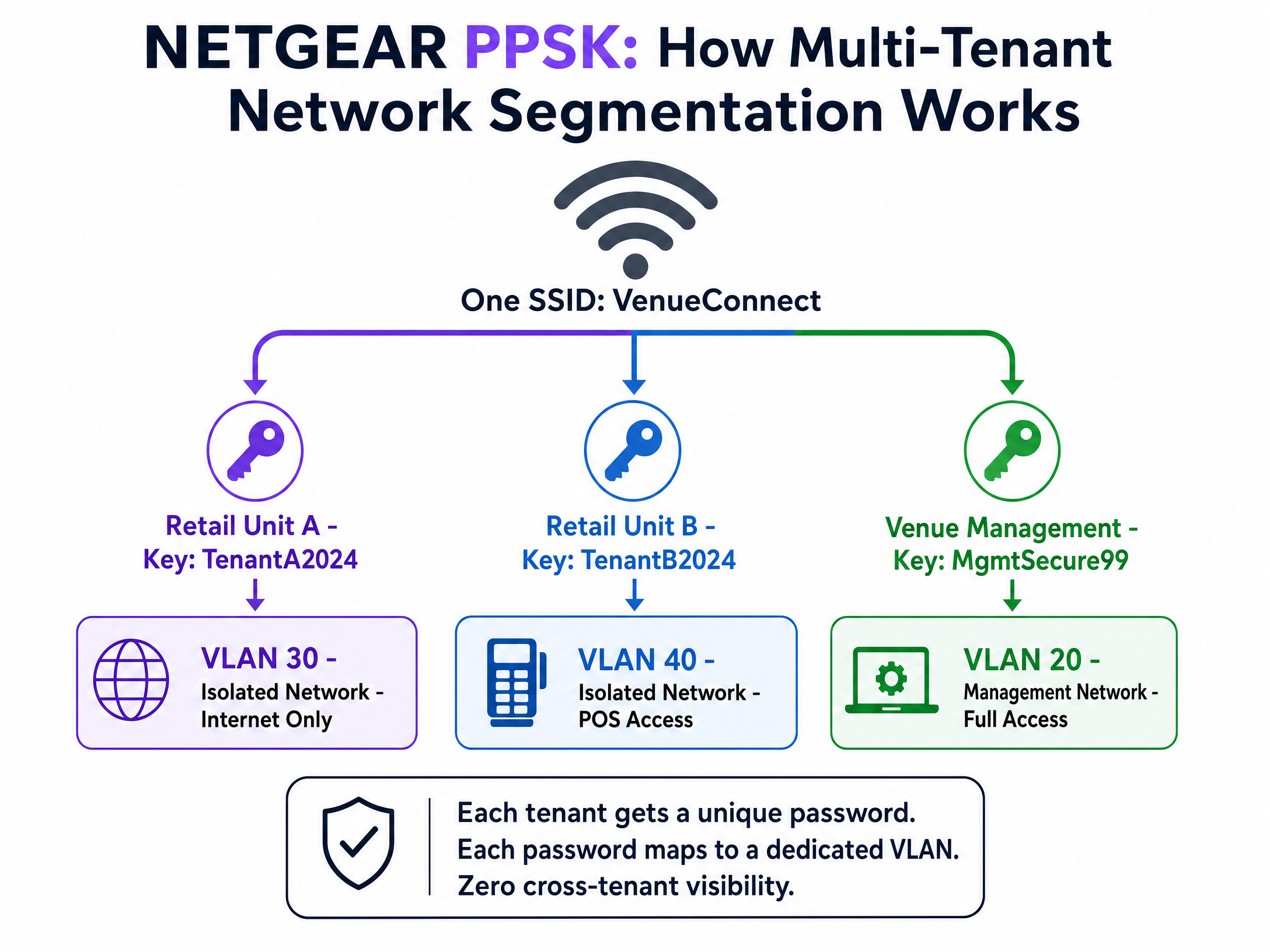
Cuando un dispositivo se conecta utilizando la contraseña del local comercial, el punto de acceso lo ubica en la VLAN de retail aislada. Cuando la administración del recinto se conecta utilizando su contraseña, accede a la VLAN de gestión. Se logra un aislamiento completo del tráfico sin hardware adicional. Tenga en cuenta que PPSK requiere WPA2 Personal y no se puede combinar con un Captive Portal en el mismo SSID.
4. Asignación dinámica de VLAN a través de RADIUS
Para redes sofisticadas basadas en la identidad, debe utilizar la asignación dinámica de VLAN. En lugar de asignar estáticamente una VLAN a un SSID o a una contraseña, el servidor RADIUS determina la VLAN en función del perfil de directorio del usuario.
El servidor RADIUS devuelve tres atributos estándar en el mensaje Access-Accept:
[64] Tunnel-Type = 13 (VLAN)[65] Tunnel-Medium-Type = 6 (802)[81] Tunnel-Private-Group-ID = [VLAN ID]
Un único SSID WPA2 Enterprise puede dar servicio a toda la organización. Un director de hotel se autentica y accede a la VLAN 20. Un recepcionista accede a la VLAN 21. Un contratista accede a la VLAN 50. La red se adapta a la identidad del usuario. Para obtener una perspectiva más amplia sobre cómo proteger su entorno, consulte nuestra guía Seguridad WiFi empresarial: guía completa para 2026 .
Guía de implementación
Siga estos pasos para implementar NETGEAR Insight con el WiFi de invitados de Purple.
Paso 1: Configurar el SSID de invitado
- Inicie sesión en el portal en la nube de NETGEAR Insight.
- Seleccione la ubicación de su red y vaya a Wireless > Settings.
- Cree un nuevo SSID (por ejemplo, "Venue Guest WiFi").
- Seleccione Captive Portal y elija External Captive Portal.
Paso 2: Configurar el Captive Portal
- En el campo Splash Page URL, introduzca la URL proporcionada por Purple.
- Seleccione el botón de opción Radius.
- Introduzca la IP del servidor de autenticación principal, el puerto (1812) y el secreto compartido proporcionados por Purple.
- Introduzca la IP del servidor de contabilidad (accounting) principal, el puerto (1813) y el secreto compartido.
- Establezca un NAS-Identifier descriptivo (p. ej., "London-Retail-01").
Paso 3: Configurar el Walled Garden
Este es el paso más crítico. Si el walled garden es incorrecto, los invitados verán una pantalla en blanco.
- Desplácese hasta la sección Walled Garden en la configuración del Captive Portal.
- Añada todos los dominios proporcionados en la documentación de integración de Purple. Esto incluye los dominios CDN de Purple, los servidores de autenticación y cualquier proveedor de inicio de sesión social habilitado (p. ej., Facebook, Google).
- Haga clic en Guardar.
Paso 4: Verificar la accesibilidad de RADIUS
Asegúrese de que su cortafuegos permite la salida de los puertos UDP 1812 y 1813 desde las direcciones IP de gestión de los puntos de acceso hacia los servidores RADIUS de Purple.
Buenas prácticas
- Forzar la validación de certificados: Para despliegues 802.1X, debe forzar una validación estricta de certificados en todos los dispositivos cliente a través de Objetos de Directiva de Grupo (GPO) o Gestión de Dispositivos Móviles (MDM). Si los clientes no validan el certificado del servidor RADIUS, son vulnerables a ataques de puntos de acceso no autorizados.
- Aislar el tráfico de gestión: Coloque siempre las direcciones IP de gestión de los puntos de acceso en una VLAN de gestión dedicada, aislada del tráfico de invitados y del personal.
- Habilitar Failsafe: En la configuración del Captive Portal de NETGEAR Insight, habilite la opción FailSafe. Si los servidores RADIUS dejan de estar accesibles, se concede a los invitados acceso temporal a Internet, lo que evita una interrupción total de la WiFi.
- Separar SSIDs para PPSK: Dado que NETGEAR Insight no admite PPSK y Captive Portal en el mismo SSID, debe crear SSIDs dedicados (p. ej., "Venue-Guest" y "Venue-Tenant").
Resolución de problemas y mitigación de riesgos
Síntoma: Los invitados se conectan al SSID pero la página de bienvenida (splash page) no se carga.
- Causa: Configuración incompleta del Walled Garden.
- Resolución: Verifique que todos los dominios de Purple y de inicio de sesión social estén introducidos correctamente en la configuración del Walled Garden de NETGEAR Insight. Realice la prueba con un dispositivo que no tenga credenciales almacenadas en caché.
Síntoma: Los dispositivos del personal no se autentican a través de 802.1X.
- Causa: Tiempo de espera de RADIUS agotado o secreto compartido incorrecto.
- Resolución: Verifique que los puertos UDP 1812 y 1813 estén abiertos para el tráfico saliente. Confirme que el secreto compartido coincide exactamente entre el portal de NETGEAR Insight y el servidor RADIUS. Revise los registros del servidor RADIUS en busca de mensajes
Access-Reject.
Síntoma: Los clientes PPSK se asignan a la VLAN incorrecta.
- Causa: Asignación de VLAN incorrecta o falta de configuración de VLAN en el conmutador (switch).
- Resolución: Asegúrese de que la VLAN esté creada en NETGEAR Insight en la configuración de Cableado (Wired). Verifique que la configuración de Multi PSK asigne la contraseña correcta al ID de VLAN correcto. Asegúrese de que el puerto del conmutador que conecta el punto de acceso esté configurado como puerto troncal (trunk) que permita la VLAN de destino.
ROI e impacto empresarial
El despliegue de NETGEAR Insight con Purple transforma su infraestructura inalámbrica de un centro de costes a un activo generador de ingresos. Al implementar redes basadas en la identidad y portales cautivos, conseguirá:
- Reducción de los costes indirectos de TI: PPSK y 802.1X eliminan la necesidad de gestionar manualmente contraseñas compartidas o de enviar ingenieros para cambios de acceso rutinarios.
- Analíticas procesables: Capture datos demográficos, tiempos de permanencia y tasas de retorno para optimizar las operaciones del establecimiento y la combinación de inquilinos.
- ROI de marketing: Cree una base de datos CRM de alta intención que cumpla con el GDPR. Los establecimientos suelen experimentar una reducción significativa en los costes de adquisición de clientes al aprovechar los datos de origen (first-party data) recopilados a través de WiFi.
- Seguridad mejorada: La asignación dinámica de VLAN aísla los dispositivos IoT, los sistemas de punto de venta y el tráfico de invitados, lo que reduce significativamente la superficie de ataque y garantiza el cumplimiento de PCI DSS.
Definiciones clave
802.1X
An IEEE standard for port-based Network Access Control that provides an authentication mechanism to devices wishing to attach to a LAN or WLAN.
Essential for enterprise security; replaces shared passwords with individual user credentials.
Captive Portal
A web page that a user of a public access network is obliged to view and interact with before access is granted.
Used by Purple to capture first-party data and ensure terms of service acceptance.
PPSK (Private Pre-Shared Key)
A feature allowing multiple unique passwords on a single SSID, where each password assigns the user to a specific VLAN.
Ideal for multi-tenant buildings or isolating IoT devices without creating multiple SSIDs.
RADIUS
Remote Authentication Dial-In User Service; a networking protocol that provides centralized Authentication, Authorization, and Accounting (AAA) management.
The core server that validates credentials and tells the NETGEAR AP whether to grant access.
Walled Garden
A limited environment that controls the user's access to web content and services prior to full authentication.
Must be configured in NETGEAR Insight to allow devices to reach the Purple splash page and social login providers.
Dynamic VLAN Assignment
The process where a RADIUS server instructs an access point to place an authenticated user on a specific VLAN based on their identity.
Enables Identity-Based Networks, allowing a single SSID to serve multiple departments securely.
NAS-Identifier
Network Access Server Identifier; a string used to identify the source of a RADIUS access request.
Configured in NETGEAR Insight so Purple knows which venue or access point the user is connecting from.
EAP-TLS
Extensible Authentication Protocol - Transport Layer Security; an authentication method requiring digital certificates on both the client and server.
The most secure 802.1X method, eliminating passwords entirely, though requiring MDM to deploy certificates.
Ejemplos prácticos
A 40-unit retail park needs to provide secure, isolated WiFi for each tenant's point-of-sale systems, plus a branded public WiFi network for shoppers. They have deployed NETGEAR WAX630 access points. How should the network be configured?
Create two SSIDs in NETGEAR Insight. SSID 1: 'RetailPark-Guest'. Configure this with an External Captive Portal pointing to Purple's splash page, with RADIUS authentication and a comprehensive walled garden. Map this to VLAN 10 (Internet only). SSID 2: 'RetailPark-Tenants'. Configure this with WPA2 Personal and enable Multi PSK (PPSK). Create 40 unique passwords. Map Tenant A's password to VLAN 101, Tenant B to VLAN 102, etc. Ensure the core switch trunks all VLANs to the access points.
A corporate headquarters wants to move away from a shared WPA2 password. They need staff to authenticate with their Microsoft Entra ID credentials, and they want the finance team on VLAN 50 and the marketing team on VLAN 60.
Deploy a single 'Corporate-Secure' SSID configured for WPA2 Enterprise. Point the NETGEAR Insight RADIUS settings to a RADIUS server integrated with Entra ID. Configure the RADIUS server to return standard tunnel attributes (Tunnel-Type=13, Tunnel-Medium-Type=6, Tunnel-Private-Group-ID=50 or 60) based on the user's directory group membership. Enforce certificate validation on all corporate laptops via MDM.
Preguntas de práctica
Q1. You have deployed a Purple captive portal on a NETGEAR WAX620. Guests can connect to the WiFi, but their browsers show a 'Cannot reach destination' error instead of the splash page. What is the most likely configuration error?
Sugerencia: Consider what must happen before the guest is fully authenticated to reach external servers.
Ver respuesta modelo
The Walled Garden is misconfigured or incomplete. The NETGEAR access point is blocking the initial traffic to Purple's servers. You must ensure all required Purple CDN domains, authentication URLs, and social login domains are added to the Walled Garden list in the Insight portal.
Q2. A venue requires both a guest captive portal and secure, isolated WiFi for 10 different retail tenants. They want to minimize RF interference. How do you configure the NETGEAR access points?
Sugerencia: NETGEAR Insight has specific limitations regarding mixing captive portals and PPSK.
Ver respuesta modelo
You must create exactly two SSIDs. NETGEAR does not support PPSK and Captive Portal on the same SSID. Create 'Venue-Guest' with an External Captive Portal pointing to Purple. Create 'Venue-Retail' with WPA2 Personal and configure Multi PSK (PPSK) with 10 unique passwords, each mapping to a different VLAN.
Q3. When configuring dynamic VLAN assignment for staff using 802.1X, which three RADIUS attributes must the server return in the Access-Accept message?
Sugerencia: Think about the RFC 2868 standard attributes for tunnel configuration.
Ver respuesta modelo
The RADIUS server must return: [64] Tunnel-Type = 13 (VLAN), [65] Tunnel-Medium-Type = 6 (802), and [81] Tunnel-Private-Group-ID = [The specific VLAN ID string].
Continúe leyendo esta serie
Integración de CommScope Ruckus con Purple WiFi: Guía de instalación y configuración
Esta guía de referencia técnica proporciona un manual de configuración definitivo para integrar arquitecturas de CommScope Ruckus con Purple WiFi. Detalla implementaciones paso a paso para captive portals de Guest WiFi, WiFi seguro para el personal a través de 802.1X y aislamiento de red multiinquilino mediante Ruckus Dynamic PSK.
Integración de puntos de acceso Allied Telesis con Purple WiFi
Esta guía proporciona un manual de configuración completo para integrar los puntos de acceso de la serie TQ de Allied Telesis con Purple WiFi. Cubre la redirección externa de Captive Portal, la autenticación RADIUS 802.1X y el direccionamiento dinámico de VLAN mediante claves precompartidas privadas (PPSK) para despliegues multiinquilino seguros.
Grandstream GWN Access Points Integration with Purple WiFi
Esta guía de referencia técnica autorizada detalla cómo integrar los puntos de acceso Grandstream GWN con la plataforma de análisis y Guest WiFi de Purple. Cubre la configuración del Captive Portal de Grandstream, los ajustes de RADIUS AAA, la configuración de walled garden, la autenticación segura 802.1X para el personal con direccionamiento dinámico de VLAN y la segmentación PPSK multiinquilino, proporcionando una guía práctica paso a paso para MSP y equipos de TI que implementan WiFi para invitados y personal a gran escala.