
NETGEAR Insight and Enterprise Access Points Integration with Purple WiFi
Questa guida fornisce ai manager IT una roadmap tecnica definitiva per l'integrazione di NETGEAR Insight e degli access point enterprise WAX con Purple WiFi. Copre le configurazioni essenziali, inclusi i Captive Portal per gli ospiti, le reti del personale 802.1X e la segmentazione multi-tenant tramite PPSK e l'assegnazione dinamica della VLAN.
Ascolta questa guida
Visualizza trascrizione del podcast
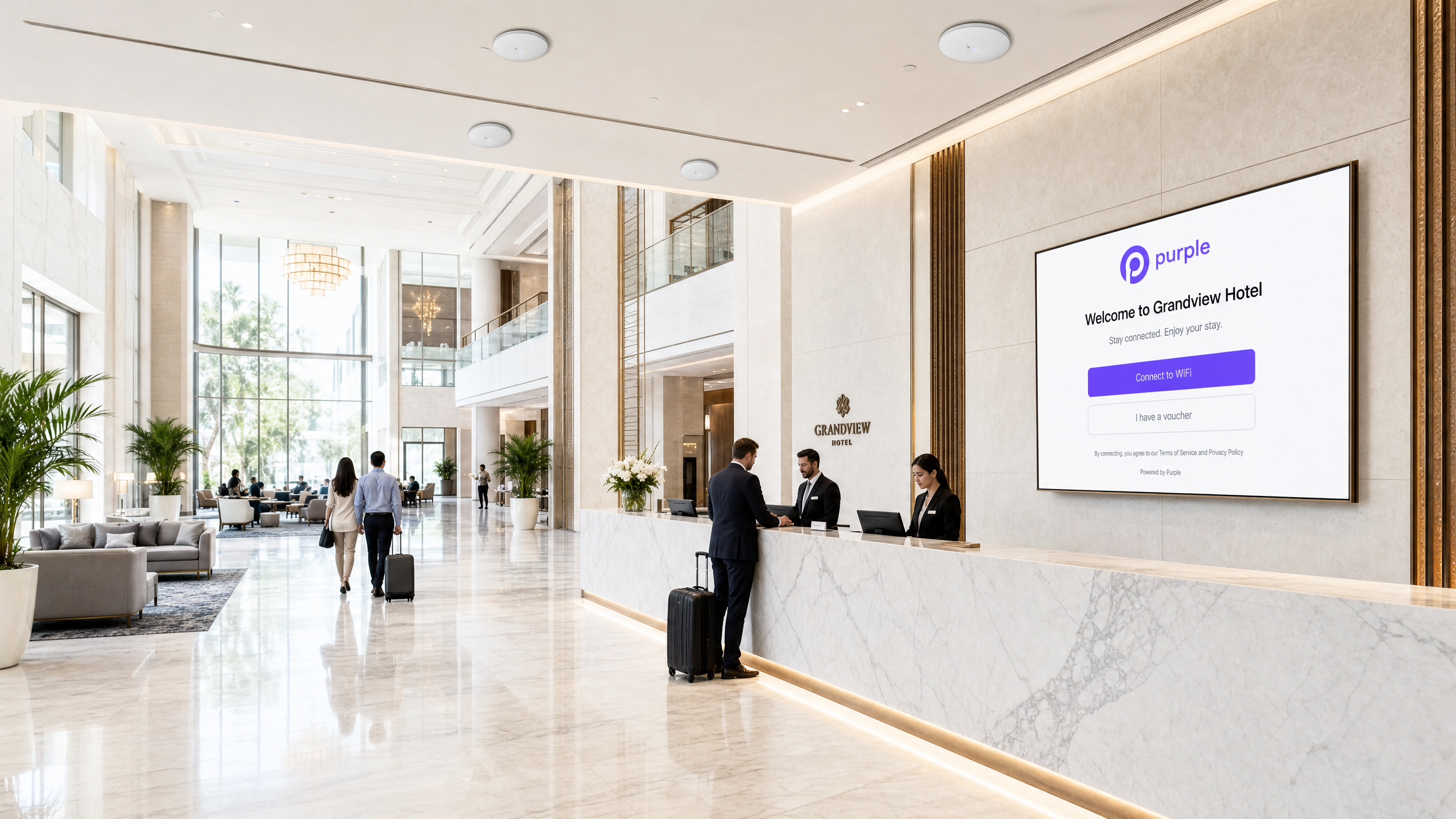
Executive Summary
Affidarsi a chiavi precondivise per l'accesso WiFi aziendale rappresenta un grave rischio per la sicurezza. Una singola credenziale compromessa espone l'intera rete e la revoca dell'accesso richiede la modifica della password per ogni dispositivo. Questa guida fornisce ai manager IT e agli architetti di rete una roadmap definitiva per l'integrazione di NETGEAR Insight e degli access point enterprise della serie WAX con Purple.
Dettagliamo quattro architetture di implementazione principali: Guest WiFi con un Captive Portal, WiFi protetto per il personale tramite 802.1X, segmentazione Multi-Tenant tramite NETGEAR Private Pre-Shared Keys (PPSK) e reti basate sull'identità che utilizzano l'assegnazione dinamica della VLAN. Sia che gestiate spazi nel settore Hospitality , ambienti Retail o contesti del settore pubblico, queste configurazioni eliminano le password condivise, impongono una rigorosa segmentazione della rete e acquisiscono WiFi Analytics utili per il business.
Ascoltate il nostro podcast di briefing tecnico qui sotto per una panoramica completa dell'architettura e degli errori di implementazione più comuni.
Technical Deep-Dive
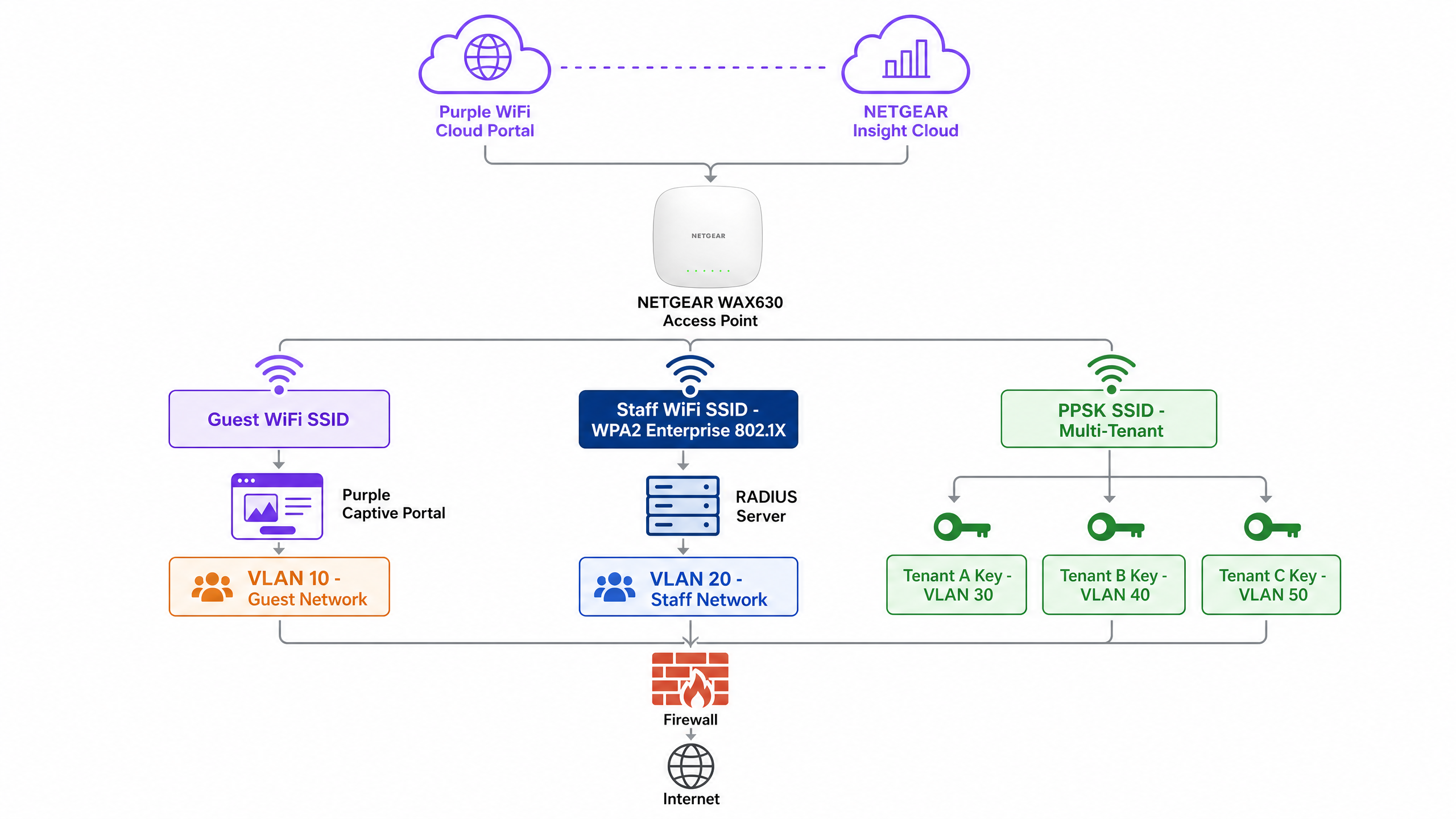
Gli access point NETGEAR della serie WAX (WAX610, WAX620, WAX630) sono dispositivi WiFi 6 gestiti in cloud, progettati per ambienti ad alta densità. Gestiti tramite il portale NETGEAR Insight, supportano fino a otto SSID separati per radio, crittografia WPA3 e throughput multi-gigabit. Purple funge da overlay cloud indipendente dall'hardware, integrandovisi con NETGEAR Insight per offrire controllo degli accessi e acquisizione dati di livello enterprise.
1. Guest WiFi con Captive Portal
Per gli ambienti aperti al pubblico, è necessario implementare un Captive Portal esterno. Questa configurazione intercetta le richieste HTTP degli ospiti e le reindirizza a una splash page ospitata da Purple.
Architettura:
- Access Point: L'access point NETGEAR WAX trasmette un SSID Guest aperto o WPA2 Personal.
- Walled Garden: NETGEAR Insight consente il traffico di pre-autenticazione verso i server di Purple e i provider di login social.
- Autenticazione: Purple gestisce la sessione utente tramite autenticazione web RADIUS o HTTP.
Quando un ospite si connette, gli viene presentato un portale personalizzato con il brand. Dopo aver accettato i termini e fornito i dettagli, il server RADIUS di Purple restituisce un messaggio di Access-Accept, garantendo l'accesso a Internet. Questo approccio garantisce la conformità alle normative sulla privacy dei dati come il GDPR, acquisendo al contempo preziosi dati di prima parte.
2. WiFi protetto per il personale (802.1X)
Le chiavi precondivise non sono accettabili per le reti del personale. È necessario implementare l'autenticazione IEEE 802.1X. In questo modello, ogni utente dispone di una credenziale individuale. Quando un dipendente lascia l'azienda, si disabilita il suo account di directory e il suo accesso viene revocato istantaneamente.
In NETGEAR Insight, si configura un SSID Staff con sicurezza WPA2 Enterprise o WPA3 Enterprise. L'access point funge da autenticatore, inoltrando i messaggi EAP (Extensible Authentication Protocol) al server RADIUS. Il server RADIUS convalida le credenziali rispetto alla directory (ad es. Microsoft Entra ID o Okta) e restituisce la decisione di autorizzazione.
3. Segmentazione Multi-Tenant (PPSK)
I complessi a uso misto e i parchi commerciali affrontano una sfida specifica: più tenant che condividono l'infrastruttura WiFi fisica. L'implementazione di SSID separati per ciascun tenant crea congestione delle frequenze radio. Fornire una singola password condivisa compromette la sicurezza.
La tecnologia Private Pre-Shared Key (PPSK) di NETGEAR risolve questo problema. Si trasmette un singolo SSID. In NETGEAR Insight, si generano password univoche per ciascun tenant. Aspetto fondamentale, ogni password è mappata su una VLAN specifica.
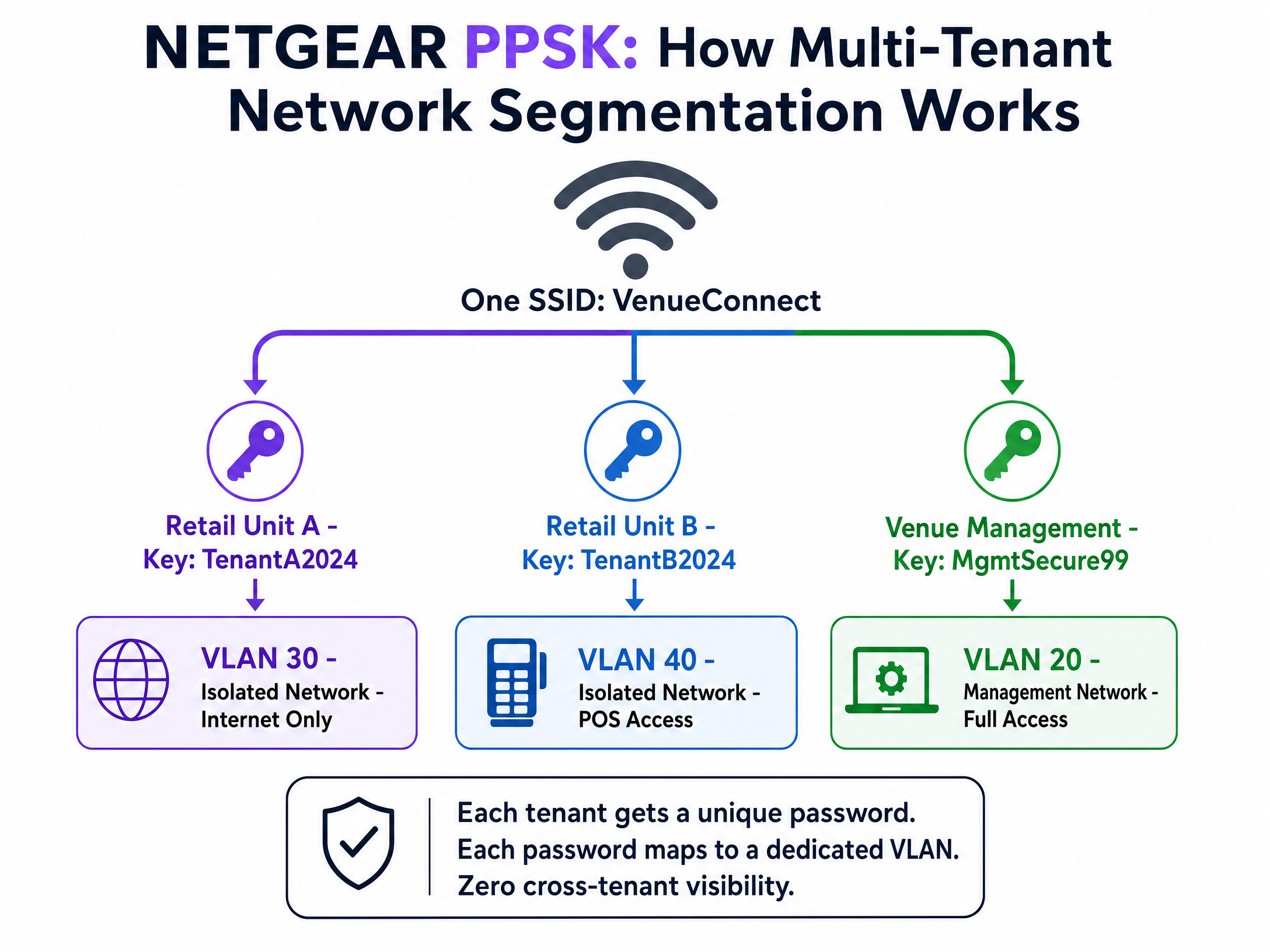
Quando un dispositivo si connette utilizzando la password dell'unità retail, l'access point lo inserisce nella VLAN retail isolata. Quando la gestione della struttura si connette utilizzando la propria password, atterra sulla VLAN di gestione. Si ottiene così un isolamento completo del traffico senza hardware aggiuntivo. Si noti che il PPSK richiede WPA2 Personal e non può essere combinato con un Captive Portal sullo stesso SSID.
4. Assegnazione dinamica della VLAN tramite RADIUS
Per reti sofisticate basate sull'identità, è necessario utilizzare l'assegnazione dinamica della VLAN. Invece di assegnare staticamente una VLAN a un SSID o a una password, il server RADIUS stabilisce la VLAN in base al profilo di directory dell'utente.
Il server RADIUS restituisce tre attributi standard nel messaggio Access-Accept:
[64] Tunnel-Type = 13 (VLAN)[65] Tunnel-Medium-Type = 6 (802)[81] Tunnel-Private-Group-ID = [VLAN ID]
Un singolo SSID WPA2 Enterprise può servire l'intera organizzazione. Un direttore d'hotel si autentica e atterra sulla VLAN 20. Un addetto alla reception atterra sulla VLAN 21. Un fornitore esterno atterra sulla VLAN 50. La rete si adatta all'identità dell'utente. Per una panoramica più ampia sulla sicurezza del vostro ambiente, consultate la nostra guida Sicurezza WiFi aziendale: una guida completa per il 2026 .
Guida all'implementazione
Seguite questi passaggi per implementare NETGEAR Insight con Purple Guest WiFi .
Passaggio 1: Configurare l'SSID Guest
- Accedete al portale cloud NETGEAR Insight.
- Selezionate la posizione della vostra rete e andate su Wireless > Settings.
- Create un nuovo SSID (ad es., "Venue Guest WiFi").
- Selezionate Captive Portal e scegliete External Captive Portal.
Passaggio 2: Configurare il Captive Portal
- Nel campo Splash Page URL, inserisci l'URL fornito da Purple.
- Seleziona il pulsante di opzione Radius.
- Inserisci l'IP del server di autenticazione primario, la porta (1812) e la chiave segreta condivisa (shared secret) fornite da Purple.
- Inserisci l'IP del server di accounting primario, la porta (1813) e la chiave segreta condivisa.
- Imposta un NAS-Identifier descrittivo (ad es., "London-Retail-01").
Passaggio 3: Configura il Walled Garden
Questo è il passaggio più critico. Se il walled garden non è corretto, gli ospiti vedranno una schermata vuota.
- Scorri fino alla sezione Walled Garden nelle impostazioni del Captive Portal.
- Aggiungi tutti i domini forniti nella documentazione di integrazione di Purple. Questo include i domini CDN di Purple, i server di autenticazione e qualsiasi provider di social login abilitato (ad es., Facebook, Google).
- Fai clic su Salva.
Passaggio 4: Verifica la raggiungibilità RADIUS
Assicurati che il tuo firewall consenta le porte UDP 1812 e 1813 in uscita dagli indirizzi IP di gestione degli access point verso i server RADIUS di Purple.
Best Practice
- Imponi la validazione del certificato: Per le distribuzioni 802.1X, è necessario imporre una validazione rigorosa del certificato su tutti i dispositivi client tramite Group Policy Objects (GPO) o Mobile Device Management (MDM). Se i client non validano il certificato del server RADIUS, sono vulnerabili ad attacchi di rogue access point.
- Isola il traffico di gestione: Posiziona sempre gli indirizzi IP di gestione degli access point su una VLAN di gestione dedicata, isolata dal traffico degli ospiti e del personale.
- Abilita il Failsafe: Nelle impostazioni del Captive Portal di NETGEAR Insight, abilita l'opzione FailSafe. Se i server RADIUS diventano irraggiungibili, agli ospiti viene concesso un accesso temporaneo a Internet, evitando un'interruzione totale del WiFi.
- SSID separati per PPSK: Poiché NETGEAR Insight non supporta PPSK e Captive Portal sullo stesso SSID, è necessario creare SSID dedicati (ad es., "Venue-Guest" e "Venue-Tenant").
Risoluzione dei problemi e mitigazione dei rischi
Sintomo: Gli ospiti si connettono all'SSID ma la splash page non si carica.
- Causa: Configurazione del Walled Garden incompleta.
- Risoluzione: Verifica che tutti i domini Purple e i domini di social login siano inseriti correttamente nelle impostazioni del Walled Garden di NETGEAR Insight. Esegui un test con un dispositivo che non ha credenziali memorizzate nella cache.
Sintomo: I dispositivi del personale non riescono a autenticarsi tramite 802.1X.
- Causa: Timeout RADIUS o chiave segreta condivisa errata.
- Risoluzione: Verifica che le porte UDP 1812 e 1813 siano aperte in uscita. Conferma che la chiave segreta condivisa corrisponda esattamente tra il portale NETGEAR Insight e il server RADIUS. Controlla i log del server RADIUS per verificare la presenza di messaggi
Access-Reject.
Sintomo: I client PPSK vengono inseriti nella VLAN errata.
- Causa: Mappatura VLAN errata o configurazione VLAN mancante sullo switch.
- Risoluzione: Assicurati che la VLAN sia creata in NETGEAR Insight sotto le impostazioni Wired. Verifica che le impostazioni Multi PSK mappino la password corretta sul corretto ID VLAN. Assicurati che la porta dello switch che collega l'access point sia configurata come porta trunk consentendo la VLAN di destinazione.
ROI e impatto aziendale
L'implementazione di NETGEAR Insight con Purple trasforma la tua infrastruttura wireless da un centro di costo a una risorsa in grado di generare ricavi. Implementando reti basate sull'identità e captive portal, otterrai:
- Riduzione dei costi operativi IT: PPSK e 802.1X eliminano la necessità di gestire manualmente le password condivise o di inviare tecnici per modifiche di accesso di routine.
- Analisi utili per l'azione: Acquisisci dati demografici, tempi di permanenza e tassi di ritorno per ottimizzare le operazioni della sede e il mix di tenant.
- ROI di marketing: Costruisci un database CRM conforme al GDPR e ad alta intenzione d'acquisto. Le sedi registrano in genere una riduzione significativa dei costi di acquisizione dei clienti quando sfruttano i dati di prima parte raccolti tramite WiFi.
- Sicurezza avanzata: L'assegnazione dinamica della VLAN isola i dispositivi IoT, i sistemi POS (point-of-sale) e il traffico degli ospiti, riducendo significativamente la superficie di attacco e garantendo la conformità PCI DSS.
Definizioni chiave
802.1X
An IEEE standard for port-based Network Access Control that provides an authentication mechanism to devices wishing to attach to a LAN or WLAN.
Essential for enterprise security; replaces shared passwords with individual user credentials.
Captive Portal
A web page that a user of a public access network is obliged to view and interact with before access is granted.
Used by Purple to capture first-party data and ensure terms of service acceptance.
PPSK (Private Pre-Shared Key)
A feature allowing multiple unique passwords on a single SSID, where each password assigns the user to a specific VLAN.
Ideal for multi-tenant buildings or isolating IoT devices without creating multiple SSIDs.
RADIUS
Remote Authentication Dial-In User Service; a networking protocol that provides centralized Authentication, Authorization, and Accounting (AAA) management.
The core server that validates credentials and tells the NETGEAR AP whether to grant access.
Walled Garden
A limited environment that controls the user's access to web content and services prior to full authentication.
Must be configured in NETGEAR Insight to allow devices to reach the Purple splash page and social login providers.
Dynamic VLAN Assignment
The process where a RADIUS server instructs an access point to place an authenticated user on a specific VLAN based on their identity.
Enables Identity-Based Networks, allowing a single SSID to serve multiple departments securely.
NAS-Identifier
Network Access Server Identifier; a string used to identify the source of a RADIUS access request.
Configured in NETGEAR Insight so Purple knows which venue or access point the user is connecting from.
EAP-TLS
Extensible Authentication Protocol - Transport Layer Security; an authentication method requiring digital certificates on both the client and server.
The most secure 802.1X method, eliminating passwords entirely, though requiring MDM to deploy certificates.
Esempi pratici
A 40-unit retail park needs to provide secure, isolated WiFi for each tenant's point-of-sale systems, plus a branded public WiFi network for shoppers. They have deployed NETGEAR WAX630 access points. How should the network be configured?
Create two SSIDs in NETGEAR Insight. SSID 1: 'RetailPark-Guest'. Configure this with an External Captive Portal pointing to Purple's splash page, with RADIUS authentication and a comprehensive walled garden. Map this to VLAN 10 (Internet only). SSID 2: 'RetailPark-Tenants'. Configure this with WPA2 Personal and enable Multi PSK (PPSK). Create 40 unique passwords. Map Tenant A's password to VLAN 101, Tenant B to VLAN 102, etc. Ensure the core switch trunks all VLANs to the access points.
A corporate headquarters wants to move away from a shared WPA2 password. They need staff to authenticate with their Microsoft Entra ID credentials, and they want the finance team on VLAN 50 and the marketing team on VLAN 60.
Deploy a single 'Corporate-Secure' SSID configured for WPA2 Enterprise. Point the NETGEAR Insight RADIUS settings to a RADIUS server integrated with Entra ID. Configure the RADIUS server to return standard tunnel attributes (Tunnel-Type=13, Tunnel-Medium-Type=6, Tunnel-Private-Group-ID=50 or 60) based on the user's directory group membership. Enforce certificate validation on all corporate laptops via MDM.
Domande di esercitazione
Q1. You have deployed a Purple captive portal on a NETGEAR WAX620. Guests can connect to the WiFi, but their browsers show a 'Cannot reach destination' error instead of the splash page. What is the most likely configuration error?
Suggerimento: Consider what must happen before the guest is fully authenticated to reach external servers.
Visualizza risposta modello
The Walled Garden is misconfigured or incomplete. The NETGEAR access point is blocking the initial traffic to Purple's servers. You must ensure all required Purple CDN domains, authentication URLs, and social login domains are added to the Walled Garden list in the Insight portal.
Q2. A venue requires both a guest captive portal and secure, isolated WiFi for 10 different retail tenants. They want to minimize RF interference. How do you configure the NETGEAR access points?
Suggerimento: NETGEAR Insight has specific limitations regarding mixing captive portals and PPSK.
Visualizza risposta modello
You must create exactly two SSIDs. NETGEAR does not support PPSK and Captive Portal on the same SSID. Create 'Venue-Guest' with an External Captive Portal pointing to Purple. Create 'Venue-Retail' with WPA2 Personal and configure Multi PSK (PPSK) with 10 unique passwords, each mapping to a different VLAN.
Q3. When configuring dynamic VLAN assignment for staff using 802.1X, which three RADIUS attributes must the server return in the Access-Accept message?
Suggerimento: Think about the RFC 2868 standard attributes for tunnel configuration.
Visualizza risposta modello
The RADIUS server must return: [64] Tunnel-Type = 13 (VLAN), [65] Tunnel-Medium-Type = 6 (802), and [81] Tunnel-Private-Group-ID = [The specific VLAN ID string].
Continua a leggere questa serie
CommScope Ruckus Integration with Purple WiFi: Setup and Configuration Guide
Questa guida di riferimento tecnico fornisce un playbook di configurazione autorevole per l'integrazione delle architetture CommScope Ruckus con Purple WiFi. Dettaglia le implementazioni passo-passo per i Captive Portal per Guest WiFi, il WiFi sicuro per il personale tramite 802.1X e l'isolamento di rete multi-tenant tramite Ruckus Dynamic PSK.
Allied Telesis Access Points Integration with Purple WiFi
Questa guida fornisce un playbook di configurazione completo per l'integrazione degli access point Allied Telesis serie TQ con Purple WiFi. Copre il reindirizzamento del Captive Portal esterno, l'autenticazione RADIUS 802.1X e l'instradamento dinamico della VLAN tramite Private Pre-Shared Keys (PPSK) per distribuzioni multi-tenant sicure.
Cisco WLC and Catalyst Integration with Purple WiFi: Step-by-Step Guest Access Guide
Questa guida descrive in dettaglio l'integrazione passo-passo di Cisco WLC e Catalyst 9800 Wireless con Purple, coprendo il reindirizzamento al Captive Portal per Guest WiFi tramite Central Web Authentication, il WiFi aziendale sicuro per il personale tramite 802.1X EAP-TLS e la segmentazione multi-tenant tramite Cisco Identity Pre-Shared Keys (iPSK) con assegnazione dinamica della VLAN. È scritta per architetti di rete aziendali e direttori della sicurezza IT che distribuiscono l'infrastruttura Cisco nei settori hospitality, retail e grandi spazi pubblici.