
डिव्हाइसेसवर WiFi प्रमाणपत्रे पुश करण्यासाठी Microsoft Intune चा वापर कसा करावा
Microsoft Intune द्वारे 802.1X WiFi प्रमाणपत्रे तैनात करण्याबाबत IT लीडर्ससाठी एक सर्वसमावेशक तांत्रिक संदर्भ. यामध्ये SCEP विरुद्ध PKCS आर्किटेक्चर, अंमलबजावणीच्या पायऱ्या, कम्प्लायन्स मॅपिंग आणि एंटरप्राइझ वातावरणासाठी प्रत्यक्ष उपयोजन परिस्थिती समाविष्ट आहे.
हे मार्गदर्शक ऐका
पॉडकास्ट ट्रान्सक्रिप्ट पहा
आमच्या मुख्य मालिकेचा भाग: Enterprise WiFi Security Guide →
Windows 11 802.1X & Network Authentication Troubleshooter
Select your Windows 11 build, authentication protocol, deployment mechanism, and error symptom below to generate an immediate CLI repair sequence and Intune/GPO remediation steps.
Wired AutoConfig Service Authentication Loop (EAPOL Timeout)
High ImpactRoot Cause Diagnosis: The 802.1X Wired AutoConfig service (dot3svc) did not initiate EAPOL Handshake after NIC driver initialization, or 802.1X authentication mode is disabled on the Ethernet adapter.
netsh lan set autoconfig enabled=yes interface="Ethernet"
netsh lan restart- Verify that Wired AutoConfig service (dot3svc) Startup Type is set to Automatic in services.msc.
- Execute netsh lan set autoconfig enabled=yes interface="Ethernet" from an elevated Command Prompt.
- Check switch port configuration to ensure 802.1X re-authentication timer is not expiring before client response.
- Re-enable 802.1X authentication in Ethernet Adapter Properties > Authentication tab.
Need Automated Cloud RADIUS & 802.1X Certificate Management?
Purple Cloud RADIUS eliminates Windows 11 upgrade authentication failures by providing automated Passpoint certificate provisioning, zero-touch Intune payload integration, and centralized IEEE 802.1X policy management for enterprise network environments.
मुख्य सारांश (Executive Summary)
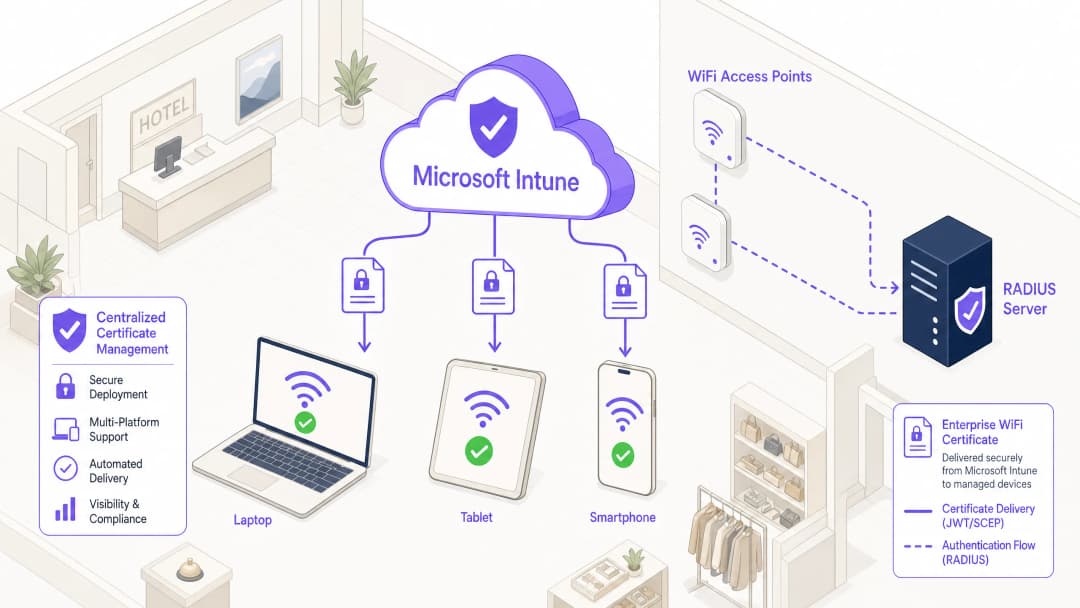
Hospitality, Retail, किंवा सार्वजनिक क्षेत्रातील ठिकाणांवर मोठ्या प्रमाणावरील नेटवर्कचे व्यवस्थापन करणाऱ्या कॉर्पोरेट IT लीडर्ससाठी, सुरक्षित वायरलेस ऍक्सेस ही मूलभूत व्यावसायिक गरज आहे. सामायिक PSKs (Pre-Shared Keys) किंवा युझरनेम/पासवर्ड प्रमाणीकरण (PEAP-MSCHAPv2) वर अवलंबून राहिल्याने नेटवर्क क्रिडेंशियल चोरी, फिशिंग आणि अनुपालन अपयशांना कारणीभूत ठरू शकते. मजबूत कॉर्पोरेट WiFi सुरक्षेसाठी उद्योगाचा प्रमाणित निकष 802.1X सह EAP-TLS (Extensible Authentication Protocol with Transport Layer Security) हा आहे, ज्यासाठी डिव्हाइस आणि नेटवर्क दरम्यान परस्पर प्रमाणपत्र-आधारित प्रमाणीकरण आवश्यक असते.
तथापि, EAP-TLS स्वीकारण्यामधील मुख्य अडथळा ऐतिहासिकदृष्ट्या प्रमाणपत्र जीवनचक्र व्यवस्थापनाचा ऑपरेशनल ओव्हरहेड राहिला आहे. Microsoft Intune व्यवस्थापित डिव्हाइसेसना मोठ्या प्रमाणावर डिजिटल प्रमाणपत्रांचे वितरण, नूतनीकरण आणि रद्द करण्याची प्रक्रिया स्वयंचलित करून याचे निराकरण करते.
हा तांत्रिक संदर्भ Microsoft Intune द्वारे WiFi प्रमाणपत्रे पुश करण्यासाठी आवश्यक असलेले आर्किटेक्चर, उपयोजन पद्धती (SCEP विरुद्ध PKCS), आणि अंमलबजावणीच्या पायऱ्या तपशीलवार स्पष्ट करतो. हे नेटवर्क आर्किटेक्ट्स आणि सिस्टम इंजिनिअर्ससाठी कॉर्पोरेट कम्युनिकेशन्स सुरक्षित ठेवताना अतिथी नेटवर्कपासून (उदा. Guest WiFi प्लॅटफॉर्मद्वारे व्यवस्थापित नेटवर्क) कठोर वेगळेपण राखण्यासाठी उपयुक्त मार्गदर्शन प्रदान करते.
तांत्रिक सखोल विश्लेषण: आर्किटेक्चर आणि प्रोटोकॉल्स
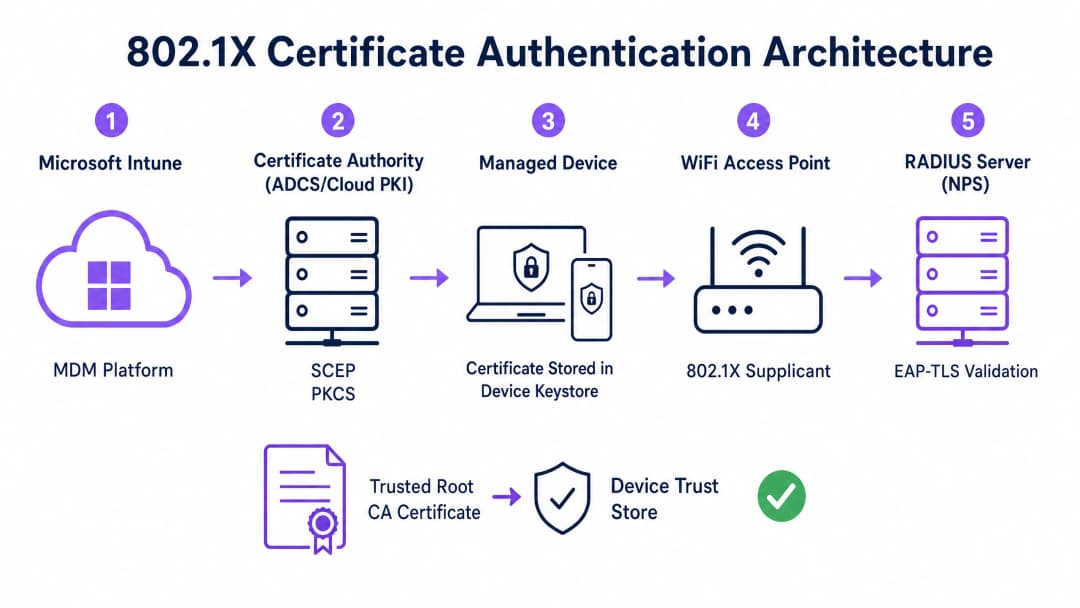
प्रमाणपत्र-आधारित प्रमाणीकरण प्रभावीपणे लागू करण्यासाठी, IT टीम्सना मोबाइल डिव्हाइस मॅनेजमेंट (MDM) प्लॅटफॉर्म, पब्लिक की इन्फ्रास्ट्रक्चर (PKI) आणि नेटवर्क ऍक्सेस कंट्रोल लेयर यांच्यातील परस्परसंवाद समजून घेणे आवश्यक आहे.
802.1X प्रमाणीकरण फ्रेमवर्क (Authentication Framework)
IEEE 802.1X मानक पोर्ट-आधारित नेटवर्क ऍक्सेस नियंत्रण परिभाषित करते. वायरलेस संदर्भात, प्रमाणीकरण यशस्वी होईपर्यंत हे डिव्हाइसला कोणताही ट्रॅफिक (EAP प्रमाणीकरण फ्रेम्स व्यतिरिक्त) पास करण्यापासून प्रतिबंधित करते. या आर्किटेक्चरमध्ये तीन घटक समाविष्ट असतात:
- Supplicant: क्लायंट डिव्हाइस (लॅपटॉप, स्मार्टफोन, टॅब्लेट) जे नेटवर्क ऍक्सेसची विनंती करते.
- Authenticator: वायरलेस ऍक्सेस पॉईंट किंवा वायरलेस LAN कंट्रोलर जे प्रमाणीकरण यशस्वी होईपर्यंत ट्रॅफिक ब्लॉक करते.
- Authentication Server: RADIUS (Remote Authentication Dial-In User Service) सर्व्हर, जसे की Microsoft Network Policy Server (NPS) किंवा Cisco ISE, जे क्रिडेंशियल प्रमाणित करते आणि ऍक्सेस अधिकृत करते.
EAP-TLS आणि परस्पर प्रमाणीकरण (Mutual Authentication)
EAP-TLS हा सर्वात सुरक्षित EAP प्रकार आहे कारण यासाठी परस्पर प्रमाणीकरण (mutual authentication) आवश्यक असते. RADIUS सर्व्हर आपले प्रमाणपत्र सप्लिकंटला (supplicant) सादर करून ते वैध कॉर्पोरेट नेटवर्क असल्याचे सिद्ध करतो (यामुळे evil-twin हल्ल्यांपासून संरक्षण होते), आणि सप्लिकंट आपले क्लायंट प्रमाणपत्र RADIUS सर्व्हरला सादर करून ते अधिकृत डिव्हाइस किंवा वापरकर्ता असल्याचे सिद्ध करतो.
Intune प्रमाणपत्र वितरण यंत्रणा: SCEP विरुद्ध PKCS
Microsoft Intune डिव्हाइसेसवर क्लायंट प्रमाणपत्रे वितरित करण्यासाठी दोन मुख्य प्रोटोकॉल्सना सपोर्ट करतो. योग्य यंत्रणेची निवड करणे हा एक महत्त्वपूर्ण आर्किटेक्चरल निर्णय आहे.
Simple Certificate Enrollment Protocol (SCEP)
SCEP सह, प्रायव्हेट की थेट क्लायंट डिव्हाइसवर जनरेट केली जाते. डिव्हाइस एक Certificate Signing Request (CSR) तयार करते आणि Intune द्वारे ते Network Device Enrollment Service (NDES) सर्व्हरकडे सबमिट करते, जे Active Directory Certificate Services (ADCS) इन्फ्रास्ट्रक्चरसाठी प्रॉक्सी म्हणून काम करते. CA प्रमाणपत्र जारी करतो, जे डिव्हाइसला परत पाठवले जाते.
प्रायव्हेट की कधीही डिव्हाइस सोडून बाहेर जात नसल्यामुळे, SCEP अत्यंत सुरक्षित मानला जातो आणि BYOD (Bring Your Own Device) वितरण आणि झिरो - ट्रस्ट आर्किटेक्चरसाठी हाच पर्याय सुचवला जातो.
Public Key Cryptography Standards (PKCS)
PKCS सह, Intune Certificate Connector डिव्हाइसच्या वतीने CA कडून प्रमाणपत्राची विनंती करतो. CA पब्लिक प्रमाणपत्र आणि प्रायव्हेट की दोन्ही जनरेट करतो, ज्यानंतर कनेक्टर Intune द्वारे ते सुरक्षितपणे डिव्हाइसवर पोहोचवतो.
PKCS मुळे इन्फ्रास्ट्रक्चरच्या गरजा सोप्या होत असल्या तरी (कोणत्याही NDES सर्व्हरची आवश्यकता नसते), प्रायव्हेट की नेटवर्कवर ट्रान्सफर केली जाते. हे मॉडेल सामान्यतः कॉर्पोरेट मालकीच्या, पूर्णपणे व्यवस्थापित केलेल्या डिव्हाइसेसच्या ताफ्यासाठी स्वीकार्य आहे जिथे MDM प्लॅटफॉर्म हा आधीपासूनच अत्यंत विश्वासार्ह घटक असतो.

तुमच्या विशिष्ट सेटअपबद्दल काही प्रश्न आहेत का?
आमची टीम ८०,००० हून अधिक वेन्यूजमधील वेन्यू ऑपरेटर्स, IT मॅनेजर्स आणि नेटवर्क इंजिनिअर्ससोबत काम करते. २० मिनिटांचा कॉल बुक करा आणि तुमच्यासारख्या इतरांनी ही समस्या कशी सोडवली हे आम्ही तुम्हाला दाखवू.
अंमलबजावणी मार्गदर्शक: टप्प्याटप्प्याने वितरण
Intune द्वारे WiFi प्रमाणपत्रे वितरित करण्यासाठी अचूक अनुक्रम आवश्यक आहे. प्रोफाइल चुकीच्या क्रमाने वितरित करणे हे अंमलबजावणी अपयशी ठरण्याचे सर्वात सामान्य कारण आहे.
पायरी १: Public Key Infrastructure (PKI) तयार करणे
ऑन-प्रिमाइसेस ADCS वापरत असो किंवा Microsoft Cloud PKI सारखे क्लाउड-नेटिव्ह सोल्यूशन असो, Certificate Authority योग्य टेम्पलेट्ससह कॉन्फिगर केलेले असणे आवश्यक आहे.
- की वापर (Key Usage): टेम्पलेटमध्ये
Client AuthenticationOID (1.3.6.1.5.5.7.3.2) समाविष्ट असणे आवश्यक आहे. - की आकार (Key Size): आधुनिक क्रिप्टोग्राफिक मानकांशी सुसंगत राहण्यासाठी किमान २०४८ बिट्स (RSA) चा की आकार कॉन्फिगर करा.
- विषय नाव (Subject Name): वापरकर्ता प्रमाणपत्रांसाठी, Subject Alternative Name (SAN) हे User Principal Name (UPN) वापरण्यासाठी कॉन्फिगर केले जावे. डिव्हाइस प्रमाणपत्रांसाठी, Azure AD Device ID वापरा.
पायरी २: Trusted Root Certificate तैनात करा
डिव्हाइस प्रमाणित होण्यापूर्वी, त्याने RADIUS सर्व्हरचे प्रमाणपत्र जारी करणाऱ्या CA वर विश्वास ठेवणे आवश्यक आहे.
१. Root CA प्रमाणपत्र (आणि कोणतेही इंटरमीडिएट CA प्रमाणपत्रे) .cer फॉरमॅटमध्ये एक्सपोर्ट करा.
२. Intune ॲडमिन सेंटरमध्ये, Devices > Configuration profiles > Create profile वर जा.
३. प्लॅटफॉर्म निवडा आणि Trusted certificate प्रोफाइल प्रकार निवडा.
४. .cer फाईल अपलोड करा आणि हे प्रोफाइल लक्ष्यित डिव्हाइस किंवा युझर ग्रुप्सना नियुक्त करा.
टीप: पुढील पायऱ्यांवर जाण्यापूर्वी हे प्रोफाइल डिव्हाइसेसवर यशस्वीरित्या लागू होणे आवश्यक आहे.
पायरी ३: Client Certificate Profile तैनात करा
सप्लिकंटला (supplicant) ओळख प्रमाणपत्र देण्यासाठी SCEP किंवा PKCS प्रमाणपत्र प्रोफाइल तयार करा.
१. Devices > Configuration profiles > Create profile वर जा. २. प्लॅटफॉर्म निवडा आणि SCEP certificate किंवा PKCS certificate पैकी एक निवडा. ३. तुमच्या ओळखीच्या आवश्यकतांनुसार (युझर विरुद्ध डिव्हाइस) Subject Name फॉरमॅट आणि SAN कॉन्फिगर करा. ४. Key Storage Provider (KSP) निर्दिष्ट करा - सहसा हार्डवेअर-बॅक्ड सुरक्षेसाठी Trusted Platform Module (TPM). ५. पायरी २ मध्ये लक्ष्यित केलेल्या ग्रुप्सनाच हे प्रोफाइल नियुक्त करा.
पायरी ४: WiFi प्रोफाइल कॉन्फिगर करा
शेवटचा घटक प्रमाणपत्रे वायरलेस नेटवर्क सेटिंग्जशी बाइंड करतो.
१. Devices > Configuration profiles > Create profile वर जा. २. प्लॅटफॉर्म निवडा आणि WiFi प्रोफाइल प्रकार निवडा. ३. WiFi प्रकार Enterprise वर सेट करा आणि अचूक SSID प्रविष्ट करा. ४. EAP प्रकार EAP-TLS वर सेट करा. ५. Server Trust अंतर्गत, RADIUS सर्व्हर प्रमाणपत्राचे अचूक नाव निर्दिष्ट करा आणि पायरी २ मध्ये तैनात केलेले Trusted Root प्रमाणपत्र प्रोफाइल निवडा. ६. Client Authentication अंतर्गत, पायरी ३ मध्ये तैनात केलेले SCEP किंवा PKCS प्रमाणपत्र प्रोफाइल निवडा. ७. लक्ष्यित ग्रुप्सना प्रोफाइल नियुक्त करा.
सर्वोत्तम पद्धती आणि धोरणात्मक शिफारसी
डिव्हाइस विरुद्ध युझर प्रमाणपत्रे
नेटवर्क आर्किटेक्ट्सनी प्रमाणपत्रे डिव्हाइसला (मशीन प्रमाणीकरण) जारी करायची की युझरला (युझर प्रमाणीकरण) जारी करायची हे ठरवणे आवश्यक आहे.
- डिव्हाइस प्रमाणपत्रे: युझरने लॉग इन करण्यापूर्वी मशीनला WiFi नेटवर्कशी कनेक्ट होण्याची परवानगी देतात. हे सुरुवातीच्या डिव्हाइस प्रोव्हिजनिंगसाठी, ग्रुप पॉलिसी प्रोसेसिंगसाठी आणि लॉगिन स्क्रीनवरील पासवर्ड रीसेटसाठी अत्यंत महत्त्वाचे आहे. कॉर्पोरेट मालकीच्या डिव्हाइसेससाठी शिफारस केलेले आहे.
- युझर प्रमाणपत्रे: नेटवर्क ॲक्सेस वैयक्तिक ओळखीशी जोडतात. हे तपशीलवार ऑडिटिंग आणि भूमिका-आधारित प्रवेश नियंत्रण (role-based access control) प्रदान करते. BYOD परिस्थितीसाठी शिफारस केलेले आहे.
नेटवर्क विभाजन आणि अतिथी प्रवेश (Guest Access)
एक मूलभूत सुरक्षा तत्त्व म्हणजे कॉर्पोरेट 802.1X नेटवर्कचे अभ्यागत किंवा सार्वजनिक प्रवेश नेटवर्कपासून कठोर लॉजिकल वेगळेपण राखणे. Intune व्यवस्थापित पायाभूत सुविधा केवळ कॉर्पोरेट डिव्हाइसेस आणि प्रमाणित कर्मचाऱ्यांसाठीच समर्पित असावी.भेट देणाऱ्यांच्या ऍक्सेससाठी, संस्थांनी कॅप्टिव्ह पोर्टलद्वारे बॅक केलेले समर्पित Guest WiFi SSID तैनात केले पाहिजे. हे सुनिश्चित करते की व्यवस्थापित नसलेली उपकरणे वेगळी ठेवली जातात, तरीही व्यवसायाला WiFi Analytics प्लॅटफॉर्मद्वारे भेट देणाऱ्यांचे विश्लेषण मिळवण्याची परवानगी मिळते. दोन्ही विभागांमध्ये DNS इन्फ्रास्ट्रक्चर सुरक्षित करण्याबद्दल अधिक जाणून घेण्यासाठी, Protect Your Network with Strong DNS and Security या आमच्या मार्गदर्शकाचे पुनरावलोकन करा.
NPS सर्टिफिकेट मॅपिंग आवश्यकता पूर्ण करणे
Azure AD शी जोडलेल्या उपकरणांसह Microsoft Network Policy Server (NPS) वापरणाऱ्या संस्थांसाठी, Microsoft द्वारे एक महत्त्वपूर्ण कॉन्फिगरेशन बदल सादर केला गेला आहे. NPS ला आता मजबूत सर्टिफिकेट मॅपिंग आवश्यक आहे.
डिव्हाइस सर्टिफिकेट वापरताना, ऑन-प्रिमाइसेस Active Directory मधील कॉम्प्युटर ऑब्जेक्टचे altSecurityIdentities ऍट्रिब्युट सर्टिफिकेटच्या तपशीलांसह (सामान्यतः X509IssuerSerialNumber) भरलेले असणे आवश्यक आहे. जेव्हा Intune नवीन सर्टिफिकेट जारी करते तेव्हा हे ऍट्रिब्युट अपडेट करण्यासाठी IT टीम्सनी शेड्युल केलेले स्क्रिप्ट किंवा इव्हेंट-ड्रिव्हन वर्कफ्लो लागू करणे आवश्यक आहे, अन्यथा ऑथेंटिकेशन अयशस्वी होईल.
ट्रबलशूटिंग आणि जोखीम कमी करणे
जेव्हा 802.1X डिप्लॉयमेंट अयशस्वी होते, तेव्हा समस्या बहुधा सर्टिफिकेट चेन किंवा Intune प्रोफाइल सिक्वेन्सिंगमध्ये असते.
सामान्य अयशस्वी मोड
- सायलेंट WiFi प्रोफाइल फेल्युअर: क्लायंट सर्टिफिकेट यशस्वीरित्या प्रोव्हिजन होण्यापूर्वी उपकरणावर Intune WiFi प्रोफाइल लागू केले गेल्यास, WiFi प्रोफाइल बऱ्याचदा इन्स्टॉल होण्यास अपयशी ठरते किंवा कोणताही एरर न दाखवता सायलेंटली अपयशी ठरते. WiFi कॉन्फिगरेशन ट्रबलशूट करण्यापूर्वी नेहमी उपकरणाच्या वैयक्तिक स्टोअरमध्ये (
certmgr.mscWindows वर) सर्टिफिकेट अस्तित्वात असल्याची पडताळणी करा. - सर्व्हर ट्रस्ट व्हॅलिडेशन एरर्स: उपकरणाने RADIUS सर्व्हर नाकारल्यास, Intune WiFi प्रोफाइलमध्ये नमूद केलेले सर्व्हरचे नाव RADIUS सर्व्हरच्या सर्टिफिकेटवरील Subject Name किंवा SAN शी तंतोतंत जुळत असल्याची पडताळणी करा. याव्यतिरिक्त, संपूर्ण सर्टिफिकेट चेन (Root आणि Intermediate) उपकरणाच्या Trusted Root Certification Authorities स्टोअरमध्ये अस्तित्वात असल्याची खात्री करा.
- सर्टिफिकेट रिव्होकेशन लिस्ट (CRL) अनुपलब्धता: क्लायंट सर्टिफिकेटची स्थिती पडताळण्यासाठी RADIUS सर्व्हर CA च्या CRL डिस्ट्रिब्युशन पॉईंटपर्यंत पोहोचू शकत नसल्यास, ऑथेंटिकेशन नाकारले जाईल. CRL URL अत्यंत उपलब्ध आणि RADIUS सर्व्हरवरून ऍक्सेसिबल असल्याची खात्री करा.
ROI आणि व्यावसायिक प्रभाव
Intune द्वारे सर्टिफिकेट-आधारित WiFi ऑथेंटिकेशनवर संक्रमण केल्याने महत्त्वपूर्ण ऑपरेशनल आणि सुरक्षितता फायदे मिळतात.
- जोखीम कमी करणे: क्रेडेंशियल हार्वेस्टिंग, pass-the-hash हल्ले आणि शेअर केलेल्या PSKs द्वारे अनधिकृत नेटवर्क ऍक्सेसचा धोका काढून टाकतो.
- ऑपरेशनल कार्यक्षमता: पासवर्डची मुदत संपणे आणि WiFi कनेक्टिव्हिटीच्या समस्यांशी संबंधित IT हेल्पडेस्क तिकिटे कमी करते. ऑटोमेटेड लाइफसायकल मॅनेजमेंटचा अर्थ असा आहे की युझरच्या हस्तक्षेपाशिवाय सर्टिफिकेट पारदर्शकपणे रिन्यू केली जातात.
- अनुपालन सक्षमीकरण: कडक नियामक आवश्यकता पूर्ण करते. रिटेल वातावरणासाठी, हे मजबूत वायरलेस एन्क्रिप्शन आणि ऑथेंटिकेशनसाठी PCI-DSS आवश्यकतांची थेट पूर्तता करते. सार्वजनिक क्षेत्र आणि आरोग्य सेवांसाठी, हे झिरो - ट्रस्ट नेटवर्क ऍक्सेस (ZTNA) तत्वांचे पालन करते.
सर्टिफिकेट डिप्लॉयमेंटसाठी Microsoft Intune चा फायदा घेऊन, IT टीम्स बॅकग्राउंडमध्ये शांतपणे काम करणारा एक अडथळाविरहित, अत्यंत सुरक्षित WiFi अनुभव मिळवू शकतात, ज्यामुळे व्यवसायाला मुख्य ऑपरेशन्सवर लक्ष केंद्रित करणे शक्य होते.
महत्वाच्या व्याख्या
802.1X
पोर्ट-आधारित नेटवर्क प्रवेश नियंत्रणासाठी एक IEEE मानक जे अनधिकृत डिव्हाइसेसना LAN किंवा WLAN मध्ये यशस्वीरित्या ऑथेंटिकेट होईपर्यंत प्रवेश करण्यापासून रोखते.
एक मूलभूत सुरक्षा प्रोटोकॉल जो कॉर्पोरेट वातावरणात सामायिक केलेल्या WiFi पासवर्डऐवजी एंटरप्राइझ-ग्रेड ऑथेंटिकेशन लागू करतो.
EAP-TLS
Extensible Authentication Protocol with Transport Layer Security. एक ऑथेंटिकेशन फ्रेमवर्क ज्यामध्ये क्लायंट आणि सर्व्हर दोघांनाही डिजिटल प्रमाणपत्रांचा वापर करून स्वतःची ओळख सिद्ध करावी लागते.
क्रेडेन्शियल चोरीचा धोका दूर करून परस्पर प्रमाणपत्र ऑथेंटिकेशन लागू करण्यासाठी Intune WiFi प्रोफाइलमध्ये कॉन्फिगर केलेला विशिष्ट प्रोटोकॉल.
SCEP
Simple Certificate Enrollment Protocol. एक यंत्रणा जिथे क्लायंट डिव्हाइस स्वतःची खाजगी की तयार करते आणि मध्यस्थ सर्व्हरद्वारे CA कडून प्रमाणपत्राची विनंती करते.
BYOD वातावरणासाठी प्राधान्य दिलेली उपयोजन पद्धत कारण खाजगी की कधीही नेटवर्कवर पाठवली जात नाही.
PKCS
Public Key Cryptography Standards. Intune च्या संदर्भात, एक उपयोजन पद्धत जिथे CA प्रायव्हेट की तयार करतो आणि Intune Connector ती सुरक्षितपणे डिव्हाइसवर पोहोचवतो.
कॉर्पोरेट-मालकीच्या डिव्हाइस ताफ्यांसाठी सहसा वापरली जाणारी एक सोपी उपयोजन आर्किटेक्चर, कारण यामुळे NDES सर्व्हरची आवश्यकता नाहीशी होते.
NDES
Network Device Enrolment Service. एक Microsoft सर्व्हर रोल जो प्रॉक्सी म्हणून काम करतो, ज्यामुळे डोमेन क्रेडेन्शियलशिवाय चालणाऱ्या डिव्हाइसेसना Active Directory Certificate Authority कडून प्रमाणपत्रे मिळवणे शक्य होते.
ऑन-प्रिमाइसेस ADCS वातावरणात SCEP द्वारे प्रमाणपत्रे उपयोजित करताना एक अनिवार्य पायाभूत सुविधा घटक.
RADIUS
Remote Authentication Dial-In User Service. एक नेटवर्किंग प्रोटोकॉल जो केंद्रीकृत Authentication, Authorisation, आणि Accounting (AAA) व्यवस्थापन प्रदान करतो.
सर्व्हर (उदा. Microsoft NPS किंवा Cisco ISE) जो WiFi ऍक्सेस पॉईंटकडून ऑथेंटिकेशन विनंती प्राप्त करतो आणि डिव्हाइसचे प्रमाणपत्र प्रमाणित करतो.
Supplicant
अंतिम वापरकर्त्याच्या डिव्हाइसवरील (लॅपटॉप, स्मार्टफोन) सॉफ्टवेअर क्लायंट जो 802.1X ऑथेंटिकेशन प्रक्रिया सुरू करतो.
Intune WiFi प्रोफाइल योग्य प्रमाणपत्रे आणि EAP पद्धती वापरण्यासाठी मूळ OS supplicant (उदा. Windows WLAN AutoConfig) कॉन्फिगर करते.
Certificate Revocation List (CRL)
Certificate Authority द्वारे प्रकाशित केलेली आणि डिजिटली स्वाक्षरी केलेली सूची ज्यामध्ये रद्द केलेल्या आणि यापुढे ज्यांच्यावर विश्वास ठेवला जाऊ नये अशा प्रमाणपत्रांचे अनुक्रमांक असतात.
सुरक्षा अनुपालनासाठी अत्यंत महत्त्वाचे; कनेक्ट होणारे डिव्हाइस हरवले किंवा चोरीला गेल्याचे नोंदवले गेले नाही याची खात्री करण्यासाठी RADIUS सर्व्हरने CRL तपासणे आवश्यक आहे.
सोडवलेली उदाहरणे
एक ४०० ठिकाणे असलेली रिटेल चेन इन्व्हेंटरी मॅनेजमेंटसाठी कॉर्पोरेट मालकीचे टॅबलेट्स तैनात करत आहे. हे डिव्हाइसेस पूर्णपणे Intune द्वारे व्यवस्थापित केले जातात आणि Azure AD शी जोडलेले आहेत. कोणत्याही विशिष्ट युझरने लॉग इन करण्यापूर्वी, इन्व्हेंटरी डेटाबेस सिंक करण्यासाठी त्यांना बूट होताच त्वरित नेटवर्क प्रवेशाची आवश्यकता असते. नेटवर्क इन्फ्रास्ट्रक्चर RADIUS सर्व्हर म्हणून Cisco ISE चा वापर करते. सर्वोत्तम प्रमाणपत्र उपयोजन धोरण काय आहे?
IT टीमने PKCS डिव्हाइस प्रमाणपत्रे लागू केली पाहिजेत.
१. CA वर एक डिव्हाइस प्रमाणपत्र टेम्पलेट कॉन्फिगर करा. २. Intune द्वारे टॅबलेट्सवर Root CA प्रमाणपत्र तैनात करा. ३. Intune मध्ये एक PKCS प्रमाणपत्र प्रोफाइल तयार करा, ज्यामध्ये Subject Name फॉरमॅट Azure AD Device ID ({{AAD_Device_ID}}) वर सेट करा. ४. EAP-TLS निर्दिष्ट करणारे एक एंटरप्राइझ WiFi प्रोफाइल तयार करा, ज्यामध्ये ISE सर्व्हरच्या प्रमाणपत्राचे नाव आणि तैनात केलेल्या PKCS प्रोफाइलचा संदर्भ द्या. ५. टॅबलेट्स समाविष्ट असलेल्या डिव्हाइस ग्रुपला सर्व प्रोफाइल असाइन करा.
एक मोठे टीचिंग हॉस्पिटल वैद्यकीय कर्मचाऱ्यांना क्लिनिकल शेड्यूलिंग ॲप्लिकेशन्स वापरण्यासाठी त्यांचे वैयक्तिक स्मार्टफोन (BYOD) वापरण्याची परवानगी देते. हे डिव्हाइसेस Work Profile द्वारे Intune मध्ये नोंदणीकृत आहेत. सुरक्षा पॉलिसीनुसार वैयक्तिक डिव्हाइसेसवर कोणतीही कॉर्पोरेट क्रेडेन्शियल्स साठवून ठेवली जाणार नाहीत आणि डिव्हाइस सुरक्षिततेशी तडजोड झाल्यास नेटवर्क प्रवेश त्वरित रद्द केला गेला पाहिजे. WiFi ऑथेंटिकेशनची रचना कशी असावी?
हॉस्पिटलने SCEP युझर प्रमाणपत्रे आणि Intune Compliance Policies एकत्र लागू केल्या पाहिजेत.
१. CA कडे विनंत्या पाठवण्यासाठी NDES सर्व्हर तैनात करा. २. Intune मध्ये SCEP युझर प्रमाणपत्र प्रोफाइल तयार करा, ज्यामध्ये SAN हे User Principal Name ({{UserPrincipalName}}) वर कॉन्फिगर केलेले असेल. ३. किमान OS व्हर्जन, सक्रिय स्क्रीन लॉक आणि कोणतेही जेलब्रेक/रूट प्रवेश नसावा अशी आवश्यकता असलेली Intune Compliance Policy तयार करा. ४. अत्यंत उपलब्ध असणारी सर्टिफिकेट रिव्होकेशन लिस्ट (CRL) प्रकाशित करण्यासाठी CA कॉन्फिगर करा. ५. प्रत्येक ऑथेंटिकेशनच्या प्रयत्नावर कठोरपणे CRL तपासणी लागू करण्यासाठी RADIUS सर्व्हर कॉन्फिगर करा.
सराव प्रश्न
Q1. तुमची संस्था कॉर्पोरेट WiFi साठी PEAP-MSCHAPv2 (युझरनेम/पासवर्ड) वरून EAP-TLS वर स्थलांतरित होत आहे. पायलट टप्प्यादरम्यान, अनेक Windows 11 लॅपटॉप यशस्वीरित्या Intune कॉन्फिगरेशन प्रोफाइल प्राप्त करतात परंतु नेटवर्कशी कनेक्ट होण्यात अयशस्वी ठरतात. Windows Event Logs चे पुनरावलोकन केल्यावर Event ID 20271 दिसतो जो दर्शवतो की RADIUS सर्व्हर प्रमाणपत्र नाकारले गेले आहे. याचे बहुधा काय कारण असू शकते?
टीप: परस्पर ऑथेंटिकेशनसाठी आवश्यक असलेल्या विश्वासाच्या साखळीचा (chain of trust) विचार करा.
नमुना उत्तर पहा
डिव्हाइसेसमध्ये Trusted Root CA प्रमाणपत्र नाही ज्याने RADIUS सर्व्हरचे प्रमाणपत्र जारी केले आहे. EAP-TLS मध्ये, डिव्हाइसने RADIUS सर्व्हरची ओळख प्रमाणित करणे आवश्यक आहे. IT टीमने हे सुनिश्चित केले पाहिजे की Root CA (आणि कोणतेही Intermediate CA) असलेले 'Trusted certificate' प्रोफाइल Intune द्वारे डिव्हाइसेसवर उपयोजित केले गेले आहे आणि WiFi प्रोफाइल कनेक्ट होण्याचा प्रयत्न करण्यापूर्वी यशस्वीरित्या स्थापित झाले आहे.
Q2. एक सार्वजनिक क्षेत्रातील संस्था Intune आणि PKCS प्रमाणपत्रे वापरून कर्मचाऱ्यांच्या डिव्हाइसेससाठी 802.1X उपयोजित करत आहे. ते एका Guest WiFi प्लॅटफॉर्मद्वारे व्यवस्थापित स्वतंत्र अभ्यागत नेटवर्क देखील चालवतात. एका ऑडिटर्सच्या असे लक्षात आले की जर एखाद्या कर्मचाऱ्याचा लॅपटॉप चोरीला गेला, तर प्रमाणपत्र १२ महिन्यांसाठी वैध राहते. नेटवर्क आर्किटेक्टने या जोखमीचे निवारण कसे करावे?
टीप: ऑथेंटिकेशन सर्व्हरला प्रमाणपत्र कालबाह्य होण्यापूर्वीच ते वैध राहिलेले नाही हे कसे समजते?
नमुना उत्तर पहा
आर्किटेक्टने एक मजबूत Certificate Revocation वर्कफ्लो लागू केला पाहिजे. प्रथम, CA द्वारे Certificate Revocation List (CRL) अत्यंत उपलब्ध अशा वितरण बिंदूवर (distribution point) प्रकाशित केली जात असल्याची खात्री करा. दुसरे, प्रत्येक ऑथेंटिकेशनच्या प्रयत्नादरम्यान CRL तपासणी अनिवार्य करण्यासाठी RADIUS सर्व्हर (उदा. NPS) कॉन्फिगर करा. शेवटी, हरवलेले किंवा चोरीला गेलेले म्हणून चिन्हांकित केलेल्या कोणत्याही डिव्हाइसचे प्रमाणपत्र स्पष्टपणे रद्द करण्यासाठी Intune कार्यपद्धती स्थापित करा, ज्यामुळे CRL अपडेट होते आणि नेटवर्क प्रवेश ब्लॉक केला जातो.
Q3. तुम्ही रिटेल वातावरणातील सामायिक किओस्क डिव्हाइसेसच्या ताफ्यासाठी Intune उपयोजन डिझाइन करत आहात. ही डिव्हाइसेस दररोज रीबूट होतात आणि कोणत्याही वापरकर्त्याने त्यांच्याशी संवाद साधण्यापूर्वी अपडेट्स डाउनलोड करण्यासाठी कॉर्पोरेट नेटवर्कशी त्वरित कनेक्ट होणे आवश्यक आहे. आपण User प्रमाणपत्रे उपयोजित करावीत की Device प्रमाणपत्रे, आणि कोणते Subject Alternative Name (SAN) स्वरूप वापरले जावे?
टीप: रीबूट झाल्यानंतर लगेचच डिव्हाइसच्या स्थितीचा विचार करा.
नमुना उत्तर पहा
तुम्ही डिव्हाइस प्रमाणपत्रे (Device certificates) तैनात केली पाहिजेत. युझर लॉग इन करण्यापूर्वी किओस्कला नेटवर्क प्रवेशाची आवश्यकता असल्याने, बूट करतेवेळी युझर प्रमाणपत्र (User certificate) उपलब्ध नसेल. Intune प्रमाणपत्र प्रोफाइलमधील Subject Alternative Name (SAN) हे Azure AD डिव्हाइस आयडी ({{AAD_Device_ID}}) किंवा डिव्हाइसचे पूर्णपणे पात्र डोमेन नाव वापरण्यासाठी कॉन्फिगर केले जावे, जेणेकरून RADIUS सर्व्हरला विशिष्ट हार्डवेअर मालमत्तेची पडताळणी करता येईल.
या मालिकेमध्ये पुढे वाचा
पाहुण्यांच्या WiFi साठी RADIUS प्रमाणीकरण कॉन्फिगर करण्यासाठी नेटवर्क ॲडमिनिस्ट्रेटरचे मार्गदर्शक
पाहुण्यांच्या WiFi साठी RADIUS प्रमाणीकरण उपयोजित करण्याबाबत नेटवर्क ॲडमिनिस्ट्रेटरसाठी एक सर्वसमावेशक तांत्रिक संदर्भ. यामध्ये आर्किटेक्चर, व्हेंडर-तटस्थ कॉन्फिगरेशन पायऱ्या, सुरक्षा सर्वोत्तम पद्धती आणि सामान्य उपयोजन त्रुटींचे ट्रबलशूटिंग समाविष्ट आहे.
उच्च शिक्षणामध्ये सुरक्षित BYOD आणि 802.1X WiFi साठी SCEP लागू करणे
हा तांत्रिक मार्गदर्शक दर्शवतो की उच्च शिक्षण आयटी टीम SCEP चा वापर करून हजारो BYOD उपकरणांसाठी 802.1X प्रमाणपत्र नोंदणी स्वयंचलित कशी करू शकतात. यामध्ये मॅन्युअल ऑनबोर्डिंगला सुरक्षित, झिरो-टच नेटवर्क ऍक्सेस मॉडेलसह बदलण्यासाठी आर्किटेक्चर, सुरक्षा फायदे आणि प्रत्यक्ष उपयोजन टप्पे समाविष्ट आहेत.
Guest आणि Staff WiFi नेटवर्क्ससाठी RADIUS Authentication कॉन्फिगर करणे
हे तांत्रिक संदर्भ मार्गदर्शक एंटरप्राइझ guest आणि staff WiFi नेटवर्क्ससाठी RADIUS authentication च्या आर्किटेक्चर, कॉन्फिगरेशन आणि डिप्लॉयमेंटची रूपरेषा स्पष्ट करते. हे नेटवर्क आर्किटेक्ट्स आणि IT मॅनेजर्सना सुरक्षित, स्केलेबल वायरलेस ॲक्सेस कंट्रोल सिस्टम्स तयार करण्यासाठी आवश्यक असलेले अचूक प्रोटोकॉल्स, सुरक्षा मानके आणि ट्रबलशूटिंग पद्धती प्रदान करते.
तुमच्या विशिष्ट सेटअपबद्दल काही प्रश्न आहेत का?
आमची टीम ८०,००० हून अधिक वेन्यूजमधील वेन्यू ऑपरेटर्स, IT मॅनेजर्स आणि नेटवर्क इंजिनिअर्ससोबत काम करते. २० मिनिटांचा कॉल बुक करा आणि तुमच्यासारख्या इतरांनी ही समस्या कशी सोडवली हे आम्ही तुम्हाला दाखवू.