
डिवाइसों पर WiFi सर्टिफिकेट पुश करने के लिए Microsoft Intune का उपयोग कैसे करें
Microsoft Intune के माध्यम से 802.1X WiFi सर्टिफिकेट तैनात करने पर IT लीडर्स के लिए एक व्यापक तकनीकी संदर्भ। इसमें उद्यम परिवेशों के लिए SCEP बनाम PKCS आर्किटेक्चर, कार्यान्वयन के चरण, अनुपालन मैपिंग और वास्तविक दुनिया के परिनियोजन परिदृश्य शामिल हैं।
इस गाइड को सुनें
पॉडकास्ट ट्रांसक्रिप्ट देखें
हमारी मुख्य श्रृंखला का हिस्सा: Enterprise WiFi Security Guide →
Windows 11 802.1X & Network Authentication Troubleshooter
Select your Windows 11 build, authentication protocol, deployment mechanism, and error symptom below to generate an immediate CLI repair sequence and Intune/GPO remediation steps.
Wired AutoConfig Service Authentication Loop (EAPOL Timeout)
High ImpactRoot Cause Diagnosis: The 802.1X Wired AutoConfig service (dot3svc) did not initiate EAPOL Handshake after NIC driver initialization, or 802.1X authentication mode is disabled on the Ethernet adapter.
netsh lan set autoconfig enabled=yes interface="Ethernet"
netsh lan restart- Verify that Wired AutoConfig service (dot3svc) Startup Type is set to Automatic in services.msc.
- Execute netsh lan set autoconfig enabled=yes interface="Ethernet" from an elevated Command Prompt.
- Check switch port configuration to ensure 802.1X re-authentication timer is not expiring before client response.
- Re-enable 802.1X authentication in Ethernet Adapter Properties > Authentication tab.
Need Automated Cloud RADIUS & 802.1X Certificate Management?
Purple Cloud RADIUS eliminates Windows 11 upgrade authentication failures by providing automated Passpoint certificate provisioning, zero-touch Intune payload integration, and centralized IEEE 802.1X policy management for enterprise network environments.
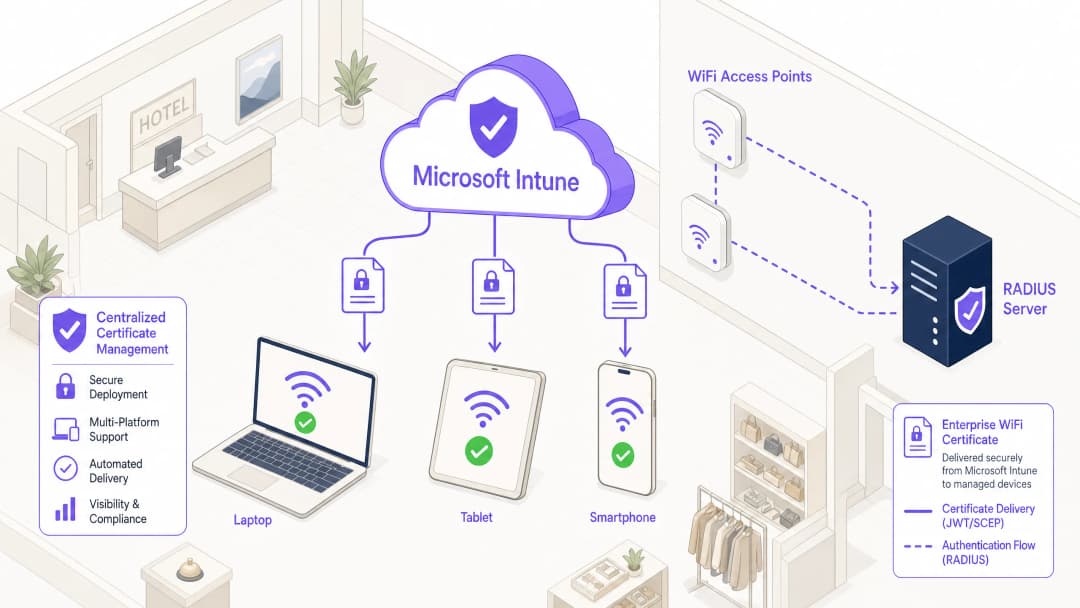
कार्यकारी सारांश (Executive Summary)
आतिथ्य (Hospitality), रिटेल, या सार्वजनिक क्षेत्र के स्थानों में बड़े पैमाने पर नेटवर्क का प्रबंधन करने वाले एंटरप्राइज IT लीडर्स के लिए, सुरक्षित वायरलेस एक्सेस एक बुनियादी परिचालन आवश्यकता है। साझा किए गए PSK (Pre-Shared Keys) या उपयोगकर्ता नाम/पासवर्ड प्रमाणीकरण (PEAP-MSCHAPv2) पर निर्भर रहने से नेटवर्क क्रेडेंशियल चोरी, फ़िशिंग और अनुपालन विफलताओं के प्रति संवेदनशील हो जाता है। मजबूत एंटरप्राइज WiFi सुरक्षा के लिए उद्योग का मानक EAP-TLS (ट्रांसपोर्ट लेयर सिक्योरिटी के साथ एक्स्टेंसिबल ऑथेंटिकेशन प्रोटोकॉल) के साथ 802.1X है, जो डिवाइस और नेटवर्क के बीच आपसी सर्टिफिकेट-आधारित प्रमाणीकरण को अनिवार्य बनाता है।
हालांकि, EAP-TLS को अपनाने में मुख्य बाधा ऐतिहासिक रूप से सर्टिफिकेट लाइफसाइकल प्रबंधन का परिचालन ओवरहेड रहा है। Microsoft Intune बड़े पैमाने पर प्रबंधित उपकरणों को डिजिटल सर्टिफिकेट के वितरण, नवीनीकरण और निरस्तीकरण को स्वचालित करके इसे हल करता है।
यह तकनीकी संदर्भ Microsoft Intune के माध्यम से WiFi सर्टिफिकेट पुश करने के लिए आवश्यक आर्किटेक्चर, परिनियोजन पद्धतियों (SCEP बनाम PKCS), और कार्यान्वयन चरणों का विवरण देता है। यह नेटवर्क आर्किटेक्ट्स और सिस्टम इंजीनियर्स के लिए व्यावहारिक मार्गदर्शन प्रदान करता है, जिन्हें कॉरपोरेट संचार को सुरक्षित रखने के साथ-साथ अतिथि नेटवर्क (जैसे कि Guest WiFi प्लेटफॉर्म द्वारा प्रबंधित नेटवर्क) से कड़ा अलगाव बनाए रखने का काम सौंपा गया है।
तकनीकी गहन विश्लेषण: आर्किटेक्चर और प्रोटोकॉल
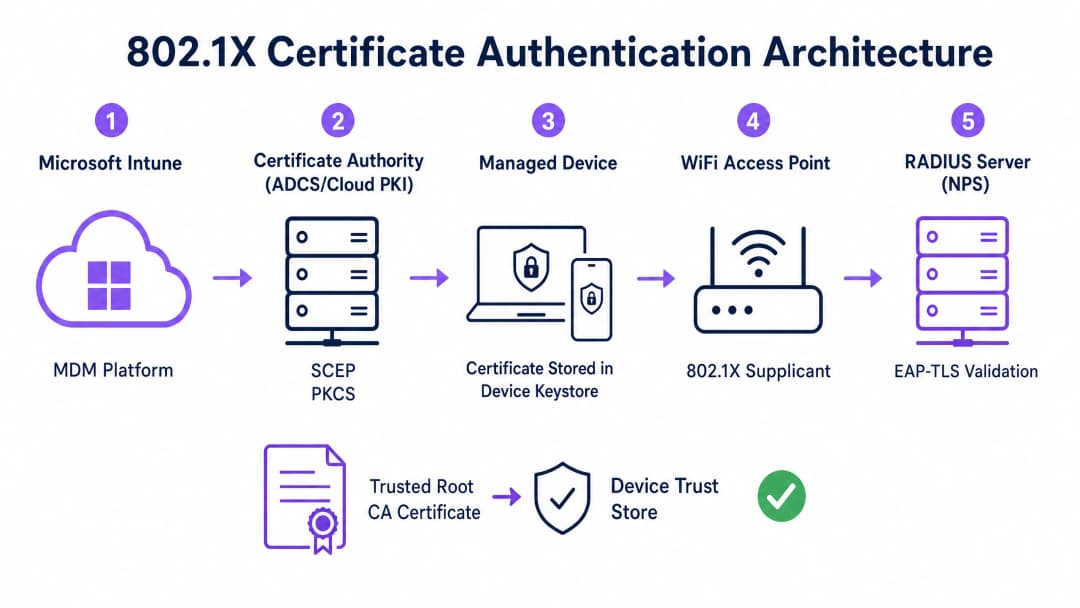
सर्टिफिकेट-आधारित प्रमाणीकरण को प्रभावी ढंग से लागू करने के लिए, IT टीमों को मोबाइल डिवाइस प्रबंधन (MDM) प्लेटफॉर्म, पब्लिक की इन्फ्रास्ट्रक्चर (PKI), और नेटवर्क एक्सेस कंट्रोल लेयर के बीच की बातचीत को समझना होगा।
802.1X प्रमाणीकरण फ्रेमवर्क
IEEE 802.1X मानक पोर्ट-आधारित नेटवर्क एक्सेस कंट्रोल को परिभाषित करता है। वायरलेस संदर्भ में, यह किसी डिवाइस को तब तक किसी भी ट्रैफ़िक (EAP प्रमाणीकरण फ़्रेम के अलावा) को पास करने से रोकता है जब तक कि उसकी पहचान सत्यापित न हो जाए। इस आर्किटेक्चर में तीन घटक शामिल हैं:
- सप्लिकेंट (Supplicant): क्लाइंट डिवाइस (लैपटॉप, स्मार्टफोन, टैबलेट) जो नेटवर्क एक्सेस का अनुरोध कर रहा है।
- प्रमाणक (Authenticator): वायरलेस एक्सेस पॉइंट या वायरलेस LAN कंट्रोलर जो प्रमाणीकरण सफल होने तक ट्रैफ़िक को ब्लॉक करता है।
- प्रमाणीकरण सर्वर (Authentication Server): RADIUS (रिमोट ऑथेंटिकेशन डायल-इन यूजर सर्विस) सर्वर, जैसे कि Microsoft नेटवर्क पॉलिसी सर्वर (NPS) या Cisco ISE, जो क्रेडेंशियल्स को सत्यापित करता है और एक्सेस को अधिकृत करता है।
EAP-TLS और आपसी प्रमाणीकरण
EAP-TLS सबसे सुरक्षित EAP तरीका है क्योंकि इसके लिए दोनों तरफ से प्रमाणीकरण (mutual authentication) आवश्यक होता है। RADIUS सर्वर सप्लीकेंट (supplicant) को अपना सर्टिफिकेट दिखाता है ताकि यह साबित हो सके कि यह कानूनी तौर पर सही कॉर्पोरेट नेटवर्क है (जो कि evil-twin हमलों को रोकता है), और सप्लीकेंट RADIUS सर्वर को अपना क्लाइंट सर्टिफिकेट दिखाता है ताकि यह साबित हो सके कि यह एक प्राधिकृत डिवाइस या उपयोगकर्ता है।
Intune सर्टिफिकेट परिनियोजन (Deployment) तंत्र: SCEP बनाम PKCS
Microsoft Intune डिवाइसों पर क्लाइंट सर्टिफिकेट परिनियोजित करने के लिए दो मुख्य प्रोटोकॉल का समर्थन करता है। उपयुक्त तंत्र का चयन करना एक महत्वपूर्ण आर्किटेक्चरल निर्णय है।
Simple Certificate Enrollment Protocol (SCEP)
SCEP के साथ, प्राइवेट की (private key) सीधे क्लाइंट डिवाइस पर जनरेट होती है। डिवाइस एक Certificate Signing Request (CSR) बनाता है और इसे Intune के माध्यम से Network Device Enrollment Service (NDES) सर्वर पर सबमिट करता है, जो Active Directory Certificate Services (ADCS) इन्फ्रास्ट्रक्चर के लिए एक प्रॉक्सी के रूप में कार्य करता है। CA सर्टिफिकेट जारी करता है, जो डिवाइस को वापस मिल जाता है।
चूंकि प्राइवेट की कभी भी डिवाइस से बाहर नहीं जाती है, इसलिए SCEP को अत्यधिक सुरक्षित माना जाता है और यह BYOD (Bring Your Own Device) परिनियोजन और जीरो-ट्रस्ट आर्किटेक्चर के लिए सबसे अनुशंसित तरीका है।
Public Key Cryptography Standards (PKCS)
PKCS के साथ, Intune सर्टिफिकेट कनेक्टर डिवाइस की ओर से CA से सर्टिफिकेट के लिए अनुरोध करता है। CA पब्लिक सर्टिफिकेट और प्राइवेट की दोनों जनरेट करता है, जिसे कनेक्टर फिर Intune के माध्यम से डिवाइस पर सुरक्षित रूप से डिलीवर करता है।
हालांकि PKCS इन्फ्रास्ट्रक्चर की आवश्यकताओं को सरल बनाता है (इसके लिए किसी NDES सर्वर की आवश्यकता नहीं होती), लेकिन प्राइवेट की को नेटवर्क पर ट्रांसमिट किया जाता है। यह मॉडल आम तौर पर कॉर्पोरेट के स्वामित्व वाले, पूरी तरह से प्रबंधित डिवाइस बेड़े के लिए स्वीकार्य है जहां MDM प्लेटफॉर्म पहले से ही एक अत्यधिक विश्वसनीय घटक होता है।

अपने विशिष्ट सेटअप को लेकर कोई सवाल हैं?
हमारी टीम 80,000 से अधिक वेन्यू में वेन्यू ऑपरेटरों, IT मैनेजरों और नेटवर्क इंजीनियरों के साथ काम करती है। 20 मिनट का कॉल बुक करें और हम आपको दिखाएंगे कि आपके जैसे अन्य लोगों ने इसे कैसे हल किया।
कार्यान्वयन गाइड: चरण-दर-चरण परिनियोजन
Intune के माध्यम से WiFi सर्टिफिकेट परिनियोजित करने के लिए सटीक अनुक्रमण (sequencing) की आवश्यकता होती है। प्रोफाइल को गलत क्रम में परिनियोजित करना कार्यान्वयन की विफलता का सबसे आम कारण है।
चरण 1: Public Key Infrastructure (PKI) तैयार करें
चाहे ऑन-प्रिमाइसेस ADCS का उपयोग कर रहे हों या Microsoft Cloud PKI जैसे क्लाउड-नेटिव समाधान का, सर्टिफिकेट अथॉरिटी (CA) को उचित टेम्प्लेट के साथ कॉन्फ़िगर किया जाना चाहिए।
- की (Key) उपयोग: टेम्प्लेट में
Client AuthenticationOID (1.3.6.1.5.5.7.3.2) शामिल होना चाहिए। - की (Key) साइज़: आधुनिक क्रिप्टोग्राफिक मानकों के अनुरूप न्यूनतम 2048 बिट्स (RSA) का की साइज़ कॉन्फ़िगर करें।
- सब्जेक्ट का नाम (Subject Name): उपयोगकर्ता सर्टिफिकेट के लिए, Subject Alternative Name (SAN) को User Principal Name (UPN) का उपयोग करने के लिए कॉन्फ़िगर किया जाना चाहिए। डिवाइस सर्टिफिकेट के लिए, Azure AD Device ID का उपयोग करें।### चरण 2: Trusted Root Certificate को डिप्लॉय करें
किसी डिवाइस के प्रमाणित होने से पहले, उसे उस CA पर भरोसा करना होगा जिसने RADIUS सर्वर का सर्टिफिकेट जारी किया है।
- Root CA सर्टिफिकेट (और किसी भी इंटरमीडिएट CA सर्टिफिकेट) को
.cerफ़ॉर्मेट में एक्सपोर्ट करें। - Intune एडमिन सेंटर में, Devices > Configuration profiles > Create profile पर जाएं।
- प्लेटफ़ॉर्म चुनें और Trusted certificate प्रोफ़ाइल प्रकार का चयन करें।
.cerफ़ाइल अपलोड करें और इस प्रोफ़ाइल को लक्षित डिवाइस या उपयोगकर्ता समूहों को असाइन करें।
नोट: आगे के चरणों पर बढ़ने से पहले यह प्रोफ़ाइल डिवाइसों पर सफलतापूर्वक लागू होनी चाहिए।
चरण 3: Client Certificate प्रोफ़ाइल को डिप्लॉय करें
सप्लीकेंट को पहचान सर्टिफिकेट प्रदान करने के लिए एक SCEP या PKCS सर्टिफिकेट प्रोफ़ाइल बनाएं।
- Devices > Configuration profiles > Create profile पर जाएं।
- प्लेटफ़ॉर्म चुनें और SCEP certificate या PKCS certificate का चयन करें।
- अपनी पहचान आवश्यकताओं (उपयोगकर्ता बनाम डिवाइस) के अनुसार सब्जेक्ट नाम फ़ॉर्मेट और SAN को कॉन्फ़िगर करें।
- Key Storage Provider (KSP) निर्दिष्ट करें - आम तौर पर हार्डवेयर-आधारित सुरक्षा के लिए Trusted Platform Module (TPM)।
- इस प्रोफ़ाइल को उन्हीं समूहों को असाइन करें जिन्हें चरण 2 में लक्षित किया गया था।
चरण 4: WiFi प्रोफ़ाइल को कॉन्फ़िगर करें
अंतिम घटक सर्टिफिकेट्स को वायरलेस नेटवर्क सेटिंग्स से बांधता है।
- Devices > Configuration profiles > Create profile पर जाएं।
- प्लेटफ़ॉर्म चुनें और WiFi प्रोफ़ाइल प्रकार का चयन करें।
- WiFi प्रकार को Enterprise पर सेट करें और सटीक SSID दर्ज करें।
- EAP प्रकार को EAP-TLS पर सेट करें।
- Server Trust के अंतर्गत, RADIUS सर्वर सर्टिफिकेट का सटीक नाम निर्दिष्ट करें और चरण 2 में डिप्लॉय किए गए Trusted Root सर्टिफिकेट प्रोफ़ाइल का चयन करें।
- Client Authentication के अंतर्गत, चरण 3 में डिप्लॉय की गई SCEP या PKCS सर्टिफिकेट प्रोफ़ाइल का चयन करें।
- इस प्रोफ़ाइल को लक्षित समूहों को असाइन करें।
सर्वोत्तम प्रथाएं और रणनीतिक सिफारिशें
डिवाइस बनाम उपयोगकर्ता सर्टिफिकेट
नेटवर्क आर्किटेक्ट्स को यह तय करना होगा कि सर्टिफिकेट डिवाइस (मशीन प्रमाणीकरण) को जारी किए जाएं या उपयोगकर्ता (उपयोगकर्ता प्रमाणीकरण) को।
- डिवाइस सर्टिफिकेट: उपयोगकर्ता के लॉग इन करने से पहले मशीन को WiFi नेटवर्क से कनेक्ट होने की अनुमति देते हैं। यह प्रारंभिक डिवाइस प्रोविज़निंग, ग्रुप पॉलिसी प्रोसेसिंग और लॉगिन स्क्रीन पर पासवर्ड रीसेट के लिए महत्वपूर्ण है। कॉर्पोरेट स्वामित्व वाले डिवाइसों के लिए अनुशंसित।
- उपयोगकर्ता सर्टिफिकेट: नेटवर्क एक्सेस को व्यक्ति की पहचान से जोड़ते हैं। यह विस्तृत ऑडिटिंग और भूमिका-आधारित एक्सेस कंट्रोल प्रदान करता है। BYOD परिदृश्यों के लिए अनुशंसित।
नेटवर्क सेगमेंटेशन और गेस्ट एक्सेस
एक मौलिक सुरक्षा सिद्धांत कॉर्पोरेट 802.1X नेटवर्क को विज़िटर या सार्वजनिक एक्सेस नेटवर्क से सख्त लॉजिकल रूप से अलग रखना है। Intune-प्रबंधित इंफ्रास्ट्रक्चर विशेष रूप से कॉर्पोरेट डिवाइसों और प्रमाणित कर्मचारियों के लिए समर्पित होना चाहिए।आगंतुक एक्सेस के लिए, संगठनों को Captive Portal द्वारा समर्थित एक समर्पित Guest WiFi SSID तैनात करना चाहिए। यह सुनिश्चित करता है कि अप्रबंधित डिवाइस अलग रहें, जबकि व्यवसाय को WiFi Analytics प्लेटफ़ॉर्म के माध्यम से आगंतुक एनालिटिक्स कैप्चर करने की अनुमति भी मिलती है। दोनों सेगमेंट में DNS इंफ्रास्ट्रक्चर को सुरक्षित करने के बारे में अधिक जानने के लिए, Protect Your Network with Strong DNS and Security पर हमारा गाइड देखें।
NPS सर्टिफिकेट मैपिंग आवश्यकता को पूरा करना
Azure AD से जुड़े डिवाइस के साथ Microsoft Network Policy Server (NPS) का उपयोग करने वाले संगठनों के लिए, Microsoft द्वारा एक महत्वपूर्ण कॉन्फ़िगरेशन परिवर्तन पेश किया गया था। NPS को अब मजबूत सर्टिफिकेट मैपिंग की आवश्यकता होती है।
डिवाइस सर्टिफिकेट का उपयोग करते समय, ऑन-प्रिमाइसेस Active Directory में कंप्यूटर ऑब्जेक्ट के altSecurityIdentities एट्रिब्यूट में सर्टिफिकेट का विवरण (आमतौर पर X509IssuerSerialNumber) भरा होना चाहिए। जब Intune एक नया सर्टिफिकेट जारी करता है, तो IT टीमों को इस एट्रिब्यूट को अपडेट करने के लिए एक शेड्यूल्ड स्क्रिप्ट या इवेंट-संचालित वर्कफ़्लो लागू करना होगा, अन्यथा ऑथेंटिकेशन विफल हो जाएगा।
समस्या निवारण और जोखिम न्यूनीकरण
जब 802.1X परिनियोजन विफल हो जाता है, तो समस्या लगभग हमेशा सर्टिफिकेट चेन या Intune प्रोफाइल सीक्वेंसिंग में होती है।
सामान्य विफलता मोड
- मूक WiFi प्रोफाइल विफलता: यदि क्लाइंट सर्टिफिकेट सफलतापूर्वक प्रोविजन होने से पहले Intune WiFi प्रोफाइल किसी डिवाइस पर लागू की जाती है, तो WiFi प्रोफाइल अक्सर इंस्टॉल होने में विफल हो जाएगी या बिना किसी सूचना के मूक रूप से विफल हो जाएगी। WiFi कॉन्फ़िगरेशन का समस्या निवारण करने से पहले हमेशा डिवाइस के पर्सनल स्टोर (Windows पर
certmgr.msc) में सर्टिफिकेट की उपस्थिति की पुष्टि करें। - सर्वर ट्रस्ट सत्यापन त्रुटियां: यदि डिवाइस RADIUS सर्वर को अस्वीकार करता है, तो सत्यापित करें कि Intune WiFi प्रोफाइल में निर्दिष्ट सर्वर नाम RADIUS सर्वर के सर्टिफिकेट पर सब्जेक्ट नेम या SAN से बिल्कुल मेल खाता है। इसके अतिरिक्त, यह सुनिश्चित करें कि पूरी सर्टिफिकेट चेन (रूट और इंटरमीडिएट) डिवाइस के ट्रस्टेड रूट सर्टिफिकेशन अथॉरिटीज स्टोर में मौजूद है।
- सर्टिफिकेट निरसन सूची (CRL) अनुपलब्धता: यदि RADIUS सर्वर क्लाइंट सर्टिफिकेट की स्थिति को सत्यापित करने के लिए CA के CRL वितरण बिंदु तक नहीं पहुंच सकता है, तो ऑथेंटिकेशन अस्वीकार कर दिया जाएगा। सुनिश्चित करें कि CRL URL अत्यधिक उपलब्ध है और RADIUS सर्वर से एक्सेस योग्य है।
ROI और व्यावसायिक प्रभाव
Intune के माध्यम से सर्टिफिकेट-आधारित WiFi ऑथेंटिकेशन पर संक्रमण महत्वपूर्ण परिचालन और सुरक्षा लाभ प्रदान करता है।
- जोखिम न्यूनीकरण: क्रेडेंशियल हार्वेस्टिंग, पास-द-हैश हमलों और साझा PSK के माध्यम से अनधिकृत नेटवर्क पहुंच के जोखिम को समाप्त करता है।
- परिचालन दक्षता: पासवर्ड समाप्त होने और WiFi कनेक्टिविटी समस्याओं से संबंधित IT हेल्पडेस्क टिकटों को कम करता है। स्वचालित लाइफसाइकिल प्रबंधन का अर्थ है कि उपयोगकर्ता के हस्तक्षेप के बिना सर्टिफिकेट का पारदर्शी रूप से नवीनीकरण किया जाता है।* अनुपालन सक्षमता: कड़ी नियामक आवश्यकताओं को पूरा करता है। रिटेल वातावरण के लिए, यह सीधे तौर पर मजबूत वायरलेस एन्क्रिप्शन और प्रमाणीकरण के लिए PCI DSS आवश्यकताओं को संबोधित करता है। सार्वजनिक क्षेत्र और स्वास्थ्य सेवा के लिए, यह ज़ीरो-ट्रस्ट नेटवर्क एक्सेस (ZTNA) सिद्धांतों के साथ संरेखित होता है।
प्रमाणपत्र परिनियोजन (certificate deployment) के लिए Microsoft Intune का लाभ उठाकर, IT टीमें एक निर्बाध, अत्यधिक सुरक्षित वायरलेस अनुभव प्राप्त कर सकती हैं जो पृष्ठभूमि में चुपचाप काम करता है, जिससे व्यवसाय को मुख्य संचालन पर ध्यान केंद्रित करने की अनुमति मिलती है।
मुख्य परिभाषाएं
802.1X
पोर्ट-आधारित नेटवर्क एक्सेस नियंत्रण के लिए एक IEEE मानक जो अनधिकृत डिवाइसों को LAN या WLAN तक पहुँचने से तब तक रोकता है जब तक कि वे सफलतापूर्वक प्रमाणित नहीं हो जाते।
एक बुनियादी सुरक्षा प्रोटोकॉल जो कॉर्पोरेट परिवेशों में साझा WiFi पासवर्ड को एंटरप्राइज़-ग्रेड प्रमाणीकरण से बदल देता है।
EAP-TLS
ट्रांसपोर्ट लेयर सिक्योरिटी के साथ एक्सटेंसिबल ऑथेंटिकेशन प्रोटोकॉल। एक प्रमाणीकरण ढांचा जिसके लिए क्लाइंट और सर्वर दोनों को डिजिटल सर्टिफिकेट का उपयोग करके अपनी पहचान साबित करने की आवश्यकता होती है।
क्रेडेंशियल चोरी के जोखिम को समाप्त करते हुए, पारस्परिक सर्टिफिकेट प्रमाणीकरण लागू करने के लिए Intune WiFi प्रोफाइल में कॉन्फ़िगर किया गया विशिष्ट प्रोटोकॉल।
SCEP
सिंपल सर्टिफिकेट एनरोलमेंट प्रोटोकॉल। एक तंत्र जहाँ क्लाइंट डिवाइस अपनी खुद की प्राइवेट की (private key) उत्पन्न करता है और एक मध्यवर्ती सर्वर के माध्यम से CA से सर्टिफिकेट का अनुरोध करता है।
BYOD परिवेशों के लिए पसंदीदा परिनियोजन विधि क्योंकि प्राइवेट की (private key) कभी भी नेटवर्क पर प्रसारित नहीं होती है।
PKCS
Public Key Cryptography Standards. Intune के संदर्भ में, एक परिनियोजन विधि जहां CA निजी कुंजी उत्पन्न करता है और Intune Connector इसे डिवाइस पर सुरक्षित रूप से वितरित करता है।
कॉर्पोरेट स्वामित्व वाले डिवाइसों के लिए अक्सर उपयोग की जाने वाली एक सरल परिनियोजन (deployment) वास्तुकला, क्योंकि यह NDES सर्वर की आवश्यकता को समाप्त कर देती है।
NDES
Network Device Enrolment Service. एक Microsoft सर्वर भूमिका जो प्रॉक्सी के रूप में कार्य करती है, जिससे डोमेन क्रेडेंशियल के बिना चलने वाले डिवाइसों को Active Directory Certificate Authority से प्रमाणपत्र प्राप्त करने की अनुमति मिलती है।
एक ऑन-प्रिमाइसेस ADCS वातावरण में SCEP के माध्यम से प्रमाणपत्रों को तैनात करते समय एक अनिवार्य बुनियादी ढांचा घटक।
RADIUS
Remote Authentication Dial-In User Service. एक नेटवर्किंग प्रोटोकॉल जो केंद्रीकृत प्रमाणीकरण (Authentication), प्राधिकरण (Authorisation), और लेखांकन (Accounting) (AAA) प्रबंधन प्रदान करता है।
वह सर्वर (जैसे Microsoft NPS या Cisco ISE) जो WiFi एक्सेस पॉइंट से प्रमाणीकरण अनुरोध प्राप्त करता है और डिवाइस के प्रमाणपत्र को मान्य करता है।
Supplicant
अंतिम-उपयोगकर्ता डिवाइस (लैपटॉप, स्मार्टफोन) पर मौजूद सॉफ्टवेयर क्लाइंट जो 802.1X प्रमाणीकरण प्रक्रिया शुरू करता है।
Intune WiFi प्रोफ़ाइल सही प्रमाणपत्रों और EAP विधियों का उपयोग करने के लिए मूल OS सप्लीकेंट (जैसे, Windows WLAN AutoConfig) को कॉन्फ़िगर करती है।
Certificate Revocation List (CRL)
Certificate Authority द्वारा प्रकाशित एक डिजिटल रूप से हस्ताक्षरित सूची जिसमें उन प्रमाणपत्रों के सीरियल नंबर होते हैं जिन्हें रद्द कर दिया गया है और अब उन पर भरोसा नहीं किया जाना चाहिए।
सुरक्षा अनुपालन के लिए अत्यंत महत्वपूर्ण; RADIUS सर्वर को CRL की जांच करनी चाहिए ताकि यह सुनिश्चित हो सके कि कनेक्ट होने वाले डिवाइस के खोने या चोरी होने की सूचना तो नहीं दी गई है।
हल किए गए उदाहरण
400 स्थानों वाली एक रिटेल चेन इन्वेंट्री प्रबंधन के लिए कॉर्पोरेट-स्वामित्व वाले टैबलेट तैनात कर रही है। डिवाइस पूरी तरह से Intune के माध्यम से प्रबंधित हैं और Azure AD से जुड़े हैं। किसी भी विशिष्ट उपयोगकर्ता के लॉग इन करने से पहले, इन्वेंट्री डेटाबेस को सिंक करने के लिए उन्हें बूट होते ही तत्काल नेटवर्क एक्सेस की आवश्यकता होती है। नेटवर्क इंफ्रास्ट्रक्चर RADIUS सर्वर के रूप में Cisco ISE का उपयोग करता है। सर्वोत्तम सर्टिफिकेट परिनियोजन रणनीति क्या है?
IT टीम को PKCS डिवाइस सर्टिफिकेट लागू करना चाहिए।
- CA पर एक डिवाइस सर्टिफिकेट टेम्पलेट कॉन्फ़िगर करें।
- Intune के माध्यम से टैबलेट पर Root CA सर्टिफिकेट तैनात करें।
- Intune में एक PKCS सर्टिफिकेट प्रोफाइल बनाएं, जिसमें Subject Name प्रारूप को Azure AD डिवाइस ID ({{AAD_Device_ID}}) पर सेट करें।
- EAP-TLS को निर्दिष्ट करते हुए एक एंटरप्राइज़ WiFi प्रोफाइल बनाएं, जो ISE सर्वर के सर्टिफिकेट नाम और तैनात किए गए PKCS प्रोफाइल को संदर्भित करता हो।
- टैबलेट वाले डिवाइस समूह में सभी प्रोफाइल असाइन करें।
एक बड़ा शिक्षण अस्पताल चिकित्सा कर्मचारियों को नैदानिक शेड्यूलिंग अनुप्रयोगों तक पहुँचने के लिए अपने व्यक्तिगत स्मार्टफोन (BYOD) का उपयोग करने की अनुमति देता है। ये डिवाइस Work Profile के माध्यम से Intune में नामांकित हैं। सुरक्षा नीति यह अनिवार्य करती है कि व्यक्तिगत डिवाइसों पर कोई कॉर्पोरेट क्रेडेंशियल संग्रहीत न किया जाए, और यदि कोई डिवाइस असुरक्षित पाया जाता है तो नेटवर्क एक्सेस तुरंत रद्द कर दिया जाना चाहिए। WiFi प्रमाणीकरण को कैसे डिज़ाइन किया जाना चाहिए?
अस्पताल को SCEP उपयोगकर्ता सर्टिफिकेट को Intune अनुपालन नीतियों के साथ मिलकर लागू करना होगा।
- CA को अनुरोधों को प्रॉक्सी करने के लिए एक NDES सर्वर तैनात करें।
- Intune में एक SCEP उपयोगकर्ता सर्टिफिकेट प्रोफाइल बनाएं, जिसमें SAN को उपयोगकर्ता प्रिंसिपल नाम ({{UserPrincipalName}}) पर कॉन्फ़िगर किया गया हो।
- एक Intune अनुपालन नीति बनाएं जिसमें न्यूनतम OS संस्करण, एक सक्रिय स्क्रीन लॉक और कोई जेलब्रेक/रूट एक्सेस न होने की आवश्यकता हो।
- अत्यधिक उपलब्ध सर्टिफिकेट निरसन सूची (CRL) प्रकाशित करने के लिए CA को कॉन्फ़िगर करें।
- प्रत्येक प्रमाणीकरण प्रयास पर CRL जाँच को सख्ती से लागू करने के लिए RADIUS सर्वर को कॉन्फ़िगर करें।
अभ्यास प्रश्न
Q1. आपका संगठन कॉर्पोरेट WiFi के लिए PEAP-MSCHAPv2 (यूज़रनेम/पासवर्ड) से EAP-TLS पर माइग्रेट कर रहा है। पायलट चरण के दौरान, कई Windows 11 लैपटॉप सफलतापूर्वक Intune कॉन्फ़िगरेशन प्रोफ़ाइल प्राप्त कर लेते हैं लेकिन नेटवर्क से कनेक्ट होने में विफल रहते हैं। Windows Event Logs की समीक्षा करने पर Event ID 20271 दिखाई देता है जो इंगित करता है कि RADIUS सर्वर प्रमाणपत्र अस्वीकार कर दिया गया था। सबसे संभावित कारण क्या है?
संकेत: आपसी प्रमाणीकरण के लिए आवश्यक विश्वास की श्रृंखला (chain of trust) पर विचार करें।
मॉडल उत्तर देखें
डिवाइसों में उस Trusted Root CA प्रमाणपत्र की कमी है जिसने RADIUS सर्वर का प्रमाणपत्र जारी किया था। EAP-TLS में, डिवाइस को RADIUS सर्वर की पहचान को सत्यापित करना होगा। IT टीम को यह सुनिश्चित करना चाहिए कि Root CA (और किसी भी Intermediate CAs) वाली 'Trusted certificate' प्रोफ़ाइल को Intune के माध्यम से डिवाइसों पर तैनात किया गया है और WiFi प्रोफ़ाइल द्वारा कनेक्शन का प्रयास करने से पहले इसे सफलतापूर्वक इंस्टॉल कर लिया गया है।
Q2. एक सार्वजनिक क्षेत्र का संस्थान Intune और PKCS प्रमाणपत्रों का उपयोग करके कर्मचारियों के डिवाइसों के लिए 802.1X तैनात कर रहा है। वे एक Guest WiFi प्लेटफॉर्म द्वारा प्रबंधित एक अलग विज़िटर नेटवर्क भी संचालित करते हैं। एक ऑडिटर नोट करता है कि यदि कोई स्टाफ लैपटॉप चोरी हो जाता है, तो प्रमाणपत्र 12 महीनों तक वैध रहता है। नेटवर्क आर्किटेक्ट को इस जोखिम का समाधान कैसे करना चाहिए?
संकेत: प्रमाणीकरण सर्वर को कैसे पता चलता है कि कोई प्रमाणपत्र समाप्त होने से पहले ही अमान्य हो गया है?
मॉडल उत्तर देखें
आर्किटेक्ट को एक मजबूत प्रमाणपत्र निरसन (Certificate Revocation) वर्कफ़्लो लागू करना होगा। सबसे पहले, सुनिश्चित करें कि CA एक अत्यधिक उपलब्ध वितरण बिंदु पर Certificate Revocation List (CRL) प्रकाशित करता है। दूसरा, प्रत्येक प्रमाणीकरण प्रयास के दौरान CRL जाँच को अनिवार्य करने के लिए RADIUS सर्वर (जैसे, NPS) को कॉन्फ़िगर करें। अंत में, खोए या चोरी हुए के रूप में चिह्नित किसी भी डिवाइस के प्रमाणपत्र को स्पष्ट रूप से रद्द करने के लिए एक Intune परिचालन प्रक्रिया स्थापित करें, जो CRL को अपडेट करती है और नेटवर्क एक्सेस को ब्लॉक करती है।
Q3. आप रिटेल वातावरण में साझा कियोस्क डिवाइसों के एक समूह के लिए Intune परिनियोजन को डिज़ाइन कर रहे हैं। ये डिवाइस प्रतिदिन रीबूट होते हैं और किसी भी उपयोगकर्ता द्वारा उनके साथ इंटरैक्ट करने से पहले अपडेट डाउनलोड करने के लिए तुरंत कॉर्पोरेट नेटवर्क से कनेक्ट होने चाहिए। क्या आपको यूज़र प्रमाणपत्र तैनात करने चाहिए या डिवाइस प्रमाणपत्र, और किस Subject Alternative Name (SAN) प्रारूप का उपयोग किया जाना चाहिए?
संकेत: रीबूट के तुरंत बाद डिवाइस की स्थिति पर विचार करें।
मॉडल उत्तर देखें
आपको Device प्रमाणपत्र तैनात करने होंगे। क्योंकि कियोस्क को उपयोगकर्ता के लॉग इन करने से पहले नेटवर्क एक्सेस की आवश्यकता होती है, इसलिए बूट समय पर User प्रमाणपत्र उपलब्ध नहीं होगा। Intune प्रमाणपत्र प्रोफ़ाइल में Subject Alternative Name (SAN) को Azure AD Device ID ({{AAD_Device_ID}}) या डिवाइस के फुली क्वालिफाइड डोमेन नेम का उपयोग करने के लिए कॉन्फ़िगर किया जाना चाहिए, जिससे RADIUS सर्वर विशिष्ट हार्डवेयर एसेट को प्रमाणित कर सके।
इस श्रृंखला में आगे पढ़ें
गैस्ट WiFi के लिए RADIUS ऑथेंटिकेशन कॉन्फ़िगर करने के लिए एक नेटवर्क एडमिनिस्ट्रेटर की गाइड
गैस्ट WiFi के लिए RADIUS ऑथेंटिकेशन को डिप्लॉय करने पर नेटवर्क एडमिनिस्ट्रेटर के लिए एक व्यापक तकनीकी संदर्भ। इसमें आर्किटेक्चर, वेंडर-न्यूट्रल कॉन्फ़िगरेशन स्टेप्स, सुरक्षा के सर्वोत्तम तरीके और सामान्य डिप्लॉयमेंट विफलताओं को हल करना शामिल है।
उच्च शिक्षा में सुरक्षित BYOD और 802.1X WiFi के लिए SCEP लागू करना
यह तकनीकी मार्गदर्शिका विस्तार से बताती है कि कैसे उच्च शिक्षा IT टीमें SCEP का उपयोग करके हजारों BYOD उपकरणों के लिए 802.1X प्रमाणपत्र नामांकन को स्वचालित कर सकती हैं। इसमें आर्किटेक्चर, सुरक्षा लाभ और मैनुअल ऑनबोर्डिंग को एक सुरक्षित, जीरो-टच नेटवर्क एक्सेस मॉडल से बदलने के व्यावहारिक तैनाती कदम शामिल हैं।
अतिथि और स्टाफ WiFi नेटवर्क के लिए RADIUS ऑथेंटिकेशन को कॉन्फ़िगर करना
यह तकनीकी संदर्भ गाइड एंटरप्राइज़ अतिथि और स्टाफ WiFi नेटवर्क के लिए RADIUS ऑथेंटिकेशन के आर्किटेक्चर, कॉन्फ़िगरेशन और डिप्लॉयमेंट की रूपरेखा तैयार करती है। यह नेटवर्क आर्किटेक्ट्स और IT प्रबंधकों को सुरक्षित, स्केलेबल वायरलेस एक्सेस कंट्रोल सिस्टम बनाने के लिए आवश्यक सटीक प्रोटोकॉल, सुरक्षा मानक और ट्रबलशूटिंग कार्यप्रणाली प्रदान करती है।
अपने विशिष्ट सेटअप को लेकर कोई सवाल हैं?
हमारी टीम 80,000 से अधिक वेन्यू में वेन्यू ऑपरेटरों, IT मैनेजरों और नेटवर्क इंजीनियरों के साथ काम करती है। 20 मिनट का कॉल बुक करें और हम आपको दिखाएंगे कि आपके जैसे अन्य लोगों ने इसे कैसे हल किया।