
How to Use Microsoft Intune to Push WiFi Certificates to Devices
A comprehensive technical reference for IT leaders on deploying 802.1X WiFi certificates via Microsoft Intune. Covers SCEP vs PKCS architecture, implementation steps, compliance mapping, and real-world deployment scenarios for enterprise environments.
Video overview
Listen to this guide
View podcast transcript
Part of our core series: Enterprise WiFi Security Guide →
Windows 11 802.1X & Network Authentication Troubleshooter
Select your Windows 11 build, authentication protocol, deployment mechanism, and error symptom below to generate an immediate CLI repair sequence and Intune/GPO remediation steps.
Wired AutoConfig Service Authentication Loop (EAPOL Timeout)
High ImpactRoot Cause Diagnosis: The 802.1X Wired AutoConfig service (dot3svc) did not initiate EAPOL Handshake after NIC driver initialization, or 802.1X authentication mode is disabled on the Ethernet adapter.
netsh lan set autoconfig enabled=yes interface="Ethernet"
netsh lan restart- Verify that Wired AutoConfig service (dot3svc) Startup Type is set to Automatic in services.msc.
- Execute netsh lan set autoconfig enabled=yes interface="Ethernet" from an elevated Command Prompt.
- Check switch port configuration to ensure 802.1X re-authentication timer is not expiring before client response.
- Re-enable 802.1X authentication in Ethernet Adapter Properties > Authentication tab.
Need Automated Cloud RADIUS & 802.1X Certificate Management?
Purple Cloud RADIUS eliminates Windows 11 upgrade authentication failures by providing automated Passpoint certificate provisioning, zero-touch Intune payload integration, and centralized IEEE 802.1X policy management for enterprise network environments.
Executive Summary
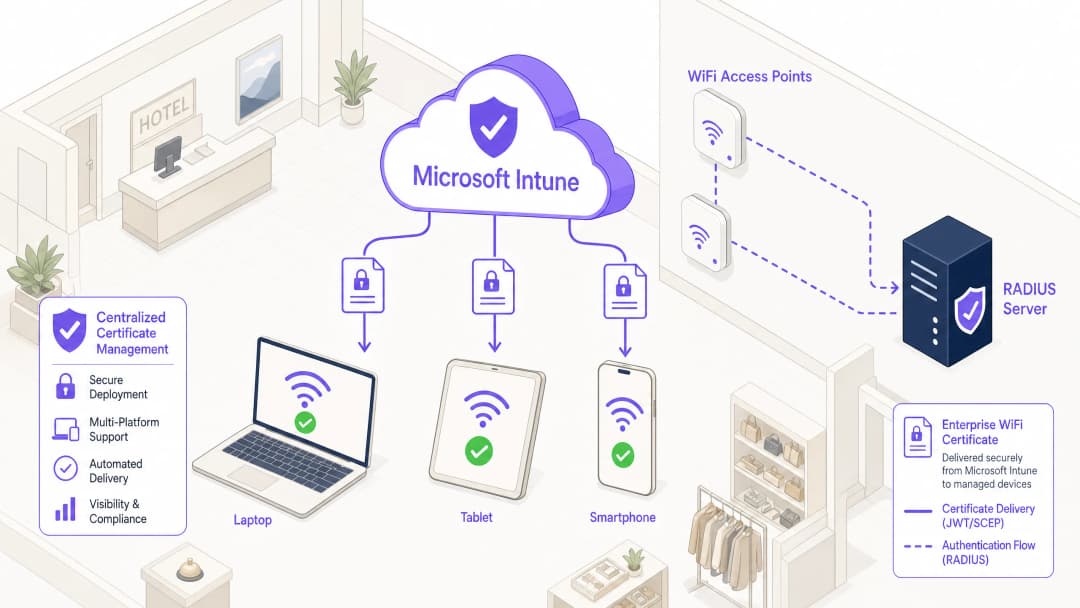
For enterprise IT leaders managing large-scale environments across Hospitality, Retail, or public-sector venues, secure wireless access is a baseline operational requirement. Relying on shared PSKs (Pre-Shared Keys) or username/password authentication (PEAP-MSCHAPv2) exposes the network to credential theft, phishing, and compliance failures. The industry standard for robust enterprise WiFi security is 802.1X with EAP-TLS (Extensible Authentication Protocol with Transport Layer Security), which mandates mutual certificate-based authentication between the device and the network.
However, the primary barrier to EAP-TLS adoption has historically been the operational overhead of certificate lifecycle management. Microsoft Intune resolves this by automating the delivery, renewal, and revocation of digital certificates to managed devices at scale.
This technical reference details the architecture, deployment methodologies (SCEP vs PKCS), and implementation steps required to push WiFi certificates via Microsoft Intune. It provides actionable guidance for network architects and systems engineers tasked with securing corporate communications while maintaining strict separation from visitor networks, such as those managed by a Guest WiFi platform.
Technical Deep-Dive: Architecture and Protocols
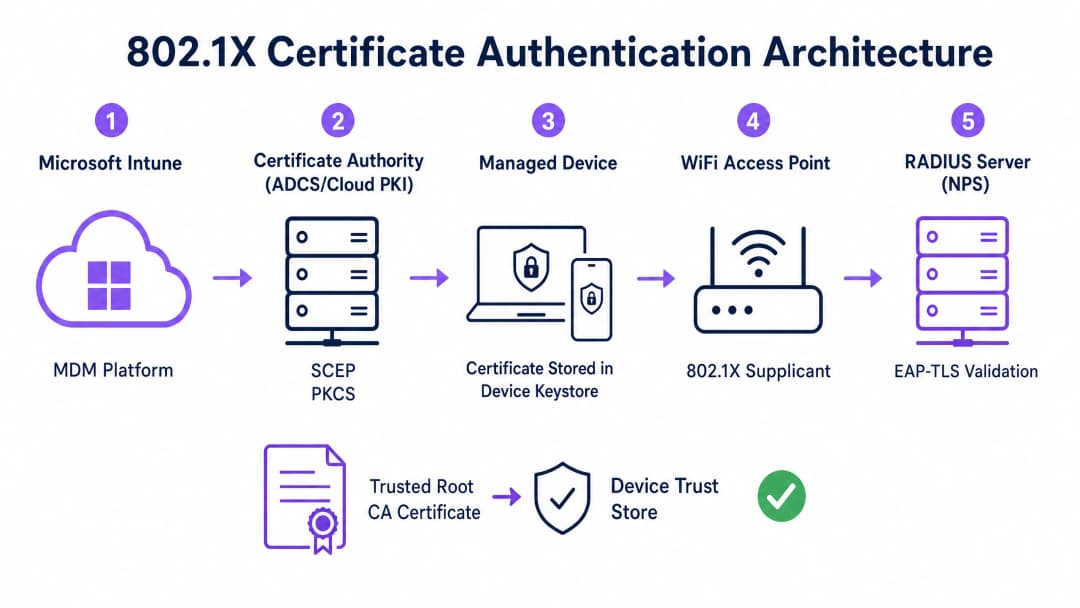
To implement certificate-based authentication effectively, IT teams must understand the interaction between the Mobile Device Management (MDM) platform, the Public Key Infrastructure (PKI), and the network access control layer.
The 802.1X Authentication Framework
The IEEE 802.1X standard defines port-based network access control. In a wireless context, it prevents a device from passing any traffic (other than EAP authentication frames) until its identity is verified. The architecture consists of three components:
- Supplicant: The client device (laptop, smartphone, tablet) requesting network access.
- Authenticator: The wireless access point or wireless LAN controller that blocks traffic until authentication succeeds.
- Authentication Server: The RADIUS (Remote Authentication Dial-In User Service) server, such as Microsoft Network Policy Server (NPS) or Cisco ISE, which validates the credentials and authorises access.
EAP-TLS and Mutual Authentication
EAP-TLS is the most secure EAP method because it requires mutual authentication. The RADIUS server presents its certificate to the supplicant to prove it is the legitimate corporate network (preventing evil-twin attacks), and the supplicant presents its client certificate to the RADIUS server to prove it is an authorised device or user.
Intune Certificate Deployment Mechanisms: SCEP vs PKCS
Microsoft Intune supports two primary protocols for deploying client certificates to devices. Selecting the appropriate mechanism is a critical architectural decision.
Simple Certificate Enrollment Protocol (SCEP)
With SCEP, the private key is generated directly on the client device. The device creates a Certificate Signing Request (CSR) and submits it via Intune to the Network Device Enrollment Service (NDES) server, which acts as a proxy to the Active Directory Certificate Services (ADCS) infrastructure. The CA issues the certificate, which is returned to the device.
Because the private key never leaves the device, SCEP is considered highly secure and is the recommended approach for BYOD (Bring Your Own Device) deployments and zero-trust architectures.
Public Key Cryptography Standards (PKCS)
With PKCS, the Intune Certificate Connector requests the certificate from the CA on behalf of the device. The CA generates both the public certificate and the private key, which the connector then securely delivers to the device via Intune.
While PKCS simplifies the infrastructure requirements (no NDES server is needed), the private key is transmitted across the network. This model is generally acceptable for corporate-owned, fully managed device fleets where the MDM platform is already a highly trusted component.

Got questions about your specific setup?
Our team works with venue operators, IT managers, and network engineers across 80,000 venues. Book a 20-minute call and we will show you how others like you solved it.
Implementation Guide: Step-by-Step Deployment
Deploying WiFi certificates via Intune requires precise sequencing. Deploying profiles out of order is the most common cause of implementation failure.
Step 1: Prepare the Public Key Infrastructure (PKI)
Whether utilising on-premises ADCS or a cloud-native solution like Microsoft Cloud PKI, the Certificate Authority must be configured with the appropriate templates.
- Key Usage: The template must include the
Client AuthenticationOID (1.3.6.1.5.5.7.3.2). - Key Size: Configure a minimum key size of 2048 bits (RSA) to align with modern cryptographic standards.
- Subject Name: For user certificates, the Subject Alternative Name (SAN) should be configured to use the User Principal Name (UPN). For device certificates, use the Azure AD Device ID.
Step 2: Deploy the Trusted Root Certificate
Before a device can authenticate, it must trust the CA that issued the RADIUS server's certificate.
- Export the Root CA certificate (and any intermediate CA certificates) in
.cerformat. - In the Intune admin centre, navigate to Devices > Configuration profiles > Create profile.
- Select the platform and choose the Trusted certificate profile type.
- Upload the
.cerfile and assign the profile to the target device or user groups.
Note: This profile must successfully apply to devices before proceeding to the next steps.
Step 3: Deploy the Client Certificate Profile
Create either a SCEP or PKCS certificate profile to deliver the identity certificate to the supplicant.
- Navigate to Devices > Configuration profiles > Create profile.
- Select the platform and choose either SCEP certificate or PKCS certificate.
- Configure the Subject Name format and SAN according to your identity requirements (User vs. Device).
- Specify the Key Storage Provider (KSP) - typically the Trusted Platform Module (TPM) for hardware-backed security.
- Assign the profile to the same groups targeted in Step 2.
Step 4: Configure the WiFi Profile
The final component binds the certificates to the wireless network settings.
- Navigate to Devices > Configuration profiles > Create profile.
- Select the platform and choose the WiFi profile type.
- Set the WiFi type to Enterprise and enter the exact SSID.
- Set the EAP type to EAP-TLS.
- Under Server Trust, specify the exact name of the RADIUS server certificate and select the Trusted Root certificate profile deployed in Step 2.
- Under Client Authentication, select the SCEP or PKCS certificate profile deployed in Step 3.
- Assign the profile to the target groups.
Best Practices & Strategic Recommendations
Device vs. User Certificates
Network architects must decide whether to issue certificates to the device (machine authentication) or the user (user authentication).
- Device Certificates: Allow the machine to connect to the WiFi network before a user logs in. This is critical for initial device provisioning, Group Policy processing, and password resets at the login screen. Recommended for corporate-owned devices.
- User Certificates: Tie network access to the individual's identity. This provides granular auditing and role-based access control. Recommended for BYOD scenarios.
Network Segmentation and Guest Access
A fundamental security principle is the strict logical separation of the corporate 802.1X network from visitor or public access networks. The Intune-managed infrastructure should be dedicated exclusively to corporate devices and authenticated staff.
For visitor access, organisations should deploy a dedicated Guest WiFi SSID backed by a captive portal. This ensures that unmanaged devices are isolated, while still allowing the business to capture visitor analytics via a WiFi Analytics platform. To learn more about securing DNS infrastructure across both segments, review our guide on how to Protect Your Network with Strong DNS and Security.
Addressing the NPS Certificate Mapping Requirement
For organisations utilising Microsoft Network Policy Server (NPS) with Azure AD-joined devices, a critical configuration change was introduced by Microsoft. NPS now requires strong certificate mapping.
When using device certificates, the computer object in the on-premises Active Directory must have its altSecurityIdentities attribute populated with the certificate's details (typically the X509IssuerSerialNumber). IT teams must implement a scheduled script or event-driven workflow to update this attribute when Intune issues a new certificate, otherwise authentication will fail.
Troubleshooting & Risk Mitigation
When an 802.1X deployment fails, the issue almost always resides in the certificate chain or the Intune profile sequencing.
Common Failure Modes
- Silent WiFi Profile Failure: If the Intune WiFi profile is applied to a device before the client certificate has been successfully provisioned, the WiFi profile will often fail to install or will fail silently. Always verify certificate presence in the device's Personal store (
certmgr.mscon Windows) before troubleshooting the WiFi configuration. - Server Trust Validation Errors: If the device rejects the RADIUS server, verify that the server name specified in the Intune WiFi profile exactly matches the Subject Name or SAN on the RADIUS server's certificate. Additionally, ensure that the entire certificate chain (Root and Intermediate) is present in the device's Trusted Root Certification Authorities store.
- Certificate Revocation List (CRL) Unavailability: If the RADIUS server cannot reach the CA's CRL distribution point to verify the client certificate's status, authentication will be denied. Ensure the CRL URL is highly available and accessible from the RADIUS server.
ROI & Business Impact
Transitioning to certificate-based WiFi authentication via Intune delivers significant operational and security returns.
- Risk Mitigation: Eliminates the risk of credential harvesting, pass-the-hash attacks, and unauthorised network access via shared PSKs.
- Operational Efficiency: Reduces IT helpdesk tickets related to password expirations and WiFi connectivity issues. The automated lifecycle management means certificates are renewed transparently without user intervention.
- Compliance Enablement: Satisfies stringent regulatory requirements. For retail environments, it directly addresses PCI DSS requirements for robust wireless encryption and authentication. For public sector and healthcare, it aligns with zero-trust network access (ZTNA) principles.
By leveraging Microsoft Intune for certificate deployment, IT teams can achieve a frictionless, highly secure wireless experience that operates silently in the background, allowing the business to focus on core operations.
Key Definitions
802.1X
An IEEE standard for port-based network access control that prevents unauthorised devices from accessing a LAN or WLAN until they successfully authenticate.
The foundational security protocol that replaces shared WiFi passwords with enterprise-grade authentication in corporate environments.
EAP-TLS
Extensible Authentication Protocol with Transport Layer Security. An authentication framework that requires both the client and the server to prove their identities using digital certificates.
The specific protocol configured in the Intune WiFi profile to enforce mutual certificate authentication, eliminating the risk of credential theft.
SCEP
Simple Certificate Enrollment Protocol. A mechanism where the client device generates its own private key and requests a certificate from the CA via an intermediary server.
The preferred deployment method for BYOD environments because the private key is never transmitted across the network.
PKCS
Public Key Cryptography Standards. In the context of Intune, a deployment method where the CA generates the private key and the Intune Connector securely delivers it to the device.
A simpler deployment architecture often used for corporate-owned device fleets, as it removes the need for an NDES server.
NDES
Network Device Enrolment Service. A Microsoft server role that acts as a proxy, allowing devices running without domain credentials to obtain certificates from an Active Directory Certificate Authority.
A mandatory infrastructure component when deploying certificates via SCEP in an on-premises ADCS environment.
RADIUS
Remote Authentication Dial-In User Service. A networking protocol that provides centralised Authentication, Authorisation, and Accounting (AAA) management.
The server (like Microsoft NPS or Cisco ISE) that receives the authentication request from the WiFi access point and validates the device's certificate.
Supplicant
The software client on the end-user device (laptop, smartphone) that initiates the 802.1X authentication process.
The Intune WiFi profile configures the native OS supplicant (e.g., Windows WLAN AutoConfig) to use the correct certificates and EAP methods.
Certificate Revocation List (CRL)
A digitally signed list published by the Certificate Authority containing the serial numbers of certificates that have been revoked and should no longer be trusted.
Crucial for security compliance; the RADIUS server must check the CRL to ensure a connecting device hasn't been reported lost or stolen.
Worked Examples
A 400-location retail chain is deploying corporate-owned tablets for inventory management. The devices are fully managed via Intune and joined to Azure AD. They need immediate network access upon boot to sync inventory databases, before any specific user logs in. The network infrastructure uses Cisco ISE as the RADIUS server. What is the optimal certificate deployment strategy?
The IT team should implement PKCS device certificates.
- Configure a device certificate template on the CA.
- Deploy the Root CA certificate to the tablets via Intune.
- Create a PKCS certificate profile in Intune, setting the Subject Name format to the Azure AD Device ID ({{AAD_Device_ID}}).
- Create an Enterprise WiFi profile specifying EAP-TLS, referencing the ISE server's certificate name and the deployed PKCS profile.
- Assign all profiles to the device group containing the tablets.
A large teaching hospital allows medical staff to use their personal smartphones (BYOD) to access clinical scheduling applications. The devices are enrolled in Intune via a Work Profile. Security policy mandates that no corporate credentials be stored on personal devices, and network access must be revoked immediately if a device is compromised. How should the WiFi authentication be designed?
The hospital must implement SCEP user certificates combined with Intune Compliance Policies.
- Deploy an NDES server to proxy requests to the CA.
- Create a SCEP user certificate profile in Intune, with the SAN configured to the User Principal Name ({{UserPrincipalName}}).
- Create an Intune Compliance Policy requiring a minimum OS version, an active screen lock, and no jailbreak/root access.
- Configure the CA to publish a highly available Certificate Revocation List (CRL).
- Configure the RADIUS server to strictly enforce CRL checking on every authentication attempt.
Practice Questions
Q1. Your organisation is migrating from PEAP-MSCHAPv2 (username/password) to EAP-TLS for the corporate WiFi. During the pilot phase, several Windows 11 laptops receive the Intune configuration profiles successfully but fail to connect to the network. Reviewing the Windows Event Logs shows Event ID 20271 indicating the RADIUS server certificate was rejected. What is the most likely cause?
Hint: Consider the chain of trust required for mutual authentication.
View model answer
The devices lack the Trusted Root CA certificate that issued the RADIUS server's certificate. In EAP-TLS, the device must validate the RADIUS server's identity. The IT team must ensure the 'Trusted certificate' profile containing the Root CA (and any Intermediate CAs) is deployed to the devices via Intune and successfully installed before the WiFi profile attempts to connect.
Q2. A public sector venue is deploying 802.1X for staff devices using Intune and PKCS certificates. They also operate a separate visitor network managed by a Guest WiFi platform. An auditor notes that if a staff laptop is stolen, the certificate remains valid for 12 months. How should the network architect address this risk?
Hint: How does the authentication server know a certificate is no longer valid before it expires?
View model answer
The architect must implement a robust Certificate Revocation workflow. First, ensure the CA publishes a Certificate Revocation List (CRL) to a highly available distribution point. Second, configure the RADIUS server (e.g., NPS) to mandate CRL checking during every authentication attempt. Finally, establish an Intune operational procedure to explicitly revoke the certificate of any device marked as lost or stolen, which updates the CRL and blocks network access.
Q3. You are designing the Intune deployment for a fleet of shared kiosk devices in a retail environment. These devices reboot daily and must immediately connect to the corporate network to download updates before any user interacts with them. Should you deploy User certificates or Device certificates, and what Subject Alternative Name (SAN) format should be used?
Hint: Consider the state of the device immediately after a reboot.
View model answer
You must deploy Device certificates. Because the kiosks need network access before a user logs in, a User certificate would be unavailable at boot time. The Subject Alternative Name (SAN) in the Intune certificate profile should be configured to use the Azure AD Device ID ({{AAD_Device_ID}}) or the device's fully qualified domain name, allowing the RADIUS server to authenticate the specific hardware asset.
Continue reading in this series
A Network Administrator’s Guide to Configuring RADIUS Authentication for Guest WiFi
A comprehensive technical reference for network administrators on deploying RADIUS authentication for guest WiFi. Covers architecture, vendor-neutral configuration steps, security best practices, and troubleshooting common deployment failures.
Implementing SCEP for Secure BYOD and 802.1X WiFi in Higher Education
This technical guide details how higher education IT teams can automate 802.1X certificate enrollment for thousands of BYOD devices using SCEP. It covers the architecture, security benefits, and practical deployment steps to replace manual onboarding with a secure, zero-touch network access model.
Configuring RADIUS Authentication for Guest and Staff WiFi Networks
This technical reference guide outlines the architecture, configuration, and deployment of RADIUS authentication for enterprise guest and staff WiFi networks. It provides network architects and IT managers with the exact protocols, security standards, and troubleshooting methodologies required to build secure, scalable wireless access control systems.
Got questions about your specific setup?
Our team works with venue operators, IT managers, and network engineers across 80,000 venues. Book a 20-minute call and we will show you how others like you solved it.