
Como Utilizar o Microsoft Intune para Enviar Certificados de WiFi para Dispositivos
Uma referência técnica abrangente para líderes de TI sobre a implementação de certificados WiFi 802.1X via Microsoft Intune. Aborda a arquitetura SCEP vs PKCS, etapas de implementação, mapeamento de conformidade e cenários reais de implementação para ambientes corporativos.
Video overview
Ouça este guia
Ver transcrição do podcast
Parte da nossa série principal: Guia de Segurança de WiFi Corporativo →
Resumo Executivo
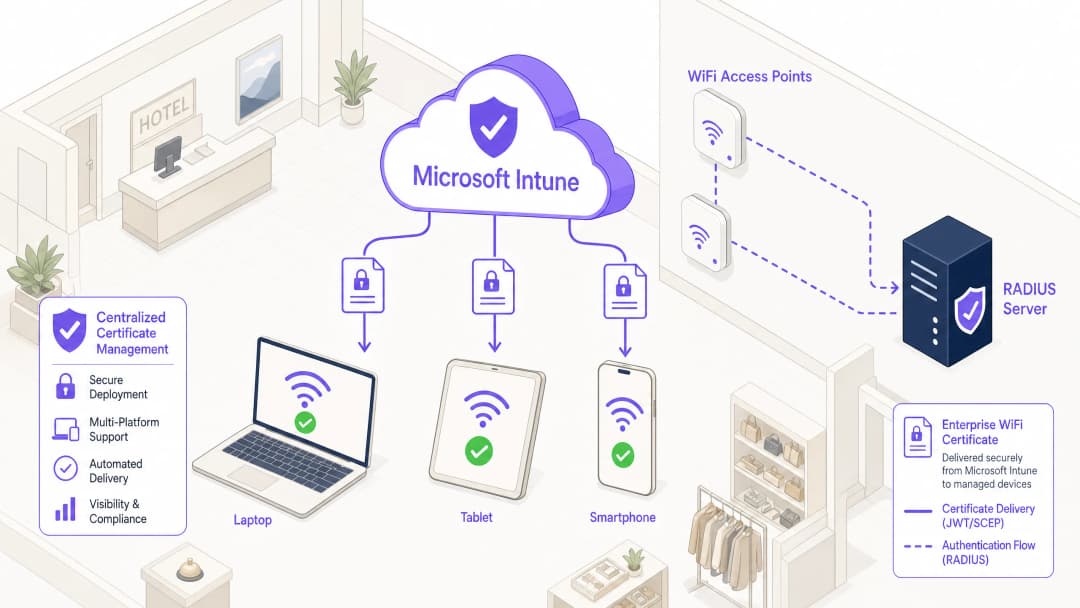
Para os líderes de TI empresariais que gerem ambientes de grande escala em setores como a Hotelaria, o Retalho ou espaços do setor público, o acesso sem fios seguro é um requisito operacional básico. Depender de PSKs partilhados (Pre-Shared Keys) ou de autenticação por utilizador/palavra-passe (PEAP-MSCHAPv2) expõe a rede ao roubo de credenciais, phishing e falhas de conformidade. O padrão da indústria para uma segurança robusta de WiFi empresarial é o 802.1X com EAP-TLS (Extensible Authentication Protocol com Transport Layer Security), que exige uma autenticação mútua baseada em certificados entre o dispositivo e a rede.
No entanto, a principal barreira à adoção do EAP-TLS tem sido historicamente a sobrecarga operacional da gestão do ciclo de vida dos certificados. O Microsoft Intune resolve este problema ao automatizar o fornecimento, a renovação e a revogação de certificados digitais para dispositivos geridos à escala.
Esta referência técnica detalha a arquitetura, as metodologias de implementação (SCEP vs PKCS) e as etapas de implementação necessárias para enviar certificados de WiFi através do Microsoft Intune. Fornece orientações práticas para arquitetos de rede e engenheiros de sistemas encarregues de proteger as comunicações corporativas, mantendo uma separação rigorosa das redes de visitantes, como as geridas por uma plataforma de Guest WiFi.
```}of_use_microsoft_intune_to_push_wifi_certificates_to_devices_podcast.mp3" preload="none">_1"}of_use_microsoft_intune_to_push_wifi_certificates_to_devices_podcast.mp3" preload="none" />
Detalhes Técnicos: Arquitetura e Protocolos
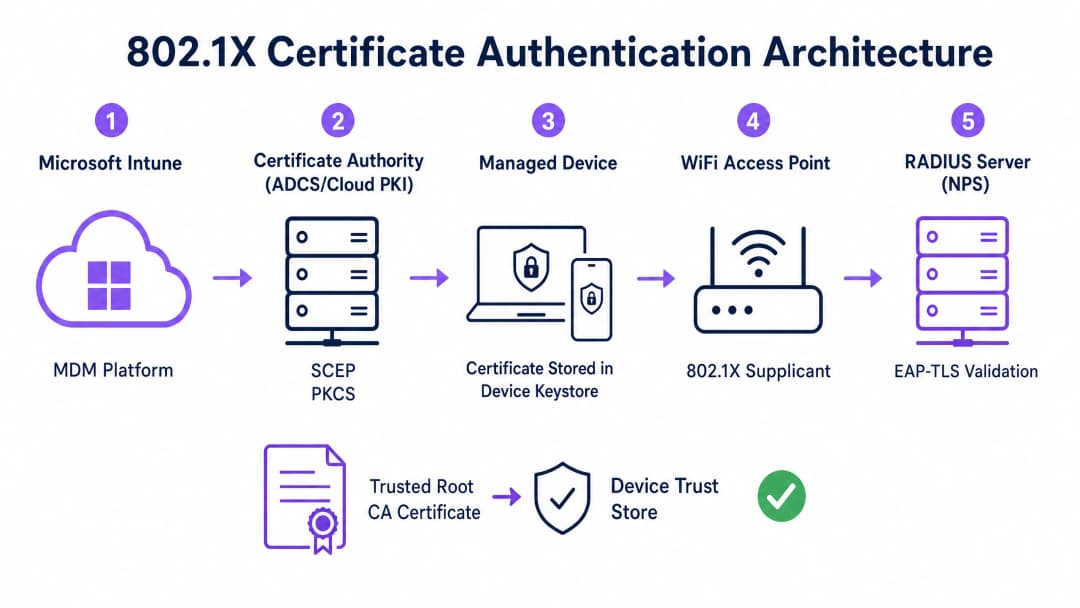
Para implementar a autenticação baseada em certificados de forma eficaz, as equipas de TI devem compreender a interação entre a plataforma de Mobile Device Management (MDM), a infraestrutura de chaves públicas (PKI) e a camada de controlo de acesso à rede.
O Framework de Autenticação 802.1X
O padrão IEEE 802.1X define o controlo de acesso à rede baseado em portas. Num contexto sem fios, impede que um dispositivo transmita qualquer tráfego (além de tramas de autenticação EAP) até que a sua identidade seja verificada. A arquitetura consiste em três componentes:
- Suplicante: O dispositivo cliente (portátil, smartphone, tablet) que solicita acesso à rede.
- Autenticador: O ponto de acesso WiFi ou controlador de LAN sem fios que bloqueia o tráfego até que a autenticação seja bem-sucedida.
- Servidor de Autenticação: O servidor RADIUS (Remote Authentication Dial-In User Service), como o Microsoft Network Policy Server (NPS) ou Cisco ISE, que valida as credenciais e autoriza o acesso.
EAP-TLS e Autenticação Mútua
O EAP-TLS é o método EAP mais seguro porque requer autenticação mútua. O servidor RADIUS apresenta o seu certificado ao suplicante para provar que é a rede corporativa legítima (prevenindo ataques evil-twin), e o suplicante apresenta o seu certificado de cliente ao servidor RADIUS para provar que é um dispositivo ou utilizador autorizado.
Mecanismos de Implementação de Certificados do Intune: SCEP vs PKCS
O Microsoft Intune suporta dois protocolos principais para implementar certificados de cliente em dispositivos. A seleção do mecanismo adequado é uma decisão arquitetural crítica.
Simple Certificate Enrollment Protocol (SCEP)
Com o SCEP, a chave privada é gerada diretamente no dispositivo cliente. O dispositivo cria um Certificate Signing Request (CSR) e envia-o através do Intune para o servidor Network Device Enrollment Service (NDES), que atua como proxy para a infraestrutura de Active Directory Certificate Services (ADCS). A CA emite o certificado, que é devolvido ao dispositivo.
Como a chave privada nunca sai do dispositivo, o SCEP é considerado altamente seguro e é a abordagem recomendada para implementações BYOD (Bring Your Own Device) e arquiteturas zero-trust.
Public Key Cryptography Standards (PKCS)
Com o PKCS, o Intune Certificate Connector solicita o certificado à CA em nome do dispositivo. A CA gera tanto o certificado público como a chave privada, que o conector entrega de forma segura ao dispositivo através do Intune.
Embora o PKCS simplifique os requisitos de infraestrutura (não é necessário um servidor NDES), a chave privada é transmitida pela rede. Este modelo é geralmente aceitável para frotas de dispositivos totalmente geridos e pertencentes à empresa, onde a plataforma MDM já é um componente altamente confiável.

Tem dúvidas sobre a sua configuração específica?
A nossa equipa trabalha com operadores de espaços, gestores de TI e engenheiros de rede em 80.000 espaços. Agende uma chamada de 20 minutos e mostraremos como outros profissionais na sua área o resolveram.
Guia de Implementação: Implementação Passo a Passo
A implementação de certificados WiFi via Intune requer uma sequenciação precisa. A implementação de perfis fora de ordem é a causa mais comum de falhas na implementação.
Passo 1: Preparar a Infraestrutura de Chaves Públicas (PKI)
Quer utilize um ADCS no local ou uma solução nativa da nuvem como a Microsoft Cloud PKI, a Autoridade de Certificação deve ser configurada com os modelos apropriados.
- Uso da Chave: O modelo deve incluir o OID de
Autenticação do Cliente(1.3.6.1.5.5.7.3.2). - Tamanho da Chave: Configure um tamanho mínimo de chave de 2048 bits (RSA) para se alinhar com as normas criptográficas modernas.
- Nome do Requerente: Para certificados de utilizador, o Nome Alternativo do Requerente (SAN) deve ser configurado para utilizar o Nome Principal do Utilizador (UPN). Para certificados de dispositivo, utilize o ID do Dispositivo do Azure AD.
Passo 2: Implementar o Certificado de Raiz Fidedigna
Antes de um dispositivo se poder autenticar, deve confiar na CA que emitiu o certificado do servidor RADIUS.
- Exporte o certificado da CA de Raiz (e quaisquer certificados de CA intermédia) no formato
.cer. - No centro de administração do Intune, navegue para Dispositivos > Perfis de configuração > Criar perfil.
- Selecione a plataforma e escolha o tipo de perfil Certificado fidedigno.
- Carregue o ficheiro
.cere atribua o perfil aos grupos de utilizadores ou dispositivos de destino.
Nota: Este perfil deve ser aplicado com sucesso nos dispositivos antes de prosseguir para os passos seguintes.
Passo 3: Implementar o Perfil de Certificado de Cliente
Crie um perfil de certificado SCEP ou PKCS para fornecer o certificado de identidade ao requerente.
- Navegue para Dispositivos > Perfis de configuração > Criar perfil.
- Selecione a plataforma e escolha Certificado SCEP ou Certificado PKCS.
- Configure o formato do Nome do Requerente e o SAN de acordo com os seus requisitos de identidade (Utilizador vs. Dispositivo).
- Especifique o Fornecedor de Armazenamento de Chaves (KSP) - normalmente o Trusted Platform Module (TPM) para segurança baseada em hardware.
- Atribua o perfil aos mesmos grupos definidos no Passo 2.
Passo 4: Configurar o Perfil de WiFi
O componente final associa os certificados às definições de rede sem fios.
- Navegue para Dispositivos > Perfis de configuração > Criar perfil.
- Selecione a plataforma e escolha o tipo de perfil WiFi.
- Defina o tipo de WiFi para Enterprise e introduza o SSID exato.
- Defina o tipo de EAP para EAP-TLS.
- Em Fidedignidade do Servidor, especifique o nome exato do certificado do servidor RADIUS e selecione o perfil de certificado de Raiz Fidedigna implementado no Passo 2.
- Em Autenticação do Cliente, selecione o perfil de certificado SCEP ou PKCS implementado no Passo 3.
- Atribua o perfil aos grupos de destino.
Melhores Práticas e Recomendações Estratégicas
Certificados de Dispositivo vs. Certificados de Utilizador
Os arquitetos de rede devem decidir se emitem certificados para o dispositivo (autenticação de máquina) ou para o utilizador (autenticação de utilizador).
- Certificados de Dispositivo: Permitem que a máquina se ligue à rede WiFi antes de um utilizador iniciar sessão. Isto é crítico para o aprovisionamento inicial do dispositivo, processamento de Políticas de Grupo e reposições de palavras-passe no ecrã de início de sessão. Recomendado para dispositivos de propriedade corporativa.
- Certificados de Utilizador: Vinculam o acesso à rede à identidade do indivíduo. Isto fornece auditoria granular e controlo de acesso baseado em funções. Recomendado para cenários de BYOD.
Segmentação de Rede e Acesso de Convidados
Um princípio fundamental de segurança é a separação lógica estrita da rede corporativa 802.1X de redes de acesso público ou de visitantes. A infraestrutura gerida pelo Intune deve ser dedicada exclusivamente a dispositivos corporativos e funcionários autenticados.
Para o acesso de visitantes, as organizações devem implementar um SSID de Guest WiFi dedicado e apoiado por um Captive Portal. Isto garante que os dispositivos não geridos fiquem isolados, permitindo ainda que a empresa capture análises de visitantes através de uma plataforma de WiFi Analytics. Para saber mais sobre como proteger a infraestrutura de DNS em ambos os segmentos, consulte o nosso guia sobre como Protect Your Network with Strong DNS and Security.
Resolução do Requisito de Mapeamento de Certificados do NPS
Para as organizações que utilizam o Microsoft Network Policy Server (NPS) com dispositivos associados ao Azure AD, foi introduzida uma alteração de configuração crítica pela Microsoft. O NPS exige agora um mapeamento forte de certificados.
Ao utilizar certificados de dispositivo, o objeto de computador no Active Directory local deve ter o seu atributo altSecurityIdentities preenchido com os detalhes do certificado (normalmente o X509IssuerSerialNumber). As equipas de TI devem implementar um script agendado ou um fluxo de trabalho baseado em eventos para atualizar este atributo quando o Intune emite um novo certificado; caso contrário, a autenticação irá falhar.
Resolução de Problemas e Mitigação de Riscos
Quando uma implementação 802.1X falha, o problema reside quase sempre na cadeia de certificados ou na sequenciação do perfil do Intune.
Modos de Falha Comuns
- Falha Silenciosa do Perfil WiFi: Se o perfil WiFi do Intune for aplicado a um dispositivo antes de o certificado de cliente ter sido provisionado com sucesso, o perfil WiFi muitas vezes falhará ao instalar ou falhará silenciosamente. Verifique sempre a presença do certificado no armazenamento Pessoal do dispositivo (
certmgr.mscno Windows) antes de resolver problemas na configuração do WiFi. - Erros de Validação de Confiança do Servidor: Se o dispositivo rejeitar o servidor RADIUS, verifique se o nome do servidor especificado no perfil WiFi do Intune corresponde exatamente ao Subject Name ou SAN no certificado do servidor RADIUS. Além disso, certifique-se de que toda a cadeia de certificados (Raiz e Intermédia) está presente no armazenamento de Autoridades de Certificação de Raiz Confiáveis do dispositivo.3. Indisponibilidade da Lista de Revogação de Certificados (CRL): Se o servidor RADIUS não conseguir aceder ao ponto de distribuição de CRL da AC para verificar o estado do certificado do cliente, a autenticação será recusada. Certifique-se de que o URL da CRL está altamente disponível e acessível a partir do servidor RADIUS.
ROI e Impacto de Negócio
A transição para a autenticação WiFi baseada em certificados através do Intune proporciona retornos operacionais e de segurança significativos.
- Mitigação de Riscos: Elimina o risco de recolha de credenciais, ataques de pass-the-hash e acesso não autorizado à rede através de PSKs partilhadas.
- Eficiência Operacional: Reduz os pedidos de suporte de TI relacionados com a expiração de palavras-passe e problemas de conectividade WiFi. A gestão automatizada do ciclo de vida significa que os certificados são renovados de forma transparente sem a intervenção do utilizador.
- Conformidade Facilitada: Satisfaz requisitos regulamentares rigorosos. Para ambientes de retalho, responde diretamente aos requisitos do PCI-DSS para encriptação e autenticação sem fios robustas. Para o setor público e saúde, alinha-se com os princípios de acesso à rede zero-trust (ZTNA).
Ao tirar partido do Microsoft Intune para a implementação de certificados, as equipas de TI podem alcançar uma experiência sem fios altamente segura e sem atritos que funciona silenciosamente em segundo plano, permitindo que a empresa se foque nas operações principais.
Definições Principais
802.1X
Um padrão IEEE para controlo de acesso à rede baseado em portas que impede que dispositivos não autorizados acedam a uma LAN ou WLAN até que se autentiquem com sucesso.
O protocolo de segurança fundamental que substitui as palavras-passe de WiFi partilhadas por autenticação de nível empresarial em ambientes corporativos.
EAP-TLS
Extensible Authentication Protocol com Transport Layer Security. Uma estrutura de autenticação que exige que tanto o cliente como o servidor provem as suas identidades utilizando certificados digitais.
O protocolo específico configurado no perfil de WiFi do Intune para impor a autenticação mútua de certificados, eliminando o risco de roubo de credenciais.
SCEP
Simple Certificate Enrollment Protocol. Um mecanismo no qual o dispositivo do cliente gera a sua própria chave privada e solicita um certificado à CA através de um servidor intermediário.
O método de implementação preferido para ambientes BYOD porque a chave privada nunca é transmitida através da rede.
PKCS
Public Key Cryptography Standards. No contexto do Intune, um método de implementação onde a CA gera a chave privada e o Intune Connector a entrega de forma segura ao dispositivo.
Uma arquitetura de implementação mais simples, frequentemente utilizada para frotas de dispositivos pertencentes à empresa, pois elimina a necessidade de um servidor NDES.
NDES
Network Device Enrolment Service. Uma função de servidor Microsoft que atua como um proxy, permitindo que dispositivos sem credenciais de domínio obtenham certificados de uma Active Directory Certificate Authority.
Um componente de infraestrutura obrigatório ao implementar certificados via SCEP num ambiente ADCS local.
RADIUS
Remote Authentication Dial-In User Service. Um protocolo de rede que fornece gestão centralizada de Autenticação, Autorização e Auditoria (AAA).
O servidor (como o Microsoft NPS ou Cisco ISE) que recebe o pedido de autenticação do ponto de acesso WiFi e valida o certificado do dispositivo.
Suplicante
O cliente de software no dispositivo do utilizador final (computador portátil, smartphone) que inicia o processo de autenticação 802.1X.
O perfil de WiFi do Intune configura o suplicante nativo do SO (por exemplo, Windows WLAN AutoConfig) para utilizar os certificados e métodos EAP corretos.
Lista de Revogação de Certificados (CRL)
Uma lista assinada digitalmente e publicada pela Autoridade de Certificação que contém os números de série dos certificados que foram revogados e que já não devem ser confiáveis.
Crucial para a conformidade de segurança; o servidor RADIUS deve verificar a CRL para garantir que um dispositivo de ligação não foi reportado como perdido ou roubado.
Exemplos Práticos
Uma cadeia de retalho com 400 localizações está a implementar tablets de propriedade corporativa para gestão de inventário. Os dispositivos são totalmente geridos via Intune e associados ao Azure AD. Estes necessitam de acesso imediato à rede ao iniciar para sincronizar as bases de dados de inventário, antes de qualquer utilizador iniciar sessão. A infraestrutura de rede utiliza o Cisco ISE como servidor RADIUS. Qual é a estratégia ideal de implementação de certificados?
A equipa de TI deve implementar certificados de dispositivo PKCS.
- Configure um modelo de certificado de dispositivo na CA.
- Implemente o certificado Root CA nos tablets via Intune.
- Crie um perfil de certificado PKCS no Intune, definindo o formato do Nome do Sujeito para o Azure AD Device ID ({{AAD_Device_ID}}).
- Crie um perfil de WiFi Corporativo especificando EAP-TLS, referenciando o nome do certificado do servidor ISE e o perfil PKCS implementado.
- Atribua todos os perfis ao grupo de dispositivos que contém os tablets.
Um grande hospital universitário permite que a equipa médica utilize os seus smartphones pessoais (BYOD) para aceder a aplicações de agendamento clínico. Os dispositivos estão inscritos no Intune através de um Perfil de Trabalho. A política de segurança exige que nenhuma credencial corporativa seja armazenada em dispositivos pessoais e o acesso à rede deve ser revogado imediatamente se um dispositivo for comprometido. Como deve ser desenhada a autenticação WiFi?
O hospital deve implementar certificados de utilizador SCEP combinados com as Políticas de Conformidade do Intune.
- Implemente um servidor NDES para fazer o proxy dos pedidos para a CA.
- Crie um perfil de certificado de utilizador SCEP no Intune, com o SAN configurado para o User Principal Name ({{UserPrincipalName}}).
- Crie uma Política de Conformidade do Intune que exija uma versão mínima do SO, um bloqueio de ecrã ativo e a ausência de jailbreak/root access.
- Configure a CA para publicar uma Lista de Revogação de Certificados (CRL) altamente disponível.
- Configure o servidor RADIUS para impor rigorosamente a verificação da CRL em cada tentativa de autenticação.
Perguntas de Prática
Q1. A sua organização está a migrar de PEAP-MSCHAPv2 (nome de utilizador/palavra-passe) para EAP-TLS no WiFi corporativo. Durante a fase piloto, vários computadores portáteis Windows 11 recebem os perfis de configuração do Intune com sucesso, mas falham a ligação à rede. A análise dos Windows Event Logs mostra o Event ID 20271, indicando que o certificado do servidor RADIUS foi rejeitado. Qual é a causa mais provável?
Dica: Considere a cadeia de confiança necessária para a autenticação mútua.
Ver resposta modelo
Os dispositivos não possuem o certificado Root CA fidedigno que emitiu o certificado do servidor RADIUS. No EAP-TLS, o dispositivo tem de validar a identidade do servidor RADIUS. A equipa de TI deve garantir que o perfil de 'Certificado fidedigno' que contém a Root CA (e quaisquer CAs intermédias) é implementado nos dispositivos através do Intune e instalado com sucesso antes de o perfil de WiFi tentar estabelecer a ligação.
Q2. Um espaço do setor público está a implementar o 802.1X para os dispositivos dos funcionários utilizando o Intune e certificados PKCS. Também operam uma rede de visitantes separada, gerida por uma plataforma de Guest WiFi. Um auditor nota que, se um computador portátil de um funcionário for roubado, o certificado permanece válido por 12 meses. Como deve o arquiteto de rede resolver este risco?
Dica: Como é que o servidor de autenticação sabe que um certificado já não é válido antes de expirar?
Ver resposta modelo
O arquiteto deve implementar um fluxo de trabalho robusto de Revogação de Certificados. Primeiro, garantir que a CA publica uma Lista de Revogação de Certificados (CRL) num ponto de distribuição altamente disponível. Segundo, configurar o servidor RADIUS (por exemplo, NPS) para exigir a verificação da CRL durante cada tentativa de autenticação. Finalmente, estabelecer um procedimento operacional no Intune para revogar explicitamente o certificado de qualquer dispositivo marcado como perdido ou roubado, o que atualiza a CRL e bloqueia o acesso à rede.
Q3. Está a desenhar a implementação do Intune para uma frota de dispositivos quiosque partilhados num ambiente de retalho. Estes dispositivos reiniciam diariamente e devem ligar-se imediatamente à rede corporativa para transferir atualizações antes que qualquer utilizador interaja com eles. Deve implementar certificados de Utilizador ou certificados de Dispositivo, e que formato de Subject Alternative Name (SAN) deve ser utilizado?
Dica: Considere o estado do dispositivo imediatamente após um reinício.
Ver resposta modelo
Deve implementar certificados de dispositivo. Como os quiosques necessitam de acesso à rede antes de um utilizador iniciar sessão, um certificado de utilizador não estaria disponível no momento do arranque. O Subject Alternative Name (SAN) no perfil de certificado do Intune deve ser configurado para utilizar o Azure AD Device ID ({{AAD_Device_ID}}) ou o nome de domínio totalmente qualificado do dispositivo, permitindo ao servidor RADIUS autenticar o ativo de hardware específico.
Continue a ler esta série
Microsoft Cloud PKI para WiFi: implementação de certificados EAP-TLS com Intune e Microsoft Entra ID
Poderá decidir se o Microsoft Cloud PKI, uma raiz Cloud PKI ou a utilização da sua própria CA (BYOCA) se adequa à sua infraestrutura. Pode depois implementar certificados WiFi EAP-TLS em dispositivos geridos pelo Intune sem NDES. O guia também cobre como fazer o RADIUS confiar na cadeia, revogar certificados através da CRL e resolver as oito falhas mais comuns.
Configurar 802.1X no Juniper Mist com RADIUS na nuvem
Poderá configurar uma WLAN WPA2 ou WPA3-Enterprise no Juniper Mist que autentica num RADIUS na nuvem, decidir entre RADIUS UDP, RadSec e um proxy Mist Edge, e mapear atributos RADIUS para VLANs dinâmicas. Também saberá onde o cronograma de client insights do Mist e a Marvis mostram exatamente onde falhou uma autenticação.
Resolução de problemas de 802.1X em iOS e macOS: uma lista de verificação de implementação para Intune, Jamf e Microsoft Entra ID
Utilize esta lista de verificação para diagnosticar por que razão iPhones, iPads e Macs falham o 802.1X no Intune ou Jamf Pro. Cada falha corresponde a uma de quatro causas: fidedignidade do servidor, certificado de identidade, modo macOS ou âmbito do grupo do Microsoft Entra ID. Irá confirmar a causa a partir dos registos do eapolclient e RADIUS, aplicar a correção e preparar futuras rotações de certificados.
Tem dúvidas sobre a sua configuração específica?
A nossa equipa trabalha com operadores de espaços, gestores de TI e engenheiros de rede em 80.000 espaços. Agende uma chamada de 20 minutos e mostraremos como outros profissionais na sua área o resolveram.