
Verwendung von Microsoft Intune zur Bereitstellung von WiFi-Zertifikaten auf Geräten
Eine umfassende technische Referenz für IT-Verantwortliche zur Bereitstellung von 802.1X WiFi-Zertifikaten über Microsoft Intune. Behandelt die SCEP- im Vergleich zur PKCS-Architektur, Implementierungsschritte, Compliance-Mapping und reale Bereitstellungsszenarien für Enterprise-Umgebungen.
Video overview
Diesen Leitfaden anhören
Podcast-Transkript ansehen
Teil unserer Kernserie: Enterprise WiFi Security Guide →
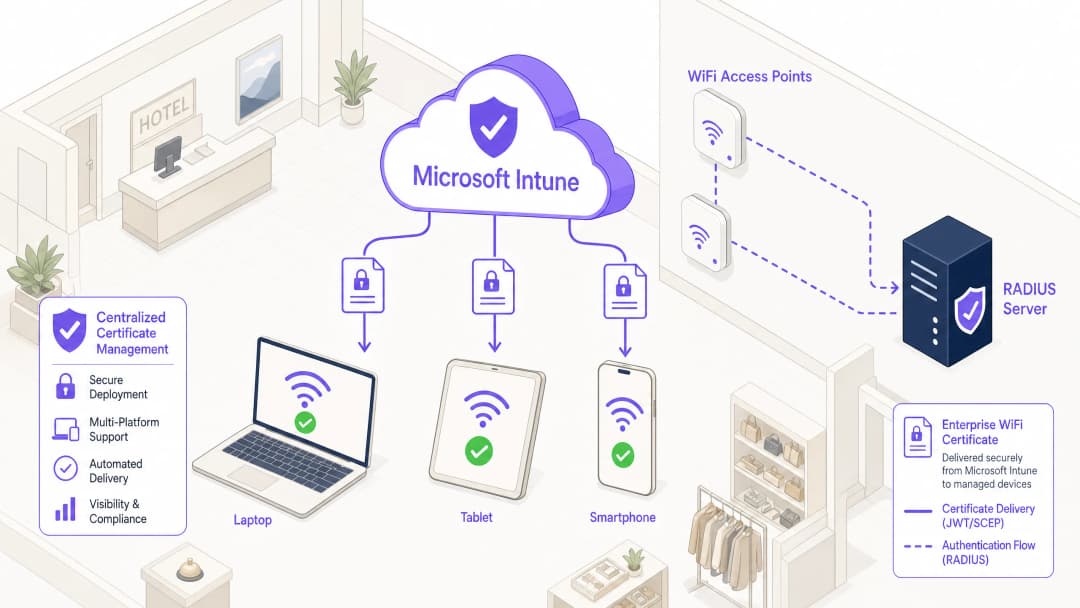
Executive Summary
Für IT-Leiter in Unternehmen, die große Umgebungen im Bereich Gastgewerbe, Einzelhandel oder im öffentlichen Sektor verwalten, ist ein sicherer drahtloser Zugang eine grundlegende betriebliche Anforderung. Die Verwendung von gemeinsam genutzten PSKs (Pre-Shared Keys) oder einer Authentifizierung über Benutzernamen/Passwörter (PEAP-MSCHAPv2) setzt das Netzwerk dem Risiko von Anmeldedatendiebstahl, Phishing und Compliance-Verstößen aus. Der Branchenstandard für robuste WiFi-Sicherheit in Unternehmen ist 802.1X mit EAP-TLS (Extensible Authentication Protocol mit Transport Layer Security), was eine gegenseitige zertifikatsbasierte Authentifizierung zwischen dem Gerät und dem Netzwerk vorschreibt.
Die größte Hürde für die Einführung von EAP-TLS war jedoch in der Vergangenheit der betriebliche Aufwand für die Verwaltung des Zertifikatslebenszyklus. Microsoft Intune löst dieses Problem, indem es die Bereitstellung, Erneuerung und den Widerruf digitaler Zertifikate für verwaltete Geräte in großem Maßstab automatisiert.
Diese technische Referenz beschreibt die Architektur, die Bereitstellungsmethoden (SCEP vs. PKCS) und die Implementierungsschritte, die erforderlich sind, um WiFi-Zertifikate über Microsoft Intune bereitzustellen. Sie bietet praktische Anleitungen für Netzwerkarchitekten und Systemingenieure, die mit der Sicherung der Unternehmenskommunikation betraut sind und gleichzeitig eine strikte Trennung von Besuchernetzwerken aufrechterhalten müssen, wie sie beispielsweise von einer Guest WiFi-Plattform verwaltet werden.
Technischer Deep-Dive: Architektur und Protokolle
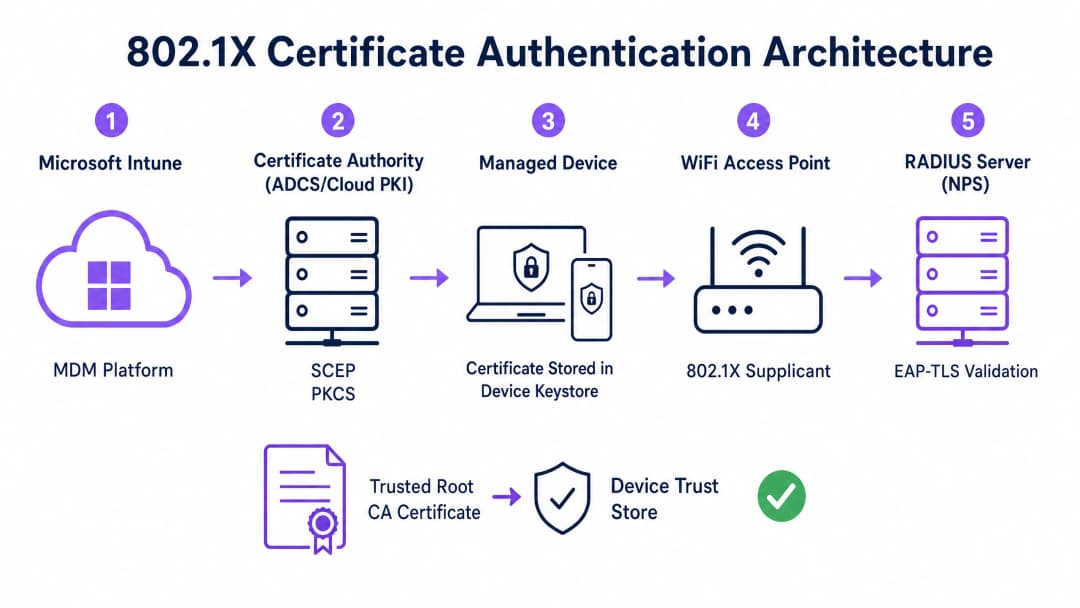
Um eine zertifikatsbasierte Authentifizierung effektiv zu implementieren, müssen IT-Teams das Zusammenspiel zwischen der Mobile Device Management (MDM) Plattform, der Public Key Infrastructure (PKI) und der Netzwerkzugriffskontrollschicht verstehen.
Das 802.1X Authentifizierungs-Framework
Der Standard IEEE 802.1X definiert die portbasierte Netzwerkzugriffskontrolle. In einem Wireless-Kontext verhindert er, dass ein Gerät Datenverkehr (außer EAP-Authentifizierungs-Frames) überträgt, bis seine Identität verifiziert ist. Die Architektur besteht aus drei Komponenten:
- Supplicant: Das Client-Gerät (Laptop, Smartphone, Tablet), das Netzwerkzugriff anfordert.
- Authenticator: Der Wireless Access Point oder Wireless LAN Controller, der den Datenverkehr blockiert, bis die Authentifizierung erfolgreich war.
- Authentication Server: Der RADIUS-Server (Remote Authentication Dial-In User Service), wie z. B. Microsoft Network Policy Server (NPS) oder Cisco ISE, der die Anmeldedaten validiert und den Zugriff autorisiert.
EAP-TLS und gegenseitige Authentifizierung
EAP-TLS ist die sicherste EAP-Methode, da sie eine gegenseitige Authentifizierung erfordert. Der RADIUS-Server präsentiert sein Zertifikat dem Supplicant, um zu beweisen, dass er das legitime Unternehmensnetzwerk ist (was Evil-Twin-Angriffe verhindert), und der Supplicant präsentiert sein Client-Zertifikat dem RADIUS-Server, um zu beweisen, dass es sich um ein autorisiertes Gerät oder einen autorisierten Benutzer handelt.
Intune-Zertifikatsbereitstellungsmechanismen: SCEP vs. PKCS
Microsoft Intune unterstützt zwei primäre Protokolle für die Bereitstellung von Client-Zertifikaten auf Geräten. Die Auswahl des geeigneten Mechanismus ist eine kritische architektonische Entscheidung.
Simple Certificate Enrollment Protocol (SCEP)
Bei SCEP wird der private Schlüssel direkt auf dem Client-Gerät generiert. Das Gerät erstellt einen Certificate Signing Request (CSR) und übermittelt diesen über Intune an den Network Device Enrollment Service (NDES) Server, der als Proxy für die Active Directory Certificate Services (ADCS) Infrastruktur fungiert. Die CA stellt das Zertifikat aus, das an das Gerät zurückgegeben wird.
Da der private Schlüssel das Gerät nie verlässt, gilt SCEP als äußerst sicher und ist der empfohlene Ansatz für BYOD-Bereitstellungen (Bring Your Own Device) und Zero-Trust-Architekturen.
Public Key Cryptography Standards (PKCS)
Bei PKCS fordert der Intune Certificate Connector das Zertifikat im Namen des Geräts von der CA an. Die CA generiert sowohl das öffentliche Zertifikat als auch den privaten Schlüssel, die der Connector dann sicher über Intune an das Gerät liefert.
Während PKCS die Infrastrukturanforderungen vereinfacht (es ist kein NDES-Server erforderlich), wird der private Schlüssel über das Netzwerk übertragen. Dieses Modell ist im Allgemeinen für firmeneigene, vollständig verwaltete Geräteflotten akzeptabel, bei denen die MDM-Plattform bereits eine hochgradig vertrauenswürdige Komponente ist.

Haben Sie Fragen zu Ihrem spezifischen Setup?
Unser Team arbeitet mit Standortbetreibern, IT-Managern und Netzwerktechnikern an über 80.000 Standorten zusammen. Buchen Sie ein 20-minütiges Gespräch und wir zeigen Ihnen, wie andere diese Herausforderungen gelöst haben.
Implementierungshandbuch: Schritt-für-Schritt-Bereitstellung
Die Bereitstellung von WiFi-Zertifikaten über Intune erfordert eine präzise Reihenfolge. Die Bereitstellung von Profilen in der falschen Reihenfolge ist die häufigste Ursache für Fehler bei der Implementierung.
Schritt 1: Vorbereitung der Public Key Infrastructure (PKI)
Unabhängig davon, ob Sie eine lokale ADCS oder eine Cloud-native Lösung wie Microsoft Cloud PKI verwenden, muss die Zertifizierungsstelle mit den entsprechenden Vorlagen konfiguriert werden.
- Key Usage: Die Vorlage muss die OID für
Client-Authentifizierung(1.3.6.1.5.5.7.3.2) enthalten. - Schlüssellänge: Konfigurieren Sie eine Mindestschlüssellänge von 2048 Bit (RSA), um modernen kryptografischen Standards zu entsprechen.
- Subject Name: Für Benutzerzertifikate sollte der Subject Alternative Name (SAN) so konfiguriert werden, dass er den User Principal Name (UPN) verwendet. Verwenden Sie für Gerätezertifikate die Azure AD Device ID.
Schritt 2: Bereitstellung des vertrauenswürdigen Stammzertifikats (Trusted Root Certificate)
Bevor sich ein Gerät authentifizieren kann, muss es der Zertifizierungsstelle vertrauen, die das Zertifikat des RADIUS-Servers ausgestellt hat.
- Exportieren Sie das Root-CA-Zertifikat (und alle Intermediate-CA-Zertifikate) im Format
.cer. - Navigieren Sie im Intune Admin Center zu Geräte > Konfigurationsprofile > Profil erstellen.
- Wählen Sie die Plattform und den Profiltyp Vertrauenswürdiges Zertifikat.
- Laden Sie die
.cer-Datei hoch und weisen Sie das Profil den Zielgeräte- oder Benutzergruppen zu.
Hinweis: Dieses Profil muss erfolgreich auf den Geräten angewendet werden, bevor Sie mit den nächsten Schritten fortfahren.
Schritt 3: Bereitstellung des Client-Zertifikatprofils
Erstellen Sie entweder ein SCEP- oder ein PKCS-Zertifikatprofil, um das Identitätszertifikat an den Supplicant zu übertragen.
- Navigieren Sie zu Geräte > Konfigurationsprofile > Profil erstellen.
- Wählen Sie die Plattform und wählen Sie entweder SCEP-Zertifikat oder PKCS-Zertifikat.
- Konfigurieren Sie das Format für den Subject Name und den SAN entsprechend Ihren Identitätsanforderungen (Benutzer vs. Gerät).
- Geben Sie den Key Storage Provider (KSP) an - in der Regel das Trusted Platform Module (TPM) für hardwaregestützte Sicherheit.
- Weisen Sie das Profil denselben Gruppen zu, die in Schritt 2 ausgewählt wurden.
Schritt 4: Konfiguration des WiFi-Profils
Die letzte Komponente verknüpft die Zertifikate mit den Einstellungen des drahtlosen Netzwerks.
- Navigieren Sie zu Geräte > Konfigurationsprofile > Profil erstellen.
- Wählen Sie die Plattform und den Profiltyp WiFi.
- Stellen Sie den WiFi-Typ auf Enterprise ein und geben Sie die genaue SSID ein.
- Stellen Sie den EAP-Typ auf EAP-TLS ein.
- Geben Sie unter Serververtrauenswürdigkeit den genauen Namen des RADIUS-Serverzertifikats an und wählen Sie das in Schritt 2 bereitgestellte vertrauenswürdige Stammzertifikatprofil aus.
- Wählen Sie unter Client-Authentifizierung das in Schritt 3 bereitgestellte SCEP- oder PKCS-Zertifikatprofil aus.
- Weisen Sie das Profil den Zielgruppen zu.
Best Practices & strategische Empfehlungen
Geräte- vs. Benutzerzertifikate
Netzwerkarchitekten müssen entscheiden, ob Zertifikate für das Gerät (Geräte-Authentifizierung) oder den Benutzer (Benutzer-Authentifizierung) ausgestellt werden sollen.
- Gerätezertifikate: Ermöglichen dem Gerät, sich mit dem WiFi Netzwerk zu verbinden, bevor sich ein Benutzer anmeldet. Dies ist entscheidend für die Ersteinrichtung von Geräten, die Verarbeitung von Gruppenrichtlinien und Passwort-Resets am Anmeldebildschirm. Empfohlen für firmeneigene Geräte.
- Benutzerzertifikate: Verknüpfen den Netzwerkzugriff mit der Identität der jeweiligen Person. Dies ermöglicht eine detaillierte Überwachung und rollenbasierte Zugriffskontrolle. Empfohlen für BYOD-Szenarien.
Netzwerksegmentierung und Gastzugang
Ein grundlegendes Sicherheitsprinzip ist die strikte logische Trennung des unternehmensweiten 802.1X Netzwerks von Gast- oder öffentlichen Zugangsnetzwerken. Die über Intune verwaltete Infrastruktur sollte ausschließlich für Unternehmensgeräte und authentifizierte Mitarbeiter reserviert sein.
Für den Gastzugang sollten Unternehmen eine dedizierte Guest WiFi SSID bereitstellen, die durch ein Captive Portal geschützt ist. Dies stellt sicher, dass nicht verwaltete Geräte isoliert bleiben, während das Unternehmen dennoch in der Lage ist, Besucheranalysen über eine WiFi Analytics Plattform zu erfassen. Um mehr über die Absicherung der DNS-Infrastruktur in beiden Segmenten zu erfahren, lesen Sie unseren Leitfaden zum Thema Protect Your Network with Strong DNS and Security.
Erfüllung der NPS-Zertifikatszuordnungsanforderung
Für Organisationen, die den Microsoft Network Policy Server (NPS) mit Azure AD-zugeordneten Geräten nutzen, wurde von Microsoft eine wichtige Konfigurationsänderung eingeführt. NPS erfordert nun eine starke Zertifikatszuordnung (Certificate Mapping).
Bei der Verwendung von Gerätezertifikaten muss das Computerobjekt im lokalen Active Directory in seinem Attribut altSecurityIdentities mit den Details des Zertifikats (in der Regel die X509IssuerSerialNumber) hinterlegt sein. IT-Teams müssen ein geplantes Skript oder einen ereignisgesteuerten Workflow implementieren, um dieses Attribut zu aktualisieren, wenn Intune ein neues Zertifikat ausstellt, da die Authentifizierung andernfalls fehlschlägt.
Fehlerbehebung & Risikominderung
Wenn eine 802.1X Bereitstellung fehlschlägt, liegt das Problem fast immer in der Zertifikatskette oder der Reihenfolge des Intune Profils.
Häufige Fehlerursachen
- Stummer Fehler beim WiFi Profil: Wenn das Intune WiFi Profil auf ein Gerät angewendet wird, bevor das Client-Zertifikat erfolgreich bereitgestellt wurde, schlägt die Installation des WiFi Profils oft fehl oder wird geräuschlos abgebrochen. Überprüfen Sie immer das Vorhandensein des Zertifikats im persönlichen Zertifikatsspeicher des Geräts (
certmgr.mscunter Windows), bevor Sie die WiFi Konfiguration untersuchen. - Fehler bei der Server-Vertrauensstellung: Wenn das Gerät den RADIUS Server ablehnt, stellen Sie sicher, dass der im Intune WiFi Profil angegebene Servername exakt mit dem Subject Name oder SAN auf dem Zertifikat des RADIUS Servers übereinstimmt. Stellen Sie außerdem sicher, dass die gesamte Zertifikatskette (Root und Intermediate) im Speicher für vertrauenswürdige Stammzertifizierungsstellen des Geräts vorhanden ist.3. Unverfügbarkeit der Certificate Revocation List (CRL): Wenn der RADIUS-Server den CRL-Verteilungspunkt der CA nicht erreichen kann, um den Status des Client-Zertifikats zu überprüfen, wird die Authentifizierung verweigert. Stellen Sie sicher, dass die CRL-URL hochverfügbar und vom RADIUS-Server aus erreichbar ist.
ROI & geschäftliche Auswirkungen
Der Übergang zur zertifikatsbasierten WiFi-Authentifizierung über Intune bietet erhebliche betriebliche und sicherheitsrelevante Vorteile.
- Risikominderung: Eliminiert das Risiko von Credential Harvesting, Pass-the-Hash-Angriffen und unbefugtem Netzwerkzugriff über gemeinsam genutzte PSKs.
- Betriebliche Effizienz: Reduziert IT-Helpdesk-Tickets im Zusammenhang mit abgelaufenen Passwörtern und WiFi-Verbindungsproblemen. Die automatisierte Lifecycle-Verwaltung sorgt dafür, dass Zertifikate ohne Benutzereingriff nahtlos erneuert werden.
- Compliance-Unterstützung: Erfüllt strenge regulatorische Anforderungen. Für den Einzelhandel erfüllt dies direkt die PCI-DSS-Anforderungen an eine robuste drahtlose Verschlüsselung und Authentifizierung. Für den öffentlichen Sektor und das Gesundheitswesen entspricht es den Zero-Trust-Netzwerkzugriffsprinzipien (ZTNA).
Durch die Nutzung von Microsoft Intune für die Zertifikatsbereitstellung können IT-Teams ein reibungsloses, hochsicheres drahtloses Erlebnis erzielen, das geräuschlos im Hintergrund läuft, sodass sich das Unternehmen auf das Kerngeschäft konzentrieren kann.
Schlüsseldefinitionen
802.1X
Ein IEEE-Standard für die portbasierte Netzwerkzugriffskontrolle, der verhindert, dass unbefugte Geräte auf ein LAN oder WLAN zugreifen, bis sie sich erfolgreich authentifiziert haben.
Das grundlegende Sicherheitsprotokoll, das gemeinsam genutzte WiFi-Passwörter durch Authentifizierung auf Enterprise-Niveau in Unternehmensumgebungen ersetzt.
EAP-TLS
Extensible Authentication Protocol mit Transport Layer Security. Ein Authentifizierungs-Framework, bei dem sowohl der Client als auch der Server ihre Identität mithilfe digitaler Zertifikate nachweisen müssen.
Das spezifische Protokoll, das im Intune WiFi-Profil konfiguriert ist, um eine gegenseitige Zertifikatsauthentifizierung zu erzwingen und das Risiko von Anmeldedatendiebstahl auszuschließen.
SCEP
Simple Certificate Enrollment Protocol. Ein Mechanismus, bei dem das Client-Gerät seinen eigenen privaten Schlüssel generiert und ein Zertifikat von der CA über einen Zwischenserver anfordert.
Die bevorzugte Bereitstellungsmethode für BYOD-Umgebungen, da der private Schlüssel niemals über das Netzwerk übertragen wird.
PKCS
Public Key Cryptography Standards. Im Kontext von Intune eine Bereitstellungsmethode, bei der die Zertifizierungsstelle (CA) den privaten Schlüssel generiert und der Intune-Connector diesen sicher an das Gerät überträgt.
Eine einfachere Bereitstellungsarchitektur, die häufig für unternehmenseigene Geräteflotten verwendet wird, da kein NDES-Server erforderlich ist.
NDES
Network Device Enrolment Service. Eine Microsoft-Serverrolle, die als Proxy fungiert und es Geräten ohne Domänen-Anmeldeinformationen ermöglicht, Zertifikate von einer Active Directory-Zertifizierungsstelle zu erhalten.
Eine obligatorische Infrastrukturkomponente bei der Bereitstellung von Zertifikaten über SCEP in einer On-Premises ADCS-Umgebung.
RADIUS
Remote Authentication Dial-In User Service. Ein Netzwerkprotokoll für das zentrale Management von Authentifizierung, Autorisierung und Accounting (AAA).
Der Server (wie Microsoft NPS oder Cisco ISE), der die Authentifizierungsanfrage vom WiFi Access Point empfängt und das Zertifikat des Geräts validiert.
Supplicant
Der Software-Client auf dem Endgerät (Laptop, Smartphone), der den 802.1X Authentifizierungsprozess initiiert.
Das Intune WiFi Profil konfiguriert den nativen OS Supplicant (z. B. Windows WLAN AutoConfig), um die korrekten Zertifikate und EAP-Methoden zu verwenden.
Certificate Revocation List (CRL)
Eine von der Zertifizierungsstelle digital signierte und veröffentlichte Liste, die die Seriennummern von Zertifikaten enthält, die widerrufen wurden und denen nicht mehr vertraut werden sollte.
Entscheidend für die Einhaltung von Sicherheitsrichtlinien; der RADIUS-Server muss die CRL prüfen, um sicherzustellen, dass ein verbindendes Gerät nicht als verloren oder gestohlen gemeldet wurde.
Ausgearbeitete Beispiele
Eine Einzelhandelskette mit 400 Standorten führt unternehmenseigene Tablets für die Bestandsverwaltung ein. Die Geräte werden vollständig über Intune verwaltet und sind in Azure AD eingebunden. Sie benötigen sofort beim Hochfahren Netzwerkzugriff, um Bestandsdatenbanken zu synchronisieren, noch bevor sich ein bestimmter Benutzer anmeldet. Die Netzwerkinfrastruktur nutzt Cisco ISE als RADIUS-Server. Was ist die optimale Strategie zur Zertifikatsbereitstellung?
Das IT-Team sollte PKCS-Gerätezertifikate implementieren.
- Konfigurieren Sie eine Gerätezertifikatsvorlage auf der CA.
- Stellen Sie das Root-CA-Zertifikat über Intune auf den Tablets bereit.
- Erstellen Sie ein PKCS-Zertifikatsprofil in Intune und legen Sie das Format des Subject Name auf die Azure AD-Geräte-ID ({{AAD_Device_ID}}) fest.
- Erstellen Sie ein Enterprise-WiFi-Profil mit EAP-TLS unter Angabe des Zertifikatsnamens des ISE-Servers und des bereitgestellten PKCS-Profils.
- Weisen Sie alle Profile der Gerätegruppe zu, die die Tablets enthält.
Ein großes Lehrkrankenhaus erlaubt dem medizinischen Personal die Nutzung privater Smartphones (BYOD) für den Zugriff auf klinische Terminplanungsanwendungen. Die Geräte sind über ein Arbeitsprofil in Intune registriert. Die Sicherheitsrichtlinie schreibt vor, dass keine Unternehmensdaten auf privaten Geräten gespeichert werden dürfen und der Netzwerkzugriff sofort gesperrt werden muss, wenn ein Gerät kompromittiert ist. Wie sollte die WiFi-Authentifizierung gestaltet werden?
Das Krankenhaus muss SCEP-Benutzerzertifikate in Kombination mit Intune-Compliance-Richtlinien implementieren.
- Stellen Sie einen NDES-Server bereit, um Anfragen an die CA weiterzuleiten.
- Erstellen Sie ein SCEP-Benutzerzertifikatsprofil in Intune, wobei der SAN auf den User Principal Name ({{UserPrincipalName}}) konfiguriert ist.
- Erstellen Sie eine Intune-Compliance-Richtlinie, die eine Mindestversion des Betriebssystems, eine aktive Bildschirmsperre und keinen Jailbreak/Root-Zugriff erfordert.
- Konfigurieren Sie die CA so, dass sie eine hochverfügbare Zertifikatssperrliste (CRL) veröffentlicht.
- Konfigurieren Sie den RADIUS-Server so, dass bei jedem Authentifizierungsversuch eine strikte CRL-Prüfung erzwungen wird.
Übungsfragen
Q1. Ihre Organisation migriert von PEAP-MSCHAPv2 (Benutzername/Passwort) zu EAP-TLS für das Unternehmens-WiFi. Während der Pilotphase erhalten mehrere Windows 11 Laptops die Intune-Konfigurationsprofile erfolgreich, können sich jedoch nicht mit dem Netzwerk verbinden. Die Überprüfung der Windows-Ereignisanzeige zeigt die Ereignis-ID 20271, was darauf hinweist, dass das Zertifikat des RADIUS-Servers abgelehnt wurde. Was ist die wahrscheinlichste Ursache?
Hinweis: Berücksichtigen Sie die Vertrauenskette, die für eine gegenseitige Authentifizierung erforderlich ist.
Musterlösung anzeigen
Den Geräten fehlt das Trusted Root CA-Zertifikat, das das Zertifikat des RADIUS-Servers ausgestellt hat. Bei EAP-TLS muss das Gerät die Identität des RADIUS-Servers validieren. Das IT-Team muss sicherstellen, dass das Profil für vertrauenswürdige Zertifikate (Trusted certificate), das die Root CA (und alle Intermediate CAs) enthält, über Intune auf den Geräten bereitgestellt und erfolgreich installiert wird, bevor das WiFi Profil versucht, eine Verbindung herzustellen.
Q2. Eine Einrichtung des öffentlichen Sektors stellt 802.1X für Mitarbeitergeräte unter Verwendung von Intune und PKCS-Zertifikaten bereit. Sie betreiben außerdem ein separates Besuchernetzwerk, das über eine Guest WiFi Plattform verwaltet wird. Ein Auditor stellt fest, dass bei Diebstahl eines Laptops eines Mitarbeiters das Zertifikat für 12 Monate gültig bleibt. Wie sollte der Netzwerkarchitekt dieses Risiko adressieren?
Hinweis: Wie erfährt der Authentifizierungsserver, dass ein Zertifikat vor seinem Ablaufdatum nicht mehr gültig ist?
Musterlösung anzeigen
Der Architekt muss einen robusten Workflow für den Zertifikatswiderruf (Certificate Revocation) implementieren. Erstens muss sichergestellt werden, dass die CA eine Zertifikatssperrliste (CRL) an einem hochverfügbaren Verteilungspunkt veröffentlicht. Zweitens muss der RADIUS-Server (z. B. NPS) so konfiguriert werden, dass er bei jedem Authentifizierungsversuch eine CRL-Prüfung vorschreibt. Schließlich muss ein Betriebsprozess in Intune etabliert werden, um das Zertifikat jedes als verloren oder gestohlen gemeldeten Geräts explizit zu widerrufen, was die CRL aktualisiert und den Netzwerkzugriff blockiert.
Q3. Sie entwerfen die Intune-Bereitstellung für eine Flotte gemeinsam genutzter Kioskgeräte in einer Einzelhandelsumgebung. Diese Geräte starten täglich neu und müssen sich sofort mit dem Unternehmensnetzwerk verbinden, um Updates herunterzuladen, bevor ein Benutzer mit ihnen interagiert. Sollten Sie Benutzerzertifikate oder Gerätezertifikate bereitstellen und welches Format für den Subject Alternative Name (SAN) sollte verwendet werden?
Hinweis: Berücksichtigen Sie den Zustand des Geräts unmittelbar nach einem Neustart.
Musterlösung anzeigen
Sie müssen Gerätezertifikate bereitstellen. Da die Kioske eine Netzwerkverbindung benötigen, bevor sich ein Benutzer anmeldet, wäre ein Benutzerzertifikat beim Systemstart nicht verfügbar. Der Subject Alternative Name (SAN) im Intune-Zertifikatsprofil sollte so konfiguriert werden, dass er die Azure AD Device ID ({{AAD_Device_ID}}) oder den vollqualifizierten Domänennamen des Geräts verwendet, damit der RADIUS-Server das spezifische Hardware-Asset authentifizieren kann.
Weiterlesen in dieser Reihe
Microsoft Cloud PKI für WiFi: EAP-TLS Zertifikats-Deployment mit Intune und Microsoft Entra ID
Sie werden entscheiden können, ob Microsoft Cloud PKI, eine Cloud PKI Root-CA oder Bring Your Own CA (BYOCA) am besten zu Ihrer Umgebung passt. Anschließend können Sie EAP-TLS WiFi-Zertifikate ohne NDES auf von Intune verwaltete Geräte ausrollen. Die Anleitung deckt auch die Einrichtung des Vertrauensverhältnisses in der Zertifikatskette für RADIUS, den Widerruf von Zertifikaten über die CRL und die Behebung der acht häufigsten Fehler ab.
Konfiguration von 802.1X auf Juniper Mist mit Cloud-RADIUS
Sie werden in der Lage sein, ein WPA2- oder WPA3-Enterprise-WLAN auf Juniper Mist zu konfigurieren, das gegenüber Cloud-RADIUS authentifiziert, sich zwischen UDP-RADIUS, RadSec und einem Mist Edge Proxy zu entscheiden und RADIUS-Attribute dynamischen VLANs zuzuweisen. Sie werden außerdem wissen, wo die Client-Insights-Timeline von Mist und Marvis genau anzeigen, an welcher Stelle eine fehlgeschlagene Authentifizierung abgebrochen ist.
iOS und macOS 802.1X Fehlerbehebung: Eine Bereitstellungs-Checkliste für Intune, Jamf und Microsoft Entra ID
Nutzen Sie diese Checkliste, um zu diagnostizieren, warum iPhones, iPads und Macs die 802.1X Authentifizierung bei Intune oder Jamf Pro verweigern. Jeder Fehler lässt sich auf eine von vier Ursachen zurückführen: Server-Vertrauensstellung, Identitätszertifikat, macOS Modus oder Microsoft Entra ID Gruppenzuweisung. Sie bestätigen die Ursache anhand von eapolclient- und RADIUS-Protokollen, wenden den Fix an und planen zukünftige Zertifikatsrotationen.
Haben Sie Fragen zu Ihrem spezifischen Setup?
Unser Team arbeitet mit Standortbetreibern, IT-Managern und Netzwerktechnikern an über 80.000 Standorten zusammen. Buchen Sie ein 20-minütiges Gespräch und wir zeigen Ihnen, wie andere diese Herausforderungen gelöst haben.