
Captive Portal for Aruba
An authoritative technical reference guide for configuring Aruba Instant (IAP) and Aruba Central managed access points to redirect guest users to Purple's high-converting, secure external captive portal. This guide covers step-by-step guest SSID setup, external captive portal redirection, RADIUS server authentication and accounting parameters, walled garden exception lists, and WISPr support.
Listen to this guide
View podcast transcript
📚 Part of our core series: Multi-Tenant WiFi →
Executive Summary
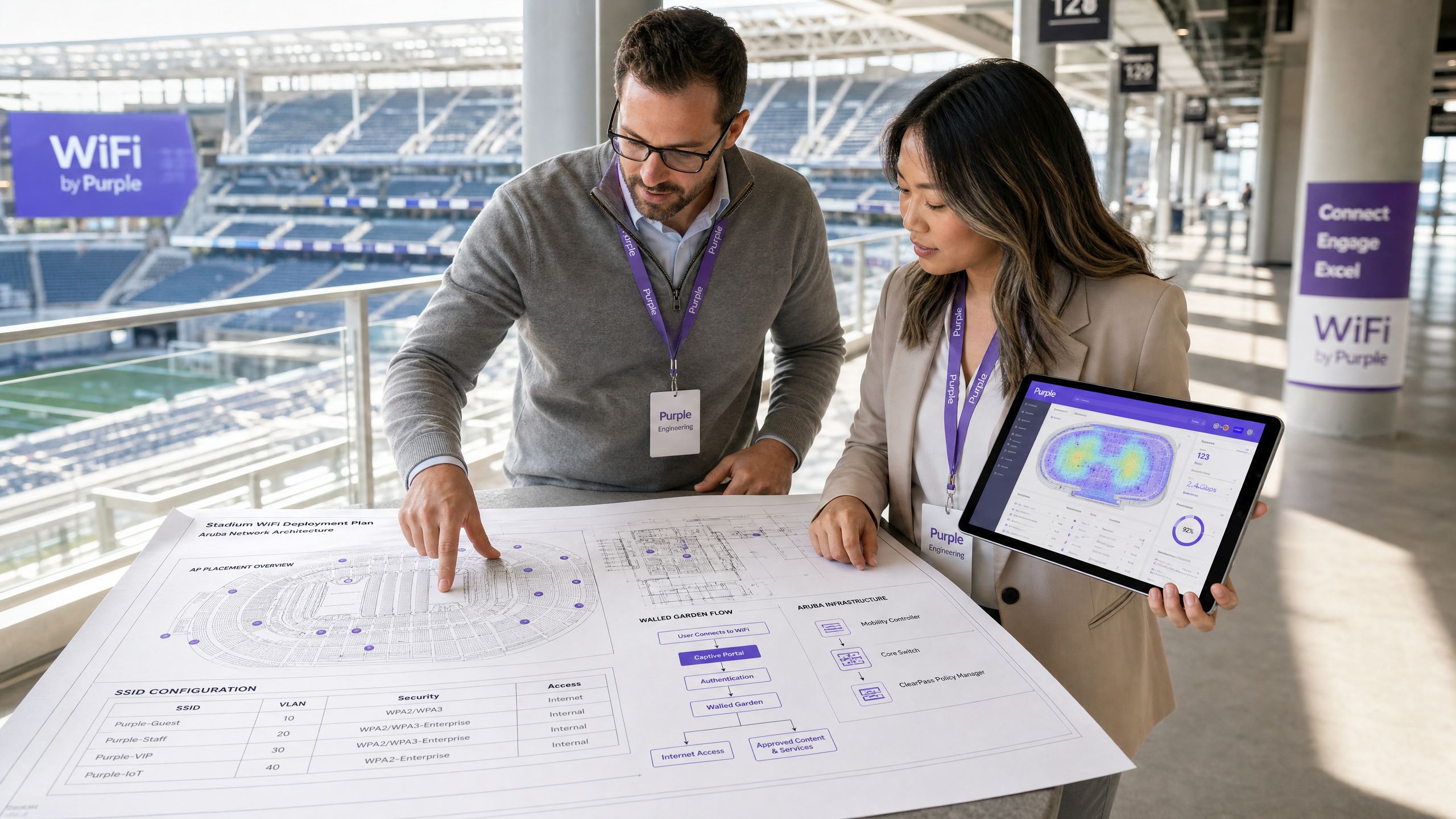
For enterprise wireless engineers, network architects, and venue operations directors, deploying a robust guest wireless infrastructure is no longer just about providing basic internet access. Modern venues require a solution that balances strict network security, regulatory compliance, and a high-converting guest experience. While HPE Aruba's native captive portal capabilities are highly reliable, they lack the sophisticated marketing data capture, global multi-site scalability, and real-time location and demographic analytics required by enterprise venues in hospitality, retail, and public sectors.
By integrating Purple directly with Aruba Instant (IAP) or Aruba Central managed access points, organizations can replace basic local splash pages with a secure, highly-scalable, global guest portal. This integration leverages standard network protocols, including Remote Authentication Dial-In User Service (RADIUS) and Wireless Internet Service Provider roaming (WISPr), to deliver seamless, secure, and brand-consistent onboarding. This technical reference guide provides the exact configuration parameters, architectural diagrams, and troubleshooting workflows required to successfully deploy Purple on Aruba infrastructure.
Technical Deep-Dive
The integration of Purple with Aruba wireless infrastructure relies on a standard external captive portal redirect and RADIUS authentication flow. This architecture ensures that user authentication and traffic accounting are handled securely in the cloud, while local access points enforce access control and quality of service (QoS) policies.
The Captive Portal Redirect Flow
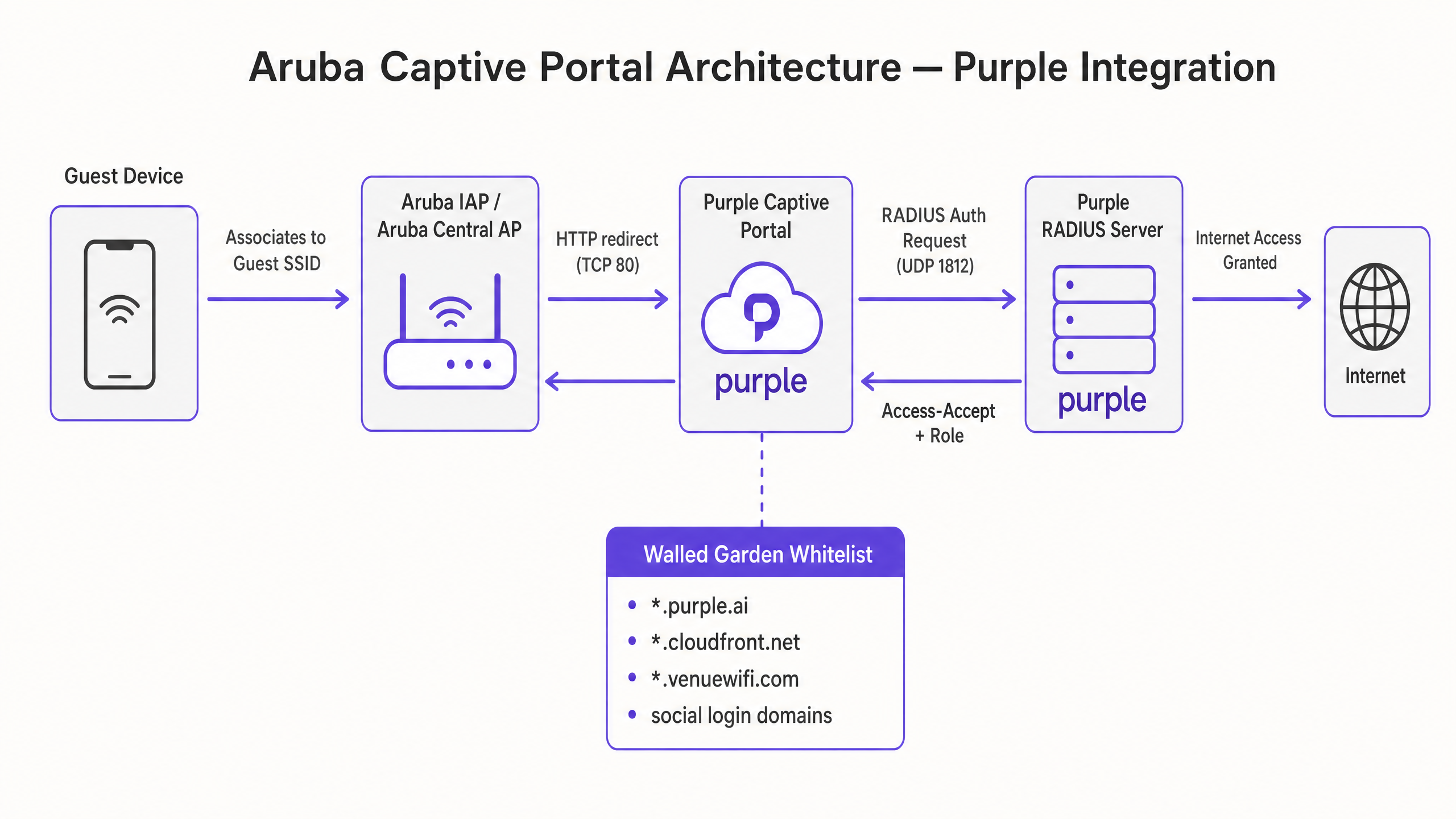
When an unauthenticated client associates with the guest Service Set Identifier (SSID), the Aruba access point intercepts the client's initial HTTP request (typically TCP port 80) and performs a HTTP 302 redirect to Purple's cloud-hosted splash page.
+--------------+             +-----------------+             +------------------+             +------------------+
| Guest Device |             |  Aruba AP / AP  |             |  Purple Captive  |             |  Purple RADIUS   |
|   (Client)   |             |  (Central/IAP)  |             |  Portal (Cloud)  |             |  Server (Cloud)  |
+--------------+             +-----------------+             +------------------+             +------------------+
       |                              |                               |                                |
       |-- 1. Associates to SSID ---->|                               |                                |
       |                              |                               |                                |
       |-- 2. HTTP Request (TCP 80) ->|                               |                                |
       |                              |-- 3. HTTP 302 Redirect ------>|                                |
       |<-- 4. Presents Splash Page ----------------------------------|                                |
       |                              |                               |                                |
       |-- 5. Submits Login Form ------------------------------------>|                                |
       |                              |                               |-- 6. RADIUS Access-Request --->|
       |                              |<-- 7. RADIUS Access-Accept ------------------------------------|
       |                              |      (with Session Timeout)   |                                |
       |<-- 8. Internet Granted ------|                               |                                |
       |                              |                               |                                |
       |                              |-- 9. RADIUS Accounting Start --------------------------------->|
       |                              |-- 10. RADIUS Accounting Interim (every 5 min) ---------------->|
RADIUS Authentication and Accounting Parameters
Once the guest submits their credentials or completes a social login on the Purple splash page, the Purple portal backend communicates with the local Aruba access point or controller to initiate RADIUS authentication. The Aruba AP acts as the Network Access Server (NAS) and sends a RADIUS Access-Request to Purple's cloud RADIUS servers on UDP port 1812.
To ensure accurate session tracking, policy enforcement, and reporting, the following RADIUS attributes must be exchanged:
| Attribute Name | Attribute ID | Description | Practical Context |
|---|---|---|---|
| NAS-IP-Address | 4 | The management IP address of the Aruba virtual controller or AP. | Identifies the physical hardware originating the authentication request. |
| Calling-Station-Id | 31 | The MAC address of the client device (typically formatted as XX-XX-XX-XX-XX-XX). |
Used by Purple to track unique devices and enforce MAC caching for returning guests. |
| Called-Station-Id | 30 | The MAC address of the AP radio (BSSID) combined with the SSID name (formatted as MAC:SSID). |
Crucial for Purple to identify the exact physical venue and specific SSID the user is connecting to. |
| Acct-Session-Id | 44 | A unique identifier generated by the AP for each client session. | Links authentication events with subsequent accounting start, interim, and stop records. |
| Acct-Status-Type | 40 | Indicates the type of accounting record: Start (1), Stop (2), or Interim-Update (3). |
Enables real-time tracking of active sessions and accurate dwell-time calculations. |
| Acct-Interim-Interval | 85 | Specifies the frequency (in seconds) of interim accounting updates sent by the AP. | Must be set to 300 seconds (5 minutes) to ensure Purple's analytics dashboard displays accurate real-time data. |
The Walled Garden (Exception List) Architecture
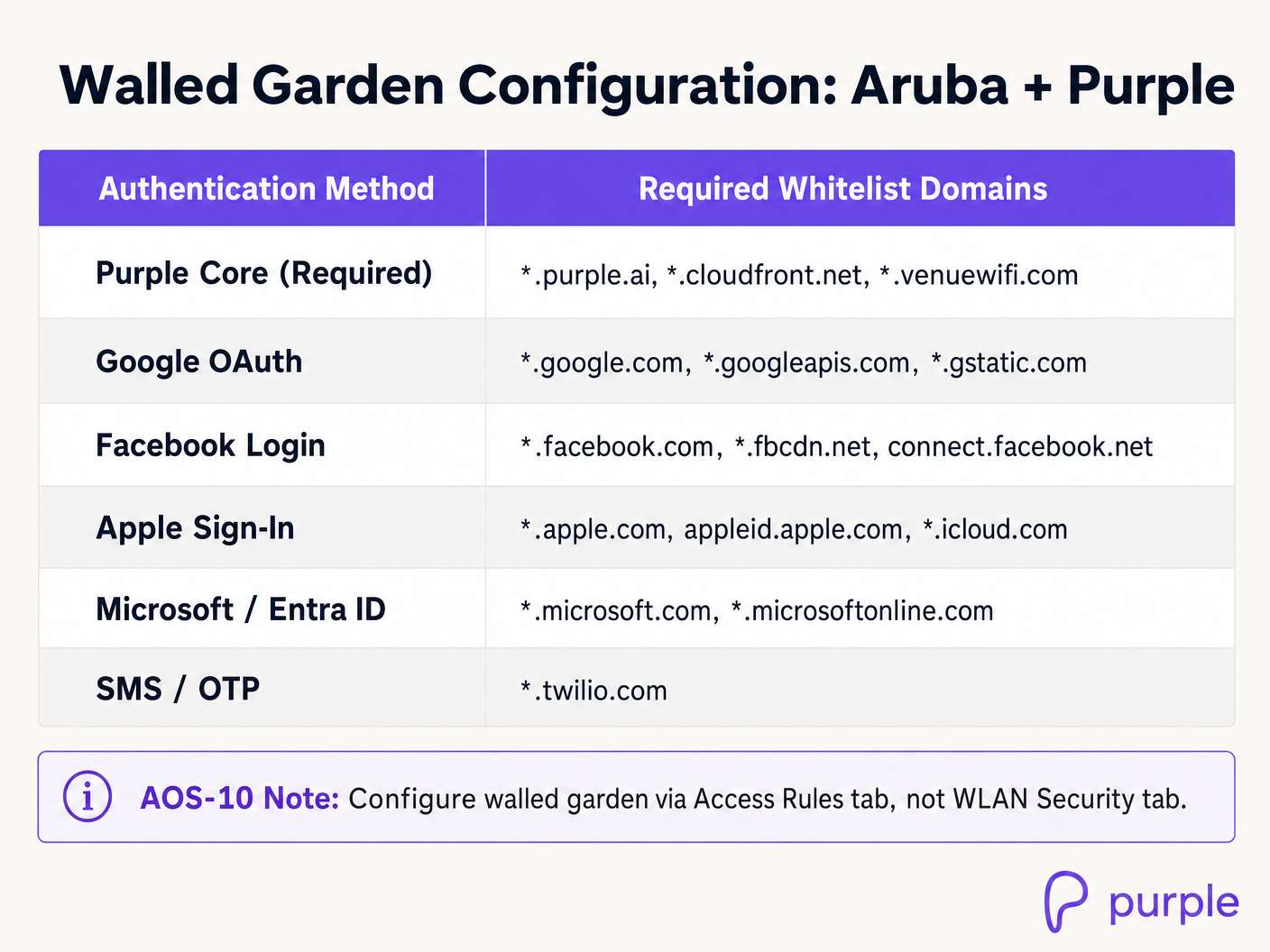
Before a user is authenticated, the Aruba AP restricts all traffic except for destinations explicitly defined in the Walled Garden (or exception list). Because Purple's portal is cloud-hosted and relies on external identity providers (such as Google, Facebook, and Apple) for social authentication, the AP must allow unauthenticated clients to resolve DNS and communicate with these external domains.
If any required domain is omitted from the walled garden, the guest will experience a blank page, broken CSS, missing images, or a complete timeout during the login flow.
Implementation Guide
Deploying Purple on Aruba wireless infrastructure can be achieved via Aruba Instant (IAP) running ArubaOS 8.x (on-premises virtual-controller mode) or Aruba Central (cloud-managed AOS-8 or AOS-10).
Aruba Instant (IAP) Configuration (ArubaOS 8.x)
Step 1: Configure RADIUS Servers
- Log in to the Aruba Instant AP virtual controller web interface.
- Navigate to Security > Authentication Server and click New.
- Configure the Primary RADIUS Server with the following parameters:
- Name:
Purple_Primary - IP Address:
34.94.146.135 - Auth Port:
1812 - Acct Port:
1813 - Shared Key: [Provided in your Purple Venue Dashboard]
- Name:
- Click OK to save.
- Click New again to configure the Secondary RADIUS Server:
- Name:
Purple_Secondary - IP Address:
34.94.183.201 - Auth Port:
1812 - Acct Port:
1813 - Shared Key: [Provided in your Purple Venue Dashboard]
- Name:
- Click OK to save.
Step 2: Create the Captive Portal Profile
- Navigate to Security > Captive Portal and click New.
- Configure the profile with the following settings:
- Name:
Purple_Portal - Type:
External - IP or Hostname:
portal.venuewifi.com - URL:
/ - Port:
443 - Use HTTPS:
Enabled - Redirect URL:
https://portal.venuewifi.com - WISPr:
Enabled(Crucial for auto-triggering the portal on iOS and Android devices)
- Name:
- Click OK to save.
Step 3: Configure the Walled Garden Whitelist
- In the Security > Captive Portal menu, select your newly created
Purple_Portalprofile. - Under the Walled Garden section, click the link to open the whitelist configuration.
- Add the following core Purple domains:
*.purple.ai*.cloudfront.net*.venuewifi.com
- If social login is enabled, add the respective domains (e.g.,
*.google.com,*.facebook.com,*.apple.com). - Click Save.
Step 4: Create and Configure the Guest SSID
- Navigate to Network > New to start the WLAN wizard.
- On the WLAN Settings tab:
- Name (SSID):
Guest-WiFi - Primary Usage:
Guest - Click Next.
- Name (SSID):
- On the VLAN tab, configure IP and VLAN assignment according to your network architecture (typically Client IP assignment: Network Assigned on a dedicated guest VLAN). Click Next.
- On the Security tab:
- Splash Page Type:
External - Captive Portal Profile: Select
Purple_Portal - Auth Server 1: Select
Purple_Primary - Auth Server 2: Select
Purple_Secondary - Reauth Interval:
1440(24 hours, or as per venue policy) - Accounting:
Enabled - Accounting Interval:
5minutes
- Splash Page Type:
- Click Next to proceed to the Access tab. Ensure the default guest rule allows DHCP and DNS pre-authentication, then click Finish.
Aruba Central Configuration (AOS-8 and AOS-10)
Aruba Central AOS-8
- Navigate to Devices under the Manage section of your group in Aruba Central.
- Click Config (gear icon) on the top right, then go to the WLANs tab and click + Add SSID.
- In Step 1: General, enter the SSID name (e.g.,
Guest-WiFi) and click Next. - In Step 2: VLANs, configure your guest VLAN mapping and click Next.
- In Step 3: Security:
- Set Security Level to
Visitors. - Set Type to
External Captive Portal. - Ensure Key Management is set to
Open(do not use Enhanced Open/OWE for standard guest portals as it can cause client compatibility issues). - Click the + icon next to Captive Portal Profile to add a new profile:
- Name:
Purple_Central_Portal - IP or Hostname:
portal.venuewifi.com - URL:
/ - Port:
443 - Redirect URL:
https://portal.venuewifi.com - Use HTTPS:
True - Captive Portal Failure:
Deny Internet(Recommended for security compliance)
- Name:
- Click Save.
- Click the + icon next to Primary Server and Secondary Server to add the Purple RADIUS servers using the IPs
34.94.146.135and34.94.183.201respectively, with ports1812(Auth) and1813(Acct). - Expand Advanced Settings, scroll to Accounting, select
Use authentication servers, and set Accounting Interval to5minutes.
- Set Security Level to
- Scroll down to the Walled Garden section, click + Add, and input the required Purple and social login domains.
- Click Save Settings.
Aruba Central AOS-10
In AOS-10, the walled garden configuration moves from the WLAN Security tab to Access Rules.
- Follow the same SSID and RADIUS configuration steps as AOS-8 above.
- In the SSID wizard, navigate to the Access tab.
- Click + Add Role and create a pre-authentication role named
Purple_Pre_Auth. - In the rules editor for this role, configure explicit Allow rules for DNS, DHCP, and the required walled garden domains (e.g.,
*.purple.ai,*.venuewifi.com). - Scroll down to Assign Pre-Authentication Role, enable the option, and select
Purple_Pre_Authfrom the dropdown. - The post-authorization role (typically matching the SSID name) should remain configured with
Allow any to all destinationsor your specific corporate access policies. - Click Save Settings.
Best Practices
To ensure maximum performance, security, and compliance, network architects must adhere to the following industry standards and vendor-neutral best practices when deploying captive portals on Aruba and Purple.
1. Secure Certificate Management
Aruba access points must present a valid, trusted SSL/TLS certificate during the captive portal redirect flow.
- Avoid Self-Signed Certificates: If the AP presents a self-signed certificate, modern browsers will display a highly visible "Your connection is not private" warning, severely damaging guest trust and reducing conversion rates.
- Deploy a Trusted CA Certificate: Upload a wildcard certificate from a globally recognized Certificate Authority (CA) to your Aruba Central global settings or Instant virtual controllers. Ensure that the intermediate and root certificates are combined into a single file to complete the trust chain.
2. Network Segmentation and Compliance
Guest traffic must be kept entirely separate from corporate and administrative traffic to mitigate security risks and ensure compliance with industry standards.
- VLAN Isolation: Map the guest SSID to a dedicated, non-routable VLAN. Use Access Control Lists (ACLs) on the upstream core switch or firewall to prevent any routing between the guest VLAN and internal corporate subnets.
- PCI DSS Compliance: If your venue processes card payments (e.g., retail point-of-sale), network segmentation is a mandatory requirement under PCI DSS Requirement 1.2 [3]. Guest WiFi must be physically or logically isolated from the Cardholder Data Environment (CDE).
- GDPR and Data Privacy: Ensure that the Purple portal is configured to display explicit, un-ticked consent checkboxes for marketing opt-ins, meeting the strict requirements of the General Data Protection Regulation (GDPR) [4].
3. Optimizing WISPr and Captive Portal Detection
Modern mobile operating systems use active probing to detect captive portals immediately upon association.
- Enable WISPr: Always ensure that WISPr support is enabled in your Aruba captive portal profile. This protocol passes XML-formatted metadata to the client operating system, allowing iOS (Captive Network Assistant) and Android (Captive Portal Login) to gracefully launch the login screen in a dedicated browser window.
- Prevent "Enhanced Open" (OWE) Issues: While Opportunistic Wireless Encryption (OWE) provides encryption on open networks, many legacy client devices do not support it. For public guest networks, stick to standard Open key management to maximize device compatibility.
Troubleshooting & Risk Mitigation
Even with meticulous planning, captive portal deployments can encounter common failure modes. The following troubleshooting matrix provides immediate, actionable steps for wireless engineers.
Captive Portal Troubleshooting Matrix
| Symptom | Probable Cause | Diagnostic Steps | Actionable Solution |
|---|---|---|---|
| Guest associates but the splash page does not load (Timeout/Blank Page). | Missing or incomplete Walled Garden configuration. | Attempt to ping portal.venuewifi.com from a wired device on the same VLAN. Check if the device is trying to load external resources (e.g., social login scripts) that are blocked. |
Explicitly add *.purple.ai, *.venuewifi.com, and *.cloudfront.net to the Aruba walled garden. Verify that DNS resolution is allowed in the pre-auth role. |
| Guest is redirected but browser displays an SSL/TLS Certificate Warning. | The Aruba AP is presenting an untrusted or self-signed certificate for the local redirect page. | Inspect the browser certificate details to see which certificate is being presented. | Upload a valid, trusted SSL certificate signed by a public CA to the Aruba virtual controller or Central global settings. |
| Guest completes the login form but is not granted internet access (Redirect Loop). | RADIUS communication failure between the Aruba AP and Purple servers. | Check the Aruba virtual controller logs for RADIUS timeouts or access-rejects. Run show auth-survivability or check firewall logs. |
Verify that outbound UDP ports 1812 (Auth) and 1813 (Acct) are open on your perimeter firewall. Ensure the RADIUS shared secret matches exactly on both Purple and Aruba. |
| The captive portal does not auto-popup on iOS or Android devices. | WISPr is disabled, or the AP is blocking the operating system's captive portal detection URLs. | Verify if the device can access the internet without logging in, or if it remains connected with "No Internet" and no popup. | Enable WISPr in the Aruba captive portal profile. Ensure that captive portal detection URLs (e.g., captive.apple.com, connectivitycheck.gstatic.com) are not blocked by custom pre-auth ACLs. |
| Real-time dwell-time analytics are inaccurate or missing in Purple. | RADIUS Accounting is disabled or the accounting interval is set too high. | Check the AP configuration to see if accounting is enabled and inspect the interval. | Enable RADIUS Accounting on the Aruba SSID. Set the Accounting Interval to exactly 5 minutes (300 seconds) to ensure regular session updates. |
ROI & Business Impact
Transitioning from a basic, local captive portal to an enterprise-grade WiFi intelligence platform like Purple delivers measurable business outcomes across operations, marketing, and network management.
Operational Efficiency and Scalability
Managing individual local captive portals across hundreds of retail stores, hotels, or public venues is an administrative bottleneck. Purple provides a centralized, cloud-managed console that allows IT teams to deploy, update, and audit captive portal configurations globally with a single click. This reduces configuration drift, ensures consistent branding, and slashes administrative overhead by up to 60%.
Data Monetization and Marketing ROI
For industries like Retail and Hospitality, guest WiFi is a powerful channel for customer acquisition and engagement. Purple replaces anonymous connections with rich demographic profiles.
- Direct Integration: Purple integrates with CRM and marketing automation platforms to trigger real-time, context-aware campaigns. For example, a retail venue can trigger a personalized discount SMS the moment a loyalty customer connects to the guest WiFi.
- Measurable Footfall Analytics: By analyzing RADIUS accounting data and BSSID associations, Purple provides highly accurate dwell-time, return-rate, and path-analysis reporting. This data enables venue operations directors to optimize staffing levels, evaluate window display effectiveness, and measure the direct ROI of marketing campaigns.
Cost-Benefit Analysis: Native Aruba vs. Purple Integration
| Feature / Metric | Native Aruba Local Portal | Aruba + Purple Integration | Business Impact |
|---|---|---|---|
| Centralized Multi-Site Management | Limited. Requires individual configuration per virtual controller or complex Central group mapping. | Fully Centralized. Manage thousands of venues and SSIDs from a single cloud dashboard. | Reduces IT overhead and eliminates configuration drift across distributed estates. |
| Data Capture & Compliance | Basic form capture. No built-in GDPR/CCPA consent validation workflows. | Enterprise-grade. Automated, legally-compliant consent tracking with real-time API sync to CRMs. | Mitigates legal risk and ensures compliance with global privacy regulations [4]. |
| Social Authentication | Requires custom external web development and manual API maintenance. | Out-of-the-box support for Google, Facebook, Apple, Microsoft, LinkedIn, and SMS. | Increases conversion rates by up to 40% through friction-free login options. |
| Analytics & Reporting | Basic session logs (IP, MAC, connect time). No demographic or behavior tracking. | Rich analytics: age, gender, dwell-time, return rates, heatmaps, and cross-venue roaming. | Drives marketing ROI and provides actionable business intelligence for operations. |
Key Definitions
Captive Portal
A web page that is displayed to newly connected users of a Wi-Fi network before they are granted broader access to network resources.
Used to capture guest data, enforce terms of service, and present branded marketing content.
RADIUS (Remote Authentication Dial-In User Service)
A networking protocol that provides centralized Authentication, Authorization, and Accounting (AAA) management for users who connect and use a network service.
Purple acts as the external RADIUS server, authenticating guests and tracking their session duration.
WISPr (Wireless Internet Service Provider roaming)
A draft protocol that enables independent wireless internet service providers to allow users to roam onto each other's networks using a common login portal.
Enabling WISPr on Aruba APs allows modern smartphones to automatically detect the captive portal and display the splash page in a system-native window.
Walled Garden
A restricted set of web sites or domains that an unauthenticated user is allowed to access before they complete the captive portal login process.
Crucial for allowing guests to load the splash page assets (CSS, JS, images) and access social login providers (Google, Facebook) before being authenticated.
BSSID (Basic Service Set Identifier)
The MAC address of the wireless access point's radio interface for a specific SSID.
Sent in the RADIUS Called-Station-Id attribute, allowing Purple to map the user's physical location to a specific AP.
NAS-IP-Address
The IP address of the Network Access Server (the Aruba AP or controller) originating the RADIUS request.
Used in RADIUS packets to identify which physical hardware is requesting authentication.
RadSec
A protocol that secures RADIUS transactions using Transport Layer Security (TLS) over TCP.
Used to encrypt RADIUS authentication and accounting traffic when traversing untrusted public networks between the local AP and Purple's cloud.
Enhanced Open (OWE)
An extension to Wi-Fi Certified Easy Connect that provides encryption of wireless transmissions on open networks without requiring a password.
Can cause compatibility issues with older guest devices; standard Open security is recommended for public captive portals.
Worked Examples
An enterprise wireless engineer is deploying guest WiFi across a national retail chain with 150 stores. Each store has 3-5 Aruba Instant APs managed via Aruba Central. The marketing team requires a branded captive portal with Facebook and Google social login options, and the compliance team mandates that guest traffic must be completely isolated from the store's Point-of-Sale (PoS) network. How should this be architected and configured?
- Network Segmentation: Map the Guest SSID to VLAN 100 on the Aruba APs. Configure the local switch ports as trunk ports, allowing VLAN 100. On the store's gateway firewall, configure VLAN 100 with a DHCP scope and an outbound-only NAT policy. Apply an ACL on the firewall to drop all traffic from VLAN 100 to the PoS VLAN (VLAN 10).
- RADIUS & Portal Configuration in Aruba Central: Create a new SSID named 'Store-Guest' on VLAN 100. Set Security to 'Visitors' and Splash Page to 'External Captive Portal'. Add Purple's primary RADIUS server (34.94.146.135) and secondary server (34.94.183.201) with ports 1812/1813. Enable RADIUS Accounting with a 5-minute interval.
- Walled Garden: Configure the walled garden in Aruba Central to include: *.purple.ai, *.venuewifi.com, *.cloudfront.net (for Purple core), and the social login domains: *.google.com, *.googleapis.com, *.gstatic.com (for Google) and *.facebook.com, *.fbcdn.net, connect.facebook.net (for Facebook).
- Testing: Connect a test device to 'Store-Guest', verify DHCP assigns an IP on VLAN 100, confirm the browser redirects to the Purple portal over HTTPS, complete the Facebook login, and verify that internet access is granted while internal PoS resources remain completely unreachable.
A stadium venue with 50,000 seats is running Aruba Central on AOS-10 with high-density AP-555 access points. During peak event hours, thousands of users attempt to connect to the guest WiFi simultaneously. The IT director is concerned about the performance impact of captive portal redirects on the virtual controller and wants to ensure the authentication process is as fast and resilient as possible. What advanced configurations should be applied?
- Pre-Authentication Role (AOS-10): In AOS-10, configure a dedicated pre-authentication role named 'Stadium-Pre-Auth'. Apply an ACL that permits DHCP (UDP 67-68), DNS (UDP 53), and outbound traffic to the Purple walled garden domains. Assign this role as the 'Pre-Authentication Role' in the SSID settings. This offloads the packet filtering from the central controller to the individual APs, distributing the load.
- RADIUS Load Balancing: In Aruba Central, enable RADIUS Load Balancing across the primary and secondary Purple RADIUS servers. This distributes the authentication load evenly during peak ingress windows.
- Server Offload: Enable 'Server Offload' in the Captive Portal Profile settings. This prevents non-browser client applications (like background mobile apps, system updates, or IoT devices) from being repeatedly redirected to the external captive portal, preserving AP CPU cycles and WAN bandwidth.
- Captive Portal Failure Policy: Set 'Captive Portal Failure' to 'Deny Internet'. While 'Allow Internet' seems customer-friendly, during an extreme network event it could lead to uncontrolled open access, bypassing security controls and exhausting DHCP pools.
Practice Questions
Q1. A network engineer configures a new guest SSID on an Aruba Instant AP cluster. When testing, they connect to the SSID, but instead of the branded Purple splash page, they see a browser timeout error. What is the most likely cause of this issue, and what troubleshooting steps should be taken?
Hint: Think about what is required for the client device to reach the cloud-hosted splash page before authentication.
View model answer
The most likely cause is a missing or incomplete Walled Garden configuration, or a DNS resolution issue. Before authentication, the AP blocks all traffic except for whitelisted domains. If the Purple domains (*.purple.ai, *.venuewifi.com, *.cloudfront.net) are not in the walled garden, the client cannot load the splash page. Troubleshooting steps: 1. Verify the client device has received a valid IP address and DNS server via DHCP. 2. Attempt to resolve 'portal.venuewifi.com' from a wired device on the same VLAN to confirm DNS is working. 3. Check the Aruba AP configuration to ensure the Walled Garden whitelist is active and contains all required Purple domains. 4. Verify that the pre-authentication role allows DNS traffic (UDP port 53) to the DNS server.
Q2. During a rollout of Purple guest WiFi at a large convention center, the IT team reports that guest devices connect successfully, but they are prompted to log in again every 15 minutes. The desired behavior is for guests to remain logged in for 24 hours. Which Aruba and Purple configuration parameters should be inspected to resolve this?
Hint: Look at parameters controlling session lifetime and re-authentication intervals.
View model answer
This issue is caused by a mismatch in session timeout or re-authentication interval settings. To resolve this: 1. Inspect the 'Reauth Interval' on the Aruba SSID security tab; it should be set to 1440 minutes (24 hours) rather than 15 minutes. 2. Check the 'Session Timeout' attribute returned by the Purple RADIUS server in the Access-Accept message. If Purple is configured with a short session lifetime, it will force re-authentication. 3. Ensure that MAC Authentication is enabled on the Aruba SSID. This allows the AP to automatically authenticate returning guests via their MAC address against Purple's database without prompting them with the splash page again during the 24-hour window.
Q3. A public-sector organization is deploying guest WiFi across multiple libraries using Aruba Central on AOS-10. The security policy mandates that all guest traffic must be encrypted over the air, but the library directors want a seamless, friction-free login experience. How can the wireless architect achieve both requirements using Aruba and Purple?
Hint: Consider the differences between Open, OWE (Enhanced Open), and WPA2/WPA3-Enterprise, and how they interact with captive portals.
View model answer
To achieve both over-the-air encryption and a seamless captive portal experience, the architect should deploy 'Enhanced Open' (Opportunistic Wireless Encryption - OWE) with a transition mode if legacy device compatibility is required. Enhanced Open encrypts the wireless connection between the client and the AP without requiring a pre-shared key, protecting guests from passive eavesdropping. 1. Configure the guest SSID in Aruba Central with Security Level set to 'Visitors' and Key Management set to 'Enhanced Open'. 2. Enable 'OWE Transition Mode' and associate it with a standard Open guest SSID to support older devices that do not support WPA3 OWE. 3. Configure the External Captive Portal profile pointing to Purple as usual. This combination ensures that modern devices get encrypted wireless transport automatically, while still redirecting to the Purple splash page for data capture and compliance.
Continue reading in this series
Captive Portal for Ruckus
This technical reference guide provides an authoritative integration playbook for deploying external captive portals on CommScope Ruckus SmartZone and Unleashed architectures. It guides network engineers through step-by-step configurations for Guest WLANs, WISPr redirection, RADIUS AAA server settings, and Walled Garden exceptions to deliver a secure, high-density guest WiFi solution.
Captive Portal for Cisco Meraki
An authoritative, intermediate-level technical reference guide for integrating Cisco Meraki MR access points with Purple's cloud captive portal. Covers step-by-step Meraki Dashboard configurations, RADIUS server settings (ports 1812/1813), walled garden wildcard domain exceptions, and session timeout parameters for high-performance guest WiFi deployments.
Captive Portal for Cisco Meraki
An authoritative, intermediate-level technical reference guide for integrating Cisco Meraki MR access points with Purple's cloud captive portal. Covers step-by-step Meraki Dashboard configurations, RADIUS server settings (ports 1812/1813), walled garden wildcard domain exceptions, and session timeout parameters for high-performance guest WiFi deployments.