
The Best WiFi Analyser Tools for Troubleshooting Channel Overlap
This comprehensive guide provides IT managers and network architects with actionable strategies for identifying and resolving WiFi channel overlap in high-density environments. It evaluates the best WiFi analyser tools and outlines a proven methodology for optimising RF performance to ensure a seamless guest experience and maximise infrastructure ROI.
Listen to this guide
View podcast transcript

Executive Summary
For IT managers and network architects managing high-density environments, channel overlap remains one of the most persistent causes of WiFi performance degradation. When access points compete for the same spectrum, co-channel and adjacent-channel interference directly impact throughput, increase retry rates, and compromise the guest experience. This guide provides a definitive technical reference for identifying, diagnosing, and resolving channel overlap using the industry's best WiFi analyser tools.
By understanding the underlying RF mechanics and deploying the right diagnostic software, technical teams can optimise channel assignments, mitigate interference, and maximise the return on investment for enterprise wireless deployments. Whether you are managing a 200-room hotel, a multi-site Retail chain, or a sprawling public-sector venue, the methodologies detailed here will equip you to maintain a robust, high-performance wireless network. Furthermore, integrating these practices with advanced WiFi Analytics platforms like Purple ensures continuous visibility and proactive management of the RF environment.
Technical Deep-Dive
The Physics of Channel Overlap
At the physical layer, WiFi networks operate within defined frequency bands, primarily 2.4GHz, 5GHz, and increasingly 6GHz. The fundamental challenge in WiFi deployment is managing the limited spectrum available within these bands to serve multiple access points (APs) and client devices without causing destructive interference.
In the 2.4GHz band, there are 11 channels available in North America and up to 13 in Europe. However, each channel occupies 20MHz of spectrum, while the channels themselves are spaced only 5MHz apart. This physical reality dictates that only channels 1, 6, and 11 are completely non-overlapping. When an AP transmits on channel 2, its signal bleeds into channels 1, 3, and 4. This is known as adjacent-channel interference (ACI). ACI is particularly detrimental because the 802.11 CSMA/CA (Carrier Sense Multiple Access with Collision Avoidance) protocol cannot effectively manage collisions between partially overlapping transmissions, leading to corrupted frames and high retry rates.
Co-channel interference (CCI), on the other hand, occurs when multiple APs operate on the exact same channel. While the CSMA/CA protocol can manage CCI by forcing devices to take turns transmitting, this effectively reduces the available airtime and throughput for all devices sharing the channel. In high-density environments, excessive CCI can render a network unusable. For a deeper understanding of band characteristics, refer to our guide on Why 5GHz is Faster but 2.4GHz is More Reliable .
The 5GHz and 6GHz Advantage
The 5GHz band offers significant relief from the congestion of 2.4GHz. It provides up to 25 non-overlapping 20MHz channels. This abundance of spectrum allows network architects to utilise wider channels (40MHz or 80MHz) to increase throughput without immediately causing CCI or ACI. However, careful channel planning is still required, especially when using wider channels, as bonding two 20MHz channels halves the number of available non-overlapping channels.
The introduction of WiFi 6E and the 6GHz band provides even more spectrum—up to 59 non-overlapping 20MHz channels or 14 non-overlapping 80MHz channels. This massive increase in capacity allows for true gigabit wireless performance in dense environments, provided the client devices support the new standard.

Core Analyser Capabilities
To effectively diagnose channel overlap, IT teams require tools capable of visualising the RF environment. Key capabilities include:
- Spectrum Analysis: The ability to visualise raw RF energy across the spectrum. This is crucial for identifying non-WiFi interference sources, such as microwave ovens, Bluetooth devices, or wireless security cameras, which operate in the 2.4GHz band but do not transmit 802.11 frames.
- Channel Utilisation Measurement: The ability to quantify how much of a channel's capacity is actively being used by WiFi traffic versus how much is available. High utilisation indicates congestion and the need for channel reallocation.
- Signal-to-Noise Ratio (SNR) Mapping: SNR is the difference between the signal strength (RSSI) and the background noise floor. A high SNR is required for complex modulation schemes (like 256-QAM or 1024-QAM) that deliver high data rates.
- BSSID Tracking: The ability to track individual Basic Service Set Identifiers (BSSIDs)—the MAC addresses of individual AP radios—to identify rogue APs or misconfigured infrastructure.
Implementation Guide
Deploying a WiFi analyser tool effectively requires a structured methodology. The following steps outline a best-practice approach for troubleshooting and optimising a wireless network.
Step 1: Baseline Assessment
Before making any configuration changes, establish a baseline of the current RF environment. Use a tool like Ekahau or NetSpot to conduct a passive site survey. Walk the coverage area and capture data on signal strength, channel assignments, and noise floor. This baseline will serve as a point of comparison after remediation efforts.
Step 2: Identify Interference Zones
Analyse the survey data to identify areas with high CCI or ACI. Look for locations where three or more APs operating on the same or overlapping channels are received with a signal strength greater than -70 dBm. These are your primary interference zones. In a Hospitality setting, these are often corridor intersections; in Retail , they might be near point-of-sale terminals.
Step 3: Spectrum Sweeps
Conduct spectrum sweeps using a tool with true spectrum analysis capabilities (e.g., Ekahau Sidekick or a dedicated spectrum analyser). Look for continuous or bursty non-WiFi energy signatures that elevate the noise floor. If non-WiFi interference is identified, the source must be located and removed or mitigated before channel planning can be effective.
Step 4: Channel Reallocation
Based on the survey and spectrum data, redesign the channel plan.
- 2.4GHz: Strictly adhere to the 1-6-11 rule. If AP density is high, consider disabling the 2.4GHz radios on alternating APs to reduce CCI.
- 5GHz: Utilise dynamic frequency selection (DFS) channels if local regulations permit and radar interference is not present. Carefully select channel widths; while 80MHz channels offer higher peak throughput, 40MHz or even 20MHz channels are often more appropriate in dense deployments to maximise the number of non-overlapping channels.
Step 5: Power Level Tuning
Channel overlap is often exacerbated by excessive transmit power. If an AP's signal propagates too far, it causes unnecessary CCI for neighbouring APs. Reduce transmit power to the minimum level required to provide adequate coverage and maintain a target SNR at the cell edge. This shrinks the coverage cell and reduces interference.
Step 6: Post-Remediation Validation
After applying the new channel plan and power settings, conduct a follow-up site survey. Compare the new data against the baseline to verify that CCI and ACI have been reduced and that coverage requirements are still met.
Best Practices
To maintain an optimised RF environment, adhere to the following industry best practices:
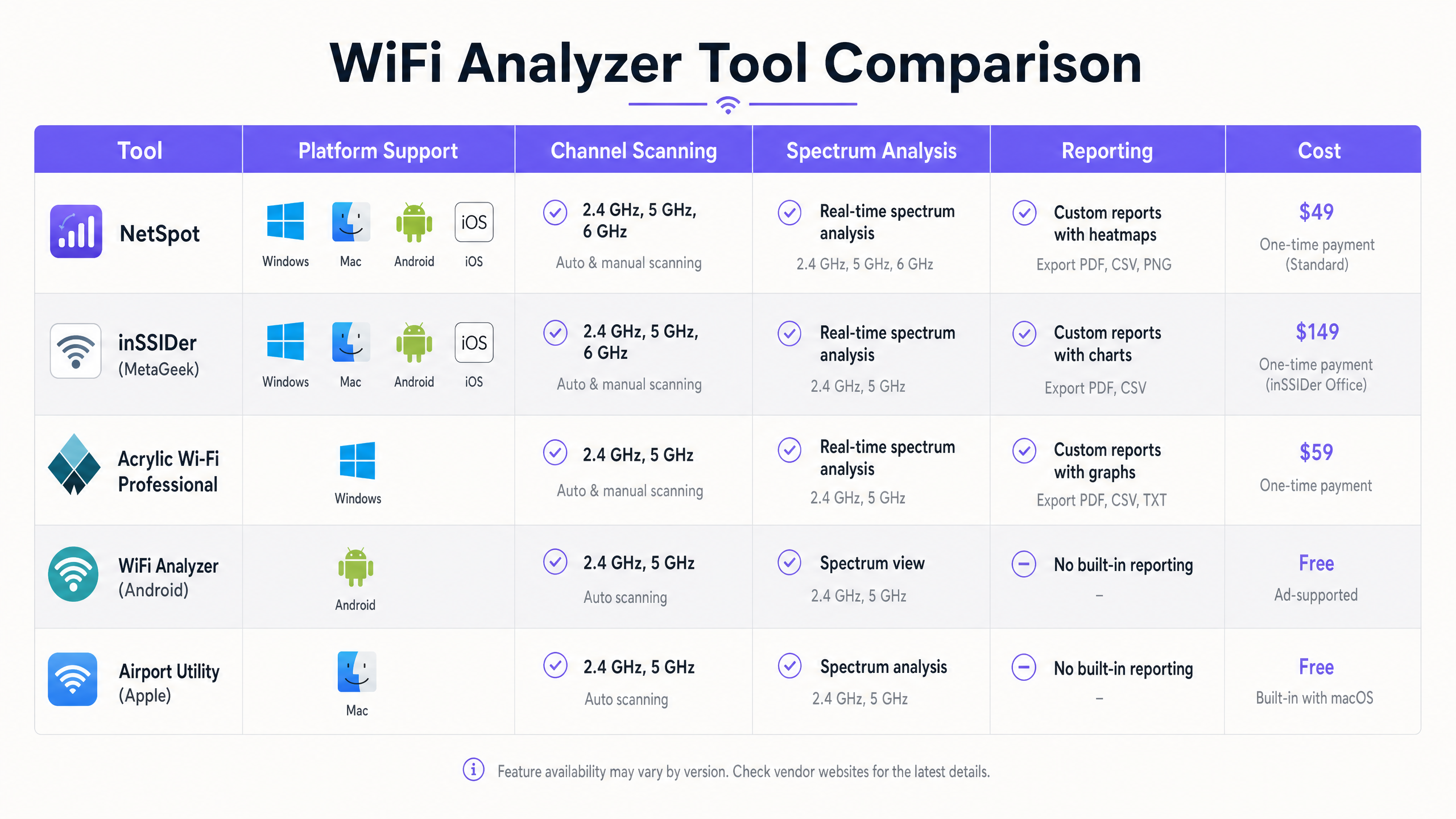
- Standardise on Enterprise Tools: While free smartphone apps are useful for quick spot checks, comprehensive troubleshooting and planning require enterprise-grade tools like Ekahau, OmniPeek, or AirMagnet.
- Integrate with Analytics: Combine RF analysis with a comprehensive Guest WiFi and analytics platform. Purple provides continuous visibility into client association quality, session duration, and overall network health, allowing IT teams to detect degradation before users report issues.
- Regular Audits: The RF environment is dynamic. New neighbouring networks, changes in building layout, or the introduction of new equipment can alter the RF landscape. Schedule regular site surveys (e.g., quarterly) to ensure the network remains optimised.
- Leverage Auto-RF Cautiously: Most modern enterprise WLAN controllers feature automated radio resource management (RRM). While these algorithms are sophisticated, they can sometimes cause "channel thrashing" in highly dynamic environments. Monitor RRM behaviour closely and be prepared to manually lock channel assignments if necessary.
- Stay Current with Standards: Ensure your infrastructure and troubleshooting methodologies align with the latest IEEE standards (e.g., 802.11ax/WiFi 6) and security protocols (e.g., WPA3).
Troubleshooting & Risk Mitigation
Even with meticulous planning, WiFi networks can experience performance issues. Understanding common failure modes and mitigation strategies is essential.
Common Failure Modes
- The "Sticky Client" Problem: Clients often hold onto a weak connection with a distant AP even when a closer, stronger AP is available. This degrades performance for the sticky client and consumes excessive airtime, impacting all other clients on that channel. Mitigation: Implement minimum basic rates and RSSI thresholds to force clients to roam to better APs.
- DFS Radar Events: In the 5GHz band, APs operating on DFS channels must listen for radar signatures and immediately vacate the channel if radar is detected. This can cause sudden network disruptions. Mitigation: Monitor controller logs for DFS events. If frequent radar hits occur, avoid using DFS channels in that specific location.
- Hidden Node Problem: Occurs when two clients can communicate with the same AP but cannot hear each other. They may transmit simultaneously, causing collisions at the AP. Mitigation: Enable RTS/CTS (Request to Send/Clear to Send) mechanisms, although this adds overhead and reduces overall throughput.
Risk Mitigation Strategies
- Implement Robust Authentication: Secure the network using 802.1X/EAP for corporate devices and secure captive portals for guest access. For modern, secure access, consider solutions like How a wi fi assistant Enables Passwordless Access in 2026 .
- Network Segmentation: Isolate different types of traffic (e.g., guest, corporate, IoT, PoS) onto separate VLANs and SSIDs to improve security and manage broadcast domains.
- Continuous Monitoring: Utilise platforms like Purple to continuously monitor network performance metrics and user behaviour. For instance, understanding how users navigate a space can inform AP placement, a concept further explored in Purple Launches Offline Maps Mode for Seamless, Secure Navigation to WiFi Hotspots .
ROI & Business Impact
Optimising the WiFi network through rigorous channel planning and analysis delivers measurable business value across several dimensions:
- Improved User Experience: Reducing channel overlap directly increases throughput and decreases latency. In a Transport hub, this means passengers can reliably access boarding passes and entertainment; in a hotel, it translates to higher guest satisfaction scores and fewer complaints to the reception.
- Increased Operational Efficiency: A stable, high-performing network reduces the burden on IT helpdesks. Fewer connectivity tickets mean IT staff can focus on strategic initiatives rather than reactive troubleshooting.
- Enhanced Data Collection: A reliable network is the foundation for accurate location analytics and user engagement. When the network performs well, platforms like Purple can collect higher-quality data, enabling more effective marketing campaigns and operational insights. As highlighted by recent strategic moves, such as Purple Appoints Iain Fox as VP Growth – Public Sector to Drive Digital Inclusion and Smart City Innovation , robust infrastructure is critical for advanced digital initiatives.
- Extended Hardware Lifespan: By optimising the RF environment, existing infrastructure can often support higher client densities without requiring immediate hardware upgrades, maximising the return on capital expenditure.
Key Definitions
Co-Channel Interference (CCI)
Interference that occurs when two or more access points operate on the exact same frequency channel.
Forces devices to share airtime, reducing overall throughput. Often caused by overly dense AP deployments or excessive transmit power.
Adjacent-Channel Interference (ACI)
Interference that occurs when transmissions on one channel bleed into and disrupt communications on a neighboring, overlapping channel.
More destructive than CCI because the CSMA/CA protocol cannot effectively manage the collisions. Common when channels other than 1, 6, or 11 are used in the 2.4GHz band.
Signal-to-Noise Ratio (SNR)
The difference (in decibels) between the received signal strength (RSSI) and the background noise floor.
A critical metric for performance. High SNR is required for high data rates. A strong signal is useless if the noise floor is equally high.
Received Signal Strength Indicator (RSSI)
A measurement of the power level being received by the antenna.
Used to determine basic coverage boundaries. Typically, enterprise deployments aim for an RSSI of -65 dBm to -70 dBm at the cell edge.
Dynamic Frequency Selection (DFS)
A mechanism that allows unlicensed devices to share the 5GHz spectrum with legacy radar systems.
APs must monitor DFS channels for radar signatures and immediately switch channels if detected, which can cause temporary client disconnects.
Radio Resource Management (RRM)
Automated algorithms used by WLAN controllers to dynamically adjust AP transmit power and channel assignments.
Useful for initial setup, but can cause instability ('channel thrashing') in highly dynamic environments if not monitored.
Basic Service Set Identifier (BSSID)
The MAC address of the wireless access point radio.
Essential for tracking specific hardware during a site survey and identifying rogue APs.
Spectrum Analysis
The process of measuring and visualizing all RF energy within a specific frequency band, not just 802.11 traffic.
Necessary for identifying non-WiFi interference sources like microwaves or Bluetooth devices that standard WiFi scanners cannot see.
Worked Examples
A 300-room hotel is experiencing widespread guest complaints regarding slow WiFi speeds and dropped connections during peak evening hours, particularly in the central atrium where multiple access points are deployed.
- Deploy a tool like Ekahau Site Survey to conduct a passive RF sweep of the atrium during peak hours.
- Analyze the resulting heatmaps to identify areas where more than two APs operating on the 2.4GHz band are visible on the same channel (e.g., channel 6) with RSSI > -70 dBm.
- Implement a strict 1-6-11 channel plan for the 2.4GHz radios, ensuring adjacent APs use non-overlapping channels.
- Reduce the transmit power on the 2.4GHz radios in the atrium to minimize cell overlap.
- Conduct a post-remediation survey to verify CCI reduction and monitor Purple Analytics for improved session stability.
A large retail store recently upgraded its PoS terminals to wireless tablets, but transactions are frequently timing out. The IT team suspects interference but standard WiFi scans show only the store's own SSIDs.
- Utilize a spectrum analyzer (like Ekahau Sidekick or a dedicated tool) rather than a standard WiFi scanner.
- Perform a spectrum sweep in the 2.4GHz and 5GHz bands around the PoS areas.
- Identify non-802.11 energy signatures (e.g., from a nearby microwave oven, wireless security cameras, or Bluetooth beacons) that are elevating the noise floor and causing a low SNR.
- If possible, remove the source of interference. If not, migrate the PoS tablets to the 5GHz band, selecting channels far removed from the identified interference frequencies.
Practice Questions
Q1. You are auditing a new retail deployment. The 2.4GHz APs are currently set to channels 1, 4, 8, and 11 to 'spread out' the signals. What is the immediate risk, and what is the recommended action?
Hint: Consider the 20MHz width of a 2.4GHz channel and the 5MHz spacing between channel numbers.
View model answer
The immediate risk is severe adjacent-channel interference (ACI). Channel 4 overlaps with 1 and 8; channel 8 overlaps with 4 and 11. ACI is highly destructive to throughput. The recommended action is to immediately reconfigure all 2.4GHz radios to use only channels 1, 6, and 11.
Q2. During a site survey in a conference center, you notice the noise floor on channel 6 is elevated to -75 dBm, but your WiFi scanner shows no BSSIDs broadcasting on that channel. What is the likely cause?
Hint: Think about what a standard WiFi scanner can and cannot detect.
View model answer
The likely cause is a non-802.11 interference source, such as a microwave oven, wireless AV equipment, or Bluetooth devices operating in the 2.4GHz band. A standard WiFi scanner only sees 802.11 management frames. A dedicated spectrum analyzer is required to visualize this raw RF energy.
Q3. A hotel IT manager wants to maximize throughput by configuring all 5GHz APs to use 80MHz channel widths. The hotel has a dense deployment with APs in every other room. Why might this approach degrade performance rather than improve it?
Hint: Consider the total number of available non-overlapping channels in the 5GHz band when using wider channels.
View model answer
Using 80MHz channels significantly reduces the number of available non-overlapping channels (typically to 5 or 6, depending on regulatory domain and DFS usage). In a dense deployment, this will inevitably lead to co-channel interference (CCI) as neighboring APs are forced to reuse the same wide channels, ultimately reducing aggregate capacity and stability.