
How to Set Up a Captive Portal on Starlink: A Guide for Remote & Maritime Venues
This guide details how to bypass the native Starlink hardware and integrate a cloud-managed captive portal using enterprise routing equipment. You will learn how to overcome the CGNAT limitation, enforce VLAN segmentation, manage satellite bandwidth constraints, and ensure regulatory compliance.
Video overview
Listen to this guide
View podcast transcript
Part of our core series: Captive Portal Guide →
Starlink maritime and remote captive portal sizer
Model satellite WAN backhaul, calculate per-user bandwidth QoS, prevent metered data quota depletion, and generate bypass mode gateway configurations for Peplink, Cisco Meraki, and Fortinet.
Charter yacht or passenger vessel requiring high-speed dual-dish bonding, maritime bypass mode, crew vs guest VLAN isolation, and PMS folio billing integration.
Satellite data allowance audit
- Monthly Priority pool: 2,000 GB across 2 terminals
- Projected monthly consumption: 1,500 GB (50 GB/day over 30 operating days, about 645 MB per guest per day).
- Estimated overage exposure: Within the Priority pool (no overage)
- What the portal avoids: $5,600/month - the gap between unshaped demand (3.2x this projection) and the 0 GB still billable after a 3.5 Mbps cap and a per-device daily allowance.
- Overage is priced at an assumed $2.00/GB. Starlink rates differ by plan family and region - replace it with your own contract rate before quoting these figures.
QoS bandwidth allocation
Starlink terminal bypass and gateway architecture
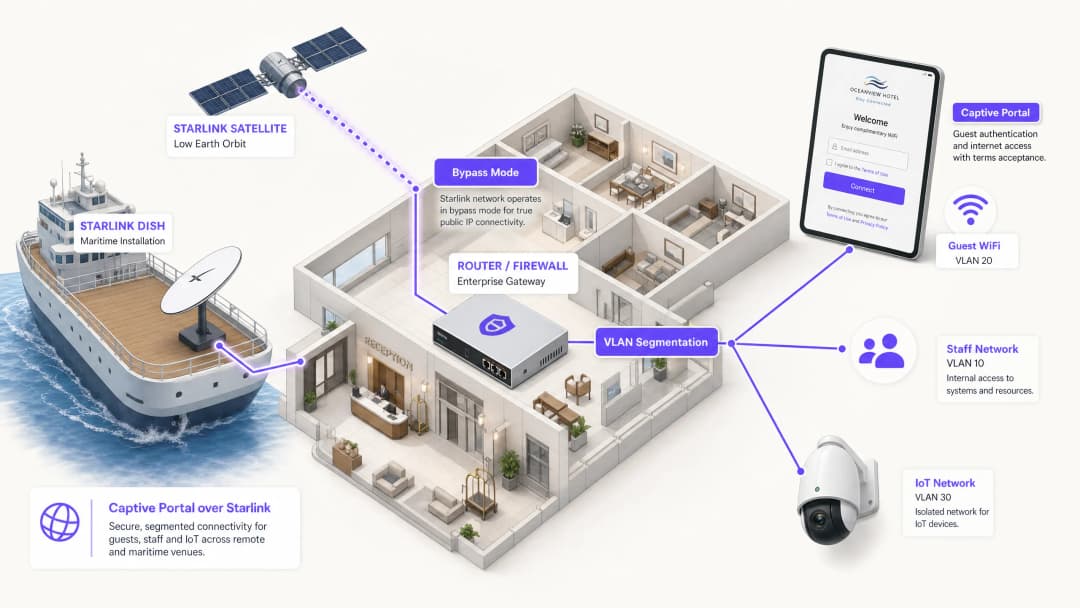
Starlink standard user terminals (Gen 2 Actuated, Gen 3 Standard, and Flat High Performance) include a consumer WiFi router that does not support Layer 2 VLAN tagging, RADIUS authentication, or external captive portal redirection. To deploy Purple:
- Enable Starlink bypass mode: In the Starlink mobile app under Settings > Advanced, toggle Bypass Mode. This disables the built-in router, shutting down native WiFi and NAT to deliver raw Layer 2 bridging to the Ethernet port.
- Ethernet adapter connection: Connect the Starlink Ethernet Adapter (Gen 2) or direct RJ45 WAN port (Gen 3 / Flat High Performance) into the WAN port of your enterprise gateway (Peplink Balance 310X).
- Handle Carrier-Grade NAT (CGNAT): Starlink assigns WAN IPs in the
100.64.0.0/10shared space. Because Purple is cloud-hosted, splash interception occurs locally on your gateway and forwards outbound authentication requests over HTTPS/RADIUS, requiring zero inbound port forwards. - VLAN segmentation: Configure
VLAN 10for vessel operations/corporate POS andVLAN 20(/24 (254 IPs)) for guest WiFi. Apply client isolation so passengers cannot scan fellow guest devices.
Tiered access and monetisation models
- Free basic tier: throttled to 3.5 Mbps down / 1 Mbps up with a 645 MB daily allowance - the same figure the quota projection uses - suitable for email, messaging and basic web access.
- VIP / premium voucher tier: High-priority 10 Mbps Down / 3 Mbps Up with unlimited browsing, billable via Stripe credit card or PMS room folio charge.
- Crew and staff profiles: Dedicated SSID tagged to VLAN 30 with 24/7 unmetered access and DSCP prioritisation for operational communications (VoIP, WhatsApp Calling).
Walled garden and CNA behaviour
- Apple and Android CNA probes: leave
captive.apple.com,connectivitycheck.gstatic.comandmsftconnecttest.comOUT of the walled garden. The gateway intercepting those probes is what tells the device the network is captive and opens the splash. Allow them and the probe succeeds, the device concludes it already has internet, and the guest never sees a login page - the most common cause of a satellite portal that appears not to work. - Purple cloud endpoints: allow
portal.purplewifi.netand*.purple.aion ports 80 and 443, and the OAuth domains if social sign-in is enabled. - Legal terms and data privacy: Collect GDPR / CCPA compliant guest marketing consent, providing visitor footfall analytics even in remote offshore locations.
# =========================================================
# Peplink Balance / MAX HD4 multi-WAN and captive portal setup
# Starlink Bypass WAN + Purple Cloud Splash Integration
# =========================================================

# 1. Starlink WAN configuration (Bypass Mode into WAN 1 & WAN 2)
# Protocol: DHCP Client (Starlink CGNAT 100.64.0.0/10)
# MTU: 1500 (MSS Clamping: 1460)
# Health Check: DNS Lookup to 1.1.1.1 & 8.8.8.8 (Interval: 5s, Timeout: 2s)

# 2. Outbound Policy - Bandwidth & Least-Cost Steering
Rule 10: Destination = Mission_Critical_Ops -> Enforce Starlink_WAN1 (Priority 1)
Rule 20: Destination = Guest_VLAN_20 -> Weighted Balance (Starlink_WAN1: 50, Starlink_WAN2: 50)
Rule 30: When In-Port / Near Shore (Cellular Available) -> Spillover Guest_VLAN_20 to LTE_WAN3

# 3. Captive portal and Purple splash settings
# VLAN 20 guest scope: 10.20.0.0/24 (/24 (254 IPs))
# Gateway 10.20.0.1, DHCP pool 10.20.0.10 - 10.20.0.250
Captive Portal: Enabled
Mode: External Web Portal
Portal URL: https://portal.purplewifi.net/splash
Authentication: RADIUS Server (Purple Cloud AAA)
Primary RADIUS: radius1.purplewifi.net (Port 1812 Auth, Port 1813 Acct)
Secondary RADIUS: radius2.purplewifi.net (Port 1812 Auth, Port 1813 Acct)
RADIUS Secret: [YOUR_PURPLE_RADIUS_SECRET]
Shared Secret Encryption: Enabled (RFC 2865 / RFC 2866)

# 4. Walled garden: pre-auth allowed hosts
# Portal hosts only, plus the OAuth domains if social sign-in is enabled.
# Never allow the OS connectivity probes (captive.apple.com,
# connectivitycheck.gstatic.com, msftconnecttest.com). The gateway must keep
# intercepting them: that redirect is what tells the phone the network is
# captive and opens the splash. Allowed through, the probe succeeds over
# satellite, the device decides it is online and no portal ever appears.
Allowed Domains:
  - *.purplewifi.net
  - *.purple.ai
  - accounts.google.com
  - appleid.apple.com

# 5. Bandwidth QoS & Rate Limiting Per Guest Client
Downlink Limit: 3.5 Mbps
Uplink Limit: 1 Mbps
Session Duration Limit: 1440 mins (24 hours)
Max Daily Data Allowance: 645 MB per device
# That figure is the per-guest daily volume this sizing assumes at a
# 3.5 Mbps cap. Setting it lower than the model assumes
# re-queues guests for voucher re-auth via the Purple API; setting it higher
# invalidates the quota projection on the Bandwidth & quota tab.
Executive Summary
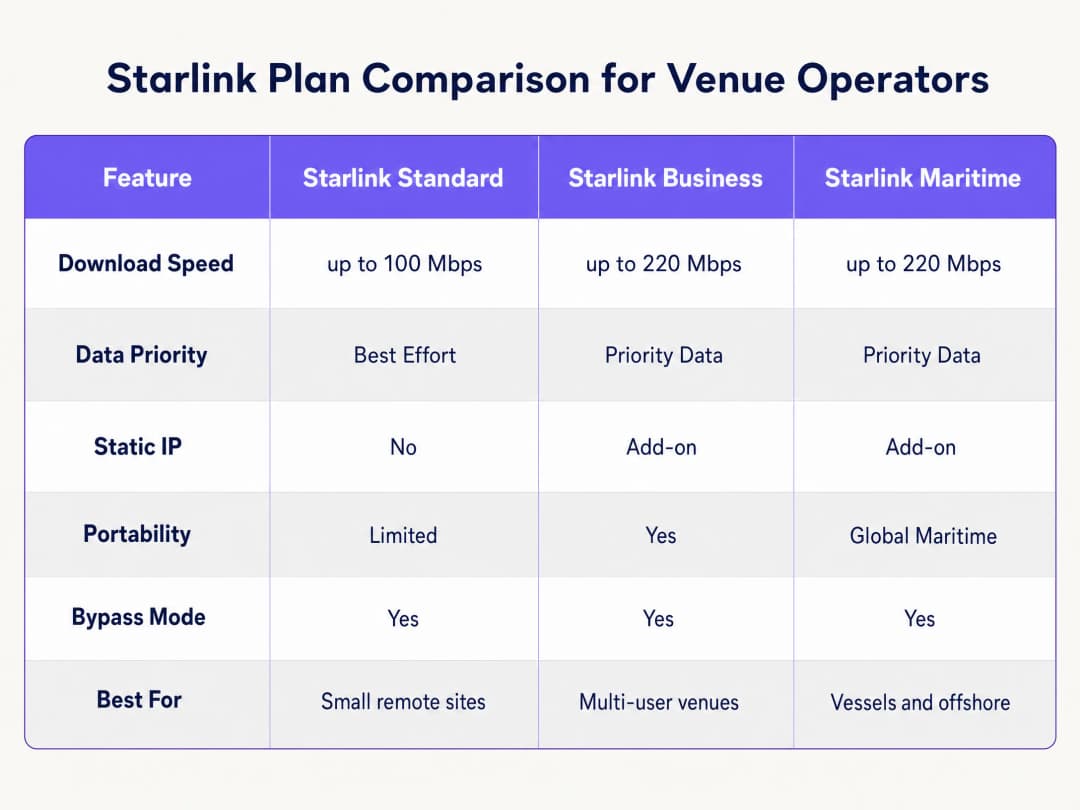
Starlink provides 220 Mbps connectivity in locations where fibre cannot reach, completely changing the networking landscape for remote and maritime venues. However, for public-facing environments, connectivity alone is not enough. When you deploy Starlink for guests, passengers or crew, you must implement authentication, access control, GDPR-compliant consent, and bandwidth management. The native Starlink router does not provide any of these capabilities.
This guide explains in detail how to bypass the native Starlink hardware and integrate a cloud-managed Captive Portal using enterprise routing equipment. You will learn how to overcome the limitations of Carrier Grade NAT (CGNAT), implement VLAN segmentation, manage satellite bandwidth constraints, and ensure regulatory compliance.
By implementing this architecture, venue operators transform an unmanaged internet pipe into a secure, segmented network that captures first-party data and protects core business infrastructure.
Technical Deep Dive
The CGNAT Constraint
The primary technical hurdle when deploying a Captive Portal on Starlink is Carrier Grade NAT (CGNAT). The standard Starlink dish connects to a proprietary router that handles DHCP and NAT. By default, the WAN IP address assigned to your equipment falls within the 100.64.0.0/10 range. Since this is not a public IP address, your router cannot receive inbound connections from the internet.
Standard Captive Portal architectures often assume that the cloud portal can reach back to your network to authenticate users or update access control lists. With CGNAT, inbound connections fail.
To resolve this, you must configure the Starlink dish in Bypass Mode (often referred to as bridge mode). In Bypass Mode, the Starlink router's functions are disabled, and the dish sends the CGNAT address directly to the WAN port of your enterprise router. Your enterprise router then takes full control of the routing layer.

Reverse Tunnel Architecture
Even with the enterprise router handling the traffic, the CGNAT inbound restriction remains. The solution is a reverse tunnel architecture. Your router establishes an outbound connection to the cloud portal and maintains it continuously. All authentication traffic flows through this established tunnel. The cloud infrastructure never needs to initiate an inbound connection.
Purple's cloud overlay architecture handles this natively. You do not need to configure manual VPN tunnels. If your deployment requires a static IP for legacy on-premises RADIUS servers or strict IP allowlisting, Starlink Business and Maritime plans provide a static IP as a paid add-on.
Bandwidth Constraints and Traffic Shaping
Satellite bandwidth is a shared, finite resource. A single user streaming 4K video can continuously consume 25 Mbps. On a vessel with 50 passengers sharing a 220 Mbps Starlink connection, one user could consume 11% of the total capacity.
You must address this at the Captive Portal and router level through aggressive traffic shaping:
- Per-device limits: Restrict individual guest devices to 5 Mbps download and 2 Mbps upload.
- Fair-use policies: Enforce daily data allowances (e.g., 2GB per 24 hours).
- Application control: Prioritise web browsing and messaging protocols over video streaming and peer-to-peer file sharing.
- Tiered access: Provide a free tier for basic connectivity and a paid premium tier for streaming, transforming the WiFi infrastructure from a cost centre into a revenue source.
Got questions about your specific setup?
Our team works with venue operators, IT managers, and network engineers across 80,000 venues. Book a 20-minute call and we will show you how others like you solved it.
Implementation Guide
Follow these steps to deploy a secure Captive Portal on Starlink using enterprise hardware.
Step 1: Enable Bypass Mode
- Install Starlink hardware and verify connectivity using the original router.
- Open the Starlink mobile application and navigate to Settings.
- Select and confirm Bypass Starlink WiFi router.
- Connect the Starlink Ethernet Adapter to the WAN port of your enterprise router (Cisco Meraki, HPE Aruba, Ruckus, Juniper Mist, Ubiquiti UniFi, Cambium, Extreme, or Fortinet).
Note: If the Starlink dish undergoes a factory reset, Bypass Mode is automatically disabled. Document this in your site runbook and configure a monitoring alert on your router's WAN interface.
Step 2: Configure VLAN Segmentation
You must isolate guest traffic from your core business systems. Configure at least three VLANs on your core switch and access points:
- VLAN 10 (Staff): Carries POS systems, back-office applications, and management traffic.
- VLAN 20 (Guest): Internet-only segment that redirects to the Captive Portal.
- VLAN 30 (IoT): Isolated network for cameras, smart thermostats, and building management systems.
Configure firewall rules to block all inter-VLAN routing. A guest device on VLAN 20 must never be able to ping a POS terminal on VLAN 10. This segmentation is a strict requirement for PCI-DSS compliance.
Step 3: Deploy the Cloud Captive Portal
- Configure your access points to broadcast the Guest SSID on VLAN 20.
- Set the authentication method to external RADIUS or use the vendor's API integration.
- Point the authentication server to Purple's cloud infrastructure.
- Configure the walled garden (allowlist) to permit traffic to Purple's domains before authentication is complete.
- Design the splash page in the Purple portal, ensuring the branding aligns with your venue and the terms of service are clearly displayed.
Step 4: Test the User Flow
Test the authentication flow on both iOS and Android devices. Apple's Captive Network Assistant (CNA) and Android's network probe behave differently. Verify that the splash page loads within 10 seconds and that the device gains internet access immediately after authentication.
Best Practices
- HTTPS Intercept: Ensure your router handles HTTPS interception correctly. Modern devices use HTTPS by default. If the router cannot redirect HTTPS requests cleanly, guests will experience certificate errors before reaching the portal.
- Session Keepalive: Starlink's Low Earth Orbit (LEO) constellation provides latencies of 20 to 40 milliseconds, but brief spikes occur during satellite handoffs. Set your Captive Portal session keepalive interval to 60 seconds or less to prevent premature disconnection.
- Offline Caching: Configure your router to cache active sessions locally. If the Starlink connection drops temporarily, guests who are already authenticated will remain online when connectivity is restored, rather than being forced to log in again.
Troubleshooting and Risk Mitigation
| Failure Mode | Root Cause | Mitigation |
|---|---|---|
| Captive Portal fails to load | Incorrect walled garden configuration | Verify that all required Purple domains and CDN endpoints are added to the pre-authentication allowlist on the router. |
| Double NAT errors | Bypass Mode is disabled | Check the Starlink app to confirm Bypass Mode is active. Power fluctuations or manual resets may have reverted the dish to default settings. |
| Slow guest speeds | Unrestricted bandwidth | Apply per-device bandwidth limits (e.g., 5 Mbps) and block high-bandwidth applications like BitTorrent on the firewall. |
| Security audit failure | Inter-VLAN routing is enabled | Audit firewall rules to ensure traffic from the Guest VLAN cannot route to the Staff or Management VLAN. |
ROI and Business Impact
Deploying a managed Captive Portal on Starlink transforms a raw internet connection into a measurable business asset.
For a 120-cabin cruise ship running Starlink Maritime at 220 Mbps, raw access yields zero business return. By deploying Cisco Meraki access points and Purple's Captive Portal, the operator can enforce a 2GB daily allowance for standard passengers while upselling a 10GB premium tier. The resulting WiFi revenue covers the $250+ monthly Starlink subscription cost. Furthermore, the portal captures fully compliant first-party email data, expanding the operator's direct marketing list for future voyages.
In a remote hotel environment, deploying a portal with strict bandwidth policies reduces guest complaints regarding slow WiFi by up to 60%, as heavy users are prevented from monopolising the satellite link.
Key Definitions
Bypass Mode
A configuration setting that disables the native Starlink router's DHCP and NAT functions, passing the WAN IP directly to a third-party enterprise router.
Required when integrating enterprise networking equipment with a Starlink dish to avoid double NAT and routing conflicts.
CGNAT (Carrier Grade NAT)
A method used by ISPs to share a single public IP address among multiple customers. The customer's router receives a private IP address (typically 100.64.0.0/10).
Starlink uses CGNAT by default, which prevents inbound connections from the internet and requires reverse tunnel architectures for cloud management.
VLAN (Virtual Local Area Network)
A logical subnetwork that groups a collection of devices from different physical LANs.
Used to isolate guest WiFi traffic from staff and IoT networks, ensuring security and compliance.
Captive Portal
A web page that a user of a public access network is obliged to view and interact with before access is granted.
Used to enforce terms of service, collect marketing data, and authenticate users on guest WiFi networks.
Walled Garden
A limited environment that controls the user's access to web content and services before they have fully authenticated.
Required to allow guest devices to reach the cloud captive portal and authentication servers before they are granted full internet access.
RADIUS
A networking protocol that provides centralised Authentication, Authorisation, and Accounting management for users who connect and use a network service.
The underlying protocol used by enterprise access points to communicate with the cloud captive portal to verify user credentials.
Traffic Shaping
The manipulation and prioritisation of network traffic to reduce the impact of heavy users or latency-sensitive applications.
Essential on Starlink networks to prioritise web browsing over high-bandwidth activities like video streaming.
First-Party Data
Information a company collects directly from its customers and owns.
Captured via the captive portal login process (e.g., email addresses) and used for direct marketing and loyalty campaigns.
Worked Examples
A 120-cabin cruise vessel running Starlink Maritime at 220 Mbps needs to provide passenger WiFi without degrading ship operations. They require a mechanism to monetise the connection and collect marketing data.
The operator deploys Cisco Meraki access points throughout the vessel with three strict VLANs: crew, passenger, and ship systems. Purple's captive portal handles passenger authentication via email or a cabin number lookup integrated with the PMS. Each passenger receives a 2GB daily allowance. Premium tier passengers can purchase a 10GB allocation. The portal collects first-party email data for post-voyage marketing.
A remote Highland hotel with no fibre infrastructure runs Starlink Business at 150 Mbps. Guests frequently complain about slow speeds during the evening, and the hotel has no visibility into who is using the network.
The hotel deploys HPE Aruba access points across the main building and outbuildings. They configure the Starlink dish in Bypass Mode and connect it to an Aruba gateway. Guests authenticate via email on Purple's portal. The hotel enforces a strict 5 Mbps per-device bandwidth cap and uses Purple's analytics to monitor peak usage times.
Practice Questions
Q1. A remote mining camp has deployed Starlink Business. They have connected a Cisco Meraki MX firewall to the Starlink router. Guests can connect to the WiFi, but the captive portal page times out and fails to load. What is the most likely cause?
Hint: Consider how the Starlink hardware handles routing by default and what the Meraki firewall requires to manage traffic effectively.
View model answer
The Starlink dish has not been placed in Bypass Mode. As a result, the network is suffering from double NAT (the Starlink router and the Meraki firewall are both attempting to perform Network Address Translation). The administrator must use the Starlink app to enable Bypass Mode, allowing the Meraki firewall to receive the CGNAT IP directly and manage the routing and captive portal interception.
Q2. You are deploying a captive portal for a hotel using Starlink. You have configured Bypass Mode and VLAN segmentation. During testing, you notice that Apple devices prompt the user to log in immediately, but some Android devices show a certificate error when the user tries to browse to a secure website before authenticating. How do you resolve this?
Hint: Think about how modern browsers handle initial connection requests and what the router must do to intercept them cleanly.
View model answer
The enterprise router is not configured to handle HTTPS interception correctly for the captive portal redirect. Modern browsers default to HTTPS. When the user attempts to visit an HTTPS site before authenticating, the router intercepts the traffic and presents its own certificate, which the browser rejects as invalid. You must ensure the router's captive portal settings are configured to use a valid SSL certificate for the redirect, or rely on the OS-level network probes (like Apple's CNA) which use HTTP endpoints to trigger the portal automatically.
Q3. A maritime operator complains that their Starlink Maritime connection (220 Mbps) becomes unusable every evening. They currently provide an open, password-free guest network. What three specific configurations should you implement on the enterprise router and captive portal to resolve this?
Hint: Focus on controlling how much data individual users can consume and prioritising critical traffic types.
View model answer
- Implement a captive portal requiring authentication to track and manage individual users. 2. Enforce per-device bandwidth caps (e.g., 5 Mbps down / 2 Mbps up) to prevent a single user from monopolising the connection. 3. Apply traffic shaping rules at the firewall to prioritise web browsing and messaging protocols while throttling or blocking high-bandwidth applications like video streaming and P2P file sharing.
Frequently asked questions
Why does Starlink require an external gateway router in bypass mode for enterprise captive portals?
Starlink user terminals (Standard Gen 2, Gen 3, and Flat High Performance Maritime) include a basic residential-grade router without support for external splash page redirection, 802.1Q VLAN tagging, RADIUS AAA (RFC 2865/2866), or walled garden domain whitelisting. Enabling Starlink Bypass Mode disables native NAT and WiFi routing, bridging the Layer 2 WAN handoff directly into an enterprise security gateway - such as Peplink Balance, Cisco Meraki MX, or Fortinet FortiGate - which handles captive portal interception, traffic shaping, and guest isolation.
How does Starlink Carrier-Grade NAT (CGNAT) affect external captive portal redirection?
Standard Starlink satellite plans assign WAN IP addresses from the private CGNAT pool (100.64.0.0/10), which prevents hosting local inbound HTTP/HTTPS listening services without dynamic DNS or port forwarding. Purple operates as a cloud-hosted captive portal, meaning guests resolve the splash page via external HTTPS requests initiated outbound from the gateway. Because client authorization occurs over outbound RADIUS or cloud API webhooks, CGNAT does not impact portal redirection or authentication flows.
How do you prevent guest WiFi users from exhausting Starlink Maritime or Priority satellite data quotas?
Starlink Maritime and Priority plans feature metered priority data pools (such as 50 GB to 5 TB per month), with steep per-gigabyte overage charges or throughput throttling upon exhaustion. To protect satellite quotas, enterprise gateways running Purple enforce strict per-user bandwidth caps (e.g., 3 Mbps downlink / 1 Mbps uplink), session data allowances (e.g., 500 MB per day), Layer 7 application filtering blocking 4K video streaming and torrents, and separate QoS priority queues that reserve 40% of satellite backhaul for mission-critical vessel navigation and staff operations.
Can a captive portal on Starlink integrate with maritime Property Management Systems (PMS)?
Yes. Purple integrates directly with hospitality and maritime PMS platforms - including Oracle Hospitality Opera and FCS - allowing guests on cruise ships, ferries, and luxury charter yachts to authenticate using their cabin number and surname. The gateway passes guest credentials securely to Purple cloud services, which query the vessel PMS to verify active folio reservations, apply billing tiers to the guest account, or unlock complimentary high-speed tiers for VIP passengers.
Which domains must be whitelisted in the Starlink walled garden for seamless smartphone captive portal popups?
Allow the portal and its dependencies, and nothing else: the Purple splash and CDN hosts (*.purplewifi.net, *.purple.ai), the RADIUS endpoints, and the OAuth identity provider domains (Google, Facebook, Apple ID) plus their CRL and OCSP endpoints if social onboarding is enabled. Do not allow the operating system connectivity probes - captive.apple.com, connectivitycheck.gstatic.com, msftconnecttest.com. The gateway has to intercept those probes, because it is the redirect they receive that tells iOS, Android and Windows the network is captive and opens the Captive Network Assistant. Allow them through and the probe succeeds, the device concludes it already has internet access, and the login page never appears.
How does multi-WAN SD-WAN bond Starlink satellite backhaul with coastal 4G/5G cellular connectivity?
Maritime vessels and remote venues frequently combine Starlink with multi-SIM cellular routers (such as Peplink MAX HD4 or Cradlepoint) to minimize satellite data spend. Using SD-WAN bonding and least-cost routing algorithms, the gateway steers high-bandwidth guest traffic onto terrestrial 4G/5G LTE connections when operating within 20 nautical miles of coastline, seamlessly failing over to Starlink satellite backhaul when navigating offshore or beyond cellular range without dropping active guest sessions.
Continue reading in this series
Ubiquiti UniFi guest portal not redirecting: causes and fixes
This guide isolates a UniFi guest portal redirect failure by following the guest state, redirect, pre-authorisation route and controller authorisation in sequence. It gives venue IT teams a sourced method to address guest-network versus Hotspot confusion, external portal hand-offs, current UniFi OS account requirements and DNS isolation testing.
Cisco Meraki splash page not working: a troubleshooting flowchart
This practical day-two guide isolates where a Cisco Meraki splash flow has failed: client authorisation, HTTP redirect initiation, walled-garden reachability or RADIUS sign-on. It gives venue IT teams a controlled evidence path, so they can restore Guest WiFi without making broad changes to a live estate.
Enterprise Guest WiFi Setup Guide: VLAN Segmentation, Security, and Captive Portals
This technical guide shows IT teams how to set up Guest WiFi as a controlled internet-access service, using VLAN segmentation, firewall policy and a captive portal. It also explains how Purple's registration forms and onboarding controls support a proportionate visitor experience without weakening the boundary around staff, payment and operational systems.
Got questions about your specific setup?
Our team works with venue operators, IT managers, and network engineers across 80,000 venues. Book a 20-minute call and we will show you how others like you solved it.