
MikroTik RouterOS Captive Portal and Purple WiFi Integration Guide
This technical guide provides step-by-step instructions for integrating MikroTik RouterOS with Purple's WiFi platform. It covers Guest WiFi captive portal configuration, Staff WiFi 802.1X authentication, and Multi-Tenant WiFi using Private PSKs for dynamic VLAN segmentation.
Listen to this guide
View podcast transcript

Executive Summary
Integrating MikroTik RouterOS with Purple creates a unified, identity-driven network across guest, staff, and multi-tenant environments. This guide delivers the specific configuration logic required to deploy Purple's cloud overlay across MikroTik hardware. You will learn how to configure the RouterOS Hotspot Gateway for Guest WiFi redirection, implement IEEE 802.1X for secure Staff WiFi, and deploy Private Pre-Shared Keys (PPSK) to isolate Multi-Tenant WiFi traffic.
By following these deployment models, you segment your network securely while capturing first-party data for WiFi Analytics . Purple processed 440 million logins in 2024 with 99.999% uptime, making this architecture suitable for high-density environments in Retail , Hospitality , and Transport .
Technical Deep-Dive
Guest WiFi: Captive Portal and Walled Garden
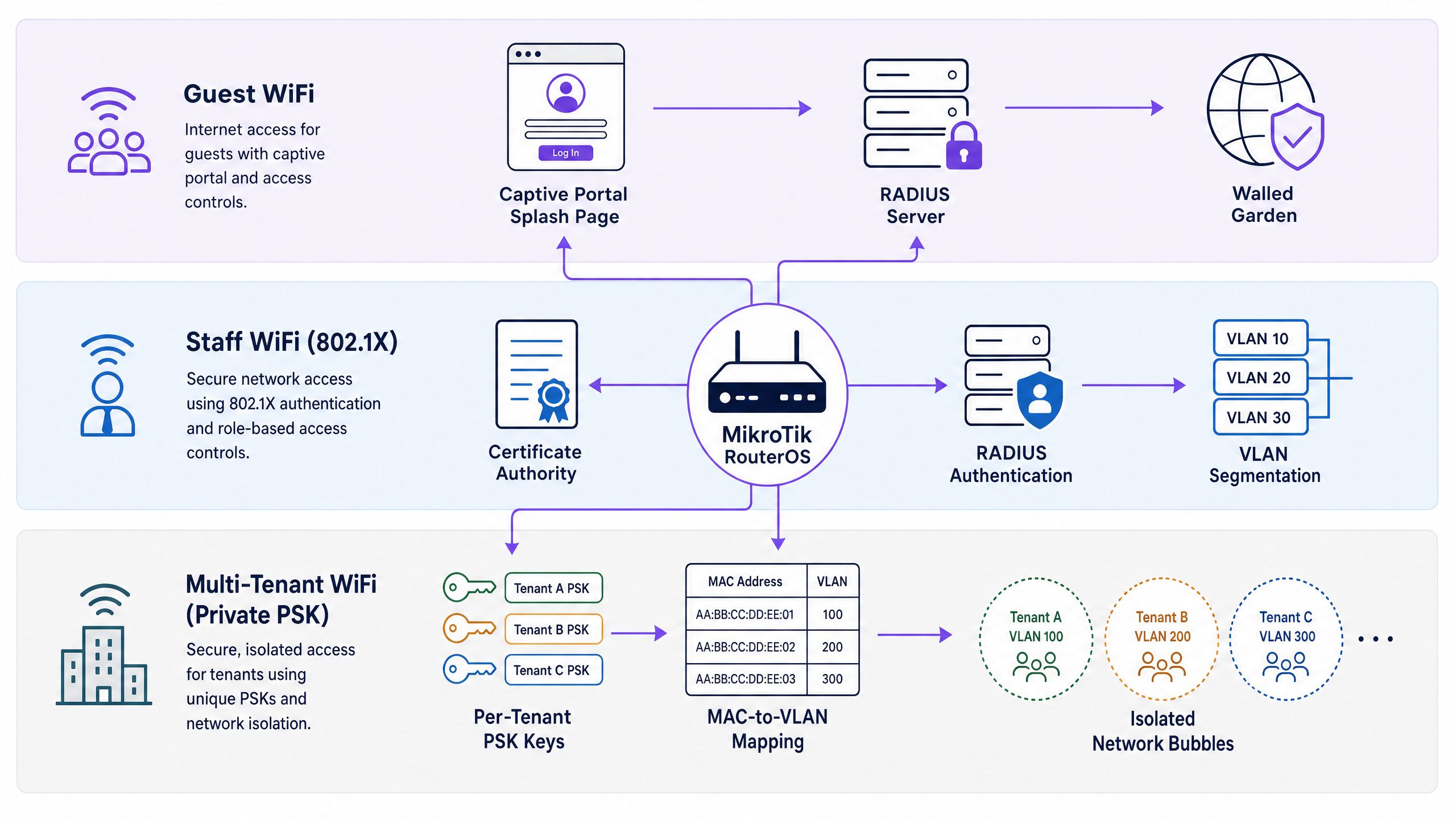
The MikroTik Hotspot Gateway intercepts unauthenticated HTTP traffic and redirects it to Purple's hosted captive portal. Purple acts as the RADIUS server, handling authentication and session management.
To ensure the captive portal loads correctly, you must configure a walled garden. This allows pre-authentication access to Purple's splash page domains, Content Delivery Networks (CDNs), and OAuth providers (such as Google Workspace and Microsoft Entra ID). Without these entries, the redirect loop breaks.
Upon successful authentication, Purple's RADIUS server returns standard attributes, including Session-Timeout to enforce connection limits, and optionally Mikrotik-Rate-Limit to enforce bandwidth constraints directly from the Purple dashboard.
Staff WiFi: 802.1X Authentication
For Staff WiFi, you eliminate shared passwords by deploying IEEE 802.1X. The MikroTik access point acts as the authenticator, passing EAP credentials to Purple's RADIUS server. Purple integrates natively with Microsoft Entra ID, Okta, and Google Workspace, validating credentials via PEAP-MSCHAPv2 or EAP-TLS.
When a staff member connects, Purple's RADIUS server can return the Mikrotik-Wireless-VLANID attribute. This instructs the MikroTik router to place the authenticated device onto a specific VLAN, enabling role-based network segmentation from a single SSID. For a broader overview of security standards, refer to Enterprise WiFi Security: A Complete Guide for 2026 .
Multi-Tenant WiFi: Private PSK (PPSK)
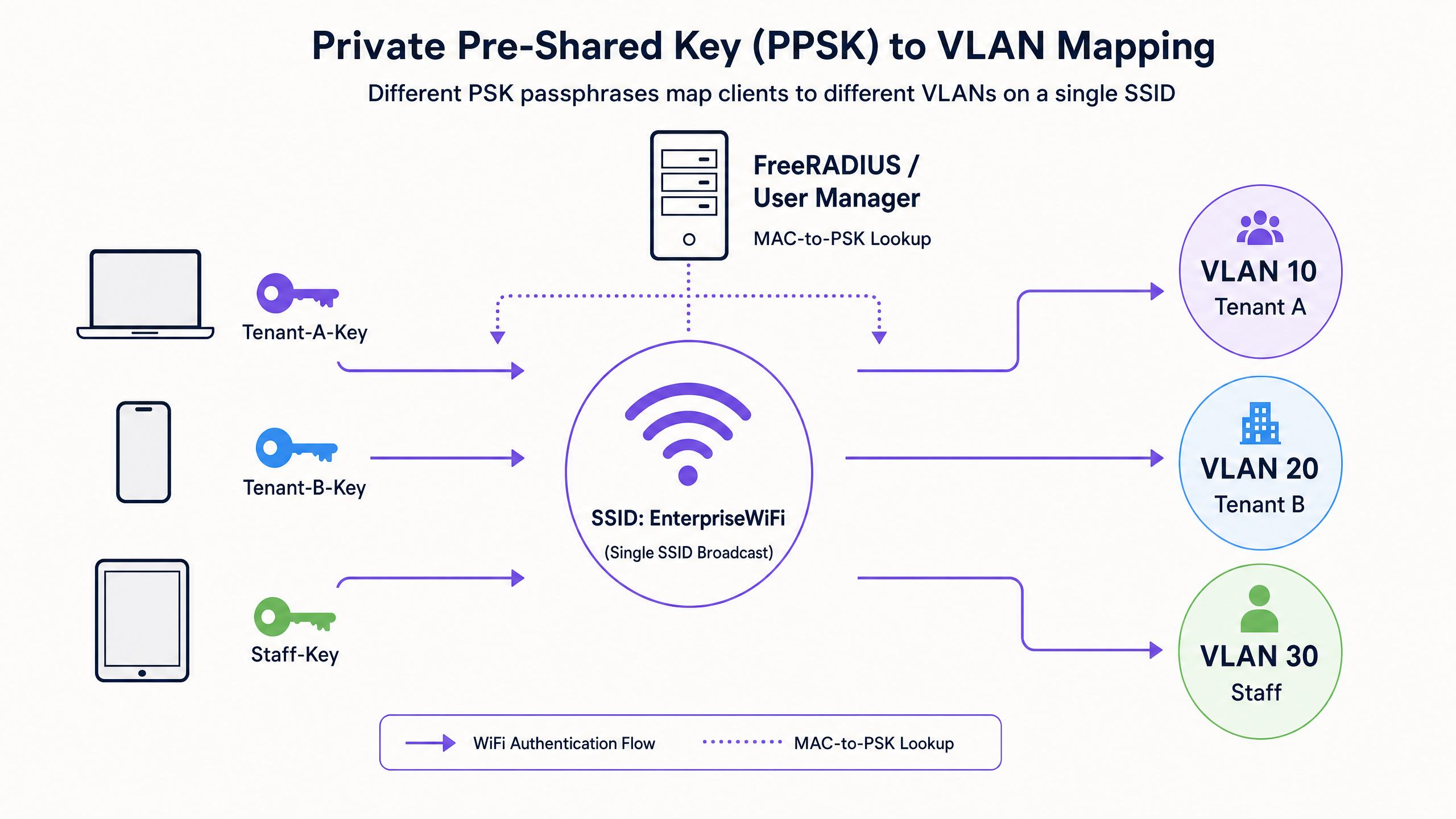
Multi-Tenant environments require secure isolation without the complexity of 802.1X, as many consumer devices (such as smart TVs and games consoles) do not support it. MikroTik supports Private PSK (PPSK) via MAC-based RADIUS authentication.
When a device connects to the SSID, the MikroTik router sends the device MAC address to Purple. Purple returns the Mikrotik-Wireless-Psk attribute (the unique passphrase for that tenant) and the Mikrotik-Wireless-VLANID attribute. This architecture allows hundreds of tenants to share a single SSID while remaining in completely isolated network bubbles.
Implementation Guide
1. Configuring the RADIUS Client
First, define Purple as the RADIUS server in RouterOS. This applies to all three use cases.
/radius
add address=YOUR-PURPLE-RADIUS-IP secret=YOUR-SHARED-SECRET service=hotspot,wireless authentication-port=1812 accounting-port=1813 timeout=3000ms
2. Guest WiFi Hotspot Setup
Run the Hotspot setup wizard on your guest VLAN interface, then enable RADIUS authentication on the resulting profile.
/ip hotspot profile
set [ find default=yes ] use-radius=yes radius-accounting=yes
Configure the walled garden to allow access to Purple's infrastructure.
/ip hotspot walled-garden
add action=allow dst-host=*purple.ai
add action=allow dst-host=*purpleportal.net
3. Staff WiFi 802.1X Setup
Configure the wireless security profile to use WPA2-Enterprise and point it to the RADIUS server.
/interface wireless security-profiles
add authentication-types=wpa2-eap eap-methods=passthrough mode=dynamic-keys name=staff-8021x radius-mac-authentication=no
Ensure bridge VLAN filtering is enabled to support dynamic VLAN assignment.
/interface bridge
set bridge1 vlan-filtering=yes
4. Multi-Tenant PPSK Setup
For PPSK, enable MAC authentication on the wireless security profile and configure the MAC address format.
/interface wireless security-profiles
add authentication-types=wpa2-psk mode=dynamic-keys name=multi-tenant-ppsk radius-mac-authentication=yes radius-mac-format=XX:XX:XX:XX:XX:XX
Best Practices
- Standardise on RouterOS 7: Dynamic VLAN assignment via wireless RADIUS is significantly more robust in RouterOS 7 compared to RouterOS 6.
- Increase RADIUS Timeouts: The default MikroTik RADIUS timeout is 1100ms. Increase this to 3000ms to prevent intermittent authentication failures caused by network latency.
- Use Hostname Walled Garden Entries: Always use
dst-hostinstead ofdst-addressfor walled garden entries, as cloud infrastructure IP addresses change frequently. - Enable Bridge VLAN Filtering: Dynamic VLAN assignment via RADIUS (
Mikrotik-Wireless-VLANID) requiresvlan-filtering=yeson the bridge interface.
Troubleshooting & Risk Mitigation
If the captive portal fails to load, the walled garden is almost certainly incomplete. Use the MikroTik Torch tool to monitor dropped DNS queries from unauthenticated clients on the guest VLAN. Add the missing domains to the walled garden.
If 802.1X clients fail to authenticate, verify the shared secret and ensure the RADIUS client is configured with service=wireless. Check the Purple dashboard logs to confirm whether the Access-Reject is originating from Purple or your identity provider.
If clients authenticate but receive the wrong IP address, confirm that bridge VLAN filtering is enabled and that the DHCP server is correctly bound to the dynamically assigned VLAN interface.
ROI & Business Impact
Deploying Purple across your MikroTik infrastructure transforms a cost centre into a revenue generator. By capturing first-party data, venues can build detailed digital profiles and automate marketing campaigns. For example, Avanti West Coast drove a 463% return on investment by capitalising on repeat travellers and upsell opportunities.
Furthermore, identity-driven networking reduces IT overhead. Automating onboarding and offboarding for Staff WiFi via Entra ID eliminates manual password management, while PPSK for Multi-Tenant WiFi allows property managers to provision isolated networks without deploying dedicated hardware per unit.
Key Definitions
Hotspot Gateway
A RouterOS feature that intercepts unauthenticated HTTP traffic and redirects it to a captive portal splash page.
Used to capture guest data and enforce terms of service before granting internet access.
Walled Garden
A list of allowed destinations that unauthenticated users can access.
Critical for allowing guests to reach the Purple splash page, CDNs, and OAuth providers (like Google) to complete the login process.
802.1X
An IEEE standard for port-based network access control that provides an authentication mechanism to devices wishing to attach to a LAN or WLAN.
Used for secure Staff WiFi, allowing authentication via Entra ID or Okta instead of a shared password.
Private PSK (PPSK)
A security architecture where multiple unique Pre-Shared Keys are used on a single SSID, often tied to specific MAC addresses and VLANs.
Ideal for Multi-Tenant WiFi, providing isolated network bubbles for residents and their consumer devices.
RADIUS
Remote Authentication Dial-In User Service. A networking protocol that provides centralised Authentication, Authorization, and Accounting (AAA) management.
The core protocol linking MikroTik hardware to Purple's cloud platform for identity validation.
VLAN Filtering
A RouterOS bridge setting that enforces VLAN tagging and untagging rules on bridge ports.
Must be enabled for dynamic VLAN assignment via RADIUS to function correctly.
CAPsMAN
Controlled Access Point system Manager. MikroTik's centralised wireless management system.
Used to deploy consistent wireless security profiles and RADIUS settings across multiple access points.
EAP-TLS
Extensible Authentication Protocol - Transport Layer Security. A highly secure authentication method requiring client-side certificates.
Supported by Purple for zero-trust Staff WiFi deployments where passwordless authentication is required.
Worked Examples
A 200-room hotel needs to deploy secure Staff WiFi across their MikroTik access points. They want finance staff on VLAN 10 and operations staff on VLAN 20, using their existing Microsoft Entra ID credentials.
- Integrate Purple with Microsoft Entra ID in the Purple dashboard.
- Configure the MikroTik RADIUS client to point to Purple with
service=wireless. - Create a MikroTik wireless security profile with
authentication-types=wpa2-eap. - Enable
vlan-filtering=yeson the MikroTik bridge. - In Purple, map the Entra ID 'Finance' group to return
Mikrotik-Wireless-VLANID=10and the 'Operations' group to returnMikrotik-Wireless-VLANID=20.
A build-to-rent property manager needs to provide isolated WiFi networks for 50 apartments using a single SSID broadcast from MikroTik CAPsMAN.
- Configure the MikroTik wireless security profile for the SSID with
authentication-types=wpa2-pskandradius-mac-authentication=yes. - Ensure the RADIUS client is configured with
service=wirelesspointing to Purple. - In the Purple dashboard, register the MAC addresses of the residents' devices.
- Assign a unique PSK and VLAN ID to each apartment in Purple.
- When a device connects, Purple returns the
Mikrotik-Wireless-PskandMikrotik-Wireless-VLANIDattributes, placing the device in its isolated network bubble.
Practice Questions
Q1. You have configured the MikroTik Hotspot Gateway and pointed it to Purple's RADIUS server. Guests connect to the SSID, but their browsers display a timeout error instead of the Purple splash page. What is the most likely configuration error?
Hint: Consider what must happen before the guest authenticates.
View model answer
The walled garden is misconfigured or missing entries. Without allowing access to Purple's splash page domains and associated CDNs in the /ip hotspot walled-garden, the unauthenticated guest cannot load the login page, resulting in a timeout.
Q2. A retail chain wants to deploy Staff WiFi using 802.1X and Entra ID. They configure `authentication-types=wpa2-eap` and set up the RADIUS client. However, authentication fails. You check the RADIUS client configuration and see `service=hotspot`. How do you resolve this?
Hint: Different wireless authentication methods require different RADIUS service types in RouterOS.
View model answer
Change the RADIUS client configuration to include service=wireless. The hotspot service type is only used for captive portal authentication. 802.1X and MAC authentication require the wireless service type.
Q3. You are deploying Multi-Tenant WiFi using Private PSKs. Purple successfully returns the `Mikrotik-Wireless-Psk` and `Mikrotik-Wireless-VLANID` attributes, and the device connects. However, the device receives an IP address from the default management subnet, not the isolated tenant subnet. What RouterOS setting is missing?
Hint: Dynamic VLAN assignment requires the bridge to process VLAN tags.
View model answer
Bridge VLAN filtering is disabled. You must set vlan-filtering=yes on the bridge interface. Without this, the bridge ignores the dynamic VLAN tag assigned by RADIUS, and the traffic falls back to the default untagged PVID.
Continue reading in this series
EnGenius Cloud Access Points Integration with Purple WiFi
This technical reference details the step-by-step integration of EnGenius Cloud Access Points and ECS switches with Purple's guest WiFi platform. It covers guest captive portal redirection via an external splash page, Walled Garden configuration, secure staff WiFi using IEEE 802.1X, and multi-tenant network isolation using EnGenius MyPSK with dynamic VLAN assignment. IT installers and network architects will find actionable configuration sequences, real-world case studies, and a troubleshooting framework for deploying Purple across EnGenius hardware estates.
DrayTek Vigor Routers and Access Points Integration with Purple WiFi
This guide provides step-by-step technical instructions for integrating DrayTek Vigor routers and VigorAP access points with Purple's cloud platform. It covers DrayTek captive portal configuration for Guest WiFi, 802.1X authentication for secure Staff WiFi, Walled Garden setup, and DrayTek Multiple PSK (PPSK) configuration for Multi-Tenant network segmentation with dynamic VLAN assignment. Designed for IT installers and SMB network administrators deploying Purple across hospitality, retail, and multi-tenant venues.
DrayTek Vigor Routers and Access Points Integration with Purple WiFi
This guide provides step-by-step technical instructions for integrating DrayTek Vigor routers and VigorAP access points with Purple's cloud platform. It covers DrayTek captive portal configuration for Guest WiFi, 802.1X authentication for secure Staff WiFi, Walled Garden setup, and DrayTek Multiple PSK (PPSK) configuration for Multi-Tenant network segmentation with dynamic VLAN assignment. Designed for IT installers and SMB network administrators deploying Purple across hospitality, retail, and multi-tenant venues.