
NETGEAR Insight and Enterprise Access Points Integration with Purple WiFi
This guide provides IT managers with a definitive technical roadmap for integrating NETGEAR Insight and WAX enterprise access points with Purple WiFi. It covers essential configurations including Guest captive portals, 802.1X staff networks, and multi-tenant segmentation using PPSK and dynamic VLAN assignment.
Listen to this guide
View podcast transcript
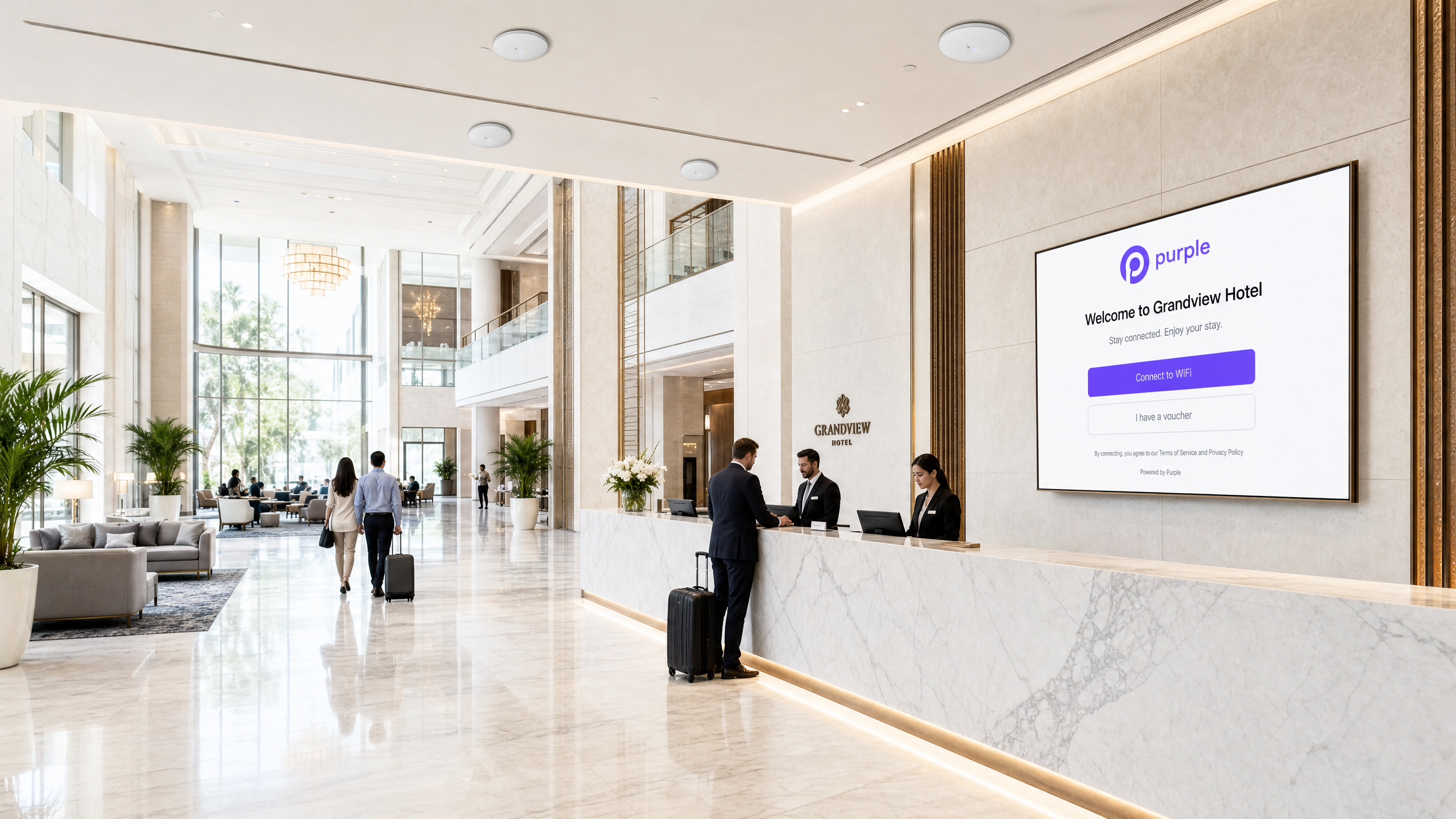
Executive Summary
Relying on pre-shared keys for enterprise WiFi access is a significant security liability. A single compromised credential exposes the entire network, and revoking access requires changing the password for every device. This guide provides IT managers and network architects with a definitive roadmap for integrating NETGEAR Insight and WAX series enterprise access points with Purple.
We detail four core deployment architectures: Guest WiFi with a captive portal, Secure Staff WiFi using 802.1X, Multi-Tenant segmentation via NETGEAR Private Pre-Shared Keys (PPSK), and Identity-Based Networks using dynamic VLAN assignment. Whether you operate Hospitality venues, Retail spaces, or public-sector environments, these configurations eliminate shared passwords, enforce strict network segmentation, and capture actionable WiFi Analytics .
Listen to our technical briefing podcast below for a comprehensive overview of the architecture and common deployment pitfalls.
Technical Deep-Dive
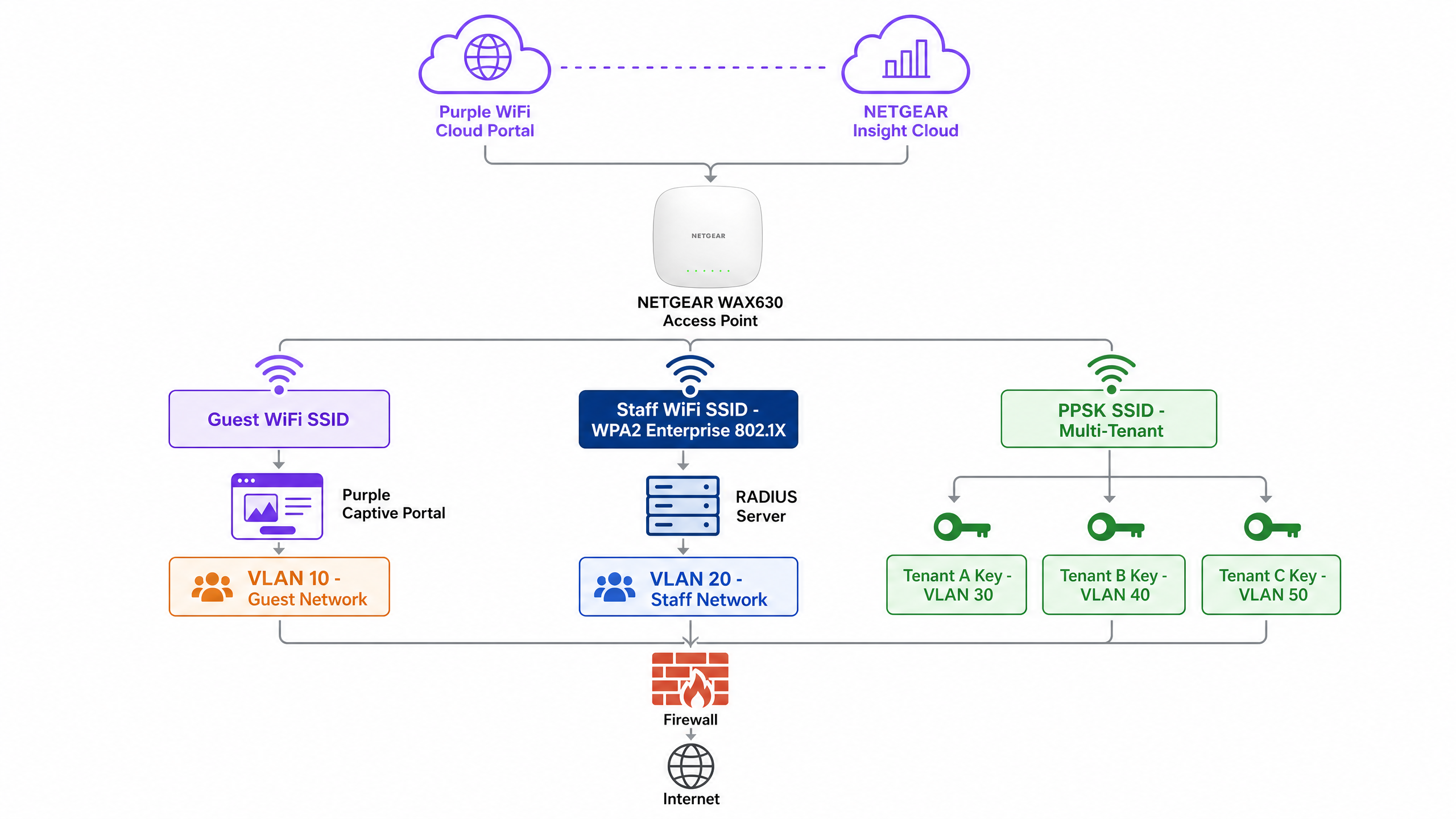
NETGEAR WAX series access points (WAX610, WAX620, WAX630) are cloud-managed WiFi 6 devices designed for high-density environments. Managed via the NETGEAR Insight portal, they support up to eight separate SSIDs per radio, WPA3 encryption, and multi-gigabit throughput. Purple acts as a hardware-agnostic cloud overlay, integrating with NETGEAR Insight to deliver enterprise-grade access control and data capture.
1. Guest WiFi with Captive Portal
For public-facing environments, you must deploy an External Captive Portal. This configuration intercepts guest HTTP requests and redirects them to a Purple-hosted splash page.
Architecture:
- Access Point: NETGEAR WAX access point broadcasts an open or WPA2 Personal Guest SSID.
- Walled Garden: NETGEAR Insight permits pre-authentication traffic to Purple's servers and social login providers.
- Authentication: Purple handles the user session via RADIUS or HTTP web authentication.
When a guest connects, they are presented with a branded portal. Upon accepting the terms and providing details, Purple's RADIUS server returns an Access-Accept message, granting internet access. This approach guarantees compliance with data privacy regulations like GDPR while capturing valuable first-party data.
2. Secure Staff WiFi (802.1X)
Pre-shared keys are unacceptable for staff networks. You must implement IEEE 802.1X authentication. In this model, every user has an individual credential. When an employee departs, you disable their directory account, and their access is revoked instantly.
In NETGEAR Insight, you configure a Staff SSID with WPA2 Enterprise or WPA3 Enterprise security. The access point acts as the authenticator, relaying Extensible Authentication Protocol (EAP) messages to the RADIUS server. The RADIUS server validates the credentials against your directory (e.g., Microsoft Entra ID or Okta) and returns the authorisation decision.
3. Multi-Tenant Segmentation (PPSK)
Mixed-use developments and retail parks face a specific challenge: multiple tenants sharing physical WiFi infrastructure. Deploying separate SSIDs for each tenant creates radio frequency congestion. Providing a single shared password compromises security.
NETGEAR Private Pre-Shared Key (PPSK) solves this. You broadcast a single SSID. In NETGEAR Insight, you generate unique passwords for each tenant. Crucially, each password maps to a specific VLAN.
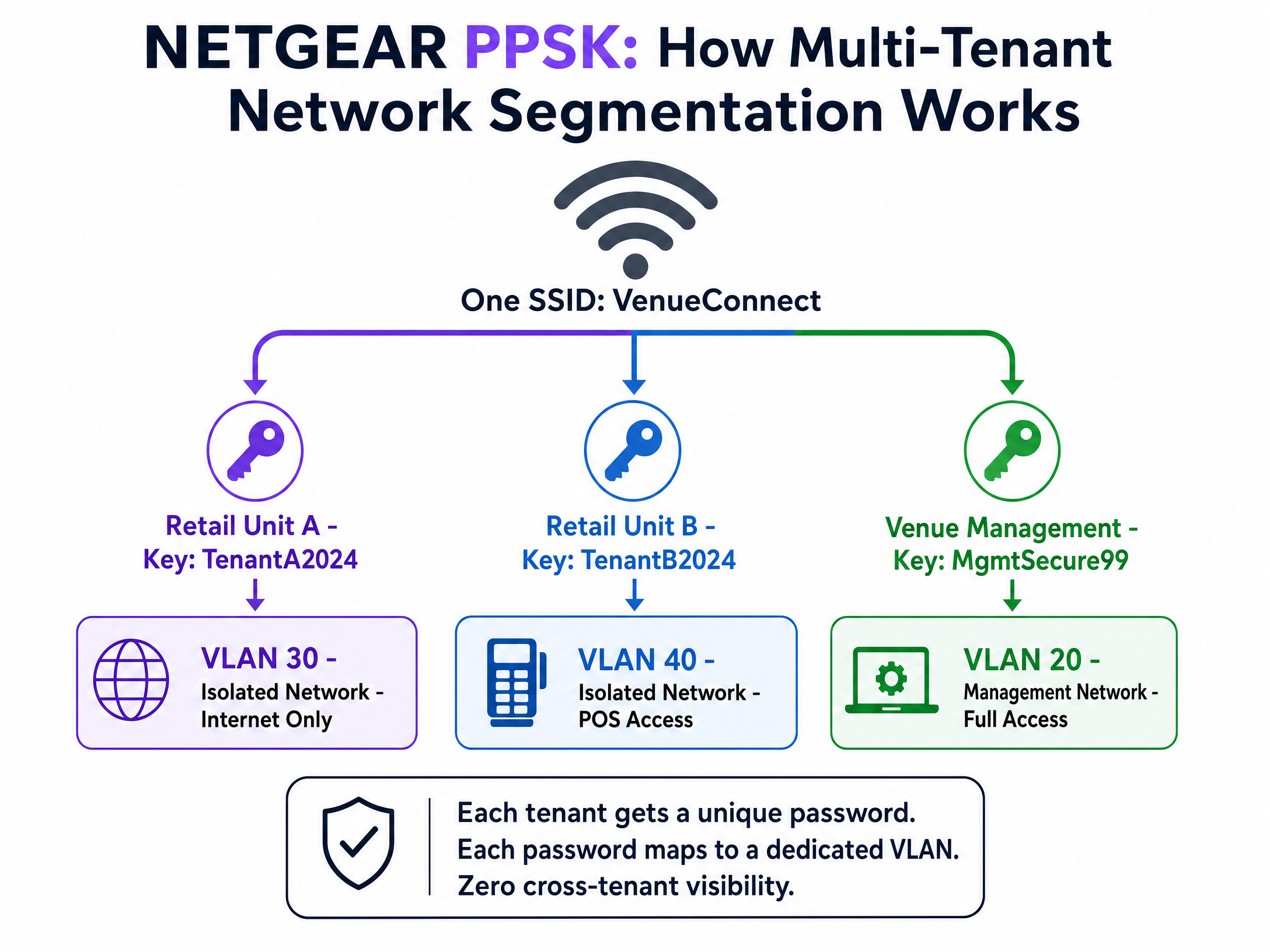
When a device connects using the retail unit's password, the access point places it on the isolated retail VLAN. When venue management connects using their password, they land on the management VLAN. You achieve complete traffic isolation with zero additional hardware. Note that PPSK requires WPA2 Personal and cannot be combined with a captive portal on the same SSID.
4. Dynamic VLAN Assignment via RADIUS
For sophisticated Identity-Based Networks, you must use dynamic VLAN assignment. Instead of statically assigning a VLAN to an SSID or a password, the RADIUS server dictates the VLAN based on the user's directory profile.
The RADIUS server returns three standard attributes in the Access-Accept message:
[64] Tunnel-Type = 13 (VLAN)[65] Tunnel-Medium-Type = 6 (802)[81] Tunnel-Private-Group-ID = [VLAN ID]
A single WPA2 Enterprise SSID can serve the entire organisation. A hotel manager authenticates and lands on VLAN 20. A front desk agent lands on VLAN 21. A contractor lands on VLAN 50. The network adapts to the identity of the user. For a broader look at securing your environment, review our Enterprise WiFi Security: A Complete Guide for 2026 .
Implementation Guide
Follow these steps to deploy NETGEAR Insight with Purple Guest WiFi .
Step 1: Configure the Guest SSID
- Log in to the NETGEAR Insight Cloud Portal.
- Select your network location and navigate to Wireless > Settings.
- Create a new SSID (e.g., "Venue Guest WiFi").
- Select Captive Portal and choose External Captive Portal.
Step 2: Configure the Captive Portal
- In the Splash Page URL field, enter the URL provided by Purple.
- Select the Radius radio button.
- Enter the Primary Authentication Server IP, port (1812), and shared secret provided by Purple.
- Enter the Primary Accounting Server IP, port (1813), and shared secret.
- Set a descriptive NAS-Identifier (e.g., "London-Retail-01").
Step 3: Configure the Walled Garden
This is the most critical step. If the walled garden is incorrect, guests will see a blank screen.
- Scroll to the Walled Garden section in the Captive Portal settings.
- Add every domain provided in Purple's integration documentation. This includes Purple's CDN domains, authentication servers, and any enabled social login providers (e.g., Facebook, Google).
- Click Save.
Step 4: Verify RADIUS Reachability
Ensure your firewall permits UDP ports 1812 and 1813 outbound from the access point management IP addresses to the Purple RADIUS servers.
Best Practices
- Enforce Certificate Validation: For 802.1X deployments, you must enforce strict certificate validation on all client devices via Group Policy Objects (GPO) or Mobile Device Management (MDM). If clients do not validate the RADIUS server certificate, they are vulnerable to rogue access point attacks.
- Isolate Management Traffic: Always place access point management IP addresses on a dedicated management VLAN, isolated from guest and staff traffic.
- Enable Failsafe: In the NETGEAR Insight Captive Portal settings, enable the FailSafe option. If the RADIUS servers become unreachable, guests are granted temporary internet access, preventing a total WiFi outage.
- Separate SSIDs for PPSK: Because NETGEAR Insight does not support PPSK and Captive Portal on the same SSID, you must create dedicated SSIDs (e.g., "Venue-Guest" and "Venue-Tenant").
Troubleshooting & Risk Mitigation
Symptom: Guests connect to the SSID but the splash page does not load.
- Cause: Incomplete Walled Garden configuration.
- Resolution: Verify that all Purple domains and social login domains are entered correctly in the NETGEAR Insight Walled Garden settings. Test with a device that has no cached credentials.
Symptom: Staff devices fail to authenticate via 802.1X.
- Cause: RADIUS timeout or incorrect shared secret.
- Resolution: Verify that UDP ports 1812 and 1813 are open outbound. Confirm the shared secret matches exactly between the NETGEAR Insight portal and the RADIUS server. Check the RADIUS server logs for
Access-Rejectmessages.
Symptom: PPSK clients are placed on the wrong VLAN.
- Cause: Incorrect VLAN mapping or missing VLAN configuration on the switch.
- Resolution: Ensure the VLAN is created in NETGEAR Insight under Wired settings. Verify the Multi PSK Settings map the correct password to the correct VLAN ID. Ensure the switch port connecting the access point is configured as a trunk port allowing the target VLAN.
ROI & Business Impact
Deploying NETGEAR Insight with Purple transforms your wireless infrastructure from a cost centre into a revenue-generating asset. By implementing Identity-Based Networks and captive portals, you achieve:
- Reduced IT Overhead: PPSK and 802.1X eliminate the need to manually manage shared passwords or dispatch engineers for routine access changes.
- Actionable Analytics: Capture demographic data, dwell times, and return rates to optimise venue operations and tenant mix.
- Marketing ROI: Build a high-intent, GDPR-compliant CRM database. Venues typically see a significant reduction in customer acquisition costs when leveraging first-party data collected via WiFi.
- Enhanced Security: Dynamic VLAN assignment isolates IoT devices, point-of-sale systems, and guest traffic, significantly reducing the attack surface and ensuring PCI DSS compliance.
Key Definitions
802.1X
An IEEE standard for port-based Network Access Control that provides an authentication mechanism to devices wishing to attach to a LAN or WLAN.
Essential for enterprise security; replaces shared passwords with individual user credentials.
Captive Portal
A web page that a user of a public access network is obliged to view and interact with before access is granted.
Used by Purple to capture first-party data and ensure terms of service acceptance.
PPSK (Private Pre-Shared Key)
A feature allowing multiple unique passwords on a single SSID, where each password assigns the user to a specific VLAN.
Ideal for multi-tenant buildings or isolating IoT devices without creating multiple SSIDs.
RADIUS
Remote Authentication Dial-In User Service; a networking protocol that provides centralized Authentication, Authorization, and Accounting (AAA) management.
The core server that validates credentials and tells the NETGEAR AP whether to grant access.
Walled Garden
A limited environment that controls the user's access to web content and services prior to full authentication.
Must be configured in NETGEAR Insight to allow devices to reach the Purple splash page and social login providers.
Dynamic VLAN Assignment
The process where a RADIUS server instructs an access point to place an authenticated user on a specific VLAN based on their identity.
Enables Identity-Based Networks, allowing a single SSID to serve multiple departments securely.
NAS-Identifier
Network Access Server Identifier; a string used to identify the source of a RADIUS access request.
Configured in NETGEAR Insight so Purple knows which venue or access point the user is connecting from.
EAP-TLS
Extensible Authentication Protocol - Transport Layer Security; an authentication method requiring digital certificates on both the client and server.
The most secure 802.1X method, eliminating passwords entirely, though requiring MDM to deploy certificates.
Worked Examples
A 40-unit retail park needs to provide secure, isolated WiFi for each tenant's point-of-sale systems, plus a branded public WiFi network for shoppers. They have deployed NETGEAR WAX630 access points. How should the network be configured?
Create two SSIDs in NETGEAR Insight. SSID 1: 'RetailPark-Guest'. Configure this with an External Captive Portal pointing to Purple's splash page, with RADIUS authentication and a comprehensive walled garden. Map this to VLAN 10 (Internet only). SSID 2: 'RetailPark-Tenants'. Configure this with WPA2 Personal and enable Multi PSK (PPSK). Create 40 unique passwords. Map Tenant A's password to VLAN 101, Tenant B to VLAN 102, etc. Ensure the core switch trunks all VLANs to the access points.
A corporate headquarters wants to move away from a shared WPA2 password. They need staff to authenticate with their Microsoft Entra ID credentials, and they want the finance team on VLAN 50 and the marketing team on VLAN 60.
Deploy a single 'Corporate-Secure' SSID configured for WPA2 Enterprise. Point the NETGEAR Insight RADIUS settings to a RADIUS server integrated with Entra ID. Configure the RADIUS server to return standard tunnel attributes (Tunnel-Type=13, Tunnel-Medium-Type=6, Tunnel-Private-Group-ID=50 or 60) based on the user's directory group membership. Enforce certificate validation on all corporate laptops via MDM.
Practice Questions
Q1. You have deployed a Purple captive portal on a NETGEAR WAX620. Guests can connect to the WiFi, but their browsers show a 'Cannot reach destination' error instead of the splash page. What is the most likely configuration error?
Hint: Consider what must happen before the guest is fully authenticated to reach external servers.
View model answer
The Walled Garden is misconfigured or incomplete. The NETGEAR access point is blocking the initial traffic to Purple's servers. You must ensure all required Purple CDN domains, authentication URLs, and social login domains are added to the Walled Garden list in the Insight portal.
Q2. A venue requires both a guest captive portal and secure, isolated WiFi for 10 different retail tenants. They want to minimize RF interference. How do you configure the NETGEAR access points?
Hint: NETGEAR Insight has specific limitations regarding mixing captive portals and PPSK.
View model answer
You must create exactly two SSIDs. NETGEAR does not support PPSK and Captive Portal on the same SSID. Create 'Venue-Guest' with an External Captive Portal pointing to Purple. Create 'Venue-Retail' with WPA2 Personal and configure Multi PSK (PPSK) with 10 unique passwords, each mapping to a different VLAN.
Q3. When configuring dynamic VLAN assignment for staff using 802.1X, which three RADIUS attributes must the server return in the Access-Accept message?
Hint: Think about the RFC 2868 standard attributes for tunnel configuration.
View model answer
The RADIUS server must return: [64] Tunnel-Type = 13 (VLAN), [65] Tunnel-Medium-Type = 6 (802), and [81] Tunnel-Private-Group-ID = [The specific VLAN ID string].
Continue reading in this series
MikroTik RouterOS Captive Portal and Purple WiFi Integration Guide
This technical guide provides step-by-step instructions for integrating MikroTik RouterOS with Purple's WiFi platform. It covers Guest WiFi captive portal configuration, Staff WiFi 802.1X authentication, and Multi-Tenant WiFi using Private PSKs for dynamic VLAN segmentation.
MikroTik RouterOS Captive Portal and Purple WiFi Integration Guide
This technical guide provides step-by-step instructions for integrating MikroTik RouterOS with Purple's WiFi platform. It covers Guest WiFi captive portal configuration, Staff WiFi 802.1X authentication, and Multi-Tenant WiFi using Private PSKs for dynamic VLAN segmentation.
Sophos Firewall and Access Points Integration with Purple WiFi
This guide details the technical integration of Sophos Firewall (XG/XGS) and Sophos AP6/APX access points with Purple WiFi. It covers external captive portal redirection, RADIUS authentication and accounting configuration, Walled Garden setup, 802.1X for Staff WiFi, and dynamic VLAN assignment using Sophos PPSK for secure Multi-Tenant network segregation across hospitality, retail, and public-sector venues.