
CommScope Ruckus Integration with Purple WiFi: Setup and Configuration Guide

This technical reference guide provides an authoritative configuration playbook for integrating CommScope Ruckus architectures with Purple WiFi. It details step-by-step deployments for Guest WiFi captive portals, Secure Staff WiFi via 802.1X, and Multi-Tenant network isolation using Ruckus Dynamic PSK.

📖 5 min read📝 1,177 words🔧 2 worked examples3 practice questions📚 8 key definitions

Listen to this guide

View podcast transcript
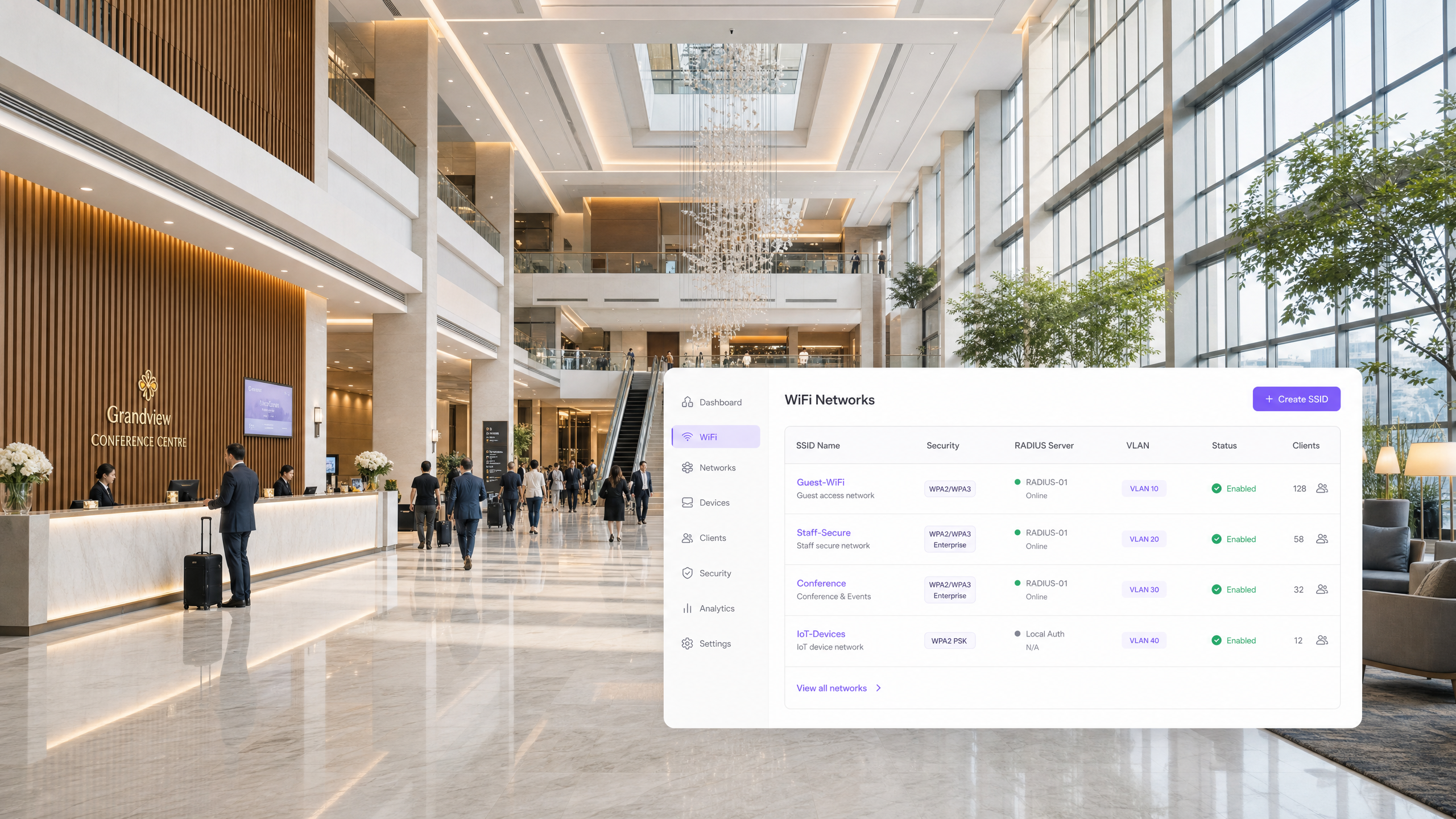
Welcome to the Purple Technical Briefing. I'm your host, and today we're covering a deployment pattern that comes up on nearly every enterprise WiFi project we see at scale - integrating CommScope Ruckus with Purple's cloud platform. Whether you're running a hotel group, a retail estate, a stadium, or a conference centre, this episode will give you the configuration playbook you need. Let's set the scene first. Ruckus - now under CommScope - is one of the dominant enterprise WiFi platforms globally. SmartZone in particular is the controller of choice for high-density environments. Hotels like Premier Inn, large retail chains, stadiums, and convention centres all run Ruckus infrastructure. When you're deploying guest WiFi at that scale, you need more than an open SSID. You need structured authentication, GDPR-compliant data capture, and the ability to feed that guest data into your marketing stack. That's exactly where Purple comes in. Purple operates across 80,000 plus live venues, has processed 440 million logins in 2024 alone, and holds ISO 27001, GDPR, and Cyber Essentials certification. The Ruckus integration is one of our most mature deployment patterns. Now, Ruckus has three distinct controller platforms you need to understand before you touch a configuration screen. SmartZone - available as a physical SZ300 appliance or a virtual vSZ - is the enterprise controller for large, multi-site deployments. It manages thousands of access points across multiple zones, gives you deep policy control, and supports the full range of authentication methods we'll cover today. ZoneDirector is the legacy on-premises controller - still widely deployed, particularly in hospitality - and it supports the same WISPr-based captive portal flow, though with a slightly different configuration path. And Unleashed is the controller-less model, where one AP acts as the master for up to 128 others. It's ideal for smaller, single-site deployments - independent hotels, retail branches, SMB offices. Right. Let's get into the technical detail. I'll cover three distinct use cases: Guest WiFi with captive portal redirection, Secure Staff WiFi using 802.1X, and Multi-Tenant network isolation using Ruckus Dynamic PSK. Starting with Guest WiFi. The architecture here is a WISPr-based hotspot flow. WISPr - Wireless Internet Service Provider roaming - is an industry standard that defines how a wireless controller intercepts unauthenticated HTTP traffic and redirects it to an external portal. The guest connects to your SSID. Their device sends an HTTP request. SmartZone intercepts it and issues an HTTP 302 redirect to your external portal URL - in this case, Purple's captive portal. The guest authenticates - via social login, email, SMS, or a custom form - and then the portal communicates back to the controller via the Northbound Interface, or NBI, to grant access. On SmartZone, the configuration has four main components. First, the RADIUS authentication server profile. Navigate to Services and Profiles, then Authentication. Create a new AAA server profile. Set the Service Protocol to RADIUS. Your primary server IP and shared secret are provided in the Purple admin console. Port 1812 for authentication. Always configure a backup RADIUS server for resilience. Then create the accounting server under Services and Profiles, Accounting - port 1813, same shared secret. Second, the Hotspot WISPr profile. Go to Services and Profiles, Hotspots and Portals, and select the Hotspot WISPr tab. Create a new profile. Set the Login URL to External, and enter your portal redirect URL. Set the Start Page to redirect to your post-authentication URL - typically a success page or your venue's homepage. Now, the Walled Garden. This is where engineers trip up most often. The Walled Garden defines which domains and IP addresses a guest can reach before they've authenticated. You need to include your portal domain, any CDN or asset domains your portal loads from, and standard OS captive portal detection endpoints. In SmartZone, wildcards are supported using the asterisk-dot format - so star-dot-purple-dot-ai covers all subdomains. You also need Apple's captive portal detection domain - captive.apple.com - and Google's connectivity check endpoints to prevent the CNA mini-browser from misbehaving on iOS and Android devices. One critical step that's easy to miss. By default, SmartZone encrypts the MAC address and IP address it passes to the external portal in the redirect URL. Purple needs to see the actual client MAC address to perform MAC-based session management. You must disable this via the CLI. SSH into your SmartZone, enter config mode, and run: no encrypt-mac-ip. That's one command, but it's a hard blocker if you skip it. The Northbound Interface is the other essential piece. This is the API that allows Purple to communicate back to SmartZone to grant or deny access after authentication. Enable it under Administration, External Services, WISPr Northbound Interface. Set a username and password, and provide those credentials to Purple. The NBI runs on TCP port 9080 for HTTP and 9443 for HTTPS - make sure your firewall allows inbound connections from Purple's IP range to these ports. Finally, create your WLAN. Set the Authentication Type to Hotspot WISPr, select your portal profile, and assign your RADIUS authentication and accounting services. Set the NAS ID to User-defined if Purple requires a specific value, set Called Station ID to AP MAC, and enable Single Session ID. For Unleashed, the architecture is fundamentally different - it's a distributed, controller-less model. The configuration lives at Admin and Services, Services, Hotspot Services. The steps are broadly similar - create a Hotspot service, configure your external portal URL, set up your AAA authentication server, add your Walled Garden entries - but there are two key differences. There's no Northbound Interface requirement in Unleashed. And MAC address encryption is not applied by default, so you don't need the CLI command. Unleashed's walled garden also accepts domain-level entries rather than the full wildcard syntax. Now let's move to Secure Staff WiFi using 802.1X. This is a completely different authentication model. Instead of a captive portal, staff devices authenticate directly using the Extensible Authentication Protocol - EAP. The most common method in enterprise environments is PEAP-MSCHAPv2, where the user enters their Active Directory credentials, or EAP-TLS, where the device presents a certificate. Purple's SecurePass add-on integrates with Microsoft Entra ID, Okta, and Google Workspace to act as the RADIUS backend for this flow. On SmartZone, create a new WLAN and set the Authentication Type to 802.1X EAP. Under the AAA settings, point to your RADIUS server - Purple's SecurePass endpoint. The key difference from the guest flow is that you also configure dynamic VLAN assignment here. When Purple's RADIUS server returns an Access-Accept, it includes three IETF standard attributes: Tunnel-Type set to VLAN, value 13; Tunnel-Medium-Type set to IEEE-802, value 6; and Tunnel-Private-Group-ID containing the VLAN ID string - for example, twenty for the Staff VLAN. SmartZone reads these attributes and dynamically tags the staff member's traffic with the correct VLAN, regardless of which AP they're connected to. This is dynamic VLAN steering, and it's what allows a single SSID to serve multiple user roles with different network access policies. Enable AAA Override in the WLAN advanced settings to ensure SmartZone processes the RADIUS-returned VLAN attributes. Without that checkbox, the dynamic assignment won't work even if the RADIUS server is sending the correct attributes. The third use case is Multi-Tenant isolation using Ruckus Dynamic PSK - or DPSK. This is a Ruckus-proprietary technology that assigns a unique WPA2 passphrase to each user or tenant, all on a single SSID. Unlike a shared PSK where everyone uses the same password, DPSK means Tenant A has a unique 62-character key, Tenant B has a different one, and so on. Each key is bound to a specific VLAN, so Tenant A's traffic lands on VLAN 101 and Tenant B's lands on VLAN 102 - complete isolation, no shared password risk, and instant revocation without affecting other tenants. This is particularly powerful in co-working spaces, build-to-rent residential buildings, student accommodation, and multi-tenant retail parks. Purple integrates with Ruckus DPSK via the SmartZone API to automate key provisioning - when a new tenant is onboarded in Purple, a DPSK is generated, bound to the correct VLAN, and delivered to the tenant automatically. To configure DPSK on SmartZone: navigate to WLANs, add a new WLAN, and under Security set the method to Dynamic PSK. Set the DPSK length to 62 characters for maximum entropy. Under VLAN, enable Per-DPSK VLAN assignment. Then use the SmartZone API or the DPSK management interface to create individual keys per tenant, each mapped to its own VLAN ID. On Unleashed, the same feature is available under WiFi Networks, Advanced Options, Dynamic PSK. DPSK3 is the WPA3 variant, offering stronger SAE-based encryption. If your AP fleet supports WPA3 - which all current Ruckus R-series APs do - DPSK3 is the preferred choice for new deployments. Let me walk through two real-world implementation scenarios that illustrate how these three use cases come together. First scenario: a 250-room hotel. The property runs Ruckus SmartZone with R750 access points throughout. They need three network types: guest WiFi for hotel guests, secure staff WiFi for front-of-house and back-of-house staff, and an IoT network for smart room controls and CCTV. The guest WLAN uses the WISPr captive portal flow with Purple. Guests connect, get redirected to a branded Purple portal, authenticate via email or social login, and land on VLAN 10. The portal captures first-party data - email, marketing consent, stay preferences - which feeds directly into the hotel's CRM. Purple's analytics dashboard shows the hotel which floors have the highest connection rates, peak usage times, and repeat visitor rates. Premier Inn deployed this model across their UK estate and saw measurable improvements in guest satisfaction scores directly linked to the WiFi experience. The staff WLAN uses 802.1X with Purple's SecurePass. Staff authenticate with their Active Directory credentials via PEAP-MSCHAPv2. Front desk staff land on VLAN 20 with access to the property management system. Back-of-house staff land on VLAN 21 with access to HR and scheduling systems only. The VLAN assignment is driven entirely by the RADIUS attributes Purple returns - no manual port configuration required. When a member of staff leaves, their account is disabled in Microsoft Entra ID, and access is revoked instantly across all properties. The IoT WLAN uses a static PSK, isolated on VLAN 30, with client isolation enabled. Smart thermostats, door locks, and CCTV cameras sit here, completely separated from guest and staff traffic. Second scenario: a co-working space with 15 tenant companies. This is where DPSK really earns its place. The operator runs Ruckus Unleashed across three floors. Each tenant company gets a unique DPSK bound to its own VLAN. Tenant A's 20 staff members all use the same DPSK-A passphrase, but that passphrase is unique to Tenant A and maps only to VLAN 101. Tenant B uses DPSK-B, mapping to VLAN 102. The tenants are completely isolated from each other at the network layer. When a tenant leaves, the operator revokes their DPSK in SmartZone - or via Purple's management interface - and that's it. No other tenant is affected, no SSID changes required, no password resets across the building. Purple's multi-tenant management layer sits above this, giving the co-working operator a single dashboard to manage onboarding, access revocation, and usage analytics across all 15 tenants. Now let me cover the most common failure modes and how to avoid them. Number one: Walled Garden misconfiguration. If your portal page fails to load after redirect, the first thing to check is whether all the domains your portal page references are in the walled garden. Modern portal pages load assets from multiple CDN domains, analytics scripts, and social login SDKs. If any of those are blocked pre-authentication, the page will either fail to load or load broken. Use your browser's developer tools on a test device connected to the guest SSID to identify which requests are being blocked. Purple provides a documented walled garden list for SmartZone and Unleashed - use it as your baseline and add any venue-specific domains on top. Number two: the NBI connectivity issue. If guests can see the portal and authenticate, but never get internet access, the likely cause is that SmartZone can't receive the NBI callback from Purple. Check that ports 9080 and 9443 are open inbound to the SmartZone's management IP from Purple's IP range. Also verify that the NBI credentials you've configured match what Purple has on file. Number three: the missing no encrypt-mac-ip command. This is the most common SmartZone-specific gotcha. If Purple is receiving redirect requests but can't match the session to a MAC address, this is almost certainly the cause. It's a one-line CLI fix, but it's easy to miss because it's not surfaced in the GUI. Number four: AAA Override not enabled for dynamic VLAN. If staff are authenticating successfully on 802.1X but all landing on the same default VLAN rather than their role-specific VLAN, check that AAA Override is enabled in the WLAN advanced settings. This is the switch that tells SmartZone to honour the VLAN attributes returned by the RADIUS server. Number five: DPSK VLAN not propagating. If DPSK users are authenticating but not landing on the correct VLAN, verify that Per-DPSK VLAN assignment is enabled in the WLAN settings, and that the switch ports connected to your APs are configured as trunk ports carrying all the DPSK VLANs. If the switch port is an access port, the VLAN tagging will be stripped. Now, three rapid-fire questions I get asked on every Ruckus-Purple deployment. Do I need a dedicated VLAN for guest WiFi? Yes, always. Isolate guest traffic on a dedicated VLAN. This is both a security requirement and a PCI DSS compliance consideration if your venue processes card payments on the same network. Enable client isolation on the guest WLAN to prevent guest devices from communicating with each other. Can I use Purple with Ruckus One - the cloud-managed platform - instead of SmartZone? Yes. The configuration path is different - it's under WiFi Networks, Guest Access settings in the Ruckus One portal - but the walled garden and RADIUS configuration principles are identical. Does Purple support SmartZone multi-zone deployments? Yes. Purple's integration handles multi-zone SmartZone environments, and you can scope portal configurations to individual zones for different venues or floors within a single SmartZone instance. To wrap up. The Ruckus and Purple integration covers three distinct use cases, each with its own configuration model. Guest WiFi uses the WISPr captive portal flow - five key configuration points: RADIUS on ports 1812 and 1813 with a backup server, the Hotspot WISPr profile with an external login URL, a correctly scoped walled garden using wildcard entries, the no encrypt-mac-ip CLI command, and the Northbound Interface enabled with the correct credentials. Secure Staff WiFi uses 802.1X EAP with dynamic VLAN steering via RADIUS attributes - the critical enabler is AAA Override in the WLAN advanced settings. Multi-Tenant isolation uses Ruckus DPSK - unique per-tenant keys, each bound to a dedicated VLAN, with instant revocation and zero shared-password risk. Get those three patterns right, and you have a network architecture that scales from a 50-room independent hotel on Unleashed to a 5,000-seat stadium on SmartZone, with the same Purple platform sitting above it all providing unified analytics, GDPR-compliant data capture, and centralised access management. If you're planning a Ruckus deployment with Purple, the technical onboarding team can walk you through a pre-launch checklist and validate your configuration before go-live. The Purple platform also provides real-time analytics on portal load times, authentication success rates, and session data - giving you the visibility to catch issues before your guests do. Thanks for listening. Until next time.

header_image.png

Executive Summary

Deploying a high-performance wireless network in enterprise venues requires a delicate balance between seamless user experience and robust technical security. For organisations running CommScope Ruckus architectures - ranging from high-density stadiums and convention centres to expansive retail estates and hospitality groups - the network serves as the primary gateway for digital engagement. This guide provides a definitive technical playbook for integrating Ruckus SmartZone, ZoneDirector, and Unleashed controllers with the Purple cloud platform. We detail the exact configuration steps required to deploy Guest WiFi using WISPr captive portal redirection, secure staff networks via 802.1X dynamic VLAN steering, and multi-tenant network isolation using Ruckus Dynamic Pre-Shared Keys (DPSK). By following these vendor-neutral best practices, IT teams can automate network segmentation, ensure compliance with standards like PCI DSS, and capture first-party data securely.

Technical Deep-Dive

The integration between CommScope Ruckus hardware and Purple relies on industry-standard authentication protocols and secure API communications. The architecture supports three distinct deployment models, each serving a specific user group within the venue.

Guest WiFi Architecture (WISPr)

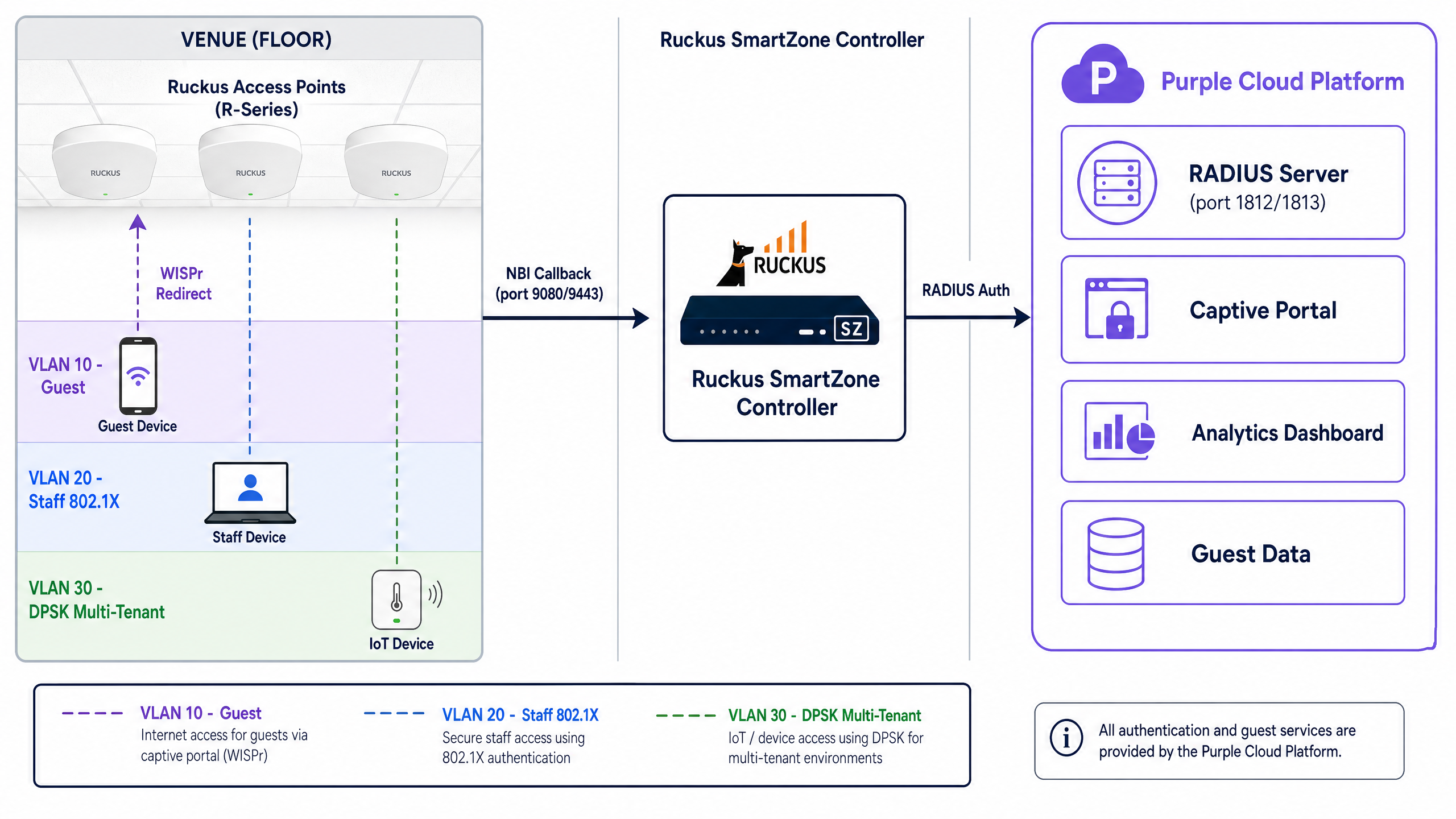
For public access networks in retail and hospitality, Ruckus utilises the Wireless Internet Service Provider roaming (WISPr) protocol. When a guest connects to an open SSID, the Ruckus controller intercepts their initial HTTP request and issues an HTTP 302 redirect to Purple's external captive portal. The guest authenticates via a conscious-choice opt-in mechanism - such as email or a social identity provider. Upon successful authentication, Purple communicates back to the Ruckus controller via the Northbound Interface (NBI) to authorise the MAC address and grant internet access.
architecture_overview.png

Secure Staff WiFi (802.1X and Dynamic VLANs)

Staff devices require a fundamentally different approach. Rather than relying on captive portals, enterprise environments use 802.1X authentication. Devices authenticate directly against Purple's RADIUS infrastructure using EAP-TLS (certificate-based) or PEAP-MSCHAPv2 (credential-based) protocols.

The critical component here is dynamic VLAN steering. When Purple's RADIUS server returns an Access-Accept message, it includes three specific IETF standard attributes:

  • Tunnel-Type (Attribute 64): Set to VLAN (value 13)
  • Tunnel-Medium-Type (Attribute 65): Set to IEEE-802 (value 6)
  • Tunnel-Private-Group-ID (Attribute 81): Contains the VLAN ID string (e.g., "20" for Staff)

The Ruckus SmartZone controller reads these attributes and dynamically tags the user's traffic, placing them into the correct isolated network segment regardless of the physical access point they connected to.

Multi-Tenant Isolation (Ruckus DPSK)

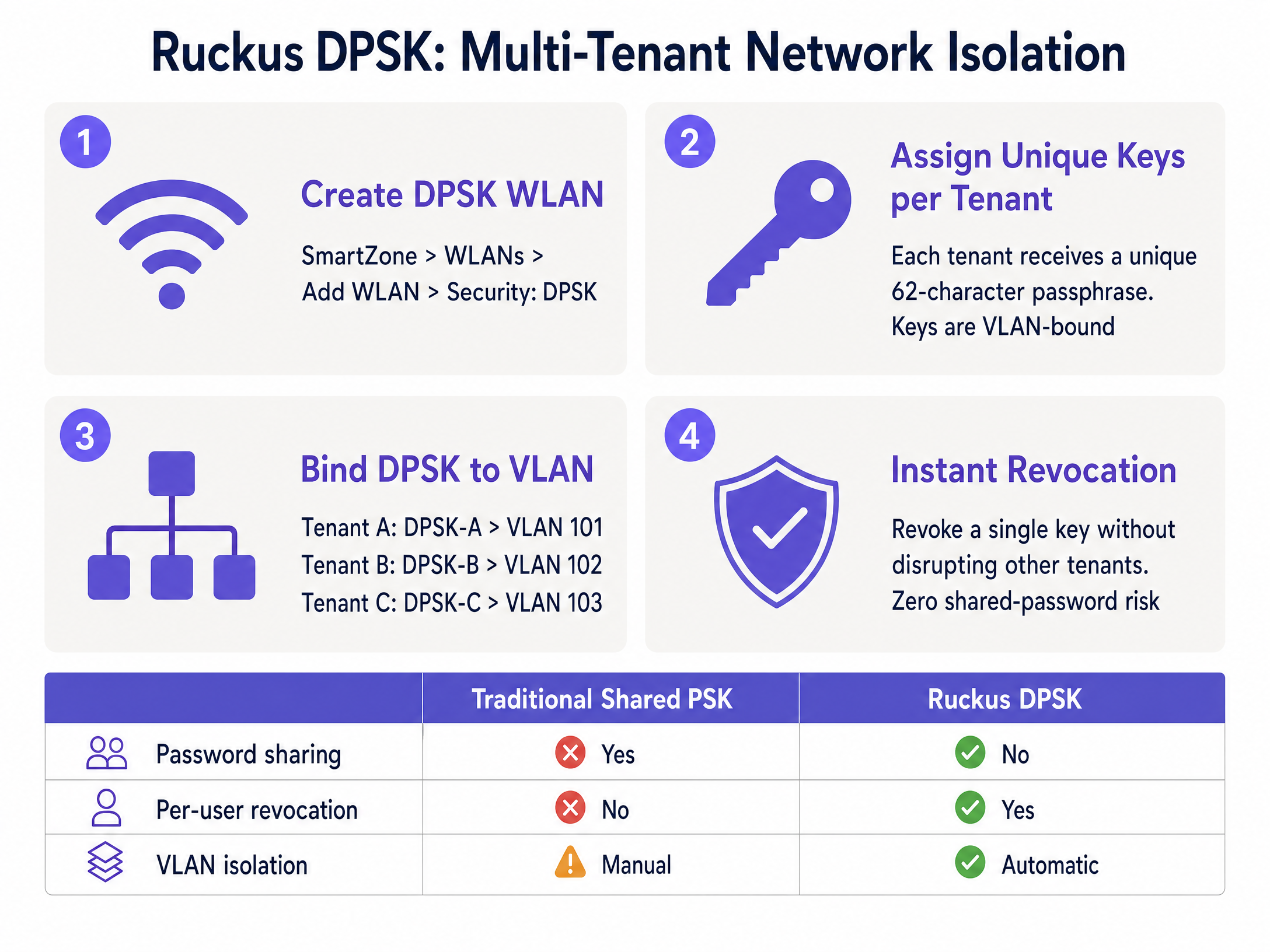
For environments like co-working spaces, student accommodation, and multi-dwelling units (MDUs), broadcasting dozens of SSIDs creates severe channel interference. Ruckus Dynamic Pre-Shared Key (DPSK) solves this by assigning a unique WPA2/WPA3 passphrase to each tenant on a single shared SSID.

Each DPSK is bound to a specific VLAN. When a resident connects, the controller uses their unique key to authenticate the device and drop them into their private VLAN. Purple automates this process via API integration, generating and revoking keys as tenants move in and out, eliminating the security risks associated with traditional shared passwords.
dpsk_configuration_guide.png

Implementation Guide

This section outlines the specific configuration steps required to integrate Purple with a Ruckus SmartZone controller. The steps for Unleashed are broadly similar but omit the Northbound Interface requirement.

1. Configure RADIUS AAA Servers

  1. Navigate to Services & Profiles > Authentication.
  2. Create a new AAA server profile with the Service Protocol set to RADIUS.
  3. Enter the Primary Server IP and Shared Secret provided in your Purple admin console.
  4. Set the authentication port to 1812.
  5. Repeat this process under Services & Profiles > Accounting, setting the port to 1813.

2. Configure the Hotspot WISPr Profile

  1. Navigate to Services & Profiles > Hotspots & Portals > Hotspot (WISPr).
  2. Create a new profile and set the Login URL to External.
  3. Enter your Purple captive portal redirect URL.
  4. Define your Walled Garden. This is critical. You must allow access to Purple's domains pre-authentication. SmartZone supports wildcards (e.g., *.purple.ai). You must also include captive.apple.com to manage the iOS Captive Network Assistant (CNA) behaviour.

3. Disable MAC Address Encryption (Critical Step)

By default, SmartZone encrypts the MAC and IP addresses passed in the redirect URL. Purple requires the raw MAC address for session management. You must disable this via the CLI:

enable
config
no encrypt-mac-ip
exit

4. Enable the Northbound Interface (NBI)

  1. Navigate to Administration > External Services > WISPr Northbound Interface.
  2. Enable the service and configure a username and password.
  3. Provide these credentials to Purple. Ensure your firewall permits inbound TCP traffic on ports 9080 (HTTP) and 9443 (HTTPS) from Purple's IP ranges.

5. Create the WLAN

  1. Create a new WLAN and set the Authentication Type to Hotspot (WISPr).
  2. Select the Hotspot profile and AAA servers configured earlier.
  3. For 802.1X staff networks, enable AAA Override in the advanced settings to ensure dynamic VLAN attributes are processed.

Best Practices

To ensure a robust and secure deployment, adhere to these industry-standard recommendations:

  • Isolate Guest Traffic: Always place guest WiFi on a dedicated VLAN and enable client isolation. This is a mandatory requirement for PCI DSS compliance if your venue processes payments on the same physical infrastructure.
  • Standardise VLAN IDs: When deploying dynamic VLAN steering across multiple venues, ensure your VLAN numbering scheme is identical globally (e.g., VLAN 20 is always Staff). Inconsistent naming will cause authentication failures.
  • Implement RADIUS Fallback: Configure a critical VLAN or fallback mechanism on your controllers. If the primary RADIUS server is unreachable, devices should be dropped into a restricted internet-only VLAN to maintain basic connectivity.
  • Use DPSK3 for New Deployments: If your Ruckus hardware supports WPA3, deploy DPSK3 instead of legacy DPSK to benefit from SAE-based encryption.

Troubleshooting & Risk Mitigation

When integrating external captive portals and RADIUS services, engineers commonly encounter the following failure modes:

  • Portal Fails to Load: This is almost always a Walled Garden misconfiguration. Modern portals load assets from multiple CDNs and identity providers. Use browser developer tools to identify blocked requests and add the required domains to your SmartZone Walled Garden.
  • Authentication Succeeds but No Internet Access: This indicates a Northbound Interface failure. SmartZone is not receiving the authorisation callback from Purple. Verify your NBI credentials and check firewall logs for dropped traffic on TCP ports 9080/9443.
  • Dynamic VLAN Assignment Fails: If 802.1X users authenticate successfully but land on the default VLAN, check that AAA Override is enabled in the WLAN settings. Without this, SmartZone ignores the Tunnel-Private-Group-ID attribute returned by Purple.

ROI & Business Impact

Integrating Ruckus infrastructure with Purple transforms a standard wireless network into a measurable business asset.

For retail and hospitality venues, the captive portal captures verified first-party data, driving loyalty programme growth and enabling targeted marketing campaigns. A major UK hotel chain reported a 40% increase in guest satisfaction scores following their Ruckus and Purple rollout.

For IT operations, dynamic VLAN steering and DPSK automation drastically reduce manual configuration overhead. Instead of managing static switch ports or resetting shared passwords when a tenant leaves, access control is centralised and automated, mitigating security risks and reducing support tickets.

Key Definitions

WISPr

Wireless Internet Service Provider roaming. An industry-standard protocol used by wireless controllers to intercept HTTP traffic and redirect users to an external captive portal.

This is the foundational architecture for all public Guest WiFi deployments on Ruckus hardware.

Northbound Interface (NBI)

An API on the Ruckus SmartZone controller that allows external platforms to send authorisation commands.

Required for Purple to grant a user internet access after they successfully complete the captive portal login.

Walled Garden

A whitelist of domains and IP addresses that a device is permitted to access before authenticating on the network.

Essential for allowing the captive portal page, its associated images, and social login providers to load for unauthenticated guests.

Dynamic PSK (DPSK)

A Ruckus-proprietary technology that assigns a unique WPA2/WPA3 passphrase to individual users or groups on a single shared SSID.

Used heavily in multi-tenant environments (MDUs, co-working spaces) to provide secure network isolation without SSID bloat.

Dynamic VLAN Steering

The process of automatically assigning a device to a specific network segment (VLAN) based on RADIUS attributes returned during 802.1X authentication.

Allows IT teams to use a single 'Staff' SSID while securely separating HR, Finance, and Front Desk traffic at the network layer.

AAA Override

A configuration setting on wireless controllers that forces the access point to apply the policies (like VLAN IDs) returned by the RADIUS server.

Must be enabled on Ruckus WLANs for dynamic VLAN steering to function correctly.

Client Isolation

A security feature that prevents devices connected to the same wireless network from communicating directly with each other.

A mandatory security control for public Guest WiFi networks to prevent peer-to-peer attacks and ensure compliance.

Captive Network Assistant (CNA)

The mini-browser built into mobile operating systems (like iOS and Android) that automatically pops up when a captive portal is detected.

Engineers must manage CNA behaviour via the Walled Garden to ensure a smooth login experience for mobile users.

Worked Examples

A 250-room hotel needs to deploy three distinct networks on their Ruckus SmartZone infrastructure: a public guest network, a secure staff network with access to the property management system, and an isolated IoT network for smart thermostats.

The IT team configures three WLANs. The 'Guest-WiFi' WLAN uses Hotspot (WISPr) authentication redirecting to Purple's captive portal, dropping users onto VLAN 10 with client isolation enabled. The 'Staff-Secure' WLAN uses 802.1X EAP authentication against Purple SecurePass; the RADIUS server returns Tunnel-Private-Group-ID = 20, dynamically steering staff to the internal VLAN. The 'IoT-Devices' WLAN uses a static WPA2 PSK bound to VLAN 30, restricted via firewall rules to communicate only with the thermostat control server.

Examiner's Commentary: This architecture correctly applies the principle of least privilege. By leveraging dynamic VLAN steering for staff, the hotel avoids broadcasting multiple department-specific SSIDs, reducing channel utilisation while maintaining strict network segmentation required for PCI DSS compliance.

A co-working space operator manages a building with 15 different tenant companies. They need to provide secure, isolated wireless access for each company without broadcasting 15 separate SSIDs.

The operator deploys Ruckus Unleashed and configures a single 'Tenant-WiFi' WLAN using Dynamic PSK (DPSK) security. Within the controller, they enable Per-DPSK VLAN assignment. Each of the 15 tenant companies is issued a unique 62-character passphrase. When Tenant A's employees connect using their specific key, the controller automatically assigns their traffic to VLAN 101. Tenant B's employees use a different key and land on VLAN 102.

Examiner's Commentary: This is the optimal use case for Ruckus DPSK. It provides enterprise-grade isolation at the network layer while keeping the RF environment clean by broadcasting only one SSID. It also eliminates the security risk of a shared password, as revoking Tenant A's access requires deleting a single key without impacting the other 14 companies.

Practice Questions

Q1. You have configured a Guest WiFi network on a Ruckus SmartZone controller integrated with Purple. When connecting a test device, the Purple captive portal page appears, but the logo image is missing and the 'Login with Facebook' button does not work. What is the most likely cause?

Hint: Consider what network access the device has before it successfully authenticates.

View model answer

The Walled Garden is misconfigured. The domains hosting the logo image (e.g., a CDN) and the Facebook authentication servers have not been added to the Walled Garden whitelist, so the SmartZone controller is blocking those requests pre-authentication.

Q2. A network engineer is deploying 802.1X for staff access. The Purple RADIUS server is correctly returning the `Tunnel-Private-Group-ID` attribute for VLAN 20. However, when staff connect, they are placed on the default VLAN assigned to the WLAN. How do you resolve this?

Hint: The controller is receiving the RADIUS instructions but choosing to ignore them.

View model answer

You must enable 'AAA Override' in the advanced settings of the WLAN on the SmartZone controller. Without this setting enabled, the controller will not apply the dynamic VLAN attributes returned by the RADIUS server.

Q3. A co-working space wants to provide secure WiFi for 10 different companies. They currently broadcast 10 separate SSIDs, which is causing severe channel interference. They cannot use 802.1X because many devices are shared printers or smart TVs. What is the recommended Ruckus architecture?

Hint: Look for a solution that provides unique encryption keys without requiring enterprise certificates or credentials.

View model answer

Implement Ruckus Dynamic PSK (DPSK) on a single SSID. Issue a unique DPSK to each tenant company, and configure the controller to bind each DPSK to a specific VLAN. This eliminates SSID bloat, provides network isolation, and supports headless devices like printers.

Continue reading in this series

Allied Telesis Access Points Integration with Purple WiFi

This guide provides a comprehensive configuration playbook for integrating Allied Telesis TQ-Series access points with Purple WiFi. It covers external captive portal redirection, 802.1X RADIUS authentication, and dynamic VLAN steering using Private Pre-Shared Keys (PPSK) for secure multi-tenant deployments.

Read the guide →

Grandstream GWN Access Points Integration with Purple WiFi

This authoritative technical reference guide details how to integrate Grandstream GWN access points with Purple's Guest WiFi and analytics platform. It covers Grandstream captive portal configuration, RADIUS AAA settings, walled garden setup, secure staff 802.1X authentication with dynamic VLAN steering, and multi-tenant PPSK segmentation - providing actionable, step-by-step guidance for MSPs and IT teams deploying guest and staff WiFi at scale.

Read the guide →

Cisco WLC and Catalyst Integration with Purple WiFi: Step-by-Step Guest Access Guide

This guide details the step-by-step integration of Cisco WLC and Catalyst 9800 Wireless with Purple, covering Guest WiFi captive portal redirection via Central Web Authentication, Secure Staff WiFi using 802.1X EAP-TLS, and Multi-Tenant segmentation using Cisco Identity Pre-Shared Keys (iPSK) with dynamic VLAN assignment. It is written for enterprise network architects and IT security directors deploying Cisco infrastructure in hospitality, retail, and large public venues.

Read the guide →