
Alcatel-Lucent Enterprise (ALE) OmniAccess Integration with Purple WiFi
This guide details the technical integration between Alcatel-Lucent Enterprise (ALE) OmniAccess Stellar access points and Purple WiFi. It covers captive portal redirection, RADIUS authentication, Walled Garden configuration, secure 802.1X Staff WiFi, and Multi-Tenant WiFi segmentation using Private Pre-Shared Keys (PPSK) with dynamic VLAN steering - giving IT managers and network architects a complete, actionable reference for deploying Identity-Based Networks on ALE hardware.
Listen to this guide
View podcast transcript
Executive summary
Alcatel-Lucent Enterprise (ALE) OmniAccess Stellar access points integrate with Purple using standard RADIUS protocols and external captive portal redirection. No proprietary middleware is required. Purple operates as a cloud overlay, sitting on top of your existing ALE infrastructure and handling authentication, data capture, and session policy without requiring hardware changes.
This guide covers three deployment scenarios. First, Guest WiFi with external captive portal redirection and Walled Garden configuration. Second, secure Staff WiFi using 802.1X with PEAP or EAP-TLS. Third, Multi-Tenant WiFi using Private Pre-Shared Keys (PPSK) and dynamic VLAN steering via RADIUS Attributes 64, 65, and 81.
Purple serves more than 80,000 live venues and processed over 440 million logins in 2024 (Purple internal data, 2024). It holds ISO 27001, GDPR, CCPA, and Cyber Essentials certifications. The platform operates at 99.999% uptime, making it a reliable authentication backend for enterprise deployments.
If you are an IT manager or network architect deploying ALE OmniAccess hardware in hospitality, retail, events, or public-sector environments, this guide gives you the exact configuration steps to go from hardware to a fully operational Identity-Based Network.
Technical architecture and integration flow
The Purple integration with ALE OmniAccess Stellar relies on two standard protocols: RADIUS for authentication and accounting, and HTTP/HTTPS redirect for captive portal delivery. The ALE AP acts as the Network Access Server (NAS), forwarding authentication requests to the Purple cloud RADIUS server and enforcing the policies returned in the Access-Accept response.
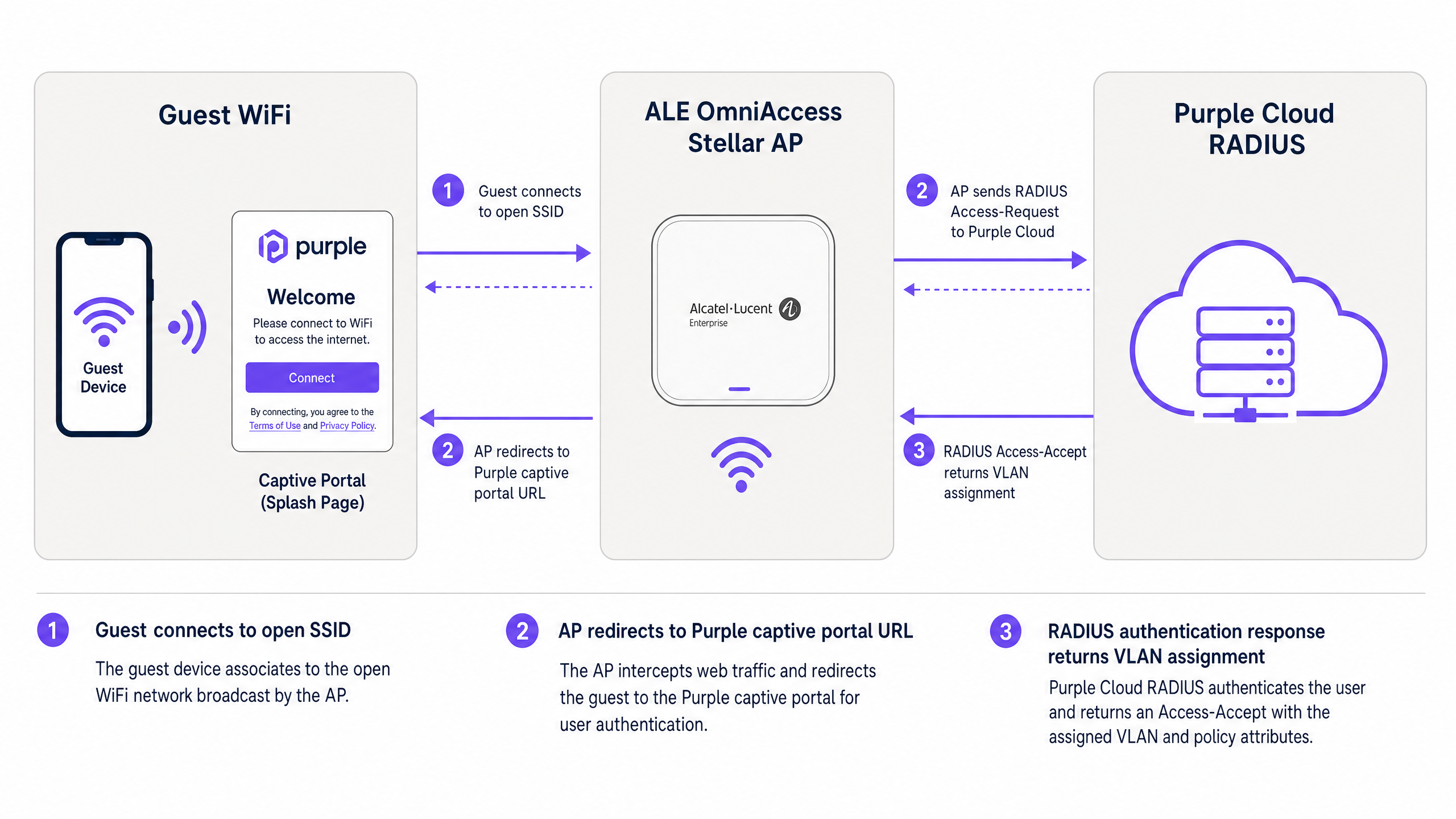
Figure 1: Authentication flow between guest device, ALE OmniAccess Stellar AP, and Purple cloud RADIUS.
The flow operates as follows. A visitor connects to the open Guest WiFi SSID. The ALE AP assigns a temporary IP address from the pre-authentication DHCP pool and intercepts the visitor's first HTTP or HTTPS request. The AP redirects the browser to the Purple captive portal URL, passing the client's MAC address and the AP's NAS identifier as URL parameters. The visitor authenticates via the Purple splash page - using email, social login, or SMS verification. Purple's RADIUS server validates the session and returns an Access-Accept message to the ALE AP. The AP grants internet access and begins sending RADIUS Accounting updates to Purple at the configured interval.
For advanced deployments using PPSK and dynamic VLAN steering, the RADIUS Access-Accept message also includes VLAN assignment attributes. The ALE AP uses these to drop the client traffic directly onto the correct VLAN segment, isolating them from other users on the same physical infrastructure.
Implementation guide
Part 1: Guest WiFi with external captive portal
This section covers the Alcatel-Lucent captive portal configuration for external redirection to Purple. These steps apply to ALE OmniAccess Stellar APs managed via OmniVista Cirrus, OmniVista 2500, or the Stellar Express web interface.
Step 1: Retrieve Purple RADIUS credentials
Log into your Purple portal. Navigate to Management > Venues, select your venue, and open the Hardware section. Add a new hardware entry and select Alcatel-Lucent OmniAccess Stellar as the hardware type. Purple generates a unique RADIUS shared secret, authentication server IP, and captive portal URL for your venue. Record these values before proceeding.
Step 2: Configure the RADIUS server on the ALE AP
In your ALE management interface, navigate to the authentication settings and add a new RADIUS server profile.
| Parameter | Value |
|---|---|
| Server IP / Hostname | As provided in Purple portal |
| Authentication Port | 1812 |
| Accounting Port | 1813 |
| Shared Secret | As provided in Purple portal |
| RADIUS Accounting | Enabled |
| Accounting Interval | 300 seconds |
Enable a secondary RADIUS server using the backup IP from the Purple portal. This ensures failover if the primary server is temporarily unreachable.
Step 3: Configure the Walled Garden
The Walled Garden defines the domains a device can reach before authentication completes. Configure the following entries in the pre-authentication access list:
Core Purple domains (mandatory):
| Domain | Purpose |
|---|---|
| region1.purpleportal.net | Purple captive portal |
| venuewifi.com | Purple session management |
| cloudfront.net | CDN for portal assets |
| openweathermap.org | Weather widget (optional) |
| stripe.com | Paid WiFi payments (if applicable) |
Social login domains (add as required):
| Provider | Domains |
|---|---|
| facebook.com, fbcdn.net, connect.facebook.net | |
| linkedin.com, licdn.net | |
| accounts.google.com, googleapis.com |
Omitting any required domain causes the corresponding login method to fail silently. Test each login method after configuration.
Step 4: Configure the Guest WiFi SSID
Create a new WLAN profile with the following settings:
| Parameter | Value |
|---|---|
| Security Level | Open |
| Captive Portal | Enabled |
| Captive Portal Type | External |
| Redirect URL | As provided in Purple portal |
| HTTPS Redirect | Disabled (unless SSL certificate is installed) |
| Inactivity Timeout | 1800 seconds (30 minutes) |
| RADIUS Server Profile | Purple RADIUS profile (created in Step 2) |
If you require HTTPS redirect, install a valid SSL certificate in the ALE AP under System > General > Certificate Management. Note that wildcard certificates are not supported by the Stellar AP for this purpose.
Step 5: Assign the SSID to an AP group
Apply the WLAN profile to the relevant AP group in OmniVista. Verify that the APs are broadcasting the SSID and that clients can associate before testing the captive portal flow.
Part 2: Secure Staff WiFi using 802.1X
For Staff WiFi, use WPA2-Enterprise or WPA3-Enterprise with 802.1X authentication. This eliminates shared passwords and ties access to individual user identities managed in Microsoft Entra ID, Okta, or Google Workspace.
Step 1: Configure the 802.1X SSID
Create a separate WLAN profile for staff. Set the security type to WPA2-Enterprise or WPA3-Enterprise and assign the Purple RADIUS server as the authentication backend. Purple's RADIUS server proxies authentication requests to your identity provider via LDAP or SAML.
Step 2: Select the EAP method
For most deployments, use PEAP with MSCHAPv2. This requires only a server-side certificate and works with standard Windows, macOS, iOS, and Android supplicants. For higher-security environments, use EAP-TLS with client certificates issued via your PKI.
Step 3: Assign staff to a dedicated VLAN
Configure the Purple RADIUS server to return Tunnel-Private-Group-ID = your staff VLAN ID in the Access-Accept response. This ensures staff devices land on the corporate network segment, separated from guest traffic at Layer 2.
Part 3: Multi-Tenant WiFi using PPSK and dynamic VLAN steering
PPSK (Private Pre-Shared Key) - also referred to as iPSK (Identity PSK) in some vendor documentation - allows a single SSID to serve multiple isolated user groups. Each group receives a unique passphrase. The RADIUS server maps each passphrase to a specific VLAN, providing per-tenant network isolation without the RF overhead of multiple SSIDs.
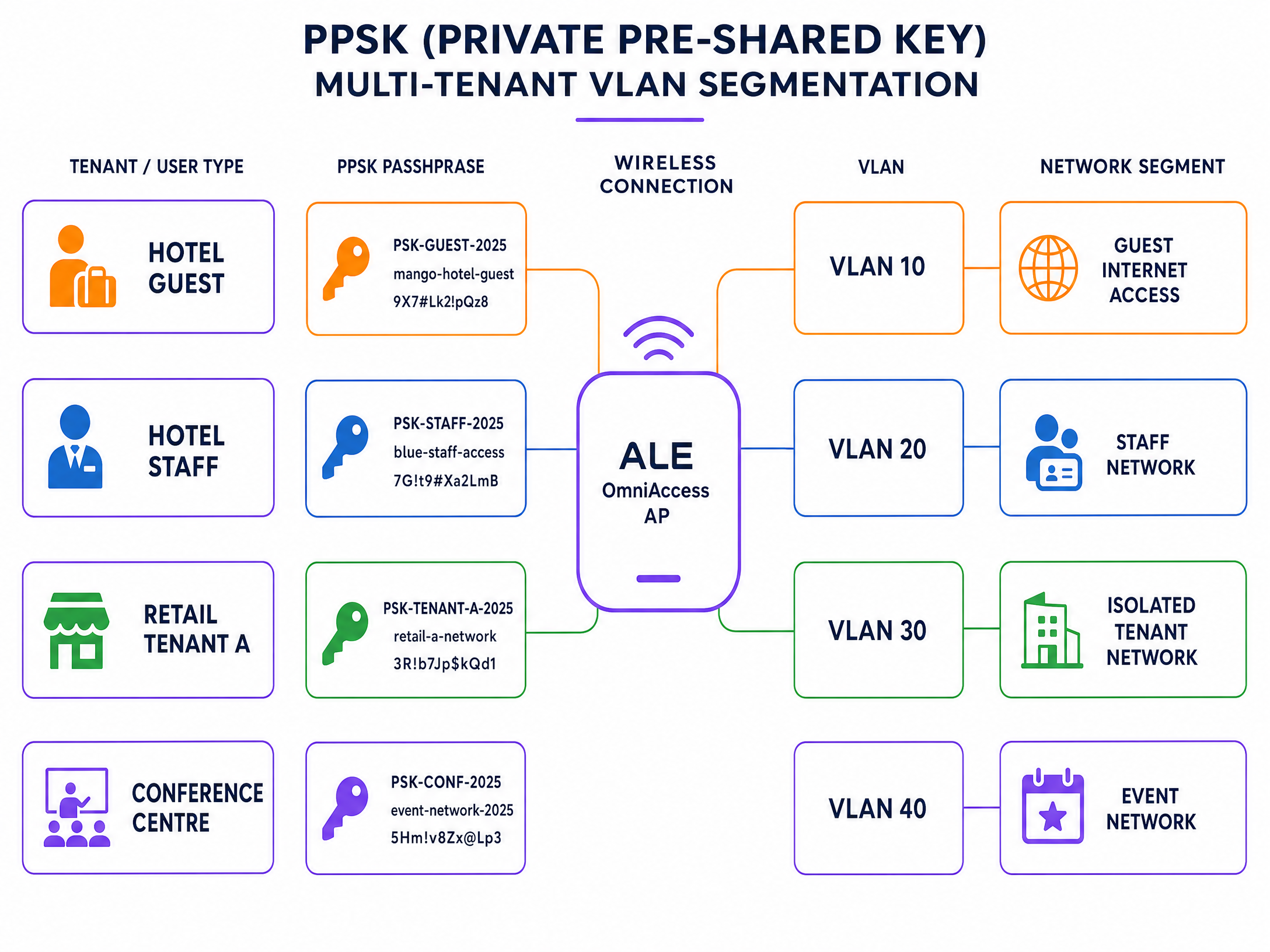
Figure 2: PPSK multi-tenant VLAN segmentation on a single ALE OmniAccess SSID.
Step 1: Create the PPSK SSID
Create a new WLAN profile and set the authentication type to WPA2-PSK with RADIUS-backed PSK validation. In Stellar firmware 4.0.8.16 and above (for AP1301 and higher models), dynamic VLAN assignment via RADIUS is supported in Express Mode. For older models or earlier firmware, use OmniVista-managed mode.
Step 2: Define tenant passphrases in Purple
In the Purple portal, create a PPSK group for each tenant. Assign a unique passphrase per tenant and map each passphrase to the corresponding VLAN ID. Purple stores these mappings in its RADIUS database.
Step 3: Configure RADIUS attributes for VLAN steering
Ensure the Purple RADIUS server returns the following IETF standard attributes in every Access-Accept response:
| Attribute Number | Attribute Name | Value |
|---|---|---|
| 64 | Tunnel-Type | 13 (VLAN) |
| 65 | Tunnel-Medium-Type | 6 (IEEE 802 / Ethernet) |
| 81 | Tunnel-Private-Group-ID | VLAN ID (e.g., "30") |
All three attributes must be present. If any one is missing, the ALE AP ignores the VLAN assignment and places the client on the default VLAN.
Step 4: Verify VLAN trunking on the uplink
Ensure that all tenant VLANs are tagged on the uplink port between the ALE AP and the distribution switch. An AP cannot steer traffic to a VLAN that is not permitted on its uplink trunk.
Best practices
The following recommendations reflect standard practice for enterprise wireless deployments and align with IEEE 802.1X, PCI DSS 4.0, and GDPR requirements.
Separate Guest WiFi from Staff WiFi at Layer 2. Never place guest and staff traffic on the same VLAN. Use RADIUS-driven VLAN assignment to enforce this separation automatically, regardless of which AP the user connects to.
Use HTTPS for all captive portal redirections. Install a valid SSL certificate on the ALE AP to enable HTTPS redirect. This prevents browsers from displaying security warnings on the splash page, which reduces abandonment rates and aligns with GDPR requirements for secure data handling.
Set the RADIUS Accounting interval to 300 seconds. This provides Purple with regular session updates for analytics accuracy. An interval longer than 600 seconds risks losing session data if a client disconnects without a clean de-authentication.
Test the Walled Garden before go-live. Connect a test device to the Guest WiFi SSID and attempt to access each social login provider. If a login fails, the corresponding domain is missing from the Walled Garden.
Segment IoT devices using PPSK. In retail and hospitality environments, IoT devices such as digital signage, payment terminals, and environmental sensors should each receive a unique PPSK mapped to an isolated VLAN. This prevents a compromised IoT device from accessing the broader network.
For further reading on enterprise WiFi security standards and architecture, see our enterprise WiFi security guide .
Troubleshooting and risk mitigation
The following table covers the most common failure modes in ALE OmniAccess and Purple integrations.
| Symptom | Most Likely Cause | Resolution |
|---|---|---|
| Captive portal does not appear | Walled Garden misconfiguration or missing DNS | Verify Purple domains are whitelisted; check DHCP scope includes a valid DNS server |
| RADIUS authentication fails | Shared secret mismatch or firewall blocking UDP 1812/1813 | Re-enter the shared secret from the Purple portal; confirm firewall rules permit outbound UDP 1812 and 1813 |
| Users land on wrong VLAN | Missing RADIUS Tunnel attributes or AP firmware limitation | Confirm all three RADIUS attributes (64, 65, 81) are returned; check ALE firmware version supports dynamic VLAN |
| Social login button fails | Social provider domain missing from Walled Garden | Add the required social provider domains to the pre-authentication access list |
| HTTPS captive portal shows certificate warning | Wildcard certificate used or no certificate installed | Install a domain-specific SSL certificate via System > General > Certificate Management |
| Session data missing in Purple analytics | RADIUS Accounting disabled or interval too long | Enable RADIUS Accounting; set interval to 300 seconds |
For persistent RADIUS issues, enable debug logging on the ALE AP and capture the RADIUS exchange. Look for Access-Reject messages and check the reject reason code. Common codes include 16 (authentication failure) and 18 (missing attribute).
ROI and business impact
Deploying Purple on ALE OmniAccess hardware converts a passive network into an active data asset. Every authenticated session generates a visitor profile: email address, visit frequency, dwell time, and device type. This first-party data feeds directly into your CRM via Purple's library of over 400 connectors.
Harrods achieved a 57x marketing ROI from their Guest WiFi deployment by using Purple's data capture to drive loyalty programme sign-ups (Purple case study, 2023). AGS Airports generated an 842% ROI by implementing tiered bandwidth Paid WiFi across their estate (Purple case study, 2022).
For hospitality operators, the captive portal is the primary touchpoint for guest data capture. For retail environments, it enables shopper behaviour analytics and targeted promotions. For transport hubs, it provides passenger flow data and compliance-ready session logging.
Purple's Guest WiFi platform and WiFi Analytics tools give you the reporting infrastructure to measure these outcomes. Track authentication rates, session durations, repeat visitor rates, and opt-in conversion from a single dashboard.
For related integration guidance, see the WatchGuard Firebox integration guide , which covers a similar RADIUS-based architecture on a different hardware platform.
Key Definitions
PPSK (Private Pre-Shared Key)
A security method where individual users or devices are issued unique passphrases for a single SSID, rather than sharing one global password. The RADIUS server maps each passphrase to a specific policy or VLAN.
Used in Multi-Tenant WiFi to isolate traffic between tenants, residents, or event groups without deploying multiple SSIDs.
RADIUS (Remote Authentication Dial-In User Service)
A networking protocol defined in RFC 2865 that provides centralised Authentication, Authorization, and Accounting (AAA) management for users connecting to a network service.
The core protocol Purple uses to communicate with ALE hardware. The ALE AP sends Access-Request messages; Purple responds with Access-Accept or Access-Reject.
Dynamic VLAN steering
The process of assigning a connected device to a specific VLAN based on RADIUS attributes returned during authentication, rather than a static VLAN configured on the SSID.
Essential for multi-tenant deployments where different user groups must be isolated on the same physical AP infrastructure.
Walled Garden
A controlled environment that restricts a device's internet access to a predefined set of domains before authentication is complete.
Required to allow devices to reach the Purple captive portal and external identity providers before the user has logged in.
Captive portal
A web page that intercepts a user's browser session and requires them to authenticate or accept terms before gaining full network access.
The primary interface where visitors provide consent and first-party data. Purple hosts this page in the cloud; the ALE AP performs the redirect.
Identity-Based Network
A network architecture where access policies, VLAN assignments, and bandwidth controls are determined by who the user is, rather than where or how they connect.
The architectural outcome of integrating ALE hardware with Purple's authentication overlay.
802.1X
An IEEE standard for port-based network access control that provides an authentication mechanism for devices connecting to a LAN or WLAN. It requires a supplicant on the client device, an authenticator (the AP), and an authentication server (RADIUS).
The standard used for secure Staff WiFi deployments. Eliminates shared passwords and ties access to individual user identities.
EAP-TLS (Extensible Authentication Protocol - Transport Layer Security)
A certificate-based EAP method where both the client and the RADIUS server present digital certificates for mutual authentication.
The most secure 802.1X method. Requires a PKI infrastructure to issue client certificates, but eliminates password-based credential theft entirely.
PEAP (Protected Extensible Authentication Protocol)
An EAP method that tunnels the inner authentication exchange inside a TLS session, protecting credentials in transit. Commonly used with MSCHAPv2 as the inner method.
The most common 802.1X method in enterprise deployments. Requires only a server-side certificate and works with standard OS supplicants.
NAS (Network Access Server)
In RADIUS terminology, the device that enforces access control - in this case, the ALE OmniAccess Stellar AP. The NAS forwards authentication requests to the RADIUS server and enforces the policies returned.
The ALE AP acts as the NAS in the Purple integration. Its IP address and shared secret must be registered in the Purple portal as a trusted NAS client.
Worked Examples
A 200-room hotel in central London uses ALE OmniAccess Stellar APs throughout the property. They need to serve hotel guests, back-of-house staff, and a ground-floor restaurant as three completely separate network segments. They want to avoid broadcasting multiple SSIDs to preserve RF performance.
Deploy a single secure SSID using PPSK. Configure the ALE OmniAccess APs to authenticate against the Purple RADIUS server. In the Purple portal, create three PPSK groups: Hotel Guests (VLAN 10), Staff (VLAN 20), and Restaurant (VLAN 30). The RADIUS server returns Tunnel-Private-Group-ID = 10, 20, or 30 depending on which passphrase the device uses. The ALE AP dynamically steers each device to the correct VLAN. Hotel guests receive internet access only. Staff receive access to the property management system. The restaurant receives an isolated segment for their EPOS terminals.
A conference centre hosts 15 corporate events simultaneously. Each event organiser needs their own isolated WiFi network for attendees, but the venue only has a single ALE OmniAccess infrastructure. The venue IT team needs to provision and de-provision networks quickly between events.
Use Purple's PPSK management to create per-event passphrases mapped to dedicated event VLANs. The venue pre-configures 15 VLAN segments on the ALE infrastructure. For each event, the IT team creates a new PPSK entry in the Purple portal, assigns it to the correct VLAN, and provides the passphrase to the event organiser. At the end of the event, they revoke the passphrase in Purple. The ALE AP immediately stops accepting that passphrase, isolating the de-provisioned VLAN. No AP reconfiguration is required.
Practice Questions
Q1. You have configured the Alcatel-Lucent captive portal on an ALE OmniAccess Stellar AP. Guests connect to the SSID and receive an IP address, but their devices show 'No Internet Connection' and the splash page does not appear. What are the two most likely causes, and how do you resolve each?
Hint: Consider what must happen at the DNS and HTTP layer before the captive portal redirect can occur.
View model answer
Cause 1: The DHCP scope does not include a valid DNS server. Without DNS, the client cannot resolve the captive portal URL and the OS captive portal detection mechanism fails. Resolution: Add a valid DNS server (e.g., 8.8.8.8) to the DHCP scope on the guest VLAN. Cause 2: The Walled Garden does not include the Purple portal domains. Without these, the AP blocks the redirect request before it reaches the client. Resolution: Add region1.purpleportal.net, venuewifi.com, and cloudfront.net to the pre-authentication access list.
Q2. Your Multi-Tenant WiFi deployment uses PPSK on a single ALE OmniAccess SSID. Users authenticate successfully - the Purple portal shows successful logins - but all users receive IP addresses from VLAN 1 instead of their assigned tenant VLANs. What is the most likely cause?
Hint: Check the communication between the RADIUS server and the AP, and the AP's uplink configuration.
View model answer
There are two likely causes. First, the Purple RADIUS server may not be returning all three required RADIUS tunnel attributes (64, 65, 81) in the Access-Accept message. Verify the enforcement policy includes Tunnel-Type = 13, Tunnel-Medium-Type = 6, and Tunnel-Private-Group-ID = the correct VLAN ID. Second, the tenant VLANs may not be tagged on the uplink trunk between the ALE AP and the distribution switch. If the VLAN does not exist on the trunk, the AP cannot steer traffic to it, even if the RADIUS attributes are correct.
Q3. A venue requires that guest sessions are automatically terminated after 60 minutes, and that guests who return within 24 hours are recognised and bypass the registration form. How should this be configured in the Purple and ALE architecture?
Hint: Consider which system controls session lifetime and which system controls returning visitor recognition.
View model answer
Session termination is controlled via the RADIUS Session-Timeout attribute. Configure the Purple RADIUS server to include Session-Timeout = 3600 (seconds) in the Access-Accept message. The ALE AP will disconnect the client after 3600 seconds. Returning visitor recognition is controlled in the Purple portal. Enable the 'remember device' or MAC-based re-authentication setting for your venue. When a returning visitor connects within the configured window, Purple's RADIUS server recognises their MAC address and returns an Access-Accept without requiring the splash page interaction, providing a seamless reconnection experience.
Q4. You are deploying Staff WiFi using 802.1X on ALE OmniAccess Stellar APs. Your organisation uses Microsoft Entra ID as the identity provider. Staff devices are Windows 11 laptops managed via Intune. Which EAP method should you use, and what certificate requirements apply?
Hint: Consider the balance between security, deployment complexity, and the capabilities of the existing infrastructure.
View model answer
Use PEAP with MSCHAPv2 as the EAP method. This requires only a server-side certificate on the Purple RADIUS server (already provisioned by Purple) and leverages the user's Entra ID credentials for authentication. No client certificates are required, which simplifies deployment on Intune-managed devices. Configure the Windows 11 supplicant via an Intune Wi-Fi profile, specifying the SSID, WPA2-Enterprise security, PEAP method, and the Purple RADIUS server certificate thumbprint for server validation. If your security policy requires certificate-based mutual authentication, upgrade to EAP-TLS and deploy client certificates via Intune SCEP profiles, but this adds significant PKI management overhead.
Continue reading in this series
MikroTik RouterOS Captive Portal and Purple WiFi Integration Guide
This technical guide provides step-by-step instructions for integrating MikroTik RouterOS with Purple's WiFi platform. It covers Guest WiFi captive portal configuration, Staff WiFi 802.1X authentication, and Multi-Tenant WiFi using Private PSKs for dynamic VLAN segmentation.
MikroTik RouterOS Captive Portal and Purple WiFi Integration Guide
This technical guide provides step-by-step instructions for integrating MikroTik RouterOS with Purple's WiFi platform. It covers Guest WiFi captive portal configuration, Staff WiFi 802.1X authentication, and Multi-Tenant WiFi using Private PSKs for dynamic VLAN segmentation.
Sophos Firewall and Access Points Integration with Purple WiFi
This guide details the technical integration of Sophos Firewall (XG/XGS) and Sophos AP6/APX access points with Purple WiFi. It covers external captive portal redirection, RADIUS authentication and accounting configuration, Walled Garden setup, 802.1X for Staff WiFi, and dynamic VLAN assignment using Sophos PPSK for secure Multi-Tenant network segregation across hospitality, retail, and public-sector venues.