
Guía de integración de MikroTik RouterOS Captive Portal y Purple WiFi
Esta guía técnica proporciona instrucciones paso a paso para integrar MikroTik RouterOS con la plataforma Purple WiFi. Cubre la configuración del Captive Portal para Guest WiFi, la autenticación 802.1X para Staff WiFi y WiFi multiinquilino mediante PSK privadas para la segmentación dinámica de VLAN.
Escuchar esta guía
Ver transcripción del podcast

Resumen ejecutivo
La integración de MikroTik RouterOS con Purple crea una red unificada y basada en la identidad en entornos de invitados, empleados y multiinquilino. Esta guía proporciona la lógica de configuración específica necesaria para implementar la capa de red en la nube de Purple en el hardware de MikroTik. Aprenderá a configurar el Hotspot Gateway de RouterOS para la redirección de Guest WiFi , a implementar IEEE 802.1X para un Staff WiFi seguro y a desplegar claves precompartidas privadas (PPSK) para aislar el tráfico de WiFi multiinquilino.
Al seguir estos modelos de implementación, segmentará su red de forma segura al tiempo que recopila datos de primera mano para WiFi Analytics . Purple procesó 440 millones de inicios de sesión en 2024 con un tiempo de actividad del 99,999 %, lo que hace que esta arquitectura sea adecuada para entornos de alta densidad en sectores como el comercio minorista , la hostelería y el transporte .
Análisis técnico detallado
Guest WiFi: Captive Portal y Walled Garden
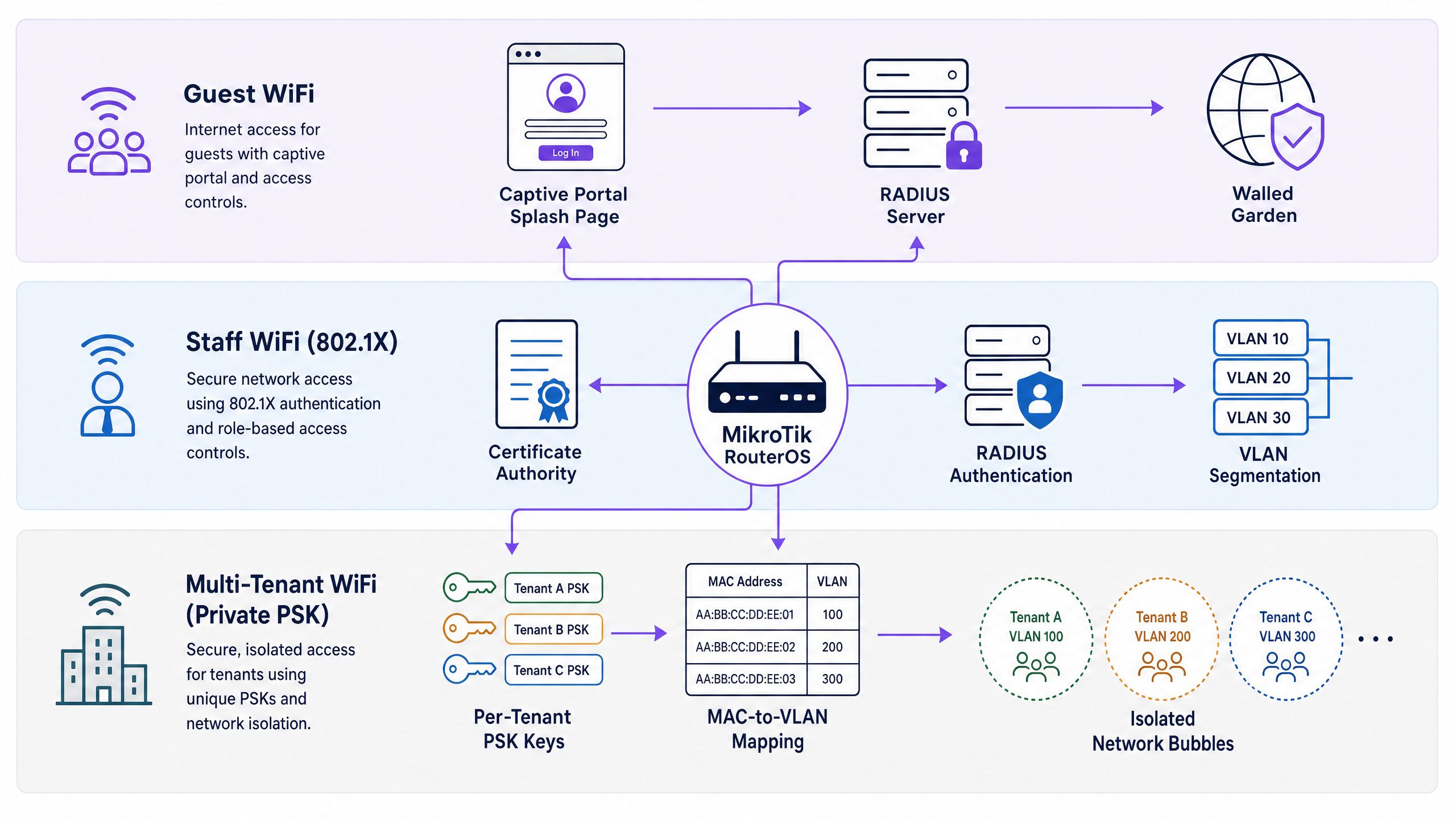
El Hotspot Gateway de MikroTik intercepta el tráfico HTTP no autenticado y lo redirige al Captive Portal alojado de Purple. Purple actúa como servidor RADIUS, gestionando la autenticación y la administración de sesiones.
Para garantizar que el Captive Portal se cargue correctamente, debe configurar un walled garden. Esto permite el acceso previo a la autenticación a los dominios de la página de bienvenida de Purple, a las redes de entrega de contenido (CDN) y a los proveedores de OAuth (como Google Workspace y Microsoft Entra ID). Sin estas entradas, el bucle de redirección se interrumpe.
Tras una autenticación correcta, el servidor RADIUS de Purple devuelve atributos estándar, incluido Session-Timeout para aplicar límites de conexión y, opcionalmente, Mikrotik-Rate-Limit para aplicar restricciones de ancho de banda directamente desde el panel de control de Purple.
Staff WiFi: Autenticación 802.1X
Para Staff WiFi, se eliminan las contraseñas compartidas mediante la implementación de IEEE 802.1X. El punto de acceso de MikroTik actúa como autenticador, pasando las credenciales EAP al servidor RADIUS de Purple. Purple se integra de forma nativa con Microsoft Entra ID, Okta y Google Workspace, validando las credenciales a través de PEAP-MSCHAPv2 o EAP-TLS.
Cuando un miembro del personal se conecta, el servidor RADIUS de Purple puede devolver el atributo Mikrotik-Wireless-VLANID. Esto indica al router MikroTik que coloque el dispositivo autenticado en una VLAN específica, lo que permite la segmentación de red basada en roles desde un único SSID. Para obtener una visión general más amplia de los estándares de seguridad, consulte Seguridad WiFi empresarial: guía completa para 2026 .
WiFi multiinquilino: PSK privada (PPSK)
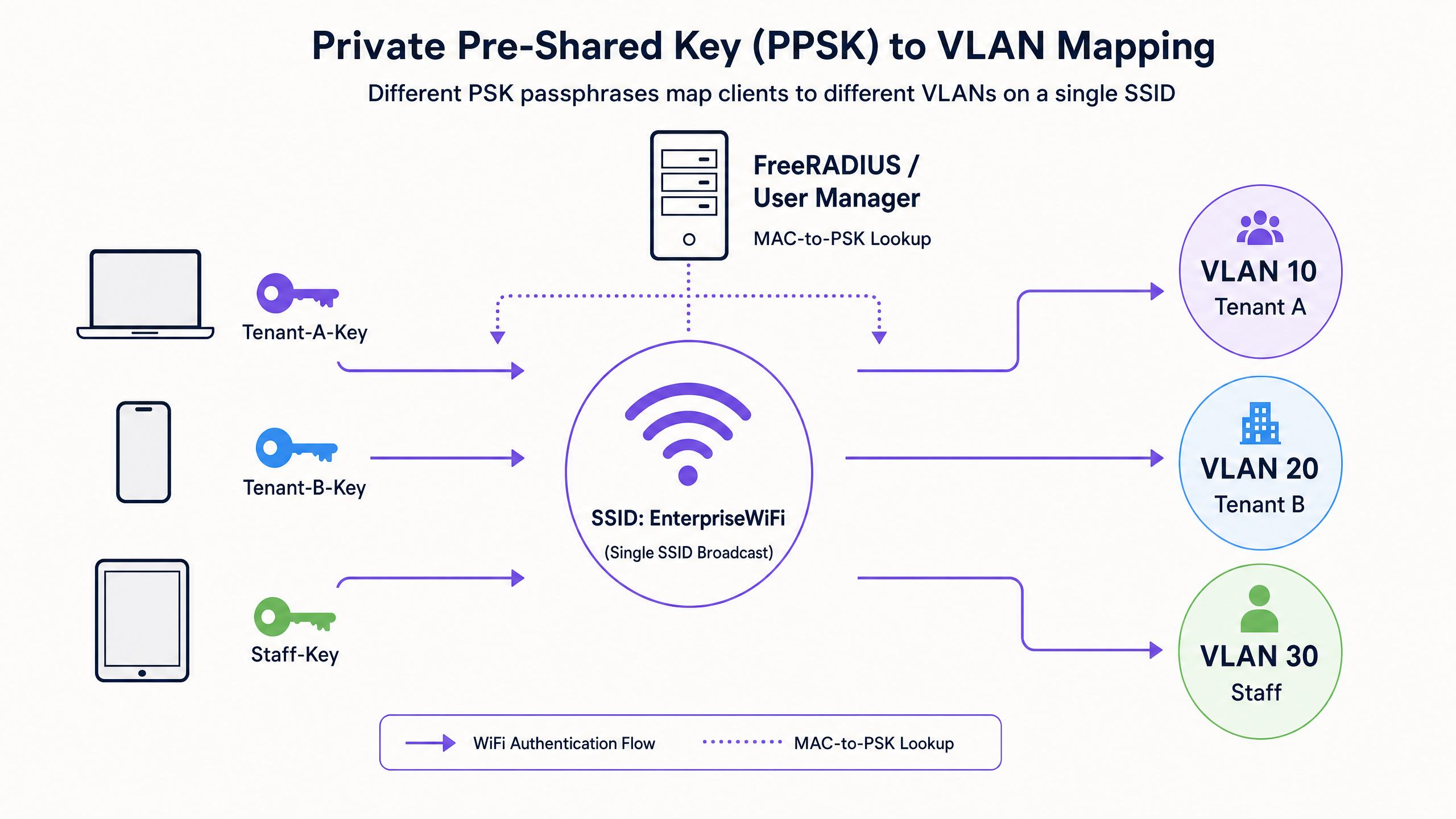
Los entornos multiinquilino requieren un aislamiento seguro sin la complejidad de 802.1X, ya que muchos dispositivos de consumo (como televisores inteligentes y videoconsolas) no lo admiten. MikroTik admite PSK privada (PPSK) a través de la autenticación RADIUS basada en MAC.
Cuando un dispositivo se conecta al SSID, el router MikroTik envía la dirección MAC del dispositivo a Purple. Purple devuelve el atributo Mikrotik-Wireless-Psk (la contraseña única para ese inquilino) y el atributo Mikrotik-Wireless-VLANID. Esta arquitectura permite que cientos de inquilinos compartan un único SSID mientras permanecen en burbujas de red completamente aisladas.
Guía de implementación
1. Configuración del cliente RADIUS
En primer lugar, defina Purple como el servidor RADIUS en RouterOS. Esto se aplica a los tres casos de uso.
/radius
add address=YOUR-PURPLE-RADIUS-IP secret=YOUR-SHARED-SECRET service=hotspot,wireless authentication-port=1812 accounting-port=1813 timeout=3000ms
2. Configuración del Hotspot de Guest WiFi
Ejecute el asistente de configuración de Hotspot en su interfaz VLAN de invitados y, a continuación, habilite la autenticación RADIUS en el perfil resultante.
/ip hotspot profile
set [ find default=yes ] use-radius=yes radius-accounting=yes
Configure el walled garden para permitir el acceso a la infraestructura de Purple.
/ip hotspot walled-garden
add action=allow dst-host=*purple.ai
add action=allow dst-host=*purpleportal.net
3. Configuración de 802.1X para Staff WiFi
Configure el perfil de seguridad inalámbrica para utilizar WPA2-Enterprise y apúntelo al servidor RADIUS.
/interface wireless security-profiles
add authentication-types=wpa2-eap eap-methods=passthrough mode=dynamic-keys name=staff-8021x radius-mac-authentication=no
Asegúrese de que el filtrado de VLAN en el puente (bridge VLAN filtering) esté habilitado para admitir la asignación dinámica de VLAN.
/interface bridge
set bridge1 vlan-filtering=yes
4. Configuración de PPSK multiinquilino
Para PPSK, habilite la autenticación MAC en el perfil de seguridad inalámbrica y configure el formato de la dirección MAC.
/interface wireless security-profiles
add authentication-types=wpa2-psk mode=dynamic-keys name=multi-tenant-ppsk radius-mac-authentication=yes radius-mac-format=XX:XX:XX:XX:XX:XX
Buenas prácticas
- Estandarizar en RouterOS 7: La asignación dinámica de VLAN a través de RADIUS inalámbrico es significativamente más robusta en RouterOS 7 en comparación con RouterOS 6.
- Aumentar los tiempos de espera de RADIUS: El tiempo de espera predeterminado de RADIUS en MikroTik es de 1100 ms. Auméntelo a 3000 ms para evitar fallos de autenticación intermitentes causados por la latencia de la red.
- Utilizar entradas de walled garden basadas en nombres de host: Utilice siempre
dst-hosten lugar dedst-addresspara las entradas de walled garden, ya que las direcciones IP de la infraestructura en la nube cambge con frecuencia. - Habilitar el filtrado VLAN de bridge: la asignación dinámica de VLAN a través de RADIUS (
Mikrotik-Wireless-VLANID) requierevlan-filtering=yesen la interfaz de bridge.
Resolución de problemas y mitigación de riesgos
Si el Captive Portal no se carga, es casi seguro que el walled garden esté incompleto. Utilice la herramienta MikroTik Torch para supervisar las consultas DNS descartadas de clientes no autenticados en la VLAN de invitados. Añada los dominios que falten al walled garden.
Si los clientes 802.1X no se autentican, verifique el secreto compartido y asegúrese de que el cliente RADIUS esté configurado con service=wireless. Consulte los registros del panel de control de Purple para confirmar si el Access-Reject procede de Purple o de su proveedor de identidad.
Si los clientes se autentican pero reciben una dirección IP incorrecta, confirme que el filtrado VLAN de bridge esté habilitado y que el servidor DHCP esté correctamente vinculado a la interfaz VLAN asignada dinámicamente.
ROI e impacto empresarial
La implementación de Purple en su infraestructura MikroTik transforma un centro de costes en un generador de ingresos. Al capturar datos de primera mano, los establecimientos pueden crear perfiles digitales detallados y automatizar las campañas de marketing. Por ejemplo, Avanti West Coast obtuvo un retorno de la inversión del 463 % al capitalizar los viajeros recurrentes y las oportunidades de venta adicional.
Además, las redes basadas en la identidad reducen los costes indirectos de TI. La automatización de la incorporación y desincorporación para la WiFi del personal a través de Entra ID elimina la gestión manual de contraseñas, mientras que PPSK para WiFi multiinquilino permite a los administradores de propiedades aprovisionar redes aisladas sin necesidad de implementar hardware dedicado por unidad.
Definiciones clave
Hotspot Gateway
A RouterOS feature that intercepts unauthenticated HTTP traffic and redirects it to a captive portal splash page.
Used to capture guest data and enforce terms of service before granting internet access.
Walled Garden
A list of allowed destinations that unauthenticated users can access.
Critical for allowing guests to reach the Purple splash page, CDNs, and OAuth providers (like Google) to complete the login process.
802.1X
An IEEE standard for port-based network access control that provides an authentication mechanism to devices wishing to attach to a LAN or WLAN.
Used for secure Staff WiFi, allowing authentication via Entra ID or Okta instead of a shared password.
Private PSK (PPSK)
A security architecture where multiple unique Pre-Shared Keys are used on a single SSID, often tied to specific MAC addresses and VLANs.
Ideal for Multi-Tenant WiFi, providing isolated network bubbles for residents and their consumer devices.
RADIUS
Remote Authentication Dial-In User Service. A networking protocol that provides centralised Authentication, Authorization, and Accounting (AAA) management.
The core protocol linking MikroTik hardware to Purple's cloud platform for identity validation.
VLAN Filtering
A RouterOS bridge setting that enforces VLAN tagging and untagging rules on bridge ports.
Must be enabled for dynamic VLAN assignment via RADIUS to function correctly.
CAPsMAN
Controlled Access Point system Manager. MikroTik's centralised wireless management system.
Used to deploy consistent wireless security profiles and RADIUS settings across multiple access points.
EAP-TLS
Extensible Authentication Protocol - Transport Layer Security. A highly secure authentication method requiring client-side certificates.
Supported by Purple for zero-trust Staff WiFi deployments where passwordless authentication is required.
Ejemplos prácticos
A 200-room hotel needs to deploy secure Staff WiFi across their MikroTik access points. They want finance staff on VLAN 10 and operations staff on VLAN 20, using their existing Microsoft Entra ID credentials.
- Integrate Purple with Microsoft Entra ID in the Purple dashboard.
- Configure the MikroTik RADIUS client to point to Purple with
service=wireless. - Create a MikroTik wireless security profile with
authentication-types=wpa2-eap. - Enable
vlan-filtering=yeson the MikroTik bridge. - In Purple, map the Entra ID 'Finance' group to return
Mikrotik-Wireless-VLANID=10and the 'Operations' group to returnMikrotik-Wireless-VLANID=20.
A build-to-rent property manager needs to provide isolated WiFi networks for 50 apartments using a single SSID broadcast from MikroTik CAPsMAN.
- Configure the MikroTik wireless security profile for the SSID with
authentication-types=wpa2-pskandradius-mac-authentication=yes. - Ensure the RADIUS client is configured with
service=wirelesspointing to Purple. - In the Purple dashboard, register the MAC addresses of the residents' devices.
- Assign a unique PSK and VLAN ID to each apartment in Purple.
- When a device connects, Purple returns the
Mikrotik-Wireless-PskandMikrotik-Wireless-VLANIDattributes, placing the device in its isolated network bubble.
Preguntas de práctica
Q1. You have configured the MikroTik Hotspot Gateway and pointed it to Purple's RADIUS server. Guests connect to the SSID, but their browsers display a timeout error instead of the Purple splash page. What is the most likely configuration error?
Sugerencia: Consider what must happen before the guest authenticates.
Ver respuesta modelo
The walled garden is misconfigured or missing entries. Without allowing access to Purple's splash page domains and associated CDNs in the /ip hotspot walled-garden, the unauthenticated guest cannot load the login page, resulting in a timeout.
Q2. A retail chain wants to deploy Staff WiFi using 802.1X and Entra ID. They configure `authentication-types=wpa2-eap` and set up the RADIUS client. However, authentication fails. You check the RADIUS client configuration and see `service=hotspot`. How do you resolve this?
Sugerencia: Different wireless authentication methods require different RADIUS service types in RouterOS.
Ver respuesta modelo
Change the RADIUS client configuration to include service=wireless. The hotspot service type is only used for captive portal authentication. 802.1X and MAC authentication require the wireless service type.
Q3. You are deploying Multi-Tenant WiFi using Private PSKs. Purple successfully returns the `Mikrotik-Wireless-Psk` and `Mikrotik-Wireless-VLANID` attributes, and the device connects. However, the device receives an IP address from the default management subnet, not the isolated tenant subnet. What RouterOS setting is missing?
Sugerencia: Dynamic VLAN assignment requires the bridge to process VLAN tags.
Ver respuesta modelo
Bridge VLAN filtering is disabled. You must set vlan-filtering=yes on the bridge interface. Without this, the bridge ignores the dynamic VLAN tag assigned by RADIUS, and the traffic falls back to the default untagged PVID.
Continúe leyendo esta serie
Integración de Huawei AirEngine y CloudCampus con Purple WiFi
Esta guía proporciona instrucciones paso a paso para integrar los puntos de acceso Huawei AirEngine e iMaster NCE-Campus con Purple WiFi. Cubre la configuración de Captive Portal, la autenticación de personal mediante 802.1X y el direccionamiento dinámico de VLAN mediante PPSK para redes empresariales.
Integración de routers y puntos de acceso DrayTek Vigor con Purple WiFi
Esta guía proporciona instrucciones técnicas paso a paso para integrar los routers DrayTek Vigor y los puntos de acceso VigorAP con la plataforma en la nube de Purple. Cubre la configuración del Captive Portal de DrayTek para Guest WiFi, la autenticación 802.1X para Staff WiFi seguro, la configuración de Walled Garden y la configuración de Multiple PSK (PPSK) de DrayTek para la segmentación de redes multiinquilino con asignación dinámica de VLAN. Diseñado para instaladores de TI y administradores de redes de pymes que implementan Purple en entornos de hostelería, comercio minorista y espacios multiinquilino.
Integración de Alcatel-Lucent Enterprise (ALE) OmniAccess con Purple WiFi
Esta guía detalla la integración técnica entre los puntos de acceso Alcatel-Lucent Enterprise (ALE) OmniAccess Stellar y Purple WiFi. Cubre la redirección de Captive Portal, la autenticación RADIUS, la configuración de Walled Garden, la red WiFi segura para empleados mediante 802.1X y la segmentación de WiFi multiinquilino mediante claves precompartidas privadas (PPSK) con direccionamiento dinámico de VLAN, lo que ofrece a los administradores de TI y arquitectos de red una referencia completa y práctica para implementar redes basadas en la identidad en hardware de ALE.