
Come configurare WPA2-Enterprise sulle piattaforme di Access Point comuni (Cisco, Aruba, Ubiquiti)
Questa guida di riferimento tecnico fornisce a professionisti IT senior e architetti di rete una procedura dettagliata e specifica per fornitore per l'implementazione di WPA2-Enterprise su piattaforme Cisco, Aruba e Ubiquiti. Dettaglia l'architettura, l'integrazione RADIUS, i requisiti di conformità e gli scenari di implementazione reali in ambienti aziendali e pubblici.
Ascolta questa guida
Visualizza trascrizione del podcast
Riepilogo Esecutivo
L'implementazione di WPA2-Enterprise non è più un aggiornamento di sicurezza opzionale; è la base fondamentale per qualsiasi rete wireless aziendale. Per i responsabili IT e gli architetti di rete che operano in ambienti di ospitalità, vendita al dettaglio e settore pubblico, il passaggio dalle chiavi pre-condivise all'autenticazione 802.1X è guidato da rigorosi mandati di conformità, inclusi PCI DSS e GDPR. Questa guida di riferimento tecnico fornisce passaggi di configurazione attuabili e specifici per piattaforma per i tre fornitori dominanti di access point: Cisco, Aruba e Ubiquiti.
Passando a WPA2-Enterprise, le organizzazioni eliminano i rischi associati alle credenziali condivise, ottengono tracce di audit granulari per sessione e abilitano la segmentazione dinamica della rete. Se implementata correttamente, questa architettura non solo protegge il perimetro aziendale, ma si integra anche senza soluzione di continuità con le reti per visitatori gestite da una piattaforma completa di Guest WiFi . Le sezioni seguenti descrivono in dettaglio l'architettura tecnica, i passaggi di implementazione e le strategie di mitigazione del rischio necessarie per un'implementazione di successo.
Approfondimento Tecnico
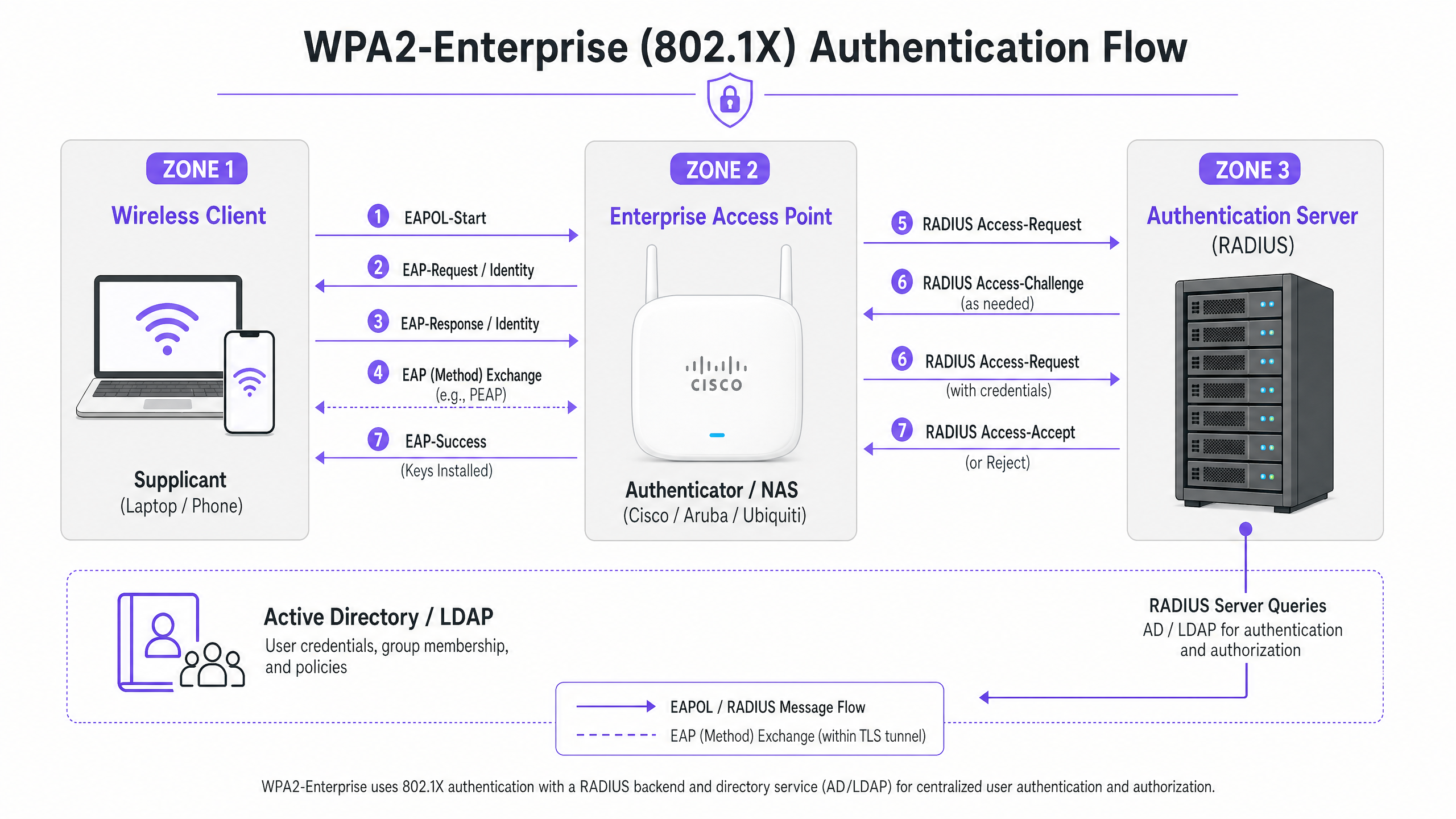
WPA2-Enterprise si basa sullo standard IEEE 802.1X per fornire il controllo dell'accesso alla rete basato su porta. A differenza di WPA2-Personal, che utilizza una chiave pre-condivisa (PSK) statica, WPA2-Enterprise richiede che ogni supplicante (dispositivo client) si autentichi individualmente contro un server di autenticazione esterno (tipicamente un server RADIUS) prima che venga concesso l'accesso alla rete.
L'architettura è composta da tre componenti principali:
- Il Supplicante: Il dispositivo client che tenta di connettersi alla rete.
- L'Autenticatore: L'access point aziendale o il controller LAN wireless (ad es. Cisco WLC, Aruba Mobility Controller) che facilita il processo di autenticazione.
- Il Server di Autenticazione: Il server RADIUS di backend (ad es. Cisco ISE, Aruba ClearPass, Windows NPS) che convalida le credenziali rispetto a un servizio di directory come Active Directory o LDAP.
Il Processo di Scambio EAP
Il processo di autenticazione utilizza l'Extensible Authentication Protocol (EAP) incapsulato su LAN (EAPOL). L'autenticatore agisce puramente come proxy pass-through durante la fase iniziale. Una volta che il server RADIUS convalida le credenziali, restituisce un messaggio Access-Accept all'autenticatore, che quindi deriva le chiavi di crittografia necessarie per proteggere la sessione wireless.
La scelta del metodo EAP è fondamentale. PEAP-MSCHAPv2 è il metodo più ampiamente utilizzato in quanto supporta l'autenticazione con password di Active Directory legacy, proteggendo lo scambio all'interno di un tunnel TLS stabilito dal certificato del server. Tuttavia, per la massima sicurezza, si raccomanda EAP-TLS. EAP-TLS richiede l'autenticazione reciproca dei certificati — sia il server che il client devono presentare certificati validi — il che mitiga il furto di credenziali ma richiede una robusta infrastruttura a chiave pubblica (PKI) o una soluzione di gestione dei dispositivi mobili (MDM) per la distribuzione dei certificati.
Guida all'Implementazione
I principi fondamentali della configurazione di WPA2-Enterprise sono coerenti tra i fornitori, ma l'esecuzione varia in base all'interfaccia di gestione e all'ecosistema.
Cisco (Catalyst e Meraki)
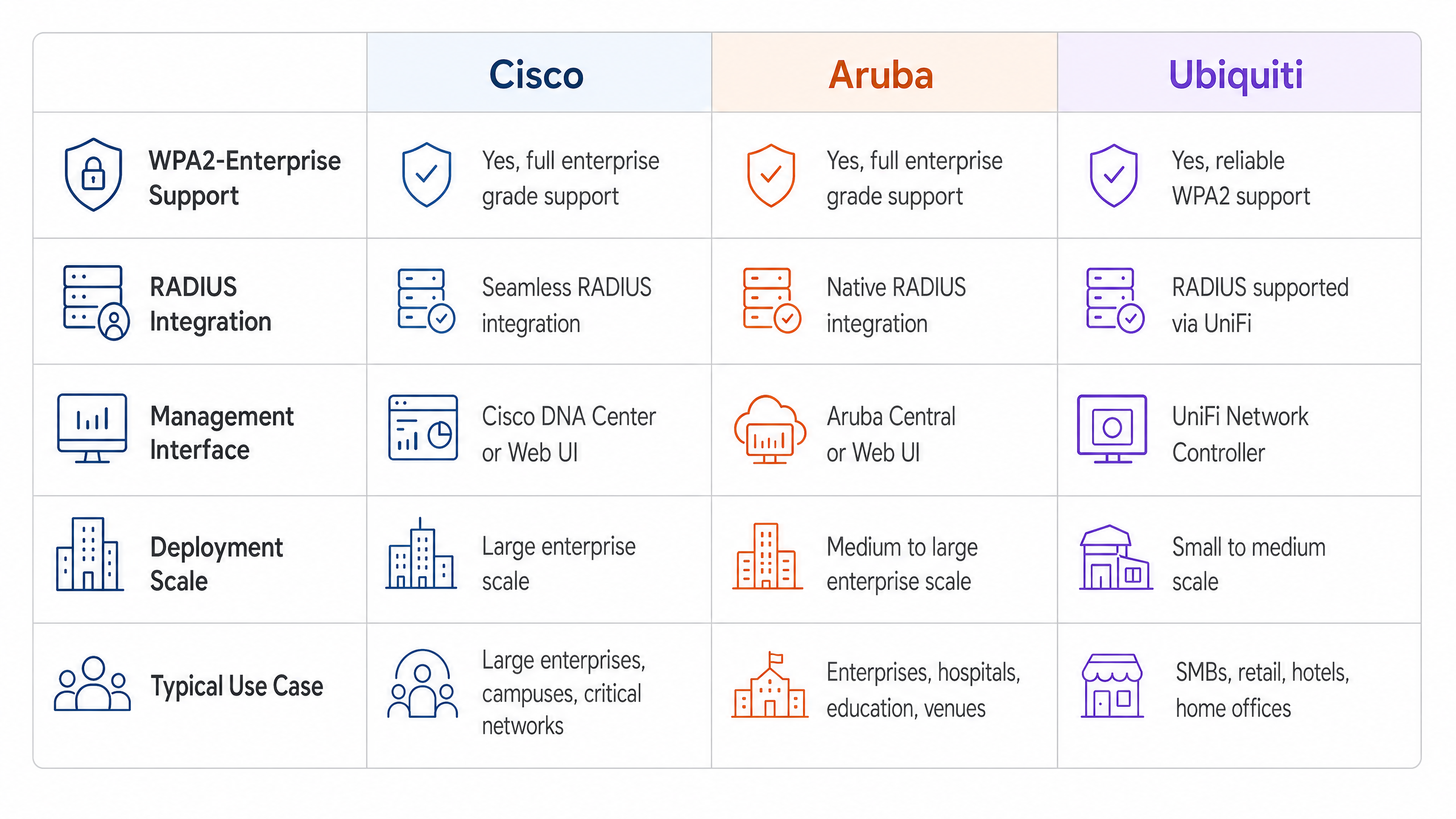
Gli ambienti Cisco tipicamente scalano da implementazioni campus a reti aziendali distribuite.
Cisco Catalyst (WLC/DNA Center):
- Definire i Server RADIUS: Navigare nella scheda Sicurezza, selezionare AAA e configurare i server RADIUS di Autenticazione e Accounting primari e secondari. Assicurarsi che il segreto condiviso corrisponda alla configurazione del server RADIUS.
- Creare un Profilo WLAN: Sotto la scheda WLAN, creare un nuovo profilo.
- Configurare le Politiche di Sicurezza: Impostare la Sicurezza Layer 2 su WPA+WPA2 e abilitare 802.1X come metodo di Gestione Chiavi di Autenticazione (AKM).
- Associare i Server AAA: Mappare i server RADIUS precedentemente definiti al profilo WLAN. Abilitare 'AAA Override' se è richiesta l'assegnazione dinamica di VLAN.
Cisco Meraki:
- Configurazione SSID: Nella Dashboard Meraki, navigare su Wireless > SSIDs e selezionare la rete di destinazione.
- Controllo Accessi: Impostare il requisito di associazione su 'WPA2-Enterprise con il mio server RADIUS'.
- Impostazioni RADIUS: Inserire gli indirizzi IP, la porta di autenticazione (tipicamente 1812), la porta di accounting (1813) e i segreti condivisi per la propria infrastruttura RADIUS. La dashboard di Meraki include uno strumento di test integrato per verificare la connettività RADIUS prima dell'implementazione.
Reti Aruba
Aruba è la piattaforma dominante nel settore Ospitalità e nell'istruzione superiore, sfruttando ampiamente il suo ClearPass Policy Manager per il controllo avanzato degli accessi.
- Definire il Profilo AAA: In Aruba Central o nell'interfaccia utente del Mobility Controller, creare un nuovo profilo AAA. Questo profilo detta come viene gestita l'autenticazione.
- Configurare il Gruppo di Server RADIUS: Aggiungere i server RADIUS a un gruppo di server, specificando le regole di failover e i valori di timeout. Associare questo gruppo al profilo AAA.
- Configurazione AP Virtuale: Creare o modificare un profilo AP Virtuale (SSID). Impostare il tipo di sicurezza su WPA2-Enterprise.
- Associare i Profili: Associare il profilo AAA al profilo AP Virtuale. Se si utilizza ClearPass, assicurarsi che la porta RADIUS CoA (Change of Authorization) (3799) sia consentita attraverso eventuali firewall intermedi per consentire l'applicazione dinamica delle policy.
Ubiquiti (UniFi)
Ubiquiti offre una soluzione conveniente per gli ambienti Retail e SMB tramite il UniFi Network Controller.
- Profilo RADIUS Creazione: Navigare su Impostazioni > Profili > RADIUS. Creare un nuovo profilo con l'indirizzo IP, le porte (1812/1813) e il segreto condiviso del server RADIUS esterno.
- Configurazione SSID: Andare su Impostazioni > WiFi e creare una nuova rete wireless.
- Impostazioni di sicurezza: Selezionare 'WPA2 Enterprise' come protocollo di sicurezza e allegare il profilo RADIUS appena creato.
- Nota sull'infrastruttura RADIUS: A differenza dei controller aziendali che possono offrire RADIUS localizzato e resiliente, UniFi si affida fortemente a server esterni (ad es. FreeRADIUS, Windows NPS). Assicurare una connettività affidabile tra gli AP UniFi e il backend RADIUS.
Migliori Pratiche
Per garantire una distribuzione resiliente e sicura, gli architetti di rete devono aderire a diverse pratiche ottimali critiche:
- Imporre la convalida del certificato: I dispositivi client devono essere esplicitamente configurati per convalidare il certificato del server RADIUS rispetto a un'autorità di certificazione (CA) attendibile. Non farlo espone la rete ad attacchi 'Evil Twin' in cui punti di accesso non autorizzati raccolgono le credenziali utente.
- Implementare la ridondanza RADIUS: Il server RADIUS si trova nel percorso critico per l'accesso alla rete. Configurare sempre server RADIUS primari e secondari. Negli ambienti distribuiti, considerare soluzioni RADIUS ospitate nel cloud per un'elevata disponibilità.
- Sfruttare l'assegnazione dinamica di VLAN: Utilizzare gli attributi RADIUS (ad es.
Tunnel-Pvt-Group-ID) per assegnare dinamicamente gli utenti a VLAN specifiche in base alla loro appartenenza a gruppi di Active Directory. Ciò impone la segmentazione della rete senza trasmettere più SSID. - Abilitare la contabilità RADIUS: Non configurare solo l'autenticazione. La contabilità RADIUS (Porta 1813) è obbligatoria per generare i registri di controllo richiesti dai framework di conformità.
- Proteggere il perimetro della rete: Maggiori informazioni sulla protezione dell'infrastruttura sono disponibili nella nostra guida su come Proteggere la rete con DNS e sicurezza robusti .
Risoluzione dei problemi e mitigazione del rischio
Anche con un'attenta pianificazione, le distribuzioni possono incontrare problemi. Le modalità di errore comuni includono:
- Mancata corrispondenza del segreto condiviso: Un semplice errore di battitura nel segreto condiviso RADIUS comporterà errori di autenticazione silenziosi. Verificare i segreti sia sull'autenticatore che sul server RADIUS.
- Errori di sincronizzazione dell'ora: La convalida del certificato richiede una temporizzazione accurata. Assicurarsi che tutti gli AP, i controller e i server RADIUS siano sincronizzati tramite una fonte NTP affidabile.
- Firewall che blocca il traffico RADIUS: Assicurarsi che le porte UDP 1812 (Autenticazione) e 1813 (Contabilità) siano aperte tra gli AP/Controller e il server RADIUS. Se si utilizza CoA, assicurarsi che la porta UDP 3799 sia aperta.
- Errata configurazione del supplicante client: Il problema più comune è che il dispositivo client non è configurato per fidarsi della CA che ha emesso il certificato del server RADIUS. Utilizzare MDM o Criteri di gruppo per inviare i profili wireless corretti ai dispositivi aziendali.
Per una comprensione più ampia dei protocolli di autenticazione, consultare Come configurare l'autenticazione WiFi 802.1X: Una guida passo-passo .
ROI e impatto aziendale
Il passaggio a WPA2-Enterprise offre un valore aziendale significativo che va oltre i semplici miglioramenti della sicurezza.
- Mitigazione del rischio: L'eliminazione delle password condivise riduce drasticamente la superficie di attacco e il rischio di una violazione dei dati, che può comportare gravi sanzioni finanziarie e reputazionali.
- Efficienza operativa: L'integrazione dell'autenticazione WiFi con i provider di identità esistenti (come Active Directory) automatizza l'onboarding e l'offboarding dei dipendenti. Quando un dipendente se ne va, la disabilitazione del suo account AD revoca istantaneamente il suo accesso WiFi.
- Abilitazione alla conformità: I registri di controllo granulari e l'autenticazione per utente sono prerequisiti per la conformità PCI DSS e ISO 27001.
- Infrastruttura unificata: Utilizzando l'assegnazione dinamica di VLAN, le sedi possono gestire il traffico aziendale, back-of-house e IoT in modo sicuro sulla stessa hardware fisica utilizzata per l'accesso degli ospiti. La rete ospite può quindi essere monetizzata e analizzata utilizzando una soluzione dedicata di WiFi Analytics , massimizzando il ritorno sull'investimento hardware. Assicurati di avere la larghezza di banda necessaria comprendendo Cos'è una linea dedicata? Internet aziendale dedicato .
Definizioni chiave
WPA2-Enterprise
A security protocol for wireless networks that uses IEEE 802.1X to provide per-user authentication via an external server, rather than a single shared password.
The mandatory standard for securing corporate and operational WiFi networks in enterprise environments.
802.1X
An IEEE standard for port-based network access control that provides an authentication mechanism to devices wishing to attach to a LAN or WLAN.
The underlying framework that makes WPA2-Enterprise work.
RADIUS
Remote Authentication Dial-In User Service; a networking protocol that provides centralized Authentication, Authorization, and Accounting (AAA) management.
The server component that validates user credentials against a database like Active Directory.
Supplicant
The software client on a device (laptop, smartphone) that communicates with the authenticator to request network access.
The endpoint that must be configured with the correct EAP settings and certificate trust.
Authenticator
The network device (Access Point or Switch) that facilitates the authentication process by passing messages between the supplicant and the authentication server.
The Cisco, Aruba, or Ubiquiti hardware managed by the IT team.
EAP (Extensible Authentication Protocol)
An authentication framework frequently used in wireless networks and point-to-point connections, supporting multiple authentication methods.
The protocol used to encapsulate the credential exchange.
PEAP-MSCHAPv2
An EAP method that encapsulates the MSCHAPv2 password exchange within a secure TLS tunnel established by the server's certificate.
The most common deployment method as it balances security with the convenience of using standard AD passwords.
Dynamic VLAN Assignment
The process where a RADIUS server instructs the access point to place an authenticated user onto a specific VLAN based on their identity or group membership.
Crucial for network segmentation, allowing different user types to share the same physical APs securely.
Esempi pratici
A 200-room hotel needs to deploy secure WiFi for its back-of-house staff (housekeeping, management) using existing Aruba access points, while keeping the staff traffic strictly separated from the guest network.
The IT team configures a single 'Hotel_Staff' SSID using WPA2-Enterprise. They integrate Aruba ClearPass with the hotel's Active Directory. In ClearPass, they configure enforcement policies: if a user is in the 'Management' AD group, ClearPass returns a RADIUS attribute assigning them to VLAN 10 (Management Network). If the user is in the 'Housekeeping' group, they are assigned to VLAN 20 (Operations Network). The APs are configured to enforce these dynamic VLAN assignments.
A national retail chain with 50 locations uses Cisco Meraki. They need to secure their point-of-sale (POS) terminals over WiFi to meet PCI DSS compliance, replacing their old WPA2-Personal setup.
The network architect deploys a cloud-hosted RADIUS service to avoid deploying local servers at each store. In the Meraki dashboard, they configure the 'Retail_POS' SSID for WPA2-Enterprise and point it to the cloud RADIUS IPs. They generate unique client certificates for each POS terminal via their MDM platform and configure the RADIUS server to require EAP-TLS. The Meraki APs are configured to send both RADIUS Authentication and Accounting data to the cloud service.
Domande di esercitazione
Q1. Your organisation is deploying WPA2-Enterprise using Ubiquiti UniFi access points. During testing, clients can connect successfully, but the compliance team notes that there are no logs of user session durations or data usage in the central logging system. What is the most likely configuration omission?
Suggerimento: Authentication grants access, but another process tracks usage.
Visualizza risposta modello
The RADIUS Accounting port (1813) has not been configured or is being blocked by a firewall. While Authentication (port 1812) is working, Accounting must be explicitly enabled to generate session audit trails.
Q2. A user reports they cannot connect to the corporate WPA2-Enterprise network. You check the Cisco WLC logs and see the AP is passing the EAP-Request, but the RADIUS server logs show an 'Access-Reject' due to 'Unknown CA'. What needs to be fixed?
Suggerimento: Think about the trust relationship established during the TLS tunnel setup.
Visualizza risposta modello
The client device's supplicant is not configured to trust the Certificate Authority (CA) that issued the RADIUS server's certificate. The client is terminating the connection to prevent a potential Evil Twin attack. The CA certificate must be pushed to the client device.
Q3. You are designing a network for a stadium. You need to support corporate staff, ticketing terminals, and guest WiFi. How should you architect the SSIDs to minimize RF interference while maintaining security?
Suggerimento: Avoid broadcasting an SSID for every single use case.
Visualizza risposta modello
Deploy a maximum of two SSIDs. One SSID for Guests using a captive portal (like Purple). A second SSID for all corporate operations using WPA2-Enterprise. Use Dynamic VLAN Assignment via the RADIUS server to segment the corporate staff onto one VLAN and the ticketing terminals onto another based on their authentication credentials.
Continua a leggere questa serie
Cos'è l'autenticazione tramite indirizzo MAC? Quando usarla e quando evitarla
Questa guida tecnica di riferimento autorevole copre l'autenticazione tramite indirizzo MAC negli ambienti WiFi aziendali — come funziona l'autenticazione MAC basata su RADIUS al Livello 2, le sue vulnerabilità di sicurezza intrinseche (inclusi lo spoofing MAC e l'impatto della randomizzazione MAC a livello di OS), e i precisi contesti operativi in cui rimane uno strumento valido per la gestione di dispositivi IoT e headless. Fornisce indicazioni pratiche per l'implementazione a responsabili IT e architetti di rete in strutture ricettive, retail, sanitarie e del settore pubblico, con esempi pratici, framework decisionali e contesto di integrazione per la piattaforma di guest WiFi e analisi di Purple.
Come configurare il WiFi aziendale su iOS e macOS con 802.1X
Questa guida autorevole fornisce ai leader IT senior passaggi pratici per l'implementazione del WiFi aziendale 802.1X su dispositivi iOS e macOS. Copre l'autenticazione basata su certificati (EAP-TLS), i profili di configurazione MDM e l'integrazione dell'architettura per proteggere le reti aziendali supportando al contempo le iniziative BYOD.
Come configurare il WiFi aziendale sui dispositivi Android con EAP-TLS
Questa guida di riferimento tecnico fornisce ai leader IT senior un progetto completo per la distribuzione dell'autenticazione 802.1X EAP-TLS sui dispositivi Android. Copre i meccanismi architetturali, le strategie di implementazione manuale e basate su MDM e le metodologie di risoluzione dei problemi necessarie per proteggere le reti wireless aziendali.