
Come usare Microsoft Intune per distribuire certificati WiFi ai dispositivi
Un riferimento tecnico completo per i responsabili IT sulla distribuzione di certificati WiFi 802.1X tramite Microsoft Intune. Copre l'architettura SCEP vs PKCS, i passaggi di implementazione, la mappatura della conformità e gli scenari di distribuzione reali per ambienti aziendali.
Ascolta questa guida
Visualizza trascrizione del podcast
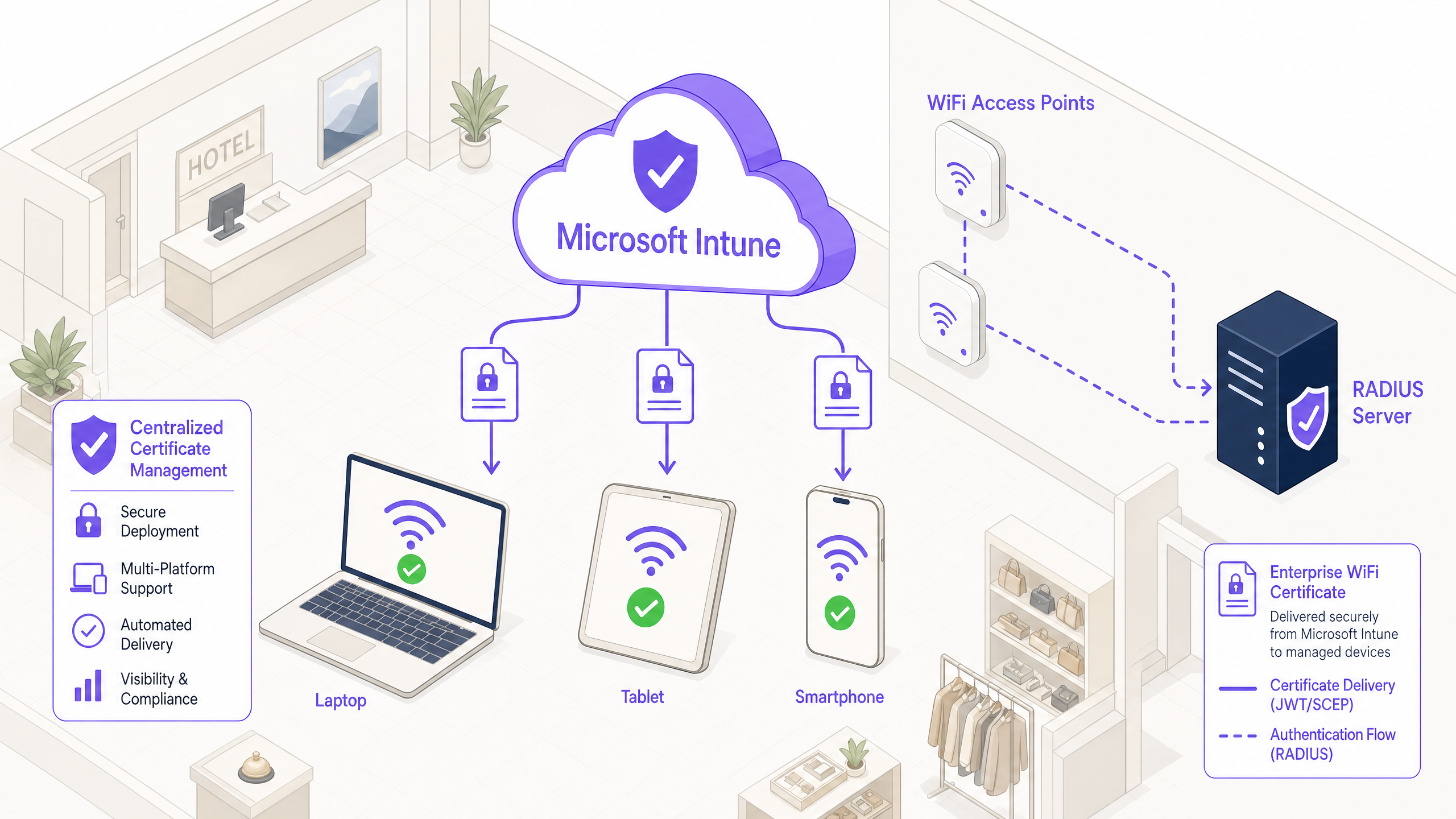
Riepilogo Esecutivo
Per i responsabili IT aziendali che gestiscono ambienti su larga scala in Hospitality , Retail o sedi del settore pubblico, l'accesso wireless sicuro è un requisito operativo fondamentale. Affidarsi a PSK (Pre-Shared Keys) condivise o all'autenticazione tramite nome utente/password (PEAP-MSCHAPv2) espone la rete al furto di credenziali, al phishing e a violazioni della conformità. Lo standard di settore per una robusta sicurezza WiFi aziendale è 802.1X con EAP-TLS (Extensible Authentication Protocol with Transport Layer Security), che impone l'autenticazione reciproca basata su certificati tra il dispositivo e la rete.
Tuttavia, la barriera principale all'adozione di EAP-TLS è stata storicamente il sovraccarico operativo della gestione del ciclo di vita dei certificati. Microsoft Intune risolve questo problema automatizzando la consegna, il rinnovo e la revoca dei certificati digitali ai dispositivi gestiti su larga scala.
Questo riferimento tecnico descrive l'architettura, le metodologie di distribuzione (SCEP vs PKCS) e i passaggi di implementazione necessari per distribuire certificati WiFi tramite Microsoft Intune. Fornisce una guida pratica per architetti di rete e ingegneri di sistemi incaricati di proteggere le comunicazioni aziendali mantenendo una rigorosa separazione dalle reti per visitatori, come quelle gestite da una piattaforma Guest WiFi .
Approfondimento Tecnico: Architettura e Protocolli
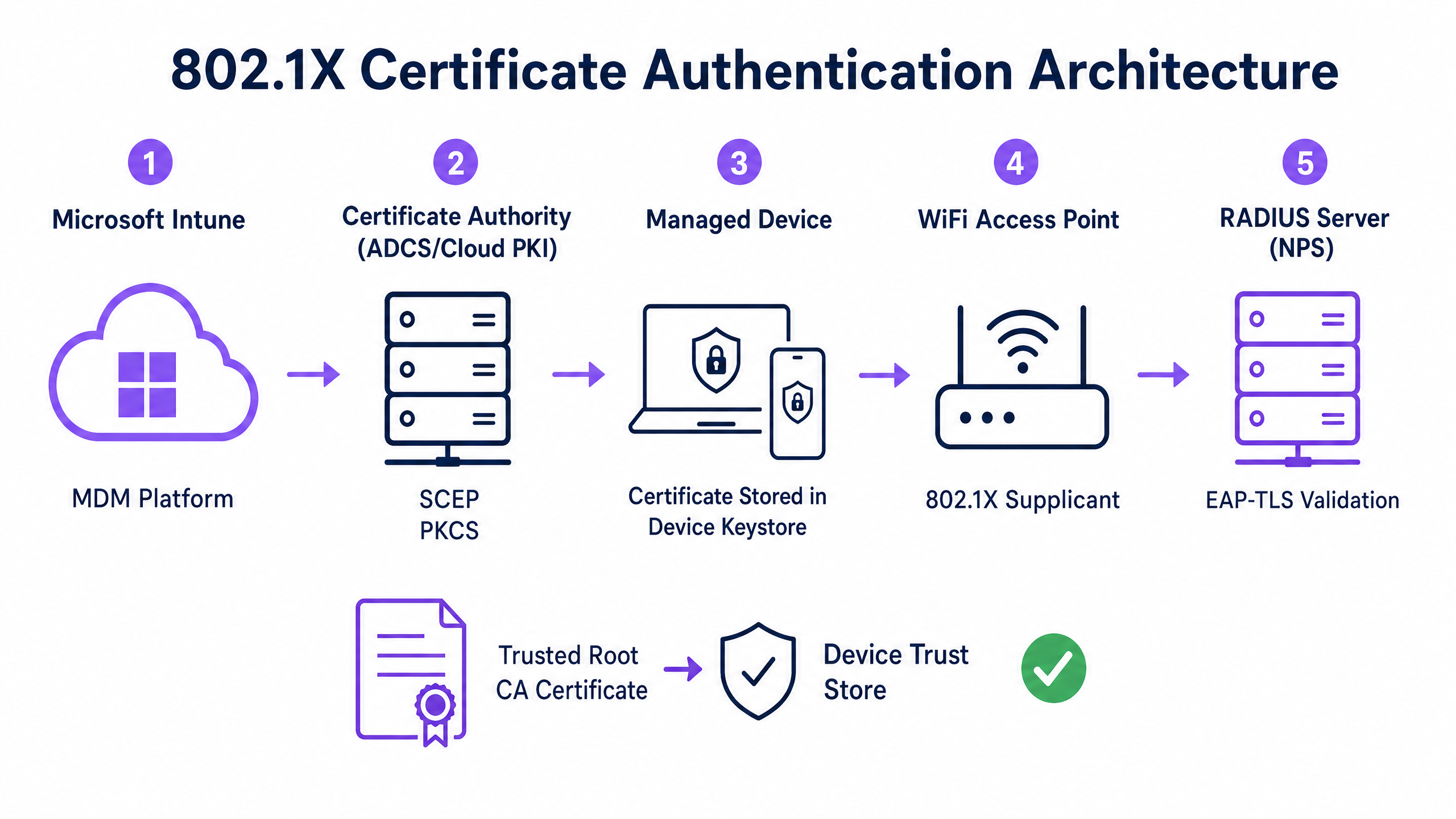
Per implementare efficacemente l'autenticazione basata su certificati, i team IT devono comprendere l'interazione tra la piattaforma Mobile Device Management (MDM), l'infrastruttura a chiave pubblica (PKI) e il livello di controllo dell'accesso alla rete.
Il Framework di Autenticazione 802.1X
Lo standard IEEE 802.1X definisce il controllo dell'accesso alla rete basato su porta. In un contesto wireless, impedisce a un dispositivo di trasmettere qualsiasi traffico (diverso dai frame di autenticazione EAP) finché la sua identità non è verificata. L'architettura è composta da tre componenti:
- Supplicant: Il dispositivo client (laptop, smartphone, tablet) che richiede l'accesso alla rete.
- Authenticator: L'access point wireless o il controller LAN wireless che blocca il traffico fino al successo dell'autenticazione.
- Authentication Server: Il server RADIUS (Remote Authentication Dial-In User Service), come Microsoft Network Policy Server (NPS) o Cisco ISE, che convalida le credenziali e autorizza l'accesso.
EAP-TLS e Autenticazione Reciproca
EAP-TLS è il metodo EAP più sicuro perché richiede l'autenticazione reciproca. Il server RADIUS presenta il suo certificato al supplicant per dimostrare che è la legittima rete aziendale (prevenendo attacchi evil-twin), e il supplicant presenta il suo certificato client al server RADIUS per dimostrare di essere un dispositivo o utente autorizzato.
Meccanismi di Distribuzione dei Certificati Intune: SCEP vs PKCS
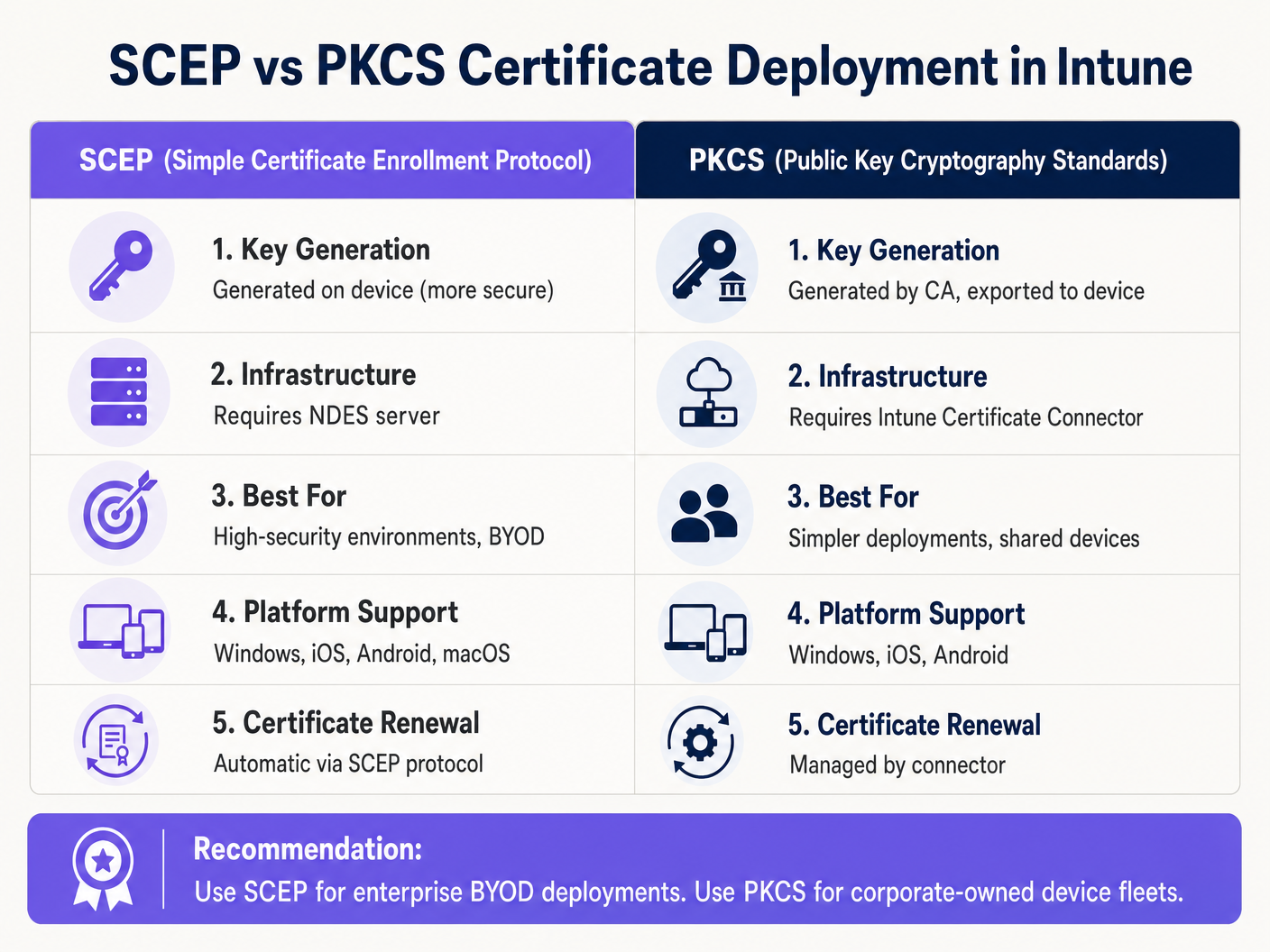
Microsoft Intune supporta due protocolli primari per la distribuzione di certificati client ai dispositivi. La selezione del meccanismo appropriato è una decisione architettonica critica.
Simple Certificate Enrollment Protocol (SCEP)
Con SCEP, la chiave privata viene generata direttamente sul dispositivo client. Il dispositivo crea una Certificate Signing Request (CSR) e la invia tramite Intune al server Network Device Enrollment Service (NDES), che agisce come proxy per l'infrastruttura Active Directory Certificate Services (ADCS). La CA rilascia il certificato, che viene restituito al dispositivo.
Poiché la chiave privata non lascia mai il dispositivo, SCEP è considerato altamente sicuro ed è l'approccio raccomandato per le distribuzioni BYOD (Bring Your Own Device) e le architetture zero-trust.
Public Key Cryptography Standards (PKCS)
Con PKCS, l'Intune Certificate Connector richiede il certificato alla CA per conto del dispositivo. La CA genera sia il certificato pubblico che la chiave privata, che il connettore poi consegna in modo sicuro al dispositivo tramite Intune.
Sebbene PKCS semplifichi i requisiti dell'infrastruttura (non è necessario un server NDES), la chiave privata viene trasmessa attraverso la rete. Questo modello è generalmente accettabile per flotte di dispositivi di proprietà aziendale e completamente gestiti, dove la piattaforma MDM è già un componente altamente affidabile.
Guida all'Implementazione: Distribuzione Passo Dopo Passo
La distribuzione di certificati WiFi tramite Intune richiede una sequenza precisa. La distribuzione di profili in ordine errato è la causa più comune di fallimento dell'implementazione.
Passo 1: Preparare l'Infrastruttura a Chiave Pubblica (PKI)
Sia che si utilizzi ADCS on-premises o una soluzione cloud-native come Microsoft Cloud PKI, la Certificate Authority deve essere configurata con i modelli appropriati.
- Key Usage: Il modello deve includere l'OID
Client Authentication(1.3.6.1.5.5.7.3.2). - Key Size: Configurare una dimensione minima della chiave di 2048 bit (RSA) per allinearsi agli standard crittografici moderni.
- Subject Name: Per i certificati utente, il Subject Alternative Name (SAN) deve essere configurato per utilizzare il User Principal Name (UPN). Per i certificati dispositivo, utilizzare l'Azure AD Device ID.
Passo 2: Distribuire il Certificato Root Attendibile
Prima che un dispositivo possa autenticarsi, deve fidarsi della CA che ha emesso il certificato del server RADIUS.
- Esportare il certificato Root CA (e qualsiasi certificato CA intermedio) in
.cer"format. - Nel centro di amministrazione Intune, navigare su Dispositivi > Profili di configurazione > Crea profilo.
- Selezionare la piattaforma e scegliere il tipo di profilo Certificato attendibile.
- Caricare il file
.cere assegnare il profilo al dispositivo di destinazione o ai gruppi di utenti.
Nota: Questo profilo deve essere applicato con successo ai dispositivi prima di procedere con i passaggi successivi.
Passaggio 3: Distribuire il profilo del certificato client
Creare un profilo di certificato SCEP o PKCS per consegnare il certificato di identità al supplicante.
- Navigare su Dispositivi > Profili di configurazione > Crea profilo.
- Selezionare la piattaforma e scegliere Certificato SCEP o Certificato PKCS.
- Configurare il formato del Nome del Soggetto e il SAN in base ai requisiti di identità (Utente vs. Dispositivo).
- Specificare il Key Storage Provider (KSP) — tipicamente il Trusted Platform Module (TPM) per la sicurezza basata su hardware.
- Assegnare il profilo agli stessi gruppi di destinazione del Passaggio 2.
Passaggio 4: Configurare il profilo WiFi
Il componente finale lega i certificati alle impostazioni della rete wireless.
- Navigare su Dispositivi > Profili di configurazione > Crea profilo.
- Selezionare la piattaforma e scegliere il tipo di profilo Wi-Fi.
- Impostare il tipo di Wi-Fi su Enterprise e inserire l'SSID esatto.
- Impostare il tipo EAP su EAP-TLS.
- Sotto Attendibilità server, specificare il nome esatto del certificato del server RADIUS e selezionare il profilo del certificato Trusted Root distribuito nel Passaggio 2.
- Sotto Autenticazione client, selezionare il profilo del certificato SCEP o PKCS distribuito nel Passaggio 3.
- Assegnare il profilo ai gruppi di destinazione.
Best Practice e Raccomandazioni Strategiche
Certificati del dispositivo vs. dell'utente
Gli architetti di rete devono decidere se rilasciare i certificati al dispositivo (autenticazione macchina) o all'utente (autenticazione utente).
- Certificati del dispositivo: Consentono alla macchina di connettersi alla rete WiFi prima che un utente effettui l'accesso. Questo è fondamentale per il provisioning iniziale del dispositivo, l'elaborazione delle Group Policy e il ripristino delle password nella schermata di accesso. Raccomandato per i dispositivi di proprietà aziendale.
- Certificati dell'utente: Collegano l'accesso alla rete all'identità dell'individuo. Questo fornisce un auditing granulare e un controllo degli accessi basato sui ruoli. Raccomandato per scenari BYOD.
Segmentazione della rete e accesso ospiti
Un principio di sicurezza fondamentale è la rigorosa separazione logica della rete aziendale 802.1X dalle reti di accesso per visitatori o pubbliche. L'infrastruttura gestita da Intune dovrebbe essere dedicata esclusivamente ai dispositivi aziendali e al personale autenticato.
Per l'accesso dei visitatori, le organizzazioni dovrebbero implementare un SSID Guest WiFi dedicato supportato da un captive portal. Ciò garantisce che i dispositivi non gestiti siano isolati, pur consentendo all'azienda di acquisire analisi sui visitatori tramite una piattaforma WiFi Analytics . Per saperne di più sulla protezione dell'infrastruttura DNS in entrambi i segmenti, consultare la nostra guida su come Proteggere la rete con DNS e sicurezza robusti .
Gestione del requisito di mappatura dei certificati NPS
Per le organizzazioni che utilizzano Microsoft Network Policy Server (NPS) con dispositivi uniti ad Azure AD, Microsoft ha introdotto una modifica critica alla configurazione. NPS ora richiede una mappatura forte dei certificati.
Quando si utilizzano i certificati del dispositivo, l'oggetto computer nell'Active Directory locale deve avere il suo attributo altSecurityIdentities popolato con i dettagli del certificato (tipicamente l'X509IssuerSerialNumber). I team IT devono implementare uno script pianificato o un flusso di lavoro basato su eventi per aggiornare questo attributo quando Intune rilascia un nuovo certificato, altrimenti l'autenticazione fallirà.
Risoluzione dei problemi e mitigazione dei rischi
Quando una distribuzione 802.1X fallisce, il problema risiede quasi sempre nella catena di certificati o nella sequenza dei profili Intune.
Modalità di errore comuni
- Errore silenzioso del profilo WiFi: Se il profilo WiFi di Intune viene applicato a un dispositivo prima che il certificato client sia stato correttamente provisionato, il profilo WiFi spesso non si installerà o fallirà silenziosamente. Verificare sempre la presenza del certificato nello store Personale del dispositivo (
certmgr.mscsu Windows) prima di risolvere i problemi di configurazione WiFi. - Errori di convalida dell'attendibilità del server: Se il dispositivo rifiuta il server RADIUS, verificare che il nome del server specificato nel profilo WiFi di Intune corrisponda esattamente al Nome del Soggetto o al SAN sul certificato del server RADIUS. Inoltre, assicurarsi che l'intera catena di certificati (Root e Intermedio) sia presente nello store Trusted Root Certification Authorities del dispositivo.
- Indisponibilità della Certificate Revocation List (CRL): Se il server RADIUS non riesce a raggiungere il punto di distribuzione CRL della CA per verificare lo stato del certificato client, l'autenticazione verrà negata. Assicurarsi che l'URL CRL sia altamente disponibile e accessibile dal server RADIUS.
ROI e impatto aziendale
La transizione all'autenticazione WiFi basata su certificati tramite Intune offre significativi ritorni operativi e di sicurezza.
- Mitigazione del rischio: Elimina il rischio di credential harvesting, attacchi pass-the-hash e accesso non autorizzato alla rete tramite PSK condivise.
- Efficienza operativa: Riduce i ticket dell'helpdesk IT relativi alla scadenza delle password e ai problemi di connettività WiFi. La gestione automatizzata del ciclo di vita significa che i certificati vengono rinnovati in modo trasparente senza l'intervento dell'utente.
- Abilitazione alla conformità: Soddisfa rigorosi requisiti normativi. Per gli ambienti retail, affronta direttamente i requisiti PCI DSS per una crittografia e autenticazione wireless robuste. Per il settore pubblico e sanitario, si allinea ai principi di accesso alla rete zero-trust (ZTNA).
Sfruttando Microsoft Intune per la distribuzione dei certificati, i team IT possono ottenere un'esperienza wireless fluida e altamente sicura che opera silenziosamente in background, consentendo all'azienda di concentrarsi sulle operazioni principali.
Definizioni chiave
802.1X
An IEEE standard for port-based network access control that prevents unauthorized devices from accessing a LAN or WLAN until they successfully authenticate.
The foundational security protocol that replaces shared WiFi passwords with enterprise-grade authentication in corporate environments.
EAP-TLS
Extensible Authentication Protocol with Transport Layer Security. An authentication framework that requires both the client and the server to prove their identities using digital certificates.
The specific protocol configured in the Intune WiFi profile to enforce mutual certificate authentication, eliminating the risk of credential theft.
SCEP
Simple Certificate Enrollment Protocol. A mechanism where the client device generates its own private key and requests a certificate from the CA via an intermediary server.
The preferred deployment method for BYOD environments because the private key is never transmitted across the network.
PKCS
Public Key Cryptography Standards. In the context of Intune, a deployment method where the CA generates the private key and the Intune Connector securely delivers it to the device.
A simpler deployment architecture often used for corporate-owned device fleets, as it removes the need for an NDES server.
NDES
Network Device Enrollment Service. A Microsoft server role that acts as a proxy, allowing devices running without domain credentials to obtain certificates from an Active Directory Certificate Authority.
A mandatory infrastructure component when deploying certificates via SCEP in an on-premises ADCS environment.
RADIUS
Remote Authentication Dial-In User Service. A networking protocol that provides centralized Authentication, Authorization, and Accounting (AAA) management.
The server (like Microsoft NPS or Cisco ISE) that receives the authentication request from the WiFi access point and validates the device's certificate.
Supplicant
The software client on the end-user device (laptop, smartphone) that initiates the 802.1X authentication process.
The Intune WiFi profile configures the native OS supplicant (e.g., Windows WLAN AutoConfig) to use the correct certificates and EAP methods.
Certificate Revocation List (CRL)
A digitally signed list published by the Certificate Authority containing the serial numbers of certificates that have been revoked and should no longer be trusted.
Crucial for security compliance; the RADIUS server must check the CRL to ensure a connecting device hasn't been reported lost or stolen.
Esempi pratici
A 400-location retail chain is deploying corporate-owned tablets for inventory management. The devices are fully managed via Intune and joined to Azure AD. They need immediate network access upon boot to sync inventory databases, before any specific user logs in. The network infrastructure uses Cisco ISE as the RADIUS server. What is the optimal certificate deployment strategy?
The IT team should implement PKCS device certificates.
- Configure a device certificate template on the CA.
- Deploy the Root CA certificate to the tablets via Intune.
- Create a PKCS certificate profile in Intune, setting the Subject Name format to the Azure AD Device ID ({{AAD_Device_ID}}).
- Create an Enterprise WiFi profile specifying EAP-TLS, referencing the ISE server's certificate name and the deployed PKCS profile.
- Assign all profiles to the device group containing the tablets.
A large teaching hospital allows medical staff to use their personal smartphones (BYOD) to access clinical scheduling applications. The devices are enrolled in Intune via a Work Profile. Security policy mandates that no corporate credentials be stored on personal devices, and network access must be revoked immediately if a device is compromised. How should the WiFi authentication be designed?
The hospital must implement SCEP user certificates combined with Intune Compliance Policies.
- Deploy an NDES server to proxy requests to the CA.
- Create a SCEP user certificate profile in Intune, with the SAN configured to the User Principal Name ({{UserPrincipalName}}).
- Create an Intune Compliance Policy requiring a minimum OS version, an active screen lock, and no jailbreak/root access.
- Configure the CA to publish a highly available Certificate Revocation List (CRL).
- Configure the RADIUS server to strictly enforce CRL checking on every authentication attempt.
Domande di esercitazione
Q1. Your organisation is migrating from PEAP-MSCHAPv2 (username/password) to EAP-TLS for the corporate WiFi. During the pilot phase, several Windows 11 laptops receive the Intune configuration profiles successfully but fail to connect to the network. Reviewing the Windows Event Logs shows Event ID 20271 indicating the RADIUS server certificate was rejected. What is the most likely cause?
Suggerimento: Consider the chain of trust required for mutual authentication.
Visualizza risposta modello
The devices lack the Trusted Root CA certificate that issued the RADIUS server's certificate. In EAP-TLS, the device must validate the RADIUS server's identity. The IT team must ensure the 'Trusted certificate' profile containing the Root CA (and any Intermediate CAs) is deployed to the devices via Intune and successfully installed before the WiFi profile attempts to connect.
Q2. A public sector venue is deploying 802.1X for staff devices using Intune and PKCS certificates. They also operate a separate visitor network managed by a Guest WiFi platform. An auditor notes that if a staff laptop is stolen, the certificate remains valid for 12 months. How should the network architect address this risk?
Suggerimento: How does the authentication server know a certificate is no longer valid before it expires?
Visualizza risposta modello
The architect must implement a robust Certificate Revocation workflow. First, ensure the CA publishes a Certificate Revocation List (CRL) to a highly available distribution point. Second, configure the RADIUS server (e.g., NPS) to mandate CRL checking during every authentication attempt. Finally, establish an Intune operational procedure to explicitly revoke the certificate of any device marked as lost or stolen, which updates the CRL and blocks network access.
Q3. You are designing the Intune deployment for a fleet of shared kiosk devices in a retail environment. These devices reboot daily and must immediately connect to the corporate network to download updates before any user interacts with them. Should you deploy User certificates or Device certificates, and what Subject Alternative Name (SAN) format should be used?
Suggerimento: Consider the state of the device immediately after a reboot.
Visualizza risposta modello
You must deploy Device certificates. Because the kiosks need network access before a user logs in, a User certificate would be unavailable at boot time. The Subject Alternative Name (SAN) in the Intune certificate profile should be configured to use the Azure AD Device ID ({{AAD_Device_ID}}) or the device's fully qualified domain name, allowing the RADIUS server to authenticate the specific hardware asset.
Continua a leggere questa serie
Cos'è l'autenticazione tramite indirizzo MAC? Quando usarla e quando evitarla
Questa guida tecnica di riferimento autorevole copre l'autenticazione tramite indirizzo MAC negli ambienti WiFi aziendali — come funziona l'autenticazione MAC basata su RADIUS al Livello 2, le sue vulnerabilità di sicurezza intrinseche (inclusi lo spoofing MAC e l'impatto della randomizzazione MAC a livello di OS), e i precisi contesti operativi in cui rimane uno strumento valido per la gestione di dispositivi IoT e headless. Fornisce indicazioni pratiche per l'implementazione a responsabili IT e architetti di rete in strutture ricettive, retail, sanitarie e del settore pubblico, con esempi pratici, framework decisionali e contesto di integrazione per la piattaforma di guest WiFi e analisi di Purple.
Come configurare il WiFi aziendale su iOS e macOS con 802.1X
Questa guida autorevole fornisce ai leader IT senior passaggi pratici per l'implementazione del WiFi aziendale 802.1X su dispositivi iOS e macOS. Copre l'autenticazione basata su certificati (EAP-TLS), i profili di configurazione MDM e l'integrazione dell'architettura per proteggere le reti aziendali supportando al contempo le iniziative BYOD.
Come configurare il WiFi aziendale sui dispositivi Android con EAP-TLS
Questa guida di riferimento tecnico fornisce ai leader IT senior un progetto completo per la distribuzione dell'autenticazione 802.1X EAP-TLS sui dispositivi Android. Copre i meccanismi architetturali, le strategie di implementazione manuale e basate su MDM e le metodologie di risoluzione dei problemi necessarie per proteggere le reti wireless aziendali.