
WatchGuard Firebox Integration with Purple WiFi: Setup and Configuration Guide
Questa guida è un playbook di integrazione passo-passo per IT manager e architetti di rete che distribuiscono WatchGuard Firebox e Access Point con Purple. Copre il reindirizzamento del Captive Portal esterno per il Guest WiFi, l'autenticazione sicura 802.1X per lo Staff WiFi e la segmentazione multi-tenant tramite le Private Pre-Shared Keys (PPSK) di WatchGuard con instradamento VLAN dinamico, offrendo un'unica architettura unificata per tutti i livelli di accesso.
Ascolta questa guida
Visualizza trascrizione del podcast
Executive summary
La distribuzione di un'infrastruttura wireless sicura e scalabile in ambienti complessi richiede un'integrazione precisa tra il gateway di sicurezza e l'identity provider. Questa guida descrive in dettaglio l'integrazione di WatchGuard Firebox e degli Access Point WatchGuard con Purple, coprendo tre diversi livelli di accesso: il reindirizzamento del Guest WiFi tramite Captive Portal, lo Staff WiFi sicuro tramite IEEE 802.1X e la segmentazione WiFi multi-tenant tramite le Private Pre-Shared Keys (PPSK) di WatchGuard.
Combinando la piattaforma di sicurezza unificata di WatchGuard con l'overlay cloud di Purple, è possibile automatizzare il controllo degli accessi basato sull'identità, applicare criteri di sicurezza granulari e acquisire dati di prima parte su scala. Purple opera in oltre 80.000 sedi attive e ha elaborato 440 milioni di accessi nel 2024 (dati interni Purple). L'integrazione è indipendente dall'hardware per progettazione: WatchGuard si affianca a Cisco Meraki, HPE Aruba, Ruckus, Juniper Mist, Ubiquiti UniFi, Cambium, Extreme e Fortinet nell'elenco degli hardware supportati da Purple. Per una panoramica più ampia sugli standard di sicurezza WiFi aziendali, consulta la nostra guida Sicurezza WiFi aziendale: una guida completa per il 2026 .
Technical architecture
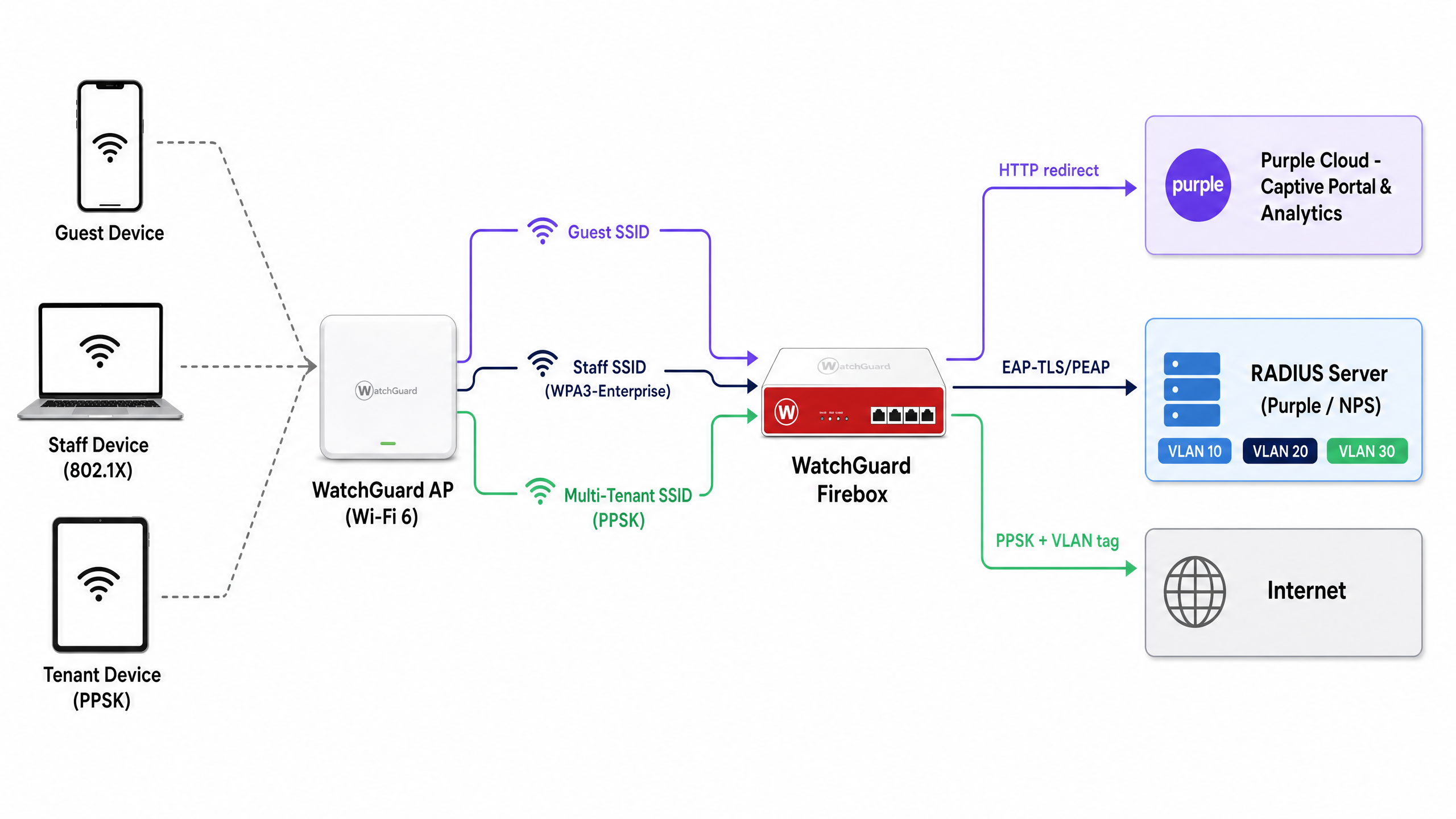
L'integrazione collega l'hardware WatchGuard ai servizi cloud di Purple utilizzando due meccanismi standard: RADIUS (Remote Authentication Dial-In User Service) per l'autenticazione e l'accounting, e il reindirizzamento HTTP per la fornitura del Captive Portal. L'architettura supporta tre livelli di accesso su un'unica infrastruttura fisica.
| Livello di accesso | Tipo di SSID | Metodo di autenticazione | Ruolo di Purple |
|---|---|---|---|
| Guest WiFi | Open | Captive Portal esterno + accounting RADIUS | Splash page, acquisizione dati, analytics |
| Staff WiFi | WPA3-Enterprise | 802.1X (EAP-TLS o PEAP) | Server RADIUS, proxy identity provider |
| WiFi Multi-Tenant | WPA2/WPA3 Personal + PPSK | PPSK convalidata tramite RADIUS | Gestione delle chiavi, assegnazione dinamica della VLAN |
Tutti e tre i livelli possono essere eseguiti contemporaneamente sulla stessa flotta di Access Point WatchGuard. I modelli WatchGuard Wi-Fi 6 (AP130, AP230W, AP330, AP332CR, AP430CR e AP432) supportano PPSK a partire dalla versione firmware v2.6.
Configuring Guest WiFi captive portal redirection
L'integrazione del Captive Portal di WatchGuard reindirizza le richieste HTTP non autenticate alla splash page ospitata di Purple. Questo è il meccanismo principale per acquisire dati di prima parte e applicare i termini di servizio.
Step 1: RADIUS server configuration
In WatchGuard Cloud o Firebox Policy Manager, definisci Purple come server di autenticazione e accounting RADIUS.
- Server RADIUS primario: imposta l'indirizzo IP RADIUS di Purple per la tua area geografica (disponibile nel portale Purple in Impostazioni > Integrazione hardware).
- Porta di autenticazione: 1812
- Porta di accounting: 1813
- Segreto condiviso: inserisci il segreto univoco fornito nel portale Purple.
- NAS ID: imposta questo valore sull'indirizzo MAC del Firebox o dell'AP utilizzando lo specificatore di formato
%m. Questo identifica la sede per Purple e instrada i dati analitici all'account corretto. - Intervallo di accounting: imposta su 10 minuti per garantire che i dati della sessione fluiscano alla dashboard analitica di Purple a intervalli regolari.
Step 2: SSID and captive portal settings
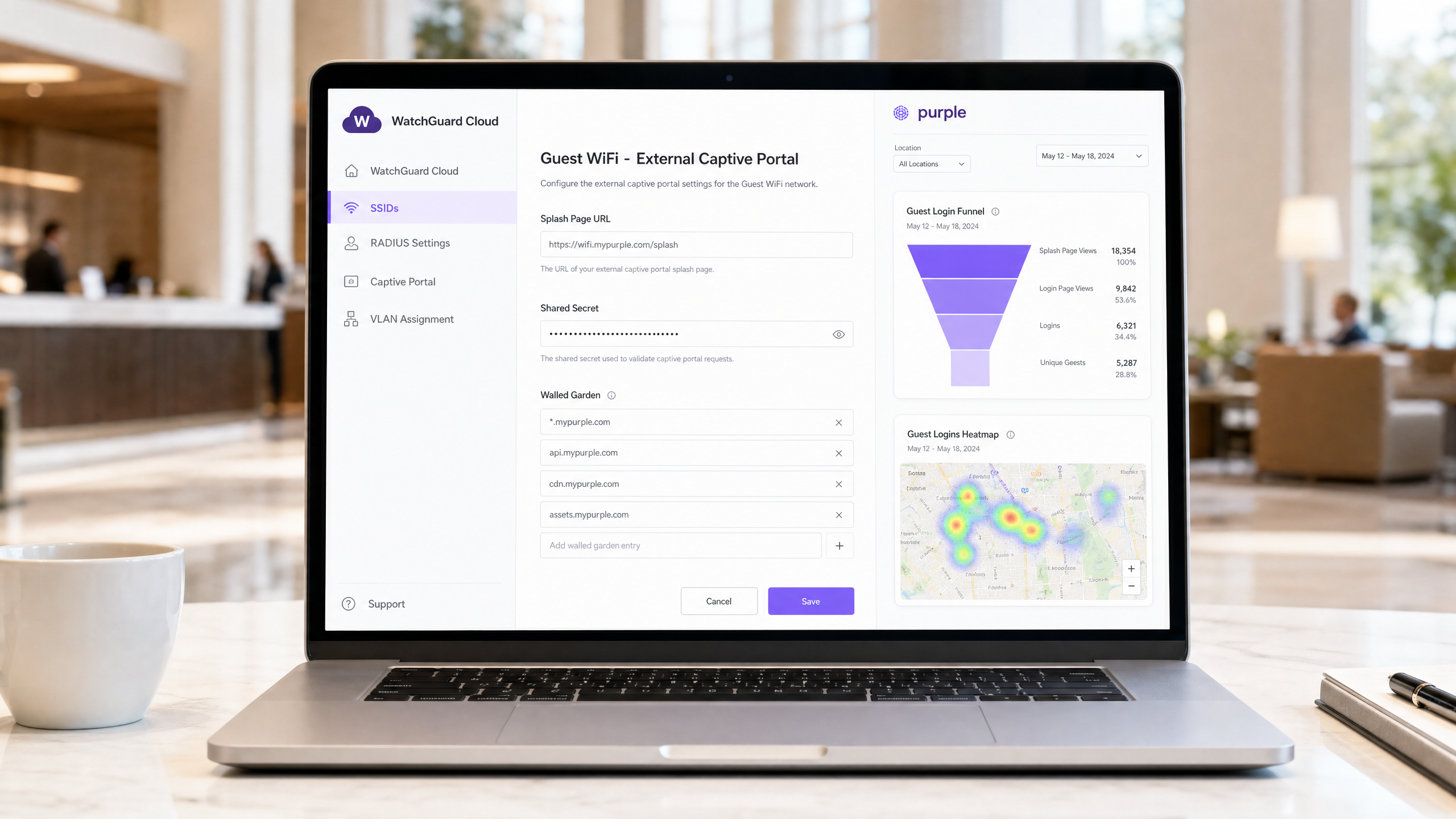
In WatchGuard Cloud, vai su Configura > Dispositivi > [Il tuo AP] > Configurazione dispositivo > SSID. Crea o modifica l'SSID Guest.
- Sicurezza: Open (nessuna password di pre-autenticazione).
- Tipo di Captive Portal: seleziona Captive Portal ospitato da terze parti con autenticazione RADIUS.
- URL della Splash Page: inserisci l'URL della splash page di Purple (ad es.
https://wifi.mypurple.com/splash). Recuperalo da Purple > Analizza > Portali. - Segreto condiviso: inserisci il segreto condiviso del portale dalla stessa pagina Portali di Analisi di Purple. Questo segreto genera il digest HMAC-SHA1 che WatchGuard utilizza per convalidare la risposta di autenticazione riuscita da Purple.
Step 3: Walled Garden configuration
Il Walled Garden definisce a quali domini un dispositivo può accedere prima del completamento dell'autenticazione. Senza questo, il dispositivo non può caricare la splash page di Purple. Aggiungi le seguenti voci a Siti web a cui gli utenti possono accedere prima dell'accesso:
*.mypurple.comapi.mypurple.comcdn.mypurple.comassets.mypurple.com
Se abiliti gli accessi social o federati tramite Microsoft Entra ID, Okta o Google Workspace, aggiungi i domini dell'identity provider pertinenti (ad es. login.microsoftonline.com, accounts.google.com). Per il contesto legale e di conformità sulle infrastrutture WiFi condivise, consulta la nostra guida sui Requisiti legali e di conformità per le infrastrutture WiFi condivise .
How the HMAC authentication flow works
La comprensione di questo flusso aiuta a diagnosticare rapidamente i problemi.
- Il dispositivo ospite si connette all'SSID aperto ed effettua una richiesta HTTP.
- L'AP WatchGuard intercetta la richiesta e reindirizza il browser all'URL della splash page di Purple, aggiungendo un parametro
challenge(una stringa esadecimale casuale) e l'indirizzo MAC del dispositivo. - Purple mostra la splash page. L'ospite compila il modulo di accesso.
- Purple genera un digest HMAC-SHA1 utilizzando il segreto condiviso del portale e il valore challenge.
- Purple reindirizza il browser all'URL di accesso dell'AP WatchGuard, aggiungendo il challenge e il digest.
- L'AP WatchGuard convalida il digest utilizzando lo stesso segreto condiviso. Se corrisponde, l'AP concede l'accesso a Internet e invia un pacchetto RADIUS Accounting Start a Purple.
Secure Staff WiFi with 802.1X
Per lo Staff WiFi, il Captive Portal viene sostituito con lo standard IEEE 802.1X, lo standard aziendale per il controllo degli accessi alla rete basato su porte. Ogni membro del personale si autentica con credenziali univoche o un certificato, elimeliminando il rischio di password condivise.
In WatchGuard Cloud, configura lo Staff SSID con sicurezza WPA3 Enterprise e reindirizza l'Authentication Domain al server RADIUS di Purple. Purple funge da server RADIUS e può fungere da proxy per le richieste di autenticazione verso Microsoft Entra ID, Okta o Google Workspace tramite SAML o LDAP.
Per l'autenticazione basata su certificati (EAP-TLS), distribuisci i certificati client tramite il tuo MDM ai dispositivi gestiti. Per l'autenticazione basata su credenziali (PEAP-MSCHAPv2), gli utenti si autenticano con le proprie credenziali di directory. Purple convalida la richiesta rispetto all'identity provider configurato e restituisce un RADIUS Access-Accept o Access-Reject all'AP WatchGuard.
Per una guida dettagliata sulla configurazione di 802.1X sui vari tipi di dispositivi, consulta la nostra guida su Autenticazione 802.1X: proteggere l'accesso alla rete sui dispositivi moderni .
Nota importante sulla randomizzazione MAC: I dispositivi moderni iOS e Android randomizzano i propri indirizzi MAC per impostazione predefinita. Per il WiFi Staff 802.1X, istruisci il personale a disabilitare la randomizzazione MAC per lo Staff SSID. I MAC randomizzati causano log di autenticazione incoerenti e interrompono l'applicazione delle policy basate su MAC.
WiFi Multi-Tenant con WatchGuard PPSK
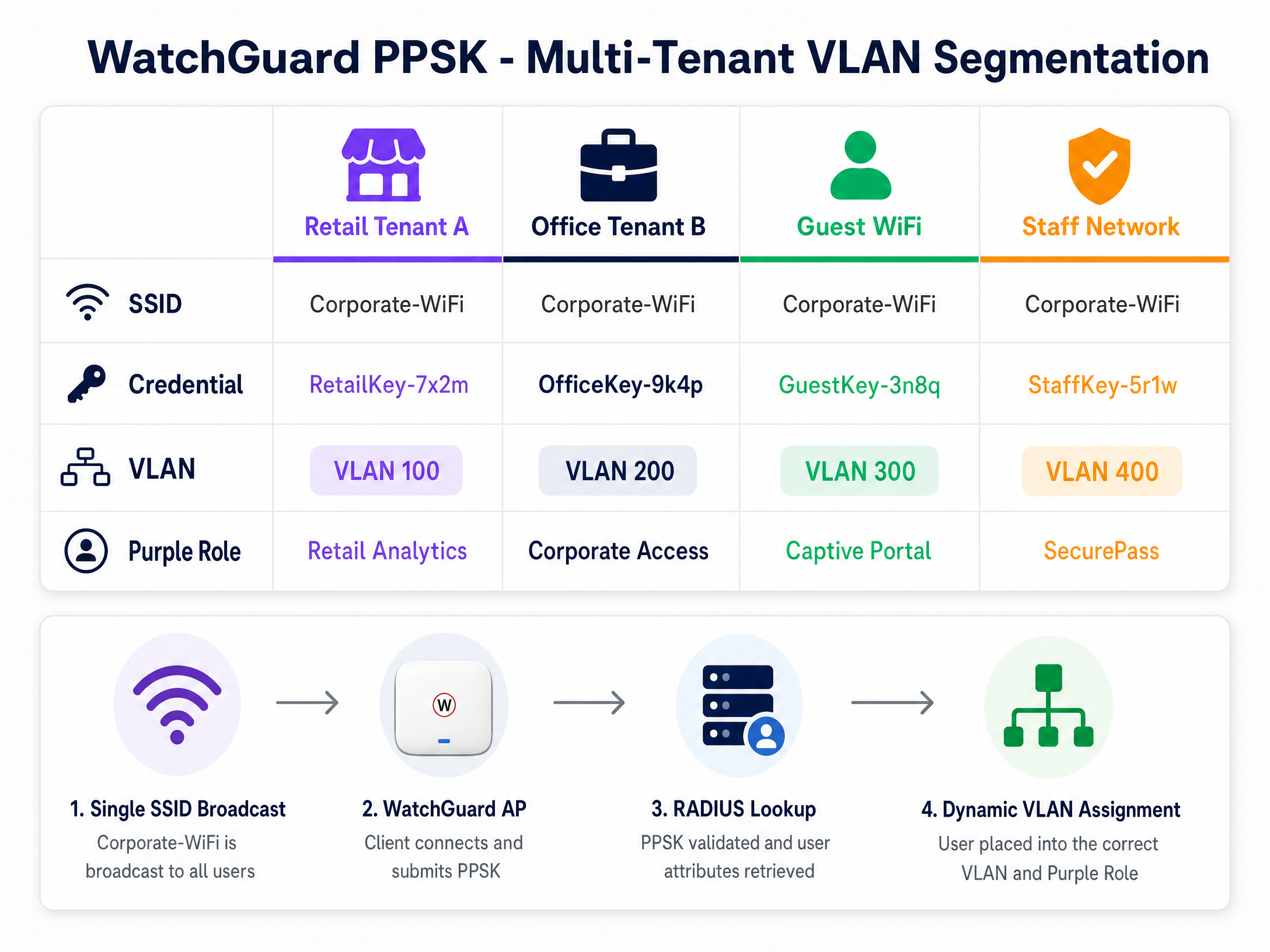
La trasmissione di un SSID separato per ciascun tenant in un centro commerciale, spazio di coworking o sviluppo Build-to-Rent (BTR) causa interferenze co-canale e intasa l'ambiente RF. WatchGuard PPSK (Private Pre-Shared Key) - introdotto nel firmware AP v2.6 - risolve questo problema assegnando una password univoca a ciascun utente o tenant su un singolo SSID.
Passaggio 1: Abilita PPSK sull'SSID
In WatchGuard Cloud, modifica l'SSID di destinazione (ad es., Venue-WiFi).
- Sicurezza: WPA2 Personal o WPA3 Personal.
- Autenticazione: Abilita Private Pre-Shared Key (PPSK).
- Server RADIUS: Reindirizza al server RADIUS di Purple. Purple gestisce l'archivio delle credenziali PPSK e restituisce gli attributi VLAN al momento dell'autenticazione.
Passaggio 2: Configura l'assegnazione dinamica della VLAN
Per isolare il traffico dei tenant, l'AP WatchGuard assegna una VLAN specifica in base al PPSK utilizzato.
- Impostazione VLAN: Seleziona Dynamic VLAN assigned by RADIUS.
- Fallback client non assegnati: Seleziona una VLAN di quarantena isolata (ad es., VLAN 999) per garantire che i dispositivi che non superano la convalida RADIUS non possano accedere alla rete aziendale.
Requisiti per le VLAN dinamiche sugli Access Point WatchGuard:
- Firmware AP v2.2 o superiore.
- Il NAT deve essere disabilitato sull'SSID.
- Le VLAN dinamiche e il Captive Portal non possono essere eseguiti contemporaneamente sullo stesso SSID.
- La porta dello switch collegata all'AP deve essere configurata come porta trunk che trasporta tutte le VLAN pertinenti.
Passaggio 3: Attributi RADIUS per l'instradamento VLAN
Quando un utente si connette utilizzando un PPSK, l'AP WatchGuard invia una richiesta RADIUS Access-Request a Purple. Purple convalida la chiave e restituisce un pacchetto Access-Accept contenente tre attributi RADIUS IETF:
| Attributo RADIUS | Numero attributo | Valore |
|---|---|---|
| Tunnel-Type | 64 | 13 (VLAN) |
| Tunnel-Medium-Type | 65 | 6 (802) |
| Tunnel-Private-Group-ID | 81 | VLAN ID (ad es., "100") |
L'AP WatchGuard legge l'attributo 81 e inserisce il client nella VLAN corrispondente. In Purple, mappi ogni credenziale PPSK a un ID VLAN e a un ruolo specifici. Questo è il meccanismo alla base delle reti basate sull'identità (Identity-Based Networks): la credenziale determina il segmento di rete, non l'SSID.
Best practice di implementazione
Queste raccomandazioni si applicano alle distribuzioni nei settori hospitality , retail , healthcare e transport .
Timeout di sessione: Configura i timeout di sessione sia in Purple che in WatchGuard per forzare la riautenticazione a intervalli regolari. Questo mantiene accurati i dati analitici ed evita che le sessioni inattive consumino larghezza di banda. Imposta RADIUS Interim-Update (Acct-Interim-Interval) su 600 secondi (10 minuti).
Gestione del firmware: Assicurati che gli Access Point WatchGuard eseguano la versione firmware v2.6 o superiore per il supporto PPSK. Utilizza WatchGuard Cloud per pianificare gli aggiornamenti del firmware durante le ore non di punta per evitare interruzioni della copertura.
Conformità PCI DSS: Per gli ambienti retail che elaborano pagamenti con carta, isola i dispositivi POS su una VLAN dedicata (ad es., VLAN 200) utilizzando PPSK. Assicurati che la VLAN del WiFi Guest non abbia rotte verso la VLAN del POS. Questo supporta i requisiti di segmentazione della rete PCI DSS.
GDPR e raccolta dati: Il Captive Portal di Purple utilizza opt-in basati su una scelta consapevole, garantendo che la raccolta dei dati soddisfi i requisiti GDPR. Purple è certificata ISO 27001, GDPR, CCPA e Cyber Essentials. Assicurati che la tua splash page includa un'informativa sulla privacy chiara e un link ai termini di servizio prima dell'inizio dell'acquisizione dei dati.
Risoluzione dei problemi e mitigazione dei rischi
Il Captive Portal non si carica: Il Walled Garden è il primo elemento da controllare. Se il dispositivo non riesce a risolvere il DNS o a raggiungere i server di Purple prima dell'autenticazione, il browser mostrerà un errore di timeout anziché la splash page. Verifica che tutti i domini Purple siano inclusi nell'elenco del Walled Garden e che le impostazioni DNS di WatchGuard consentano la risoluzione pre-autenticazione.
Errori di convalida del digest HMAC: Se i log di WatchGuard mostrano errori di autenticazione con errori HMAC, il Captive Portal Shared Secret non corrisponde tra WatchGuard e Purple. Deve essere identico in entrambi i sistemi. Rigenera il segreto in Purple e reinseriscilo in WatchGuard Cloud.
L'instradamento VLAN non riesce: Se un utente PPSK riceve un IP dalla VLAN errata, controlla i log RADIUS nel portale Purple. Verifica che Purple restituisca tutti e tre gli attributi RADIUS IETF. Assicurati che il valore Tunnel-Private-Group-ID sia formattato come stringa e corrisponda a un ID VLAN configurato sulla porta trunk dello switch.
Conflitto tra PPSK e Captive Portal: WatchGuard non supporta le VLAN dinamiche e il Captive Portal sullo stesso SSID. Se hai bisogno di entrambi, utilizza due SSID: uno per il Captive Portal degli ospiti e unoe per l'accesso multi-tenant PPSK.
Errori di autenticazione 802.1X: utilizzare lo strumento di acquisizione dei pacchetti disponibile nel firmware WatchGuard AP v2.5 e versioni successive per acquisire il traffico tra l'AP e il server RADIUS. Cercare i pacchetti RADIUS Access-Reject e il codice del motivo nell'attributo del messaggio di risposta.
ROI e impatto sul business
L'integrazione tra WatchGuard e Purple consolida la sicurezza e l'analisi in un'unica architettura. Un hotel da 200 camere che utilizza questa integrazione elimina la necessità di gateway separati per ospiti e personale, riducendo la spesa per l'hardware di circa il 30% rispetto a un'implementazione multi-gateway (dati interni Purple). Il Captive Portal Guest WiFi acquisisce dati di prima parte (indirizzi e-mail, informazioni demografiche e frequenza delle visite) che generano entrate da marketing diretto attraverso il piano Engage di Purple.
Per le sedi multi-tenant, il PPSK elimina il sovraccarico operativo derivante dalla gestione di più SSID. Un centro commerciale che gestisce 15 unità commerciali su un unico SSID riduce l'utilizzo della radio AP e semplifica gli audit di rete. WiFi Analytics di Purple fornisce ai gestori delle sedi dati sul tempo di permanenza, sul flusso di visitatori e sulle visite ripetute: metriche che giustificano l'investimento infrastrutturale ai team finanziari.
Purple garantisce un uptime del 99,999% (dati interni Purple), assicurando che il Captive Portal Guest WiFi rimanga disponibile anche nei periodi di punta in sedi ad alta densità come stadi e centri congressi.
Definizioni chiave
PPSK (Private Pre-Shared Key)
A security feature that assigns a unique password to each user or device on a WPA2/WPA3 Personal SSID. Introduced in WatchGuard AP firmware v2.6.
Used in multi-tenant environments - retail centres, coworking spaces, BTR developments - to segment users without requiring 802.1X supplicant configuration on client devices.
Dynamic VLAN steering
The process of assigning a network device to a specific Virtual LAN based on RADIUS attributes (Tunnel-Type, Tunnel-Medium-Type, Tunnel-Private-Group-ID) returned during authentication.
The mechanism that isolates tenant, staff, and guest traffic on the same physical access point. Requires AP firmware v2.2 or higher on WatchGuard hardware.
Walled Garden
A list of IP addresses or domains that an unauthenticated user is permitted to access before completing captive portal authentication.
Required to allow guest devices to load the Purple splash page and complete federated logins (Microsoft Entra ID, Google Workspace) before full internet access is granted.
HMAC digest
A cryptographic hash (HMAC-SHA1) used to verify the integrity and authenticity of the authentication success message from the captive portal.
WatchGuard validates the HMAC digest using the Captive Portal Shared Secret. A mismatch between the secret in WatchGuard and Purple causes authentication failures.
RADIUS accounting
The component of the RADIUS protocol that tracks network usage, including session start, session duration, and data transfer volume.
Purple relies on RADIUS Accounting packets from the WatchGuard Firebox to populate the analytics dashboard and enforce session time limits. Operates on port 1813.
Captive portal
A web page that a device is redirected to before being granted access to a public network. WatchGuard intercepts HTTP requests and redirects to the configured external portal URL.
The primary mechanism for capturing first-party data and enforcing terms of service on Guest WiFi networks. Purple hosts the splash page and manages the data.
802.1X
An IEEE standard for port-based network access control. Requires each device to authenticate with unique credentials or a certificate before network access is granted.
The enterprise standard for securing Staff WiFi. Eliminates the shared-password risk of WPA2 Personal. Requires a RADIUS server (Purple) and a supplicant on the client device.
EAP-TLS (Extensible Authentication Protocol - Transport Layer Security)
A highly secure 802.1X authentication method requiring both a client certificate and a server certificate for mutual authentication.
Used in high-security environments where devices are managed by an MDM. Ensures only corporate-owned devices with valid certificates can connect to the Staff WiFi SSID.
NAS ID (Network Access Server Identifier)
A string sent in RADIUS packets that identifies the network device (AP or Firebox) making the authentication request.
Purple uses the NAS ID to identify which venue a RADIUS request originates from. Typically set to the AP MAC address using the %m format specifier in WatchGuard.
Identity-Based Networking
A network architecture where access policies, VLAN assignments, and security controls are determined by the user's identity rather than their physical port or SSID.
The combination of WatchGuard PPSK, Purple RADIUS, and dynamic VLAN steering delivers Identity-Based Networking - the credential determines the network segment automatically.
Esempi pratici
A 200-room Premier Inn property needs to provide Guest WiFi for guests, secure Staff WiFi for front-of-house and back-office teams, and a separate network for IoT devices (smart TVs, door locks). They have WatchGuard AP330 access points managed via WatchGuard Cloud and a Firebox T85 gateway. How should they architect the three networks?
Deploy three SSIDs on the WatchGuard AP330 fleet. SSID 1: 'Premier-Guest' - open SSID with external captive portal redirection to Purple. Configure the Firebox T85 as the RADIUS client pointing to Purple's servers (port 1812/1813). Add Purple's Walled Garden domains. Guests authenticate via the Purple splash page using email, social login, or a room code. SSID 2: 'Premier-Staff' - WPA3-Enterprise SSID with 802.1X authentication. Point the authentication domain to Purple's RADIUS server, which proxies credentials to the property's Microsoft Entra ID tenant. Staff authenticate with their corporate credentials. SSID 3: 'Premier-IoT' - WPA2 Personal SSID with a static PSK, placed on a dedicated VLAN (e.g., VLAN 50) with firewall rules blocking access to the staff and guest VLANs. The Firebox T85 enforces inter-VLAN routing policies. All three SSIDs broadcast on the same AP hardware, reducing infrastructure cost.
A retail centre managing 12 shop units wants to provide each tenant with isolated WiFi access using a single SSID. The centre also needs to ensure that a compromised tenant credential does not expose other tenants' traffic. They are running WatchGuard AP230W access points on firmware v2.6.
Configure one SSID: 'Centre-Retail' with WPA2 Personal and PPSK enabled. In Purple, create 12 unique PPSK credentials, one per tenant. Map each credential to a dedicated VLAN (e.g., VLAN 101 for Tenant 1, VLAN 102 for Tenant 2, and so on). In WatchGuard Cloud, set the SSID VLAN to 'Dynamic VLAN assigned by RADIUS' with a fallback to a quarantine VLAN (VLAN 999). Configure the switch ports connected to the AP230W as trunk ports carrying VLANs 101-112 and 999. When a tenant device connects using their PPSK, the AP queries Purple RADIUS, receives the Tunnel-Private-Group-ID attribute, and places the device on the correct VLAN. A compromised credential for Tenant 3 only exposes VLAN 103 - all other tenants remain isolated.
Domande di esercitazione
Q1. A hotel IT manager reports that guests connect to the WiFi but the Purple splash page never appears. The browser shows a connection timeout error. The WatchGuard Cloud configuration shows the correct Purple splash page URL and shared secret. What is the most likely cause and how do you resolve it?
Suggerimento: Consider what must happen before the device is authenticated. What domains does the device need to reach to load the splash page?
Visualizza risposta modello
The Walled Garden is missing or incomplete. The WatchGuard Firebox is blocking the device's initial HTTP request to Purple's servers before authentication completes. Add the required Purple domains to the 'Websites that users can access before login' list: *.mypurple.com, api.mypurple.com, and cdn.mypurple.com. If guests are using social logins, also add the relevant identity provider domains (e.g., login.microsoftonline.com for Entra ID).
Q2. You are configuring PPSK-based VLAN steering for a coworking space with 8 members. RADIUS authentication succeeds (the WatchGuard logs show Access-Accept), but every member device receives an IP address from VLAN 1 (the default management VLAN) instead of their assigned tenant VLAN. How do you diagnose and resolve this?
Suggerimento: Authentication succeeded, so the credential is valid. The issue is in the VLAN assignment step. What does WatchGuard need from the RADIUS server to assign a VLAN?
Visualizza risposta modello
The RADIUS Access-Accept packet from Purple is missing or incorrectly formatting the VLAN attributes. Capture the RADIUS traffic on the AP using the WatchGuard packet capture tool and inspect the Access-Accept packet. Verify that Purple is returning all three IETF attributes: Tunnel-Type (attribute 64, value 13), Tunnel-Medium-Type (attribute 65, value 6), and Tunnel-Private-Group-ID (attribute 81, set to the VLAN ID as a string, e.g. '101'). Also confirm that the switch port connected to the AP is configured as a trunk port carrying the relevant VLANs, and that the SSID VLAN setting in WatchGuard Cloud is set to 'Dynamic VLAN assigned by RADIUS' rather than a static VLAN ID.
Q3. A venue operator wants to run a Guest WiFi captive portal (Purple splash page) and a multi-tenant PPSK network for 6 retail units on the same WatchGuard AP330 access point. They plan to configure both features on a single SSID to simplify the RF environment. Is this possible? If not, what is the correct architecture?
Suggerimento: Review the WatchGuard Dynamic VLAN requirements. Are there any feature conflicts?
Visualizza risposta modello
This is not possible on a single SSID. WatchGuard does not support Dynamic VLANs (required for PPSK) and Captive Portal on the same SSID simultaneously. The correct architecture uses two SSIDs: SSID 1 ('Venue-Guest') configured as an open SSID with external captive portal redirection to Purple for public guests. SSID 2 ('Venue-Retail') configured with WPA2 Personal, PPSK enabled, and Dynamic VLAN assignment for the 6 retail tenants. Both SSIDs broadcast from the same AP330 hardware, so the RF impact is limited to one additional SSID beacon. The switch port connected to the AP must be a trunk port carrying all relevant VLANs for both SSIDs.
Continua a leggere questa serie
CommScope Ruckus Integration with Purple WiFi: Setup and Configuration Guide
Questa guida di riferimento tecnico fornisce un playbook di configurazione autorevole per l'integrazione delle architetture CommScope Ruckus con Purple WiFi. Dettaglia le implementazioni passo-passo per i Captive Portal per Guest WiFi, il WiFi sicuro per il personale tramite 802.1X e l'isolamento di rete multi-tenant tramite Ruckus Dynamic PSK.
Allied Telesis Access Points Integration with Purple WiFi
Questa guida fornisce un playbook di configurazione completo per l'integrazione degli access point Allied Telesis serie TQ con Purple WiFi. Copre il reindirizzamento del Captive Portal esterno, l'autenticazione RADIUS 802.1X e l'instradamento dinamico della VLAN tramite Private Pre-Shared Keys (PPSK) per distribuzioni multi-tenant sicure.
Cisco WLC and Catalyst Integration with Purple WiFi: Step-by-Step Guest Access Guide
Questa guida descrive in dettaglio l'integrazione passo-passo di Cisco WLC e Catalyst 9800 Wireless con Purple, coprendo il reindirizzamento al Captive Portal per Guest WiFi tramite Central Web Authentication, il WiFi aziendale sicuro per il personale tramite 802.1X EAP-TLS e la segmentazione multi-tenant tramite Cisco Identity Pre-Shared Keys (iPSK) con assegnazione dinamica della VLAN. È scritta per architetti di rete aziendali e direttori della sicurezza IT che distribuiscono l'infrastruttura Cisco nei settori hospitality, retail e grandi spazi pubblici.