
Alcatel-Lucent Enterprise (ALE) OmniAccess Integration with Purple WiFi
Este guia detalha a integração técnica entre os pontos de acesso Alcatel-Lucent Enterprise (ALE) OmniAccess Stellar e o Purple WiFi. Abrange o redirecionamento de Captive Portal, autenticação RADIUS, configuração de Walled Garden, Staff WiFi seguro 802.1X e segmentação de Multi-Tenant WiFi utilizando Private Pre-Shared Keys (PPSK) com direcionamento dinâmico de VLAN - fornecendo aos gestores de TI e arquitetos de rede uma referência completa e prática para a implementação de Redes Baseadas em Identidade em hardware ALE.
Ouça este guia
Ver transcrição do podcast
Resumo executivo
Os pontos de acesso Alcatel-Lucent Enterprise (ALE) OmniAccess Stellar integram-se com o Purple utilizando protocolos RADIUS padrão e redirecionamento de Captive Portal externo. Não é necessário qualquer middleware proprietário. O Purple funciona como uma sobreposição na nuvem, operando sobre a sua infraestrutura ALE existente e gerindo a autenticação, a captura de dados e a política de sessão sem exigir alterações de hardware.
Este guia abrange três cenários de implementação. Primeiro, Guest WiFi com redirecionamento de Captive Portal externo e configuração de Walled Garden. Segundo, Staff WiFi seguro utilizando 802.1X com PEAP ou EAP-TLS. Terceiro, Multi-Tenant WiFi utilizando Private Pre-Shared Keys (PPSK) e direcionamento dinâmico de VLAN através dos Atributos RADIUS 64, 65 e 81.
O Purple serve mais de 80.000 locais ativos e processou mais de 440 milhões de inícios de sessão em 2024 (dados internos do Purple, 2024). Possui as certificações ISO 27001, GDPR, CCPA e Cyber Essentials. A plataforma opera com um tempo de atividade de 99,999%, tornando-a um backend de autenticação fiável para implementações empresariais.
Se é um gestor de TI ou arquiteto de rede a implementar hardware ALE OmniAccess em ambientes de hotelaria, retalho, eventos ou setor público, este guia fornece-lhe os passos de configuração exatos para passar do hardware para uma Rede Baseada em Identidade totalmente operacional.
Arquitetura técnica e fluxo de integração
A integração do Purple com o ALE OmniAccess Stellar baseia-se em dois protocolos padrão: RADIUS para autenticação e contabilidade (accounting), e redirecionamento HTTP/HTTPS para a disponibilização do Captive Portal. O AP ALE atua como o Network Access Server (NAS), encaminhando os pedidos de autenticação para o servidor RADIUS na nuvem do Purple e aplicando as políticas devolvidas na resposta Access-Accept.
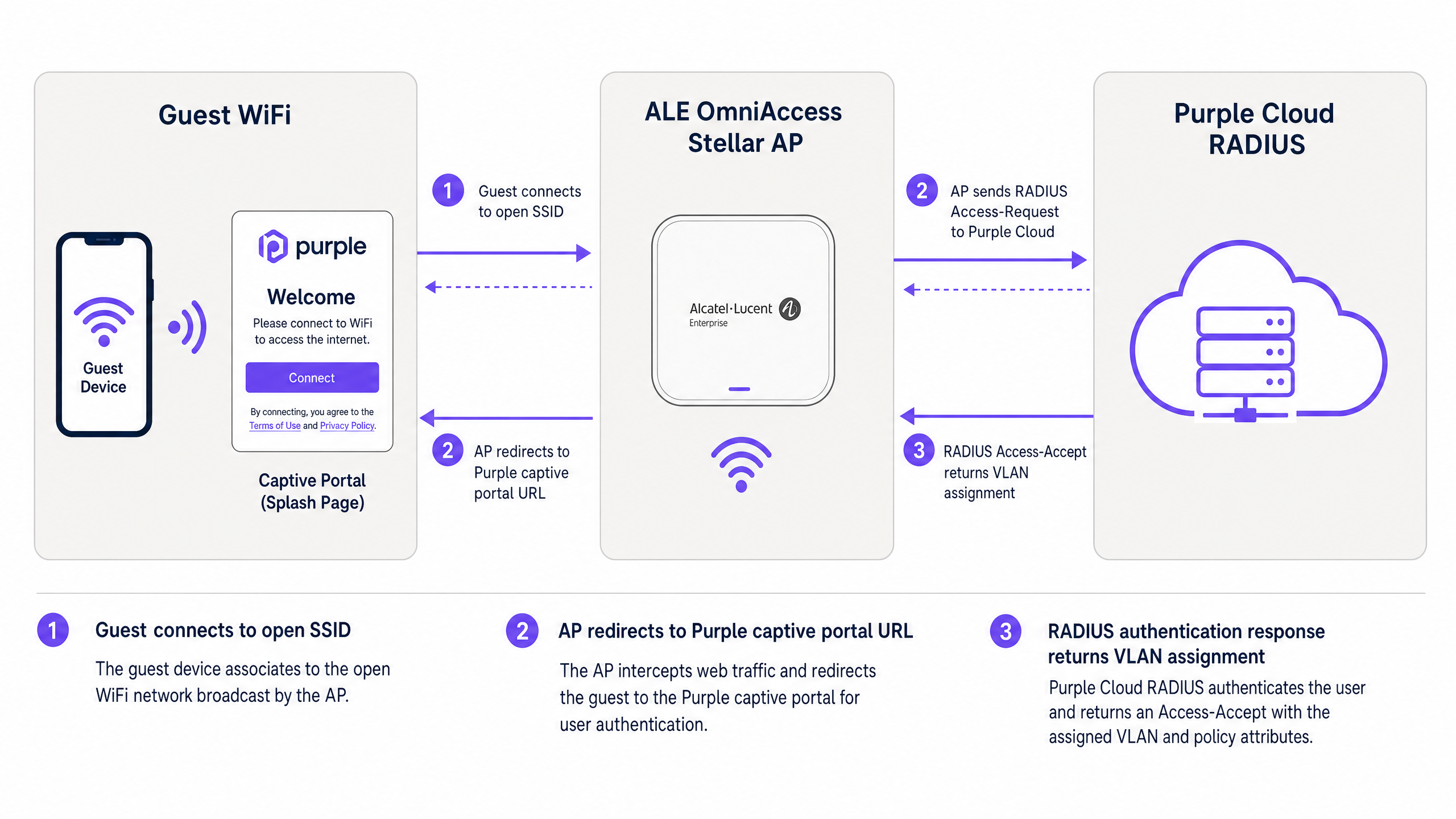
Figura 1: Fluxo de autenticação entre o dispositivo do convidado, o AP ALE OmniAccess Stellar e o RADIUS na nuvem do Purple.
O fluxo funciona da seguinte forma. Um visitante liga-se ao SSID de Guest WiFi aberto. O AP ALE atribui um endereço IP temporário a partir do pool de DHCP de pré-autenticação e intercepta o primeiro pedido HTTP ou HTTPS do visitante. O AP redireciona o navegador para o URL do Captive Portal do Purple, transmitindo o endereço MAC do cliente e o identificador NAS do AP como parâmetros de URL. O visitante autentica-se através da splash page do Purple - utilizando e-mail, início de sessão social ou verificação por SMS. O servidor RADIUS do Purple valida a sessão e devolve uma mensagem Access-Accept ao AP ALE. O AP concede acesso à Internet e começa a enviar atualizações de RADIUS Accounting para o Purple no intervalo configurado.
Para implementações avançadas que utilizam PPSK e direcionamento dinâmico de VLAN, a mensagem RADIUS Access-Accept também inclui atributos de atribuição de VLAN. O AP ALE utiliza estes atributos para colocar o tráfego do cliente diretamente no segmento de VLAN correto, isolando-o de outros utilizadores na mesma infraestrutura física.
Guia de implementação
Parte 1: Guest WiFi com Captive Portal externo
Esta secção abrange a configuração do Captive Portal da Alcatel-Lucent para redirecionamento externo para o Purple. Estes passos aplicam-se aos APs ALE OmniAccess Stellar geridos através do OmniVista Cirrus, OmniVista 2500 ou da interface web Stellar Express.
Passo 1: Obter as credenciais RADIUS do Purple
Inicie sessão no seu portal Purple. Navegue até Management > Venues, selecione o seu local e abra a secção Hardware. Adicione uma nova entrada de hardware e selecione Alcatel-Lucent OmniAccess Stellar como o tipo de hardware. O Purple gera um segredo partilhado RADIUS exclusivo, o IP do servidor de autenticação e o URL do Captive Portal para o seu local. Registe estes valores antes de prosseguir.
Passo 2: Configurar o servidor RADIUS no AP ALE
Na sua interface de gestão ALE, navegue até às definições de autenticação e adicione um novo perfil de servidor RADIUS.
| Parâmetro | Valor |
|---|---|
| IP do Servidor / Hostname | Conforme fornecido no portal Purple |
| Porta de Autenticação | 1812 |
| Porta de Contabilidade | 1813 |
| Segredo Partilhado | Conforme fornecido no portal Purple |
| RADIUS Accounting | Ativado |
| Intervalo de Contabilidade | 300 segundos |
Ative um servidor RADIUS secundário utilizando o IP de cópia de segurança (backup) do portal Purple. Isto garante a redundância (failover) caso o servidor primário esteja temporariamente inacessível.
Passo 3: Configurar o Walled Garden
O Walled Garden define os domínios que um dispositivo pode aceder antes de a autenticação ser concluída. Configure as seguintes entradas na lista de acesso de pré-autenticação:
Domínios principais do Purple (obrigatórios):
| Domínio | Finalidade |
|---|---|
| region1.purpleportal.net | Captive Portal do Purple |
| venuewifi.com | Gestão de sessão do Purple |
| cloudfront.net | CDN para recursos do portal |
| openweathermap.org | Widget de meteorologia (opcional) |
| stripe.com | Pagamentos de WiFi pago (se aplicável) |
Domínios de início de sessão social (adicione conforme necessário):
| Fornecedor | Domínios |
|---|---|
| facebook.com, fbcdn.net, connect.facebook.net | |
| linkedin.com, licdn.net | |
| accounts.google.com, googleapis.com |
A omissão de qualquer domínio obrigatório fará com que o método de início de sessão correspondente falhe silenciosamente. Teste cada método de início de sessão após a configuração.
Passo 4: Configurar o SSID de Guest WiFi
Crie um novo perfil WLAN com as seguintes definições:
| Parâmetro | Valor |
|---|---|
| Nível de Segurança | Aberto |
| Captive Portal | Ativado |
| Tipo de Captive Portal | Externo |
| URL de Redirecionamento | Conforme fornecido no portal Purple |
| Redirecionamento HTTPS | Desativado (a menos que um certificado SSL esteja instalado) |
| Tempo Limite de Inatividade | 1800 segundos (30 minutos) |
| Perfil do Servidor RADIUS | Perfil RADIUS do Purple (criado no Passo 2) |
Se necessitar de redirecionamento HTTPS, instale um certificado SSL válido no AP ALE em System > General > Certificate Management. Note que os certificados wildcard não são suportrtado pelo Stellar AP para este efeito.
Passo 5: Atribuir o SSID a um grupo de APs
Aplique o perfil WLAN ao grupo de APs relevante no OmniVista. Verifique se os APs estão a transmitir o SSID e se os clientes se conseguem associar antes de testar o fluxo do Captive Portal.
Parte 2: Proteger o WiFi dos colaboradores utilizando 802.1X
Para o WiFi dos colaboradores, utilize WPA2-Enterprise ou WPA3-Enterprise com autenticação 802.1X. Isto elimina as palavras-passe partilhadas e associa o acesso a identidades de utilizadores individuais geridas no Microsoft Entra ID, Okta ou Google Workspace.
Passo 1: Configurar o SSID 802.1X
Crie um perfil WLAN separado para os colaboradores. Defina o tipo de segurança para WPA2-Enterprise ou WPA3-Enterprise e atribua o servidor RADIUS da Purple como backend de autenticação. O servidor RADIUS da Purple reencaminha os pedidos de autenticação para o seu fornecedor de identidade via LDAP ou SAML.
Passo 2: Selecionar o método EAP
Para a maioria das implementações, utilize PEAP com MSCHAPv2. Isto requer apenas um certificado do lado do servidor e funciona com suplicantes padrão do Windows, macOS, iOS e Android. Para ambientes de maior segurança, utilize EAP-TLS com certificados de cliente emitidos através da sua PKI.
Passo 3: Atribuir os colaboradores a uma VLAN dedicada
Configure o servidor RADIUS da Purple para devolver Tunnel-Private-Group-ID = ID da VLAN dos seus colaboradores na resposta Access-Accept. Isto garante que os dispositivos dos colaboradores fiquem no segmento de rede corporativa, separados do tráfego de convidados na Camada 2.
Parte 3: WiFi Multi-Tenant utilizando PPSK e encaminhamento dinâmico de VLAN
A PPSK (Private Pre-Shared Key) - também referida como iPSK (Identity PSK) em alguma documentação de fabricantes - permite que um único SSID sirva múltiplos grupos de utilizadores isolados. Cada grupo recebe uma frase de acesso única. O servidor RADIUS mapeia cada frase de acesso para uma VLAN específica, proporcionando isolamento de rede por tenant sem a sobrecarga de RF de múltiplos SSIDs.
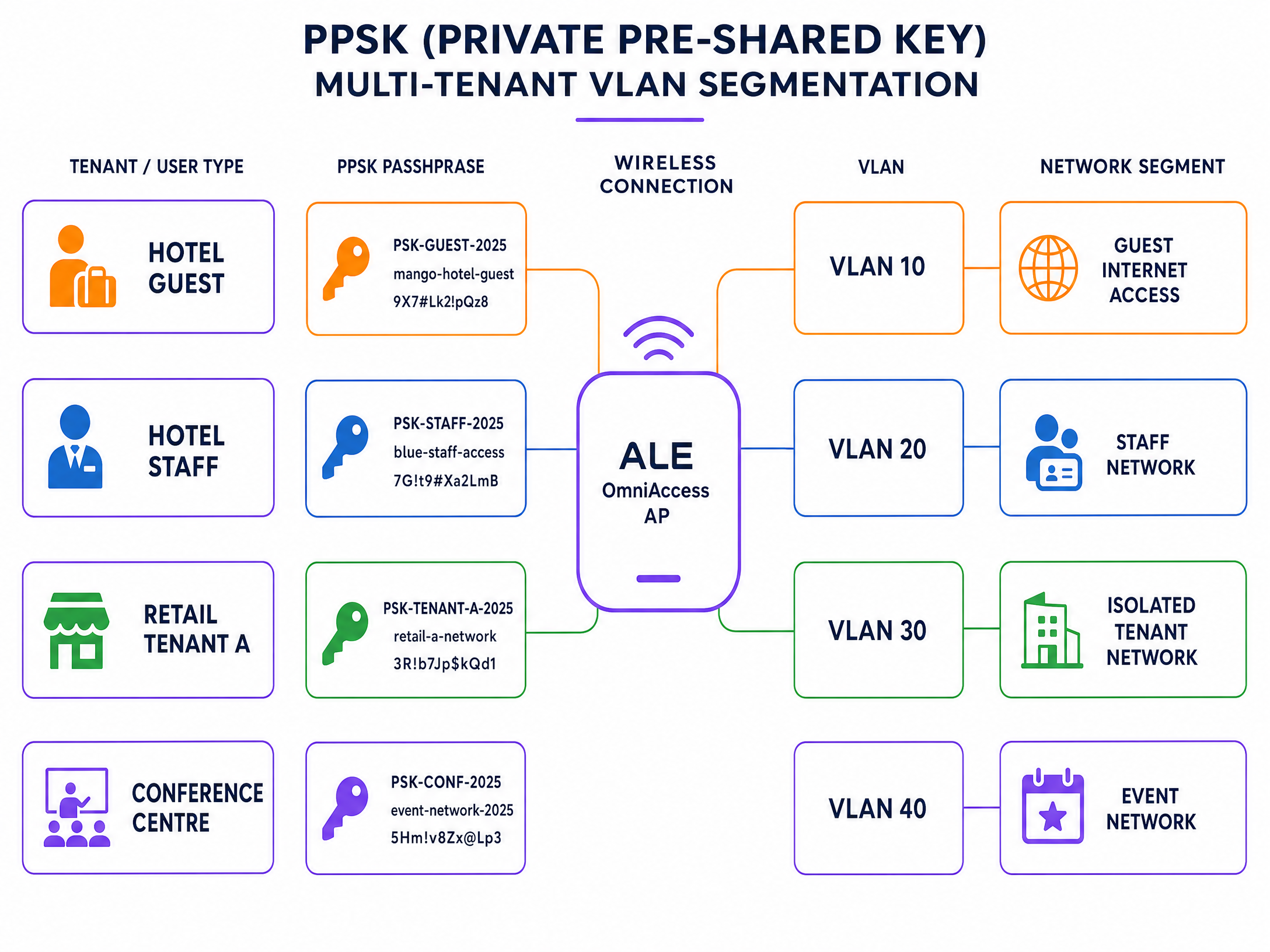
Figura 2: Segmentação de VLAN multi-tenant PPSK num único SSID ALE OmniAccess.
Passo 1: Criar o SSID PPSK
Crie um novo perfil WLAN e defina o tipo de autenticação para WPA2-PSK com validação PSK suportada por RADIUS. No firmware Stellar 4.0.8.16 e superior (para modelos AP1301 e superiores), a atribuição dinâmica de VLAN via RADIUS é suportada no Modo Express. Para modelos mais antigos ou firmware anterior, utilize o modo gerido pelo OmniVista.
Passo 2: Definir as frases de acesso dos tenants na Purple
No portal da Purple, crie um grupo PPSK para cada tenant. Atribua uma frase de acesso única por tenant e mapeie cada frase de acesso para o ID da VLAN correspondente. A Purple armazena estes mapeamentos na sua base de dados RADIUS.
Passo 3: Configurar os atributos RADIUS para encaminhamento de VLAN
Certifique-se de que o servidor RADIUS da Purple devolve os seguintes atributos padrão IETF em cada resposta Access-Accept:
| Número do Atributo | Nome do Atributo | Valor |
|---|---|---|
| 64 | Tunnel-Type | 13 (VLAN) |
| 65 | Tunnel-Medium-Type | 6 (IEEE 802 / Ethernet) |
| 81 | Tunnel-Private-Group-ID | ID da VLAN (ex., "30") |
Todos os três atributos devem estar presentes. Se algum deles estiver em falta, o AP ALE ignora a atribuição de VLAN e coloca o cliente na VLAN predefinida.
Passo 4: Verificar o trunking de VLAN no uplink
Certifique-se de que todas as VLANs dos tenants estão marcadas (tagged) na porta de uplink entre o AP ALE e o switch de distribuição. Um AP não pode encaminhar tráfego para uma VLAN que não seja permitida no seu trunk de uplink.
Melhores práticas
As seguintes recomendações refletem as práticas padrão para implementações sem fios empresariais e alinham-se com os requisitos de IEEE 802.1X, PCI DSS 4.0 e GDPR.
Separe o WiFi de Convidados do WiFi dos Colaboradores na Camada 2. Nunca coloque o tráfego de convidados e de colaboradores na mesma VLAN. Utilize a atribuição de VLAN baseada em RADIUS para impor esta separação automaticamente, independentemente do AP ao qual o utilizador se liga.
Utilize HTTPS para todos os redirecionamentos do Captive Portal. Instale um certificado SSL válido no AP ALE para ativar o redirecionamento HTTPS. Isto evita que os navegadores apresentem avisos de segurança na splash page, o que reduz as taxas de abandono e alinha-se com os requisitos do GDPR para o tratamento seguro de dados.
Defina o intervalo de RADIUS Accounting para 300 segundos. Isto fornece à Purple atualizações regulares de sessão para maior precisão analítica. Um intervalo superior a 600 segundos corre o risco de perder dados de sessão se um cliente se desligar sem uma desautenticação limpa.
Teste o Walled Garden antes do lançamento. Ligue um dispositivo de teste ao SSID do WiFi de Convidados e tente aceder a cada fornecedor de início de sessão social. Se um início de sessão falhar, o domínio correspondente está em falta no Walled Garden.
Segmente os dispositivos IoT utilizando PPSK. Em ambientes de retalho e hotelaria, os dispositivos IoT, tais como sinalização digital, terminais de pagamento e sensores ambientais, devem receber um PPSK único mapeado para uma VLAN isolada. Isto evita que um dispositivo IoT comprometido aceda à rede mais ampla.
Para ler mais sobre normas e arquitetura de segurança de WiFi empresarial, consulte o nosso guia de segurança de WiFi empresarial .
Resolução de problemas e mitigação de riscos
A tabela seguinte abrange os modos de falha mais comuns nas integrações do ALE OmniAccess e da Purple.
| Sintoma | Causa Mais Provável | Resolução |
|---|---|---|
| O Captive Portal não aparece | Configuração incorreta do Walled Garden ou DNS em falta | Verifique se os domínios da Purple estão na lista de permissões; verifique se o âmbito do DHCP inclui um servidor DNS válido |
| A autenticação RADIUS falha | Incompatibilidade de segredo partilhado ou firewall a bloquear UDP 1812/1813 | Introduza novamente o segredo partilhado do portal da Purple; confirme se as regras de firewall permitem UDP 1812 e 1813 de saída |
| Os utilizadores vão para a VLAN errada | Atributos de Tunnel RADIUS em falta ou limitação de firmware do AP | Confirme se todos os três atributos RADIUS (64, 65, 81) são devolvidos; verifique se a versão de firmware do ALE suporta VLAN dinâmica |
| O botão de início de sessão social falha | Domínio do fornecedor social em falta no Walled Garden | Adicione os domínios do fornecedor social necessários tà lista de acesso de pré-autenticação |
| captive portal HTTPS mostra aviso de certificado | Certificado wildcard utilizado ou nenhum certificado instalado | Instale um certificado SSL específico do domínio através de Sistema > Geral > Gestão de Certificados |
| Dados de sessão em falta nas análises do Purple | RADIUS Accounting desativado ou intervalo demasiado longo | Ative o RADIUS Accounting; defina o intervalo para 300 segundos |
Para problemas persistentes de RADIUS, ative o registo de depuração no AP ALE e capture a troca de mensagens RADIUS. Procure por mensagens Access-Reject e verifique o código do motivo de rejeição. Os códigos comuns incluem o 16 (falha de autenticação) e o 18 (atributo em falta).
ROI e impacto no negócio
A implementação do Purple em hardware ALE OmniAccess converte uma rede passiva num ativo de dados ativo. Cada sessão autenticada gera um perfil de visitante: endereço de e-mail, frequência de visitas, tempo de permanência e tipo de dispositivo. Estes dados primários são integrados diretamente no seu CRM através da biblioteca do Purple com mais de 400 conectores.
A Harrods alcançou um ROI de marketing de 57x com a sua implementação de Guest WiFi ao utilizar a captura de dados do Purple para impulsionar as inscrições no programa de fidelização (estudo de caso do Purple, 2023). A AGS Airports gerou um ROI de 842% ao implementar Paid WiFi com largura de banda escalonada em todas as suas instalações (estudo de caso do Purple, 2022).
Para os operadores de hotelaria , o captive portal é o principal ponto de contacto para a captura de dados dos clientes. Para ambientes de retalho , permite a análise do comportamento dos compradores e promoções direcionadas. Para centros de transportes , fornece dados sobre o fluxo de passageiros e registo de sessões em conformidade com as normas.
A plataforma de Guest WiFi e as ferramentas de WiFi Analytics do Purple oferecem-lhe a infraestrutura de relatórios para medir estes resultados. Monitorize as taxas de autenticação, a duração das sessões, as taxas de visitantes recorrentes e a conversão de opt-in a partir de um único painel de controlo.
Para obter orientações de integração relacionadas, consulte o guia de integração do WatchGuard Firebox , que abrange uma arquitetura semelhante baseada em RADIUS numa plataforma de hardware diferente.
Definições Principais
PPSK (Private Pre-Shared Key)
A security method where individual users or devices are issued unique passphrases for a single SSID, rather than sharing one global password. The RADIUS server maps each passphrase to a specific policy or VLAN.
Used in Multi-Tenant WiFi to isolate traffic between tenants, residents, or event groups without deploying multiple SSIDs.
RADIUS (Remote Authentication Dial-In User Service)
A networking protocol defined in RFC 2865 that provides centralised Authentication, Authorization, and Accounting (AAA) management for users connecting to a network service.
The core protocol Purple uses to communicate with ALE hardware. The ALE AP sends Access-Request messages; Purple responds with Access-Accept or Access-Reject.
Dynamic VLAN steering
The process of assigning a connected device to a specific VLAN based on RADIUS attributes returned during authentication, rather than a static VLAN configured on the SSID.
Essential for multi-tenant deployments where different user groups must be isolated on the same physical AP infrastructure.
Walled Garden
A controlled environment that restricts a device's internet access to a predefined set of domains before authentication is complete.
Required to allow devices to reach the Purple captive portal and external identity providers before the user has logged in.
Captive portal
A web page that intercepts a user's browser session and requires them to authenticate or accept terms before gaining full network access.
The primary interface where visitors provide consent and first-party data. Purple hosts this page in the cloud; the ALE AP performs the redirect.
Identity-Based Network
A network architecture where access policies, VLAN assignments, and bandwidth controls are determined by who the user is, rather than where or how they connect.
The architectural outcome of integrating ALE hardware with Purple's authentication overlay.
802.1X
An IEEE standard for port-based network access control that provides an authentication mechanism for devices connecting to a LAN or WLAN. It requires a supplicant on the client device, an authenticator (the AP), and an authentication server (RADIUS).
The standard used for secure Staff WiFi deployments. Eliminates shared passwords and ties access to individual user identities.
EAP-TLS (Extensible Authentication Protocol - Transport Layer Security)
A certificate-based EAP method where both the client and the RADIUS server present digital certificates for mutual authentication.
The most secure 802.1X method. Requires a PKI infrastructure to issue client certificates, but eliminates password-based credential theft entirely.
PEAP (Protected Extensible Authentication Protocol)
An EAP method that tunnels the inner authentication exchange inside a TLS session, protecting credentials in transit. Commonly used with MSCHAPv2 as the inner method.
The most common 802.1X method in enterprise deployments. Requires only a server-side certificate and works with standard OS supplicants.
NAS (Network Access Server)
In RADIUS terminology, the device that enforces access control - in this case, the ALE OmniAccess Stellar AP. The NAS forwards authentication requests to the RADIUS server and enforces the policies returned.
The ALE AP acts as the NAS in the Purple integration. Its IP address and shared secret must be registered in the Purple portal as a trusted NAS client.
Exemplos Práticos
A 200-room hotel in central London uses ALE OmniAccess Stellar APs throughout the property. They need to serve hotel guests, back-of-house staff, and a ground-floor restaurant as three completely separate network segments. They want to avoid broadcasting multiple SSIDs to preserve RF performance.
Deploy a single secure SSID using PPSK. Configure the ALE OmniAccess APs to authenticate against the Purple RADIUS server. In the Purple portal, create three PPSK groups: Hotel Guests (VLAN 10), Staff (VLAN 20), and Restaurant (VLAN 30). The RADIUS server returns Tunnel-Private-Group-ID = 10, 20, or 30 depending on which passphrase the device uses. The ALE AP dynamically steers each device to the correct VLAN. Hotel guests receive internet access only. Staff receive access to the property management system. The restaurant receives an isolated segment for their EPOS terminals.
A conference centre hosts 15 corporate events simultaneously. Each event organiser needs their own isolated WiFi network for attendees, but the venue only has a single ALE OmniAccess infrastructure. The venue IT team needs to provision and de-provision networks quickly between events.
Use Purple's PPSK management to create per-event passphrases mapped to dedicated event VLANs. The venue pre-configures 15 VLAN segments on the ALE infrastructure. For each event, the IT team creates a new PPSK entry in the Purple portal, assigns it to the correct VLAN, and provides the passphrase to the event organiser. At the end of the event, they revoke the passphrase in Purple. The ALE AP immediately stops accepting that passphrase, isolating the de-provisioned VLAN. No AP reconfiguration is required.
Perguntas de Prática
Q1. You have configured the Alcatel-Lucent captive portal on an ALE OmniAccess Stellar AP. Guests connect to the SSID and receive an IP address, but their devices show 'No Internet Connection' and the splash page does not appear. What are the two most likely causes, and how do you resolve each?
Dica: Consider what must happen at the DNS and HTTP layer before the captive portal redirect can occur.
Ver resposta modelo
Cause 1: The DHCP scope does not include a valid DNS server. Without DNS, the client cannot resolve the captive portal URL and the OS captive portal detection mechanism fails. Resolution: Add a valid DNS server (e.g., 8.8.8.8) to the DHCP scope on the guest VLAN. Cause 2: The Walled Garden does not include the Purple portal domains. Without these, the AP blocks the redirect request before it reaches the client. Resolution: Add region1.purpleportal.net, venuewifi.com, and cloudfront.net to the pre-authentication access list.
Q2. Your Multi-Tenant WiFi deployment uses PPSK on a single ALE OmniAccess SSID. Users authenticate successfully - the Purple portal shows successful logins - but all users receive IP addresses from VLAN 1 instead of their assigned tenant VLANs. What is the most likely cause?
Dica: Check the communication between the RADIUS server and the AP, and the AP's uplink configuration.
Ver resposta modelo
There are two likely causes. First, the Purple RADIUS server may not be returning all three required RADIUS tunnel attributes (64, 65, 81) in the Access-Accept message. Verify the enforcement policy includes Tunnel-Type = 13, Tunnel-Medium-Type = 6, and Tunnel-Private-Group-ID = the correct VLAN ID. Second, the tenant VLANs may not be tagged on the uplink trunk between the ALE AP and the distribution switch. If the VLAN does not exist on the trunk, the AP cannot steer traffic to it, even if the RADIUS attributes are correct.
Q3. A venue requires that guest sessions are automatically terminated after 60 minutes, and that guests who return within 24 hours are recognised and bypass the registration form. How should this be configured in the Purple and ALE architecture?
Dica: Consider which system controls session lifetime and which system controls returning visitor recognition.
Ver resposta modelo
Session termination is controlled via the RADIUS Session-Timeout attribute. Configure the Purple RADIUS server to include Session-Timeout = 3600 (seconds) in the Access-Accept message. The ALE AP will disconnect the client after 3600 seconds. Returning visitor recognition is controlled in the Purple portal. Enable the 'remember device' or MAC-based re-authentication setting for your venue. When a returning visitor connects within the configured window, Purple's RADIUS server recognises their MAC address and returns an Access-Accept without requiring the splash page interaction, providing a seamless reconnection experience.
Q4. You are deploying Staff WiFi using 802.1X on ALE OmniAccess Stellar APs. Your organisation uses Microsoft Entra ID as the identity provider. Staff devices are Windows 11 laptops managed via Intune. Which EAP method should you use, and what certificate requirements apply?
Dica: Consider the balance between security, deployment complexity, and the capabilities of the existing infrastructure.
Ver resposta modelo
Use PEAP with MSCHAPv2 as the EAP method. This requires only a server-side certificate on the Purple RADIUS server (already provisioned by Purple) and leverages the user's Entra ID credentials for authentication. No client certificates are required, which simplifies deployment on Intune-managed devices. Configure the Windows 11 supplicant via an Intune Wi-Fi profile, specifying the SSID, WPA2-Enterprise security, PEAP method, and the Purple RADIUS server certificate thumbprint for server validation. If your security policy requires certificate-based mutual authentication, upgrade to EAP-TLS and deploy client certificates via Intune SCEP profiles, but this adds significant PKI management overhead.
Continue a ler esta série
Integração do CommScope Ruckus com o Purple WiFi: Guia de Instalação e Configuração
Este guia de referência técnica fornece um manual de configuração autoritativo para integrar arquiteturas CommScope Ruckus com o Purple WiFi. Detalha implementações passo a passo para Captive Portals de Guest WiFi, WiFi seguro para funcionários via 802.1X e isolamento de rede multi-tenant utilizando Ruckus Dynamic PSK.
Integração de Pontos de Acesso Grandstream GWN com o Purple WiFi
Este guia de referência técnica detalha como integrar os pontos de acesso Grandstream GWN com a plataforma de Guest WiFi e analítica da Purple. Abrange a configuração do Captive Portal da Grandstream, definições de RADIUS AAA, configuração de walled garden, autenticação segura de funcionários 802.1X com direcionamento dinâmico de VLAN e segmentação PPSK multi-tenant — fornecendo orientações práticas e passo a passo para MSPs e equipas de TI que implementam WiFi para convidados e funcionários em grande escala.
Integração do Huawei AirEngine e CloudCampus com o Purple WiFi
Este guia fornece instruções passo a passo para integrar os pontos de acesso Huawei AirEngine e o iMaster NCE-Campus com o Purple WiFi. Abrange a configuração do Captive Portal, a autenticação de funcionários por 802.1X e o direcionamento dinâmico de VLAN por PPSK para redes empresariais.