
Captive Portal for Cisco Meraki
An authoritative, intermediate-level technical reference guide for integrating Cisco Meraki MR access points with Purple's cloud captive portal. Covers step-by-step Meraki Dashboard configurations, RADIUS server settings (ports 1812/1813), walled garden wildcard domain exceptions, and session timeout parameters for high-performance guest WiFi deployments.
Listen to this guide
View podcast transcript
📚 Part of our core series: Multi-Tenant WiFi →
执行摘要
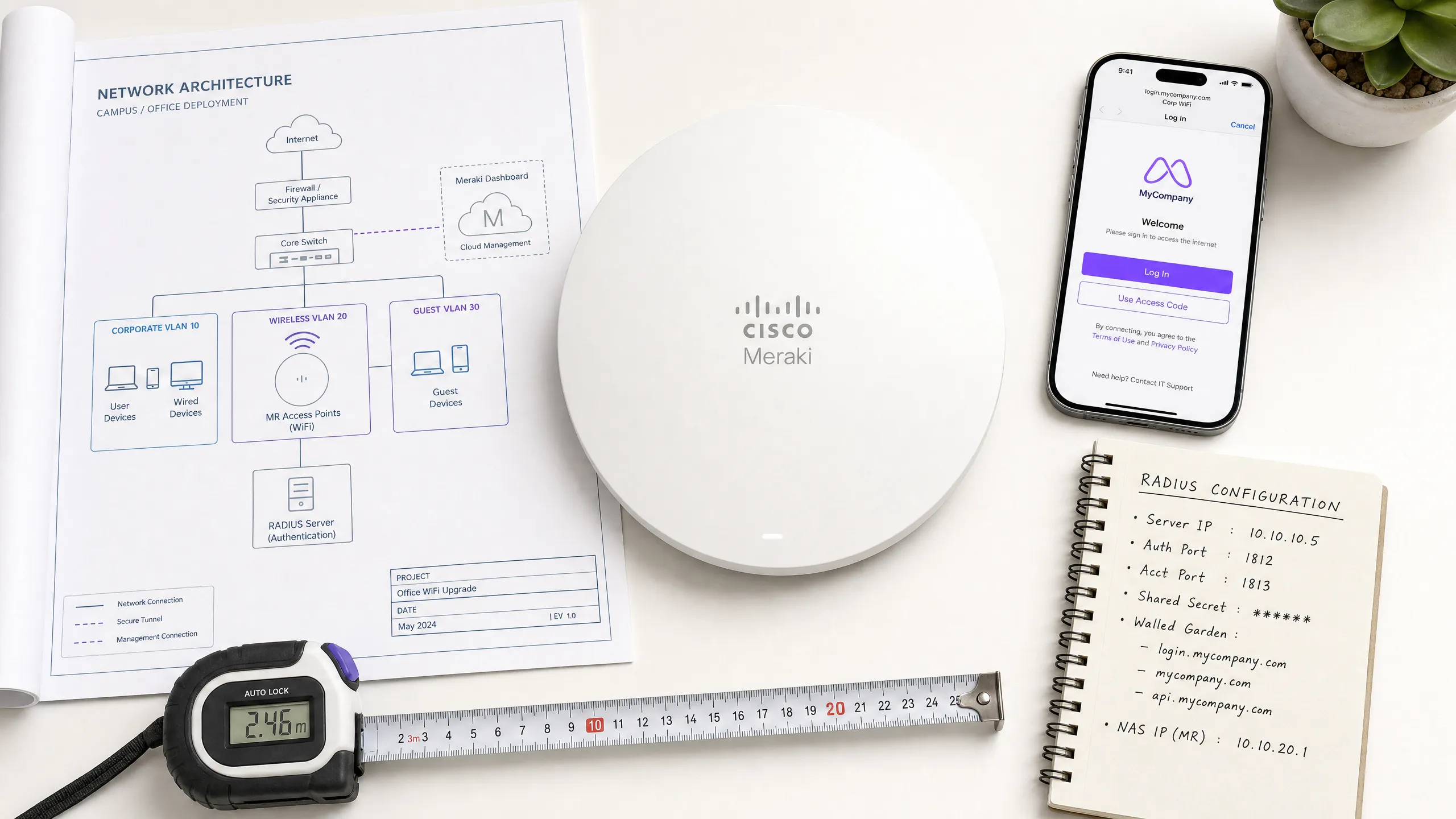
本权威参考指南提供了一个全面的、分步的配置框架,用于将 Cisco Meraki 无线网络与 Purple 基于云的 captive portal 进行集成。本文件专为 IT 经理、网络架构师和托管服务提供商 (MSP) 设计,详细介绍了在 Meraki Dashboard 中部署安全、高性能访客 WiFi 解决方案所需的精确配置 [1]。
通过将访客智能层与硬件解耦,企业场所可以利用 Purple 经过认证的 Guest WiFi 和 WiFi Analytics 平台来捕获丰富的、符合 GDPR 的第一方数据,同时确保网络完整性和合规性 [2]。本指南解决了关键的集成参数,包括跨不同实体场所(如 Retail (零售)、 Healthcare (医疗保健)、 Hospitality (酒店)和 Transport (交通)枢纽)的 RADIUS 认证(端口 1812/1813)、围墙花园域名例外、CDN 通配符解析以及访客重定向机制。
技术深度剖析
为了成功将 Cisco Meraki MR 接入点 (AP) 与 Purple 等外部 captive portal 集成,网络工程师必须了解底层的控制面和数据面架构。与传统的本地无线控制器(其 RADIUS 认证请求源自物理控制器或单个 AP)不同,Cisco Meraki 采用云管理架构 [1]。
控制面与数据面分离
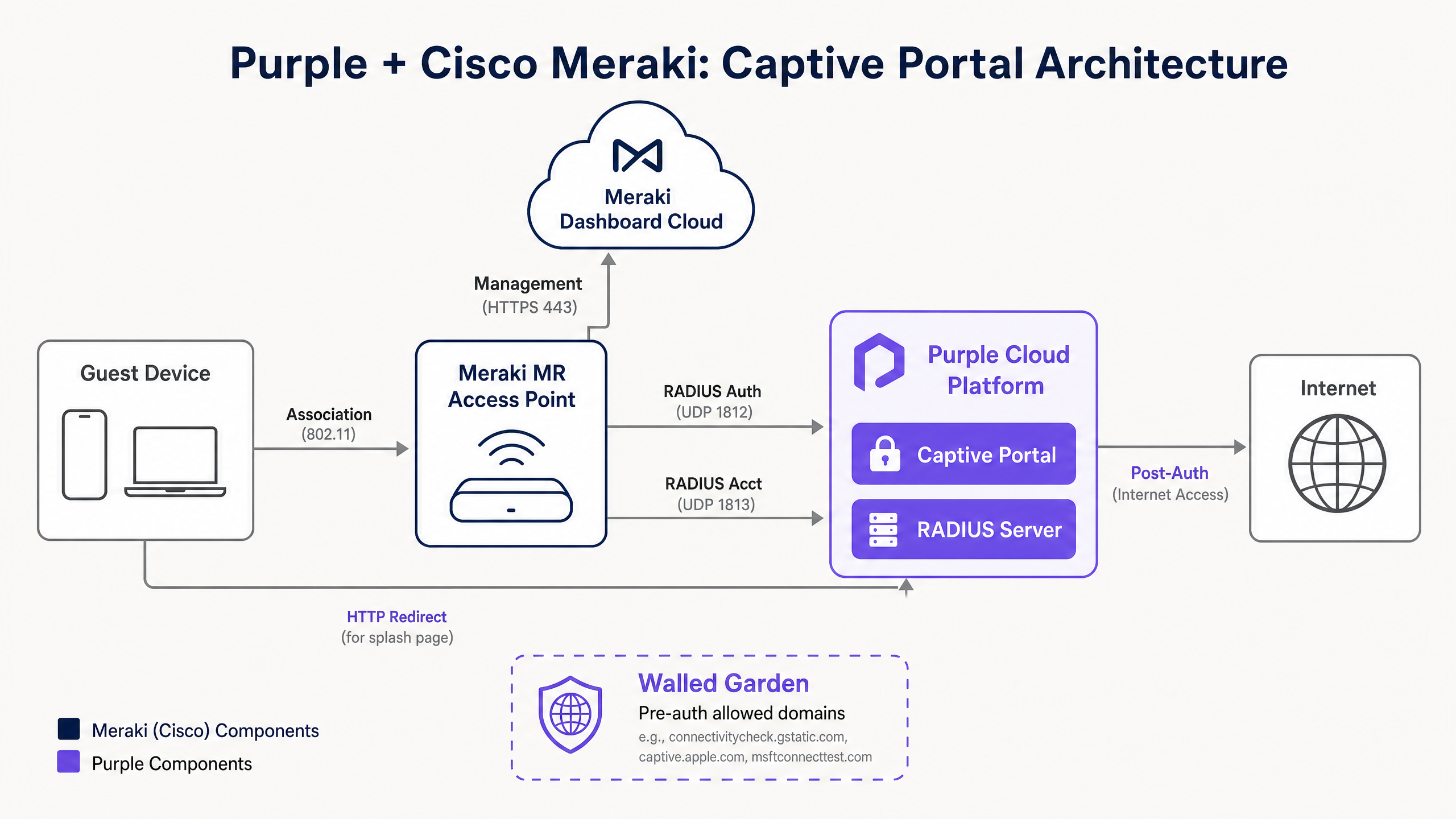
当访客客户端关联到为外部 captive portal 配置的开放 SSID 时,Meraki MR AP 会将客户端置于预认证状态。在此状态下,除了 DNS 查询、DHCP 以及发往 Walled Garden [3] 中明确定义的 IP 地址或主机名的流量外,所有流量都会被阻止。
实际的 RADIUS Access-Request 消息并非由本地 Meraki MR AP 生成。相反,它们源自 Cisco Meraki Dashboard 云端基础设施 [1]。这是一个至关重要的架构区别:
> "展示页面的 RADIUS 访问请求消息将源自控制面板,而不是源自本地 Meraki 设备。因此,此处无法指定 RADIUS 服务器的私有局域网 IP 地址。" [1]
因此,保护您的 RADIUS 服务器的上游防火墙必须允许来自整个 Meraki Dashboard 出站 IP 范围块的入站流量,这些范围是动态的且因地区而异 [1]。这些范围可以通过 Meraki Dashboard 在 Help > Firewall info 下动态获取 [1]。
RADIUS 认证协议 (PAP)
对于登录展示页面认证,Meraki 使用密码认证协议 (PAP) [1]。虽然 PAP 在历史上是未加密的,但 Meraki-Purple 集成通过多层加密降低了安全风险:
- 客户端到云端加密:访客客户端直接与 Purple 托管的 captive portal 建立安全的 HTTPS (SSL/TLS) 会话。凭据(例如社交登录令牌、电子邮件表单)在从客户端浏览器传输到 Purple 服务器的过程中被加密 [1]。
- RADIUS 共享密钥加密:当 Meraki 云向 Purple 的云端 RADIUS 服务器发送 RADIUS Access-Request 时,它会根据 RFC 2865 使用配置的 RADIUS Shared Secret 和标准 XOR 函数对用户密码进行加密 [1]。这确保了明文凭据绝不会通过公共互联网传输。
支持的 RADIUS 属性
Meraki 云和 Purple 云端 RADIUS 在认证握手期间交换几个关键属性,以执行会话参数和策略:
| RADIUS 属性 | 类型 | 方向 | 描述与实际应用背景 |
|---|---|---|---|
| User-Name | String | Request | 访客用户的标识符(例如电子邮件地址、MAC 地址)[1]。 |
| User-Password | String | Request | 加密的用户密码或会话令牌 [1]。 |
| Called-Station-ID | String | Request | 格式为 AP_MAC:SSID_NAME(例如 AA-BB-CC-DD-EE-FF:GuestWiFi)。对于基于位置的策略路由至关重要 [1]。 |
| Calling-Station-ID | String | Request | 客户端的物理 MAC 地址(例如 11-22-33-44-55-66)。用于设备跟踪和会话恢复 [1]。 |
| Session-Timeout | Integer | Accept | 以秒为单位的最大会话持续时间。过期后,客户端将被重定向回 captive portal [1]。 |
| Idle-Timeout | Integer | Accept | 以秒为单位的最大空闲时间。如果没有数据传输,会话将被终止。需要 RADIUS 计费 [1]。 |
| Filter-Id | String | Accept | 传递要应用于客户端的特定 Meraki 组策略名称(例如限制带宽或阻止特定类别)[1]。 |
实施指南
此分步配置演练概述了如何将 Cisco Meraki MR 接入点与 Purple 的外部 captive portal 进行集成。
步骤 1:配置 SSID 访问控制
在 Meraki Dashboard 中导航至 Wireless > Configure > Access control [1]。选择您的目标访客 SSID 并配置以下参数:
- Association Requirements:设置为 Open (no encryption) [1]。这可确保无摩擦的接入体验。如果您需要加密的访客传输,请考虑实施部署 Passpoint / Hotspot 2.0 with Cloud RADIUS [4]。
- Splash Page:选择 Sign-on with 并从下拉菜单中选择 my RADIUS server [1]。
- RADIUS Servers:点击 Add server 并输入 Purple 的 Cloud RADIUS 主和备用端点 [1]:
- Host IP:
116.203.120.121(主)和195.201.123.149(备) - Port:
1812(认证)[1] - Secret:[您的 Purple 共享密钥]
- Host IP:
- RADIUS Accounting:设置为 RADIUS accounting is enabled 并添加计费服务器:
- Host IP:
116.203.120.121(主)和195.201.123.149(备) - Port:
1813(计费) - Secret:[您的 Purple 共享密钥]
- Host IP:
- Captive Portal Strength:选择 Block all access until sign-on is complete [1]。这会严格强制客户端在通过 splash page 之前无法访问互联网。
步骤 2:配置自定义 Splash Page URL
导航至 Wireless > Configure > Splash page [1]。选择您的访客 SSID 并配置:
- Custom Splash URL:选择 Or point to a custom URL 并输入 Purple 重定向 URL:
https://login.venuewifi.com/ip/v2/meraki
- Splash Page Redirect:设置为 The URL they were trying to fetch 或将他们重定向到特定的着陆页(例如,您场所的主页)[3]。
步骤 3:配置 Walled Garden 域名例外
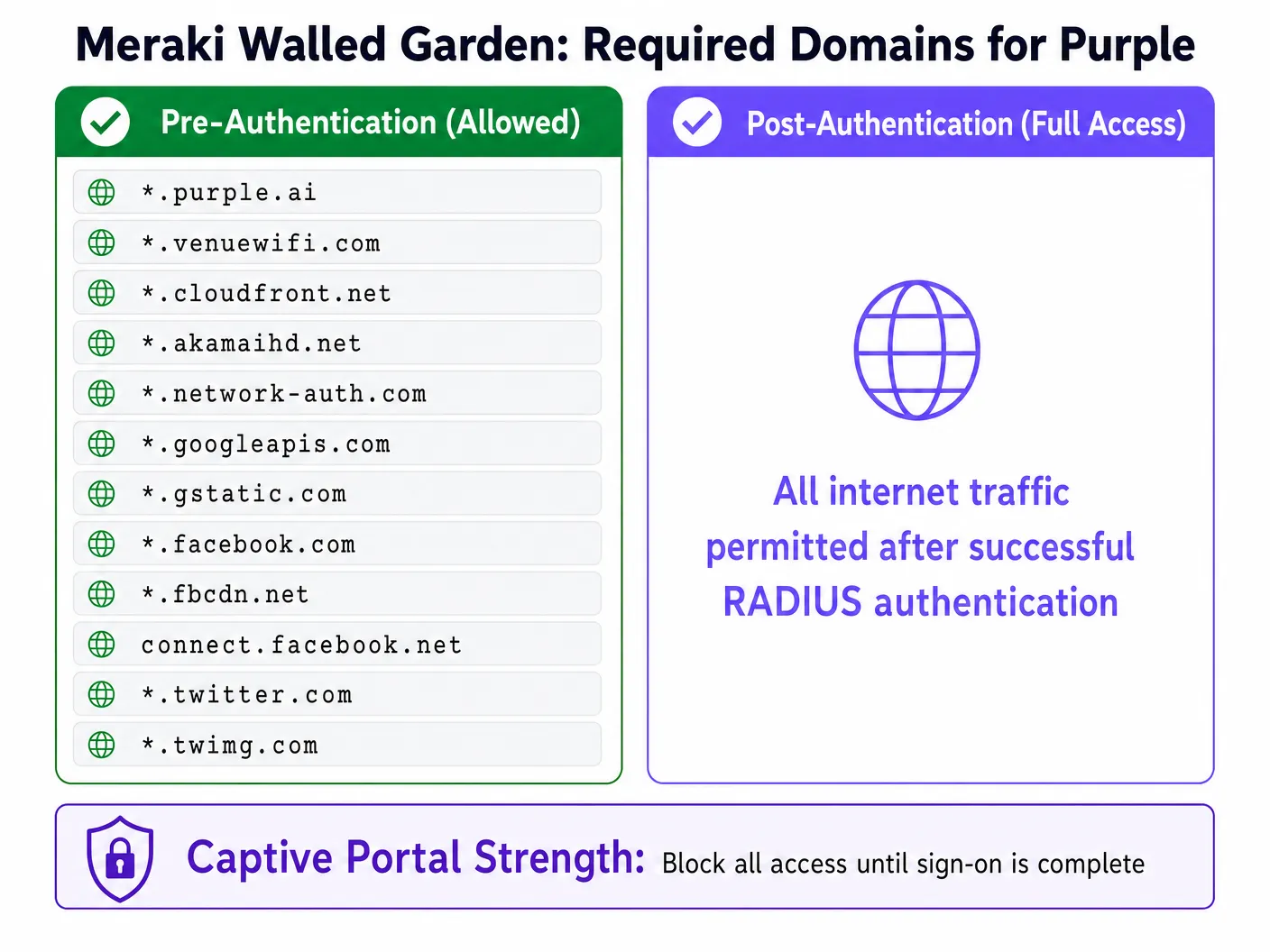
为确保访客客户端能够加载 Captive Portal、从内容分发网络 (CDN) 下载资源并完成社交媒体认证(例如 Google 或 Facebook OAuth),您必须启用并配置 Walled Garden [3]。
返回导航至 Wireless > Configure > Access control 并找到 Walled Garden 区域 [1]。
- 将 Walled Garden 设置为 Walled garden is enabled [1]。
- 在 Walled garden ranges 字段中,输入所需的 FQDN 和通配符域名 [1]。
Meraki 如何处理通配符和 CDN 流量
Cisco Meraki MR 无线接入点支持在 walled garden 中使用星号前缀(例如 *.purple.ai)的通配符域名 [1]。然而,了解其底层机制至关重要:
- 基于 DNS 的白名单:Meraki AP 会拦截客户端的 DNS 请求。当客户端请求与 walled garden 中的条目匹配的域名时,AP 会将该域名解析为其当前的 IP 地址,并临时允许客户端与该 IP 进行通信 [3]。
- 动态 CDN IP:像 Amazon CloudFront (
*.cloudfront.net) 和 Akamai (*.akamaihd.net) 这样的 CDN 会解析为高度动态、地理分布且频繁变化的 IP 地址。Meraki 基于 DNS 的白名单通过实时解析域名来无缝处理这一问题。切勿在您的 walled garden 中为 CDN 资源使用静态 IP 地址,因为这会导致门户资源间歇性加载失败。
最佳实践
为确保高可用性、安全性和最佳用户体验,请遵循以下行业标准的部署最佳实践:
1. 网络分段与 VLAN 隔离
切勿将访客流量直接桥接到您的企业局域网(LAN)。配置您的 Meraki MR AP,使用专用的 Guest VLAN(例如 VLAN 30)标记访客流量 [4]。确保此 VLAN 终止于上游防火墙上的 DMZ 或独立的虚拟路由和转发 (VRF) 实例。这可以降低横向移动风险,并确保符合 PCI DSS 和 GDPR 等安全标准 [2] [4]。
2. 配置故障转移与会话恢复能力
网络链路可能会发生故障。为了防止在认证服务器宕机期间访客被锁定而无法访问互联网,请在 Meraki Dashboard 中配置 RADIUS Failover Policy:
- Failover Policy:设置为 Deny access 以获得最大安全性,或者如果在宕机期间保持访客连接的优先级高于数据捕获,则设置为 Allow access。
- Secondary Servers:始终配置主和备用 RADIUS 服务器,以分担负载并提供自动故障转移 [1]。
3. 实施会话与空闲超时
通过配置适当的超时参数来管理您的无线频谱和 DHCP 池租约 [1]:
- Session Timeout:对于酒店/款待环境,设置为 1440 分钟(24 小时),允许访客在整个停留期间保持连接,而无需频繁重新认证 [1]。对于零售或公共交通,将其缩短至 120 分钟(2 小时),以鼓励新的互动并释放 DHCP 租约。
- Idle Timeout:设置为 15 分钟。如果客户端设备进入睡眠状态或离开场所,AP 将终止会话并回收网络资源 [1]。
故障排除与风险缓解
在 Cisco Meraki 上部署外部 Captive Portal 时,工程师通常会遇到三种主要的故障模式。使用此诊断矩阵可快速隔离并解决问题:
| 现象 | 根本原因 | 诊断步骤 | 解决办法 |
|---|---|---|---|
| Splash page 无法加载;浏览器显示“连接超时”。 | 上游防火墙正在阻止指向 Purple 的 CDN 的出站 DNS 或 HTTP/HTTPS 流量 [1]。 | 尝试从同一 VLAN 上的有线设备解析 login.venuewifi.com。 |
确保访客 VLAN 具有访问公共 DNS (UDP 53) 和 HTTP/HTTPS (TCP 80/443) 的出站权限。 |
| Splash page 已加载,但用户凭据认证失败。 | 上游防火墙正在阻止源自 Meraki Cloud 的 RADIUS 流量 [1]。 | 使用 Meraki Dashboard 中 Access Control 下的 RADIUS Test 工具 [1]。 | 将 Meraki Dashboard 的出站 IP 范围(可在 Help > Firewall info 下找到)添加到防火墙针对 UDP 端口 1812 和 1813 的出站允许列表中 [1]。 |
| 社交登录(例如 Google OAuth)失败,并出现重定向错误。 | 缺少所需的 OAuth 辅助域名 | Meraki Walled Garden 中的 ns [1]。 | 检查客户端设备上的浏览器控制台,查看是否有被拦截的资源加载。 |
投资回报率 (ROI) 与业务影响
将 Cisco Meraki 与 Purple 集成,可将访客 WiFi 从成本中心转变为战略性业务资产。通过将企业级硬件与先进的分析技术相结合,企业可以在多个维度上实现可衡量的回报:
- 数据变现与营销触达:通过获取经验证的电子邮件地址和社交账号信息,场所可以构建一个干净、合规的第一方客户数据库 [2]。这些数据可直接导入客户关系管理 (CRM) 和营销自动化系统,从而实现高度精准、本地化的营销活动。
- 运营效率:通过 Purple 实现的自动化入网流程减轻了前台和 IT 支持人员的负担。在酒店及餐饮环境中,这意味着更少关于 WiFi 连接的客户投诉,以及更低的运营开销。
- 先进的人流量分析:通过将 Meraki 的位置 API 与 Purple 的分析引擎相结合,场所运营商可以深入了解访客行为,包括人流量、停留时间、回头率和客流高峰时段 [2]。这些数据有助于在人员配置、店铺布局和房地产估值方面做出明智的决策。
参考资料
Key Definitions
Captive Portal
A web page that is displayed to newly connected users of a Wi-Fi network before they are granted broader access to network resources.
Used by venues to enforce terms of service, collect user data, and authenticate guests via RADIUS before allowing internet access.
RADIUS (Remote Authentication Dial-In User Service)
A networking protocol that provides centralized Authentication, Authorization, and Accounting (AAA) management for users who connect and use a network service.
Meraki APs query Purple's Cloud RADIUS servers to verify guest credentials and authorize network access.
Walled Garden
A restricted set of IP addresses or domain names that unauthenticated guest clients are permitted to access before completing the captive portal sign-on process.
Crucial for allowing clients to reach the hosted splash page, download CSS/JS assets from CDNs, and communicate with social login OAuth endpoints.
Session-Timeout
An RFC 2865 RADIUS attribute that specifies the maximum number of seconds a user session can remain active before requiring re-authentication.
Returned by Purple RADIUS in the Access-Accept packet to control how long a guest remains logged in (e.g., 24 hours for hotel guests).
Idle-Timeout
A RADIUS attribute that defines the maximum period of inactivity (no data transferred) allowed before the user's session is terminated.
Used to disconnect stale devices and reclaim IP addresses in high-density environments like stadiums or retail stores.
PAP (Password Authentication Protocol)
A simple, unencrypted authentication protocol used by RADIUS to validate user credentials.
Required by Cisco Meraki for external splash page RADIUS authentication. Security is maintained by encrypting the client-to-portal transit via HTTPS and encrypting the RADIUS packet password field using the shared secret.
Passpoint (Hotspot 2.0)
An industry standard developed by the Wi-Fi Alliance that enables cellular-like automatic roaming and secure connection to Wi-Fi networks.
Supported by Meraki MR access points and Purple to enable seamless, certificate-based guest onboarding without captive portals.
CMX (Cisco Meraki Location APIs)
An API framework that allows Meraki access points to export real-time location and presence data (probe requests) to third-party analytics platforms.
Integrated with Purple to provide detailed footfall, dwell time, and return rate analytics for physical venues.
Worked Examples
A luxury 350-room hotel running Cisco Meraki MR46 access points needs to deploy a secure guest WiFi network. They want to capture guest emails, restrict bandwidth to 5 Mbps per guest, and ensure that guests only need to log in once every 7 days. How should the network architect configure the Meraki Dashboard and RADIUS settings?
- SSID Setup: Configure an open SSID named 'Hotel_Guest' with the splash page set to 'Sign-on with' and 'my RADIUS server'.\n2. RADIUS Configuration: Enter Purple's primary (
116.203.120.121) and secondary (195.201.123.149) RADIUS IPs. Set the authentication port to1812and the accounting port to1813. Configure the shared secret.\n3. Timeout Parameters: In the RADIUS server profile or Purple dashboard, set the Session-Timeout attribute to604800seconds (7 days) and Idle-Timeout to1800seconds (30 minutes) to reclaim inactive DHCP leases.\n4. Traffic Shaping: In the Meraki Dashboard under Wireless > Configure > Firewall & traffic shaping, select the SSID, enable traffic shaping, and set a per-client limit to 5 Mbps downstream and 2 Mbps upstream.\n5. Walled Garden: Enable the walled garden and add*.purple.ai,*.venuewifi.com, and necessary CDN wildcards like*.cloudfront.netto allow the splash page to render pre-authentication.
A national retail chain with 45 stores wants to deploy guest WiFi across all locations using Meraki MR33 APs. They need to ensure consistent configuration, block corporate network access, and collect footfall analytics. How should this be implemented at scale?
- Configuration Templates: Create a single Network Configuration Template in the Meraki Dashboard. Configure the guest SSID with Purple's RADIUS settings, walled garden domains, and the custom splash URL:
https://login.venuewifi.com/ip/v2/meraki. Bind all 45 store networks to this template.\n2. VLAN Segmentation: On each store's local switch and firewall, configure a dedicated Guest VLAN (e.g., VLAN 50). In the Meraki SSID settings, set Client IP Assignment to 'External DHCP server' and specify VLAN 50. Ensure the firewall blocks all routing from VLAN 50 to corporate subnets.\n3. Location Analytics: Enable Meraki Scanning API (CMX) in the Meraki Dashboard under Network-wide > Configure > General. Enter the Purple Post URL and secret validator. This allows Meraki APs to stream real-time probe request data to Purple's analytics engine for footfall and dwell time reporting.
Practice Questions
Q1. A network engineer deploys a new Meraki guest SSID with a Purple captive portal. Unauthenticated clients are successfully redirected to the login page, but when they attempt to use 'Log in with Google', the page spins and eventually fails with a DNS or timeout error. Other login methods (like email form) work perfectly. What is the most likely cause of this issue, and how should it be resolved?
Hint: Consider what external domains the client's browser must reach to complete the Google OAuth handshake before the RADIUS authentication is completed.
View model answer
The most likely cause is that the Google OAuth helper domains are missing from the Meraki SSID's Walled Garden configuration. While the core Purple domains and CDN domains are allowed (which is why the splash page loads), the Google authentication servers are being blocked by the AP's pre-authentication firewall rules. To resolve this, navigate to Wireless > Configure > Access control, select the guest SSID, and append the following Google OAuth domains to the Walled Garden list: accounts.google.com, *.googleapis.com, *.gstatic.com, and *.googleusercontent.com. Once saved, the AP will permit the client to complete the Google authentication handshake and redirect back to Purple to complete the RADIUS login.
Q2. During a post-deployment audit of a high-density stadium WiFi network, the IT team notices that the DHCP pool for the guest VLAN (a /21 subnet with 2048 IPs) is completely exhausted within the first 2 hours of an event, even though active concurrent connections never exceed 800. RADIUS accounting is enabled. How can the network architect adjust the Meraki and RADIUS settings to mitigate this issue?
Hint: Analyze the relationship between client session timeouts, idle timeouts, and DHCP lease times in high-density transient environments.
View model answer
The DHCP pool exhaustion is caused by transient clients (users walking past or entering the stadium briefly) connecting, obtaining an IP address, and then leaving the venue. Because the default Meraki Session-Timeout or DHCP lease time is too long, those IP addresses remain reserved even though the physical devices are no longer present. To resolve this, the architect should implement three coordinated changes: 1) Reduce DHCP Lease Time: On the DHCP server (or Meraki security appliance handling DHCP), reduce the lease time to 10 or 15 minutes. 2) Configure Idle Timeout: Ensure RADIUS accounting is enabled on port 1813 and configure an Idle-Timeout of 10 minutes (600 seconds) in the RADIUS Access-Accept profile. This tells the Meraki AP to terminate the session of any client inactive for 10 minutes. 3) Shorten Session Timeout: Reduce the global Session-Timeout for the stadium profile to 120 minutes (7200 seconds) to force periodic re-evaluation of active devices.
Q3. An MSP is configuring a Meraki guest SSID with a Purple captive portal. They have entered the correct Purple RADIUS server IPs and ports (1812/1813) in the Meraki Dashboard, but when testing with the built-in RADIUS 'Test' tool, all access points fail to reach the server. The MSP verifies that the RADIUS shared secret is correct and that the Purple cloud is online. What routing or firewall configuration did the MSP likely overlook?
Hint: Recall where RADIUS authentication requests are sourced from in a Cisco Meraki cloud-managed architecture.
View model answer
The MSP likely configured their local network firewalls to allow outbound RADIUS traffic from the local AP subnets, but forgot that in a Meraki splash page deployment, RADIUS Access-Requests are sourced directly from the Cisco Meraki Dashboard Cloud Infrastructure, not from the local APs. To resolve this, the MSP must obtain the outbound IP ranges of the Meraki Dashboard (found in the Meraki Dashboard under Help > Firewall info) and configure their upstream corporate firewall to allow inbound and outbound UDP traffic on ports 1812 (Authentication) and 1813 (Accounting) between those Meraki Dashboard IP ranges and Purple's Cloud RADIUS servers. Additionally, they must ensure that the Meraki Dashboard IPs are added as valid RADIUS clients in the Purple portal configuration.
Continue reading in this series
Cisco WLC and Catalyst Integration with Purple WiFi: Step-by-Step Guest Access Guide
This authoritative guide details the step-by-step integration of Cisco Catalyst 9800 WLCs with Purple WiFi. It covers External Web Authentication for guest captive portals, 802.1X EAP-TLS for secure staff access, and Cisco iPSK for multi-tenant dynamic VLAN segmentation.
Cisco WLC and Catalyst Integration with Purple WiFi: Step-by-Step Guest Access Guide
This authoritative guide details the step-by-step integration of Cisco Catalyst 9800 WLCs with Purple WiFi. It covers External Web Authentication for guest captive portals, 802.1X EAP-TLS for secure staff access, and Cisco iPSK for multi-tenant dynamic VLAN segmentation.
CommScope Ruckus Integration with Purple WiFi: Setup and Configuration Guide
This technical reference guide provides an authoritative configuration playbook for integrating CommScope Ruckus architectures with Purple WiFi. It details step-by-step deployments for Guest WiFi captive portals, Secure Staff WiFi via 802.1X, and Multi-Tenant network isolation using Ruckus Dynamic PSK.