
Configuring RADIUS Authentication for Guest and Staff WiFi Networks
This technical reference guide outlines the architecture, configuration, and deployment of RADIUS authentication for enterprise guest and staff WiFi networks. It provides network architects and IT managers with the exact protocols, security standards, and troubleshooting methodologies required to build secure, scalable wireless access control systems.
Video overview
Part of our core series: Enterprise WiFi Security Guide →
Executive Summary
In modern enterprise environments, securing wireless networks is a critical operational requirement. Legacy security methods, such as shared pre-shared keys (PSKs), introduce significant security vulnerabilities. If a single employee leaves an organization, or if a guest compromises a shared password, the entire network security posture is compromised. This guide details how to implement Remote Authentication Dial-In User Service (RADIUS) to centralize access control, enforce granular security policies, and segment guest and staff traffic.
By transitioning to a centralized RADIUS architecture, organizations can implement 802.1X authentication for staff - ensuring every device authenticates with unique, revocable credentials - while utilizing secure captive portals and MAC Authentication Bypass (MAB) for guest users. This technical reference provides the architectural blueprints, configuration steps, and troubleshooting frameworks necessary to deploy a resilient, enterprise-grade wireless authentication infrastructure.
Technical Deep-Dive
The AAA Framework
RADIUS operates on the AAA framework, which defines the core phases of access control:
- Authentication: Verifying the identity of the user or device attempting to connect to the WiFi network. This is achieved via credentials, digital certificates, or tokens.
- Authorization: Determining the level of network access granted to the authenticated entity. This includes assigning specific VLANs, applying Access Control Lists (ACLs), or enforcing bandwidth limits.
- Accounting: Tracking network resource consumption, including session duration, data transferred, and login/logout times. This data is critical for auditing, compliance, and network planning.
- Auditing: Reviewing the collected accounting data to identify anomalies, security breaches, or policy violations.
RADIUS Architecture Components
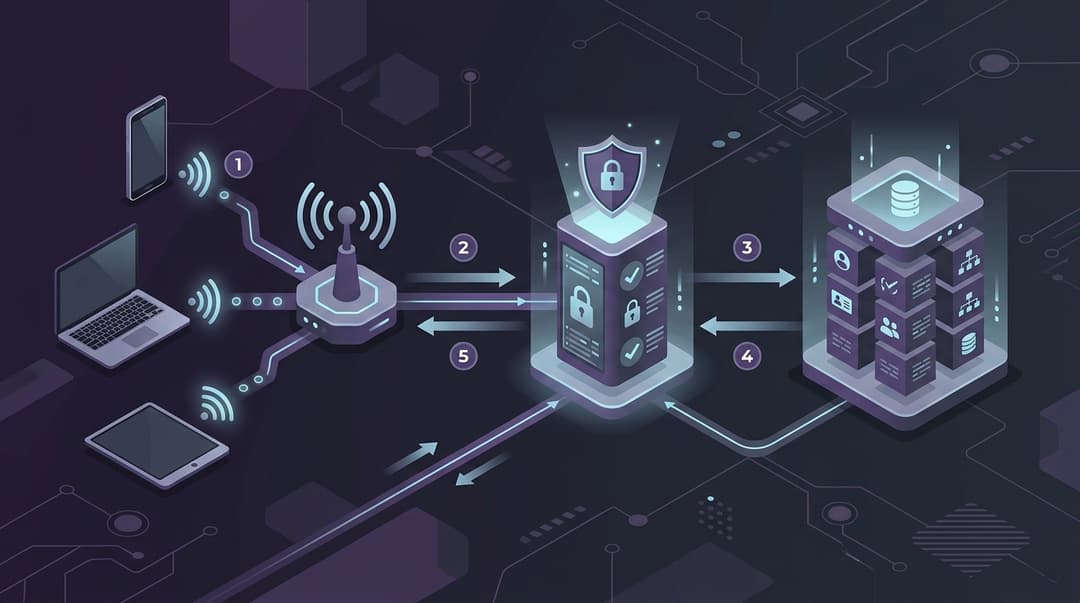
A standard enterprise RADIUS deployment consists of three primary components:
- The Supplicant: The client software running on the user's device (e.g., laptop, smartphone) that requests access to the network and provides credentials or certificates.
- The Authenticator (Network Access Server / NAS): The physical or virtual network device - typically a Wireless LAN Controller (WLC) or an Access Point (AP) - that controls physical access to the network. The authenticator does not decide if the credentials are valid; it acts as a proxy, packaging the authentication request into RADIUS packets and forwarding them to the RADIUS server.
- The Authentication Server: The central server (such as FreeRADIUS, Cisco ISE, Aruba ClearPass, or Purple's cloud-based RADIUS engine) that validates the credentials against an identity store (e.g., Active Directory, LDAP, or a cloud identity provider) and returns an Access-Accept or Access-Reject message to the authenticator.
EAP Methods for Staff WiFi
For staff networks, Extensible Authentication Protocol (EAP) is used within the 802.1X framework to negotiate authentication. The two most common enterprise EAP methods are:
- PEAP-MSCHAPv2 (Protected EAP): This method establishes a secure, encrypted TLS tunnel between the supplicant and the RADIUS server using the server's digital certificate. Inside this secure tunnel, the user's username and password are authenticated using the MSCHAPv2 protocol. This is highly popular due to its ease of deployment, as it does not require certificates to be installed on client devices.
- EAP-TLS: The most secure authentication method available. It requires mutual authentication, meaning both the RADIUS server and the client device must present valid digital certificates. This eliminates password-based attacks but requires a robust Public Key Infrastructure (PKI) to manage certificate distribution and revocation.
Guest WiFi Authentication Flow
Guest networks typically use a different flow to balance security with user convenience. Instead of 802.1X, guest networks often utilize an Open SSID combined with a Captive Portal.
When a guest connects, the Authenticator uses MAC Authentication Bypass (MAB) or a redirection policy to send the user to a captive portal hosted by a platform like Purple. Once the user completes the registration or login process on the portal, the portal platform communicates with the RADIUS server, which then sends an Access-Accept message to the WLC/AP, authorizing the guest's MAC address for network access for a specified session duration.
Secure Transport: RadSec
Traditional RADIUS traffic is sent over UDP (ports 1812 for authentication and 1813 for accounting) in cleartext, with only the user password field obfuscated using a shared secret. This introduces security risks when routing authentication traffic over public WAN connections or the internet.
To mitigate this, RadSec (RADIUS over TLS) should be implemented. RadSec wraps standard RADIUS packets inside a secure TLS tunnel (typically using TCP port 2083). This ensures that all authentication and accounting data, including usernames, MAC addresses, and session attributes, are fully encrypted during transit between the local network and cloud-based RADIUS servers.
Got questions about your specific setup?
Our team works with venue operators, IT managers, and network engineers across 80,000 venues. Book a 20-minute call and we will show you how others like you solved it.
Implementation Guide
Step 1: Define RADIUS Clients on the Server
Before any network device can communicate with the RADIUS server, it must be registered as a client.
- Log into your RADIUS server administration console.
- Navigate to the Clients or Network Devices section.
- Add a new client entry for each WLC or AP.
- Enter the IP address or subnet of the authenticator.
- Generate a high-entropy Shared Secret. This secret must be at least 22 characters long, containing a mix of uppercase letters, lowercase letters, numbers, and special characters. Avoid using simple dictionary words.
Step 2: Configure the Wireless LAN Controller (WLC) / Access Points
Configure your wireless hardware to point to the RADIUS server for authentication and accounting.
- Log into your WLC or AP management interface.
- Navigate to Security > AAA > RADIUS > Authentication.
- Add a new RADIUS Authentication Server:
- Server IP Address: Enter the IP address of your primary RADIUS server.
- Shared Secret: Enter the exact shared secret configured in Step 1.
- Port: 1812 (or 2083 if using RadSec).
- Timeout: Set to 5 seconds to allow for network latency.
- Retry Count: Set to 3.
- Navigate to RADIUS Accounting and add a new server entry using port 1813 (or 2083 for RadSec).
- Repeat these steps to add a secondary (backup) RADIUS server for high availability.
Step 3: Configure the Staff SSID (802.1X)
- Create a new SSID named
Staff_Enterprise. - Set the Security Type to WPA3-Enterprise (or WPA2/WPA3-Enterprise transition mode if legacy device support is required).
- Select 802.1X as the key management protocol.
- Associate the SSID with the RADIUS authentication and accounting servers configured in Step 2.
- Map the SSID to the secure Staff VLAN (e.g., VLAN 10).
Step 4: Configure the Guest SSID with Captive Portal
- Create a new SSID named
Guest_WiFi. - Set the Security Type to Open (or Enhanced Open / OWE for opportunistic wireless encryption).
- Enable MAC Filtering or MAC Authentication and point it to the RADIUS server.
- Enable Captive Portal / Web Portal redirection.
- Configure the redirection URL to point to the Purple captive portal login page.
- Configure the Walled Garden (Pre-Authentication ACLs) to allow traffic to the captive portal domain, DNS servers, and necessary CDN assets before authentication is complete.
- Map the SSID to an isolated Guest VLAN (e.g., VLAN 20).
Best Practices
High Availability and Redundancy
Always deploy RADIUS servers in redundant pairs (primary and secondary). Ensure that these servers are located on different physical hardware or in different cloud availability zones. Configure your WLCs to failover gracefully to the secondary server if the primary server becomes unresponsive. Implement load balancing where appropriate to distribute authentication traffic evenly.
Certificate Management
For PEAP and EAP-TLS deployments, the validity and trust of the RADIUS server's certificate are paramount.
- Use a certificate issued by a trusted Public Certificate Authority (CA) for guest portals and PEAP deployments to prevent certificate warning prompts on user devices.
- For EAP-TLS, establish a dedicated internal Private CA to issue and manage client and server certificates.
- Monitor certificate expiration dates closely and implement automated renewal processes (such as SCEP or ACME) to prevent sudden network-wide authentication failures.
VLAN Segmentation
Strictly segment your network traffic using VLANs. Guest traffic must be completely isolated from corporate resources. Implement firewall rules at the core switch or gateway to prevent inter-VLAN routing between the Guest VLAN and the Staff/Management VLANs. Only allow guest traffic to route directly to the internet.
Session Timeout and Accounting Intervals
Configure appropriate session timeouts to prevent stale sessions from consuming IP addresses and network resources.
- For staff networks, set a session timeout of 8 to 12 hours, aligning with a standard work shift.
- For guest networks, set a shorter session timeout of 2 to 4 hours.
- Configure the RADIUS accounting interim-update interval to 10 or 15 minutes. This ensures that the RADIUS server receives regular updates on device connectivity and data usage without overwhelming the server with accounting packets.
Troubleshooting & Risk Mitigation
Common Failure Modes and Solutions
1. Shared Secret Mismatch
- Symptom: The WLC logs show "RADIUS server not responding," and the RADIUS server logs show "Packet dropped - invalid authenticator" or "Bad authenticator in request."
- Root Cause: The shared secret configured on the WLC does not match the shared secret configured on the RADIUS server.
- Mitigation: Re-enter the shared secret on both devices, ensuring no trailing spaces or hidden characters are copied.
2. Certificate Trust Issues
- Symptom: Client devices fail to connect to the Staff SSID, displaying errors such as "Untrusted Server Certificate" or "Connection Rejected."
- Root Cause: The client device does not trust the CA that signed the RADIUS server's certificate, or the certificate has expired.
- Mitigation: Ensure the root and intermediate CA certificates are installed in the client device's trusted root store. For corporate-managed devices, push these certificates out via MDM or Group Policy.
3. Firewall Blocks
- Symptom: No traffic is received by the RADIUS server from the WLC, even though routing is verified.
- Root Cause: Intermediate firewalls are blocking UDP ports 1812 and 1813.
- Mitigation: Create explicit firewall rules to allow UDP 1812 and 1813 (or TCP 2083 for RadSec) between the WLC management IP and the RADIUS server IP.
4. Latency-Induced Timeouts
- Symptom: Intermittent authentication failures, particularly during peak hours or when using cloud-based RADIUS servers.
- Root Cause: Network latency exceeds the WLC's RADIUS timeout threshold, causing the WLC to assume the server is offline.
- Mitigation: Increase the WLC's RADIUS timeout setting from the default (typically 2 seconds) to 5 or 7 seconds. Optimize WAN routing or implement local RADIUS proxies to cache authentication requests.
ROI & Business Impact
Transitioning to a centralized RADIUS authentication model delivers measurable business value across several key areas:
- Reduced Operational Overhead: Eliminates the manual effort required to rotate shared WiFi passwords when staff leave the organization. User accounts can be instantly disabled in Active Directory or your identity provider, immediately revoking their network access.
- Enhanced Security Posture: Mitigates the risk of data breaches caused by credential theft or unauthorized network access. By enforcing 802.1X and certificate-based authentication, organizations ensure that only authorized, compliant devices can access sensitive corporate resources.
- Optimized Venue Operations: By integrating guest WiFi with Purple's cloud RADIUS platform, venue operators capture valuable demographic and behavioral data. This data can be used to design targeted marketing campaigns, improve visitor engagement, and optimize physical space utilization based on footfall analytics.
- Regulatory Compliance: Centralized RADIUS accounting logs provide an audit trail of network access, helping organizations meet compliance requirements for standards such as PCI-DSS, ISO 27001, and CCPA/CPRA.
Key Definitions
RADIUS
Remote Authentication Dial-In User Service. A networking protocol that provides centralized Authentication, Authorization, and Accounting management for users who connect and use a network service.
It is the industry-standard protocol used to connect wireless network hardware with central identity databases.
Supplicant
The client software or device (such as a laptop, phone, or tablet) that requests access to a network and provides credentials or certificates for verification.
The supplicant must support the specific EAP method configured on the RADIUS server to successfully authenticate.
Authenticator
The network device (typically a Wireless LAN Controller or Access Point) that controls physical access to the network and acts as a proxy between the supplicant and the RADIUS server.
The authenticator does not validate credentials itself - it merely forwards them to the RADIUS server.
EAP-TLS
Extensible Authentication Protocol - Transport Layer Security. An extremely secure authentication method that uses mutual digital certificates on both the client and the server for identity verification.
It is the preferred authentication method for corporate-managed devices on staff WiFi networks.
PEAP-MSCHAPv2
Protected Extensible Authentication Protocol with Microsoft Challenge Handshake Authentication Protocol version 2. A credential-based authentication method that secures password transmission inside an encrypted TLS tunnel.
It is widely used for staff networks because it does not require client-side certificates, making it easier to deploy than EAP-TLS.
RadSec
A protocol that secures RADIUS traffic by wrapping standard RADIUS packets inside a Transport Layer Security (TLS) tunnel, typically running over TCP port 2083.
Essential for cloud-managed WiFi networks where authentication traffic must travel over the public internet.
Captive Portal
A web page displayed to newly connected wireless users before they are granted broader network access. It is commonly used for guest authentication, terms of service acceptance, and marketing data collection.
Purple provides a cloud-hosted captive portal that integrates with local network hardware via RADIUS.
MAC Authentication Bypass (MAB)
A mechanism that enables network access control based on a client device's MAC address. It is typically used for devices that do not support 802.1X authentication.
Often used in guest WiFi networks to allow devices to reconnect seamlessly without seeing the captive portal repeatedly.
Worked Examples
A multi-site retail brand with 150 stores wants to deploy a secure staff WiFi network. They currently use a single pre-shared key (PSK) across all stores, which is frequently leaked. They require a solution that integrates with their existing Microsoft Azure Active Directory (now Microsoft Entra ID) and ensures that staff can only authenticate using corporate-managed laptops.
To resolve this, we will implement WPA3-Enterprise with EAP-TLS authentication, integrated with Microsoft Entra ID via a cloud-based RADIUS service.
- Establish a Private CA: Deploy a cloud-based Public Key Infrastructure (PKI) or utilize an existing Active Directory Certificate Services (AD CS) deployment to issue device certificates to all corporate-managed laptops.
- Certificate Distribution: Configure the organization's Mobile Device Management (MDM) system (e.g., Microsoft Intune) to automatically distribute the Root CA certificate and a unique client certificate to each managed laptop. The client certificate must include the device's host name or serial number in the Subject Alternative Name (SAN).
- Configure the Cloud RADIUS Server: Set up a cloud RADIUS service that integrates with Microsoft Entra ID. Configure the RADIUS server to validate incoming client certificates against the trusted Private CA.
- Configure the WLCs/APs: On the wireless controllers at each retail store, configure a new SSID named
Retail_Staff. Set the security to WPA3-Enterprise and point the authentication to the cloud RADIUS server IPs using RadSec (TCP port 2083) to secure the authentication traffic over the public internet. - Define Access Policies: On the RADIUS server, create a policy that allows access only if the client certificate is valid, the certificate is not revoked (checked via CRL or OCSP), and the device identity exists and is active within Microsoft Entra ID.
A large convention center hosting up to 20,000 concurrent users needs to deploy a guest WiFi network. The network must offer a seamless login experience via a captive portal, enforce a 3-hour session limit to prevent bandwidth hoarding, and collect marketing consent in compliance with CCPA/CPRA. The infrastructure consists of Cisco Catalyst WLCs.
We will deploy an Open SSID with MAC Authentication Bypass (MAB) and captive portal redirection integrated with the Purple platform.
- Configure the Guest SSID: On the Cisco WLC, create an SSID named
Convention_Guest. Set the security to Open. Enable MAC Filtering and select the RADIUS server group associated with Purple. - Configure Redirection: Set up a Web Auth policy on the WLC to redirect unauthenticated users to the Purple captive portal URL:
https://portal.purplewifi.net/.... - Configure the Walled Garden: Create an Access Control List (ACL) on the WLC named
GUEST_RED_ACL. This ACL must permit DNS traffic (UDP port 53), DHCP traffic (UDP ports 67 and 68), and traffic to and from Purple's IP ranges and CDNs. All other HTTP/HTTPS traffic must be redirected. - Configure RADIUS Accounting: Enable RADIUS accounting on the WLC, pointing to Purple's accounting servers with an interim-update interval of 10 minutes.
- Configure Session Limits: On the Purple portal dashboard, configure the access journey to enforce a 3-hour session timeout. Once a user completes the login and accepts the CCPA/CPRA-compliant marketing terms, Purple's RADIUS server sends an Access-Accept packet to the Cisco WLC containing the
Session-Timeoutattribute set to 10800 seconds (3 hours). - Re-authentication Flow: After 3 hours, the WLC terminates the session. If the user attempts to reconnect, they are redirected back to the captive portal to re-authenticate.
Practice Questions
Q1. An organization recently renewed the SSL certificate on their RADIUS server. Immediately afterward, several corporate-managed Windows laptops were unable to connect to the Staff WiFi network, while macOS and iOS devices connected without issue. What is the most likely cause of this problem, and how should it be resolved?
Hint: Consider how different operating systems validate server certificates and the role of the Certificate Authority (CA) chain.
View model answer
The most likely cause is that the new RADIUS server certificate was issued by a different Certificate Authority (CA) or intermediate CA that is not trusted by the affected Windows laptops, or the Windows Group Policy is configured to validate connection to a specific server name or root CA that does not match the new certificate. macOS and iOS devices are often more permissive or prompt the user to trust the new certificate manually, whereas Windows enterprise configurations strictly block connections to untrusted certificates without prompting. To resolve this, verify that the root and intermediate certificates of the new CA are distributed to all Windows devices via Group Policy or MDM, and update the wireless profile configuration to trust the new CA.
Q2. During peak hours at a major sports stadium, guest WiFi users report that they are successfully completing the captive portal registration but are not redirected to the internet. Instead, they are repeatedly shown the captive portal login page. WLC logs show 'RADIUS authentication timeout.' How would you diagnose and resolve this issue?
Hint: Analyze the path of the RADIUS packet and the timeout settings on the wireless controller.
View model answer
This is a classic latency-induced timeout issue. During peak hours, high traffic volume causes congestion on the WAN link or high CPU utilization on the RADIUS server, delaying the RADIUS Access-Accept response. Because the WLC's default timeout is set too low (typically 2 seconds), the WLC assumes the RADIUS server is offline and drops the session, forcing the user back to the captive portal. To diagnose, check the round-trip time (RTT) of RADIUS packets during peak hours. To resolve: 1) Increase the RADIUS timeout on the WLC to 5 or 7 seconds. 2) Increase the retry count to 3. 3) Implement Quality of Service (QoS) on the WAN gateway to prioritize RADIUS traffic (UDP 1812/1813) over general guest internet traffic.
Q3. A security audit reveals that guest WiFi users can access the internal management interfaces of the network switches and WLCs. The guest network is configured as an Open SSID with a captive portal. What architectural changes must be made to remediate this vulnerability?
Hint: Think about network segmentation and where access control policies should be enforced.
View model answer
To remediate this vulnerability, strict network segmentation must be enforced. First, ensure that the Guest SSID is mapped to a dedicated Guest VLAN (e.g., VLAN 20) that is completely separate from the Staff VLAN and the Management VLAN (where switches and WLCs reside). Second, configure Access Control Lists (ACLs) or firewall rules on the core router or gateway to block all traffic originating from the Guest VLAN destined for any internal private IP subnets (RFC 1918 ranges), specifically targeting the management IPs of network infrastructure. The Guest VLAN should only have routing paths to the internet and to the specific DNS servers and captive portal IPs required for pre-authentication.
Continue reading in this series
iOS and macOS 802.1X troubleshooting: a deployment checklist for Intune, Jamf and Entra ID
Use this checklist to diagnose why iPhones, iPads and Macs fail 802.1X on Intune or Jamf Pro. Each failure maps to one of four causes: server trust, identity certificate, macOS mode or Entra ID group scoping. You will confirm the cause from eapolclient and RADIUS logs, apply the fix and stage future certificate rotations.
Intune WiFi profile server trust: certificate server names and root CA checklist for Entra ID
You will be able to configure the server validation half of an Intune WiFi profile so EAP-TLS and PEAP connect on Windows, Apple and Android. You will match certificate server names to the RADIUS certificate, deploy the correct root CA, align Entra ID group assignments, and stage certificate renewals before they silently break connections.
Android 802.1X and EAP-TLS troubleshooting: a deployment checklist for Intune and Entra ID
You will be able to pinpoint why managed Android cell phones fail EAP-TLS on your staff SSID and fix it in Intune. Match each symptom to the four usual causes - missing CA or domain, client certificate in the wrong profile, a mismatched RADIUS server names value, or an undelivered trusted root. Then apply a rollout checklist that stops repeat outages.
Got questions about your specific setup?
Our team works with venue operators, IT managers, and network engineers across 80,000 venues. Book a 20-minute call and we will show you how others like you solved it.