
DrayTek Vigor Routers and Access Points Integration with Purple WiFi
This guide provides step-by-step technical instructions for integrating DrayTek Vigor routers and VigorAP access points with Purple's cloud platform. It covers DrayTek captive portal configuration for Guest WiFi, 802.1X authentication for secure Staff WiFi, Walled Garden setup, and DrayTek Multiple PSK (PPSK) configuration for Multi-Tenant network segmentation with dynamic VLAN assignment. Designed for IT installers and SMB network administrators deploying Purple across hospitality, retail, and multi-tenant venues.
Listen to this guide
View podcast transcript
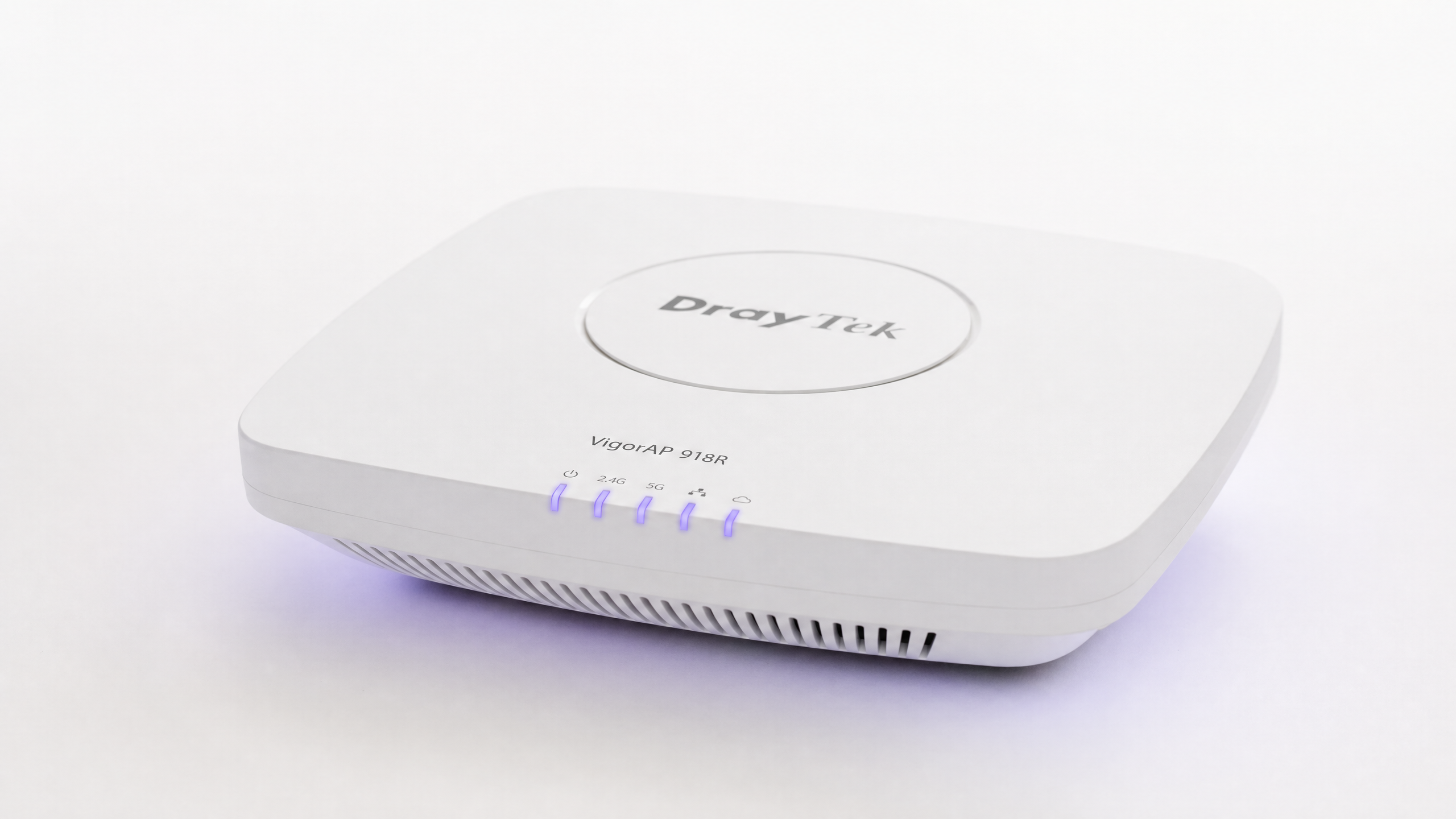
執行摘要
DrayTek Vigor 路由器與 VigorAP 基地台已廣泛部署於英國與歐洲成千上萬的中小型企業、零售及餐旅場所。當與 Purple 的雲端重疊網路整合時,這些硬體將成為「基於身分的網路」之基石 — 從單一平台即可收集第一方數據、保護內部資源並區隔多租戶流量。
本指南涵蓋四種部署情境:採用品牌專屬引導頁面與 RADIUS 驗證的 Guest WiFi 、使用 IEEE 802.1X 企業級安全驗證的員工 WiFi、允許驗證前流量的 Walled Garden 配置,以及利用 DrayTek 的 WPA2-PPSK 功能搭配動態 VLAN 分配的多租戶 WiFi。Purple 已在超過 80,000 個實際營運場地運行,且達到 99.999% 的可用性,並獲得 ISO 27001、GDPR 及 Cyber Essentials 認證 — 因此您場地面臨的安全與合規要求均已融入平台之中。
支援的 DrayTek 型號包括 Vigor 2862、2865、2866、2926、2927、2952、2962、3220 與 3910 系列。所有透過中央基地台管理 (APM) 進行管理的 VigorAP 基地台皆與此整合相容。
技術深入剖析
整合運作原理
DrayTek 與 Purple 的整合依賴兩種機制協同運作:外部 Captive Portal 重新導向與 RADIUS(遠端驗證撥入使用者服務)驗證。Purple 扮演集中化的身分提供者和原則引擎。DrayTek Vigor 路由器則作為網路存取伺服器 (NAS),執行 Purple RADIUS 伺服器傳回的存取決策。
當訪客連線到 WiFi SSID 時,DrayTek 路由器會將裝置置於驗證前的狀態。它會攔截該裝置的 HTTP 流量,並透過 DrayOS 中的 Hotspot Web Portal 功能將其重新導向至 Purple 的雲端託管 splash page。使用者在 Purple 的平台上完成登入流程 — 可使用社群登入、電子郵件、簡訊,或受管理的授權提供者(如 Microsoft Entra ID、Okta 或 Google Workspace)。Purple 的 RADIUS 伺服器隨後會向 DrayTek 路由器回傳 Access-Accept 訊息,進而授予網際網路存取權限並在連接埠 1813 上啟動 RADIUS 計費。
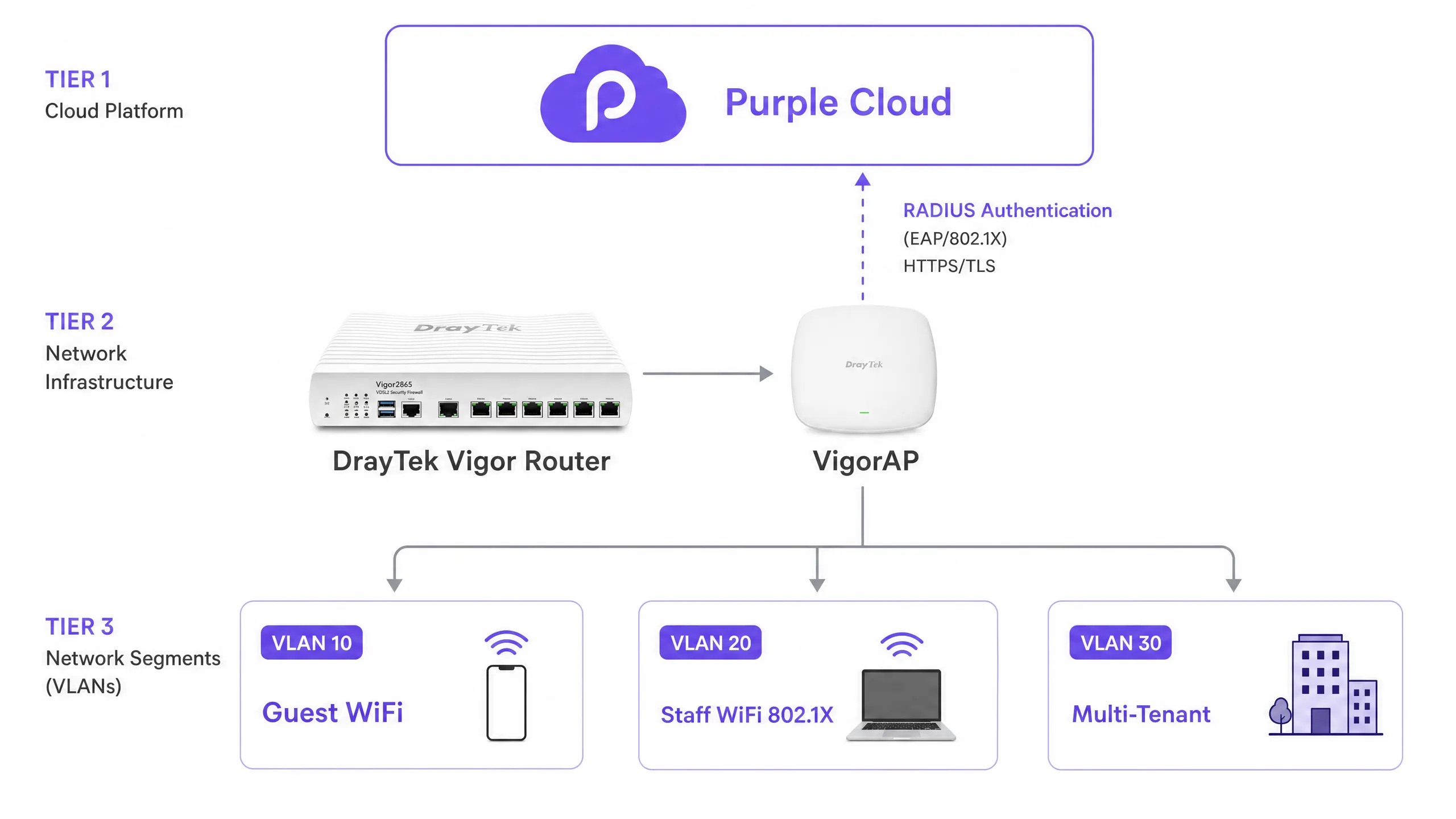
Guest WiFi 與 DrayTek Captive Portal
DrayTek Hotspot Web Portal 是訪客驗證的核心機制。在 DrayOS 中,您可以設定 Hotspot Profile,其中定義了 portal 方法、驗證伺服器、工作階段限制和登陸頁面。將 Portal Method 設定為 External Server 會指示 DrayOS 將未驗證的用戶端重新導向至外部 URL — 在此處即為您的 Purple 存取 URL — 而非提供本機託管的頁面。 Hotspot Profile 中的 RADIUS 設定指向 Purple 的 RADIUS 伺服器 IP(連接埠 1812 用於驗證,連接埠 1813 用於計費)。共用金鑰必須與您的 Purple 場域儀表板中顯示的完全一致。此處不匹配是導致驗證失敗最常見的原因。
工作階段管理由 Expired Time After Activation 設定控制。對於大多數餐旅和零售部署,六個小時是實用的預設值。您可以將此設定與您的 Purple 工作階段逾時時間保持一致,以確保兩個系統之間的行為一致。
Walled Garden 設定
在訪客進行驗證之前,其裝置無法存取網際網路。然而,裝置必須能夠連線至 Purple 的伺服器以載入歡迎頁面(splash page)。Walled Garden(透過 DrayTek Hotspot Profile 中的 Dest Domain 索引標籤進行設定)定義了驗證前可存取的網域。
您必須將 Purple 的驗證網域新增至此清單中,每個索引一個。如果您使用的是社群登入提供商(例如 Google 或 Facebook)或受管理的識別資訊提供商(如 Microsoft Entra ID),則也必須包含其網域。未能正確設定 Walled Garden 是 DrayTek Captive Portal 無法顯示歡迎頁面最常見的單一原因。Purple 的支援文件提供了每種登入方式目前所需的網域清單。
使用 802.1X 安全保護員工 WiFi
對於內部員工而言,Captive Portal 並非合適的工具。共用的 WPA2 密碼存在安全性隱患:當員工離職時,您必須更新每台裝置上的密碼。IEEE 802.1X 企業級驗證完全解決了這個問題。
在 DrayOS 中,導覽至 Wireless LAN > Security,並為您的員工 SSID 選取 WPA2/802.1X。點擊 RADIUS Server 連結並輸入 Purple 的伺服器 IP、連接埠和共用金鑰。員工裝置會使用 PEAP(受保護的擴充驗證協定)並以 MS-CHAPv2 作為內部方法進行驗證。這是 Windows、macOS、iOS 和 Android 裝置連線至企業無線網路所需的設定。
Purple 會在識別資訊層級撤銷存取權限。當員工離職時,您只需在您的識別資訊提供商(Microsoft Entra ID、Okta 或 Google Workspace)中停用其帳戶即可。Purple 的 RADIUS 伺服器會立即停止接受該帳戶的驗證請求。無需在整個場域中變更密碼。
如欲了解更多關於企業無線網路安全性架構的資訊,請參閱我們的 企業級 WiFi 安全性:2026 年完整指南 。
使用 DrayTek 多重 PSK 進行多租戶網路分割
多租戶環境(例如設有外包餐廳或零售空間的飯店、共同工作空間、學生宿舍以及建屋出租專案)需要租戶之間實施嚴格的網路隔離。專櫃中的顧客絕不能存取飯店的內部網路,且兩個零售租戶之間必須無法看到彼此的流量。
DrayTek 透過兩項互補的功能來解決此問題:VLAN 標記和 WPA2-PPSK (Private Pre-Shared Key)。
Vigor 路由器上的 VLAN 設定會將每個租戶分配到獨立的邏輯網路。前往 LAN > VLAN,啟用 VLAN 設定,並為每個租戶區段分配一個唯一的 VLAN ID。所有連接到 VigorAP 的 LAN 連接埠必須是所有相關 VLAN 的成員,實際上是以 802.1Q 幹線 (trunk) 連接埠運作。LAN > General Setup 中的 Inter-LAN Routing Table 可控制流量是否可以跨 VLAN 傳輸——為了實現租戶隔離,必須停用此功能。
VigorAP 上的 WPA2-PPSK 會為每個租戶分配一個唯一的密碼。無線基地台會將此密碼與裝置的 MAC 位址綁定。當裝置連接時,AP 會識別所使用的密碼,並用對應的 VLAN ID 標記流量。這使得單一 SSID 能夠同時為多個隔離的租戶網路提供服務,從而減少無線開銷並簡化終端使用者體驗。
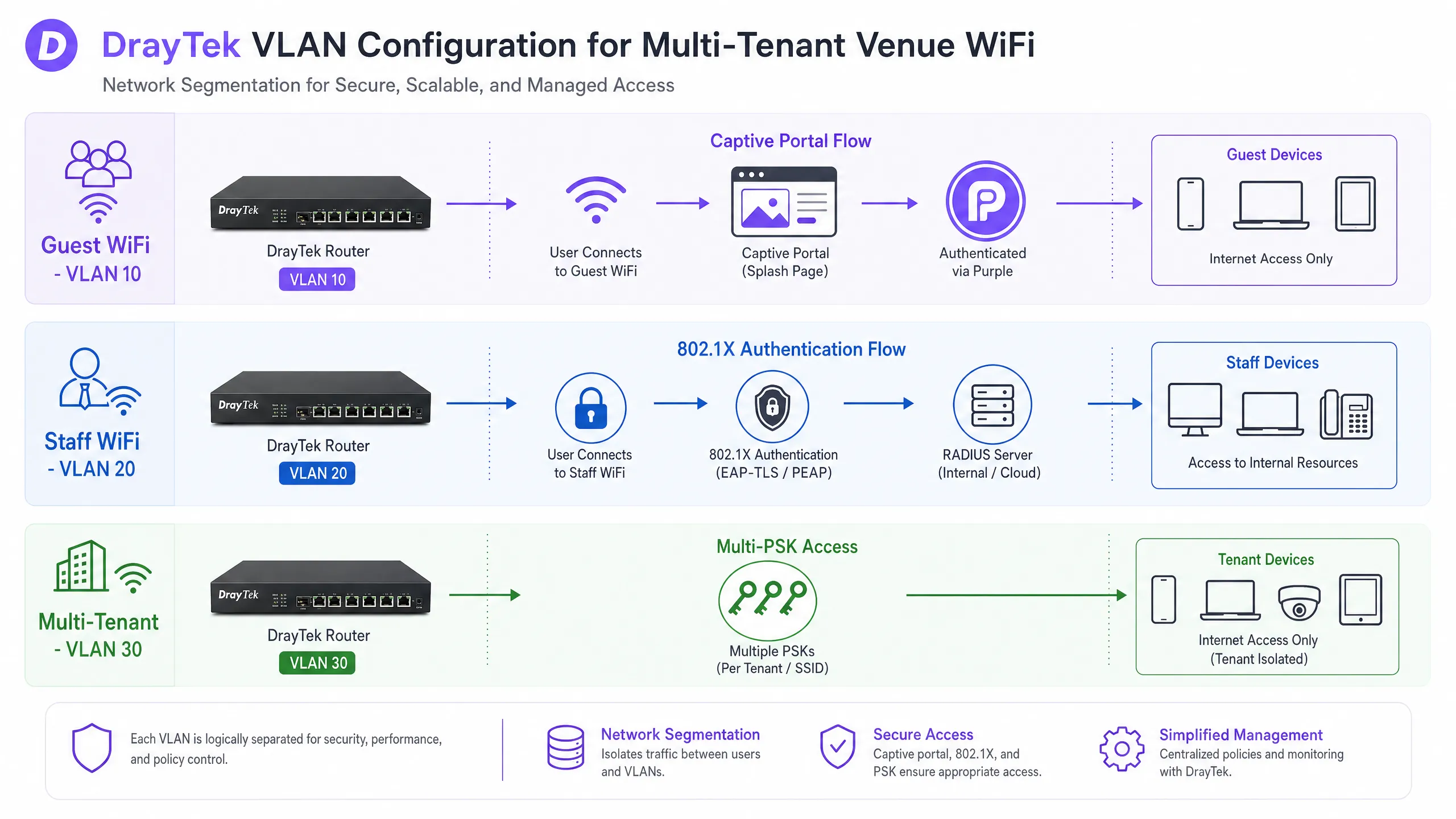
透過 RADIUS 進行動態 VLAN 分配
對於需要根據使用者身分而非靜態密碼來驅動 VLAN 分配的部署,Purple 的 RADIUS 伺服器支援動態 VLAN 引導。當使用者進行驗證時,Purple 會在 Access-Accept 訊息中傳回三個 RADIUS 屬性:
| RADIUS 屬性 | 值 |
|---|---|
| Tunnel-Type | VLAN (13) |
| Tunnel-Medium-Type | IEEE-802 (6) |
| Tunnel-Private-Group-ID | VLAN ID (例如 "20") |
DrayTek 路由器會讀取這些屬性,並將已驗證的用戶端分配到指定的 VLAN,無論他們連接到哪一個 SSID。這就是「基於身分的網路 (Identity-Based Networking)」:網路區段是由使用者的身分決定,而不是由他們輸入的密碼決定。
實作指南
部署前檢查清單
在開始之前,請確認以下事項:
| 項目 | 需求 |
|---|---|
| DrayTek 韌體 | 最新穩定的 DrayOS 版本 |
| Purple 場域 | 已在 Purple 控制面板中建立並啟用 |
| RADIUS 憑證 | 從 Purple 取得的存取 URL、RADIUS 伺服器 IP、共用金鑰、NAS 識別碼 |
| VLAN 計劃 | 已記錄 Guest、Staff 和每個租戶的 VLAN ID |
| VigorAP 回傳網路 | 已確認所有無線基地台皆使用實線乙太網路 |
步驟 1:在 DrayTek 路由器上設定 RADIUS
導覽至 DrayOS 網頁介面中的 Applications > RADIUS/TACACS+。在 External RADIUS 索引標籤上,啟用設定檔並輸入 Purple 的 RADIUS 伺服器 IP 位址、連接埠 (1812) 和共用金鑰。按一下 OK 儲存。路由器需要重新啟動才能套用此變更——請勿跳過此步驟。
步驟 2:建立 Captive Portal 設定檔
導覽至 Hotspot Web Portal > Profile Setup 並選擇一個可用的索引。依下列方式設定設定檔:
| 設定 | 值 |
|---|---|
| 啟用此設定檔 | 是 |
| Portal Method | External Server |
| Captive Portal URL | 您的 Purple 存取 URL |
| Redirection URL | http://portal.draytek.com |
| Authentication Method | External RADIUS Server |
| Server IP Address | Purple RADIUS 伺服器 IP |
| Destination Port | 1812 |
| Shared Secret | 您的 Purple 共用金鑰 |
| Enable Accounting | Yes |
| Accounting Port | 1813 |
| MAC Address Format | AA-BB-CC-DD-EE-FF |
點擊 OK 儲存。
步驟 3:設定 Walled Garden
點擊 Save and Next 進入 Dest Domain 頁籤。新增每個必要的 Purple 網域,每個索引一個。目前的網域列表請參閱支援文件中的 Purple Walled Garden 網域白名單。點擊 Save and Next 繼續。
步驟 4:設定工作階段與到達網頁設定
在最後的設定畫面上,設定:
| 設定 | 值 |
|---|---|
| Expired Time After Activation | 0 天, 6 小時, 0 分 (或您偏好的時長) |
| HTTPS Redirection | No |
| Captive Portal Detection | Yes |
| Landing Page After Authentication | 您的 Purple 重新導向 URL |
| Applied Interfaces | 選擇訪客 WiFi SSID |
點擊 Finish 儲存。測試前請重新啟動路由器。
步驟 5:設定 VLAN 進行網路區隔
導覽至 LAN > VLAN 並啟用 VLAN Configuration。為每個網路區隔建立一個 VLAN 項目。將所有連接到 VigorAPs 的 LAN 連接埠指派為所有相關 VLAN 的成員 (trunk 設定)。導覽至 LAN > General Setup,並使用 Inter-LAN Routing Table 在需要時封鎖跨 VLAN 的存取。
步驟 6:為員工 WiFi 設定 802.1X
導覽至 Wireless LAN > Security 並選擇員工 SSID。將安全模式設定為 WPA2/802.1X。點擊 RADIUS Server 連結並輸入 Purple 的伺服器 IP、連接埠 1812 以及共用金鑰。儲存設定。
步驟 7:設定 PPSK 進行多租戶隔離
在每個 VigorAP 上,導覽至 Wireless LAN > Security Settings 並選擇 WPA2PPSK。點擊 PPSK 按鈕以新增項目。為每個租戶建立一個包含該租戶裝置 MAC 位址與唯一密碼的 PPSK 項目。請確保該密碼與您路由器設定中正確的 VLAN 相關聯。請注意,2.4GHz 和 5GHz 的 PPSK 設定檔在 VigorAPs 上是分開管理的。
最佳實踐
以下建議反映了 Purple 在 80,000 多個場所的部署經驗,其中包括 餐旅 、 零售 、 醫療保健 以及 交通運輸 環境。
所有 VigorAPs 請使用有線回傳。 無線分佈系統 (WDS) 和通用中繼模式無法傳遞 802.1Q VLAN 標籤。如果您需要進行網路區隔 - 在任何多租戶或混合用途的場所中這都是必須的 - 每個無線基地台都必須透過乙太網路連接到路由器或網管型交換器。
啟用 AP 輔助漫遊 (AP-Assisted Mobility)。DrayTek VigorAP 支援預先驗證 (Pre-Authentication) 和 PMK 快取 (PMK Caching),以在用戶端在存取點之間漫遊時加速 802.1X 重新驗證。啟用 AP 輔助漫遊以主動斷開訊號強度弱的用戶端,強迫其連接至最近的 AP。這在顧客持續移動的零售環境中尤為重要。
在部署前規劃您的 VLAN 方案。部署後變更 VLAN ID 需要重新設定路由器、所有存取點以及路徑中的任何網管型交換器。在接觸硬體之前,請先記錄您的方案(例如:訪客使用 VLAN 10、員工使用 VLAN 20、租戶使用 VLAN 30+)。
同步 DrayTek 與 Purple 之間的工作階段逾時時間。如果 DrayTek 熱點設定檔在 6 小時後結束工作階段,而 Purple 的工作階段設定為 24 小時,使用者將在工作階段中途被重新導向至 Splash Page。請將兩者設為相同的值。
針對 PPSK 部署停用 MAC 隨機化。iOS 和 macOS 裝置預設會使用專用 Wi-Fi 位址(隨機化 MAC)。由於 DrayTek PPSK 會將密碼綁定到特定的 MAC 位址,隨機化將導致驗證失敗。請指示使用者針對您的網路停用此設定,或在您的上線流程中清楚記錄此步驟。
在 VigorAP 上使用頻段導引 (Band Steering)。啟用頻段導引以引導支援雙頻的裝置使用 5GHz 頻段。這可以減少 2.4GHz 頻段的擁塞,並提高所有已連線裝置的吞吐量。
如需深入瞭解企業無線安全架構,請參閱我們的指南 Enterprise WiFi Security: A Complete Guide for 2026 。如果您是在包含不同硬體廠商的多個站點進行部署,我們的 SonicWall TZ and SonicWave Integration with Purple WiFi 指南涵蓋了類似的整合模式。
疑難排解與風險緩釋
Splash Page 無法載入。最常見的原因是 Walled Garden 設定不完整。請驗證 Dest Domain 索引標籤中是否列出了所有必要的 Purple 網域。同時確認訪客 DHCP 整合池已啟用,且預先驗證的用戶端能正常進行 DNS 解析。請透過連接裝置並嘗試瀏覽已知的 HTTP URL 來進行測試。
RADIUS 驗證失敗。請檢查共用密鑰 (Shared Secret) 是否拼寫錯誤(區分大小寫)。確認 DrayTek 路由器已連接至網際網路,且未阻擋連接埠 1812 和 1813 上的輸出 UDP 流量。確認套用 RADIUS 設定後已重新啟動路由器。檢查 Purple 控制面板中的驗證記錄,以確認請求是否已到達 Purple 的伺服器。 客戶端被分配到錯誤的 VLAN。 請驗證 DrayTek 路由器與 VigorAP 之間的中繼埠(trunk port)設定。交換器連接埠必須允許特定的 VLAN 標籤。如果您使用的是無管理功能交換器,請確認它能傳遞 802.1Q 標記框架且未剝離標籤。檢查 PPSK 設定檔以確認密碼與 VLAN 的對應關係是否正確。
黏性用戶端未漫遊。 如果裝置未如預期在 VigorAP 之間漫遊,請驗證是否已啟用 AP 輔助行動功能(AP-Assisted Mobility),且 RSSI 閾值已針對您的場域進行適當設定。同時請確認所有 VigorAP 皆運行相同的韌體版本,因為版本不一致可能會影響漫遊行為。
iOS 裝置 PPSK 驗證失敗。 請確認使用者已在 設定 > WiFi > [網路名稱] > 專用 WiFi 位址 中針對您的特定網路停用了「專用 WiFi 位址」。PPSK 設定檔必須包含裝置的真實硬體 MAC 位址。
投資報酬率(ROI)與商業影響
將 DrayTek 硬體與 Purple 結合部署,可在營運效率、數據擷取和合規性三個方面帶來可衡量的回報。
營運效率。 802.1X 驗證消除了管理共用 WiFi 密碼的開銷。當員工離職時,您只需在 Microsoft Entra ID、Okta 或 Google Workspace 中停用其帳戶,Purple 的 RADIUS 伺服器便會立即停止接受其憑證,無需在整個場域中輪換密碼。對於擁有 50 家分店的零售連鎖店而言,單是這一項每年就能減少數百小時的 IT 額外開銷。
數據擷取與行銷投資報酬率。 每一位透過 Purple Captive Portal 連線的訪客都會提供經驗證的身份資訊——電子郵件地址、電話號碼或社群個人檔案。這些第一方數據會直接匯入 Purple 的 WiFi Analytics 平台,您可以在該平台追蹤停留時間、重複造訪率和行銷活動參與度。Purple 已在其網路中收集了 290 億個數據點。使用 Purple Engage 方案的場域報告指出,透過針對性的造訪後溝通,重複造訪率有了顯著增長。
合規性。 Purple 已通過 ISO 27001 認證、符合 GDPR 與 CCPA 規範,並獲得 Cyber Essentials 認證。Captive Portal 強制執行自願選擇加入(conscious-choice opt-ins),確保數據收集符合 GDPR 要求。VLAN 區段將付款卡環境與訪客流量隔離,以支援 PCI DSS 合規性。對於醫療保健機構,患者與訪客的網路隔離符合 NHS 和 ICO 的數據處理指南。
如欲詳細了解 Purple 如何在場域環境中推動以數據分析為導向的決策,請參閱我們的 WiFi Analytics platform overview 。
Key Definitions
Captive portal
A web page that intercepts a user's HTTP traffic and requires interaction - login, terms acceptance, or data submission - before granting network access.
The mechanism Purple uses to capture first-party guest data on the DrayTek Hotspot Web Portal. Configured via the External Server portal method in DrayOS.
RADIUS
Remote Authentication Dial-In User Service. A networking protocol that provides centralised authentication, authorisation, and accounting (AAA) for network access.
The DrayTek router sends authentication requests to Purple's RADIUS server on UDP port 1812 and accounting data on port 1813. The shared secret must match on both sides.
802.1X
An IEEE standard for port-based network access control. Requires devices to authenticate with a RADIUS server before being granted network access.
Used for Staff WiFi on DrayTek hardware. Eliminates shared passwords and enables per-user access revocation via the identity provider.
VLAN
Virtual Local Area Network. A logical network segment that isolates traffic at Layer 2, even when devices share the same physical infrastructure.
Used on DrayTek Vigor routers to separate Guest, Staff, and Tenant traffic. Requires 802.1Q trunk ports between the router and VigorAPs.
Walled Garden
A set of domains or IP ranges that unauthenticated users can access before completing the captive portal flow.
Configured in the Dest Domain tab of the DrayTek Hotspot Profile. Must include Purple's authentication servers and any identity provider domains used for login.
PPSK
Private Pre-Shared Key. A security method where each user or device is assigned a unique passphrase, rather than sharing a single network password.
Used on DrayTek VigorAPs to assign multi-tenant devices to specific VLANs. The passphrase is bound to the device's MAC address.
AP-Assisted Mobility
A DrayTek VigorAP feature that monitors client signal strength and actively disassociates clients below a defined RSSI threshold, prompting them to roam to a closer access point.
Critical for retail and hospitality deployments where users move through the venue. Prevents sticky client behaviour that causes captive portal session drops.
PEAP
Protected Extensible Authentication Protocol. An 802.1X EAP method that encapsulates the authentication exchange in a TLS tunnel, protecting credentials in transit.
The EAP method used for Staff WiFi on DrayTek hardware. Combined with MS-CHAPv2 as the inner authentication method for Windows, macOS, iOS, and Android devices.
Dynamic VLAN assignment
A mechanism where the RADIUS server returns VLAN attributes in the Access-Accept message, and the network device assigns the authenticated client to the specified VLAN automatically.
Purple's RADIUS server returns Tunnel-Type, Tunnel-Medium-Type, and Tunnel-Private-Group-ID attributes. The DrayTek router applies the VLAN assignment based on user identity.
Worked Examples
A 150-room boutique hotel is deploying a DrayTek Vigor 2865 router with six VigorAP 903 access points. They need to provide branded Guest WiFi with data capture, secure Staff WiFi for 40 employees, and an isolated network for a leased ground-floor restaurant. The hotel's IT manager has never configured 802.1X before.
The IT manager creates three VLANs on the Vigor 2865: VLAN 10 for guests (192.168.10.0/24), VLAN 20 for staff (192.168.20.0/24), and VLAN 30 for the restaurant (192.168.30.0/24). Inter-LAN routing is disabled between all three segments. All six VigorAP 903 units are connected via Ethernet and managed through Central AP Management on the router. Three SSIDs are broadcast: 'Hotel Guest' (VLAN 10, Hotspot Web Portal pointing to Purple), 'Hotel Staff' (VLAN 20, WPA2/802.1X pointing to Purple RADIUS), and 'Restaurant' (VLAN 30, WPA2-PPSK with a passphrase specific to the restaurant's POS devices). The restaurant's PPSK entry binds the POS MAC addresses to VLAN 30. The IT manager registers the hotel's Microsoft Entra ID tenant with Purple, enabling staff to authenticate with their existing company credentials. The Walled Garden is configured with all required Purple domains. After rebooting the router, the IT manager tests each SSID and confirms correct VLAN assignment via the router's DHCP lease table.
A retail chain with 80 stores is experiencing poor captive portal completion rates. Analytics show that 40% of shoppers who connect to the Guest WiFi SSID never reach the splash page. The chain uses DrayTek Vigor 2865 routers and VigorAP 912C access points. Store layouts are large, with access points at both ends of the floor.
The network administrator investigates two root causes. First, they audit the Walled Garden configuration across all 80 sites using VigorACS 3, DrayTek's central management platform. They find that 23 sites are missing two of the required Purple authentication domains, causing the splash page to time out for shoppers on those networks. They update the Hotspot profiles centrally via VigorACS 3. Second, they enable AP-Assisted Mobility on all VigorAPs with an RSSI threshold of -75 dBm. This forces shoppers' devices to roam to the nearest AP as they move through the store, preventing the sticky client issue that was causing captive portal sessions to drop mid-authentication. After both changes, the portal completion rate rises from 60% to 89% across the estate.
Practice Questions
Q1. You have configured the DrayTek Hotspot Web Portal and pointed it to the Purple access URL. The RADIUS settings are correct. However, when clients connect to the Guest WiFi SSID, their browsers report a connection timeout and the splash page never loads. What is the most likely cause, and what is the first step to diagnose it?
Hint: Clients in a pre-authentication state have heavily restricted network access. Consider what traffic the router permits before authentication completes.
View model answer
The most likely cause is an incomplete or missing Walled Garden configuration. The DrayTek router blocks all traffic from unauthenticated clients except to domains explicitly listed in the Dest Domain tab. If Purple's authentication domains are not listed, the client's browser cannot reach the splash page server. The first diagnostic step is to navigate to the Hotspot Profile, click through to the Dest Domain tab, and verify that all required Purple domains are present. Cross-reference against Purple's Walled Garden Domain Whitelist in the support documentation. A secondary check is to confirm that DNS is resolving correctly for pre-authenticated clients.
Q2. A coworking venue has 12 member companies sharing a single DrayTek Vigor 2865 and four VigorAP 912C access points. Each company needs to be isolated from the others, but the venue manager wants to broadcast only one SSID to avoid cluttering the WiFi list on members' devices. How do you architect this?
Hint: Consider how DrayTek handles unique passphrases on a single SSID, and what additional configuration is needed to enforce isolation between companies.
View model answer
Configure WPA2-PPSK on the VigorAPs with a single SSID. Create 12 VLANs on the Vigor 2865, one per company. For each company, create a PPSK entry that binds a unique passphrase to that company's device MAC addresses and assigns them to their dedicated VLAN. Disable inter-VLAN routing in the Inter-LAN Routing Table to prevent cross-company traffic. Each company's devices connect to the same SSID using their unique passphrase, and the VigorAP automatically drops them into their isolated VLAN. For companies with multiple devices, each device needs its own PPSK entry with its specific MAC address and the shared company passphrase.
Q3. After a routine firmware update on a DrayTek Vigor 2865, staff members report that their laptops can no longer connect to the Staff WiFi SSID. The SSID is visible, but authentication fails. Guest WiFi continues to work normally. What are the three most likely causes, and in what order should you investigate them?
Hint: The Guest WiFi uses a different authentication mechanism to the Staff WiFi. Isolate which layer of the 802.1X stack has broken.
View model answer
The three most likely causes are: (1) The firmware update reset the RADIUS server configuration for the WPA2/802.1X SSID - navigate to Wireless LAN > Security, confirm the RADIUS server IP and shared secret are still correct, and reboot if you make any changes. (2) The firmware update changed the EAP method or RADIUS port settings - verify that port 1812 is still configured and that the router can reach Purple's RADIUS server on that port. (3) The firmware update introduced a certificate change that is causing EAP-TLS validation to fail on client devices - check the Purple dashboard for authentication log entries to see whether requests are reaching the server. Investigate in this order: RADIUS configuration first (most common after a firmware update), then network connectivity to the RADIUS server, then certificate or EAP method issues.
Continue reading in this series
Cisco WLC and Catalyst Integration with Purple WiFi: Step-by-Step Guest Access Guide
This authoritative guide details the step-by-step integration of Cisco Catalyst 9800 WLCs with Purple WiFi. It covers External Web Authentication for guest captive portals, 802.1X EAP-TLS for secure staff access, and Cisco iPSK for multi-tenant dynamic VLAN segmentation.
Cisco WLC and Catalyst Integration with Purple WiFi: Step-by-Step Guest Access Guide
This authoritative guide details the step-by-step integration of Cisco Catalyst 9800 WLCs with Purple WiFi. It covers External Web Authentication for guest captive portals, 802.1X EAP-TLS for secure staff access, and Cisco iPSK for multi-tenant dynamic VLAN segmentation.
CommScope Ruckus Integration with Purple WiFi: Setup and Configuration Guide
This technical reference guide provides an authoritative configuration playbook for integrating CommScope Ruckus architectures with Purple WiFi. It details step-by-step deployments for Guest WiFi captive portals, Secure Staff WiFi via 802.1X, and Multi-Tenant network isolation using Ruckus Dynamic PSK.