
DrayTek Vigor Routers and Access Points Integration with Purple WiFi
This guide provides step-by-step technical instructions for integrating DrayTek Vigor routers and VigorAP access points with Purple's cloud platform. It covers DrayTek captive portal configuration for Guest WiFi, 802.1X authentication for secure Staff WiFi, Walled Garden setup, and DrayTek Multiple PSK (PPSK) configuration for Multi-Tenant network segmentation with dynamic VLAN assignment. Designed for IT installers and SMB network administrators deploying Purple across hospitality, retail, and multi-tenant venues.
Listen to this guide
View podcast transcript
Executive summary
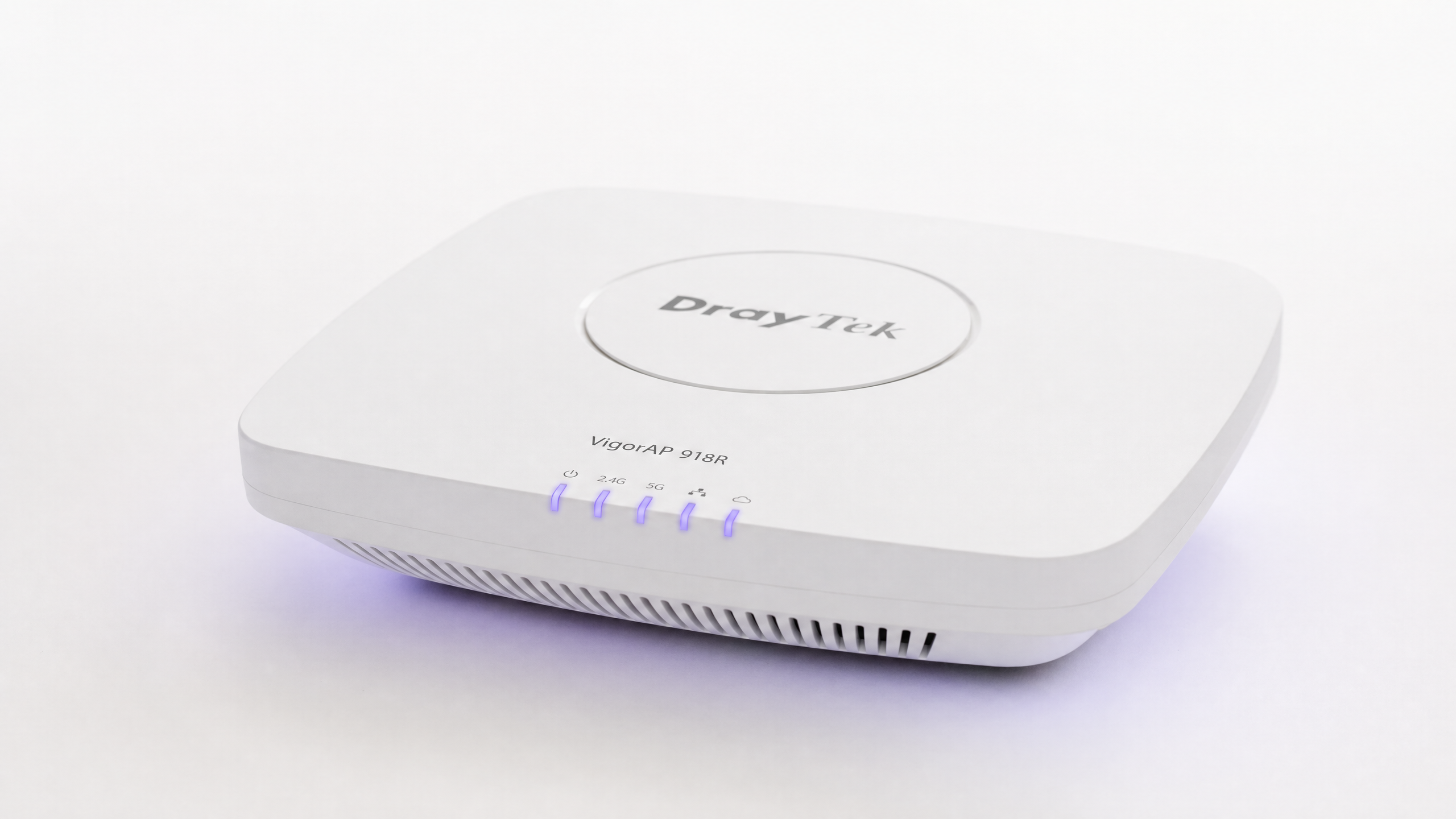
DrayTek Vigor routers and VigorAP access points are deployed in tens of thousands of SMB, retail, and hospitality sites across the UK and Europe. When integrated with Purple's cloud overlay, this hardware becomes the foundation of an Identity-Based Network - capturing first-party data, securing internal resources, and segmenting multi-tenant traffic, all from a single platform.
This guide covers four deployment scenarios: Guest WiFi with a branded splash page and RADIUS authentication, secure Staff WiFi using IEEE 802.1X Enterprise, Walled Garden configuration to allow pre-authentication traffic, and Multi-Tenant WiFi using DrayTek's WPA2-PPSK feature with dynamic VLAN assignment. Purple operates across 80,000+ live venues with 99.999% uptime and holds ISO 27001, GDPR, and Cyber Essentials certifications - so the security and compliance requirements your venue faces are already baked into the platform.
Supported DrayTek models include the Vigor 2862, 2865, 2866, 2926, 2927, 2952, 2962, 3220, and 3910 series. All VigorAP access points managed via Central AP Management (APM) are compatible with this integration.
Technical deep-dive
How the integration works
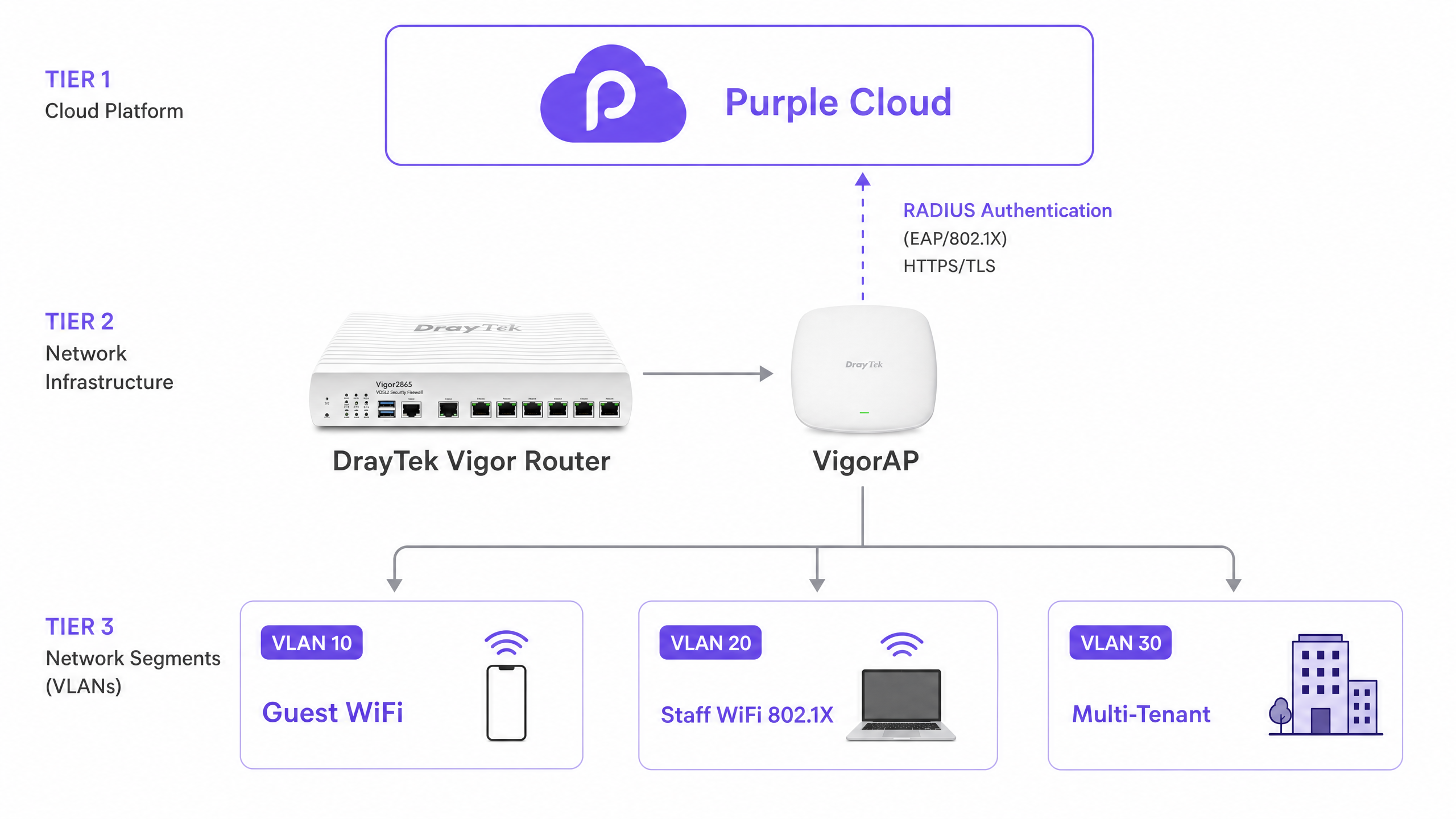
The DrayTek and Purple integration relies on two mechanisms working in tandem: external captive portal redirection and RADIUS (Remote Authentication Dial-In User Service) authentication. Purple acts as the centralised identity provider and policy engine. The DrayTek Vigor router acts as the Network Access Server (NAS), enforcing access decisions returned by Purple's RADIUS servers.
When a guest connects to the WiFi SSID, the DrayTek router places the device in a pre-authentication state. It intercepts the device's HTTP traffic and redirects it to Purple's cloud-hosted splash page via the Hotspot Web Portal feature in DrayOS. The user completes the login flow on Purple's platform - using social login, email, SMS, or a managed identity provider such as Microsoft Entra ID, Okta, or Google Workspace. Purple's RADIUS server then returns an Access-Accept message to the DrayTek router, which grants internet access and begins RADIUS accounting on port 1813.
Guest WiFi and the DrayTek captive portal
The DrayTek Hotspot Web Portal is the core mechanism for guest authentication. In DrayOS, you configure a Hotspot Profile that defines the portal method, authentication server, session limits, and landing page. Setting the Portal Method to External Server tells DrayOS to redirect unauthenticated clients to an external URL - in this case, your Purple access URL - rather than serving a locally hosted page.
The RADIUS configuration within the Hotspot Profile points to Purple's RADIUS server IP on port 1812 for authentication and port 1813 for accounting. The shared secret must match exactly what is displayed in your Purple venue dashboard. A mismatch here is the most common cause of authentication failures.
Session management is controlled by the Expired Time After Activation setting. For most hospitality and retail deployments, six hours is a practical default. You can align this with your Purple session timeout to ensure consistent behaviour across both systems.
Walled Garden configuration
Before a guest authenticates, their device has no internet access. However, the device must be able to reach Purple's servers to load the splash page. The Walled Garden - configured via the Dest Domain tab in the DrayTek Hotspot Profile - defines which domains are accessible before authentication.
You must add Purple's authentication domains to this list, one per index. If you are using social login providers (such as Google or Facebook) or a managed identity provider like Microsoft Entra ID, their domains must also be included. Failure to configure the Walled Garden correctly is the single most common reason a DrayTek captive portal fails to display the splash page. Purple's support documentation provides the current list of required domains for each login method.
Secure Staff WiFi using 802.1X
For internal staff, a captive portal is the wrong tool. Shared WPA2 passwords are a security liability: when an employee leaves, you must update the password on every device. IEEE 802.1X Enterprise authentication eliminates this problem entirely.
In DrayOS, navigate to Wireless LAN > Security and select WPA2/802.1X for your staff SSID. Click the RADIUS Server link and enter Purple's server IP, port, and shared secret. Staff devices authenticate using PEAP (Protected Extensible Authentication Protocol) with MS-CHAPv2 as the inner method. This is the configuration required for Windows, macOS, iOS, and Android devices connecting to an enterprise wireless network.
Purple revokes access at the identity level. When an employee leaves, you disable their account in your identity provider (Microsoft Entra ID, Okta, or Google Workspace). Purple's RADIUS server immediately stops accepting authentication requests from that account. No password change required across the venue.
For more on enterprise wireless security architecture, see our Enterprise WiFi Security: A Complete Guide for 2026 .
Multi-Tenant network segmentation with DrayTek Multiple PSKs
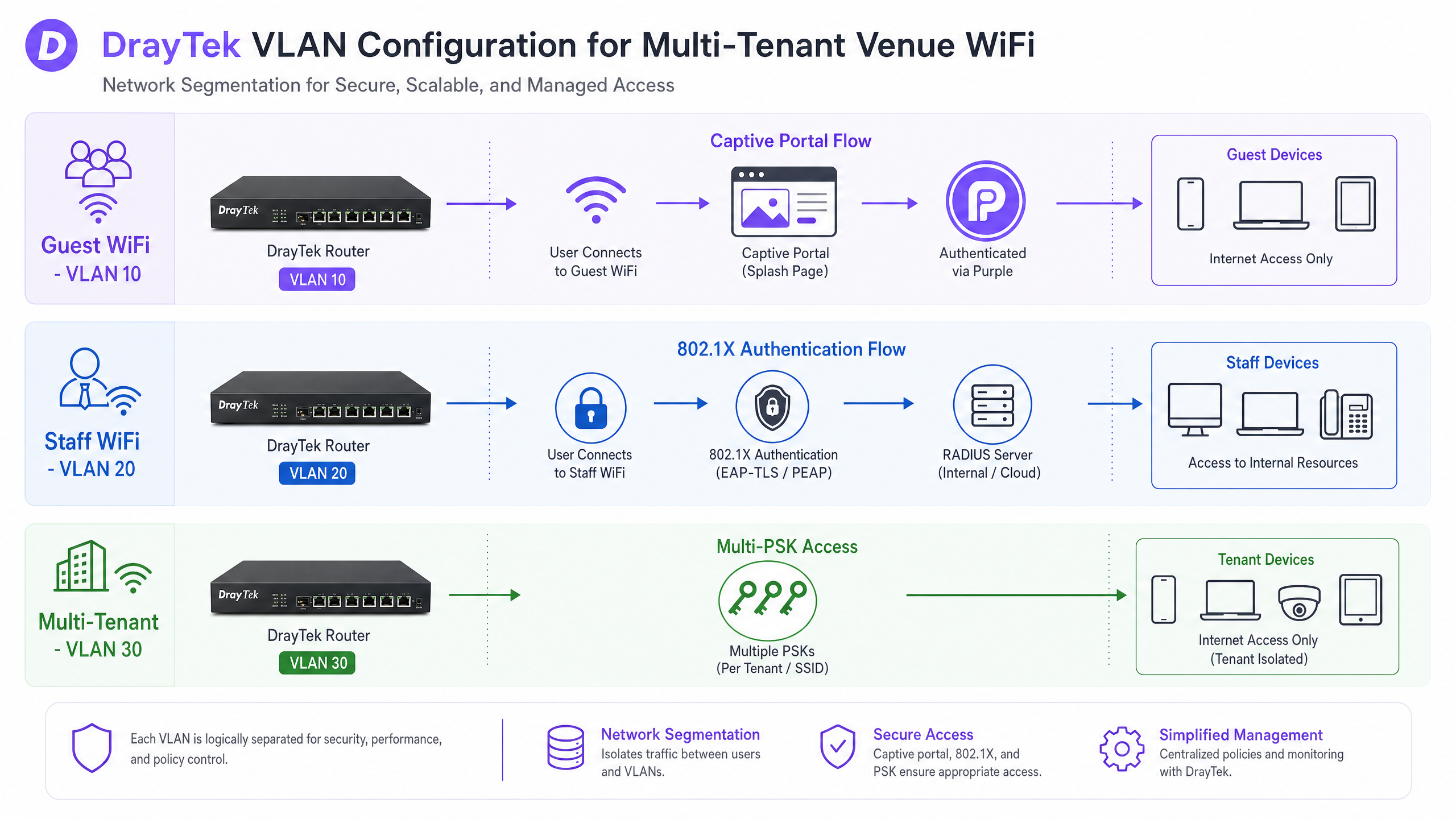
Multi-tenant environments - hotels with leased restaurant or retail space, coworking venues, student accommodation, and build-to-rent developments - require strict network isolation between tenants. A shopper in a concession unit must not be able to reach the hotel's internal network, and two retail tenants must not be able to see each other's traffic.
DrayTek addresses this with two complementary features: VLAN tagging and WPA2-PPSK (Private Pre-Shared Key).
VLAN configuration on the Vigor router assigns each tenant to a separate logical network. Navigate to LAN > VLAN, enable VLAN Configuration, and assign a unique VLAN ID to each tenant segment. All LAN ports connecting to VigorAPs must be members of all relevant VLANs, effectively operating as 802.1Q trunk ports. The Inter-LAN Routing Table in LAN > General Setup controls whether traffic can cross between VLANs - for tenant isolation, this must be disabled.
WPA2-PPSK on the VigorAP assigns a unique passphrase to each tenant. The access point binds this passphrase to the device's MAC address. When a device connects, the AP identifies the passphrase used and tags the traffic with the corresponding VLAN ID. This allows a single SSID to serve multiple isolated tenant networks simultaneously, reducing wireless overhead and simplifying the end-user experience.
Dynamic VLAN assignment via RADIUS
For deployments where VLAN assignment should be driven by user identity rather than a static passphrase, Purple's RADIUS server supports dynamic VLAN steering. When a user authenticates, Purple returns three RADIUS attributes in the Access-Accept message:
| RADIUS Attribute | Value |
|---|---|
| Tunnel-Type | VLAN (13) |
| Tunnel-Medium-Type | IEEE-802 (6) |
| Tunnel-Private-Group-ID | VLAN ID (e.g., "20") |
The DrayTek router reads these attributes and assigns the authenticated client to the specified VLAN, regardless of which SSID they connected to. This is Identity-Based Networking: the network segment is determined by who the user is, not which password they typed.
Implementation guide
Pre-deployment checklist
Before you begin, confirm the following:
| Item | Requirement |
|---|---|
| DrayTek firmware | Latest stable DrayOS release |
| Purple venue | Created and active in the Purple dashboard |
| RADIUS credentials | Access URL, RADIUS server IP, shared secret, NAS identifier retrieved from Purple |
| VLAN plan | VLAN IDs documented for Guest, Staff, and each tenant |
| VigorAP backhaul | Wired Ethernet confirmed for all access points |
Step 1: Configure RADIUS on the DrayTek router
Navigate to Applications > RADIUS/TACACS+ in the DrayOS web interface. On the External RADIUS tab, enable the profile and enter Purple's RADIUS server IP address, port (1812), and shared secret. Click OK to save. The router requires a reboot to apply this change - do not skip this step.
Step 2: Create the Hotspot Web Portal profile
Navigate to Hotspot Web Portal > Profile Setup and select an available index. Configure the profile as follows:
| Setting | Value |
|---|---|
| Enable this profile | Yes |
| Portal Method | External Server |
| Captive Portal URL | Your Purple access URL |
| Redirection URL | http://portal.draytek.com |
| Authentication Method | External RADIUS Server |
| Server IP Address | Purple RADIUS server IP |
| Destination Port | 1812 |
| Shared Secret | Your Purple shared secret |
| Enable Accounting | Yes |
| Accounting Port | 1813 |
| MAC Address Format | AA-BB-CC-DD-EE-FF |
Click OK to save.
Step 3: Configure the Walled Garden
Click Save and Next to proceed to the Dest Domain tab. Add each required Purple domain, one per index. Refer to Purple's Walled Garden Domain Whitelist in the support documentation for the current list. Click Save and Next to continue.
Step 4: Configure session and landing page settings
On the final configuration screen, set:
| Setting | Value |
|---|---|
| Expired Time After Activation | 0 days, 6 hours, 0 min (or your preferred duration) |
| HTTPS Redirection | No |
| Captive Portal Detection | Yes |
| Landing Page After Authentication | Your Purple redirect URL |
| Applied Interfaces | Select the Guest WiFi SSID(s) |
Click Finish to save. Reboot the router before testing.
Step 5: Configure VLANs for network segmentation
Navigate to LAN > VLAN and enable VLAN Configuration. Create a VLAN entry for each network segment. Assign all LAN ports that connect to VigorAPs as members of all relevant VLANs (trunk configuration). Navigate to LAN > General Setup and use the Inter-LAN Routing Table to block cross-VLAN access where required.
Step 6: Configure 802.1X for Staff WiFi
Navigate to Wireless LAN > Security and select the Staff SSID. Set the security mode to WPA2/802.1X. Click the RADIUS Server link and enter Purple's server IP, port 1812, and shared secret. Save the configuration.
Step 7: Configure PPSK for multi-tenant isolation
On each VigorAP, navigate to Wireless LAN > Security Settings and select WPA2PPSK. Click the PPSK button to add entries. For each tenant, create a PPSK entry with the tenant's device MAC address and a unique passphrase. Ensure the passphrase is associated with the correct VLAN in your router configuration. Note that PPSK profiles for 2.4GHz and 5GHz are managed separately on VigorAPs.
Best practices
The following recommendations reflect Purple's deployment experience across 80,000+ venues, including hospitality , retail , healthcare , and transport environments.
Use wired backhaul for all VigorAPs. Wireless Distribution Systems (WDS) and universal repeater modes cannot pass 802.1Q VLAN tags. If you need network segmentation - and in any multi-tenant or mixed-use venue you do - every access point must connect to the router or a managed switch via Ethernet.
Enable AP-Assisted Mobility. DrayTek VigorAPs support Pre-Authentication and PMK Caching to accelerate 802.1X re-authentication when a client roams between access points. Enable AP-Assisted Mobility to actively disassociate clients with weak signal strength, forcing them to connect to the nearest AP. This is particularly important in retail environments where shoppers move continuously through the space.
Plan your VLAN scheme before deployment. Changing VLAN IDs after deployment requires reconfiguring the router, all access points, and any managed switches in the path. Document your scheme - VLAN 10 for Guest, VLAN 20 for Staff, VLAN 30+ for tenants - before you touch the hardware.
Align session timeouts between DrayTek and Purple. If the DrayTek Hotspot profile expires a session after six hours but Purple's session is set to 24 hours, users will be redirected to the splash page mid-session. Set both to the same value.
Disable MAC randomisation for PPSK deployments. iOS and macOS devices use Private WiFi Addresses (randomised MACs) by default. Since DrayTek PPSK binds a passphrase to a specific MAC address, randomisation will cause authentication failures. Instruct users to disable this setting for your network, or document the process clearly in your onboarding flow.
Use Band Steering on VigorAPs. Enable Band Steering to guide dual-band capable devices to the 5GHz band. This reduces congestion on the 2.4GHz band and improves throughput for all connected devices.
For a broader view of enterprise wireless security architecture, see our guide on Enterprise WiFi Security: A Complete Guide for 2026 . If you are deploying across multiple sites with different hardware vendors, our SonicWall TZ and SonicWave Integration with Purple WiFi guide covers a comparable integration pattern.
Troubleshooting and risk mitigation
Splash page fails to load. The most common cause is an incomplete Walled Garden. Verify that all required Purple domains are listed in the Dest Domain tab. Also confirm that the guest DHCP pool is active and that DNS resolution is functioning for pre-authenticated clients. Test by connecting a device and attempting to browse to a known HTTP URL.
RADIUS authentication fails. Check the shared secret for typos - it is case-sensitive. Confirm that the DrayTek router has a route to the internet and is not blocking outbound UDP traffic on ports 1812 and 1813. Verify that you have rebooted the router after applying the RADIUS configuration. Check the Purple dashboard for authentication logs to identify whether the request is reaching Purple's servers.
Clients assigned to the wrong VLAN. Verify the trunk port configuration between the DrayTek router and the VigorAPs. The switch ports must allow the specific VLAN tags. If you are using an unmanaged switch, confirm it passes 802.1Q tagged frames without stripping the tags. Check the PPSK profile to confirm the correct passphrase-to-VLAN mapping.
Sticky clients not roaming. If devices are not roaming between VigorAPs as expected, verify that AP-Assisted Mobility is enabled and that the RSSI threshold is set appropriately for your venue. Also confirm that all VigorAPs are running the same firmware version, as inconsistencies can affect roaming behaviour.
iOS devices failing PPSK authentication. Confirm that the user has disabled Private WiFi Address for your specific network in Settings > WiFi > [Network Name] > Private WiFi Address. The PPSK profile must contain the device's real hardware MAC address.
ROI and business impact
Deploying DrayTek hardware with Purple delivers measurable returns across three areas: operational efficiency, data capture, and compliance.
Operational efficiency. 802.1X authentication eliminates the overhead of managing shared WiFi passwords. When a member of staff leaves, you disable their account in Microsoft Entra ID, Okta, or Google Workspace. Purple's RADIUS server stops accepting their credentials immediately. No venue-wide password rotation required. For a 50-site retail chain, this alone removes hundreds of hours of IT overhead per year.
Data capture and marketing ROI. Every guest who connects through the Purple captive portal provides a verified identity - email address, phone number, or social profile. This first-party data feeds directly into Purple's WiFi Analytics platform, where you can track dwell time, repeat visit rates, and campaign engagement. Purple has collected 29 billion data points across its network. Venues using Purple's Engage plan report measurable increases in repeat visit rates through targeted post-visit communications.
Compliance. Purple is ISO 27001 certified, GDPR and CCPA compliant, and Cyber Essentials certified. The captive portal enforces conscious-choice opt-ins, ensuring that data collection meets GDPR requirements. VLAN segmentation isolates payment card environments from guest traffic, supporting PCI DSS compliance. For healthcare venues, patient and visitor network isolation meets NHS and ICO guidance on data handling.
For a detailed view of how Purple drives analytics-led decision-making in venue environments, see our WiFi Analytics platform overview .
Key Definitions
Captive portal
A web page that intercepts a user's HTTP traffic and requires interaction - login, terms acceptance, or data submission - before granting network access.
The mechanism Purple uses to capture first-party guest data on the DrayTek Hotspot Web Portal. Configured via the External Server portal method in DrayOS.
RADIUS
Remote Authentication Dial-In User Service. A networking protocol that provides centralised authentication, authorisation, and accounting (AAA) for network access.
The DrayTek router sends authentication requests to Purple's RADIUS server on UDP port 1812 and accounting data on port 1813. The shared secret must match on both sides.
802.1X
An IEEE standard for port-based network access control. Requires devices to authenticate with a RADIUS server before being granted network access.
Used for Staff WiFi on DrayTek hardware. Eliminates shared passwords and enables per-user access revocation via the identity provider.
VLAN
Virtual Local Area Network. A logical network segment that isolates traffic at Layer 2, even when devices share the same physical infrastructure.
Used on DrayTek Vigor routers to separate Guest, Staff, and Tenant traffic. Requires 802.1Q trunk ports between the router and VigorAPs.
Walled Garden
A set of domains or IP ranges that unauthenticated users can access before completing the captive portal flow.
Configured in the Dest Domain tab of the DrayTek Hotspot Profile. Must include Purple's authentication servers and any identity provider domains used for login.
PPSK
Private Pre-Shared Key. A security method where each user or device is assigned a unique passphrase, rather than sharing a single network password.
Used on DrayTek VigorAPs to assign multi-tenant devices to specific VLANs. The passphrase is bound to the device's MAC address.
AP-Assisted Mobility
A DrayTek VigorAP feature that monitors client signal strength and actively disassociates clients below a defined RSSI threshold, prompting them to roam to a closer access point.
Critical for retail and hospitality deployments where users move through the venue. Prevents sticky client behaviour that causes captive portal session drops.
PEAP
Protected Extensible Authentication Protocol. An 802.1X EAP method that encapsulates the authentication exchange in a TLS tunnel, protecting credentials in transit.
The EAP method used for Staff WiFi on DrayTek hardware. Combined with MS-CHAPv2 as the inner authentication method for Windows, macOS, iOS, and Android devices.
Dynamic VLAN assignment
A mechanism where the RADIUS server returns VLAN attributes in the Access-Accept message, and the network device assigns the authenticated client to the specified VLAN automatically.
Purple's RADIUS server returns Tunnel-Type, Tunnel-Medium-Type, and Tunnel-Private-Group-ID attributes. The DrayTek router applies the VLAN assignment based on user identity.
Worked Examples
A 150-room boutique hotel is deploying a DrayTek Vigor 2865 router with six VigorAP 903 access points. They need to provide branded Guest WiFi with data capture, secure Staff WiFi for 40 employees, and an isolated network for a leased ground-floor restaurant. The hotel's IT manager has never configured 802.1X before.
The IT manager creates three VLANs on the Vigor 2865: VLAN 10 for guests (192.168.10.0/24), VLAN 20 for staff (192.168.20.0/24), and VLAN 30 for the restaurant (192.168.30.0/24). Inter-LAN routing is disabled between all three segments. All six VigorAP 903 units are connected via Ethernet and managed through Central AP Management on the router. Three SSIDs are broadcast: 'Hotel Guest' (VLAN 10, Hotspot Web Portal pointing to Purple), 'Hotel Staff' (VLAN 20, WPA2/802.1X pointing to Purple RADIUS), and 'Restaurant' (VLAN 30, WPA2-PPSK with a passphrase specific to the restaurant's POS devices). The restaurant's PPSK entry binds the POS MAC addresses to VLAN 30. The IT manager registers the hotel's Microsoft Entra ID tenant with Purple, enabling staff to authenticate with their existing company credentials. The Walled Garden is configured with all required Purple domains. After rebooting the router, the IT manager tests each SSID and confirms correct VLAN assignment via the router's DHCP lease table.
A retail chain with 80 stores is experiencing poor captive portal completion rates. Analytics show that 40% of shoppers who connect to the Guest WiFi SSID never reach the splash page. The chain uses DrayTek Vigor 2865 routers and VigorAP 912C access points. Store layouts are large, with access points at both ends of the floor.
The network administrator investigates two root causes. First, they audit the Walled Garden configuration across all 80 sites using VigorACS 3, DrayTek's central management platform. They find that 23 sites are missing two of the required Purple authentication domains, causing the splash page to time out for shoppers on those networks. They update the Hotspot profiles centrally via VigorACS 3. Second, they enable AP-Assisted Mobility on all VigorAPs with an RSSI threshold of -75 dBm. This forces shoppers' devices to roam to the nearest AP as they move through the store, preventing the sticky client issue that was causing captive portal sessions to drop mid-authentication. After both changes, the portal completion rate rises from 60% to 89% across the estate.
Practice Questions
Q1. You have configured the DrayTek Hotspot Web Portal and pointed it to the Purple access URL. The RADIUS settings are correct. However, when clients connect to the Guest WiFi SSID, their browsers report a connection timeout and the splash page never loads. What is the most likely cause, and what is the first step to diagnose it?
Hint: Clients in a pre-authentication state have heavily restricted network access. Consider what traffic the router permits before authentication completes.
View model answer
The most likely cause is an incomplete or missing Walled Garden configuration. The DrayTek router blocks all traffic from unauthenticated clients except to domains explicitly listed in the Dest Domain tab. If Purple's authentication domains are not listed, the client's browser cannot reach the splash page server. The first diagnostic step is to navigate to the Hotspot Profile, click through to the Dest Domain tab, and verify that all required Purple domains are present. Cross-reference against Purple's Walled Garden Domain Whitelist in the support documentation. A secondary check is to confirm that DNS is resolving correctly for pre-authenticated clients.
Q2. A coworking venue has 12 member companies sharing a single DrayTek Vigor 2865 and four VigorAP 912C access points. Each company needs to be isolated from the others, but the venue manager wants to broadcast only one SSID to avoid cluttering the WiFi list on members' devices. How do you architect this?
Hint: Consider how DrayTek handles unique passphrases on a single SSID, and what additional configuration is needed to enforce isolation between companies.
View model answer
Configure WPA2-PPSK on the VigorAPs with a single SSID. Create 12 VLANs on the Vigor 2865, one per company. For each company, create a PPSK entry that binds a unique passphrase to that company's device MAC addresses and assigns them to their dedicated VLAN. Disable inter-VLAN routing in the Inter-LAN Routing Table to prevent cross-company traffic. Each company's devices connect to the same SSID using their unique passphrase, and the VigorAP automatically drops them into their isolated VLAN. For companies with multiple devices, each device needs its own PPSK entry with its specific MAC address and the shared company passphrase.
Q3. After a routine firmware update on a DrayTek Vigor 2865, staff members report that their laptops can no longer connect to the Staff WiFi SSID. The SSID is visible, but authentication fails. Guest WiFi continues to work normally. What are the three most likely causes, and in what order should you investigate them?
Hint: The Guest WiFi uses a different authentication mechanism to the Staff WiFi. Isolate which layer of the 802.1X stack has broken.
View model answer
The three most likely causes are: (1) The firmware update reset the RADIUS server configuration for the WPA2/802.1X SSID - navigate to Wireless LAN > Security, confirm the RADIUS server IP and shared secret are still correct, and reboot if you make any changes. (2) The firmware update changed the EAP method or RADIUS port settings - verify that port 1812 is still configured and that the router can reach Purple's RADIUS server on that port. (3) The firmware update introduced a certificate change that is causing EAP-TLS validation to fail on client devices - check the Purple dashboard for authentication log entries to see whether requests are reaching the server. Investigate in this order: RADIUS configuration first (most common after a firmware update), then network connectivity to the RADIUS server, then certificate or EAP method issues.
Continue reading in this series
OpenWrt Custom Firmware Integration with Purple WiFi
This guide provides the complete integration playbook for deploying OpenWrt custom firmware with Purple WiFi. It covers CoovaChilli captive portal configuration, iptables walled garden management, 802.1X secure staff WiFi with hostapd, and multi-tenant PPSK segmentation with dynamic VLAN assignment - giving IT teams the exact configuration steps needed to build an Identity-Based Network on any OpenWrt-capable hardware.
OpenWrt Custom Firmware Integration with Purple WiFi
This guide provides the complete integration playbook for deploying OpenWrt custom firmware with Purple WiFi. It covers CoovaChilli captive portal configuration, iptables walled garden management, 802.1X secure staff WiFi with hostapd, and multi-tenant PPSK segmentation with dynamic VLAN assignment - giving IT teams the exact configuration steps needed to build an Identity-Based Network on any OpenWrt-capable hardware.
Huawei AirEngine and CloudCampus Integration with Purple WiFi
This guide provides step-by-step instructions for integrating Huawei AirEngine access points and iMaster NCE-Campus with Purple WiFi. It covers captive portal configuration, 802.1X staff authentication, and PPSK dynamic VLAN steering for enterprise networks.