
Cómo usar Microsoft Intune para enviar certificados WiFi a dispositivos
Una referencia técnica completa para líderes de TI sobre la implementación de certificados WiFi 802.1X a través de Microsoft Intune. Cubre la arquitectura SCEP vs PKCS, los pasos de implementación, el mapeo de cumplimiento y los escenarios de implementación reales para entornos empresariales.
Escuchar esta guía
Ver transcripción del podcast
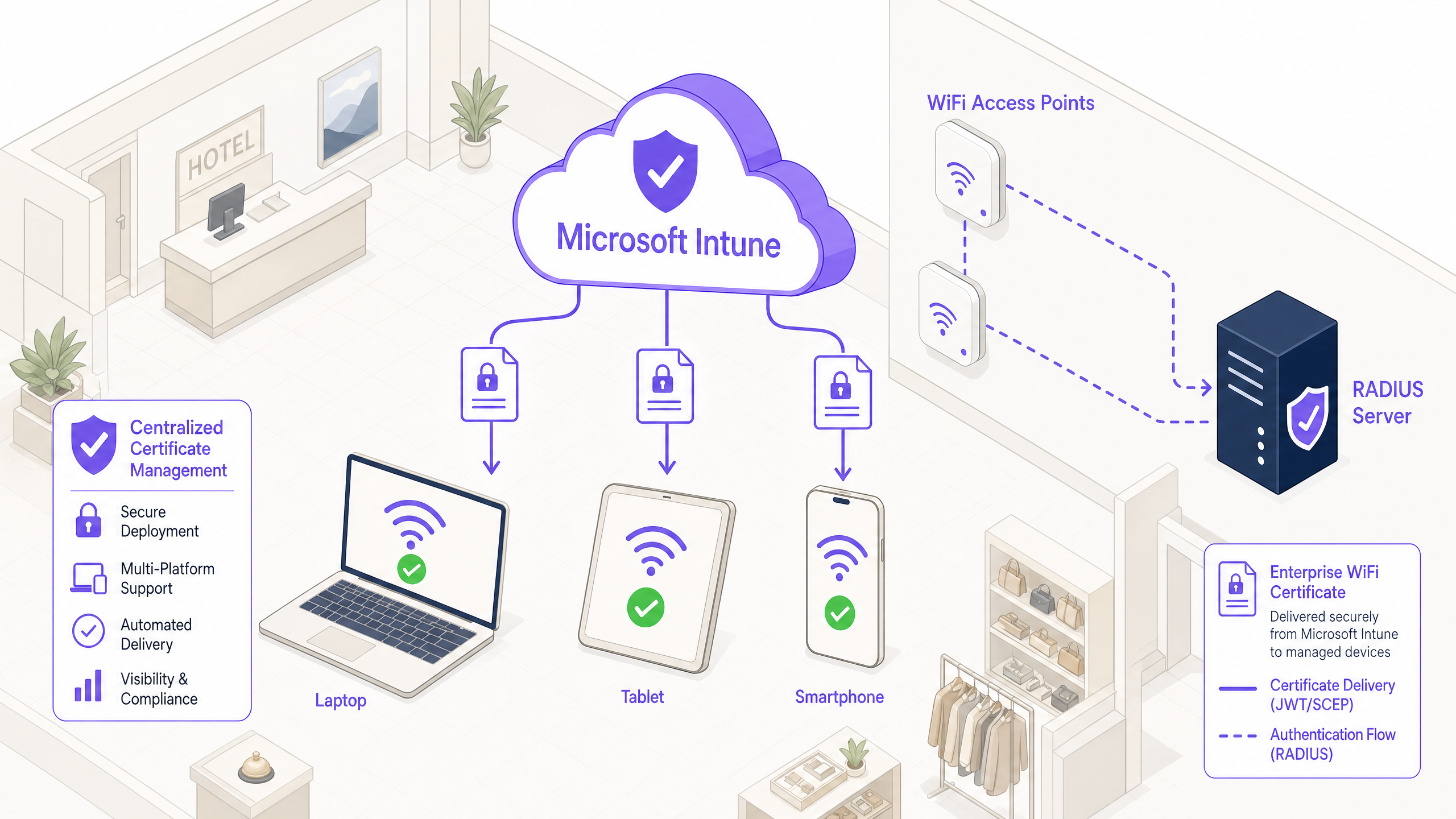
Resumen Ejecutivo
Para los líderes de TI empresariales que gestionan entornos a gran escala en Hostelería , Comercio Minorista o espacios del sector público, el acceso inalámbrico seguro es un requisito operativo básico. Depender de PSK (claves precompartidas) compartidas o de la autenticación de nombre de usuario/contraseña (PEAP-MSCHAPv2) expone la red al robo de credenciales, al phishing y a fallos de cumplimiento. El estándar de la industria para una seguridad WiFi empresarial robusta es 802.1X con EAP-TLS (Protocolo de Autenticación Extensible con Seguridad de la Capa de Transporte), que exige la autenticación mutua basada en certificados entre el dispositivo y la red.
Sin embargo, la principal barrera para la adopción de EAP-TLS ha sido históricamente la sobrecarga operativa de la gestión del ciclo de vida de los certificados. Microsoft Intune resuelve esto automatizando la entrega, renovación y revocación de certificados digitales a dispositivos gestionados a escala.
Esta referencia técnica detalla la arquitectura, las metodologías de implementación (SCEP vs PKCS) y los pasos de implementación necesarios para enviar certificados WiFi a través de Microsoft Intune. Proporciona una guía práctica para arquitectos de red e ingenieros de sistemas encargados de asegurar las comunicaciones corporativas mientras mantienen una estricta separación de las redes de visitantes, como las gestionadas por una plataforma de Guest WiFi .
Análisis Técnico Detallado: Arquitectura y Protocolos
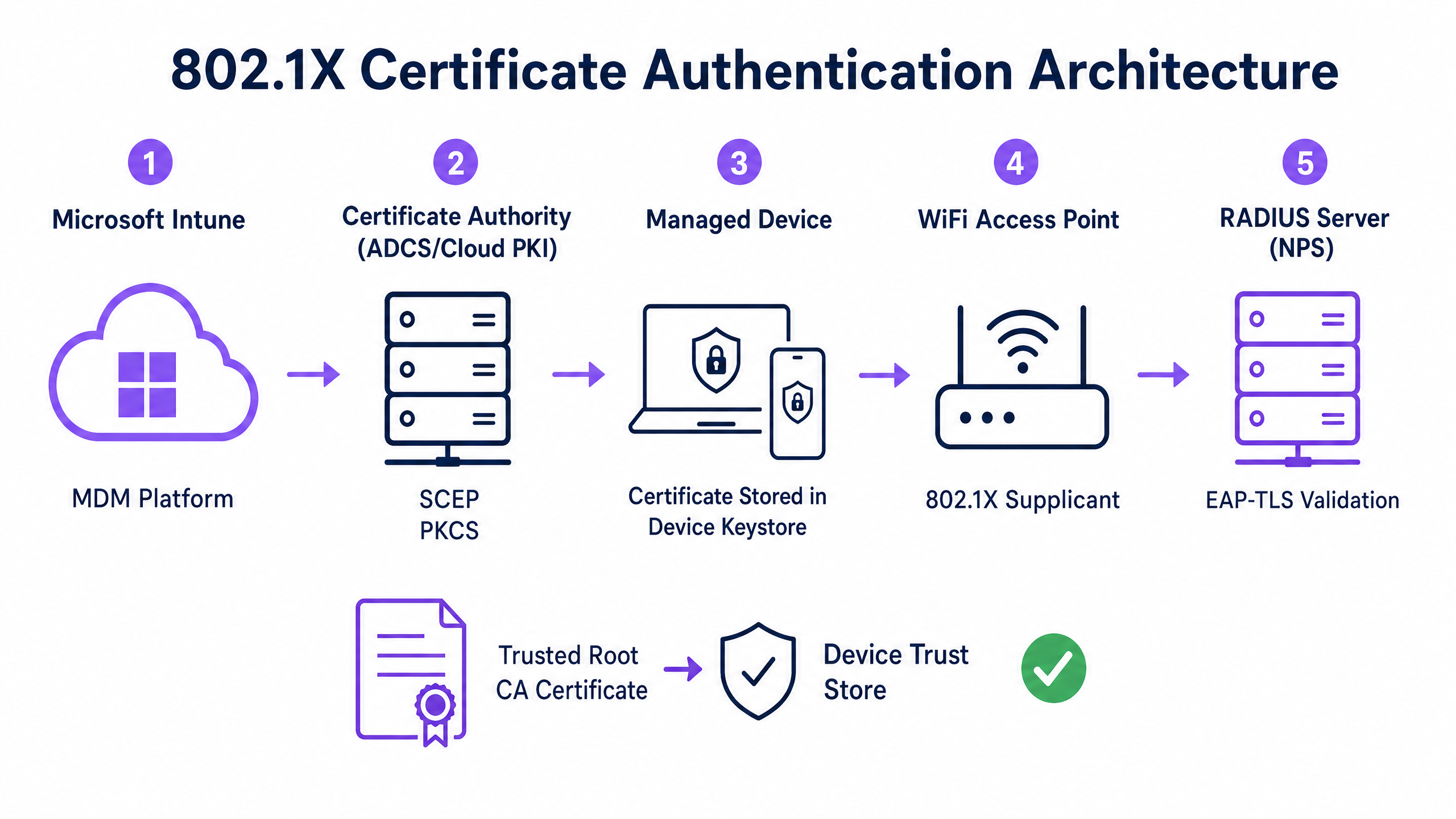
Para implementar la autenticación basada en certificados de manera efectiva, los equipos de TI deben comprender la interacción entre la plataforma de Mobile Device Management (MDM), la Public Key Infrastructure (PKI) y la capa de control de acceso a la red.
El Marco de Autenticación 802.1X
El estándar IEEE 802.1X define el control de acceso a la red basado en puertos. En un contexto inalámbrico, evita que un dispositivo transmita cualquier tráfico (que no sean tramas de autenticación EAP) hasta que se verifique su identidad. La arquitectura consta de tres componentes:
- Solicitante: El dispositivo cliente (portátil, smartphone, tablet) que solicita acceso a la red.
- Autenticador: El punto de acceso inalámbrico o controlador de LAN inalámbrica que bloquea el tráfico hasta que la autenticación se realiza correctamente.
- Servidor de Autenticación: El servidor RADIUS (Remote Authentication Dial-In User Service), como Microsoft Network Policy Server (NPS) o Cisco ISE, que valida las credenciales y autoriza el acceso.
EAP-TLS y Autenticación Mutua
EAP-TLS es el método EAP más seguro porque requiere autenticación mutua. El servidor RADIUS presenta su certificado al solicitante para demostrar que es la red corporativa legítima (evitando ataques de gemelo malvado), y el solicitante presenta su certificado de cliente al servidor RADIUS para demostrar que es un dispositivo o usuario autorizado.
Mecanismos de Implementación de Certificados de Intune: SCEP vs PKCS
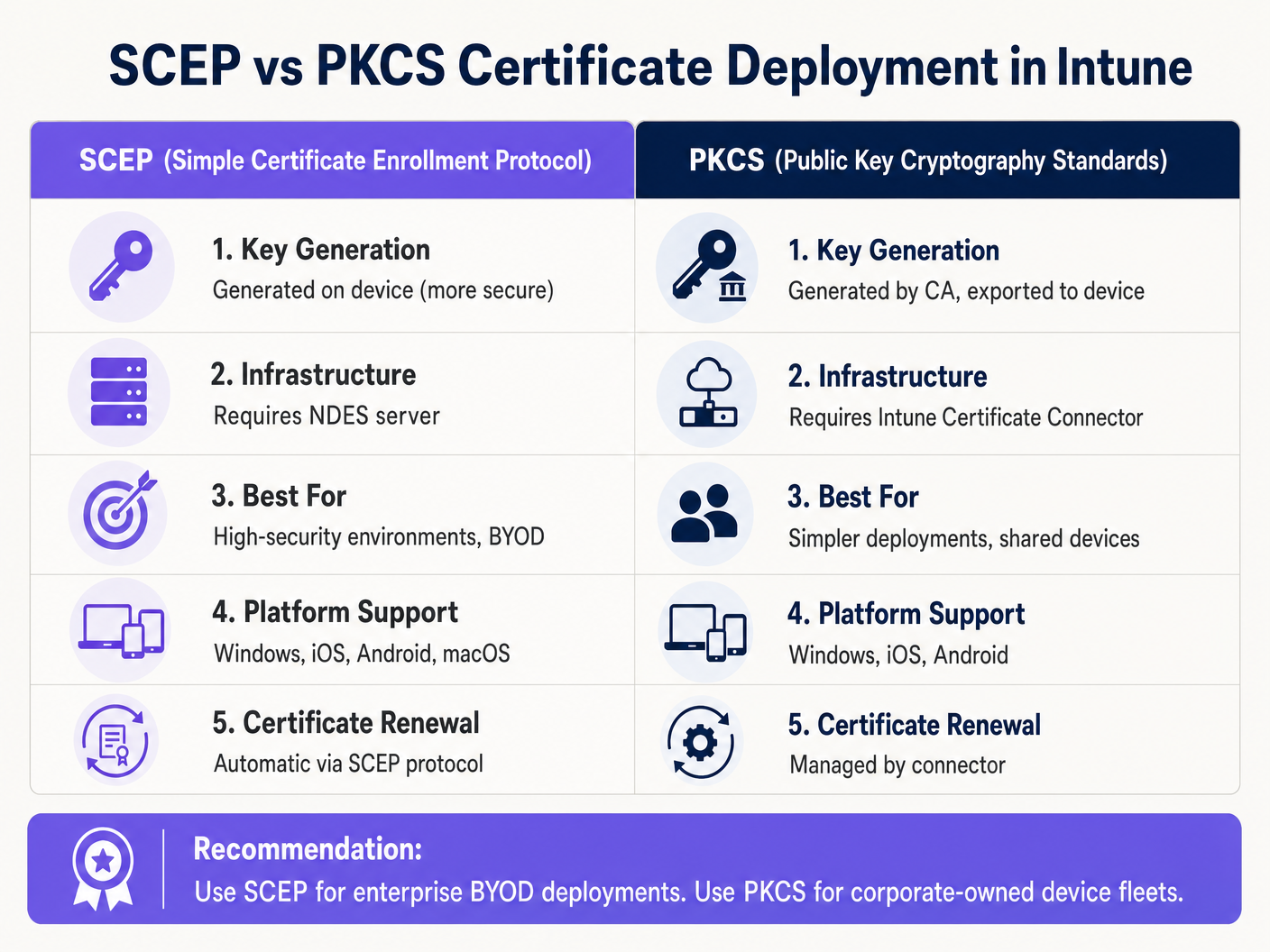
Microsoft Intune admite dos protocolos principales para implementar certificados de cliente en dispositivos. Seleccionar el mecanismo adecuado es una decisión arquitectónica crítica.
Protocolo Simple de Inscripción de Certificados (SCEP)
Con SCEP, la clave privada se genera directamente en el dispositivo cliente. El dispositivo crea una Solicitud de Firma de Certificado (CSR) y la envía a través de Intune al servidor Network Device Enrollment Service (NDES), que actúa como proxy para la infraestructura de Active Directory Certificate Services (ADCS). La CA emite el certificado, que se devuelve al dispositivo.
Dado que la clave privada nunca sale del dispositivo, SCEP se considera altamente seguro y es el enfoque recomendado para implementaciones BYOD (Bring Your Own Device) y arquitecturas de confianza cero.
Estándares de Criptografía de Clave Pública (PKCS)
Con PKCS, el Conector de Certificados de Intune solicita el certificado a la CA en nombre del dispositivo. La CA genera tanto el certificado público como la clave privada, que el conector luego entrega de forma segura al dispositivo a través de Intune.
Si bien PKCS simplifica los requisitos de infraestructura (no se necesita un servidor NDES), la clave privada se transmite a través de la red. Este modelo es generalmente aceptable para flotas de dispositivos propiedad de la empresa y totalmente gestionados, donde la plataforma MDM ya es un componente de alta confianza.
Guía de Implementación: Despliegue Paso a Paso
La implementación de certificados WiFi a través de Intune requiere una secuencia precisa. La implementación de perfiles fuera de orden es la causa más común de fallos en la implementación.
Paso 1: Preparar la Infraestructura de Clave Pública (PKI)
Ya sea utilizando ADCS local o una solución nativa de la nube como Microsoft Cloud PKI, la Autoridad de Certificación debe configurarse con las plantillas adecuadas.
- Uso de Clave: La plantilla debe incluir el OID de
Autenticación de Cliente(1.3.6.1.5.5.7.3.2). - Tamaño de Clave: Configure un tamaño de clave mínimo de 2048 bits (RSA) para alinearse con los estándares criptográficos modernos.
- Nombre del Sujeto: Para los certificados de usuario, el Nombre Alternativo del Sujeto (SAN) debe configurarse para usar el Nombre Principal de Usuario (UPN). Para los certificados de dispositivo, use el Azure AD Device ID.
Paso 2: Implementar el Certificado Raíz de Confianza
Antes de que un dispositivo pueda autenticarse, debe confiar en la CA que emitió el certificado del servidor RADIUS.
- Exporte el certificado de la CA Raíz (y cualquier certificado de CA intermedia) en
.cer"format. - En el centro de administración de Intune, navegue hasta Dispositivos > Perfiles de configuración > Crear perfil.
- Seleccione la plataforma y elija el tipo de perfil Certificado de confianza.
- Cargue el archivo
.cery asigne el perfil al dispositivo de destino o a los grupos de usuarios.
Nota: Este perfil debe aplicarse correctamente a los dispositivos antes de continuar con los siguientes pasos.
Paso 3: Implementar el perfil de certificado de cliente
Cree un perfil de certificado SCEP o PKCS para entregar el certificado de identidad al solicitante.
- Navegue hasta Dispositivos > Perfiles de configuración > Crear perfil.
- Seleccione la plataforma y elija Certificado SCEP o Certificado PKCS.
- Configure el formato del nombre del sujeto (Subject Name) y SAN según sus requisitos de identidad (Usuario vs. Dispositivo).
- Especifique el proveedor de almacenamiento de claves (KSP) — normalmente el Trusted Platform Module (TPM) para seguridad respaldada por hardware.
- Asigne el perfil a los mismos grupos objetivo del Paso 2.
Paso 4: Configurar el perfil de WiFi
El componente final vincula los certificados a la configuración de la red inalámbrica.
- Navegue hasta Dispositivos > Perfiles de configuración > Crear perfil.
- Seleccione la plataforma y elija el tipo de perfil Wi-Fi.
- Establezca el tipo de Wi-Fi en Enterprise e introduzca el SSID exacto.
- Establezca el tipo EAP en EAP-TLS.
- En Confianza del servidor, especifique el nombre exacto del certificado del servidor RADIUS y seleccione el perfil de certificado de raíz de confianza implementado en el Paso 2.
- En Autenticación de cliente, seleccione el perfil de certificado SCEP o PKCS implementado en el Paso 3.
- Asigne el perfil a los grupos de destino.
Mejores prácticas y recomendaciones estratégicas
Certificados de dispositivo vs. de usuario
Los arquitectos de red deben decidir si emitir certificados al dispositivo (autenticación de máquina) o al usuario (autenticación de usuario).
- Certificados de dispositivo: Permiten que la máquina se conecte a la red WiFi antes de que un usuario inicie sesión. Esto es fundamental para el aprovisionamiento inicial del dispositivo, el procesamiento de directivas de grupo y los restablecimientos de contraseña en la pantalla de inicio de sesión. Recomendado para dispositivos propiedad de la empresa.
- Certificados de usuario: Vinculan el acceso a la red a la identidad del individuo. Esto proporciona una auditoría granular y control de acceso basado en roles. Recomendado para escenarios BYOD.
Segmentación de red y acceso de invitados
Un principio de seguridad fundamental es la estricta separación lógica de la red corporativa 802.1X de las redes de acceso para visitantes o públicas. La infraestructura gestionada por Intune debe dedicarse exclusivamente a los dispositivos corporativos y al personal autenticado.
Para el acceso de visitantes, las organizaciones deben implementar un SSID Guest WiFi dedicado respaldado por un Captive Portal. Esto garantiza que los dispositivos no gestionados estén aislados, al tiempo que permite a la empresa capturar análisis de visitantes a través de una plataforma WiFi Analytics . Para obtener más información sobre cómo proteger la infraestructura DNS en ambos segmentos, revise nuestra guía sobre cómo Proteger su red con DNS y seguridad robustos .
Abordar el requisito de mapeo de certificados de NPS
Para las organizaciones que utilizan Microsoft Network Policy Server (NPS) con dispositivos unidos a Azure AD, Microsoft introdujo un cambio de configuración crítico. NPS ahora requiere un mapeo de certificados robusto.
Al utilizar certificados de dispositivo, el objeto de equipo en el Active Directory local debe tener su atributo altSecurityIdentities rellenado con los detalles del certificado (normalmente el X509IssuerSerialNumber). Los equipos de TI deben implementar un script programado o un flujo de trabajo basado en eventos para actualizar este atributo cuando Intune emita un nuevo certificado, de lo contrario, la autenticación fallará.
Solución de problemas y mitigación de riesgos
Cuando una implementación 802.1X falla, el problema casi siempre reside en la cadena de certificados o en la secuencia de perfiles de Intune.
Modos de fallo comunes
- Fallo silencioso del perfil de WiFi: Si el perfil de WiFi de Intune se aplica a un dispositivo antes de que el certificado de cliente se haya aprovisionado correctamente, el perfil de WiFi a menudo no se instalará o fallará silenciosamente. Siempre verifique la presencia del certificado en el almacén personal del dispositivo (
certmgr.mscen Windows) antes de solucionar problemas de configuración de WiFi. - Errores de validación de confianza del servidor: Si el dispositivo rechaza el servidor RADIUS, verifique que el nombre del servidor especificado en el perfil de WiFi de Intune coincida exactamente con el Subject Name o SAN del certificado del servidor RADIUS. Además, asegúrese de que toda la cadena de certificados (raíz e intermedia) esté presente en el almacén de autoridades de certificación raíz de confianza del dispositivo.
- Indisponibilidad de la lista de revocación de certificados (CRL): Si el servidor RADIUS no puede alcanzar el punto de distribución de CRL de la CA para verificar el estado del certificado de cliente, se denegará la autenticación. Asegúrese de que la URL de CRL esté altamente disponible y sea accesible desde el servidor RADIUS.
ROI e impacto empresarial
La transición a la autenticación WiFi basada en certificados a través de Intune ofrece importantes beneficios operativos y de seguridad.
- Mitigación de riesgos: Elimina el riesgo de robo de credenciales (credential harvesting), ataques pass-the-hash y acceso no autorizado a la red a través de PSK compartidas.
- Eficiencia operativa: Reduce los tickets de soporte de TI relacionados con la caducidad de contraseñas y los problemas de conectividad WiFi. La gestión automatizada del ciclo de vida significa que los certificados se renuevan de forma transparente sin intervención del usuario.
- Habilitación del cumplimiento: Satisface los requisitos regulatorios estrictos. Para entornos minoristas, aborda directamente los requisitos de PCI DSS para una sólida encriptación y autenticación inalámbrica. Para el sector público y la atención sanitaria, se alinea con los principios de acceso a la red de confianza cero (ZTNA).
Al aprovechar Microsoft Intune para la implementación de certificados, los equipos de TI pueden lograr una experiencia inalámbrica fluida y altamente segura que opera silenciosamente en segundo plano, permitiendo que la empresa se centre en las operaciones principales.
Definiciones clave
802.1X
An IEEE standard for port-based network access control that prevents unauthorized devices from accessing a LAN or WLAN until they successfully authenticate.
The foundational security protocol that replaces shared WiFi passwords with enterprise-grade authentication in corporate environments.
EAP-TLS
Extensible Authentication Protocol with Transport Layer Security. An authentication framework that requires both the client and the server to prove their identities using digital certificates.
The specific protocol configured in the Intune WiFi profile to enforce mutual certificate authentication, eliminating the risk of credential theft.
SCEP
Simple Certificate Enrollment Protocol. A mechanism where the client device generates its own private key and requests a certificate from the CA via an intermediary server.
The preferred deployment method for BYOD environments because the private key is never transmitted across the network.
PKCS
Public Key Cryptography Standards. In the context of Intune, a deployment method where the CA generates the private key and the Intune Connector securely delivers it to the device.
A simpler deployment architecture often used for corporate-owned device fleets, as it removes the need for an NDES server.
NDES
Network Device Enrollment Service. A Microsoft server role that acts as a proxy, allowing devices running without domain credentials to obtain certificates from an Active Directory Certificate Authority.
A mandatory infrastructure component when deploying certificates via SCEP in an on-premises ADCS environment.
RADIUS
Remote Authentication Dial-In User Service. A networking protocol that provides centralized Authentication, Authorization, and Accounting (AAA) management.
The server (like Microsoft NPS or Cisco ISE) that receives the authentication request from the WiFi access point and validates the device's certificate.
Supplicant
The software client on the end-user device (laptop, smartphone) that initiates the 802.1X authentication process.
The Intune WiFi profile configures the native OS supplicant (e.g., Windows WLAN AutoConfig) to use the correct certificates and EAP methods.
Certificate Revocation List (CRL)
A digitally signed list published by the Certificate Authority containing the serial numbers of certificates that have been revoked and should no longer be trusted.
Crucial for security compliance; the RADIUS server must check the CRL to ensure a connecting device hasn't been reported lost or stolen.
Ejemplos prácticos
A 400-location retail chain is deploying corporate-owned tablets for inventory management. The devices are fully managed via Intune and joined to Azure AD. They need immediate network access upon boot to sync inventory databases, before any specific user logs in. The network infrastructure uses Cisco ISE as the RADIUS server. What is the optimal certificate deployment strategy?
The IT team should implement PKCS device certificates.
- Configure a device certificate template on the CA.
- Deploy the Root CA certificate to the tablets via Intune.
- Create a PKCS certificate profile in Intune, setting the Subject Name format to the Azure AD Device ID ({{AAD_Device_ID}}).
- Create an Enterprise WiFi profile specifying EAP-TLS, referencing the ISE server's certificate name and the deployed PKCS profile.
- Assign all profiles to the device group containing the tablets.
A large teaching hospital allows medical staff to use their personal smartphones (BYOD) to access clinical scheduling applications. The devices are enrolled in Intune via a Work Profile. Security policy mandates that no corporate credentials be stored on personal devices, and network access must be revoked immediately if a device is compromised. How should the WiFi authentication be designed?
The hospital must implement SCEP user certificates combined with Intune Compliance Policies.
- Deploy an NDES server to proxy requests to the CA.
- Create a SCEP user certificate profile in Intune, with the SAN configured to the User Principal Name ({{UserPrincipalName}}).
- Create an Intune Compliance Policy requiring a minimum OS version, an active screen lock, and no jailbreak/root access.
- Configure the CA to publish a highly available Certificate Revocation List (CRL).
- Configure the RADIUS server to strictly enforce CRL checking on every authentication attempt.
Preguntas de práctica
Q1. Your organisation is migrating from PEAP-MSCHAPv2 (username/password) to EAP-TLS for the corporate WiFi. During the pilot phase, several Windows 11 laptops receive the Intune configuration profiles successfully but fail to connect to the network. Reviewing the Windows Event Logs shows Event ID 20271 indicating the RADIUS server certificate was rejected. What is the most likely cause?
Sugerencia: Consider the chain of trust required for mutual authentication.
Ver respuesta modelo
The devices lack the Trusted Root CA certificate that issued the RADIUS server's certificate. In EAP-TLS, the device must validate the RADIUS server's identity. The IT team must ensure the 'Trusted certificate' profile containing the Root CA (and any Intermediate CAs) is deployed to the devices via Intune and successfully installed before the WiFi profile attempts to connect.
Q2. A public sector venue is deploying 802.1X for staff devices using Intune and PKCS certificates. They also operate a separate visitor network managed by a Guest WiFi platform. An auditor notes that if a staff laptop is stolen, the certificate remains valid for 12 months. How should the network architect address this risk?
Sugerencia: How does the authentication server know a certificate is no longer valid before it expires?
Ver respuesta modelo
The architect must implement a robust Certificate Revocation workflow. First, ensure the CA publishes a Certificate Revocation List (CRL) to a highly available distribution point. Second, configure the RADIUS server (e.g., NPS) to mandate CRL checking during every authentication attempt. Finally, establish an Intune operational procedure to explicitly revoke the certificate of any device marked as lost or stolen, which updates the CRL and blocks network access.
Q3. You are designing the Intune deployment for a fleet of shared kiosk devices in a retail environment. These devices reboot daily and must immediately connect to the corporate network to download updates before any user interacts with them. Should you deploy User certificates or Device certificates, and what Subject Alternative Name (SAN) format should be used?
Sugerencia: Consider the state of the device immediately after a reboot.
Ver respuesta modelo
You must deploy Device certificates. Because the kiosks need network access before a user logs in, a User certificate would be unavailable at boot time. The Subject Alternative Name (SAN) in the Intune certificate profile should be configured to use the Azure AD Device ID ({{AAD_Device_ID}}) or the device's fully qualified domain name, allowing the RADIUS server to authenticate the specific hardware asset.
Continúe leyendo esta serie
PSK por dispositivo por fabricante: comparación de iPSK, DPSK, MPSK y PPSK (y compatibilidad con WPA3)
Una comparación exhaustiva de las implementaciones de PSK por dispositivo en Cisco Meraki, HPE Aruba, Ruckus, Juniper Mist, Extreme, Fortinet y Ubiquiti UniFi. Descubra cómo afecta WPA3-SAE a las estrategias de claves por dispositivo y cuándo implementar modos de transición en lugar de migrar a 802.1X.
¿Qué es la autenticación de dirección MAC? Cuándo usarla y cuándo evitarla
Esta guía de referencia técnica autorizada cubre la autenticación de dirección MAC en entornos empresariales de WiFi: cómo funciona la autenticación MAC basada en RADIUS en la Capa 2, sus vulnerabilidades de seguridad inherentes (incluyendo la suplantación de MAC y el impacto de la aleatorización de MAC a nivel de SO), y los contextos operativos precisos donde sigue siendo una herramienta válida para gestionar dispositivos IoT y sin interfaz. Proporciona una guía de implementación práctica para gerentes de TI y arquitectos de red en hostelería, comercio minorista, atención médica y recintos del sector público, con ejemplos prácticos del mundo real, marcos de decisión y contexto de integración para la plataforma de WiFi para invitados y análisis de Purple.
Cómo configurar WiFi empresarial en iOS y macOS con 802.1X
Esta guía autorizada proporciona a los líderes de TI sénior pasos prácticos para implementar WiFi empresarial 802.1X en dispositivos iOS y macOS. Cubre la autenticación basada en certificados (EAP-TLS), los perfiles de configuración de MDM y la integración de la arquitectura para proteger las redes corporativas al tiempo que apoya las iniciativas BYOD.