
Como Configurar WPA2-Enterprise em Plataformas Comuns de Ponto de Acesso (Cisco, Aruba, Ubiquiti)
Este guia de referência técnica oferece a profissionais de TI sêniores e arquitetos de rede um passo a passo definitivo e específico do fornecedor para a implantação de WPA2-Enterprise em plataformas Cisco, Aruba e Ubiquiti. Ele detalha a arquitetura, integração RADIUS, requisitos de conformidade e cenários de implantação reais em ambientes corporativos e de eventos.
Ouça este guia
Ver transcrição do podcast
Resumo Executivo
A implantação de WPA2-Enterprise não é mais uma atualização de segurança opcional; é a base fundamental para qualquer rede sem fio corporativa. Para gerentes de TI e arquitetos de rede que operam em ambientes de hospitalidade, varejo e setor público, a mudança de chaves pré-compartilhadas para autenticação 802.1X é impulsionada por mandatos de conformidade rigorosos, incluindo PCI DSS e GDPR. Este guia de referência técnica fornece etapas de configuração acionáveis e específicas da plataforma para os três fornecedores dominantes de pontos de acesso: Cisco, Aruba e Ubiquiti.
Ao fazer a transição para WPA2-Enterprise, as organizações eliminam os riscos associados a credenciais compartilhadas, obtêm trilhas de auditoria granulares por sessão e permitem a segmentação dinâmica da rede. Quando implementada corretamente, esta arquitetura não apenas protege o perímetro corporativo, mas também se integra perfeitamente a redes de visitantes gerenciadas por uma plataforma abrangente de Guest WiFi . As seções a seguir detalham a arquitetura técnica, as etapas de implantação e as estratégias de mitigação de riscos necessárias para um lançamento bem-sucedido.
Análise Técnica Aprofundada
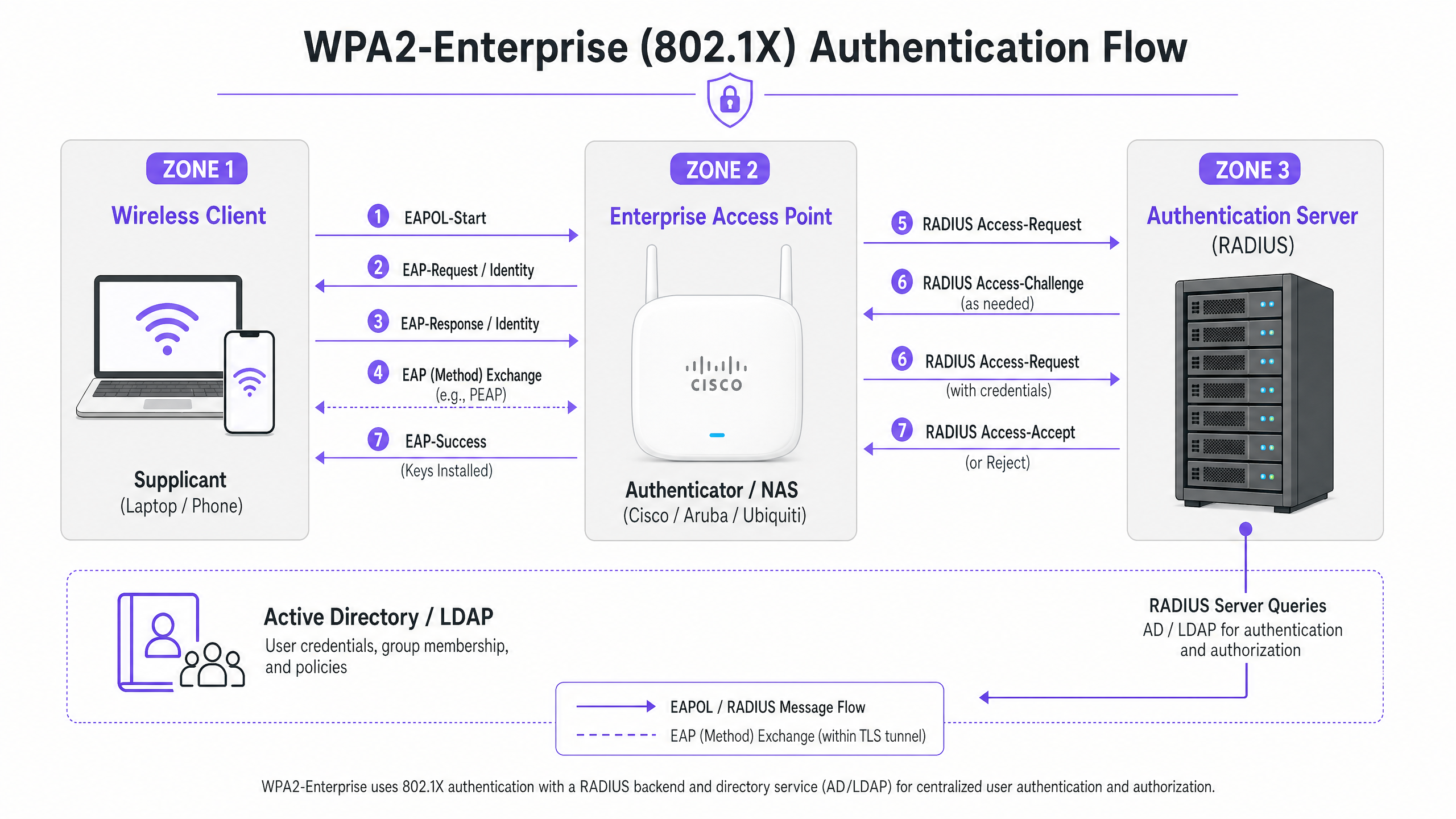
WPA2-Enterprise depende do padrão IEEE 802.1X para fornecer controle de acesso à rede baseado em porta. Ao contrário do WPA2-Personal, que usa uma Chave Pré-Compartilhada (PSK) estática, o WPA2-Enterprise exige que cada suplicante (dispositivo cliente) se autentique individualmente contra um Servidor de Autenticação externo (geralmente um servidor RADIUS) antes que o acesso à rede seja concedido.
A arquitetura consiste em três componentes principais:
- O Suplicante: O dispositivo cliente que tenta se conectar à rede.
- O Autenticador: O ponto de acesso corporativo ou controlador de LAN sem fio (por exemplo, Cisco WLC, Aruba Mobility Controller) que facilita o processo de autenticação.
- O Servidor de Autenticação: O servidor RADIUS de backend (por exemplo, Cisco ISE, Aruba ClearPass, Windows NPS) que valida as credenciais contra um serviço de diretório como Active Directory ou LDAP.
O Processo de Troca EAP
O processo de autenticação utiliza o Extensible Authentication Protocol (EAP) encapsulado sobre LAN (EAPOL). O autenticador atua puramente como um proxy de passagem durante a fase inicial. Uma vez que o servidor RADIUS valida as credenciais, ele retorna uma mensagem Access-Accept ao autenticador, que então deriva as chaves de criptografia necessárias para proteger a sessão sem fio.
A escolha do método EAP é crítica. PEAP-MSCHAPv2 é o método mais amplamente implantado, pois suporta a autenticação de senha do Active Directory legado, ao mesmo tempo em que protege a troca dentro de um túnel TLS estabelecido pelo certificado do servidor. No entanto, para máxima segurança, EAP-TLS é recomendado. EAP-TLS requer autenticação mútua de certificado — tanto o servidor quanto o cliente devem apresentar certificados válidos — o que mitiga o roubo de credenciais, mas exige uma robusta Infraestrutura de Chave Pública (PKI) ou solução de Gerenciamento de Dispositivos Móveis (MDM) para distribuição de certificados.
Guia de Implementação
Os princípios fundamentais da configuração de WPA2-Enterprise são consistentes entre os fornecedores, mas a execução varia com base na interface de gerenciamento e no ecossistema.
Cisco (Catalyst e Meraki)
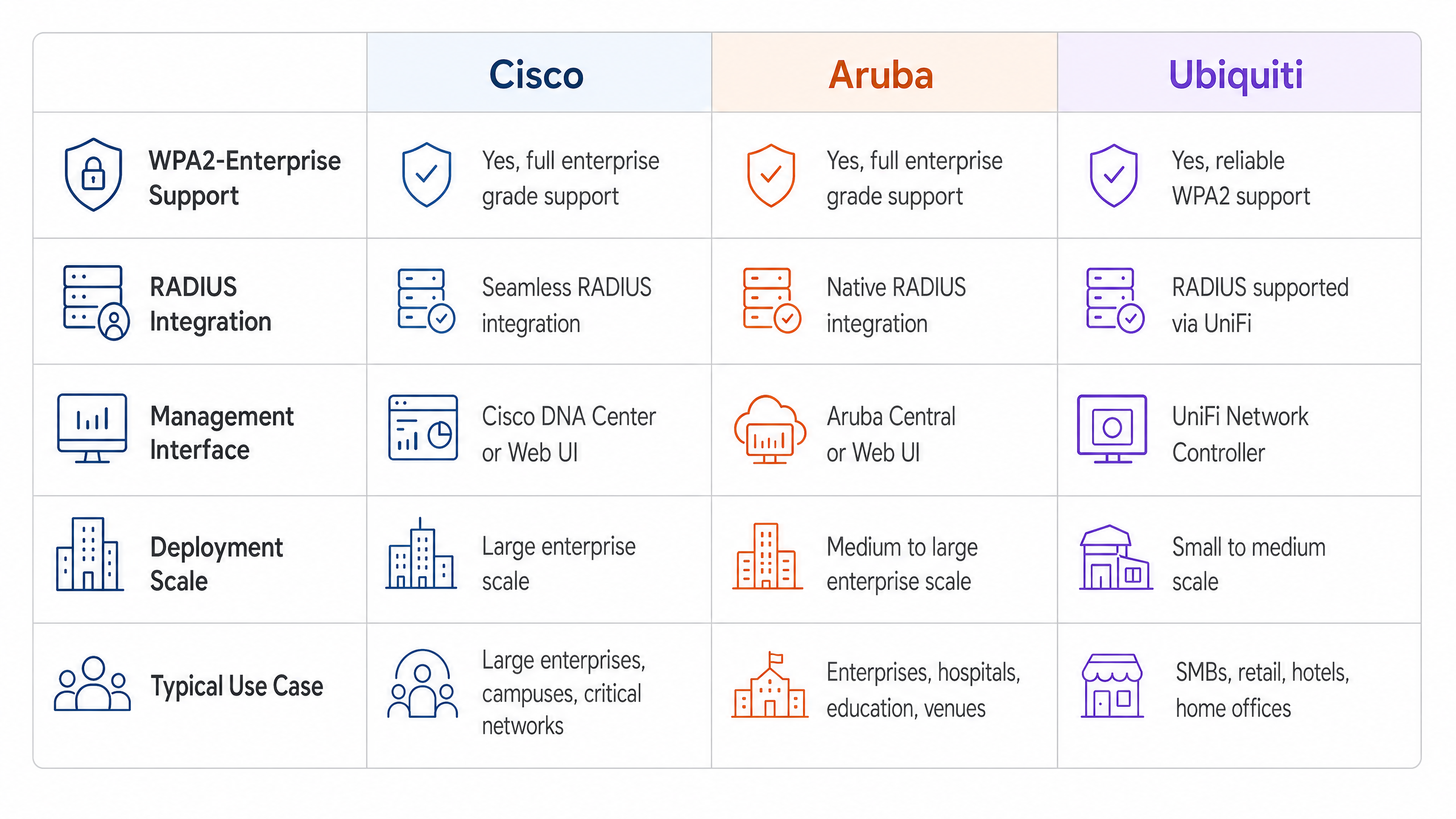
Os ambientes Cisco geralmente escalam de implantações de campus para redes corporativas distribuídas.
Cisco Catalyst (WLC/DNA Center):
- Definir Servidores RADIUS: Navegue até a aba Segurança, selecione AAA e configure os servidores RADIUS de Autenticação e Contabilidade primário e secundário. Certifique-se de que o segredo compartilhado corresponda à configuração do servidor RADIUS.
- Criar Perfil WLAN: Na aba WLANs, crie um novo perfil.
- Configurar Políticas de Segurança: Defina a Segurança da Camada 2 para WPA+WPA2 e habilite 802.1X como o método de Gerenciamento de Chaves de Autenticação (AKM).
- Vincular Servidores AAA: Mapeie os servidores RADIUS previamente definidos ao perfil WLAN. Habilite 'AAA Override' se a atribuição dinâmica de VLAN for necessária.
Cisco Meraki:
- Configuração de SSID: No Meraki Dashboard, navegue até Wireless > SSIDs e selecione a rede de destino.
- Controle de Acesso: Defina o requisito de associação para 'WPA2-Enterprise com meu servidor RADIUS'.
- Configurações RADIUS: Insira os endereços IP, porta de autenticação (geralmente 1812), porta de contabilidade (1813) e segredos compartilhados para sua infraestrutura RADIUS. O dashboard da Meraki inclui uma ferramenta de teste integrada para verificar a conectividade RADIUS antes da implantação.
Redes Aruba
Aruba é a plataforma dominante em Hospitalidade e ensino superior, alavancando fortemente seu ClearPass Policy Manager para controle de acesso avançado.
- Definir Perfil AAA: No Aruba Central ou na UI do Mobility Controller, crie um novo perfil AAA. Este perfil dita como a autenticação é tratada.
- Configurar Grupo de Servidores RADIUS: Adicione seus servidores RADIUS a um grupo de servidores, especificando regras de failover e valores de tempo limite. Anexe este grupo ao perfil AAA.
- Configuração de AP Virtual: Crie ou modifique um perfil de AP Virtual (SSID). Defina o tipo de segurança para WPA2-Enterprise.
- Anexar Perfis: Vincule o perfil AAA ao perfil de AP Virtual. Se estiver usando ClearPass, certifique-se de que a porta RADIUS CoA (Change of Authorization) (3799) seja permitida através de quaisquer firewalls intermediários para permitir a aplicação dinâmica de políticas.
Ubiquiti (UniFi)
Ubiquiti oferece uma solução econômica para ambientes de Varejo e SMB via UniFi Network Controller.
- Perfil RADIUS Criação: Navegue até Configurações > Perfis > RADIUS. Crie um novo perfil com o endereço IP, portas (1812/1813) e segredo compartilhado do seu servidor RADIUS externo.
- Configuração do SSID: Vá para Configurações > WiFi e crie uma nova rede sem fio.
- Configurações de Segurança: Selecione 'WPA2 Enterprise' como protocolo de segurança e anexe o perfil RADIUS recém-criado.
- Nota sobre a Infraestrutura RADIUS: Ao contrário dos controladores empresariais que podem oferecer RADIUS localizável e resiliente, o UniFi depende fortemente de servidores externos (por exemplo, FreeRADIUS, Windows NPS). Garanta conectividade confiável entre os APs UniFi e o backend RADIUS.
Melhores Práticas
Para garantir uma implantação resiliente e segura, os arquitetos de rede devem aderir a várias práticas recomendadas críticas:
- Impor Validação de Certificado: Os dispositivos cliente devem ser explicitamente configurados para validar o certificado do servidor RADIUS contra uma Autoridade Certificadora (CA) confiável. Não fazer isso expõe a rede a ataques de 'Evil Twin', onde pontos de acesso maliciosos coletam credenciais de usuário.
- Implementar Redundância RADIUS: O servidor RADIUS está no caminho crítico para o acesso à rede. Sempre configure servidores RADIUS primários e secundários. Em ambientes distribuídos, considere soluções RADIUS hospedadas em nuvem para alta disponibilidade.
- Aproveitar Atribuição Dinâmica de VLAN: Use atributos RADIUS (por exemplo,
Tunnel-Pvt-Group-ID) para atribuir dinamicamente usuários a VLANs específicas com base em sua associação a grupos do Active Directory. Isso impõe a segmentação da rede sem transmitir múltiplos SSIDs. - Habilitar Contabilidade RADIUS: Não configure apenas a autenticação. A contabilidade RADIUS (Porta 1813) é obrigatória para gerar os rastros de auditoria exigidos pelos frameworks de conformidade.
- Proteger a Borda da Rede: Leia mais sobre como proteger sua infraestrutura em nosso guia sobre como Proteger Sua Rede com DNS e Segurança Fortes .
Solução de Problemas e Mitigação de Riscos
Mesmo com um planejamento cuidadoso, as implantações podem encontrar problemas. Os modos de falha comuns incluem:
- Incompatibilidade de Segredo Compartilhado: Um simples erro de digitação no segredo compartilhado RADIUS resultará em falhas de autenticação silenciosas. Verifique os segredos tanto no autenticador quanto no servidor RADIUS.
- Erros de Sincronização de Tempo: A validação de certificado requer cronometragem precisa. Garanta que todos os APs, controladores e servidores RADIUS estejam sincronizados via uma fonte NTP confiável.
- Firewall Bloqueando Tráfego RADIUS: Garanta que as portas UDP 1812 (Autenticação) e 1813 (Contabilidade) estejam abertas entre os APs/Controladores e o servidor RADIUS. Se estiver usando CoA, garanta que a UDP 3799 esteja aberta.
- Má Configuração do Suplicante Cliente: O problema mais comum é o dispositivo cliente não estar configurado para confiar na CA que emitiu o certificado do servidor RADIUS. Use MDM ou Política de Grupo para enviar os perfis sem fio corretos para dispositivos corporativos.
Para uma compreensão mais ampla dos protocolos de autenticação, revise Como Configurar a Autenticação WiFi 802.1X: Um Guia Passo a Passo .
ROI e Impacto nos Negócios
A transição para WPA2-Enterprise oferece um valor de negócio significativo além das melhorias de segurança brutas.
- Mitigação de Riscos: A eliminação de senhas compartilhadas reduz drasticamente a superfície de ataque e o risco de uma violação de dados, que pode acarretar penalidades financeiras e de reputação severas.
- Eficiência Operacional: A integração da autenticação WiFi com provedores de identidade existentes (como o Active Directory) automatiza o processo de integração e desligamento de funcionários. Quando um funcionário sai, desabilitar sua conta AD revoga instantaneamente seu acesso WiFi.
- Habilitação de Conformidade: Trilhas de auditoria granulares e autenticação por usuário são pré-requisitos para a conformidade com PCI DSS e ISO 27001.
- Infraestrutura Unificada: Ao usar a atribuição dinâmica de VLAN, os locais podem executar tráfego corporativo, de back-of-house e IoT com segurança sobre o mesmo hardware físico usado para acesso de convidados. A rede de convidados pode então ser monetizada e analisada usando uma solução dedicada de WiFi Analytics , maximizando o retorno sobre o investimento em hardware. Garanta que você tenha a largura de banda necessária entendendo O Que É uma Linha Dedicada? Internet Empresarial Dedicada .
Definições principais
WPA2-Enterprise
A security protocol for wireless networks that uses IEEE 802.1X to provide per-user authentication via an external server, rather than a single shared password.
The mandatory standard for securing corporate and operational WiFi networks in enterprise environments.
802.1X
An IEEE standard for port-based network access control that provides an authentication mechanism to devices wishing to attach to a LAN or WLAN.
The underlying framework that makes WPA2-Enterprise work.
RADIUS
Remote Authentication Dial-In User Service; a networking protocol that provides centralized Authentication, Authorization, and Accounting (AAA) management.
The server component that validates user credentials against a database like Active Directory.
Supplicant
The software client on a device (laptop, smartphone) that communicates with the authenticator to request network access.
The endpoint that must be configured with the correct EAP settings and certificate trust.
Authenticator
The network device (Access Point or Switch) that facilitates the authentication process by passing messages between the supplicant and the authentication server.
The Cisco, Aruba, or Ubiquiti hardware managed by the IT team.
EAP (Extensible Authentication Protocol)
An authentication framework frequently used in wireless networks and point-to-point connections, supporting multiple authentication methods.
The protocol used to encapsulate the credential exchange.
PEAP-MSCHAPv2
An EAP method that encapsulates the MSCHAPv2 password exchange within a secure TLS tunnel established by the server's certificate.
The most common deployment method as it balances security with the convenience of using standard AD passwords.
Dynamic VLAN Assignment
The process where a RADIUS server instructs the access point to place an authenticated user onto a specific VLAN based on their identity or group membership.
Crucial for network segmentation, allowing different user types to share the same physical APs securely.
Exemplos práticos
A 200-room hotel needs to deploy secure WiFi for its back-of-house staff (housekeeping, management) using existing Aruba access points, while keeping the staff traffic strictly separated from the guest network.
The IT team configures a single 'Hotel_Staff' SSID using WPA2-Enterprise. They integrate Aruba ClearPass with the hotel's Active Directory. In ClearPass, they configure enforcement policies: if a user is in the 'Management' AD group, ClearPass returns a RADIUS attribute assigning them to VLAN 10 (Management Network). If the user is in the 'Housekeeping' group, they are assigned to VLAN 20 (Operations Network). The APs are configured to enforce these dynamic VLAN assignments.
A national retail chain with 50 locations uses Cisco Meraki. They need to secure their point-of-sale (POS) terminals over WiFi to meet PCI DSS compliance, replacing their old WPA2-Personal setup.
The network architect deploys a cloud-hosted RADIUS service to avoid deploying local servers at each store. In the Meraki dashboard, they configure the 'Retail_POS' SSID for WPA2-Enterprise and point it to the cloud RADIUS IPs. They generate unique client certificates for each POS terminal via their MDM platform and configure the RADIUS server to require EAP-TLS. The Meraki APs are configured to send both RADIUS Authentication and Accounting data to the cloud service.
Questões práticas
Q1. Your organisation is deploying WPA2-Enterprise using Ubiquiti UniFi access points. During testing, clients can connect successfully, but the compliance team notes that there are no logs of user session durations or data usage in the central logging system. What is the most likely configuration omission?
Dica: Authentication grants access, but another process tracks usage.
Ver resposta modelo
The RADIUS Accounting port (1813) has not been configured or is being blocked by a firewall. While Authentication (port 1812) is working, Accounting must be explicitly enabled to generate session audit trails.
Q2. A user reports they cannot connect to the corporate WPA2-Enterprise network. You check the Cisco WLC logs and see the AP is passing the EAP-Request, but the RADIUS server logs show an 'Access-Reject' due to 'Unknown CA'. What needs to be fixed?
Dica: Think about the trust relationship established during the TLS tunnel setup.
Ver resposta modelo
The client device's supplicant is not configured to trust the Certificate Authority (CA) that issued the RADIUS server's certificate. The client is terminating the connection to prevent a potential Evil Twin attack. The CA certificate must be pushed to the client device.
Q3. You are designing a network for a stadium. You need to support corporate staff, ticketing terminals, and guest WiFi. How should you architect the SSIDs to minimize RF interference while maintaining security?
Dica: Avoid broadcasting an SSID for every single use case.
Ver resposta modelo
Deploy a maximum of two SSIDs. One SSID for Guests using a captive portal (like Purple). A second SSID for all corporate operations using WPA2-Enterprise. Use Dynamic VLAN Assignment via the RADIUS server to segment the corporate staff onto one VLAN and the ticketing terminals onto another based on their authentication credentials.
Continue a ler esta série
PSK por Dispositivo por Fabricante: Comparativo entre iPSK, DPSK, MPSK e PPSK (e Suporte a WPA3)
Uma comparação abrangente das implementações de PSK por dispositivo no Cisco Meraki, HPE Aruba, Ruckus, Juniper Mist, Extreme, Fortinet e Ubiquiti UniFi. Saiba como o WPA3-SAE impacta as estratégias de chaves por dispositivo e quando implantar modos de transição em vez de migrar para o 802.1X.
O Que É Autenticação por Endereço MAC? Quando Usar e Quando Evitar
Este guia de referência técnica abrangente aborda a autenticação por endereço MAC em ambientes de WiFi corporativos — como a autenticação MAC baseada em RADIUS funciona na Camada 2, suas vulnerabilidades de segurança inerentes (incluindo spoofing de MAC e o impacto da randomização de MAC em nível de OS), e os contextos operacionais precisos onde ela permanece uma ferramenta válida para gerenciar dispositivos IoT e sem interface. Ele fornece orientação de implantação acionável para gerentes de TI e arquitetos de rede em locais de hotelaria, varejo, saúde e setor público, com exemplos práticos do mundo real, estruturas de decisão e contexto de integração para a plataforma de guest WiFi e análise da Purple.
Como Configurar WiFi Corporativo em iOS e macOS com 802.1X
Este guia autorizado fornece aos líderes de TI sêniores passos acionáveis para implantar WiFi corporativo 802.1X em dispositivos iOS e macOS. Ele aborda autenticação baseada em certificado (EAP-TLS), perfis de configuração MDM e integração de arquitetura para proteger redes corporativas, ao mesmo tempo que suporta iniciativas BYOD.