When your standard router struggles to keep pace, a dedicated wifi ap for home is the key to achieving stable, far-reaching, and reliable internet. It operates by offloading the wireless processing from your main router, acting as a powerful, specialised antenna for all your devices.
When Your Router Is No Longer Enough
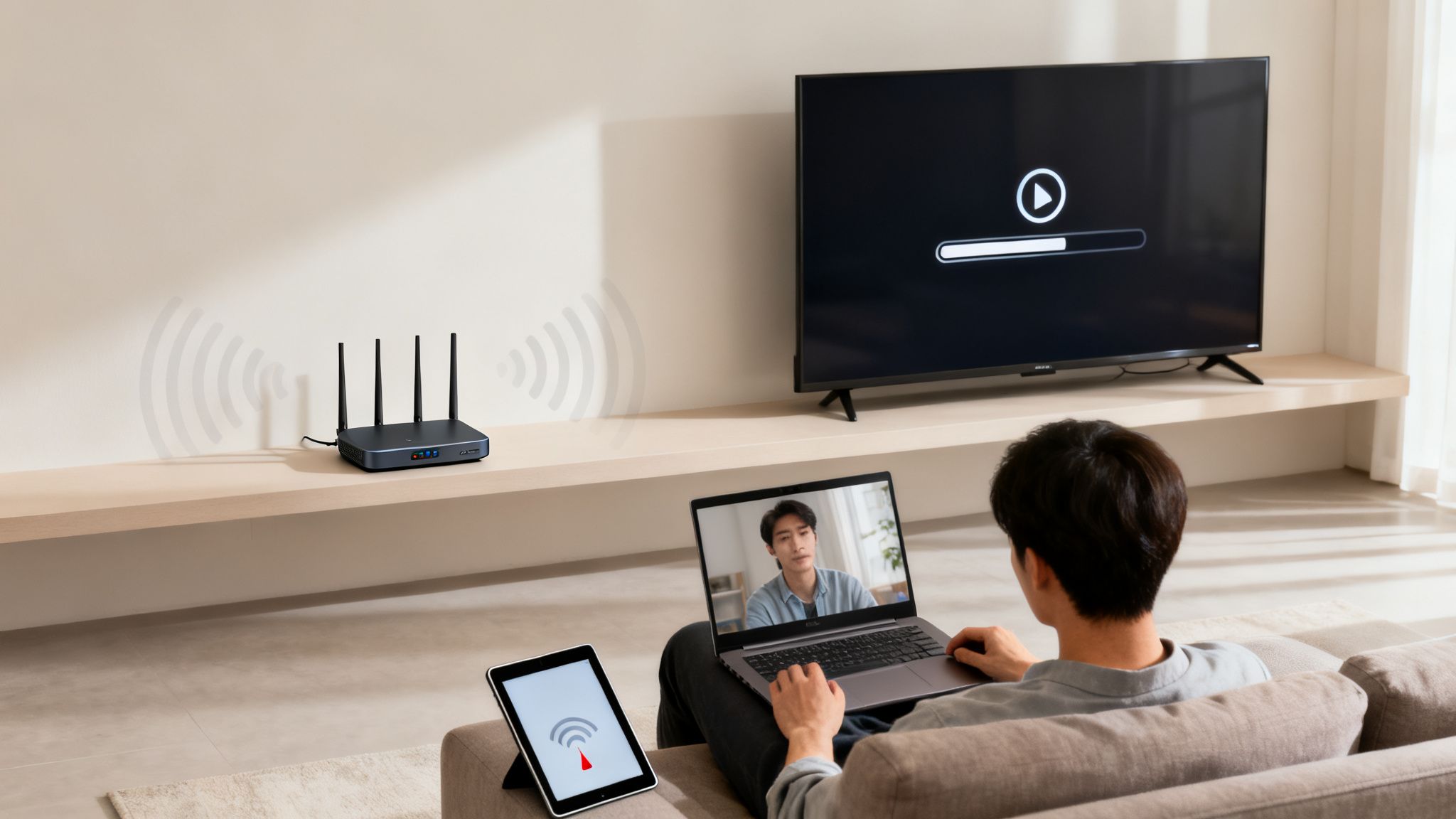
That single router provided by your internet service provider is likely struggling. You are paying for fast broadband, yet the reality inside your home consists of buffering video, dropped work calls in the upstairs office, and frustrating dead zones in the back garden.
If this sounds familiar, it is a clear indication that your network is overloaded.
In a modern home equipped with smart devices, laptops, and 4K TVs, the all-in-one router becomes a bottleneck. It attempts to function as a modem, router, network switch, and wireless access point simultaneously. This multi-purpose approach often results in compromised performance, particularly regarding Wi-Fi.
Pinpointing Your Network's Pain Points
This issue has only become more pronounced as UK homes have adopted more connected technology. The demand for robust Wi-Fi has surged, with over 63% of households now operating smart thermostats, cameras, and assistants. Although average broadband speeds are reaching 100Mbps, a significant 32% of homes still experience dropouts due to device congestion.
This is precisely where understanding your hardware options becomes critical. You do not always need to replace your entire setup; often, you simply need to augment your existing infrastructure.
- Standard Router: The familiar all-in-one unit. It is adequate for smaller homes with a limited number of devices, but it quickly reaches its limits, offering poor coverage and struggling with high connection volumes.
- Mesh System: A set of matching nodes that completely replace your router's Wi-Fi, creating a single, seamless network. It is a user-friendly method to eliminate dead zones, though it lacks the granular control and peak performance of dedicated access points.
- Wi-Fi Access Point (AP): A specialised device designed to excel at a single task: managing wireless connections. It connects directly to your existing router via an Ethernet cable and is engineered to handle dozens of connections flawlessly, delivering enterprise-grade performance and reliability.
Router vs Mesh vs Access Point (AP) At A Glance
To provide further clarity, here is a brief comparison to help you determine the most suitable hardware for your requirements.
Selecting the correct hardware requires balancing ease of use with the necessary level of performance and control.
By offloading all wireless tasks to a dedicated Wi-Fi AP, you allow your router to focus on its primary function: managing wired traffic and your internet connection. This division of labour is key to unlocking the stable, high-performance network you expect.
While some may initially consider a Wi-Fi extender, it is important to understand their limitations. If you are curious about their effectiveness, you may find our guide on whether Wi-Fi extenders work useful. For any demanding home network, a dedicated access point provides a significantly more robust and stable connection.
Decoding The Specs: What Really Matters
Reviewing a product page for a home Wi-Fi AP can feel like deciphering a foreign language. You are presented with a wall of acronyms—MU-MIMO, WPA3, PoE—making it difficult to distinguish essential features from marketing jargon. Let us cut through the terminology and focus on the specifications that genuinely impact your daily internet experience.
These features are not merely bullet points on a box; they directly translate into a smoother, faster, and more secure network for everything from professional video calls to streaming 4K media. Understanding them is key to purchasing hardware that effectively resolves your connectivity issues.
WiFi 6 And Beyond
One of the most prominent terms you will encounter is WiFi 6 (802.11ax). While it certainly offers faster potential speeds, its true advantage in a busy, modern home is efficiency. Consider it less like raising the speed limit and more like adding extra lanes to a motorway.
WiFi 6 is engineered from the ground up to handle dozens of devices simultaneously without degrading performance. It utilises sophisticated technology called OFDMA (Orthogonal Frequency-Division Multiple Access) to divide a wireless channel into smaller segments. This allows it to communicate with multiple devices—such as your smartphone, smart thermostat, and laptop—concurrently, rather than forcing them into a queue. You can learn more about this in our deep dive into the benefits of WiFi 6 .
For a modern smart home, WiFi 6 is not a luxury; it is a necessity. It is the difference between a network that remains fast under heavy load and one that grinds to a halt.
Another crucial component is MU-MIMO (Multi-User, Multiple-Input, Multiple-Output). This enables an AP to communicate with multiple devices simultaneously, representing a significant upgrade from older technology that could only serve one device at a time. It is an essential feature for maintaining smooth operations in a device-dense environment.
The Power Of A Single Cable
A specification you should actively seek is Power over Ethernet (PoE). This is highly advantageous for installation, as it allows a single Ethernet cable to carry both the data connection and the electrical power to your AP.
In practice, this means you do not need to worry about locating a power socket in the ceiling or high on a wall—the optimal locations for AP coverage. You simply run one cable from a PoE-capable switch or a small adapter known as a PoE injector. This results in a cleaner, more professional, and highly flexible installation.
Security And The Broader Ecosystem
Finally, always verify the security standards. WPA3 is the latest and most secure protocol available, offering significantly stronger protection against password-guessing attacks than its predecessor, WPA2. As home networks become increasingly complex, robust security is non-negotiable.
The demand for superior home Wi-Fi is expanding rapidly. In the UK, the residential Wi-Fi access point market is experiencing significant growth, mirroring a global trend where bandwidth demand in homes is projected to surge by 500% by 2029. This pressure is prompting many to upgrade, with security remaining a primary concern. You can read more about the growth of the gigabit Wi-Fi market .
It is also worth considering the vendor’s ecosystem. Brands such as UniFi, Aruba, or Ruckus offer centralised management controllers. This provides a single dashboard to easily manage multiple APs, deploy firmware updates, and monitor your entire network—a significant convenience, particularly if you plan to scale your network in the future.
Mapping Your Home For Flawless Coverage
Even the most powerful wifi ap for home will deliver a substandard experience if it is simply tucked away in a basement cupboard. Before drilling any holes or running cables, taking ten minutes to plan like a professional installer will save hours of subsequent frustration. It is the key to permanently eliminating dead zones.
This process is often referred to as a site survey, though specialist equipment is not required. Simply use a rough floor plan of your home—a basic sketch is perfectly adequate. The objective is to identify two factors: where a highly reliable signal is essential, and which physical obstructions may impede it.
Finding Your Signal Killers
Wi-Fi relies on radio waves, and certain building materials are notoriously effective at blocking them. As you assess your property, note the composition of your walls. This is the single most significant factor affecting your coverage.
- Low Impact: Standard plasterboard and timber studs allow Wi-Fi signals to pass through with minimal resistance.
- Medium Impact: You will observe a noticeable degradation when signals must penetrate glass or thick timber walls.
- High Impact: Brick, stone, and particularly older lath and plaster walls (which often conceal a metal mesh) are known to severely attenuate Wi-Fi signals.
- Extreme Impact: A signal encountering solid concrete or large metal objects, such as refrigerators or steel beams, will be entirely blocked.
A signal penetrating a dense brick fireplace to reach a smart TV in the living room will be significantly weaker than one passing through a standard plasterboard wall to an upstairs bedroom.
Prioritising High-Traffic Zones
Next, annotate your map with the locations where a flawless connection is non-negotiable. This applies not only to general web browsing but to areas where the network is placed under heavy demand.
Consider the home office for crucial video calls, the living room for streaming 4K films, or the kitchen where devices are frequently used. These are your primary coverage zones. Bedrooms or the back garden patio may serve as secondary zones. Establishing these priorities helps position the AP for maximum efficacy. If you are unsure how many APs are required for your property's size and construction, using an access point calculator provides an excellent starting point.
The fundamental rule of AP placement is centrality. An access point radiates its signal outwards in a doughnut-like shape. Mounting it high on a central ceiling, away from obstructions, allows the signal to propagate evenly downwards and outwards, covering the largest possible area.
Placing an AP on a bookshelf in the corner of a room immediately wastes half its potential by broadcasting directly into an external wall. A high, central mounting point is almost always the optimal choice for covering an entire floor and ensuring your hardware performs at its peak.
From Box To Blazing-Fast: Your AP Setup Guide
With your ideal locations mapped out, it is time to begin the installation. This phase can often feel intimidating; however, installing a Wi-Fi AP for home use is surprisingly straightforward once the fundamentals are understood. Let us review the physical mounting and the essential software configurations required to establish a highly reliable network.
The physical setup primarily involves a single cable. Most modern access points utilise Power over Ethernet (PoE), which is highly advantageous. It allows a single Ethernet cable, routed from your router or network switch, to deliver both the data connection and electrical power. This eliminates the need to locate a power socket in the ceiling.
Typically, you will use a small device called a PoE injector, situated near your router. One Ethernet cable connects the router to the injector, and a second, longer cable runs from the injector directly to your AP. It is as simple as that.
Diving Into The Control Panel
Once your AP is mounted, connected, and powered on, you must configure the software. While each brand features a slightly different interface, the process is generally consistent: locate the AP on your network and log in to its web control panel or dedicated mobile app. This serves as your command centre for configuring the wireless networks your devices will utilise.
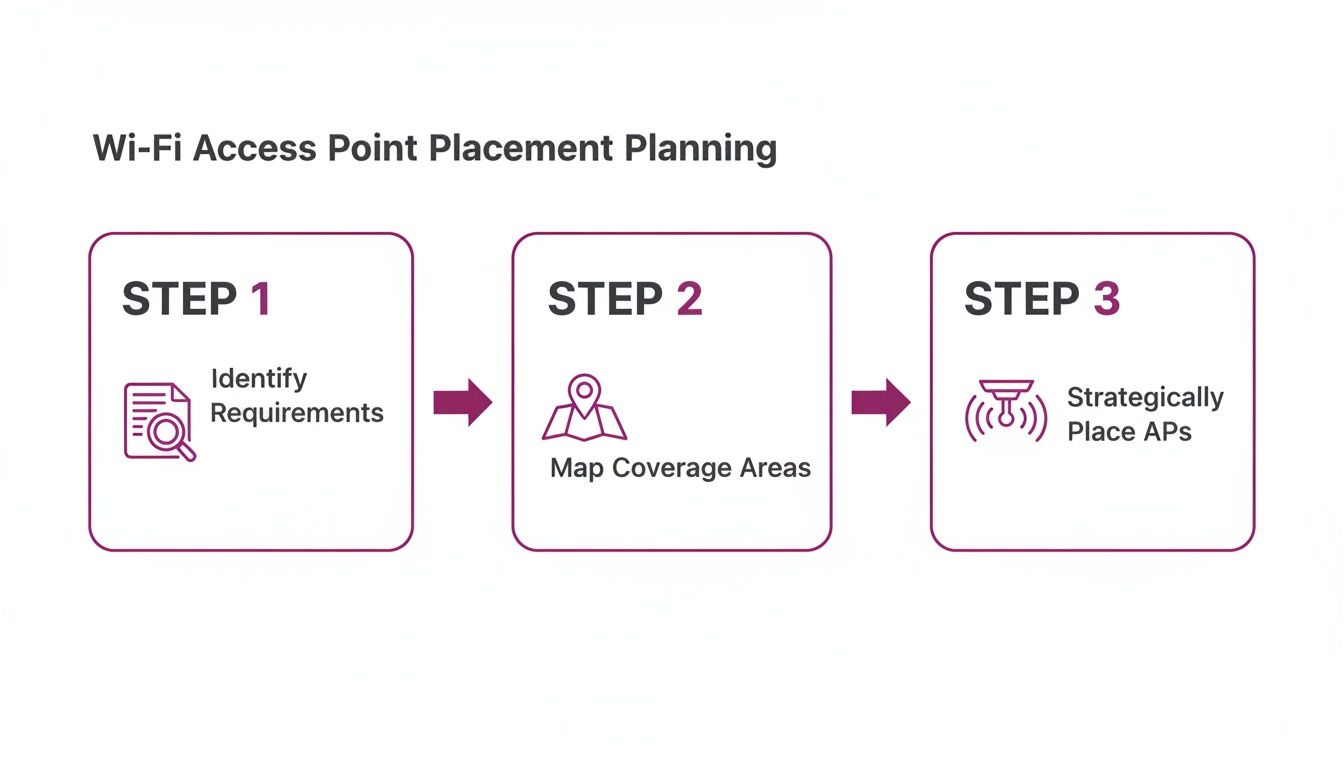
This structured approach—evaluating requirements, coverage, and placement before commencing physical installation—is what distinguishes an unreliable network from a flawless one.
Essential Network Configuration
Your initial task within the control panel is to configure your primary, private network. This is the secure environment for your personal laptops, smartphones, and trusted smart home devices.
- Set a Strong SSID: This is the name of your Wi-Fi network. Ensure it is unique, but as a best practice, avoid incorporating personal information such as your surname.
- Enable WPA3 Encryption: If WPA3 is available, it should be enabled without question. It represents a significant security advancement over the older WPA2 standard and provides robust protection against modern password-guessing attacks.
- Create a Secure Password: Opt for a long, complex password or, ideally, a passphrase that combines letters, numbers, and symbols.
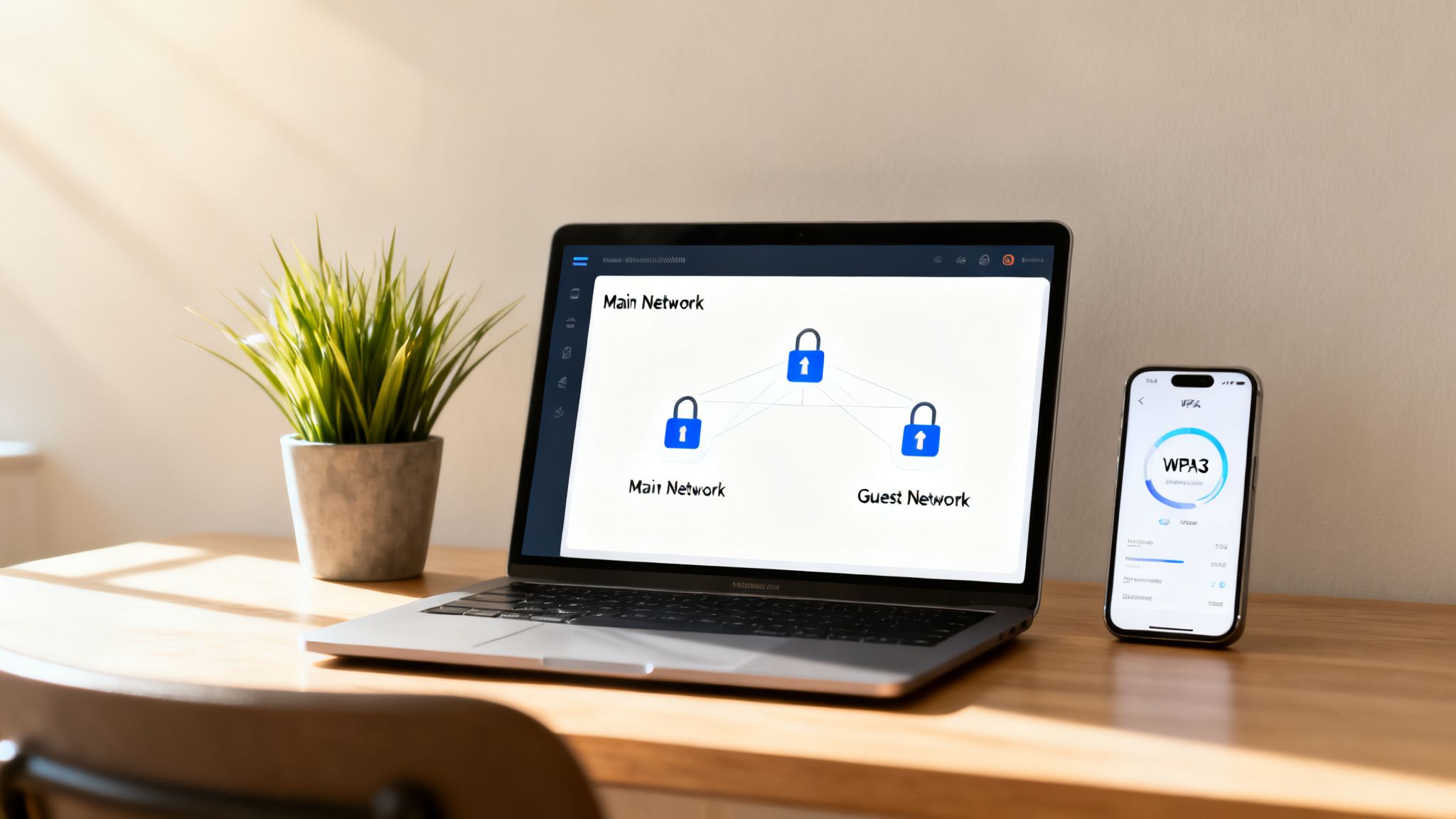
Next, it is essential to create a separate guest network. This is one of the primary security benefits of deploying a dedicated AP. A guest network allows visitors to access the internet without ever interfacing with your primary network or viewing connected devices, such as your NAS drive or printers. It establishes a secure perimeter between their devices and your own.
A well-configured guest network is a cornerstone of modern home network security. It completely isolates potentially vulnerable visitor devices—from an outdated laptop to an unmanaged smart device—from your trusted personal network.
Finally, locate the setting for Quality of Service (QoS). This feature allows you to dictate which types of data are prioritised. For instance, you can prioritise video conferencing traffic to ensure professional calls remain smooth and uninterrupted, even if another user begins streaming a 4K film. It is a straightforward adjustment that yields a noticeable improvement in daily performance.
If the self-installation approach appears daunting, professional Access Point Installation Services can manage the entire process, from cabling to final configuration, ensuring optimal performance from day one.
Fine-Tuning and Fixing Common WiFi Problems
Powering on and configuring your new access point is an excellent first step, but the process is not yet complete. To achieve flawless, highly reliable performance, fine-tuning is almost always required. This involves resolving the subtle issues that affect many networks, such as interference from neighbouring WiFi networks or mismatched power levels between devices.
One of the most common causes of slow or unstable WiFi is channel congestion. In a typical residential area, dozens of networks may compete for bandwidth across the same limited radio channels. Fortunately, your AP’s controller software typically includes a tool for a channel scan or RF environment scan. Executing this provides a clear overview of which channels are congested and which are clear.
Taming Interference and Power Levels
With this scan data, you can manually configure your AP's 2.4 GHz and 5 GHz radios to operate on the least congested channels available. For the 2.4 GHz band, it is critical to utilise channels 1, 6, or 11. These are the only three non-overlapping channels, which is essential for minimising interference. This single adjustment can dramatically improve network stability.
Another powerful yet frequently overlooked setting is transmission power. The default is typically "Auto" or "High," which may seem optimal but can often introduce complications. Broadcasting a signal at maximum strength can generate unnecessary interference for both your devices and neighbouring networks. It also contributes to the common "sticky client" issue, where a smartphone or laptop remains connected to a distant AP's weak signal despite a closer access point being available.
The objective is not to broadcast a signal as far as possible, but to establish a clean, well-defined coverage "cell" around each AP. Configuring your transmission power to "Medium" or even "Low" is frequently the best approach, as it encourages devices to roam seamlessly to the strongest connection.
A Quick Troubleshooting Checklist
Even with a perfectly optimised network, occasional issues may arise. If you experience random disconnections or unexplained latency, review this straightforward diagnostic checklist before escalating the issue.
Reboot Everything: Begin with the most fundamental troubleshooting step, as it is often effective. Power cycle your modem, router, network switches, and the access point itself. This can resolve a significant number of temporary software glitches.
Check Your Cables: A loose or damaged Ethernet cable connecting your AP to the switch is a frequent cause of intermittent dropouts and poor performance. Ensure the connectors are securely seated at both ends.
Update The Firmware: Manufacturers regularly release firmware updates containing vital security patches and performance enhancements. Check your AP’s controller for any available updates and install them promptly.
Isolate The Problem: Is the latency affecting all devices, or just one? If it is isolated to a single device, the issue likely resides with that specific laptop's or smartphone's drivers or settings, rather than the AP.
Securing Your Network Beyond A Single Password
As you connect an increasing number of devices to your home network, a single shared Wi-Fi password becomes a significant vulnerability. This issue is exacerbated if you manage a multi-tenant property, frequently host guests, or operate numerous smart devices from various manufacturers. Every device utilising that single password represents a potential security risk.
The solution is to adopt an enterprise IT approach and transition to identity-based access. Instead of a single key for the entire network, you assign each user and device their own unique, managed credential. This paradigm shift fundamentally transforms how you secure your wifi ap for home, significantly enhancing protection. If you are seeking foundational knowledge, understanding how to secure your home network and protect your Wi-Fi is an excellent starting point.
The Problem with "Internet of Things" Security
It is widely acknowledged that many smart home devices possess notoriously poor security. A budget smart plug or connected kitchen appliance may harbour vulnerabilities that remain unpatched. If such a device resides on your primary network, a single flaw could potentially compromise your entire infrastructure—including your professional laptop, smartphone, and private data.
The primary challenge today is not solely preventing external attacks; it is protecting your trusted devices from one another. This is where device isolation transitions from an optional feature to a critical security layer.
This is where advanced platforms provide significant value, integrating directly with your access point to construct a network that is not only faster but fundamentally more secure. Systems such as Purple eliminate cumbersome shared passwords, replacing them with seamless, identity-driven authentication for users and their devices.
Bringing Enterprise-Grade Security Home
Consider this scenario: a guest arrives and connects to your Wi-Fi securely without requiring a password. Their device is automatically assigned to an isolated guest network, completely segregated from your personal computers and smart home technology. With modern identity-based networking, this is a readily achievable standard.
This approach brings some serious practical benefits to the table:
- Seamless Guest Access: Visitors can authenticate via a simple portal or be reconnected automatically upon their next visit, eliminating the need to share complex passwords.
- Device Isolation: You can establish separate, firewalled networks for different user groups or device categories. For example, all IoT devices can be segregated onto their own dedicated, restricted network.
- Individual Credentials: In a multi-tenant building, each resident receives their own private network login, ensuring their devices remain completely isolated from neighbouring networks.
By integrating these features with your home AP, you establish a network founded on a zero-trust architecture. It is a more intelligent and significantly more secure method for managing the high volume of connections in a modern home.
Common Questions About Home WiFi APs
Even with a comprehensive plan, transitioning to dedicated access points may prompt final questions. It is standard practice to confirm the finer details prior to making a purchase. Therefore, let us address the most common queries encountered when deploying a home WiFi AP for the first time.
Consider this a final review, providing the assurance required for a successful deployment.
How Many Access Points Do I Actually Need?
There is no definitive number. The requirement depends entirely on your property's size, layout, and construction materials. A modern, open-plan 1,500 square foot home with standard plasterboard walls may achieve flawless coverage from a single, optimally positioned AP mounted on the ceiling.
Conversely, a 2,500 square foot older property with thick brick walls and multiple floors may easily require two or three APs to eliminate all dead zones.
The recommended approach is to begin with a single unit. Conduct a thorough site survey, as detailed previously, to identify where the signal degrades. You will frequently achieve superior results using two APs operating at medium power rather than a single unit broadcasting at maximum strength.
Can I Mix and Match AP Brands With My Router?
Absolutely. You can connect an access point from any manufacturer—such as UniFi, Ruckus, or Aruba—to any router, including those supplied by your ISP, such as BT or Virgin Media. The AP simply requires a physical Ethernet connection to the router to establish internet access.
The primary consideration is not compatibility between your router and AP, but rather within your ecosystem of APs. If you plan to deploy multiple access points, it is highly recommended to utilise the same brand across your network. This is crucial for seamless roaming and centralised management.
Is a WiFi 6E Access Point Worth It Right Now?
WiFi 6E is a significant advancement. It unlocks the new 6 GHz band, which functions as a dedicated, multi-lane motorway for compatible devices, entirely free from the congestion caused by legacy WiFi hardware. If you possess the latest flagship smartphones or high-end laptops supporting WiFi 6E and reside in a densely populated area with high WiFi congestion, it can deliver substantial performance improvements.
For the majority of UK homes today, however, a standard WiFi 6 access point is more than sufficient and offers superior value for money. The 6 GHz ecosystem is still maturing, and a robust WiFi 6 AP will likely serve your requirements perfectly for years to come.
What’s the Real Difference Between Indoor and Outdoor APs?
The distinction lies in durability and weatherproofing. An outdoor access point is robustly engineered to withstand the elements—including rain, dust, extreme temperatures, and UV exposure. They feature rugged, weatherproof enclosures with specialised seals to prevent moisture and particulate matter from damaging the internal electronics.
If an indoor model is deployed externally, even in a sheltered location, it is inevitable that condensation or dust will ingress and cause failure. Conversely, deploying an outdoor AP indoors is perfectly safe, though it is typically unnecessary and aesthetically unappealing. Always select the appropriate hardware for the specific environment.
At Purple, we specialise in delivering secure, identity-based networking that replaces shared passwords with seamless, enterprise-grade access for any environment. Learn more about how Purple can transform your network .