
Captive Portal für Ubiquiti UniFi
Diese massgebliche technische Anleitung beschreibt die Konfiguration eines externen Captive Portals (Purple) auf der Ubiquiti UniFi Network Application. Sie behandelt die zugrunde liegende Netzwerkmechanik, die schrittweise Bereitstellung des Gastnetzwerks, das Walled-Garden-Whitelisting, die RADIUS-Authentifizierung und Fehlerbehebungsstrategien für erfahrene IT-Experten und Netzwerkadministratoren.
Diesen Leitfaden anhören
Podcast-Transkript ansehen
📚 Teil unserer Kernserie: Multi-Tenant WiFi →
Executive Summary
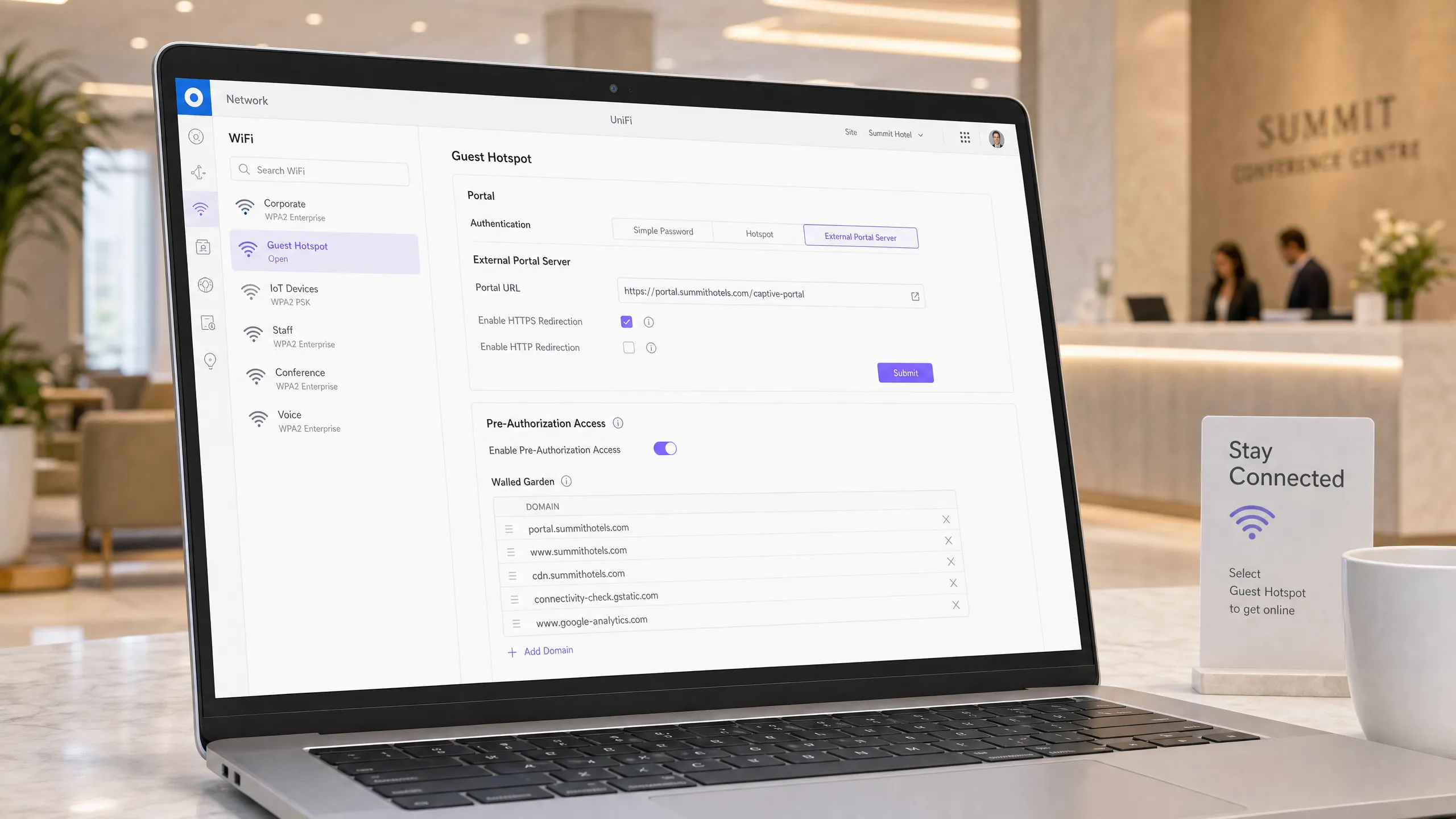
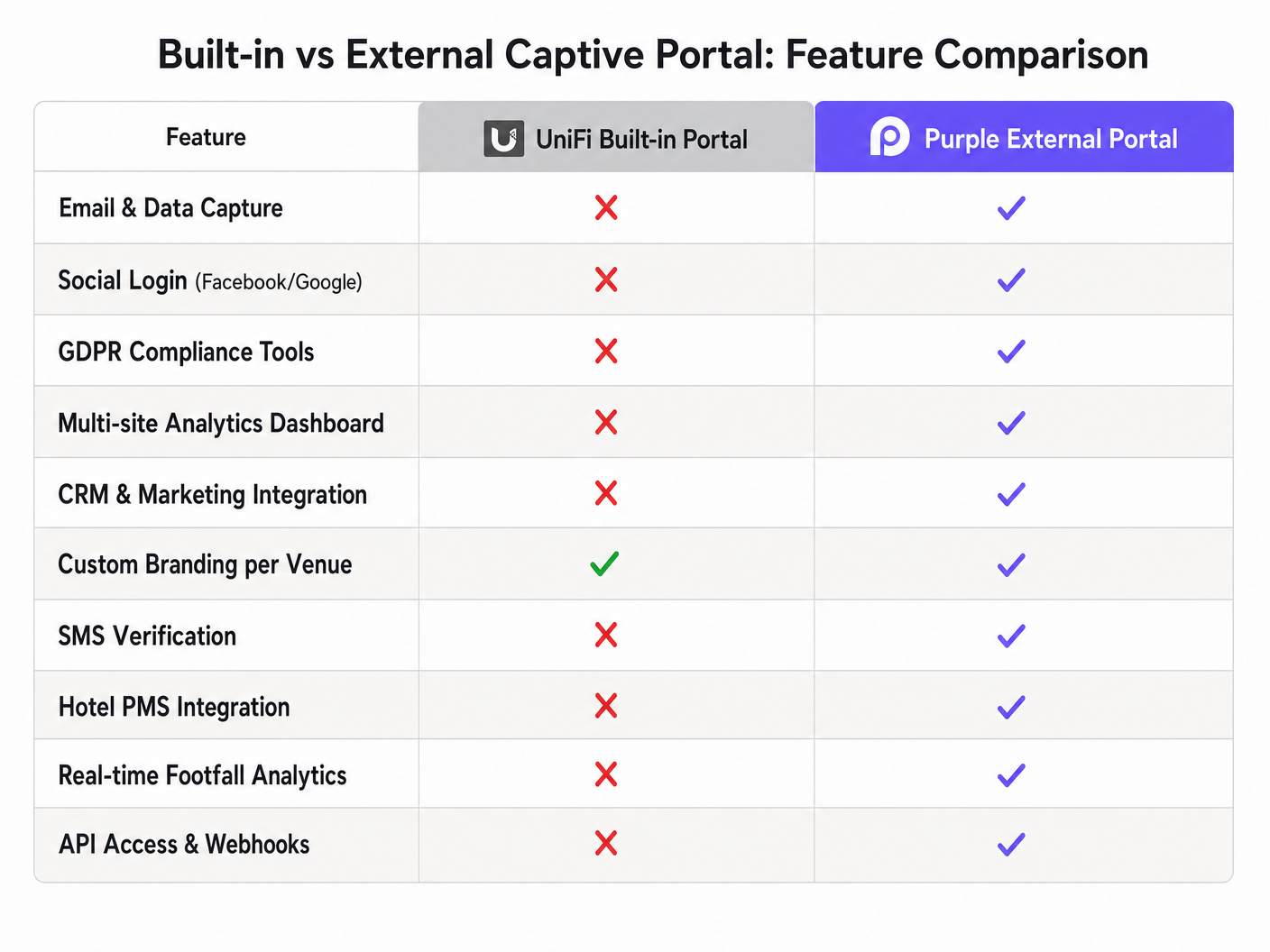
As enterprise physical venues — ranging from large-scale retail chains [1] and multi-site hospitality groups [2] to major transport hubs [3] and educational institutions [4] — seek to maximise the value of their wireless infrastructure, the limitations of built-in hotspot controllers become a significant operational bottleneck. The Ubiquiti UniFi ecosystem provides highly reliable, cost-effective, and scalable hardware. However, its native guest portal lacks the advanced data capture, multi-site analytics, CRM integration, global privacy compliance (GDPR, CCPA, PCI DSS), and monetisation capabilities required by modern enterprise operations.
This technical reference guide provides a comprehensive architectural walkthrough for overlaying Purple's Enterprise WiFi Intelligence Platform [5] onto a Ubiquiti UniFi Network architecture. By utilising UniFi's External Portal Server capability, network architects and systems integrators can bypass local controller limitations. This integration routes guest authentication through Purple's secure, cloud-hosted identity and analytics engine, transforming a basic utility into an enterprise-grade marketing and operational asset.
Technical Deep-Dive
To deploy a secure and stable external captive portal, network engineers must understand the low-level communication and state transitions that occur when an unauthenticated client connects to the wireless network.
The Guest Connection and Redirection Lifecycle
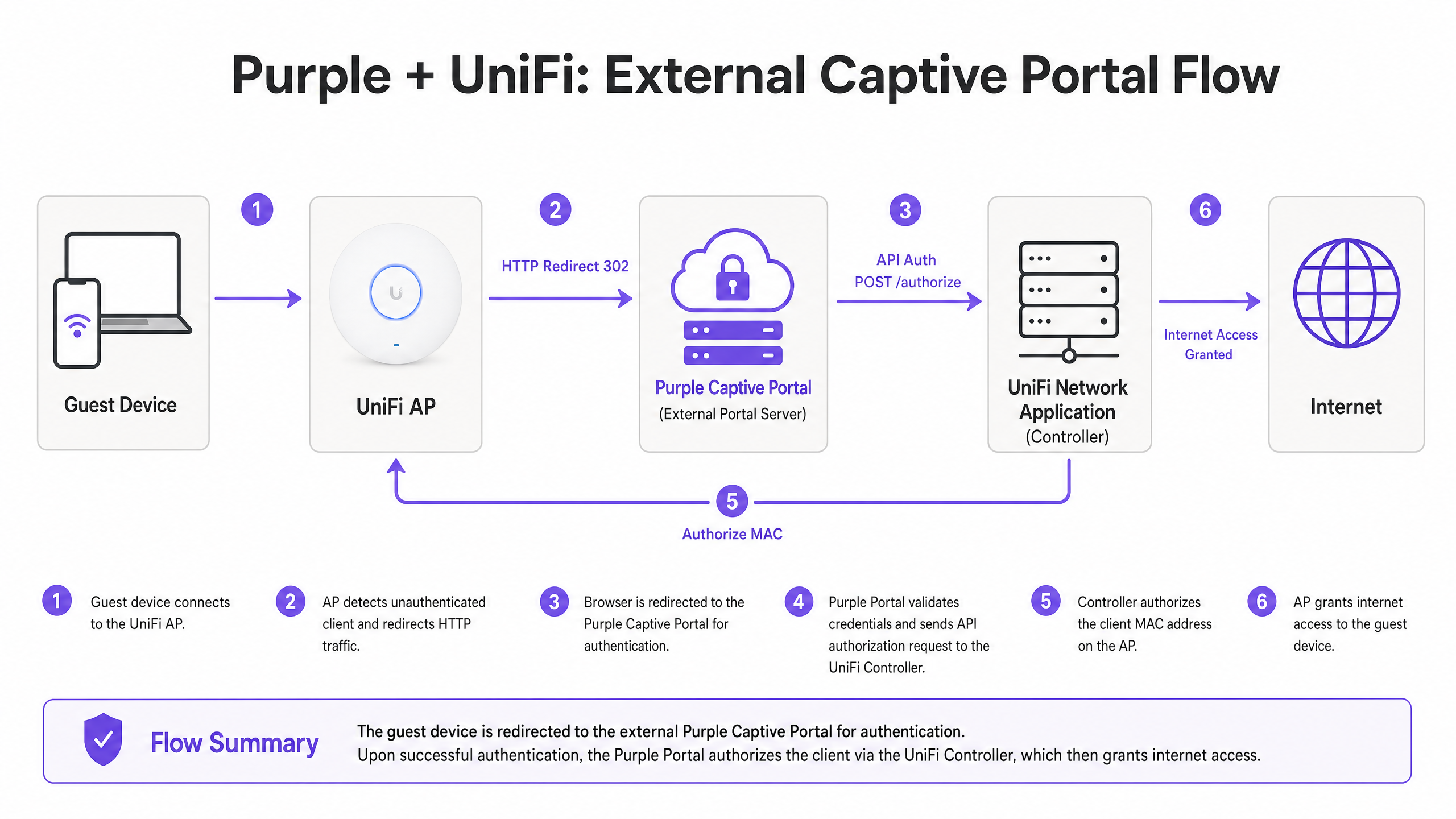
The UniFi captive portal workflow operates on a strict state-based model. When a client associates with a guest-enabled SSID, the following sequential process is initiated:
| Phase | Component | Action / State Transition | Technical Mechanism |
|---|---|---|---|
| 1. Association | Client & Access Point | Client associates with the SSID; DHCP server assigns IP address, subnet mask, gateway, and DNS servers. | Standard 802.11 association and DHCP lease. |
| 2. Quarantine | UniFi Access Point (AP) | AP places the client MAC address in a Quarantined / Pending state (authorized: false). |
Layer 2/3 blocking rules applied locally on the AP's virtual interface. |
| 3. DNS Interception | AP Local Daemon | AP runs a local DNSmasq process that intercepts all DNS queries from pending clients. | AP redirects all port 53 (UDP/TCP) traffic to its local DNS resolver, regardless of client DNS settings. |
| 4. HTTP Interception | AP Redirector | AP runs a lightweight HTTP redirector daemon on port 80. | Any HTTP request made by the client is intercepted. The AP responds with an HTTP 302 Found redirect. |
| 5. Redirection | Client Browser | Client's browser (or the OS Captive Portal Assistant) is redirected to the configured External Portal URL. | The 302 redirect URL is appended with critical query parameters containing client and AP metadata. |
| 6. Authentication | External Portal (Purple) | Client interacts with the Purple splash page, completing authentication (e.g., social login, email registration, SMS OTP). | Secure HTTPS session hosted on Purple's cloud infrastructure. |
| 7. API Handshake | Purple Cloud & UniFi Controller | Purple validates the credentials and issues a secure API call to the UniFi Network Application. | REST API call (POST request) containing the client MAC address, site ID, and session parameters. |
| 8. Authorization | UniFi Controller & AP | UniFi Controller updates the client state to authorized: true and pushes the updated ACL to the AP. |
AP removes Layer 2/3 blocks for the client MAC address, granting full routing to the internet gateway. |
The Redirection Query Parameters
When the UniFi AP issues the HTTP 302 redirect, it appends a standardised set of query parameters to the External Portal URL. The external portal must capture these parameters to identify the client and perform the subsequent API authorisation:
https://portal.purplehotspot.com/guest/s/default/?ap=94:2a:6f:d0:30:57&id=1c:71:25:63:e4:24&t=1742398732&url=http://connectivitycheck.gstatic.com%2F&ssid=purple-guest
ap: The MAC address of the specific UniFi Access Point to which the client is associated.id: The MAC address of the client device requesting network access.t: A Unix epoch timestamp representing the redirect initiation time, used for security verification.url: The original URL the client attempted to access (often an OS captive portal detection endpoint).ssid: The SSID name the client connected to, allowing the portal to present site-specific branding.
The Walled Garden (Pre-Authorisation Access Control)
Before a client is authorised, all traffic is blocked except for destinations explicitly defined in the Pre-Authorisation Access list (commonly referred to as the Walled Garden). Because modern client devices run automated Captive Portal Assistants (CPAs) that test connectivity over HTTPS, and because external authentication often relies on third-party identity providers (IdPs), configuring a robust and accurate walled garden is critical.
If a required domain or IP range is omitted from the walled garden, the splash page will fail to load, social login buttons will freeze, or the client device will drop the WiFi connection entirely, assuming a broken network.
Implementation Guide
This section outlines the step-by-step configuration required to integrate Purple's External Captive Portal with the Ubiquiti UniFi Network Application (Controller).
Step 1: Network Segmentation and VLAN Configuration
To ensure enterprise-grade security and compliance (such as PCI DSS and GDPR), guest traffic must be completely isolated from corporate resources, POS systems, and IoT networks.
- Navigate to Settings > Networks in the UniFi Network Application.
- Click Create New Network.
- Configure the network settings as follows:
- Name:
Purple Guest Network - VLAN ID:
90(or any dedicated guest VLAN tag) - Network Type: Guest (this automatically applies client isolation, preventing guest-to-guest communication).
- Gateway IP/Subnet: Configure an appropriate subnet (e.g.,
10.90.0.1/22to support up to 1022 concurrent guest leases). - DHCP Range: Enable DHCP and define the range (e.g.,
10.90.0.10to10.90.3.254). - DNS Server: Set to reliable public resolvers (e.g., Cloudflare
1.1.1.1and Google8.8.8.8) to ensure fast DNS resolution.
- Name:
Step 2: Guest SSID Configuration
- Navigate to Settings > WiFi and click Create New WiFi Network.
- Configure the SSID parameters:
- Name (SSID):
Purple Guest WiFi - Security Protocol: Open (the captive portal will handle authentication).
- Network: Select the
Purple Guest Network(VLAN 90) created in Step 1. - Client Device Isolation: Ensure this is toggled ON.
- Name (SSID):
- Scroll down to Hotspot Portal and check the box to Enable Captive Portal.
Step 3: Configuring the External Portal Server
Once the Hotspot Portal is enabled, you must redirect authentication to Purple's secure cloud servers.
- Navigate to Settings > Profiles > Guest Hotspot (or Settings > Guest Control in older controller versions).
- Under Authentication, select External Portal Server.
- Configure the following fields:
- IP / FQDN: Enter the FQDN provided by Purple (e.g.,
portal.purplehotspot.com). - Use Secure Portal (HTTPS): Toggle ON (Mandatory for security and modern browser compatibility).
- Redirect Using Hostname: Toggle ON and enter the FQDN
portal.purplehotspot.com. - Port:
443(standard HTTPS). - HTTPS Redirection: Toggle ON (this allows the AP to intercept initial HTTPS requests and redirect them, though it requires careful DNS management).
- IP / FQDN: Enter the FQDN provided by Purple (e.g.,
Step 4: Configuring Pre-Authorisation Access (Walled Garden)
To allow unauthenticated guests to load the Purple splash page and authenticate via third-party IdPs, add the following domains and IP ranges to the Pre-Authorisation Access list under Settings > Profiles > Guest Hotspot > Pre-Authorisation Access:
[
  "portal.purplehotspot.com",
  "*.purple.ai",
  "*.purplehotspot.com",
  "accounts.google.com",
  "ssl.gstatic.com",
  "*.googleapis.com",
  "*.facebook.com",
  "*.facebook.net",
  "*.fbcdn.net",
  "*.apple.com",
  "captive.apple.com",
  "connectivitycheck.gstatic.com",
  "*.microsoft.com",
  "*.live.com"
]
Note: For deployments utilising Stripe payment processing, add *.stripe.com and *.stripe.network to the pre-authorisation list.
Step 5: Establishing the API Handshake
For Purple to authorise guests, its cloud servers must communicate with your UniFi Network Application.
For UniFi Network Application 9.1 and Later (Recommended REST API)
- In the UniFi controller, navigate to Settings > Control Plane > Integrations.
- Under the API Keys section, click Generate New API Key.
- Assign a name (e.g.,
Purple Integration Key) and set the permissions to Administrator. - Copy the generated API Key.
- Log in to your Purple Portal, navigate to Venue Settings > Integration > Ubiquiti UniFi, and paste the API Key along with your UniFi Controller's public FQDN (e.g.,
unifi.yourdomain.com:443).
For Legacy Controllers (Credential-Based API)
- Navigate to Settings > System > Admins.
- Create a dedicated local administrator account (e.g.,
purple_api). - Assign Administrator or Hotspot Operator privileges.
- Configure a strong, unique password.
- In the Purple Portal, enter these credentials under the UniFi Integration tab.
Best Practices
1. SSL Certificate Requirements
Never use a self-signed SSL certificate on a production UniFi Controller or External Portal Server. Modern web browsers and operating system Captive Portal Assistants (CPAs) enforce strict SSL/TLS validation. A self-signed certificate will trigger a highly visible security warning (e.g., "Your connection is not private"), leading to high abandonment rates and brand damage.
- Deploy a valid, publicly trusted SSL certificate (e.g., Let's Encrypt or a commercial CA certificate) on the UniFi Controller's FQDN.
- Ensure that the controller's FQDN resolves correctly from both the internal guest VLAN and the public internet.
2. DNS Configuration
Slow DNS resolution is the primary cause of sluggish captive portal redirection.
- Do not point guest DNS to the UniFi Gateway's local IP unless the gateway has high-performance DNS forwarding configured.
- Instead, configure the guest DHCP scope to distribute fast, resilient public DNS servers directly to clients (e.g., Primary:
1.1.1.1, Secondary:8.8.8.8).
3. RADIUS Guest WiFi Configuration (Enterprise Alternative)
For venues requiring certificate-based or credential-based 802.1X security rather than an open SSID with a web portal, UniFi supports external Cloud RADIUS integration [6].
- Configure a RADIUS Profile under Settings > Profiles > RADIUS.
- Enter the Primary and Secondary RADIUS Server IPs and Shared Secrets provided by Purple.
- Enable RADIUS Accounting and set the Interim Update Interval to
300seconds to ensure real-time session tracking. - Under the SSID settings, set the Security Protocol to WPA2 Enterprise or WPA3 Enterprise [7] and select the RADIUS Profile.
Troubleshooting & Risk Mitigation
When deploying external captive portals, network administrators frequently encounter several common failure modes. The table below details these issues, their root causes, and exact mitigation steps:
| Symptom | Root Cause Analysis | Corrective Action & Mitigation |
|---|---|---|
| White Screen / Portal Fails to Load | The client device cannot resolve or reach the FQDN of the external portal server. | 1. Verify that portal.purplehotspot.com is in the Pre-Authorization Access list.2. Ensure the guest client has received a valid IP and DNS server via DHCP. 3. Perform a DNS lookup on the client device to verify resolution of the portal FQDN. |
| "Connection Not Private" SSL Error | The UniFi Controller is using a self-signed certificate, or the redirection FQDN does not match the SSL certificate common name. | 1. Install a publicly trusted SSL certificate on the UniFi Controller. 2. Verify that Redirect Using Hostname is enabled and matches the FQDN on the certificate exactly. 3. Disable "Redirect HTTPS" in the UniFi guest control settings to prevent the AP from trying to intercept HTTPS traffic on port 443, which naturally triggers SSL warnings. |
| Authentication Succeeds, but Internet is Blocked | The Purple cloud was able to authorise the user, but the API call to authorise the client MAC address on the UniFi Controller failed. | 1. Check firewall rules to ensure port 443 (or 8443 for legacy) is open inbound to the UniFi Controller from Purple's IP ranges.2. Verify that the API Key or local admin credentials entered in the Purple Portal are valid and have Administrator permissions. 3. Check the UniFi Controller logs ( server.log) for API authentication failures. |
| Social Login (e.g., Google) Buttons Fail to Work | The IdP's authentication domains are blocked by the AP's access control list. | 1. Add the complete wildcard domains for the specific IdP to the Pre-Authorization Access list (e.g., *.google.com, *.googleapis.com).2. If using Facebook, ensure the Facebook SDK domains are fully whitelisted. |
| Frequent Disconnections / Re-authentication Prompts | The UniFi Controller session timeout is shorter than the Purple session duration, or DHCP lease times are too short. | 1. Align the UniFi Guest Hotspot Session Timeout setting with the Purple session policy (e.g., 24 hours). 2. Increase the DHCP lease time on the Guest VLAN to at least 12 or 24 hours to prevent IP address exhaustion and mid-session re-auth. |
ROI & Business Impact
While deploying an external captive portal requires careful network engineering, the business outcomes and return on investment (ROI) far outweigh the initial implementation complexity.
Enterprise Data Capture and CRM Enrichment
The native UniFi guest portal is a "blind" utility; it grants internet access without capturing user identity. By overlaying Purple, venues can capture valuable first-party data (emails, phone numbers, social profiles) in a fully GDPR and CCPA-compliant manner. This data is automatically synchronised in real-time with CRM systems, marketing platforms (e.g., Salesforce, HubSpot, Mailchimp), and loyalty programmes, enabling highly targeted marketing campaigns that drive repeat visits and customer lifetime value.
Multi-Site Management and White-Labelling
For Managed Service Providers (MSPs) and multi-site enterprise operators, managing guest WiFi across hundreds of venues via individual UniFi controllers is highly inefficient. Purple provides a single, centralised cloud dashboard to manage splash pages, compliance terms, and analytics across all venues globally, regardless of the underlying UniFi controller distribution.
Real-Time Analytics and Spatial Intelligence
Purple transforms the UniFi wireless network into a powerful sensor array. By analysing probe requests and connection metadata, Purple delivers deep spatial intelligence, including:
- Footfall Analytics: Total visitors, pass-by traffic, and conversion rates (pass-by to enter).
- Dwell Time: Average duration of visits, segmented by customer type (new vs. returning).
- Recency and Frequency: How often customers return and the elapsed time between visits.
- Venue Heatmaps: Visual representation of visitor flow and density, enabling retail and venue operators to optimise layouts and staffing.
Monetisation via Retail Media Networks
For large venues such as stadiums, shopping malls, and airports, the captive portal splash page represents highly valuable digital real estate. Purple enables venues to monetise this space by integrating with retail media networks, serving targeted programmatic advertising, sponsored login experiences, and localised promotions directly to guests at the moment of connection.
References
- [1] Purple for Retail: WiFi Marketing and Analytics for Retail Venues
- [2] Purple for Hospitality: Enterprise Guest WiFi Solutions for Hotels and Restaurants
- [3] Purple for Transport: Public WiFi and Analytics for Transport Hubs
- [4] Purple for Healthcare: Patient and Visitor WiFi Solutions for Healthcare Facilities
- [5] Purple Core Products: Enterprise Guest WiFi Platform
- [6] Cloud RADIUS Integration Guide: How to Implement 802.1X Authentication with Cloud RADIUS
- [7] Network Access Control Best Practices: 10 Best Network Access Control (NAC) Solutions for 2026
- [8] Cisco Wireless Reference (Comparative Architecture): Cisco Wireless APs: 2026 Guide to Products & Deployment
- [9] WiFi in Education Reference: WiFi in Schools: The 2026 Administrator & IT Guide
- [10] Purple Analytics Platform: WiFi Analytics & Marketing Platform
Schlüsseldefinitionen
Captive Portal
Eine Webseite, die die erste Netzwerkverbindung eines Gastes abfängt und eine Authentifizierung, Registrierung oder die Zustimmung zu Nutzungsbedingungen erfordert, bevor der volle Internetzugang gewährt wird.
Tritt sofort nach der Verbindung mit einer offenen Gast-SSID auf; wird durch den AP-Redirector und den externen Portalserver verwaltet.
External Portal Server
Eine Webanwendung eines Drittanbieters (wie Purple), die die Gast-Splashpage hostet und die Benutzerauthentifizierung verarbeitet, wodurch die Portal-Einschränkungen des integrierten Controllers umgangen werden.
In den UniFi Guest Hotspot-Einstellungen konfiguriert, um die native UniFi-Landingpage zu ersetzen.
Walled Garden (Pre-Authorization Access)
Eine Whitelist von Domains, Subdomains oder IP-Adressen, auf die nicht authentifizierte Clients zugreifen können, bevor sie den Captive Portal-Anmeldevorgang abschließen.
Zwingend erforderlich für das Laden der Portalseite selbst, von CSS/JS-Assets und von OAuth-Login-Endpunkten von Drittanbietern.
DNSmasq
Ein leichtgewichtiger DNS-Forwarder und DHCP-Server, der lokal auf UniFi Access Points ausgeführt wird, um Gast-DNS-Abfragen im Vorautorisierungszustand abzufangen und umzuleiten.
Übernimmt die erste DNS-Weiterleitung, die Client-Geräte dazu zwingt, ihre integrierten Captive Portal-Assistenten auszulösen.
API Authorization Handshake
Der Prozess, bei dem der externe Portalserver (Purple) einen sicheren API-Aufruf zurück an den UniFi-Controller sendet, um die MAC-Adresse eines Clients von "Quarantäne" in "Autorisiert" zu überführen.
Findet unmittelbar statt, nachdem der Benutzer den Login-Flow auf der Splashpage erfolgreich abgeschlossen hat.
Client Device Isolation
Eine Sicherheitsfunktion, die verhindert, dass drahtlose Clients auf derselben SSID oder demselben VLAN miteinander kommunizieren, wodurch das Risiko von lokalen Netzwerkangriffen minimiert wird.
In den UniFi WiFi- und Netzwerkeinstellungen aktiviert, um die Privatsphäre der Gäste zu schützen und das Netzwerk des Standorts zu sichern.
RADSEC (RADIUS over TLS)
Ein Protokoll, das den RADIUS-Authentifizierungs- und Accounting-Verkehr sichert, indem es ihn in einen sicheren TLS-Tunnel einpackt, um Abhören und Manipulationen in öffentlichen Netzwerken zu verhindern.
Unterstützt in UniFi Network 8.4+ für sichere Enterprise-Bereitstellungen an mehreren Standorten unter Verwendung von WPA2/WPA3 Enterprise.
CPA (Captive Portal Assistant)
Ein integriertes Betriebssystem-Dienstprogramm unter iOS, Android, Windows und macOS, das ein Captive Portal automatisch erkennt, indem es versucht, einen bekannten HTTP/HTTPS-Endpunkt abzurufen.
Löst das Pop-up-Fenster "Bei WiFi anmelden" auf dem Gerät des Benutzers unmittelbar nach der Verbindung aus.
Ausgearbeitete Beispiele
Ein stark frequentiertes Einkaufszentrum mit 150 UniFi APs und einer selbst gehosteten UniFi Network Application auf AWS möchte Purple implementieren. Das IT-Team möchte Social Login über Google und Facebook für die Gastauthentifizierung nutzen. Bei ersten Tests stossen Gäste, die auf die Social-Login-Buttons klicken, jedoch auf einen leeren Bildschirm oder einen DNS-Auflösungsfehler.
Das Problem wird durch einen restriktiven Walled Garden (Pre-Authorization Access) verursacht, der verhindert, dass das Gerät des Gasts die Authentifizierungsendpunkte von Google und Facebook auflöst oder erreicht, bevor es autorisiert ist. Um dies zu beheben, muss sich der Netzwerkadministrator an der UniFi Network Application anmelden, zu Settings > Profiles > Guest Hotspot navigieren und den Bereich Pre-Authorization Access erweitern. Dort müssen die vollständigen Wildcard-Domains für die Identitätsanbieter von Google und Facebook hinzugefügt werden. Für Google umfasst dies accounts.google.com, ssl.gstatic.com und *.googleapis.com. Für Facebook sind *.facebook.com, *.facebook.net und *.fbcdn.net erforderlich. Stellen Sie ausserdem sicher, dass der DHCP-Bereich des Gastnetzwerks so konfiguriert ist, dass schnelle, öffentliche DNS-Server (z. B. 1.1.1.1 und 8.8.8.8) direkt an die Clients verteilt werden, anstatt sie auf das lokale UniFi-Gateway zu verweisen, das bei Pre-Authorization-DNS-Anfragen zu einem Engpass werden kann.
Ein MSP stellt Purple in einer Kette von 50 Boutique-Hotels bereit. Jedes Hotel verfügt über ein lokales UniFi Cloud Gateway Max vor Ort. Der MSP möchte alle Standorte über ein einziges Purple-Konto verwalten, ist jedoch besorgt über die Sicherheit und die Frage, wie die Cloud von Purple mit den einzelnen lokalen Controllern kommuniziert, um Gast-MAC-Adressen zu autorisieren, da sich die lokalen Gateways hinter dynamischen öffentlichen IPs mit NAT befinden.
Die optimale Architektur nutzt die offizielle REST API von UniFi mit eingehender Portweiterleitung oder einem Reverse Proxy, kombiniert mit Dynamic DNS (DDNS). Für jedes Hotel: 1) Konfigurieren Sie einen DDNS-Hostnamen auf dem Cloud Gateway Max (z. B. hotel01.mspdomain.com), sodass die öffentliche IP des Gateways immer nachverfolgbar ist. 2) Richten Sie eine Portweiterleitungsregel auf dem Gateway ein, um eingehenden HTTPS-Traffic auf einem hohen, nicht standardmässigen Port (z. B. 10443) an die Management-IP des lokalen Gateways auf Port 443 weiterzuleiten. 3) Navigieren Sie im UniFi-Controller zu Settings > Control Plane > Integrations und generieren Sie einen eindeutigen API Key. 4) Konfigurieren Sie im Purple Portal einen eindeutigen „Venue“ für jedes Hotel und wählen Sie die Ubiquiti UniFi-Integration aus. Geben Sie die eindeutige DDNS-Adresse mit dem weitergeleiteten Port (z. B. hotel01.mspdomain.com:10443) und den für diesen Standort generierten spezifischen API Key ein. Sichern Sie schliesslich die eingehende Portweiterleitung auf jedem Gateway, indem Sie die Quell-IPs auf die öffentlichen Cloud-IP-Bereiche von Purple beschränken, um unbefugten Zugriff aus dem restlichen Internet zu verhindern.
Übungsfragen
Q1. Ein Netzwerkadministrator hat ein externes Captive Portal in einem UniFi-Gastnetzwerk konfiguriert. Beim Testen stellen sie fest, dass die Splashpage des Captive Portals erfolgreich geladen wird, aber nachdem der Gast seine E-Mail-Adresse eingegeben und auf "Verbinden" geklickt hat, hängt der Browser und zeigt schließlich einen Timeout-Fehler an. Der Client bleibt unter Quarantäne. Was ist die wahrscheinlichste Ursache für dieses Problem und wie sollte es untersucht werden?
Hinweis: Die Portalseite wurde geladen, was bedeutet, dass DNS und der Walled Garden funktionieren. Der Fehler tritt auf, *nachdem* der Gast seine Zugangsdaten übermittelt hat.
Musterlösung anzeigen
Die wahrscheinlichste Ursache ist ein Fehler beim API-Autorisierungs-Handshake zwischen der Purple-Cloud und dem UniFi-Controller. Da die Portal-Seite geladen wurde und der Gast mit ihr interagieren konnte, sind die DNS- und Pre-Authorization-Zugriffskonfigurationen (Walled Garden) korrekt. Wenn der Gast jedoch die Authentifizierung abschließt, versucht Purple, einen sicheren REST-API-Aufruf (POST-Anfrage) an den UniFi-Controller zu senden, um die MAC-Adresse des Clients zu autorisieren. Wenn sich der UniFi-Controller hinter einer Firewall, NAT oder in einem privaten Netzwerk ohne ordnungsgemäße Portweiterleitung befindet oder wenn die API-Anmeldedaten (oder der API-Key) falsch sind, schlägt die Autorisierungsanfrage fehl oder läuft in ein Timeout. Zur Untersuchung: 1) Überprüfen Sie, ob der FQDN und der Port des UniFi-Controllers aus den IP-Bereichen von Purple öffentlich erreichbar sind. 2) Überprüfen Sie die eingehenden Firewall-Regeln auf dem Gateway, das den UniFi-Controller schützt, um sicherzustellen, dass Port 443 (oder 8443) geöffnet ist. 3) Überprüfen Sie im Purple-Portal, ob die UniFi-Integrationseinstellungen den korrekten API-Key oder die Administrator-Anmeldedaten enthalten und ob die Controller-URL korrekt ist. 4) Überprüfen Sie die Datei server.log des UniFi-Controllers auf eingehende Verbindungsversuche oder API-Authentifizierungsfehler von den IPs von Purple.
Q2. Eine Unternehmensbereitstellung erfordert die Einrichtung eines Gastnetzwerks mit einem externen Captive Portal. Der Netzwerkarchitekt möchte HTTPS für den gesamten Captive Portal-Verkehr verwenden, um das Ausspähen von Anmeldedaten zu verhindern. Sie aktivieren 'Sicheres Portal verwenden (HTTPS)' und 'Weiterleitung unter Verwendung des Hostnamens' in UniFi und verweisen auf den externen Portal-FQDN. Wenn sich Clients jedoch verbinden, zeigen ihre Browser sofort eine schwerwiegende Warnung 'SSL Certificate Common Name Mismatch' oder 'Zertifikat nicht vertrauenswürdig' an und blockieren den Zugriff. Wie kann dies gelöst werden?
Hinweis: Überlegen Sie, welches Gerät die ursprüngliche Weiterleitung durchführt und welches SSL-Zertifikat es dem Client präsentiert.
Musterlösung anzeigen
Dieses Problem tritt auf, weil der UniFi Access Point oder Controller versucht, eine HTTPS-Anfrage des Clients abzufangen und an das Captive Portal weiterzuleiten. Wenn sich ein Client verbindet und versucht, eine HTTPS-Website (z. B. https://www.google.com) aufzurufen, fängt der Redirector des AP den Datenverkehr ab. Um die Weiterleitung über HTTPS durchzuführen, muss der AP ein SSL-Zertifikat vorlegen. Da der AP kein gültiges SSL-Zertifikat für www.google.com besitzt, erkennt der Browser des Clients eine Man-in-the-Middle-Situation (MITM) und gibt eine schwerwiegende SSL-Warnung aus. Um dies zu beheben: 1) Stellen Sie sicher, dass auf dem UniFi-Controller selbst ein gültiges, öffentlich vertrauenswürdiges SSL-Zertifikat installiert ist, das seinem konfigurierten FQDN entspricht. 2) Deaktivieren Sie in den Einstellungen des UniFi-Gastnetzwerks 'HTTPS-Weiterleitung' (lassen Sie nur die HTTP-Weiterleitung aktiviert). Dies verhindert, dass der AP versucht, HTTPS-Verkehr abzufangen. Stattdessen verlässt sich das Netzwerk auf den Captive Portal Assistant (CPA) des Betriebssystems des Client-Geräts, der die Konnektivität über einfache HTTP-Endpunkte testet (z. B. http://captive.apple.com oder http://connectivitycheck.gstatic.com). Der AP kann diese HTTP-Anfragen auf Port 80 sicher abfangen und an die sichere HTTPS-URL des Purple-Portals (https://portal.purplehotspot.com) weiterleiten, ohne SSL-Warnungen im Browser auszulösen.
Q3. Eine Hotelkette möchte WPA3-Enterprise-Sicherheit für ihr VIP-Gastnetzwerk implementieren und gleichzeitig die Integration in die Analyseplattform von Purple beibehalten. Das lokale IT-Team ist sich unsicher, ob es die Standard-Captive-Portal-Weiterleitung über einen externen Portalserver mit WPA3-Enterprise nutzen kann. Was ist der richtige architektonische Ansatz für dieses Szenario?
Hinweis: WPA3-Enterprise verwendet die 802.1X-Authentifizierung, die in der Assoziierungsphase stattfindet, bevor eine IP-Adresse zugewiesen wird. Dies unterscheidet sich grundlegend von einer offenen SSID mit einem Captive Portal.
Musterlösung anzeigen
WPA3-Enterprise (und WPA2-Enterprise) verwendet die 802.1X-Authentifizierung, die im Grunde nicht mit der standardmäßigen Web-Weiterleitung von Captive Portal kompatibel ist. In einem 802.1X-Netzwerk erfolgt die Authentifizierung in der Zuordnungsphase (Layer 2) mithilfe von EAP-Methoden (wie EAP-TLS oder PEAP), bevor dem Client eine IP-Adresse zugewiesen oder der Zugriff auf das Netzwerk gestattet wird. Daher können Sie einen Client nicht auf eine webbasierte Landingpage weiterleiten. Um WPA3-Enterprise mit Purple zu integrieren: 1) Wechseln Sie vom Modell 'External Portal Server' zu einem External RADIUS-Modell. 2) Konfigurieren Sie ein RADIUS-Profil in der UniFi-Netzwerkanwendung, indem Sie die Cloud-RADIUS-Server-IP-Adressen von Purple, die Authentifizierungsports (normalerweise 1812), die Accounting-Ports (normalerweise 1813) und das Shared Secret eingeben. 3) Aktivieren Sie RADIUS Accounting und legen Sie ein Interim Update Interval von 300 Sekunden fest. 4) Konfigurieren Sie die VIP-SSID zur Verwendung von WPA3 Enterprise und wählen Sie das RADIUS-Profil aus. Wenn sich ein VIP-Gast verbindet, authentifiziert sich sein Gerät direkt am Cloud-RADIUS-Server von Purple mit seinen eindeutigen Enterprise-Anmeldeinformationen oder seinem Zertifikat. Der RADIUS-Server von Purple autorisiert die Verbindung und empfängt die Accounting-Updates. Dadurch kann der Standort Verbindungsanalysen, Sitzungsdauer und Datennutzung erfassen, ohne dass eine webbasierte Landingpage erforderlich ist.
Weiterlesen in dieser Reihe
Cisco WLC und Catalyst Integration mit Purple WiFi: Schritt-für-Schritt-Anleitung für den Gastzugang
Diese massgebliche Anleitung beschreibt die schrittweise Integration von Cisco Catalyst 9800 WLCs mit Purple WiFi. Sie deckt die externe Web-Authentifizierung für Gäste-Captive Portals, 802.1X EAP-TLS für sicheren Mitarbeiterzugang und Cisco iPSK für die dynamische VLAN-Segmentierung in Mandanten-Umgebungen ab.
CommScope Ruckus Integration mit Purple WiFi: Einrichtungs- und Konfigurationshandbuch
Dieses technische Referenzhandbuch bietet einen maßgeblichen Konfigurationsleitfaden für die Integration von CommScope Ruckus-Architekturen mit Purple WiFi. Es beschreibt Schritt-für-Schritt-Bereitstellungen für Guest WiFi Captive Portals, sicheres Mitarbeiter-WiFi über 802.1X und mandantenfähige Netzwerkisolierung mithilfe von Ruckus Dynamic PSK.
Allied Telesis Access Points Integration mit Purple WiFi
Dieses Handbuch bietet eine umfassende Konfigurationsanleitung für die Integration von Allied Telesis Access Points der TQ-Serie mit Purple WiFi. Es behandelt die externe Captive Portal-Weiterleitung, die 802.1X-RADIUS-Authentifizierung und die dynamische VLAN-Steuerung mithilfe von Private Pre-Shared Keys (PPSK) für sichere Multi-Tenant-Bereitstellungen.